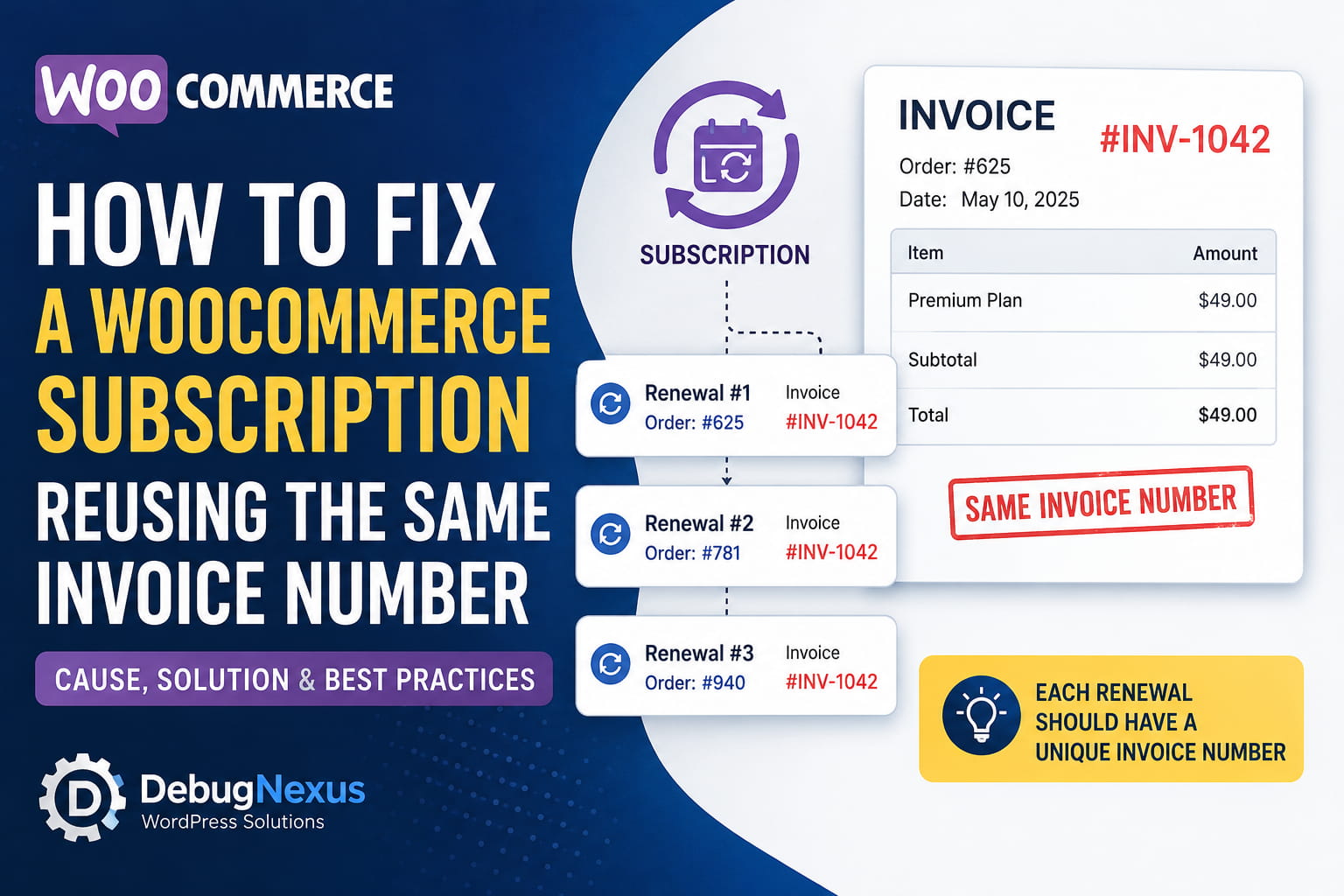
A WooCommerce subscription using the same invoice number for every renewal can create serious accounting confusion. Each renewal payment should normally be recorded as a separate WooCommerce renewal order, and each invoiced renewal should receive its own invoice number.
A typical report looks like this:
One subscription always receives the same invoice number when it renews. Other subscriptions, including subscriptions using the same payment method, work correctly.
When only one subscription is affected, the payment gateway is usually not the first place to investigate. The more likely cause is subscription-specific metadata that is being copied into every new renewal order.
This guide explains how WooCommerce subscription renewals work, why an old invoice number can repeatedly follow one subscription, and how to remove the incorrect data without changing unaffected subscriptions.
Important Before You Start
Create a complete database backup before changing subscription or invoice metadata.
Also confirm which invoice plugin is installed.
The code examples in this guide are specifically intended for:
PDF Invoices & Packing Slips for WooCommerce
by WP Overnight
Do not run the metadata cleanup code when using another invoicing plugin such as Germanized, Flexible PDF Invoices, WooCommerce PDF Invoices, or a custom accounting integration. Those plugins may use completely different metadata keys.
You should also avoid renumbering invoices that have already been officially issued or submitted to accounting. Invoice correction requirements vary by country and accounting system.
How WooCommerce Subscription Renewals Work
WooCommerce Subscriptions creates relationships between a subscription and its associated orders.
A subscription can have:
- One parent order
- Multiple renewal orders
- Resubscribe orders
- Switch orders
Each recurring payment should be recorded in a separate renewal order. A subscription that has renewed several times should therefore have several different WooCommerce order IDs in its Related Orders section.
For example:
Subscription: #500

Parent order: #490
First renewal: #625
Second renewal: #781
Third renewal: #940
The invoice plugin should generate an invoice for the individual renewal order, not continuously reuse the invoice assigned to the subscription or parent order.
The Most Likely Cause
WooCommerce Subscriptions copies custom metadata from the subscription into newly created renewal orders.
WooCommerce’s documentation states that metadata stored on a subscription can be copied to future renewal orders. It also provides developer filters for excluding specific metadata from that process.
This normally helps preserve information such as:
- Customer references
- Delivery instructions
- Custom checkout fields
- Tax information
- Integration identifiers
However, invoice numbers, invoice dates, and invoice-document settings should generally not be copied from a subscription into every renewal order.
If invoice metadata was accidentally saved directly on one subscription, the sequence may look like this:
Subscription #500 contains invoice number INV-1042
                     ↓
Renewal order #625 receives INV-1042
                     ↓
Renewal order #781 receives INV-1042
                     ↓
Renewal order #940 receives INV-1042
That would explain why only one subscription is affected while all other subscriptions work correctly.
Why the Payment Method Is Probably Not the Cause
WooCommerce Subscriptions uses the payment method connected to the subscription to process automatic renewal payments. The renewal process then creates an order to record each payment.
Invoice numbering is normally handled later by the invoice plugin or an external accounting integration.
Because other subscriptions using the same payment method receive correct invoice numbers, the gateway itself is less likely to be responsible. That is an inference rather than proof, but it helps narrow the investigation toward the affected subscription’s stored data.
Step 1: Check the Related Renewal Orders
Go to:
WooCommerce > SubscriptionsOpen the affected subscription and locate the Related Orders section.
Confirm that every renewal has a different order ID.
Correct:
Renewal order #625
Renewal order #781
Renewal order #940
Incorrect or suspicious:
The same order is repeatedly displayed
Some related orders cannot be opened
The renewal invoice links to the parent order
The invoice email always references the original order
WooCommerce explains that a subscription can have multiple renewal orders and that each renewal order records a separate recurring transaction.
When the renewal order IDs are unique but their invoice numbers are identical, the problem is probably within the invoice metadata or invoice-number generation process.
When the renewal order IDs themselves are not unique, troubleshoot WooCommerce Subscriptions, scheduled actions, and custom renewal code before changing invoice data.
Step 2: Compare an Affected and Working Subscription
Open:
- The subscription that repeatedly receives the same invoice number
- A working subscription using the same product or payment method
Compare the following information:
- Related renewal orders
- Order notes
- Payment method
- Subscription status
- Next payment date
- Custom fields
- Invoice information
- Custom code or integration references
The most important difference may be hidden metadata stored only on the affected subscription.
Step 3: Understand the WP Overnight Invoice Metadata
The WP Overnight PDF invoice plugin stores invoice information in WooCommerce order metadata.
Its current source code reads and writes fields including:
_wcpdf_invoice_number
_wcpdf_invoice_number_data
_wcpdf_invoice_date
_wcpdf_invoice_date_formatted
_wcpdf_invoice_settings
_wcpdf_invoice_notes
_wcpdf_invoice_display_date
_wcpdf_invoice_creation_trigger
The plugin loads an existing invoice number from these fields before generating a new one. If a renewal order already contains copied invoice-number data, the plugin may treat the invoice as already existing instead of generating a fresh number.
The invoice plugin also uses a sequential number store when it needs to generate a new invoice number.
Therefore, the repair has two parts:
- Remove invoice-document metadata from the subscription record
- Allow future renewal orders to generate their own invoice information
Step 4: Remove the Incorrect Metadata From the Subscription
The following one-time snippet removes WP Overnight invoice metadata from one specific WooCommerce subscription.
It does not remove invoice data from the parent order or historical renewal orders.
Add the One-Time Repair Snippet
Use a child theme, a small custom plugin, or the Code Snippets plugin.
Replace:
1234with the affected subscription ID.
<?php
/**
 * One-time repair for a WooCommerce subscription that copies
 * WP Overnight invoice data to every renewal order.
 *
 * IMPORTANT:
 * 1. Replace 1234 with the affected subscription ID.
 * 2. Create a database backup before running this.
 * 3. Remove or disable the snippet immediately after it succeeds.
 */

add_action(
	'admin_init',
	static function () {
		if ( ! current_user_can( 'manage_woocommerce' ) ) {
			return;
		}

		if ( empty( $_GET['debugnexus_fix_subscription_invoice'] ) ) {
			return;
		}

		if ( ! function_exists( 'wcs_get_subscription' ) ) {
			wp_die(
				esc_html__(
					'WooCommerce Subscriptions is not available.',
					'debugnexus'
				)
			);
		}

		$subscription_id = 1234;
		$subscription    = wcs_get_subscription( $subscription_id );

		if ( ! $subscription ) {
			wp_die(
				esc_html__(
					'The specified subscription could not be found.',
					'debugnexus'
				)
			);
		}

		$invoice_meta_keys = array(
			'_wcpdf_invoice_number',
			'_wcpdf_invoice_number_data',
			'_wcpdf_invoice_date',
			'_wcpdf_invoice_date_formatted',
			'_wcpdf_invoice_settings',
			'_wcpdf_invoice_notes',
			'_wcpdf_invoice_printed',
			'_wcpdf_invoice_display_date',
			'_wcpdf_invoice_creation_trigger',
		);

		foreach ( $invoice_meta_keys as $meta_key ) {
			$subscription->delete_meta_data( $meta_key );
		}

		$subscription->save();

		wp_die(
			esc_html__(
				'The copied invoice metadata was removed from the subscription. Disable this snippet now.',
				'debugnexus'
			)
		);
	}
);
Run the Repair
While logged in as an administrator, visit:
https://example.com/wp-admin/?debugnexus_fix_subscription_invoice=1Replace example.com with the website domain.
You should see:
The copied invoice metadata was removed from the subscription.
Disable this snippet now.
Immediately disable or remove the snippet after it runs.
Leaving a one-time maintenance routine active is unnecessary and could cause the cleanup to run again when that URL is reopened.
What This Code Does
The snippet:
- Runs only inside WordPress administration
- Requires WooCommerce management permission
- Targets one subscription ID
- Removes only WP Overnight invoice metadata
- Uses WooCommerce CRUD methods
- Does not directly modify database tables
- Does not change historical renewal orders
- Does not delete the subscription
It removes invoice data from the subscription because the subscription itself should not provide the invoice number for every future renewal.
Step 5: Prevent Invoice Metadata From Being Copied Again
Removing the incorrect metadata from the subscription should normally resolve the issue.
However, when another plugin, import, or custom snippet repeatedly adds invoice data to subscriptions, you can also clean copied invoice fields immediately after a renewal order is created.
WooCommerce Subscriptions exposes the wcs_renewal_order_created filter after creating and linking a renewal order.
Add this as a separate permanent snippet only when the metadata continues returning:
<?php
/**
 * Prevent WP Overnight invoice metadata from being inherited
 * by newly created WooCommerce subscription renewal orders.
 */

add_filter(
	'wcs_renewal_order_created',
	static function ( $renewal_order, $subscription ) {
		if ( ! $renewal_order instanceof WC_Order ) {
			return $renewal_order;
		}

		$invoice_meta_keys = array(
			'_wcpdf_invoice_number',
			'_wcpdf_invoice_number_data',
			'_wcpdf_invoice_date',
			'_wcpdf_invoice_date_formatted',
			'_wcpdf_invoice_settings',
			'_wcpdf_invoice_notes',
			'_wcpdf_invoice_printed',
			'_wcpdf_invoice_display_date',
			'_wcpdf_invoice_creation_trigger',
		);

		foreach ( $invoice_meta_keys as $meta_key ) {
			$renewal_order->delete_meta_data( $meta_key );
		}

		$renewal_order->save_meta_data();

		return $renewal_order;
	},
	20,
	2
);
This removes inherited invoice-document data before the renewal order is normally invoiced.
It does not create the invoice itself. It only ensures that a new renewal order does not begin with an old invoice number copied from the subscription.
Step 6: Handle Existing Renewal Orders Carefully
The subscription cleanup affects future renewals. It does not automatically repair invoices already generated with duplicate numbers.
Open each affected renewal order individually.
Check:
- Renewal order ID
- Invoice number
- Invoice date
- Whether the invoice was emailed
- Whether the invoice was downloaded
- Whether the invoice was exported to accounting
- Whether the invoice was already reported for tax purposes
When the Invoice Has Not Been Issued
When the invoice is still a draft and has not been sent or recorded, the invoice plugin may provide actions to:
Delete invoice
Create PDF invoice
Regenerate invoice
The exact wording depends on the plugin version.
Delete the incorrect invoice document from the renewal order, then generate a new invoice for that specific renewal order.
Do not simply type a random invoice number. Allow the plugin’s numbering system to assign the next valid number.
When the Invoice Has Already Been Issued
Do not silently delete or renumber an official invoice.
Depending on the applicable accounting rules, the correct process may require:
- A cancellation document
- A credit note
- A replacement invoice
- A documented correction
- Retaining the duplicate record with an explanation
Consult the store’s accountant before changing issued invoice records.
Step 7: Check the Next Invoice Number Setting
In the WP Overnight invoice settings, review the Next invoice number field.
The plugin warns that manually setting the next number below the current or highest number can create duplicate invoice numbers.
Do not lower the next invoice number merely to fill a gap.
For example, when the latest invoice is:
INV-1050the next number should normally be higher:
INV-1051It should not be reset to:
INV-1042However, a globally incorrect next-number setting would normally affect multiple orders. When only one subscription is affected, copied subscription metadata remains the stronger possibility.
Step 8: Check Whether Order Numbers Are Used as Invoice Numbers
The WP Overnight plugin can display either:
- A separately generated invoice number
- The WooCommerce order number
Its source code also allows third-party plugins to provide the invoice number through filters.
Check the invoice settings for:
Display invoice number: Invoice Numberrather than:
Display invoice number: Order NumberUsing the order number is not automatically wrong, but it can become problematic when another plugin replaces renewal order numbers with the parent subscription number.
When every renewal has a unique WooCommerce order ID but the displayed order number remains the same, investigate:
- Sequential order-number plugins
- Custom
get_order_number()filters - Accounting integrations
- ERP synchronization
- Subscription-number customizations
- Invoice-number filters
- Custom email templates
Step 9: Search for Custom Code Copying Invoice Fields
Search the child theme, custom plugins, MU plugins, and Code Snippets entries for:
_wcpdf_invoice
wcs_renewal_order_created
wcs_renewal_order_meta
wcs_renewal_order_meta_query
woocommerce_invoice_number
woocommerce_generate_invoice_number
get_order_number
A custom snippet may have been created to copy order data into subscriptions without excluding document-specific fields.
Also inspect any migration or import process used to create the affected subscription. Imported subscriptions may contain metadata copied from an original order.
This is particularly relevant when:
- Only old subscriptions are affected
- Only imported subscriptions are affected
- The problem began after migration
- The subscription was manually created
- A renewal was cloned from another order
- Invoice metadata appears directly on the subscription
Step 10: Test the Next Renewal
After cleaning the subscription metadata, test on a staging website whenever possible.
Confirm that:
- A new renewal order receives a unique order ID.
- The renewal order does not contain an old invoice number before invoicing.
- The invoice plugin creates a new invoice.
- The invoice number differs from previous renewal invoices.
- The PDF references the correct renewal order.
- The customer email contains the correct invoice.
- The next invoice number advances normally.
WooCommerce Subscriptions documents that each renewal creates an order to record the recurring payment, and it provides a testing process for triggering normal renewal behavior.
Other Possible Causes
Copied metadata is not the only possible explanation.
The Invoice Is Being Generated for the Parent Order
A custom email attachment function may receive the subscription’s parent order instead of the current renewal order.
Check whether the PDF displays:
- The parent order date
- The original purchase
- The original order number
- The original transaction details
A Custom Invoice Filter Returns the Subscription Number
A third-party integration may use the subscription number as the invoice number.
That creates the same value for every renewal because the subscription ID remains unchanged throughout the subscription lifecycle.
A Sequential Number Plugin Overrides the Invoice Plugin
Some stores run both:
- An invoice-number plugin
- A sequential WooCommerce order-number plugin
Check which plugin is responsible for the number printed on the PDF.
Existing Invoice Data Was Imported
A migration tool may have copied invoice metadata from an order into a subscription.
Because WooCommerce Subscriptions can copy subscription metadata into future renewals, one incorrect imported value can continue appearing indefinitely.
Custom Object Caching Displays an Old PDF
When the renewal orders contain different invoice numbers but users download the same PDF file, investigate:
- Page caching
- CDN caching
- Object storage
- Static PDF filenames
- Email attachment caching
- Temporary PDF directories
That is a file-delivery problem rather than an invoice-number database problem.
Final Recommendation
When only one WooCommerce subscription receives the same invoice number on every renewal, begin with the subscription’s stored metadata.
The most likely sequence is:
An invoice number was stored on the subscription
                    ↓
WooCommerce copied it to each renewal order
                    ↓
The invoice plugin detected the copied number
                    ↓
Every renewal displayed the same invoice number
The safest repair is to:
- Back up the database.
- Confirm that every renewal has a unique order ID.
- Identify the installed invoice plugin.
- Remove invoice-document metadata from the affected subscription only.
- Regenerate only invoices that have not been officially issued.
- Prevent invoice metadata from being copied into future renewal orders.
- Test a new renewal on staging.
- Review custom invoice and order-number integrations.
Do not run the WP Overnight cleanup code with another invoicing plugin, and do not renumber previously issued invoices without confirming the correct accounting procedure.
