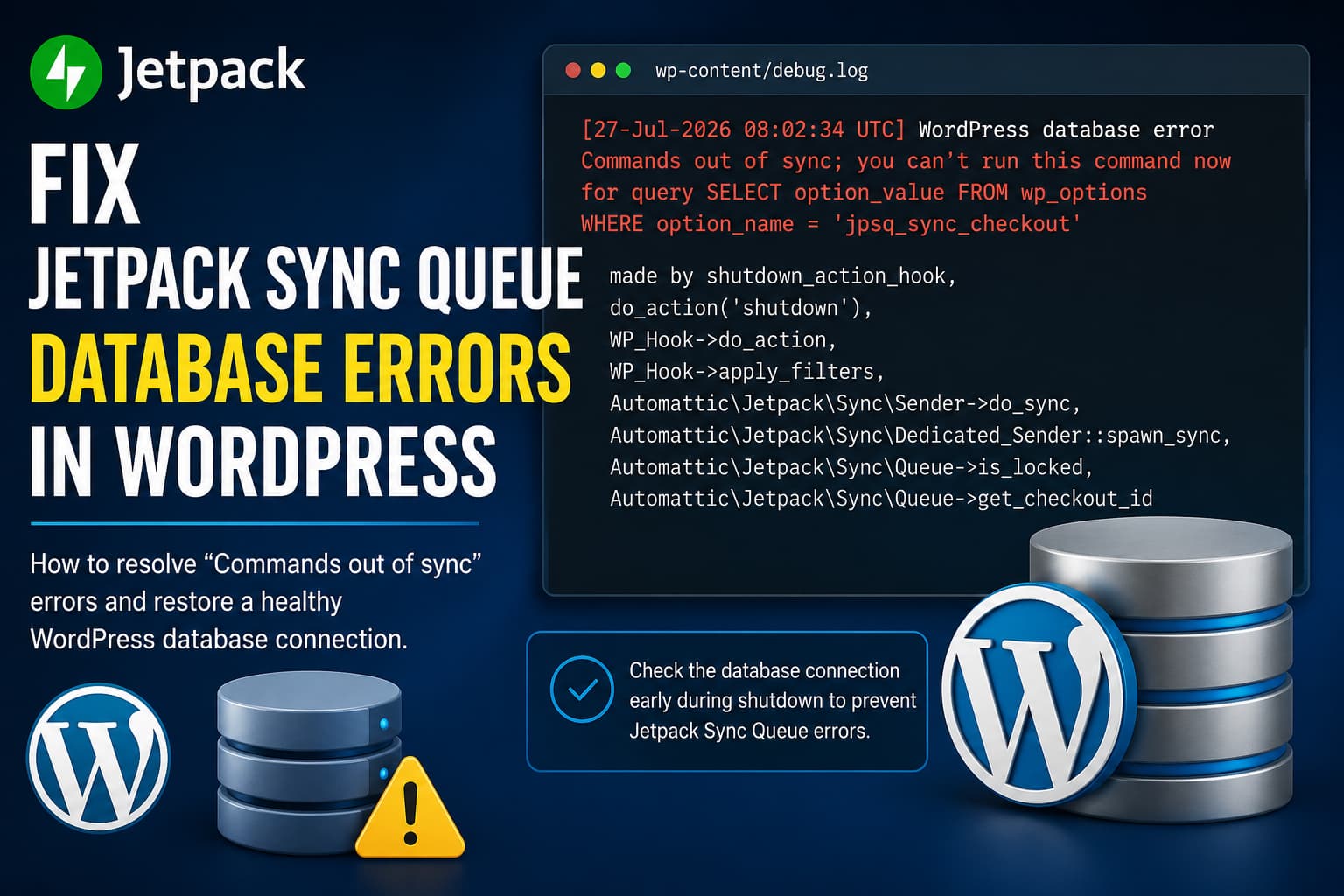
A WordPress website using Jetpack may begin producing repeated database errors involving jpsq_sync_checkout or the wp_jetpack_sync_queue table.
The error commonly looks like this:
WordPress database error Commands out of sync;
you can't run this command now for query
SELECT option_value FROM wp_options
WHERE option_name = 'jpsq_sync_checkout'
made by shutdown_action_hook,
do_action('shutdown'),
WP_Hook->do_action,
WP_Hook->apply_filters,
Automattic\Jetpack\Sync\Sender->do_sync,
Automattic\Jetpack\Sync\Dedicated_Sender::spawn_sync,
Automattic\Jetpack\Sync\Queue->is_locked,
Automattic\Jetpack\Sync\Queue->get_checkout_id
You may also see a related error such as:
WordPress database error Commands out of sync;
you can't run this command now for query
SELECT COUNT(*) FROM wp_jetpack_sync_queue
WHERE queue_id = 'sync'
These errors may appear repeatedly in:
wp-content/debug.logThey can also appear in the PHP error log provided by your hosting company.
Although Jetpack appears throughout the stack trace, this does not automatically mean that the Jetpack database table is corrupted or that Jetpack itself caused the original database connection problem.
Jetpack officially documents this exact error pattern and recommends checking the WordPress database connection at the beginning of the shutdown process. Solution
Add the following PHP code to WordPress:
add_action( 'shutdown', 'debugnexus_check_database_connection', 0 );

function debugnexus_check_database_connection() {
    global $wpdb;

    $wpdb->check_connection();
}
The hook priority of 0 is important. It makes WordPress check the database connection before Jetpack attempts to process its synchronization queue later in the shutdown sequence.
The safest permanent method is to add this code as a small must-use plugin rather than editing the active theme.
Continue reading for complete installation, testing, and troubleshooting instructions.
What Does “Commands Out of Sync” Mean?
The message does not normally mean that WordPress has forgotten the database name, username, or password.
It is a MySQL client-state error.
MySQL explains that a “Commands out of sync” error occurs when database client functions are called in the wrong order. For example, code may try to execute a new query before the result from a previous query has been completely retrieved or released. dPress request, this can happen when:
- A plugin runs a custom MySQL or MySQLi query incorrectly.
- A stored procedure returns multiple result sets that are not consumed.
- Code uses
mysqli_multi_query()without clearing all pending results. - A custom database integration leaves an unbuffered result open.
- A database proxy or specialized hosting configuration leaves the connection in an unusable state.
- Another plugin runs problematic database code shortly before WordPress reaches its shutdown process.
Once the connection is in this state, the next normal query may fail.
Jetpack processes part of its Sync Queue during WordPress shutdown. Therefore, its query may be the first query that detects the broken connection, even when an earlier plugin or custom function created the underlying condition.
Why Does the Error Mention Jetpack Sync?
WordPress runs the shutdown action immediately before PHP finishes processing the request.
Jetpack attaches its synchronization sender to this stage so that it can process queued changes without delaying the main page response more than necessary.
The stack trace therefore includes calls such as:
shutdown_action_hook
Automattic\Jetpack\Sync\Sender->do_sync
Automattic\Jetpack\Sync\Queue->is_locked
This tells us where WordPress encountered the error.
It does not necessarily identify the first code that placed the MySQL connection into the invalid state.
This distinction is important because deleting Jetpack tables, repairing the entire database, or repeatedly reinstalling Jetpack may not solve the actual connection-state problem.
Back Up the Website Before Adding Code
Before modifying a production website:
- Create a complete database and file backup.
- Test the change on a staging website when possible.
- Confirm that you have FTP, SFTP, hosting file-manager, or SSH access.
- Avoid using the built-in WordPress theme or plugin editor when recovery access is unavailable.
WordPress also recommends testing modifications on staging or creating an appropriate backup before enabling debugging or making troubleshooting changes. ion 1: Add the Fix as a Must-Use Plugin
A must-use plugin is a suitable option for this fix because it:
- Does not depend on the active theme.
- Cannot be accidentally deactivated from the normal Plugins screen.
- Continues working after theme updates.
- Loads automatically with WordPress.
- Keeps the workaround separate from unrelated theme code.
Step 1: Open the WordPress Content Directory
Connect to the website using SFTP, SSH, cPanel File Manager, Plesk File Manager, or your host’s file-management tool.
Open:
wp-contentLook for a directory named:
mu-pluginsCreate it if it does not already exist.
The final path should be:
wp-content/mu-pluginsStep 2: Create the PHP File
Inside mu-plugins, create a file named:
debugnexus-jetpack-db-connection-fix.phpAdd the following code:
<?php
/**
 * Plugin Name: DebugNexus Jetpack DB Connection Fix
 * Description: Checks the WordPress database connection before Jetpack Sync runs during shutdown.
 * Version: 1.0.0
 */

add_action( 'shutdown', 'debugnexus_check_database_connection', 0 );

function debugnexus_check_database_connection() {
    global $wpdb;

    if ( $wpdb instanceof wpdb ) {
        $wpdb->check_connection();
    }
}
Save the file.
Do not add a closing ?> PHP tag. Leaving it out helps prevent accidental whitespace from being sent to the browser.
Step 3: Confirm That the Must-Use Plugin Loaded
Log in to WordPress and go to:
Plugins → Must-Use PluginsYou should see:
DebugNexus Jetpack DB Connection FixNo activation is required. WordPress loads must-use plugins automatically.
How the Code Fixes the Error
The code registers a function on the WordPress shutdown hook:
add_action( 'shutdown', 'debugnexus_check_database_connection', 0 );The final value, 0, is the hook priority.
A lower priority number runs earlier. This allows the database check to run before Jetpack performs its normal Sync Queue shutdown queries.
The function then accesses the main WordPress database object:
global $wpdb;Finally, it calls:
$wpdb->check_connection();WordPress describes wpdb::check_connection() as a method that checks whether the current database connection is still usable and attempts to reconnect when it is not. Internally, WordPress tests the connection with a small DO 1 query. If the query fails, WordPress attempts to create a new database connection. es Jetpack a usable connection before it checks the Sync Queue.
Solution 2: Add the Fix with a Code Snippets Plugin
You may use a PHP snippet-management plugin when you cannot access the file system.
Create a new PHP snippet and add:
add_action( 'shutdown', 'debugnexus_check_database_connection', 0 );

function debugnexus_check_database_connection() {
    global $wpdb;

    if ( $wpdb instanceof wpdb ) {
        $wpdb->check_connection();
    }
}
Configure the snippet to run everywhere.
Do not include the opening <?php tag unless the snippet plugin specifically requires it.
After activating the snippet:
- Open several front-end pages.
- Log in and visit several administrator pages.
- Run any process that previously triggered the error.
- Check the PHP and WordPress logs again.
A must-use plugin is generally preferable for a database-related workaround because it loads consistently and does not rely on the normal plugin activation state.
Should You Add the Code to functions.php?
The code can technically be placed in a child theme’s functions.php file, but this is not the recommended long-term location.
The fix would stop loading when:
- The active theme is changed.
- The child theme is temporarily deactivated.
- A developer replaces or rebuilds the theme.
- A deployment overwrites the edited file.
WordPress also advises against placing general-purpose custom debugging functionality in functions.php because of maintenance and code-organization concerns. st-use plugin or a dedicated custom plugin instead.
How to Verify That the Fix Worked
Do not judge the result by checking whether old log entries are still present. Existing entries remain in the file until they are cleared or rotated.
Step 1: Save the Existing Log
Download a copy of:
wp-content/debug.logYou may also save the hosting PHP log for reference.
Step 2: Clear or Rename the Log
Rename the current log to something such as:
debug-old.logWordPress will create a new debug.log when another log entry is generated.
Do not delete logs before saving a copy if they may be needed for further investigation.
Step 3: Reproduce Normal Activity
Perform the actions that previously caused the errors:
- Visit several public pages.
- Edit and update a post.
- Upload or update media.
- Run a WooCommerce action if the site uses WooCommerce.
- Allow WP-Cron to run.
- Use the WordPress mobile app or Jetpack features.
- Clear the website cache.
- Wait for Jetpack synchronization activity.
Step 4: Recheck the Logs
Look for new occurrences of:
Commands out of syncAlso search for:
jpsq_sync_checkoutand:
wp_jetpack_sync_queueIf no new entries appear after normal website activity, the connection check is working.
What to Do If the Error Continues
The shutdown connection check addresses the Jetpack Sync symptom documented by Jetpack. However, repeated errors elsewhere may indicate that another plugin or custom integration is leaving pending MySQL results behind.
Use the following troubleshooting process.
1. Update WordPress and Jetpack
Confirm that you are running stable, supported versions of:
- WordPress core
- Jetpack
- PHP
- MySQL or MariaDB
- Any plugin that performs custom database operations
Create a backup and test updates on staging first.
Do not downgrade WordPress or Jetpack without evidence of a specific version regression.
2. Search the Full Log for the First Database Error
The first error in the request may be more useful than the final Jetpack error.
Search the log entries immediately before:
jpsq_sync_checkoutLook for:
- Stored procedure calls
mysqli_multi_query- Custom reporting plugins
- Database import or export processes
- Search and filtering plugins
- Security scans
- Backup operations
- External database integrations
- Custom PHP code using direct MySQLi functions
Jetpack may only be reporting the condition after the original problematic operation has already occurred.
3. Test for Plugin Conflicts on Staging
Create a staging copy of the website and keep Jetpack active.
Temporarily deactivate the other plugins.
If the error stops, reactivate the plugins individually or in small groups until it returns.
Prioritize plugins that:
- Perform database synchronization.
- Generate large reports.
- Import external records.
- Run database search-and-replace operations.
- Use custom MySQL connections.
- Execute stored procedures.
- Include old or abandoned custom code.
Jetpack also recommends plugin-conflict testing when diagnosing connection and compatibility problems. erform this test on a busy production store unless you have planned maintenance and understand the effect of disabling each plugin.
4. Inspect Custom MySQLi Code
Search custom plugins, must-use plugins, and theme files for:
mysqli_multi_query(mysqli_use_result(mysqli_store_result(mysqli_more_results(mysqli_next_result(Code using multiple query results must process or clear every result before another query is sent through the same connection.
For example, custom code using mysqli_multi_query() may require a loop that consumes all remaining results:
do {
    if ( $result = mysqli_store_result( $connection ) ) {
        mysqli_free_result( $result );
    }
} while (
    mysqli_more_results( $connection )
    && mysqli_next_result( $connection )
);
Do not paste this example into WordPress as a general fix. It must be implemented inside the custom database code that created the pending results.
5. Check the Hosting Database Environment
Contact your host when:
- The site also displays “Error establishing a database connection.”
- MySQL repeatedly restarts.
- Database connections are being terminated.
- The server has reached its connection limit.
- Errors continue after Jetpack is disabled.
- Multiple unrelated plugins report database failures.
- The site uses a database proxy, read replica, or custom
db.phpdrop-in.
Ask the host to check:
- MySQL or MariaDB error logs
- Database restarts
- Aborted connections
- Maximum connection usage
- Database proxy logs
- PHP worker failures
- Server resource exhaustion
- The presence of a custom
wp-content/db.phpdatabase layer
The “Commands out of sync” message is different from the standard WordPress database-connection screen, but an unstable server can produce several types of database failures during the same period.
6. Run the Jetpack Debug Tool
Jetpack provides a connection-debugging tool that checks whether Jetpack can communicate with the site.
You should also verify:
- The website is publicly accessible.
- XML-RPC is not blocked.
- The WordPress REST API works.
- Security rules are not blocking Jetpack.
- Cloudflare or another firewall is not interfering.
- The site responds without severe timeouts.
These checks may not directly cause the MySQL client-state error, but they can reveal other Jetpack problems occurring at the same time.
Should You Delete the jpsq_sync_checkout Option?
Do not begin by manually deleting:
jpsq_sync_checkoutThe error does not say that the option value is invalid.
It says that MySQL cannot execute the SELECT query using the connection’s current state.
Deleting the option may remove one record, but it does not correct an out-of-sync MySQL client connection. Jetpack may also recreate the option later.
Should You Delete the wp_jetpack_sync_queue Table?
Do not drop the following table as a first troubleshooting step:
wp_jetpack_sync_queueThe table name in the error does not prove that the table is damaged.
If the table were missing or corrupted, MySQL would normally produce a different error, such as:
Table does not existor a storage-engine corruption message.
Dropping a Jetpack table can remove queued synchronization data and may create additional problems.
Only rebuild Jetpack data when instructed by Jetpack support or after confirming a separate table-specific failure.
Should You Disable Jetpack?
Disabling Jetpack will usually stop the Jetpack Sync query from appearing because the query is no longer being executed.
However, that does not prove that Jetpack created the original invalid connection state.
Another plugin may continue leaving the connection out of sync, but the problem may become less visible because no later shutdown query attempts to use it.
Apply the documented connection fix and investigate earlier database operations before permanently removing Jetpack.
Is the Connection-Check Code Safe?
The code uses a WordPress core database method and runs once near the end of each request.
Its purpose is to verify that the existing connection can still execute a query and reconnect when it cannot.
The code does not:
- Delete database records.
- Modify the Jetpack queue.
- Repair or alter database tables.
- Change WordPress credentials.
- Disable Jetpack synchronization.
- Remove any Jetpack settings.
As with any production PHP modification, test it on staging and keep a working backup.
Frequently Asked Questions
Is this a Jetpack database corruption error?
Not necessarily. The message normally indicates that the active MySQL client connection is in the wrong state. Jetpack may simply be the next component that attempts a query.
Why does the error occur during shutdown?
Jetpack processes Sync Queue activity through the WordPress shutdown hook. WordPress runs this hook immediately before PHP finishes the current request.
Why is hook priority 0 required?
Priority 0 makes the database connection check run early in the shutdown sequence, before Jetpack performs its queue checks.
Will repairing the wp_options table fix it?
Usually not. The failed SELECT query involves wp_options, but the error concerns the connection’s command state rather than the structure of the table.
Run a table repair only when separate evidence indicates table corruption.
Can I remove the code after Jetpack is updated?
You may test removing it on staging after confirming that the underlying condition no longer occurs. Keep the code active when removing it causes the error to return.
Does the code slow down WordPress?
The check adds a small database connection test during shutdown. It is not expected to affect the visible page significantly because it runs at the end of the request.
What if the entire website shows a database connection error?
That is a broader database availability problem. Verify the credentials in wp-config.php, contact the host, and inspect the database server logs. The Jetpack shutdown snippet is not a substitute for fixing an unavailable database server.
Final Solution
For the specific Jetpack Sync Queue error involving:
Commands out of syncand:
jpsq_sync_checkoutadd an early shutdown database-connection check:
add_action( 'shutdown', 'debugnexus_check_database_connection', 0 );

function debugnexus_check_database_connection() {
    global $wpdb;

    if ( $wpdb instanceof wpdb ) {
        $wpdb->check_connection();
    }
}
Install it as a must-use plugin, clear the old logs, reproduce normal website activity, and confirm that no new errors are created.
If the error continues outside Jetpack’s shutdown queries, investigate plugins or custom code that use direct MySQLi calls, multiple result sets, stored procedures, or custom database connections.
