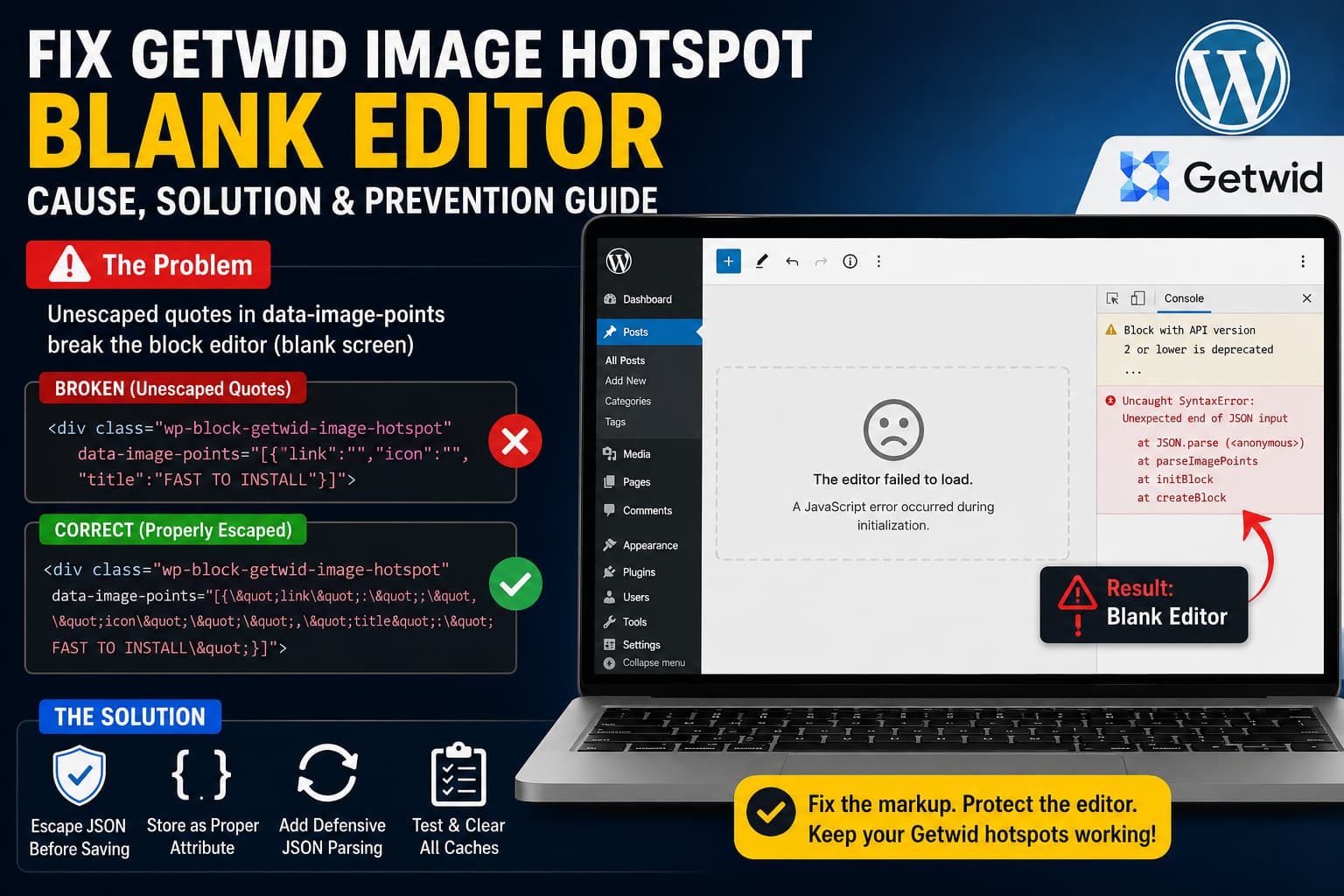
The Getwid Image Hotspot block can cause the WordPress block editor to load as a completely blank screen after one or more hotspot points are added.
The affected page may still display correctly on the front end. However, opening the same page in the WordPress editor produces a white or blank screen without a useful error message.
In some cases, the browser console displays only unrelated warnings such as:
Block with API version 2 or lower is deprecatedThe actual problem may occur earlier, while WordPress is parsing the saved Image Hotspot markup.
A malformed data-image-points attribute can cause the JSON containing the hotspot configuration to be truncated. When Getwid subsequently passes that value to JSON.parse(), the editor initialization fails.
This guide explains how to:
- Confirm the malformed attribute
- Recover an affected page
- Apply a temporary compatibility workaround
- Repair existing posts with WP-CLI
- Correct the Getwid block code
- Prevent the problem from returning
Symptoms of the Getwid Image Hotspot Problem
This issue generally follows the same pattern:
- Add a Getwid Image Hotspot block.
- Select an image.
- Add one or more hotspot points.
- Save or update the page.
- Reload the WordPress editor.
The editor then loads as a blank page.
Other symptoms may include:
- The WordPress admin toolbar loads, but the editing canvas remains empty.
- The front-end page still displays the hotspot.
- A newly inserted hotspot without points works normally.
- The problem begins only after the first point is created.
- Disabling Getwid allows the page to open as an unsupported block.
- Browser console warnings do not clearly identify the fatal parsing problem.
An empty hotspot normally stores an empty array:
[]Because that value contains no quotation marks, it does not trigger the same malformed-attribute condition.
Important Version Check
A reported environment identified the plugin as “Getwid 7.0.2.” However, the official WordPress plugin directory currently lists Getwid 2.2.0.
The likely environment is therefore:
Getwid: 2.2.0
WordPress: 7.1 Beta 3
Browser: Chrome
WordPress 7.1 Beta 3 is a development release intended for testing. WordPress specifically advises against using it on production or mission-critical websites. The current stable security release is WordPress 7.0.2.
Getwid 2.2.0 currently declares that it has been tested through WordPress 6.9.5. This does not prove that WordPress 7.1 causes the problem, but it makes compatibility testing on a stable WordPress release an essential first step.
What Causes the Blank Editor?
Getwid stores the hotspot points as JSON.
A simplified hotspot configuration might look like this:
[
  {
    "link": "",
    "icon": "",
    "title": "FAST TO INSTALL",
    "position": {
      "x": "42%",
      "y": "35%"
    }
  }
]
Getwid also stores this value in an HTML data attribute named:
data-image-pointsThe correct serialized HTML should look similar to this:
<div
    class="wp-block-getwid-image-hotspot"
    data-image-points="[{"link":"","icon":"","title":"FAST TO INSTALL"}]"
>
The quotation marks inside the attribute are represented by ".
The malformed version looks like this:
<div
class="wp-block-getwid-image-hotspot"
data-image-points="[{"link":"","icon":"","title":"FAST TO INSTALL"}]"
>The browser sees the quotation mark before link as the end of the HTML attribute.
Instead of receiving the complete JSON string, the DOM parser may interpret the attribute as something similar to:
[{The remainder is treated as invalid or unrelated HTML attributes.
Getwid then attempts to parse the value:
JSON.parse(imagePoints)Because the value is incomplete, JSON.parse() throws an exception.
What the Current Getwid Source Does
The current Getwid source defines imagePoints as a string extracted from the data-image-points HTML attribute.
Its save component parses the stored string, converts the resulting array back to JSON, and assigns it to a JSX attribute:
const imagePointsParsed =
    imagePoints !== '' ? JSON.parse(imagePoints) : [];

const imagePointsArr = {
    'data-image-points': JSON.stringify(imagePointsParsed),
};

return (
    <div
        {...wrapperProps}
        {...imagePointsArr}
        {...tooltipOptions}
    >
        ...
    </div>
);
That source structure should normally allow the WordPress element serializer to escape the attribute correctly.
Therefore, if the database contains unescaped quotation marks, one of the following may be happening:
- The distributed compiled JavaScript differs from the repository source.
- An outdated compiled asset is still being loaded.
- A cache is serving an older block script.
- A block deprecation migration is producing different markup.
- WordPress 7.1 Beta introduces a serialization or compatibility regression.
- Another plugin modifies block HTML during saving.
- The post was previously saved with an older broken Getwid release.
The malformed saved HTML is the immediate cause of the blank editor, but the exact component that produced it should still be confirmed.
Why the Front End May Continue Working
Browsers are intentionally tolerant of malformed HTML.
A browser may reorganize invalid attributes and render enough of the remaining hotspot structure for the front end to appear functional.
The block editor is less forgiving because it must reconstruct the original block and its attributes from the saved HTML.
WordPress uses each block’s attribute definitions to extract information from saved content. Blocks are responsible for saving sourced attributes in a format that can later be parsed correctly.
The front end may therefore appear normal while the editor fails during block initialization.
How to Confirm the Problem
First, create a complete database backup.
Then retrieve the affected post content with WP-CLI:
wp post get 123 --field=post_content > affected-post.htmlReplace 123 with the affected page or post ID.
Search the exported file:
grep -o 'data-image-points[^>]*' affected-post.htmlLook for markup similar to:
data-image-points="[{"link":"","icon":"","title":"FAST TO INSTALL"}]"If the JSON quotation marks appear as literal quotes rather than ", the attribute is malformed.
A valid version should resemble:
data-image-points="[{"link":"","icon":""}]"You can also inspect the front-end DOM through Chrome DevTools:
const hotspot = document.querySelector(
    '.wp-block-getwid-image-hotspot'
);

const points = hotspot?.getAttribute(
    'data-image-points'
);

console.log(points);
JSON.parse(points);
A valid attribute returns the complete JSON string and parses successfully.
A broken attribute may return only a small fragment or throw a JSON syntax error.
Fastest Workaround: Return to Stable WordPress
When the issue occurs on WordPress 7.1 Beta 3, the safest first test is to restore the website to WordPress 7.0.2 or the stable version used before enabling the beta.
Do this on staging first.
Create a backup and run:
wp core update --version=7.0.2 --forceThen clear:
- WordPress page cache
- Server cache
- Object cache
- CDN cache
- Browser cache
- PHP OPcache, when available
Reload the affected editor.
If it works on WordPress 7.0.2 but fails on 7.1 Beta 3, the problem is likely a beta compatibility regression rather than a general production issue.
Do not use a WordPress beta release on a production website while investigating this problem.
How to Recover an Affected Page
Method 1: Temporarily Deactivate Getwid
Temporarily deactivate Getwid:
wp plugin deactivate getwidOpen the affected page in the block editor.
Because Getwid is no longer registering the Image Hotspot block, WordPress may display it as an unsupported block instead of executing the failing Getwid editing component.
Copy the page content or remove the affected hotspot block.
Reactivate Getwid afterward:
wp plugin activate getwidDo not save the page unnecessarily while Getwid is inactive unless you have confirmed that the original block markup will remain intact.
Method 2: Restore a Revision
List available revisions:
wp post list \
    --post_type=revision \
    --post_parent=123 \
    --fields=ID,post_date,post_title
Review an earlier revision:
wp post get REVISION_ID --field=post_contentRestore a revision created before the hotspot points were added.
The exact restoration method depends on whether you use the WordPress editor, WP-CLI, a backup plugin, or your hosting backup system.
Method 3: Correct the Saved HTML
Export the content:
wp post get 123 --field=post_content > post-123.htmlChange only the quotation marks inside data-image-points.
Broken:
data-image-points="[{"title":"FAST TO INSTALL"}]"Correct:
data-image-points="[{"title":"FAST TO INSTALL"}]"Then update the post using a controlled PHP or WP-CLI process.
Avoid a global database replacement of all quotation marks. Only the JSON inside the affected attribute should be escaped.
One-Time WP-CLI Repair for Existing Posts
The following script searches WordPress posts containing data-image-points, validates the JSON and rewrites the attribute safely.
Create a file named:
repair-getwid-hotspots.phpAdd:
<?php
/**
 * One-time repair for malformed Getwid data-image-points attributes.
 *
 * Run:
 * wp eval-file repair-getwid-hotspots.php
 */

defined( 'ABSPATH' ) || exit;

global $wpdb;

$posts = $wpdb->get_results(
    "
    SELECT ID, post_content
    FROM {$wpdb->posts}
    WHERE post_content LIKE '%data-image-points=%'
      AND post_type NOT IN ('revision', 'nav_menu_item')
    "
);

$pattern = '/data-image-points="(.*?)"(?=\s+data-trigger=)/s';

foreach ( $posts as $post ) {
    $changed = false;

    $fixed_content = preg_replace_callback(
        $pattern,
        static function ( array $matches ) use ( &$changed ): string {
            $raw_json = html_entity_decode(
                $matches[1],
                ENT_QUOTES | ENT_HTML5,
                'UTF-8'
            );

            json_decode( $raw_json, true );

            if ( JSON_ERROR_NONE !== json_last_error() ) {
                WP_CLI::warning(
                    'Skipped an attribute containing invalid JSON.'
                );

                return $matches[0];
            }

            $replacement = sprintf(
                'data-image-points="%s"',
                esc_attr( $raw_json )
            );

            if ( $replacement !== $matches[0] ) {
                $changed = true;
            }

            return $replacement;
        },
        $post->post_content
    );

    if (
        ! $changed ||
        ! is_string( $fixed_content ) ||
        $fixed_content === $post->post_content
    ) {
        continue;
    }

    $result = wp_update_post(
        [
            'ID'           => (int) $post->ID,
            'post_content' => wp_slash( $fixed_content ),
        ],
        true
    );

    if ( is_wp_error( $result ) ) {
        WP_CLI::warning(
            sprintf(
                'Post %d could not be repaired: %s',
                $post->ID,
                $result->get_error_message()
            )
        );

        continue;
    }

    WP_CLI::success(
        sprintf(
            'Repaired Getwid hotspot data in post %d.',
            $post->ID
        )
    );
}
Run it from the WordPress installation directory:
wp eval-file repair-getwid-hotspots.phpAfter confirming the affected pages work, delete the repair script.
Important Safety Notes
Before running the script:
- Create a database backup.
- Test it on staging.
- Review several affected posts manually.
- Clear all caches afterward.
- Confirm the hotspot points and links still work.
- Delete the one-time script after use.
The regular expression assumes that data-trigger follows data-image-points, which matches the current Getwid save structure. Review your saved markup before using it on a customized or modified Getwid build.
Permanent JavaScript Fix for the Block
The save component should pass the JSON string through a JSX property rather than inserting it into a manually constructed HTML string.
Use:
const serializedPoints = JSON.stringify(
    imagePointsParsed
);

return (
    <div
        {...wrapperProps}
        data-image-points={serializedPoints}
        {...tooltipOptions}
    >
        <div {...innerWrapperProps}>
            {imageHTML}
        </div>
    </div>
);
Do not construct the HTML like this:
return `
    <div data-image-points="${JSON.stringify(points)}">
    </div>
`;
The second example directly inserts unescaped JSON into a double-quoted HTML attribute.
The current Getwid repository already uses the safer JSX-property pattern. If the installed release still saves malformed HTML, inspect the compiled plugin assets and confirm they match the source repository.
After modifying Getwid source, rebuild the block assets using the plugin’s documented build process.
For a standard build:
npm install
npm run build
For separately compiled block files:
npm install
npm run build:splitted
A direct edit to an uncompiled source file will not affect the website if WordPress loads only the compiled production bundle.
PHP Fix for a Server-Rendered Block
If the block is rendered with PHP, encode the array with wp_json_encode() and escape the resulting string with esc_attr():
<?php

$encoded_points = wp_json_encode(
    $points,
    JSON_UNESCAPED_SLASHES |
    JSON_UNESCAPED_UNICODE
);

printf(
    '<div class="%1$s" data-image-points="%2$s">',
    esc_attr( $class_name ),
    esc_attr( $encoded_points )
);
WordPress documents esc_attr() as the appropriate escaping function for values inserted into HTML attributes. It encodes quotation marks, angle brackets, ampersands and other characters that could break the attribute structure.
Do not use only:
json_encode( $points )JSON encoding creates valid JSON, but it does not make the JSON safe for direct insertion into a quoted HTML attribute.
The correct combination is:
esc_attr( wp_json_encode( $points ) )Better Long-Term Block Architecture
Getwid currently treats imagePoints as a string sourced from an HTML attribute.
A more resilient architecture would store the points as a real block attribute:
imagePoints: {
    type: 'array',
    default: [],
}
The editor could then use the array directly:
const {
    imagePoints = [],
} = attributes;
The save component could still provide the data for front-end JavaScript:
<div
    data-image-points={JSON.stringify(imagePoints)}
>
Because the attribute has no HTML source, WordPress stores the structured data in the block comment delimiter rather than depending on reparsing a complex JSON value from HTML.
WordPress supports storing attributes without a source in the block delimiter. Its documentation also notes that developers are responsible for maintaining the integrity of structured data serialized through JSON.
Changing an existing attribute format requires a block deprecation and migration routine so that old hotspot blocks continue loading.
Add Defensive JSON Parsing
Getwid should also prevent one malformed block from crashing the entire editor.
Instead of parsing without error handling:
const imagePointsParsed =
    imagePoints !== ''
        ? JSON.parse(imagePoints)
        : [];
Use a defensive helper:
const parseImagePoints = (value) => {
    if (!value) {
        return [];
    }

    try {
        const parsed = JSON.parse(value);

        return Array.isArray(parsed)
            ? parsed
            : [];
    } catch (error) {
        console.error(
            'Getwid Image Hotspot contains invalid point data.',
            error
        );

        return [];
    }
};

const imagePointsParsed =
    parseImagePoints(imagePoints);
This does not correct the malformed saved HTML, but it prevents a single corrupted hotspot from taking down the complete editing interface.
The block can then display a visible recovery notice rather than a blank screen.
Clear Compiled Assets and Caches
After installing or building a fix, clear every cache layer.
Typical locations include:
- WordPress caching plugin
- Hosting control panel cache
- Redis or Memcached object cache
- Varnish
- Cloudflare
- Browser cache
- PHP OPcache
- Service worker cache
- Combined or minified JavaScript cache
Also regenerate optimized assets if you use tools such as:
- LiteSpeed Cache
- WP Rocket
- Autoptimize
- Perfmatters
- Cloudflare APO
- Asset CleanUp
Confirm which Getwid JavaScript file is loaded in Chrome DevTools under the Network tab.
Enable “Disable cache” while DevTools is open and reload the editor.
Test the Complete Fix
After repairing the content and code, test the following:
- Insert a new Image Hotspot block.
- Add an image.
- Add one hotspot point.
- Add a title containing quotation marks.
- Add a link.
- Save the page.
- Reload the editor.
- Confirm the editor loads.
- Add a second hotspot.
- Reload again.
- Verify the desktop front end.
- Verify mobile and tablet layouts.
- Duplicate the block.
- Copy and paste the block into another page.
- Test an existing hotspot saved before the fix.
- Check the browser console for errors.
- Inspect the saved
data-image-pointsmarkup.
A title containing quotation marks is an important regression test:
Our “Fast Install” FeatureThe attribute must remain valid even when hotspot titles, content or links contain special characters.
Frequently Asked Questions
Why does an empty Image Hotspot block work?
An empty block stores an empty array:
[]It contains no inner quotation marks. The serialization problem normally becomes visible only after an object is added to the array.
Is WordPress 7.1 Beta 3 definitely responsible?
Not necessarily.
The issue may involve Getwid’s compiled assets, old saved markup, block deprecations, caching or a WordPress beta regression.
Test the same page with WordPress 7.0.2 on staging. If it works on the stable release and fails only on the beta, report the compatibility issue to both Getwid and WordPress Core.
Will deactivating Getwid delete the hotspot content?
Deactivation normally does not remove saved post content. However, the block will become unavailable or unsupported while the plugin is inactive.
Always create a backup and avoid resaving large numbers of affected pages until the content has been inspected.
Will editing the Getwid plugin be permanent?
No.
A normal plugin update will overwrite direct changes made inside:
wp-content/plugins/getwid/The final correction should be released by the plugin developer or maintained in a properly version-controlled custom build.
Is this only an escaping problem?
The malformed HTML is an escaping problem, but a complete solution should also include:
- Defensive JSON parsing
- Block deprecation handling
- Stable structured-data storage
- Compatibility testing
- A visible editor error state
- Automated serialization tests
Should JavaScript use PHP’s esc_attr()?
No.
esc_attr() is a PHP function.
When a JavaScript block returns a normal WordPress element or JSX hierarchy, values should be assigned as element properties so the block serializer can escape them.
Server-rendered PHP markup should use:
esc_attr( wp_json_encode( $points ) )Final Recommendation
For a production website, take the following approach:
- Back up the database and files.
- Move the investigation to staging.
- Replace WordPress 7.1 Beta 3 with stable WordPress 7.0.2.
- Clear all caches.
- inspect the affected post’s
data-image-pointsattribute. - Repair malformed existing content.
- Confirm the installed Getwid compiled bundle matches its source.
- Add defensive JSON parsing.
- Test creating, saving and reopening hotspots.
- Report the reproducible issue to the Getwid developers.
The immediate reason for the blank editor is malformed JSON being recovered from invalid HTML. The long-term solution is not simply to hide the JavaScript error. The hotspot data must be serialized safely, migrated correctly and parsed defensively so one damaged block cannot prevent the entire WordPress editor from loading.
