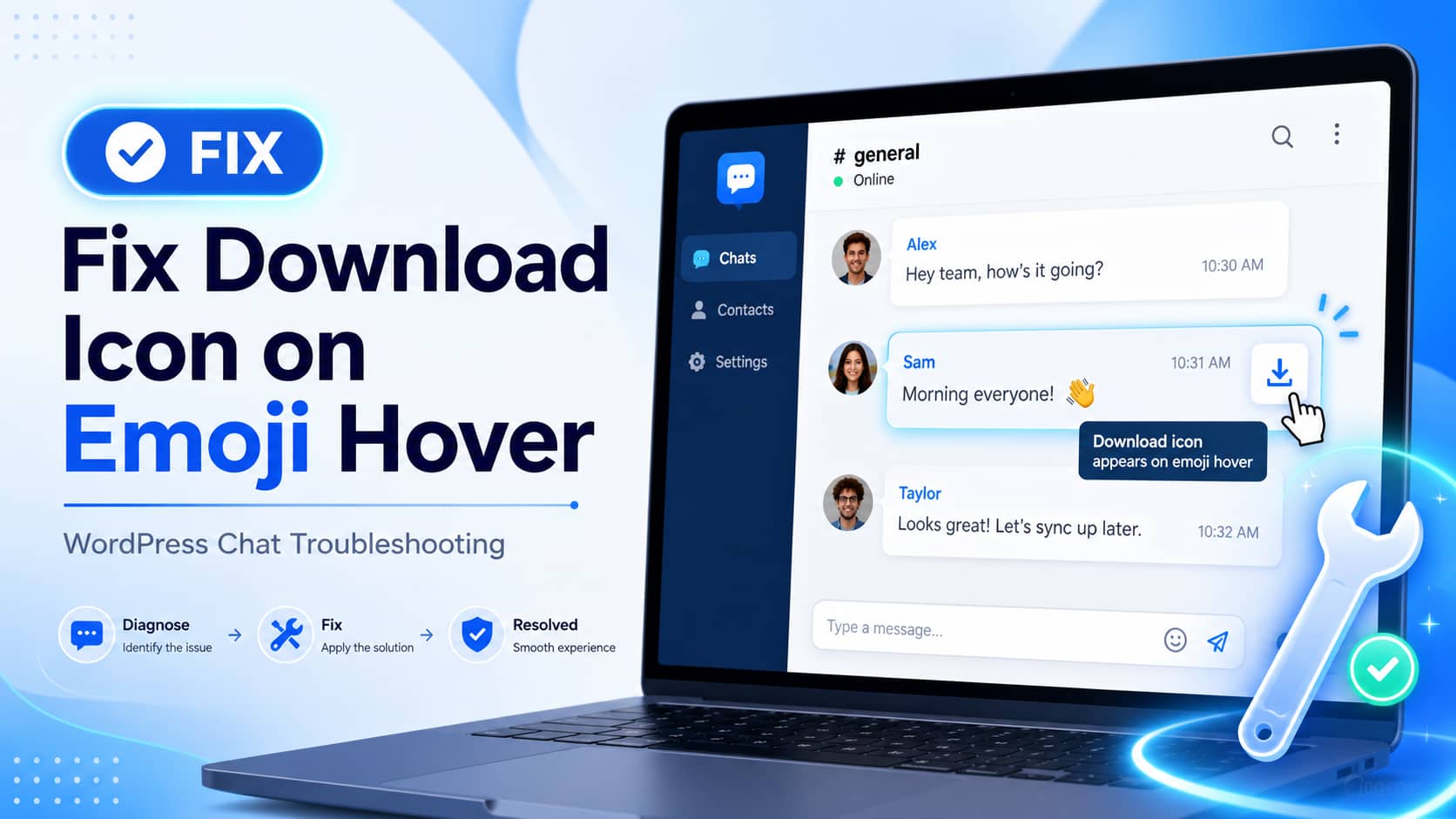
Better Messages users may notice a strange download icon appearing on the right side of a chat message whenever the message contains an emoji.
For example, a message such as:
Hello 👋may display a download button when the mouse is placed over it. However, the same message without the emoji:
Hellodoes not display the download button.
The issue can affect:
- User-sent messages
- AI chatbot welcome messages
- Automatic welcome messages
- Private conversations
- Group chats and chat rooms
A normal emoji should not be treated as a downloadable attachment. Therefore, this behavior is most likely an emoji-rendering or media-detection bug rather than an intentional Better Messages feature.
This guide explains why the problem happens, how to apply the safest immediate fix, and what to check if the icon continues appearing.
Why an Emoji Can Trigger a Download Icon
Better Messages stores the emoji in the message as a normal Unicode character. However, the plugin can render that character in several different visual styles.
The available emoji sets include:
- Apple
- Twitter or Twemoji
- Native
When Apple, Google, Twitter or Facebook is selected, Better Messages converts the Unicode emoji into an image when displaying the message.
The Native option behaves differently. It leaves the emoji as a Unicode character and allows the visitor’s operating system or browser to display it.
Better Messages documents this behavior in its emoji feature documentation. Non-native emoji styles are rendered as images, while the Native style uses the device’s built-in Unicode emoji.
This distinction is important because the download problem appears only when an emoji is present.
The likely sequence is:
- A message contains a Unicode emoji.
- Better Messages converts the emoji into an image.
- The message interface detects an image inside the message.
- The image is mistakenly classified as downloadable media.
- A download icon is added to the message hover controls.
The emoji is not a real user-uploaded attachment, but the interface may still treat it like one because it is displayed with an HTML image element.
Is the Download Icon Expected Behavior?
No. A download button is useful for actual attachments such as:
- Photos
- PDF documents
- ZIP files
- Videos
- Audio files
- Other uploaded documents
An emoji inside a text message is not an attachment and should not display an attachment download action.
If the download icon appears only when an emoji is included and disappears when the emoji is removed, that strongly indicates an incorrect interaction between emoji image rendering and the message attachment controls.
At the time of writing, the Better Messages WordPress plugin page lists the current release series as 2.15.13 through 2.15.19. Its published changelog does not specifically mention a fix for an emoji triggering a download icon.
Until the plugin developer releases or confirms a permanent fix, the following workaround is the safest option.
Recommended Fix: Switch to the Native Emoji Set
Changing the Better Messages emoji style to Native prevents emojis from being converted into image files.
Step 1: Open the Better Messages settings
Sign in to your WordPress dashboard and go to:
Better Messages > SettingsDepending on the installed Better Messages version, the menu may appear under:
Settings > Better MessagesStep 2: Open the emoji integration settings
Navigate to:
Integrations > EmojisLook for the setting named:
Emoji SetThe exact wording or location may vary slightly between plugin versions.
Step 3: Select Native
Change the emoji set from Apple, Google, Twitter or Facebook to:
NativeSave the settings.
The Native option displays the original Unicode character using the visitor’s operating system instead of loading a separate emoji image.
Step 4: Clear all cache layers
After saving the setting, clear every cache that could contain the previous Better Messages configuration.
This may include:
- WordPress caching plugin cache
- Server or hosting cache
- Object cache
- Cloudflare or another CDN cache
- Browser cache
- Minified CSS and JavaScript cache
Open the chat page in a private or incognito browser window after clearing the caches.
Step 5: Test multiple message types
Test the following examples:
Hello

Hello 👋

Welcome to our website 😊

Thank you ❤️
Also check:
- A new user message
- An existing message
- The welcome message
- Messages sent by another user
- Desktop and mobile views
Hover over each message containing an emoji.
If the download icon no longer appears, the problem was caused by image-based emoji rendering.
Why the Native Emoji Fix Works
The Native setting prevents Better Messages from replacing emoji characters with image elements.
Instead of displaying something similar to:
<img src="emoji-image.png" alt="👋">the browser displays the Unicode character directly:
👋Because there is no emoji image inside the message, the media or attachment interface has nothing to classify as downloadable content.
This removes the incorrect download control while leaving real attachments available for download.
Will Native Emojis Look Different?
Possibly.
Native emojis use the design provided by the visitor’s device or operating system. The same emoji may therefore look slightly different on:
- Windows
- macOS
- Android
- iOS
- Linux
For example, a waving-hand emoji may use Apple’s design on an iPhone and Microsoft’s design on a Windows computer.
This is only a visual difference. The underlying emoji character and message content remain the same.
The Native set also has a small performance advantage because the browser does not need to download separate emoji image files.
What to Do If You Need the Apple or Twitter Emoji Style
Some website owners prefer a consistent emoji appearance across every device. In that situation, switching permanently to Native may not be ideal.
You have three options.
1. Use Native temporarily
Use the Native emoji set until Better Messages publishes a plugin update addressing the problem.
After updating, switch back to the preferred emoji style and repeat the hover test.
2. Report the issue to Better Messages support
Provide the plugin developer with:
- Better Messages version
- WordPress version
- Active theme
- Selected emoji set
- Browser name and version
- Screenshot or screen recording
- Whether it affects welcome messages
- Whether it affects user messages
- Whether Native mode fixes the problem
Also mention that the download icon appears only when the message contains an emoji.
This information will help the developer reproduce the issue quickly.
3. Apply a targeted developer patch
A developer may be able to modify the attachment detection logic so that emoji images are excluded from downloadable media.
The correct permanent logic should distinguish between:
- Emoji presentation images
- Reaction icons
- Stickers
- Uploaded images
- Actual file attachments
Do not modify the Better Messages plugin files directly. Any direct modification will normally be overwritten during the next plugin update.
Use a child theme, custom plugin or must-use plugin for temporary code changes.
Do Not Hide Every Download Button With CSS
A broad CSS rule such as:
.bp-messages-wrap [aria-label*="Download"] {
    display: none !important;
}
is not recommended.
It may hide the unwanted emoji download icon, but it can also remove download controls from real attachments.
Users may then be unable to download:
- Documents
- Images
- Invoices
- Audio files
- Shared project files
A safe CSS workaround must target only the incorrect control associated with an emoji-only message. Because the Better Messages HTML structure can change between versions, inspect the affected message in the browser before applying selector-based CSS.
The Native emoji setting is safer because it removes the condition triggering the problem without disabling legitimate attachment features.
What If the Icon Still Appears in Native Mode?
If switching to Native does not remove the icon, another plugin or the active theme may be adding image hover controls.
Common causes include:
- Image lightbox plugins
- Download manager plugins
- Gallery plugins
- Media protection plugins
- Right-click protection plugins
- Theme image-hover effects
- JavaScript optimization problems
- Stale cached Better Messages scripts
Use the following troubleshooting process on a staging website.
Disable image-related plugins temporarily
Temporarily deactivate plugins that add:
- Lightboxes
- Image download buttons
- Media overlays
- Image zoom effects
- Attachment protection
- Gallery hover controls
Test the chat after each change.
If the icon disappears, reactivate the plugins one by one to identify the conflict.
Test with a default WordPress theme
Temporarily switch the staging website to a default WordPress theme.
Do not change the theme directly on a busy production website without creating a backup or staging copy.
If the issue disappears with the default theme, inspect the original theme for CSS or JavaScript that targets every image inside the page content.
Inspect the emoji element
Right-click the emoji and choose:
InspectCheck whether the emoji is displayed as:
- A normal text character
- An
imgelement - A link containing an image
- An element with a
downloadattribute
Also inspect the download button to determine whether it comes from Better Messages, the theme or another plugin.
Check the browser console
Open the browser developer tools and select the Console tab.
Reload the chat page and look for:
- JavaScript errors
- Failed Better Messages scripts
- Blocked emoji files
- Content Security Policy errors
- Mixed-content errors
- Optimization or minification errors
A JavaScript conflict may cause the plugin to apply attachment actions to the wrong element.
Should You Disable WordPress Emoji Support?
Disabling WordPress core emoji support is not the recommended first solution.
Better Messages has its own emoji picker and rendering configuration. Removing WordPress core emoji scripts may therefore have no effect on how Better Messages converts emojis inside chat messages.
Disabling WordPress emojis can also affect emoji presentation elsewhere on the website.
Change the Better Messages Emoji Set to Native first. Only investigate WordPress core emoji processing if the problem continues outside the Better Messages interface.
Complete Testing Checklist
After applying the fix, confirm all of the following:
- Plain text messages do not show a download icon.
- Messages containing one emoji do not show a download icon.
- Messages containing several emojis do not show a download icon.
- Welcome messages display correctly.
- User-sent messages display correctly.
- Old conversations display correctly.
- Emoji reactions continue working.
- Stickers continue working.
- Real image attachments can still be opened.
- Real document attachments can still be downloaded.
- Desktop layout works.
- Mobile layout works.
- No JavaScript errors appear in the browser console.
Testing real attachments is particularly important. The fix should remove only the incorrect emoji-related action and must not disable legitimate file downloads.
Frequently Asked Questions
Why does Better Messages show a download icon for an emoji?
Non-native emoji sets can render emojis as image elements. The messaging interface may mistakenly detect that image as downloadable media.
What is the fastest fix?
Go to Better Messages settings, open Integrations and Emojis, and change the Emoji Set to Native. Save the settings and clear all caches.
Will changing to Native delete existing emojis?
No. Existing messages still contain their original Unicode emoji characters. Only the way they are displayed changes.
Will the fix disable real attachments?
No. Changing the emoji set does not disable Better Messages file sharing or real attachment downloads.
Why does the issue affect welcome messages too?
Welcome messages are processed through the same message-rendering interface. If their emojis are converted into images, the same incorrect media detection can occur.
Can CSS remove the icon?
CSS may hide it, but a broad selector can also hide the download button for legitimate attachments. Switching to Native is safer until the plugin provides a permanent fix.
Should I downgrade Better Messages?
Downgrading should not be the first solution unless the plugin developer recommends a specific stable version. A downgrade can reintroduce security issues, compatibility problems or previously fixed bugs.
Final Recommendation
When a download icon appears only on Better Messages chat messages containing emojis, first change the plugin’s Emoji Set to Native.
The problem likely occurs because Apple, Google, Twitter and Facebook emoji styles are rendered as image elements. The message interface then mistakenly treats the emoji image as downloadable media.
After selecting Native:
- Save the Better Messages settings.
- Clear WordPress, server, CDN and browser caches.
- Test welcome messages and user messages.
- Confirm that real file attachments still work.
- Monitor future Better Messages updates for a permanent fix.
Do not hide every download button with general CSS, because that can break legitimate attachment downloads. If Native mode does not resolve the issue, test for a theme, lightbox or media-plugin conflict on a staging website.
