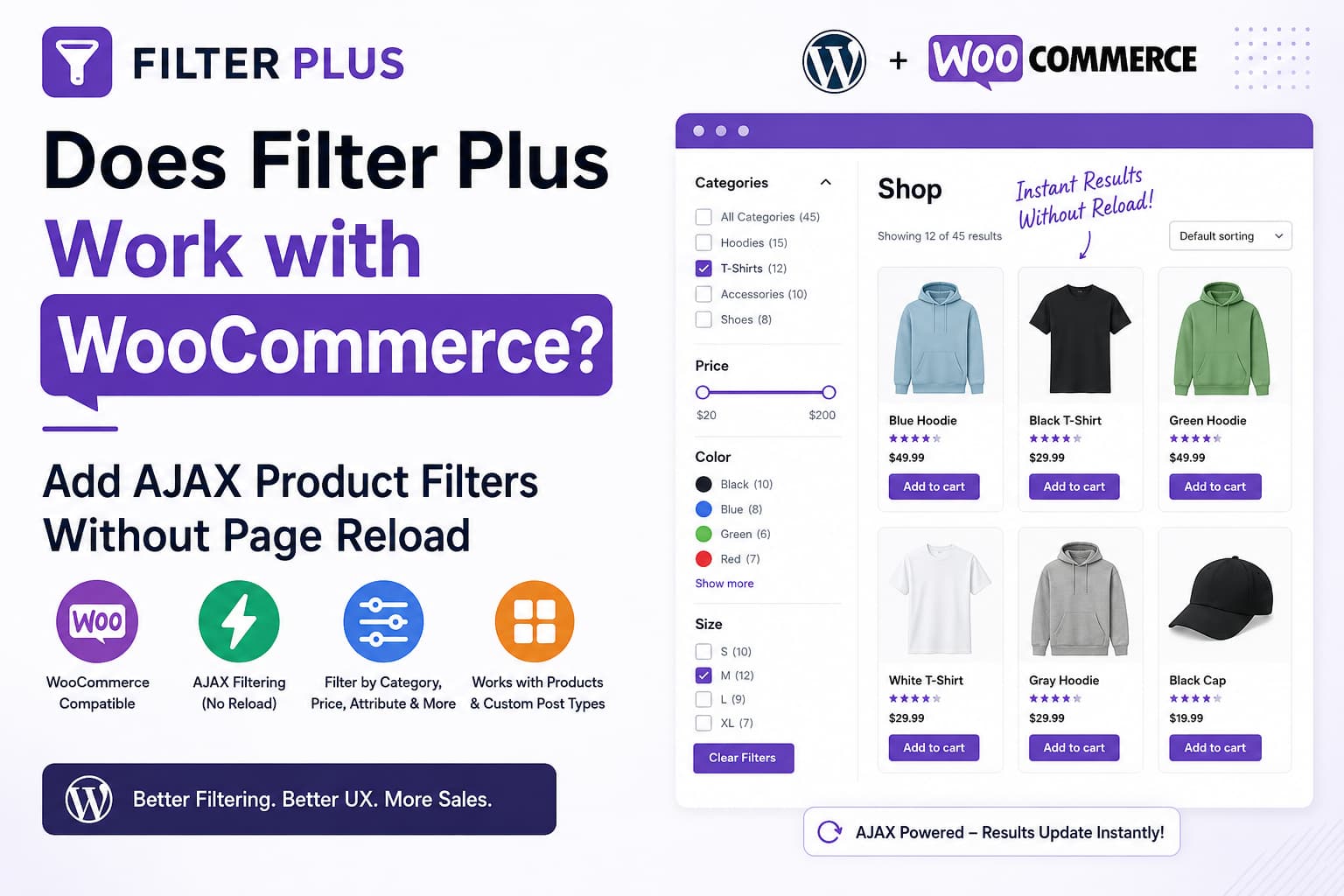
Does Filter Plus Work With WooCommerce?
Yes. Filter Plus can be used to filter WooCommerce products, including AJAX filtering that updates product results without reloading the entire page.
Plugin compatibility information
Plugin: Filter Plus – WordPress & WooCommerce AJAX Filter Plugin
- Current version: 1.1.35
- WordPress.org last updated: September 1, 2026
- Minimum PHP version declared: 7.4 or higher
- Requires WordPress: 5.8 or higher
- Tested up to WordPress: 7.0.7
Source: official WordPress.org plugin listing.
The basic setup is to create a dedicated WooCommerce product filter, connect it to the product output provided by the plugin or a supported integration, enable AJAX submission, and place the filter on the shop page. If the page uses a custom product grid, theme loop, or page-builder template, compatibility may depend on whether the filter can update that product output.
Filter Plus can filter products by values such as:
- Product categories
- Product tags
- Price
- Stock status
- Sale status
- Product ratings
- Color and size
- Global product attributes
- Custom product taxonomies
- Search keywords
Before You Configure the Filter
Install and activate both WooCommerce and Filter Plus. In the WordPress dashboard, go to:
Plugins → Add NewSearch for:
Filter PlusInstall and activate the plugin. Update WooCommerce, Filter Plus, the active theme, and any page builder before configuring the filter. Perform major updates on a staging site first when working with a live store.
A filter can only offer useful choices when those values are assigned to published products. Review your product categories, tags, attributes, prices, stock status, and visibility settings before creating the filter.
Use a WooCommerce Filter for Products
WooCommerce products are stored in WordPress as a custom post type named:
productHowever, WooCommerce also adds product-specific data, including prices, inventory status, sale status, ratings, attributes, variations, and product types. Because of this additional data, use the dedicated WooCommerce Product Filter for products rather than treating them as ordinary WordPress posts.
A separate setup is generally more appropriate for other custom post types:
WooCommerce products → WooCommerce Product Filter
Custom post types → WordPress or Custom Post Type Filter
Both types of filter may use AJAX, but combining products and unrelated custom posts in one result grid can require a compatible multi-post-type query, a custom result template, conditional product output, pagination handling, and additional AJAX development.
Create the WooCommerce Product Filter
The dashboard labels can vary between plugin releases. The source article identifies the following paths:
Filter Plus → Filter Sets → WooCommerce FilterAnother label may be:
Filter Plus → Add New FilterCreate a WooCommerce filter and choose the product categories and filter values that customers need. Common choices include category, price, color, size, rating, stock status, product tag, sale status, search, and sorting.
Do not enable every available option. A smaller filter containing accurate choices is easier to use, especially on mobile devices.
Check category restrictions
If the filter is restricted to one category, products outside that category will not appear even when they match another selected condition. Leave the category restriction unrestricted when the filter should search the complete catalog.
Use global product attributes
Go to:
Products → AttributesCreate attributes such as Color, Size, Brand, Material, Capacity, or Style. Configure the terms for each attribute and assign those terms to the relevant products.
Attribute: Color
Terms: Black, Blue, Red, White
Global WooCommerce attributes are stored as product taxonomies. Their internal slugs normally use the pa_ prefix, such as pa_color or pa_size. Product-specific custom attributes may not be available to taxonomy-based filters.
Choose the submission mode
Use the automatic or instant filtering option when it is available and you want selections to send an AJAX request immediately. A manual Apply button may be preferable when customers need to select several conditions before sending one request.
Also check whether the filter is configured for:
- AJAX auto-submit
- Manual Apply button
- Redirect-based filtering
Select the AJAX mode when the results should update without a complete browser refresh.
Add the Filter to the Product Page
Depending on the installed version and integration, the filter can be placed using a generated shortcode, a Gutenberg block, an Elementor widget, or a Bricks Builder element.
Generated shortcode
After saving the filter, copy the shortcode shown in the Filter Plus dashboard. Do not guess its format. The source article gives these examples:
[filterplus][filter_plus id="1"]Use the exact shortcode generated by your installed version in a Shortcode block, page-builder shortcode element, widget, or template.
Gutenberg block
Edit the page where the products should appear, open the block inserter, and search for:
WooCommerce Product FilterAdd the available Filter Plus block and configure its filter options and product output.
Elementor or Bricks Builder
When using Elementor, search the widget panel for:
Woo Product FilterWhen using Bricks Builder, add the WooCommerce Product Filter element if it is available in your installation. Configure the filter and product output within the supported integration so the plugin can identify the product container it should update.
A standalone filter may not update an unrelated product grid created by a theme, page builder, shortcode, custom query, or another plugin. If possible, first use the native Filter Plus product output or a supported builder integration.
Verify the AJAX Product Filter
Open the shop or test page as a visitor and apply one category, attribute, or price filter. Confirm that the product results change without a complete page reload. Clear the selection, try another filter, and check that the displayed products, result count, pagination, and product links remain consistent.
Repeat the check at a mobile viewport. The observed behavior can vary with the theme, builder, product template, cache, and plugin configuration.
Fix a Full-Page Reload
If the browser reloads the entire page, confirm that you used the WooCommerce product filter rather than a standard WordPress post filter:
Use the Woo Product Filter for products. Do not manually select the product post type in a standard post filter unless the plugin documentation for your installed version instructs you to do so.
Next, check whether the filter is using AJAX auto-submit, a manual Apply button, or redirect-based filtering. Choose the AJAX mode for updates without a page refresh.
Caching and performance plugins can delay, combine, or defer the scripts used by the filter. Temporarily disable the following settings:
- JavaScript delay
- JavaScript combination
- JavaScript deferral
- Guest optimization
- Remove unused JavaScript
- Cloudflare Rocket Loader
Clear every cache and test again in a private browser window. If the filter starts working, re-enable each optimization individually to identify the conflicting setting. Exclude the Filter Plus frontend script from optimization when appropriate. Take the exact script filename from the browser’s Network or Page Source panel because it can vary between plugin versions.
Fix Empty Product Results
Remove category restrictions temporarily and check whether the selected category contains published products. For an affected product, verify that:
- The product is published.
- Catalog visibility is not set to hidden.
- The product belongs to the selected category.
- The product has a valid price.
- Another visibility plugin is not excluding it.
- An out-of-stock setting is not excluding it.
Make sure the page contains both the Filter Plus controls and the product output that Filter Plus is intended to update. A filter may not control an unrelated product grid.
If filter URLs or pagination behave unexpectedly, go to:
Settings → PermalinksClick Save Changes without changing the permalink structure. This refreshes WordPress rewrite rules.
Fix Missing Product Attributes
For missing Color, Size, or Material filters, go to:
Products → AttributesConfirm that the attribute exists, select Configure terms, and add its values. Then assign the global attribute to each relevant product:
- Edit the product.
- Open Product data.
- Select Attributes.
- Add the global attribute.
- Select the relevant terms.
- Save the attribute.
- Update the product.
Repeat this for all products that should appear under the filter value.
If product counts or attribute results remain outdated, the source article recommends clearing WooCommerce product transients and regenerating product lookup tables from:
WooCommerce → Status → ToolsLookup-table regeneration and related maintenance operations can consume server resources on larger catalogs. Use them cautiously and consider store traffic and backups before running them.
Fix AJAX That Stops After the First Filter
This can indicate a JavaScript conflict, a failed AJAX request, or a custom product-template issue. Open the browser developer tools and check the Console and Network panels after applying a filter.
Uncaught TypeError
jQuery is not defined
Failed to fetch
403 Forbidden
500 Internal Server Error
Possible causes include:
- A security plugin blocking the request
- A cached AJAX response
- Expired or invalid nonce data
- A theme replacing the product container
- Duplicate JavaScript libraries
- A popup or page-transition plugin intercepting clicks
- Custom code removing required HTML classes
- Server-side PHP errors
When an AJAX response returns a 500 error, enable WordPress debugging on a staging site:
define( 'WP_DEBUG', true );
define( 'WP_DEBUG_LOG', true );
define( 'WP_DEBUG_DISPLAY', false );
Place the constants above:
/* That's all, stop editing! Happy publishing. */Reproduce the error and inspect:
/wp-content/debug.logDo not enable visible debugging on a live site. Debug logs can contain paths, plugin details, request data, or other sensitive information, so restrict access to the log and remove or review it after the investigation. Disable debugging when the investigation is complete.
Custom Shop Templates and Product Grids
A custom WooCommerce shop page may use an Elementor Loop Grid, JetWooBuilder, a theme-specific product loop, a custom WP_Query, a shortcode from another plugin, infinite-scroll JavaScript, or a custom archive template.
Filter Plus needs an integration that identifies the query and HTML container it should update. Start with a basic page using the native Filter Plus block or shortcode. If that works, the issue is likely related to the custom shop template rather than the product data.
Possible approaches include replacing the custom grid with the Filter Plus product output, using a supported Elementor or Bricks integration, enabling the plugin’s product archive layout when available, creating a child-theme template override, or asking the plugin developer for the correct result-container selector or integration hook.
SEO Considerations for AJAX Filters
AJAX filtering can improve usability, but every combination of category, attribute, price, rating, and sorting parameters can create additional URLs:
/shop/?color=blue&size=large&price=20-50For a typical WooCommerce site:
- Keep important product category pages indexable.
- Keep individual product pages indexable.
- Index only valuable filtered landing pages with genuine search demand.
- Use noindex or other appropriate controls for low-value price, rating, sorting, and multi-filter combinations.
- Use canonical URLs where appropriate.
- Do not include every generated filter URL in the XML sitemap.
- Keep normal crawlable links to important categories and products.
Do not depend entirely on the AJAX interface for product discovery. Maintain accessible links to important categories and products, and review the canonical and robots settings generated for filtered URLs when using Rank Math.
Frequently Asked Questions
Can Filter Plus filter products without reloading the page?
Yes. Configure the WooCommerce filter for AJAX submission. The result update can still depend on the product output, theme, builder, caching, and other integrations.
Can Filter Plus filter regular WordPress custom post types?
Yes. The source article describes separate WordPress and custom post type filters. Select the required post type and configure its supported taxonomies, authors, dates, or custom fields. Advanced custom-field and post-meta filtering may depend on the plugin version or license.
Can one filter show products and custom posts together?
The article recommends separate filter systems for products and other custom post types. A combined result grid may require a compatible multi-post-type query, custom result template, and additional development.
Why are product attributes missing?
Check that the attributes were created under Products → Attributes, that their terms exist, and that the global attributes were assigned to the relevant products.
Why does filtering fail when caching is enabled?
A performance or security layer may interfere with the filter’s JavaScript or AJAX request. Temporarily disable relevant JavaScript optimization, clear caches, inspect the browser Console and Network panels, and then re-enable settings individually.
