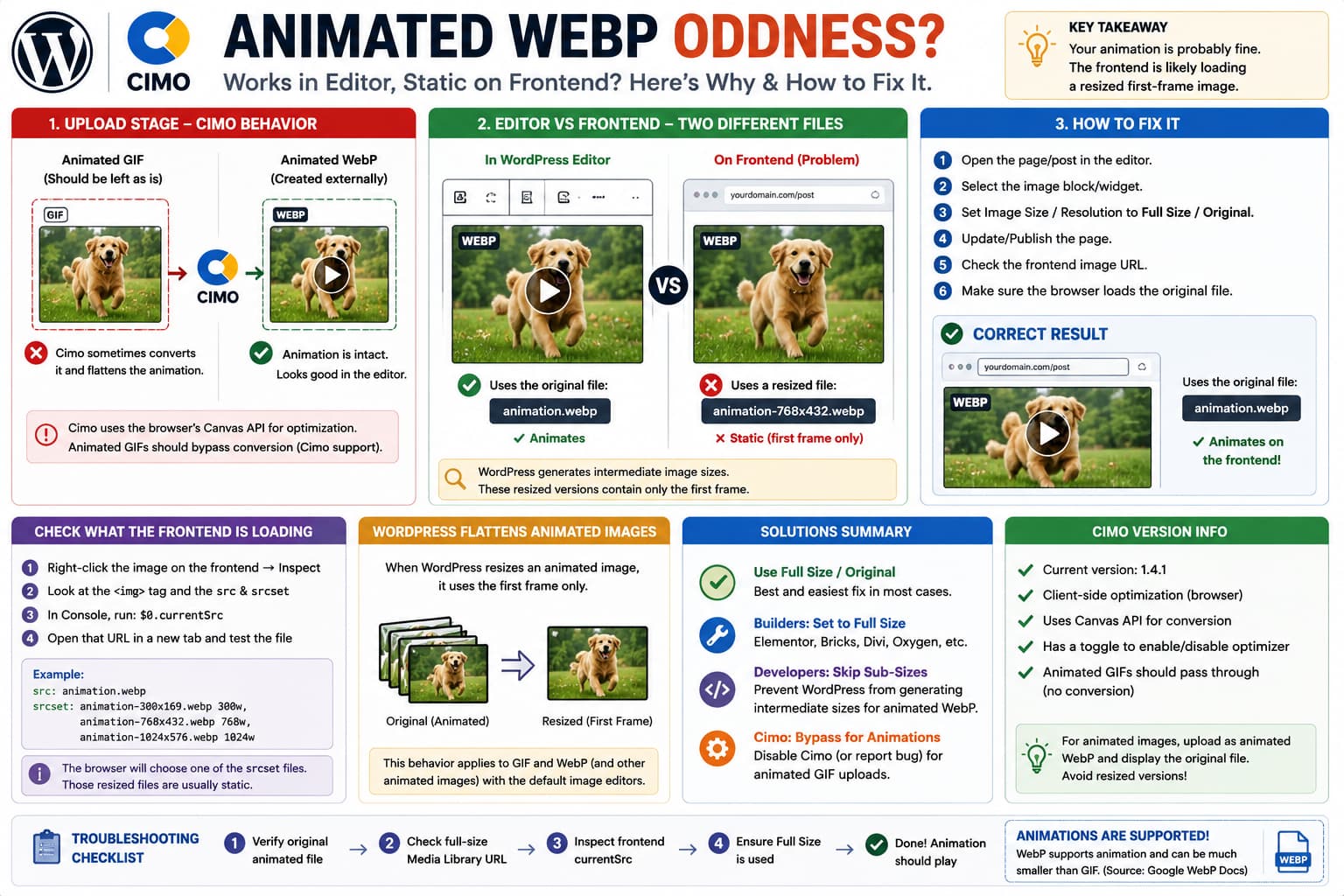
If an animated image works inside the WordPress editor but appears completely static on the published page, the animation itself may still be intact.
A common cause is that the editor and frontend are loading two different versions of the same Media Library attachment.
For example:
Editor:animation.webp✓ animatedFrontend:animation-768x432.webp✗ first frame only
That filename difference is extremely important.
WordPress automatically generates intermediate image sizes such as Thumbnail, Medium, Medium Large, Large, and theme/plugin-specific sizes. When an animated image is resized through the normal WordPress image-processing pipeline, the generated derivative can contain only the first frame. WordPress Core explicitly documents this behavior for animated GIFs, and current WordPress image-processing documentation states more generally that resized sub-sizes of animated images are generated from the first frame by the standard image editors.
So if an animated WebP plays correctly in the editor but becomes static only on the frontend, check which file the frontend is actually serving before blaming Cimo’s original upload.
There Are Actually Two Separate Problems Here
The reported behavior contains two different issues.
Problem 1: Animated GIF Uploaded Through Cimo Becomes Static
Cimo converts images in the browser before WordPress receives them. Its documentation says the conversion is performed client-side, and the plugin’s FAQ explains that its core conversion uses the browser’s Canvas API.
Cimo’s developer has also previously said that the expected behavior for an animated GIF is to leave it alone and upload the original instead of converting it.
Therefore, if a current Cimo release receives an animated GIF and converts it into a single-frame WebP, that is worth reporting as a Cimo bug or regression.
The user should not have to manually convert every animated GIF before uploading if Cimo intends animated GIFs to bypass its optimizer.
Problem 2: Manually Converted Animated WebP Works in Editor but Not Frontend
This is different.
If you manually create an animated WebP, upload it, and can see it animating inside WordPress, then the uploaded full-size file clearly still contains its animation.
At that point, a static frontend strongly suggests that WordPress, the theme, page builder, or another plugin is displaying a resized derivative rather than the original WebP.
That is the first thing to test.
WebP Absolutely Supports Animation
There is sometimes confusion around this.
Animated WebP is a real part of the WebP specification.
Google’s official WebP documentation states that WebP supports animation, multiple frames, lossy and lossless animated images, transparency, and animated files that are often substantially smaller than equivalent GIFs.
So this:
animated.gif→ animated.webp
is completely valid.
If the WebP plays when opened directly, the .webp extension itself is not the problem.
Fastest Test: Inspect the Frontend Image URL
Open the affected page.
Right-click the static image and choose:
Inspect
Find the <img> element.
You might see:
<imgsrc="/wp-content/uploads/2026/08/example-768x432.webp">
Notice:
-768x432
That normally indicates a WordPress-generated intermediate image size.
Now open the Media Library attachment and obtain the full/original URL, for example:
/wp-content/uploads/2026/08/example.webp
Open that file directly in a new browser tab.
If:
example.webp✓ animates
but:
example-768x432.webp✗ static
you have found the problem.
Cimo did not necessarily destroy the uploaded animation.
The resized WordPress derivative did.
Why WordPress Can Flatten Animated Images
When WordPress creates an intermediate image size, it passes the original file through its image editor.
WordPress’s current documentation describes the process as creating resized intermediate files using the active image editor.
WordPress Core also contains special handling for animated GIFs because resizing normally flattens them.
Its responsive-image code explicitly explains that WordPress-generated GIF sub-sizes use one frame and avoids mixing an animated original with static derivatives inside the same srcset.
More recent WordPress image-processing documentation states the same general behavior for animated images:
resized sub-sizes are generated from the first frame.
That behavior applies because the normal GD/Imagick resizing workflow does not preserve the complete animation while creating WordPress sub-sizes.
Why It Can Look Correct Inside the Editor
The editor may display:
Full Size
while your frontend template requests:
LargeMedium LargePost ThumbnailCustom theme size
So both views are technically displaying the same Media Library attachment, but they are not displaying the same physical file.
For example:
Media attachment ID: 123
might contain:
animation.webpanimation-150x150.webpanimation-300x169.webpanimation-768x432.webpanimation-1024x576.webp
Only:
animation.webp
may still contain every animation frame.
Fix 1: Set the Frontend Image to Full Size
This is the safest first solution.
If you inserted the image through Gutenberg, select the Image block and look for its Resolution/Image Size setting.
Change it to:
Full Size
Update the page and check the frontend again.
Then inspect the resulting <img> URL.
You want the primary source to be:
animation.webp
rather than something such as:
animation-768x432.webp
If it starts animating, the issue is confirmed.
Elementor, Bricks, Divi, and Other Builders
The same principle applies to page builders.
Look for settings named:
Image SizeResolutionMedia SizeThumbnail Size
and temporarily choose:
FullFull SizeOriginal
depending on the builder.
Then test again.
The setting name varies, but the goal is always the same:
Make the frontend request the original animated file instead of a generated WordPress image size.
Featured Images Are Especially Likely to Do This
Themes commonly render featured images using a predefined size.
Conceptually:
the_post_thumbnail( 'large' );
or:
the_post_thumbnail( 'post-thumbnail' );
That can select a static derivative.
As a diagnostic test, a developer can render:
the_post_thumbnail( 'full' );
instead.
If the animation starts working, the theme’s image-size request was responsible.
Do not permanently modify a parent theme template just to test this. Use a child theme or staging environment.
Check srcset, Not Just src
Responsive images add another complication.
An image can contain:
<imgsrc="animation.webp"srcset=" animation-300x169.webp 300w, animation-768x432.webp 768w, animation-1024x576.webp 1024w ">
The browser is allowed to choose one of those candidates.
So seeing:
src="animation.webp"
does not necessarily prove the browser downloaded the original.
In DevTools, check:
$0.currentSrc
after selecting the <img> element.
Or inspect the Network tab.
If the browser actually loaded:
animation-768x432.webp
that explains why the frontend is static.
Test the Exact Browser-Loaded File
A useful troubleshooting workflow is:
1. Inspect <img>2. Copy currentSrc3. Open currentSrc directly4. Compare it with the Media Library full URL
Expected diagnosis:
Full URL✓ animatedcurrentSrc✗ static
At that point there is little reason to troubleshoot CSS or JavaScript animation settings.
You are simply viewing two different image files.
What Cimo Does During Upload
Cimo differs from many image-optimization plugins because it performs its conversion before the upload reaches WordPress.
Cimo describes the workflow as:
Browser→ optimize/convert→ upload resulting WebP→ WordPress Media Library
rather than uploading an original JPG/PNG and having the server convert it afterward.
Cimo currently uses browser-side processing and describes its underlying conversion as being based on the JavaScript Canvas API.
This matters for animation.
A simplistic Canvas-based image conversion normally works with a rendered frame rather than automatically preserving an animated image’s complete frame sequence.
That makes animation something an optimizer must deliberately detect and preserve or bypass.
Cimo Already Says Animated GIFs Should Be Bypassed
There is a very relevant Cimo support thread.
A user reported problems uploading GIFs with Cimo enabled.
The Cimo developer said the intended behavior was:
Animated GIF→ upload normallyNon-animated GIF→ optimize to WebP
That means converting an animated GIF into a flattened WebP is not consistent with the behavior Cimo’s developer described.
If that is reproducible on the current version, report it separately from the WordPress frontend derivative issue.
One Correction to the Older Cimo Support Reply
The same support reply stated that animated GIFs were skipped because WebP did not support animations.
That technical explanation is incorrect.
Google’s current WebP specification explicitly supports animated WebP files and defines animation chunks and multiple animation frames.
The useful part of Cimo’s response is therefore the expected plugin behavior:
animated GIFs should be left unchanged.
The reason given for doing so should not be interpreted as a WebP format limitation.
Current Cimo Version
At the time of verification, WordPress.org lists Cimo 1.4.1 as the current public version.
Recent releases added Smart Optimization, an optimizer on/off toggle, bulk media optimization features, and fixes around WordPress’s automatic image scaling, but the published changelog does not mention a dedicated animated GIF-to-animated-WebP conversion feature.
So I would not assume Cimo currently supports preserving animation while actively converting the file.
For now, the safest expectation is:
Static image→ Cimo can optimize/convertAnimated GIF→ Cimo should skip itAnimated WebP→ preserve original and avoid static WordPress derivatives
Cimo Has a Temporary Optimization Toggle
Cimo 1.4.0 added an option to temporarily toggle its optimizer on and off.
That gives you a useful workflow for animations.
Before uploading an animated image:
Settings → Cimo→ Disable optimization
Upload the already optimized animated WebP.
Then turn Cimo optimization back on for normal images.
This avoids sending the animation through Cimo’s conversion pipeline at all.
If you are uploading an animated GIF and Cimo correctly detects it, this should theoretically not be necessary. But it is a useful workaround if the current build is flattening it.
Do Not Re-Optimize the Animated WebP
If you have already created an animated WebP externally, there is little reason to pass it through another still-image conversion step.
You already have:
GIF↓animated WebP↓smaller file
The safest workflow is:
Create animated WebP externally↓Upload without conversion↓Display full/original WebP
rather than:
Animated WebP↓Cimo/browser canvas optimization↓WordPress resize↓unknown animation preservation
Every additional transformation creates another opportunity to collapse the animation into one frame.
Cimo’s Thumbnail Settings Can Help, but Be Careful
Cimo includes controls for WordPress thumbnail generation and even offers a preset that disables thumbnail generation.
If no resized copies are generated, WordPress has fewer opportunities to create static derivatives.
However, I would not disable every WordPress image size site-wide solely because one animated WebP needs to remain animated.
Themes, WooCommerce, galleries, archive cards, and responsive layouts commonly depend on intermediate image sizes.
For a normal content site, the better fix is:
animated image→ use Full Sizenormal images→ continue using optimized WordPress sizes
Developer Fix: Skip Intermediate Sizes for Animated WebP
If the site frequently uploads animated WebP files, developers can prevent WordPress from generating sub-sizes for those files.
WordPress provides:
intermediate_image_sizes_advanced
specifically for filtering the image sizes generated during upload.
However, WordPress does not expose a simple built-in:
is_animated_webp()
function.
So you need to detect the WebP animation structure yourself or use a reliable image library that exposes that information.
A WebP animation contains an ANIM chunk in its RIFF container according to Google’s official specification.
A developer-level solution can therefore detect animated WebP files and return no generated sub-sizes for those specific uploads.
Do not apply:
return [];
to every image.
That would disable responsive thumbnails throughout the site.
A Safer Developer Pattern
Conceptually:
add_filter( 'intermediate_image_sizes_advanced', function ( $sizes, $metadata ) { if ( empty( $metadata['file'] ) ) { return $sizes; } /* * Detect whether this specific file * is an animated WebP. */ if ( my_site_is_animated_webp( $metadata['file'] ) ) { return []; } return $sizes; }, 10, 2);
The important part is not the filter itself.
The important part is accurately detecting animation before disabling image sizes.
For most sites, selecting Full Size for the handful of animated assets is simpler and safer than introducing custom upload logic.
Existing Static Derivatives Will Not Magically Become Animated
Suppose WordPress already created:
animation-300x169.webpanimation-768x432.webpanimation-1024x576.webp
and each contains only the first frame.
Changing a setting does not restore missing animation frames to those files.
You need to either:
stop using those files
by requesting Full Size, or remove/recreate the attachment using a workflow that does not generate flattened derivatives.
Do not repeatedly use thumbnail-regeneration plugins expecting them to restore the animation. If the resizing engine itself flattens the animated source, regenerating simply produces another static derivative.
Check for WordPress Automatic Scaling Too
WordPress can also create a scaled version of very large uploads.
Cimo includes a setting specifically for controlling WordPress’s automatic large-image scaling, and recent Cimo releases have included fixes around that behavior.
If your animated WebP is unusually large, inspect the Media Library URL for something like:
animation-scaled.webp
If that file is static while the original is animated, automatic scaling has introduced the same general problem.
For an animated asset, avoid unnecessary resizing after the animation has already been encoded.
A Practical Workflow That Should Work
For animated graphics, I would use this process:
1. Convert GIF to animated WebP externally.2. Verify the WebP animates when opened directly.3. Temporarily disable Cimo optimization if needed.4. Upload the animated WebP.5. Open its Media Library full URL. Confirm it still animates.6. Insert it into the page.7. Set Image Size / Resolution to Full Size.8. Publish.9. Inspect currentSrc on the frontend.10. Confirm the browser is loading the original .webp.
If that works, Cimo can remain enabled for all your normal JPEG, PNG, and static WebP uploads.
How to Determine Whether Cimo Is Actually Responsible
There is a straightforward test.
Upload the exact same animated WebP twice.
Test A
Cimo ON→ upload→ open full-size Media Library file
Test B
Cimo OFF→ upload→ open full-size Media Library file
If:
Cimo ON→ full-size file staticCimo OFF→ full-size file animated
then Cimo is altering the source animation.
If instead:
Cimo ON→ full-size animatedFrontend→ static
then Cimo has preserved the uploaded animation and the problem occurs after upload, most likely through the WordPress image-size/frontend selection process.
That distinction is much more useful than simply disabling plugins one at a time.
What to Send Cimo Support
If the original animated GIF itself is being flattened by Cimo, send:
- Cimo version
- WordPress version
- browser used for uploading
- original animated GIF
- whether Cimo optimization is enabled
- resulting Media Library filename
- whether the full-size uploaded file is animated
- whether Cimo OFF preserves the same GIF
- whether the problem occurs with animated WebP too
The most useful reproduction is:
Upload animated GIF with Cimo enabled→ resulting full-size Media Library file has only one frame
That removes WordPress theme/frontend image sizing from the equation.
Cimo’s own previous support guidance says an animated GIF should instead pass through unchanged.
How to Verify the Final Fix
After making the change, do not judge only by the WordPress editor.
Check all four stages:
1. Original local animated WebP✓ animates2. Full-size Media Library URL✓ animates3. Frontend currentSrc= full-size animated file4. Published page✓ animates
If stages 1 and 2 work but stage 4 fails, inspect the frontend image URL.
If stage 2 already fails, troubleshoot the upload/optimization stage instead.
This divides the problem into two much easier questions:
Did the animation survive upload?
and:
Is the frontend actually using that animated file?
Most Likely Cause in This Specific Scenario
Based on the reported behavior:
Animated WebP in editor✓ worksSame image on frontend✗ static
the first thing I would inspect is the frontend currentSrc and image size.
If the full Media Library WebP animates, Cimo is unlikely to be the component flattening the frontend copy at that stage.
WordPress or the frontend template is probably requesting an intermediate image derivative containing only the first frame.
The separate issue where Cimo converts an animated GIF into a static result should still be reported, because Cimo’s developer has previously described animated GIF passthrough as the intended behavior.
