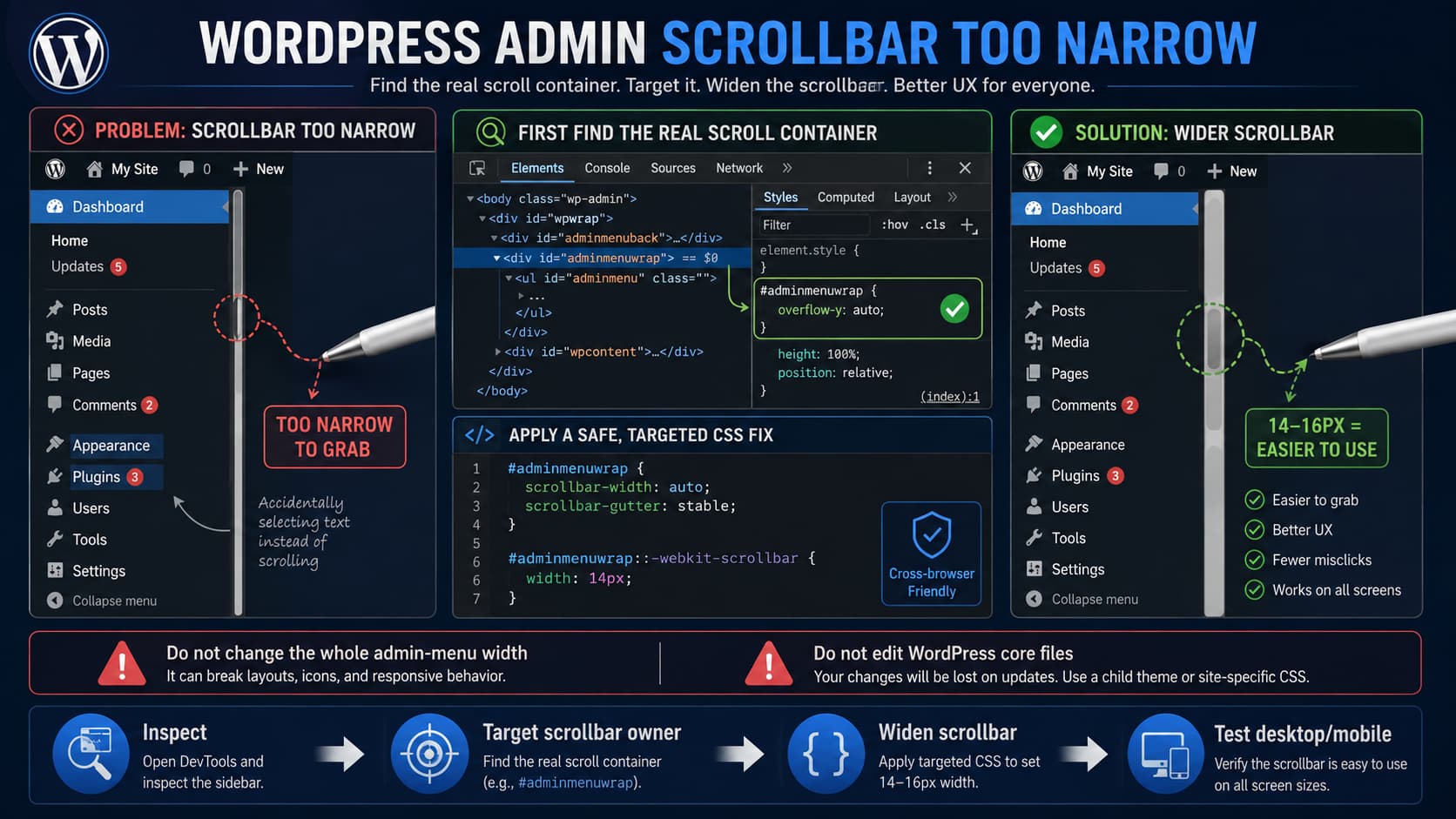
A very narrow scrollbar in the WordPress admin sidebar can be frustrating when using a pen mouse, stylus, or other precision pointing device. Missing the scrollbar by only a few pixels can result in clicking menu entries or dragging across nearby content instead.
A small CSS adjustment can make the scrollbar easier to grab.
There is one important detail to check first, however: WordPress core does not currently make the normal desktop #adminmenuwrap an independently scrolling container by default.
In current WordPress admin CSS, #adminmenuwrap controls the position and width of the left administration menu, but core does not assign it an overflow-y: auto or overflow-y: scroll rule.
Therefore, if a scrollbar visibly exists inside your left admin menu, it may have been introduced by:
- the active theme’s companion/admin features;
- an admin customization plugin;
- a dashboard UI plugin;
- custom CSS;
- a browser-specific or operating-system scrollbar behavior.
The correct fix is to identify the element that owns that scrollbar and style that element.
Try This CSS First
If Developer Tools confirms that:
#adminmenuwrapis the scrolling element, a reasonable desktop rule is:
@media screen and (min-width: 783px) {

    #adminmenuwrap {
        scrollbar-width: auto;
        scrollbar-gutter: stable;
    }

    #adminmenuwrap::-webkit-scrollbar {
        width: 14px;
    }

    #adminmenuwrap::-webkit-scrollbar-track {
        background: #1d2327;
    }

    #adminmenuwrap::-webkit-scrollbar-thumb {
        background: #646970;
        border-radius: 8px;
        border: 3px solid #1d2327;
    }

    #adminmenuwrap::-webkit-scrollbar-thumb:hover {
        background: #8c8f94;
    }
}
This gives Chromium-based browsers such as Chrome and Edge a scrollbar roughly:
14pxwide while keeping its appearance close to WordPress’s dark admin menu.
It also restores the standard scrollbar width in browsers supporting:
scrollbar-width: auto;rather than a deliberately thin scrollbar.
MDN documents scrollbar-width as the standards-based way to select normal or thin scrollbar thickness. The property accepts keywords such as auto and thin; it does not accept an arbitrary pixel width.
The pixel-specific:
::-webkit-scrollbarrules are therefore used for browsers that support that scrollbar pseudo-element.
Why scrollbar-width: 14px Does Not Work
You may find examples online resembling:
#adminmenuwrap {
    scrollbar-width: 14px;
}
That is invalid.
The standard CSS property supports values such as:
scrollbar-width: auto;
scrollbar-width: thin;
scrollbar-width: none;
not:
scrollbar-width: 14px;If the current sidebar scrollbar became unusually narrow because another stylesheet contains:
scrollbar-width: thin;then simply overriding it with:
scrollbar-width: auto;may already make it noticeably easier to grab.
Why scrollbar-gutter: stable Is Included
The rule:
scrollbar-gutter: stable;asks the browser to reserve room for a traditional scrollbar when the element is scrollable.
This can prevent the scrollbar from visually crowding or overlapping the menu contents.
MDN documents scrollbar-gutter: stable specifically for reserving scrollbar space when classic scrollbars are used.
It is important to understand its limitation:
overlay scrollbars do not necessarily use the reserved gutter.
Some operating systems and browsers display the scrollbar over the content instead of allocating separate space for it. In that case, scrollbar-gutter may have little visible effect.
How to Find the Real Scrollbar Element
If the CSS above does nothing, do not keep increasing the scrollbar width.
The selector is probably wrong.
Open the WordPress dashboard in Chrome or Edge and press:
F12or:
Ctrl + Shift + IOpen the Elements panel.
Use the element-selection tool and click inside the left WordPress menu.
Look at the parent elements, particularly:
#adminmenumain
#adminmenuwrap
#adminmenu
Then check Computed styles for:
overflow
overflow-y
The element that owns the scrollbar will normally have something equivalent to:
overflow-y: auto;or:
overflow-y: scroll;and its content height will exceed its visible height.
For example, if you discover:
#adminmenumain {
    overflow-y: auto;
}
then change the scrollbar CSS from:
#adminmenuwrap::-webkit-scrollbarto:
#adminmenumain::-webkit-scrollbarThe rule must target the actual scroll container.
Current WordPress Core Structure
WordPress’s current admin stylesheet defines the standard menu elements at:
#adminmenuback
#adminmenuwrap
#adminmenu
with a normal desktop menu width of:
160pxand the main wrapper:
#adminmenuwrap {
    position: relative;
    float: left;
    z-index: 9990;
}
When WordPress uses its sticky menu behavior, the wrapper becomes:
.sticky-menu #adminmenuwrap {
    position: fixed;
}
But there is no corresponding desktop core declaration there such as:
overflow-y: scroll;This is why a scrollbar specifically embedded in the sidebar should first be traced to the CSS that created it.
WordPress Already Tries to Prevent Menu Text Selection
Interestingly, current WordPress core includes:
#adminmenu * {
    -webkit-user-select: none;
    user-select: none;
}
That is intended to prevent normal admin-menu text from being selected accidentally.
Therefore, if dragging beside the scrollbar actually selects the names of WordPress menu items, inspect the computed CSS for those menu elements.
Another theme or plugin may be overriding WordPress’s:
user-select: nonebehavior.
As a fallback, you could reinforce it:
#adminmenu,
#adminmenu * {
    -webkit-user-select: none !important;
    user-select: none !important;
}
Use that only if the text being selected really belongs to #adminmenu.
It is better to fix the scrollbar’s usable width than rely entirely on preventing selection.
A Slightly Larger Version
If 14px still feels too narrow when using a pen, try:
#adminmenuwrap::-webkit-scrollbar {
    width: 16px;
}
I would start with:
12–16pxrather than making it extremely large.
For example:
@media screen and (min-width: 783px) {

    #adminmenuwrap {
        scrollbar-width: auto;
        scrollbar-gutter: stable;
    }

    #adminmenuwrap::-webkit-scrollbar {
        width: 16px;
    }

    #adminmenuwrap::-webkit-scrollbar-thumb {
        background: #646970;
        border-radius: 8px;
        border: 3px solid #1d2327;
    }
}
Test 14px first and move to 16px only if necessary.
Why the Rule Is Limited to Desktop
The example uses:
@media screen and (min-width: 783px)because WordPress substantially changes its administration navigation around the tablet/mobile breakpoint.
At widths below 782px, current WordPress CSS changes the menu to a responsive drawer-style layout and increases it to approximately:
190pxwide.
A desktop scrollbar customization should therefore not automatically be forced onto the mobile menu.
Where to Put the CSS
Do not edit:
wp-admin/css/admin-menu.cssdirectly.
A WordPress update would overwrite that file.
Likewise, avoid editing WordPress core PHP files.
For a permanent site-level implementation, put the CSS in:
- a small custom plugin;
- an MU plugin;
- a code-snippet plugin that supports admin CSS;
- a dedicated admin stylesheet loaded through
admin_enqueue_scripts.
WordPress officially documents:
admin_enqueue_scriptsas the correct hook for loading CSS and JavaScript intended for administration screens.
For example, a small plugin could enqueue an admin-style.css file containing the scrollbar rules.
Example Small Plugin
Create:
wp-content/plugins/admin-scrollbar-width/admin-scrollbar-width.phpwith:
<?php
/**
 * Plugin Name: Admin Menu Scrollbar Width
 * Description: Adds custom CSS for a wider WordPress admin menu scrollbar.
 */

add_action(
    'admin_enqueue_scripts',
    function () {
        wp_enqueue_style(
            'custom-admin-scrollbar',
            plugin_dir_url( __FILE__ ) . 'admin-scrollbar.css',
            array(),
            '1.0'
        );
    }
);
Then create:
admin-scrollbar.cssin the same directory:
@media screen and (min-width: 783px) {

    #adminmenuwrap {
        scrollbar-width: auto;
        scrollbar-gutter: stable;
    }

    #adminmenuwrap::-webkit-scrollbar {
        width: 14px;
    }

    #adminmenuwrap::-webkit-scrollbar-track {
        background: #1d2327;
    }

    #adminmenuwrap::-webkit-scrollbar-thumb {
        background: #646970;
        border-radius: 8px;
        border: 3px solid #1d2327;
    }

    #adminmenuwrap::-webkit-scrollbar-thumb:hover {
        background: #8c8f94;
    }
}
Activate:
Plugins → Installed Plugins → Admin Menu Scrollbar Width
Again, if DevTools reveals that another element owns the scrollbar, replace:
#adminmenuwrapwith the correct selector.
Why I Would Not Change the Admin Menu Width
Another tempting approach is:
#adminmenuwrap {
    width: 180px;
}
That changes the entire WordPress navigation width.
It can also require corresponding changes to:
#adminmenuback
#adminmenu
#wpcontent
#wpfooter
submenus
folded menu states
Current WordPress core expects the normal menu to be 160px wide and its folded state to be 36px.
Changing the whole sidebar simply to make the scrollbar easier to grab is unnecessary.
Style the scrollbar itself instead.
If the Scrollbar Is an Overlay Scrollbar
On some systems, scrollbars are controlled partly by operating-system/browser behavior.
An overlay scrollbar may:
- disappear when not scrolling;
- remain extremely narrow;
- float over the content;
- ignore some gutter behavior.
MDN explains that browsers distinguish between classic scrollbars, which consume layout space, and overlay scrollbars, which are drawn over the content.
If your custom ::-webkit-scrollbar width rule does not visually change the scrollbar, test another browser.
For example:
Chrome
Edge
Firefox
This can help determine whether you are dealing with WordPress CSS or an OS/browser-specific overlay scrollbar.
Recommended Fix
For a pen or stylus user, start with:
@media screen and (min-width: 783px) {
    #adminmenuwrap {
        scrollbar-width: auto;
        scrollbar-gutter: stable;
    }

    #adminmenuwrap::-webkit-scrollbar {
        width: 14px;
    }
}
If that works, optionally add thumb/track colors.
If it does nothing, inspect the sidebar with Developer Tools and find the element that actually has:
overflow-y: autoor:
overflow-y: scrollThen apply the scrollbar rules to that element.
Because current WordPress core itself does not give the standard desktop #adminmenuwrap an independent vertical scrollbar, identifying the real scroll container is particularly important on sites where a theme or admin-customization plugin has altered the WordPress dashboard.
