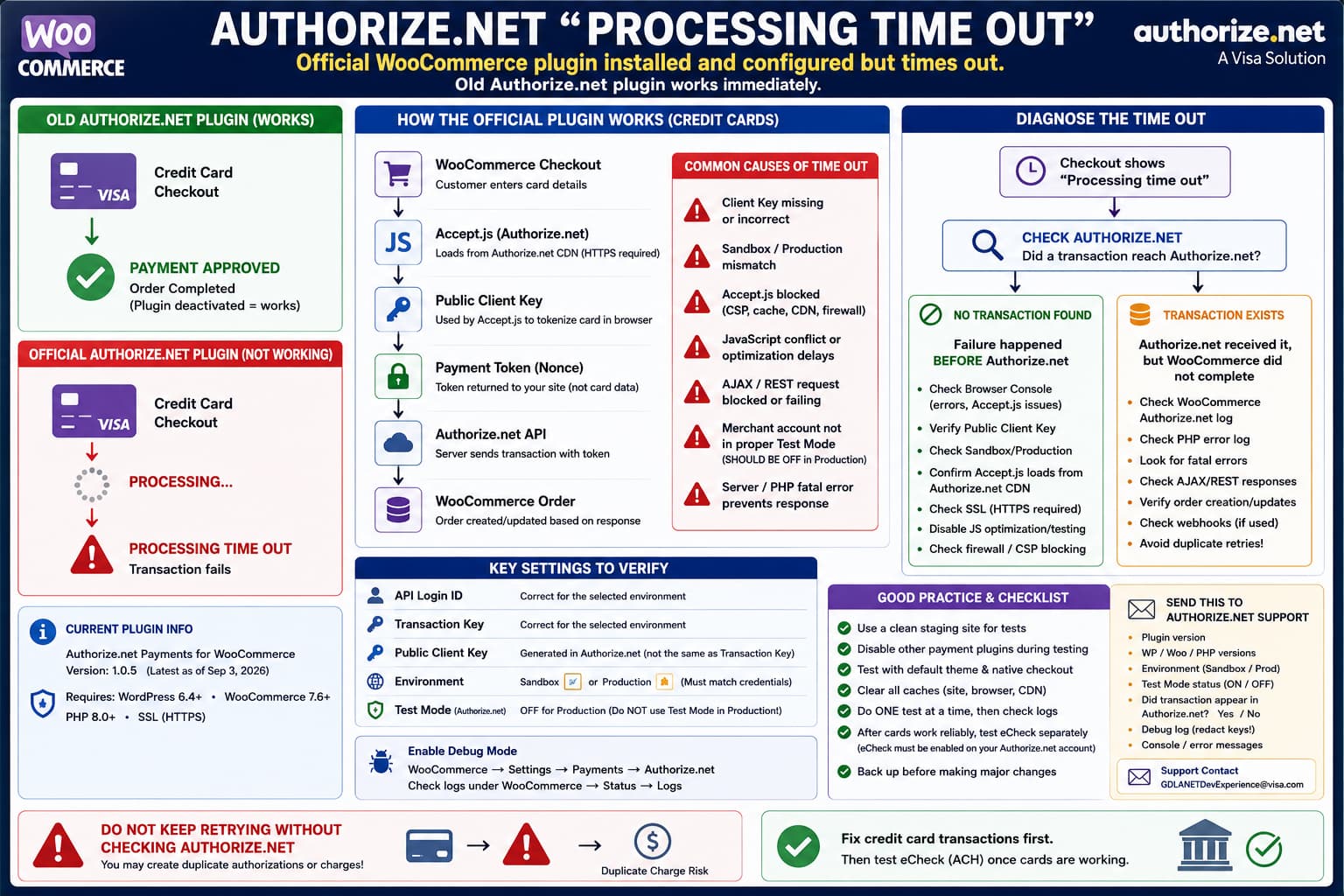
If the official Authorize.net Payments for WooCommerce plugin is installed and configured but checkout ends with:
Processing time outwhile an older Authorize.net gateway works immediately after being reactivated, do not start by assuming the Authorize.net merchant account itself is broken.
The comparison is diagnostically useful:
Old Authorize.net plugin
→ card processes successfully

Official Authorize.net plugin
→ Processing time out
Both integrations ultimately communicate with the same payment processor, but they do not necessarily use the same authentication flow, JavaScript, checkout hooks, credentials, tokenization method, or WooCommerce integration.
The new plugin therefore needs to be debugged as a separate integration.
The current official plugin is Authorize.net Payments for WooCommerce, published by Authorize.net itself. It supports both credit cards and eCheck and is distributed through WordPress.org and the WooCommerce Marketplace.
Do Not Remove the Working Gateway Yet
If the existing gateway is processing real customer payments reliably, keep it available while troubleshooting the replacement.
Do not switch a production store permanently to the new plugin until you have successfully tested:
- normal credit card checkout;
- declined card handling;
- eCheck checkout;
- order-status updates;
- refunds or voids if required;
- saved payment methods if used;
- subscriptions if used.
A payment gateway should be treated as production-critical infrastructure.
The fact that a plugin is described as “official” does not mean a new integration should be deployed without testing it against the site’s existing WooCommerce environment.
First Update to the Current Plugin Version
As of September 3, 2026, WordPress.org lists:
Authorize.net Payments for WooCommerce
Version: 1.0.5
The plugin requires at least:
WordPress:   6.4
PHP:         8.0
and is currently marked as tested through WordPress 7.1.
Version 1.0.5 contains monitoring and compatibility improvements, including Sentry integration and address-field changes, but the published changelog does not list a specific fix for the “Processing time out” error.
Therefore:
Update to 1.0.5is appropriate, but:
1.0.5 definitely fixes this timeoutwould not be supported by the changelog.
Back up the site before updating a production payment gateway.
Verify All of the Plugin Requirements
The official WooCommerce documentation lists the following requirements:
- active Authorize.net account;
- valid SSL certificate;
- WooCommerce 7.6 or newer;
- supported WordPress version;
- PHP 8.0 or newer.
Check:
WooCommerce → Status
and confirm the actual PHP and WooCommerce versions.
Also open the checkout page and confirm it is genuinely served through:
https://with no browser certificate warning.
Authorize.net’s browser-side Accept.js system explicitly requires HTTPS and can return:
E_WC_02
A HTTPS connection is required.
when this requirement is not met.
The Client Key Is Particularly Important
There is a potentially confusing detail in the official documentation.
The WordPress.org plugin FAQ says the required credentials include:
API Login ID
Transaction Key
Client Key
Authorize.net’s own documentation explains that the Public Client Key is specifically required for Accept.js and other Accept products.
This is different from:
Transaction Keyand:
Signature KeyA Public Client Key is intended for browser-side integration.
If the older Authorize.net plugin did not use the same tokenization path, it can continue working while the new gateway fails.
That gives a possible scenario:
Existing gateway
→ server-side/API integration
→ works

New official gateway
→ browser-side tokenization requires Client Key
→ token never generated
→ checkout waits
→ timeout
This is only one possible cause, but it should be checked early.
Generate or Verify the Public Client Key
In Authorize.net, sign in as an administrator.
The Classic Authorize.net documentation places the Client Key under:
Account → Settings → Security Settings → General Security Settings → Manage Public Client Key
Generate the key if one does not already exist.
Then compare it carefully with the value entered into the new WooCommerce gateway.
Do not confuse:
Public Client Keywith:
Transaction Keyor:
Signature KeyThey serve different purposes.
Check Sandbox vs Production Very Carefully
Authorize.net has two separate environments:
Sandbox
Production
A Sandbox account has its own:
- login;
- API Login ID;
- Transaction Key;
- Public Client Key.
Production has separate credentials.
Authorize.net’s Accept.js documentation specifically states that credentials must match the script/environment being used. An API Login ID from Sandbox cannot be used with Production Accept.js and vice versa.
Authorize.net documents this failure as:
E_WC_19
An error occurred during processing.
and explains that Sandbox API Login IDs must be used with the Sandbox version of the service while Production IDs must be used with Production.
The WooCommerce documentation gives the same warning:
Sandbox is not the same as putting your normal Authorize.net account into Test Mode.
This distinction causes a lot of confusion.
Correct:
Plugin Environment: Sandbox
+
Sandbox API credentials
or:
Plugin Environment: Production
+
Production API credentials
Incorrect:
Plugin Environment: Sandbox
+
Production API credentials
Do Not Put the Production Authorize.net Account Into Test Mode
This is another important official warning.
WooCommerce’s Authorize.net documentation states that merchants should not put their normal Authorize.net account into the Merchant Interface’s Test Mode when using the plugin.
It states that transactions will not process correctly in that configuration.
For testing, use a proper Authorize.net Sandbox account.
So check:
Authorize.net → Account → Test Mode
If you are trying to process actual Production transactions:
Test Mode should be OFFThis is independent from the WooCommerce gateway’s Sandbox setting.
Enable the Plugin’s Debug Mode
This should be one of the first concrete debugging steps.
Go to:
WooCommerce → Settings → Payments → Authorize.net
Open the credit card gateway settings.
Enable:
Debug ModeChoose the option that writes logs to WooCommerce.
The official plugin documentation specifically recommends Debug Mode when transactions are not processing and says logs can be saved under:
WooCommerce → Status → Logs
Run one controlled test transaction.
Then open:
WooCommerce → Status → Logs
and look for the Authorize.net log created at that timestamp.
The critical question is:
Did WooCommerce actually send a transaction request to Authorize.net?
There are two very different failure paths.
Path A: No API request appears
That strongly suggests the failure is occurring before server-side payment submission.
Investigate:
- Accept.js;
- Client Key;
- JavaScript errors;
- Content Security Policy;
- optimization/minification;
- checkout JavaScript conflicts.
Path B: An API request appears
Then inspect the Authorize.net response.
Look for a specific:
E...or transaction-response code.
The generic visible timeout message is much less useful than the underlying gateway response.
Do Not Publish Payment Logs Without Redacting Them
Payment logs may contain sensitive order or merchant information.
Before posting logs publicly, remove:
- API Login ID where appropriate;
- Transaction Key;
- Signature Key;
- customer names;
- customer addresses;
- email addresses;
- bank-account information;
- transaction identifiers if sensitive.
Never publish:
Transaction Key
Signature Key
bank routing/account details
in a WordPress support forum.
If the official plugin team requests credentials, use their private support channel rather than a public thread.
Check the Browser Console During Checkout
Because modern Authorize.net integrations can involve client-side payment tokenization, the PHP log is only half of the investigation.
Open checkout.
Press:
F12and open:
Console
Clear existing messages.
Attempt one test order.
Look for:
Uncaught TypeError
ReferenceError
Accept is not defined
Content Security Policy
ERR_BLOCKED_BY_CLIENT
Failed to load resource
or messages referring to Authorize.net.
If JavaScript fails before it generates the payment token, WooCommerce can remain in its Processing state until the checkout code gives up.
That can look like a server timeout even though the underlying problem happened in the browser.
Check Whether Accept.js Loads
Open:
Developer Tools → Network
Reload checkout.
Search for:
acceptAuthorize.net’s Accept.js documentation says the library must be loaded from Authorize.net’s CDN rather than being hosted locally.
Authorize.net documents:
E_WC_01
Please include Accept.js library from CDN.
and:
E_WC_03
Accept.js is not loaded correctly.
The latter can occur if the browser or proxy has cached an incompatible version.
If the script is:
blocked
404
403
cancelled
or never requested, the browser payment flow deserves immediate attention.
Temporarily Disable JavaScript Optimization
Payment forms are particularly vulnerable to aggressive JavaScript optimization.
On staging, temporarily disable features such as:
Delay JavaScript
Defer JavaScript
Combine JavaScript
Minify JavaScript
Remove unused JS
in plugins/services such as:
- LiteSpeed Cache;
- WP Rocket;
- Autoptimize;
- Cloudflare optimizations;
- Perfmatters;
- hosting performance layers.
Then clear:
- WordPress cache;
- server cache;
- CDN cache;
- browser cache.
Retest checkout.
A payment script that must execute immediately should not be delayed until interaction or reordered behind dependent scripts.
If disabling optimization fixes the gateway, re-enable the performance settings individually and exclude the Authorize.net checkout scripts from the problematic optimization.
Check Content Security Policy
A strict Content Security Policy can also block Authorize.net’s browser scripts or requests.
Look in the browser console for errors similar to:
Refused to load the script...
because it violates the following
Content Security Policy directive...
If the site has a custom CSP from:
- Cloudflare;
- a security plugin;
- HTTP headers;
- Nginx;
- Apache;
- a hardening plugin;
confirm that Authorize.net’s required resources are permitted.
Do not globally weaken the site’s CSP.
Add only the Authorize.net origins required by the integration after confirming them against current Authorize.net documentation.
Accept.js Has Specific Credential Errors
Authorize.net’s documentation provides several useful errors for the browser tokenization stage.
Client Key missing
E_WC_18
Client Key is required.
Login/environment problem
E_WC_19
An error occurred during processing.
Authorize.net says to verify the API Login ID and make sure Sandbox/Production environments match.
Authentication failure
E_WC_21
User authentication failed due to invalid authentication values.
Authorize.net says either the API Login ID, Public Client Key, or both are incorrect.
If the browser console shows one of these, increasing PHP’s execution timeout would be completely unrelated to the real problem.
Do Not Increase PHP Timeout Yet
A checkout message containing the word “timeout” often leads directly to:
max_execution_time = 300or:
max_execution_time = 600That is premature here.
If the browser is waiting for Accept.js, if credentials are mismatched, or if an AJAX request is blocked, increasing PHP execution time will only make the visitor wait longer.
Only consider server timeout settings after logs show that WordPress actually made a long-running server request.
First establish exactly where the payment flow stops.
Test With All Other Payment Gateways Disabled
Authorize.net’s own WooCommerce troubleshooting documentation recommends disabling other payment plugins while testing the official integration to isolate conflicts.
Do this on staging if possible.
Keep:
WooCommerce
Authorize.net Payments for WooCommerce
active.
Temporarily disable the older Authorize.net gateway and unrelated payment extensions.
Then test.
This matters especially when two Authorize.net extensions are installed because they may both:
- enqueue Authorize.net scripts;
- register similar gateway IDs;
- hook checkout processing;
- implement saved-payment-method logic;
- load different versions of SDK code.
Do not assume that simply deactivating the older gateway from WooCommerce Payments settings is equivalent to deactivating its plugin during conflict testing.
Use a Default Theme for One Test
If payment still fails on staging, temporarily activate a default WooCommerce-compatible theme.
Then repeat the test.
If:
Default theme → works
Current theme → timeout
inspect:
- custom checkout templates;
- checkout JavaScript;
- overridden WooCommerce templates;
- custom billing-field logic.
This is particularly relevant if the site’s theme heavily modifies checkout.
Test the Native WooCommerce Checkout
If the site uses a checkout builder or heavily customized checkout page, create a temporary clean WooCommerce checkout on staging.
Remove:
- checkout field editors;
- funnel builders;
- one-page checkout modifications;
- custom AJAX checkout scripts.
A payment gateway can function correctly against WooCommerce’s standard checkout while failing when another plugin changes the lifecycle of:
Place orderor replaces the payment form dynamically.
Check the API Login ID and Transaction Key Again
Because the old gateway works, it is tempting to assume credentials are already correct.
That is not always safe.
The new plugin may have been configured using copied values that differ from the old plugin.
Verify the credentials directly from Authorize.net.
The official WooCommerce setup process requires the:
API Login ID
API Transaction Key
and appropriate connection credentials.
Do not regenerate the Transaction Key casually.
Authorize.net warns that regenerating keys can affect existing integrations.
If the old gateway still uses the current Transaction Key, regenerating it could break the working fallback gateway.
Check CIM
The official plugin advertises use of Authorize.net’s:
Customer Information Manager (CIM)
for securely storing customer payment details.
Authorize.net’s API error documentation includes:
E00044
Customer Information Manager is not enabled.
If the new plugin attempts to use CIM in a path that the old gateway does not, a merchant-account configuration difference may become visible only after switching gateways.
Check the debug response before assuming this is the cause.
Check Authorize.net for a Transaction Before Retrying
This is critical after a checkout timeout.
A browser can display an error even when the payment provider already received the transaction.
Before repeatedly submitting the same card, log into Authorize.net and inspect recent transactions.
If a charge exists, do not blindly retry.
Otherwise you risk creating duplicate:
authorizationsor:
chargesAuthorize.net’s own support guidance warns against repeated transaction attempts during some communication failures because duplicate authorizations can occur.
The safe sequence is:
Checkout reports timeout
        ↓
Check Authorize.net
        ↓
Was transaction created?
   ↙                 ↘
Yes                  No
↓                     ↓
Investigate          Retest only
Woo order sync       after cause is known
Determine Whether the Failure Is Before or After Authorize.net
This single distinction can cut troubleshooting time dramatically.
Nothing appears in Authorize.net
Likely investigation area:
Browser
Accept.js
credentials
checkout JavaScript
WordPress outbound request
Transaction appears in Authorize.net but WooCommerce times out
Likely investigation area:
WooCommerce AJAX response
order creation
webhook/API callback
PHP fatal error
security rule
post-payment hook
This is much more useful than simply knowing that the checkout spinner ran for a long time.
Check WooCommerce Fatal Logs
Also inspect:
WooCommerce → Status → Logs
for:
fatal-errorsand your PHP error log.
Search the exact test timestamp for:
PHP Fatal error
Uncaught TypeError
Uncaught Error
Maximum execution time
cURL error
REST API error
A plugin can successfully submit a payment and then hit a fatal error while WooCommerce is creating/updating the order.
To the customer, that may look like a gateway timeout even though the initial transaction succeeded.
Check WordPress REST/AJAX Security Rules
Some checkout integrations rely heavily on WooCommerce REST endpoints or AJAX requests.
Review:
- Cloudflare WAF;
- ModSecurity;
- Wordfence;
- Sucuri;
- hosting firewall;
- custom Nginx rules;
- rate limiting.
Look for blocked requests occurring at the exact checkout timestamp.
A:
403or:
429from a checkout endpoint can leave frontend JavaScript waiting for a result that never arrives correctly.
Do not disable the site’s firewall permanently.
Temporarily test on staging, identify the exact rule, and create the narrowest safe exception.
Test Production and Sandbox Correctly
A clean diagnostic test should use an Authorize.net Sandbox account.
Configure:
Environment: Sandboxand use:
Sandbox API Login ID
Sandbox Transaction Key
Sandbox Public Client Key
Then use Authorize.net’s official test payment details.
Do not use production credentials in Sandbox.
Do not put a production merchant account into Test Mode and expect that to behave as Sandbox.
The official WooCommerce documentation explicitly warns about this distinction.
Do Not Start With eCheck
The reason for installing the new plugin may be eCheck support, but if a basic credit card transaction times out, do not proceed directly to ACH/eCheck testing.
First make this work:
Credit card
→ successful tokenization
→ transaction created
→ WooCommerce order updated
Then enable/test:
eCheckThis isolates the base gateway integration from eCheck-specific merchant-account requirements.
eCheck Must Be Enabled on the Merchant Account
The official plugin does support eCheck.
However, WooCommerce’s documentation clearly states:
You must enable eChecks on your Authorize.net account to use the eCheck gateway.
Authorize.net API documentation also has a merchant configuration error:
E00048
At least one payment method must be set in payment types
or an echeck service must be provided.
So after credit cards work, verify that Authorize.net has actually activated eCheck.Net services on the merchant account before diagnosing ACH checkout.
Why the Old Plugin Working Does Not Completely Prove the New Credentials Are Correct
The old integration may:
- retrieve credentials from different settings;
- use a previously saved Client Key;
- generate/retrieve its Client Key automatically;
- use a different Authorize.net tokenization path;
- tolerate a checkout customization that the new plugin does not.
Authorize.net has documented this exact integration challenge when describing WooCommerce and Accept.js: other plugins and custom JavaScript on self-hosted WooCommerce sites can interfere with payment token generation.
Therefore:
Old plugin worksstrongly suggests the processor and merchant account are basically functional.
But it does not prove:
New plugin's Public Client Key is correct
New plugin's JS loads correctly
New plugin's checkout hooks are conflict-free
Current Plugin Maturity Is Relevant
The official Authorize.net plugin is comparatively new.
Its current changelog starts at:
1.0.0with:
- credit cards;
- eCheck;
- CIM;
- WooCommerce Subscriptions;
- AFDS.
Subsequent versions 1.0.1 through 1.0.5 contain fixes and compatibility improvements related to:
- webhooks;
- orders;
- API handling;
- unsuccessful-order status;
- WooCommerce quality testing;
- error monitoring;
- address validation.
That does not mean the plugin is inherently unreliable.
It does mean that when a mature existing gateway works and a relatively new integration does not, collecting logs and giving the official development team a reproducible case is more useful than repeatedly reinstalling it.
What to Send Authorize.net Support
After one controlled test, collect:
Authorize.net plugin version:
WordPress version:
WooCommerce version:
PHP version:

Checkout type:
Default / Block / customized

Environment:
Sandbox / Production

Production Authorize.net Test Mode:
ON / OFF

SSL:
Valid / invalid

Credit card result:
Processing time out

Does transaction appear in Authorize.net?
Yes / No

Browser Console errors:
[...]

WooCommerce Authorize.net log:
[...]

WooCommerce fatal log:
[...]
Do not include secret API credentials publicly.
Authorize.net’s current WooCommerce support documentation specifically gives this contact for issues with the official integration:
GDLANETDevExperience@visa.comThe WordPress.org plugin also says support can be provided through the WordPress/WooCommerce forums, with private support used when confidential information is needed.
Recommended Troubleshooting Order
Use this sequence rather than changing random settings:
1. Keep the old working gateway available
        ↓
2. Update official plugin to 1.0.5
        ↓
3. Verify PHP / WooCommerce / SSL requirements
        ↓
4. Verify Production vs Sandbox
        ↓
5. Ensure Production account Test Mode is OFF
        ↓
6. Verify API Login + Transaction Key + Client Key
        ↓
7. Enable Authorize.net Debug Mode
        ↓
8. Run ONE controlled test
        ↓
9. Check Authorize.net for transaction
        ↓
10. Check WooCommerce log
        ↓
11. Check browser Console + Network
        ↓
12. Test without optimization/payment conflicts
        ↓
13. Send logs to Authorize.net plugin support
That should identify whether the timeout occurs:
Before Authorize.netor:
After Authorize.netwhich is the most important diagnostic distinction.
Most Likely Areas to Investigate
Given this specific pattern:
Existing Authorize.net gateway works
Official gateway installed
Official gateway configured
Credit card test hangs
Processing time out
Old gateway immediately works again
the highest-value checks are:
1. Public Client Key / Accept.js
The official plugin’s FAQ requires a Client Key, and Authorize.net’s browser API depends on the Public Client Key.
2. Sandbox/Production mismatch
Authorize.net explicitly rejects credentials used against the wrong Accept.js environment.
3. JavaScript conflict
The old gateway and new gateway may not tokenize payment data identically.
4. Optimization or firewall interference
Checkout scripts and AJAX endpoints are common conflict points.
5. Plugin-side bug
If the gateway still times out on a clean staging environment with valid credentials and no JavaScript/API errors, the official plugin team needs the debug output.
Practical Conclusion
Do not abandon the working gateway yet, and do not increase PHP timeouts simply because the frontend says “Processing time out.”
The official Authorize.net WooCommerce integration requires its own credential and checkout path. Its WordPress.org documentation explicitly lists a Client Key, while Authorize.net states that Accept.js requires a Public Client Key and correct Sandbox/Production pairing. Invalid credentials, a missing Client Key, HTTPS problems, blocked/cached Accept.js code, or other checkout JavaScript can stop tokenization before a normal transaction is submitted.
Enable the plugin’s Debug Mode, attempt one controlled transaction, and immediately answer these two questions:
Did a transaction reach Authorize.net?

Did WooCommerce log an Authorize.net API request/response?
If neither happened, investigate the browser/Accept.js stage.
If Authorize.net received the transaction but WooCommerce timed out, investigate the WooCommerce response, order update, AJAX request, webhook, and PHP logs.
Once credit card processing is reliable, test eCheck separately. The official plugin supports eCheck, but Authorize.net must also have eCheck.Net enabled on the merchant account.
