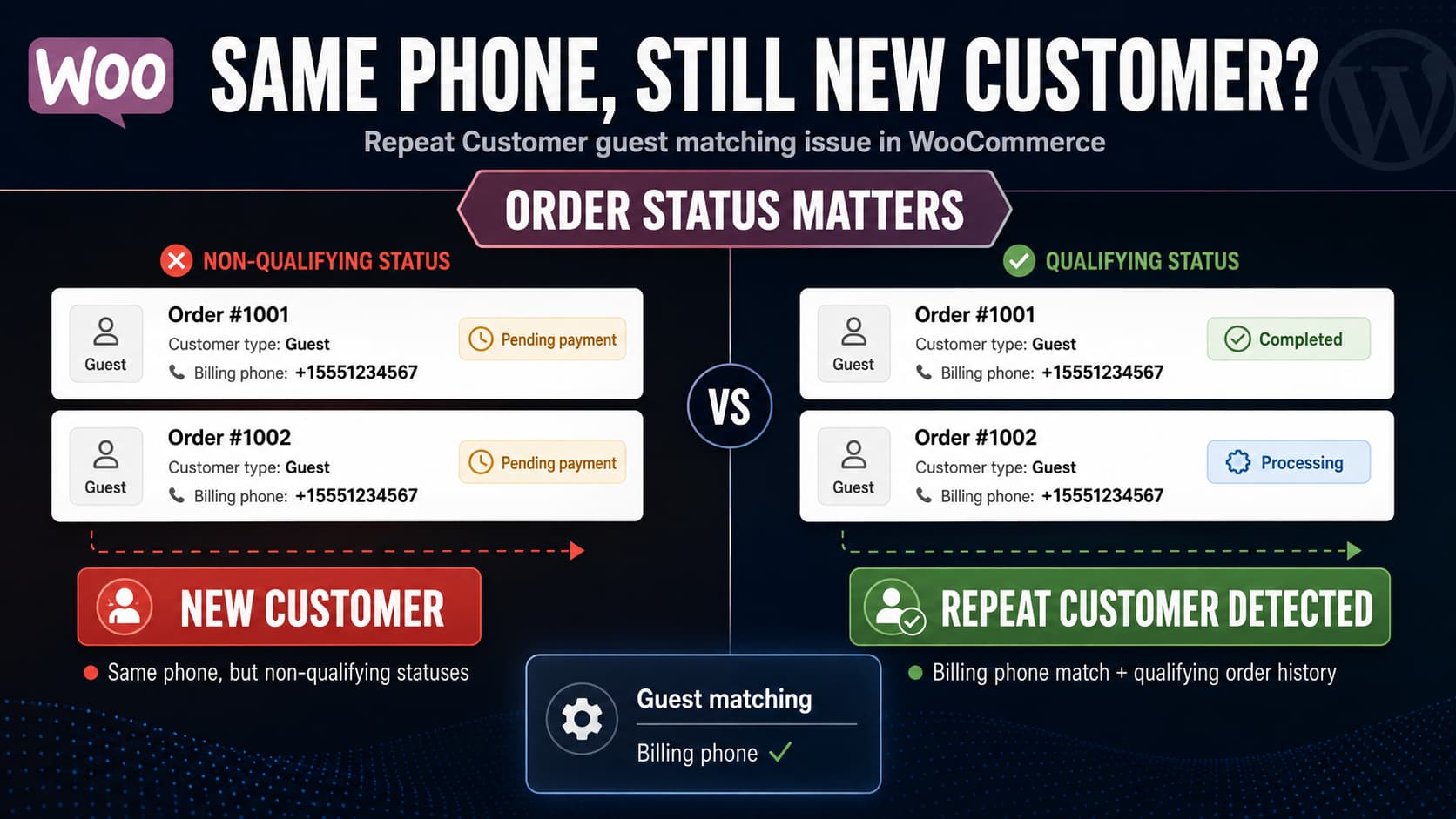
If Repeat Customer for WooCommerce continues showing a guest order as “New customer” even when another guest order uses the same billing phone number, check the order statuses before troubleshooting the phone matching itself.
The plugin supports returning guest detection by billing email, phone number, company name, and postcode. However, its documentation states that only Processing and Completed orders are included when calculating customer metrics. Pending, Cancelled, Failed, and other excluded orders will not make a guest appear as a repeat customer.
This is especially easy to encounter when creating manual test orders in WooCommerce because the orders may not yet represent paid purchases.
Check the Order Status First
Repeat Customer’s FAQ explicitly states:
- Processing orders are counted.
- Completed orders are counted.
- Pending orders are not counted.
- Cancelled orders are not counted.
- Failed orders are not counted.
WooCommerce also defines Pending payment as an order that has been received but has not yet been paid. Processing means payment has been received, while Completed means the order has been fulfilled.
This means a test like this may not work:
Order #1001
Guest
Phone: +1 555 123 4567
Status: Pending payment

Order #1002
Guest
Phone: +1 555 123 4567
Status: Pending payment
Even though both orders contain the same phone number, neither is part of the plugin’s paid-order history.
The result can therefore remain:
New customerThe phone number can be correct and the guest matching option can be enabled while the test still fails because the qualifying order history does not exist yet.
Test With Processing or Completed Orders
The safest way to verify the feature is on a staging site or using WooCommerce’s payment-gateway test mode.
Create the first guest order with a known billing phone number:
+1 555 123 4567Complete the test payment so the order reaches:
Processingor:
CompletedThen create another guest purchase using the same billing phone.
For a clean test, make sure the second purchase also reaches a qualifying paid status before judging the customer metrics.
You should now have something equivalent to:
Guest order #1001
Phone: +1 555 123 4567
Status: Completed

Guest order #1002
Phone: +1 555 123 4567
Status: Processing
Repeat Customer should now have two qualifying orders available when calculating the customer’s history.
Do not mark a real unpaid production order as Processing or Completed merely to test the plugin. WooCommerce uses those statuses to indicate that payment has been received. Use staging, a test payment gateway, or legitimate paid orders instead.
Make Sure Guest Phone Matching Is Enabled
Guest matching was added to Repeat Customer for WooCommerce 1.1.0.
The plugin currently allows individual matching strategies to be enabled or disabled under:
WooCommerce → Settings → Advanced → Repeat Customer
Available guest matching methods include:
- billing email;
- billing phone;
- company name;
- postcode.
The plugin describes postcode as a softer matching signal, while email, phone, and company information can be used to identify returning guests from previous orders.
If you are testing specifically by phone, confirm that phone matching is enabled.
Do not assume that enabling general guest support automatically means every available matching method is active.
Verify the Phone Stored on Both Orders
Next, open both orders directly in WooCommerce and compare the Billing phone values.
Do not rely only on what the customer remembers entering.
Compare the stored values carefully.
For example:
First order:
+15551234567

Second order:
5551234567
These represent the same real-world phone number in some countries, but they are not the same stored string.
Other common variations include:
+44 7700 900123
07700 900123
+447700900123
07700900123
The Repeat Customer documentation confirms that billing phone can be used for guest matching, but it does not document exactly how phone-number normalization is performed internally. Therefore, you should not assume that different international or local formats will always be treated as equivalent.
For troubleshooting, use the exact same stored format on both test orders.
For example:
+15551234567on both.
Test Email Matching as a Diagnostic
If phone matching still appears to fail, enable billing email matching temporarily and create a controlled test using the same guest email address.
For example:
Order 1
Email: test@example.com
Phone: +15551234567
Status: Completed

Order 2
Email: test@example.com
Phone: +15551234567
Status: Processing
If Repeat Customer recognizes the guest when email matching is enabled but fails when only phone matching is enabled, you have narrowed the problem to the phone-matching path rather than the plugin’s entire guest-customer feature.
If neither method works, investigate:
- order statuses;
- plugin version;
- guest-matching settings;
- stored billing metadata;
- cached metrics.
This is much more useful than repeatedly changing phone numbers without isolating which matching mechanism is failing.
Confirm You Are Running Version 1.1.0 or Later
Guest matching did not exist in the initial 1.0.0 release.
According to the official changelog, version 1.1.0 added:
- guest matching by email, phone, company, and postcode;
- the Customer column in the orders list;
- guest match confidence indicators;
- the Repeat Customer settings panel;
- visual order history.
At the time of writing, WordPress.org lists 1.1.0 as the current release.
Check:
Plugins → Installed Plugins → Repeat Customer for WooCommerce
If you are somehow still using 1.0.0, guest-order matching will not work because that functionality was introduced in 1.1.0.
Understand What “New Customer” Means
The orders-list column is not simply asking:
Have I ever seen this phone number before?
The plugin calculates customer information from qualifying WooCommerce order history.
Its official description says the column displays customer order count and lifetime value, and first-time customers appear as:
New customerGuest customers are associated with previous orders through the enabled matching strategies.
Therefore, seeing the same phone number twice does not automatically guarantee a repeat-customer label.
The previous order must also be eligible for the metrics being calculated.
This distinction is important:
Same phone number
        ↓
Guest identity match
        ↓
Qualifying paid order history
        ↓
Repeat customer metrics
If the qualifying-order step fails, the result can still be New customer.
Watch for On-Hold Orders
On hold deserves particular attention because it can look like a valid order in WooCommerce even though Repeat Customer’s documented metrics only include Processing and Completed.
WooCommerce normally uses On hold when payment is still awaiting confirmation, such as with some offline payment methods.
For example:
Order #1001
Phone: +15551234567
Status: On hold
followed by:
Order #1002
Phone: +15551234567
Status: Processing
may still not produce the result you expect because the first order is outside the statuses Repeat Customer says it counts.
Once payment is genuinely confirmed and the earlier order reaches Processing or Completed, repeat-customer calculations have a qualifying previous purchase available.
Check for Cached Customer Metrics
Repeat Customer caches its calculated metrics using WordPress transients for performance.
The plugin’s documentation says the cache is automatically invalidated when:
- an order status changes;
- a refund is processed.
Cached results are then reused rather than querying the order database on every page load.
This is useful for performance but should be considered during troubleshooting.
For example, if you:
- created an order;
- viewed its customer information;
- later edited test data;
- then checked the same order again;
you may need to make sure you are testing against freshly recalculated information.
Changing an order from a nonqualifying status to a legitimate Processing or Completed status should be especially relevant because the plugin documents status changes as a cache-invalidation event.
Avoid deleting every WordPress transient as your first response. Other plugins and WooCommerce also use transients.
First reproduce the issue using fresh test orders with the correct statuses.
Do Not Query Only WordPress Users
Guest orders are different from registered WooCommerce customers.
A WooCommerce guest purchase does not require a corresponding WordPress user account.
Repeat Customer’s guest functionality exists specifically to solve this problem by looking at billing information on previous WooCommerce orders rather than depending entirely on the customer account ID.
So this is expected:
WordPress user account: None
WooCommerce guest orders: Multiple
Repeat Customer matching: Possible
You do not need to convert the guest into a registered user merely to make guest matching work.
A Reliable Test Procedure
To isolate the problem without changing production customer records, use this sequence on staging.
First order
Create a guest checkout with:
Email: repeat-test@example.com
Phone: +15551234567
Complete the test payment.
Verify:
Status: Processing or CompletedSecond order
Log out or use a private browser session so it remains a guest checkout.
Use exactly:
Email: repeat-test@example.com
Phone: +15551234567
Complete the test payment.
Verify:
Status: Processing or CompletedPlugin settings
Under:
WooCommerce → Settings → Advanced → Repeat Customer
enable:
Email matching: enabled
Phone matching: enabled
Then return to:
WooCommerce → Orders
and inspect the Customer column.
If this controlled test works, the plugin’s guest functionality is operating and the original problem is likely related to the status or billing data of the earlier orders.
If It Still Shows “New Customer”
If two Processing/Completed guest orders contain the same billing phone and the relevant matching option is definitely enabled, collect diagnostic information before changing plugin files.
Record:
Repeat Customer version
WooCommerce version
WordPress version
HPOS enabled/disabled
Order #1 status
Order #2 status
Phone matching enabled/disabled
Email matching enabled/disabled
Also compare the billing phone from both order-edit screens exactly.
If possible, test both:
Phone matching onlyand:
Email matching onlyThis tells the developer whether one matching strategy is failing or whether guest matching as a whole is affected.
Repeat Customer officially declares compatibility with both WooCommerce HPOS and legacy post-based order storage, so an HPOS-specific failure should be reported rather than assumed to be expected behavior.
Do not edit the plugin’s PHP files simply to force an order match unless you have identified an actual code defect. An update would overwrite the change, and overly broad phone matching can incorrectly combine two different customers who happen to share contact information.
The Most Likely Fix
For manually created test guest orders, check their statuses first.
Repeat Customer only documents Processing and Completed as included order statuses. Two guest orders with the same phone can therefore remain classified as a new customer when those orders are Pending, Failed, Cancelled, or otherwise outside the plugin’s qualifying history.
A proper test should use two legitimately paid Processing or Completed guest orders, the same stored billing phone format, and phone matching enabled under the plugin’s settings.
If that controlled test still reports New customer, the next useful step is to compare phone matching against email matching and provide those results to the plugin developer.
