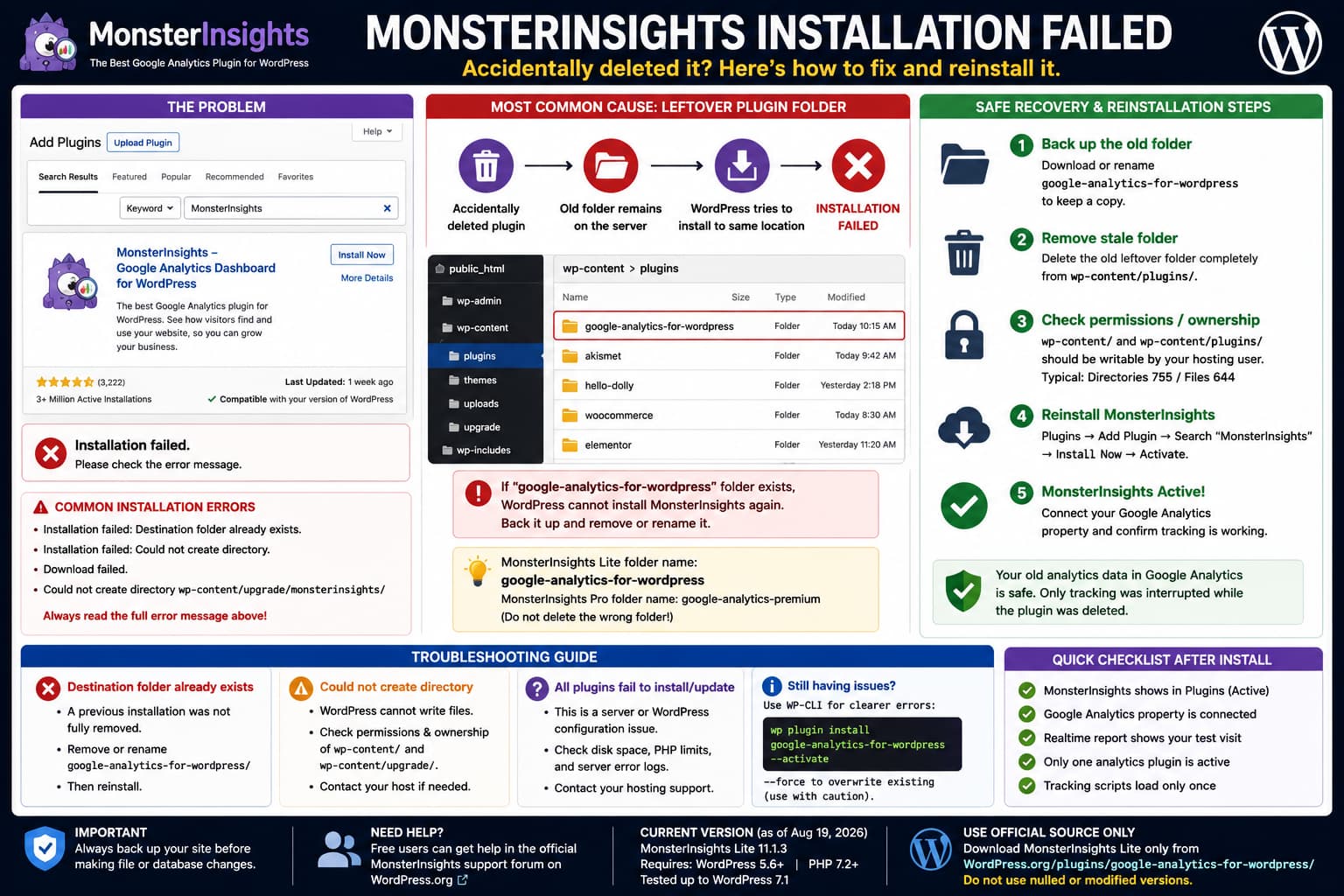
If MonsterInsights worked for years, was accidentally deleted, and now WordPress reports “Installation failed” when you try to reinstall it, start by checking whether the previous plugin folder was actually removed from the server.
MonsterInsights Lite uses this directory:
wp-content/plugins/google-analytics-for-wordpress/MonsterInsights’ own uninstall documentation specifically recommends checking and manually removing that folder with File Manager or SFTP when deletion does not complete correctly. (monsterinsights.com)
A leftover or partially deleted directory is therefore one of the first things to rule out before changing permissions, restoring databases, or troubleshooting Google Analytics itself.
Check the Exact Installation Error First
“Installation failed” is WordPress’s summary message, not the diagnosis.
Look directly above or below it for the more specific error.
Common examples include:
Installation failed: Destination folder already exists.Installation failed: Could not create directory.Download failed.or an error relating to:
wp-content/upgrade/Each points to a different problem.
Do not start changing server permissions until you know which one WordPress is reporting.
If the Destination Folder Already Exists
This is the first condition to check after an accidental deletion.
Connect to the site using:
- your hosting File Manager;
- SFTP;
- SSH.
Navigate to:
wp-content/plugins/Look for:
google-analytics-for-wordpressMonsterInsights confirms that this is the folder name used by the free/Lite plugin. The Pro edition uses a different folder named google-analytics-premium. (monsterinsights.com)
If you intended to remove MonsterInsights Lite but this folder remains, the previous WordPress deletion may have been incomplete.
Before deleting anything, back up the folder or rename it temporarily:
google-analytics-for-wordpress-oldThen return to:
Plugins → Add Plugin
Search for:
MonsterInsights
and try the installation again.
If it now installs successfully, the stale directory was blocking the installation.
WordPress’s own plugin-management documentation confirms that manual deletion of a plugin’s directory is an appropriate fallback when normal plugin removal cannot complete. (wordpress.org)
Why a Leftover Folder Blocks Reinstallation
When WordPress installs a repository plugin, it:
- downloads the package;
- extracts it;
- creates the plugin’s destination directory;
- moves the files into that directory.
For MonsterInsights Lite, that final location is normally:
wp-content/plugins/google-analytics-for-wordpress/If WordPress believes that directory is already occupied by a previous installation, an interrupted uninstall, or a failed update, installation may stop rather than overwrite unknown files.
This protects existing plugin files from being replaced unexpectedly.
MonsterInsights support has previously recommended manually removing its old plugin folder when installation/update problems leave the directory behind. (wordpress.org)
Check Whether the Folder Is Only Partially Deleted
Do not assume that the presence of the directory means there is still a complete MonsterInsights installation inside it.
Open:
wp-content/plugins/google-analytics-for-wordpress/You may find:
- the complete plugin;
- only a few files;
- an empty directory;
- files with incorrect ownership;
- files left behind by a failed update.
A partially removed folder can be enough to interfere with a clean reinstall.
If you are certain this is the old MonsterInsights Lite folder, back it up and remove it before installing a fresh copy from WordPress.org.
Do not delete similarly named folders without identifying them first.
If WordPress Says “Could Not Create Directory”
A different error such as:
Installation failed: Could not create directory.points toward the WordPress filesystem rather than MonsterInsights itself.
WordPress needs write access to locations used during installation, including directories beneath:
wp-content/WordPress’s filesystem documentation explains that ownership and permissions must allow the account running WordPress/PHP to create the files it needs. Typical shared-hosting configurations commonly use:
Directories: 755
Files:       644
although the correct ownership model depends on the server configuration. (developer.wordpress.org)
Do not solve this by recursively changing everything to:
777That creates unnecessary security exposure and may not fix incorrect ownership anyway.
If several plugins fail to install or update, ask the hosting provider to check the ownership and write permissions of:
wp-content/
wp-content/plugins/
wp-content/upgrade/
Test Whether This Is Really a MonsterInsights Problem
Try installing or updating another trusted WordPress.org plugin.
If:
Other plugins install normally
MonsterInsights fails
then investigate MonsterInsights’ old folder and package specifically.
If:
MonsterInsights fails
Other plugins also fail
Plugin updates fail
then the problem is almost certainly broader than MonsterInsights.
Check:
- filesystem ownership;
- available disk space;
wp-content/upgrade;- security rules;
- outgoing connections;
- PHP errors.
In that situation, the hosting provider is usually better positioned to diagnose the installation failure because WordPress itself is unable to write plugin files.
Check the Current MonsterInsights Requirements
Before trying older packages, confirm that the site meets the requirements of the current release.
At the time of writing, WordPress.org lists MonsterInsights 11.1.3 as the current version, released August 19, 2026. It requires:
WordPress: 5.6 or newer
PHP:       7.2 or newer
and is listed as tested through WordPress 7.1. (wordpress.org)
If the site has been running MonsterInsights for years but WordPress or PHP has not been updated for a long time, the version that used to work may have had lower requirements than the version you are trying to install today.
Check:
Tools → Site Health → Info
for the current WordPress and PHP versions.
Do not bypass plugin requirements using an older or unsupported package unless you understand the security and compatibility implications.
Reinstall MonsterInsights Manually From WordPress.org
If the old directory has been removed but the dashboard installer still fails, download the current MonsterInsights Lite package from its official WordPress.org plugin page.
Then go to:
Plugins → Add Plugin → Upload Plugin
and upload the ZIP.
This still requires WordPress to have proper filesystem access, so it will not solve an ownership/permissions problem.
It is useful for distinguishing a WordPress.org search/download problem from the plugin extraction/install stage.
Only download the free plugin from the official WordPress.org repository.
Reinstall With WP-CLI
If SSH and WP-CLI are available, the command line can provide a clearer error than the WordPress dashboard.
From the WordPress installation directory, check whether WordPress still considers MonsterInsights installed:
wp plugin is-installed google-analytics-for-wordpressThen try:
wp plugin install google-analytics-for-wordpress --activateWP-CLI officially supports installing a plugin directly from its WordPress.org slug. (developer.wordpress.org)
If the directory already contains a valid but damaged installation, WP-CLI also supports:
wp plugin install google-analytics-for-wordpress --force --activateThe --force option overwrites an existing plugin version. (developer.wordpress.org)
Use --force only after confirming that:
google-analytics-for-wordpressreally belongs to MonsterInsights and does not contain custom files you need to preserve.
A clean backup followed by removal and reinstall is usually easier to reason about than blindly overwriting an unknown partial directory.
Check File Ownership, Not Just Permission Numbers
A directory can show:
755and still be unwritable by WordPress if it belongs to the wrong system user.
For example:
Owner: root
PHP process: hosting-account-user
may prevent WordPress from modifying the directory even when the numeric permissions appear reasonable.
WordPress’s administration documentation specifically notes that permissions and ownership depend on how PHP executes on the hosting environment. On common shared-hosting configurations, files generally need to be owned by the user’s hosting account so PHP can modify them correctly. (developer.wordpress.org)
If changing permission numbers does not help, ask the host to verify ownership rather than making the directories world-writable.
Check wp-content/upgrade
WordPress normally uses:
wp-content/upgrade/as temporary working space while installing and updating packages.
If WordPress reports an error creating a directory beneath this location, inspect:
wp-content/upgradefor:
- incorrect ownership;
- incorrect permissions;
- stale files;
- lack of disk space.
Do not delete unrelated directories from wp-content while troubleshooting.
A failure in wp-content/upgrade would normally affect more than MonsterInsights.
Check Disk Space
Plugin installations require enough free space for both:
- the downloaded ZIP;
- its extracted files.
A hosting account at or near its disk/inode quota can produce strange installation and deletion failures.
Check your hosting dashboard for:
- disk usage;
- inode/file quota;
- temporary storage limits.
If the site cannot create new files anywhere under wp-content, freeing space may be necessary before reinstalling.
Do Not Delete MonsterInsights Database Rows Just to Reinstall It
An installation failure occurs before MonsterInsights needs to reconnect to Google Analytics.
Do not begin deleting database options containing names such as:
monsterinsightsjust because the plugin cannot be installed.
That does not solve a filesystem destination-folder or write-permission problem and can remove existing MonsterInsights settings unnecessarily.
First restore the plugin files.
Then deal with authentication or configuration only if the installed plugin produces a separate connection error.
Will Your Old Analytics Data Be Lost?
Deleting the MonsterInsights plugin does not delete historical analytics that already exists in your Google Analytics property.
Google Analytics stores that historical reporting data on Google’s side.
However, MonsterInsights’ own documentation notes that deleting the plugin stops its tracking scripts from being inserted into your WordPress pages. (monsterinsights.com)
Therefore, there may be a tracking gap between:
MonsterInsights deletedand:
MonsterInsights reinstalled and tracking restoredAfter reinstalling, verify that the site is connected to the correct Google Analytics property.
Do not install a second Google Analytics plugin simultaneously just to cover the gap. MonsterInsights itself warns that using multiple Google Analytics plugins can compromise tracking data integrity. (wordpress.org)
Free Users Can Still Use the WordPress.org Support Forum
A MonsterInsights website link may lead toward an account or paid-plan interface, but that does not mean a Lite user has no place to report a problem.
MonsterInsights has a public WordPress.org support forum for the free plugin, and current MonsterInsights staff replies are visible there. (wordpress.org)
MonsterInsights support has also clarified in the WordPress.org forum that older statements saying Lite support was not provided there became outdated after their support process changed. (wordpress.org)
For a generic installation failure, however, identify the actual WordPress installer error before opening a plugin support request.
A message such as:
Could not create directoryis generally a hosting/filesystem issue rather than something MonsterInsights PHP code can cause before it has even been installed.
Safest Recovery Procedure
For a site where MonsterInsights was accidentally deleted and now refuses to reinstall, use this order:
- Back up the site.
- Open the hosting File Manager or connect with SFTP.
- Go to:
wp-content/plugins/- Look for:
google-analytics-for-wordpress- If it remains from the old installation, back it up and remove it.
- Check that
wp-content/pluginsandwp-content/upgradeare writable by the correct hosting/PHP user. - Confirm there is sufficient disk space.
- Reinstall MonsterInsights from WordPress.org.
- Activate it.
- Verify the correct Google Analytics property is connected.
- Confirm tracking resumes.
If removing the stale MonsterInsights directory immediately allows installation, no database repair is necessary.
How to Verify the Fix
After installation completes, go to:
Plugins → Installed Plugins
and confirm that MonsterInsights is listed and active.
If you have WP-CLI:
wp plugin status google-analytics-for-wordpressThen check:
Insights → Settings
and make sure the expected Google Analytics connection is present.
Finally:
- open the site in a private browser window;
- generate a test visit;
- check Google Analytics Realtime or the appropriate MonsterInsights report;
- make sure another analytics plugin is not injecting duplicate tracking.
The important part is to separate plugin installation from Google Analytics authentication.
If WordPress cannot install the plugin files, fix the filesystem problem first. If the plugin installs successfully but cannot connect to Google afterward, that is a different troubleshooting problem.
