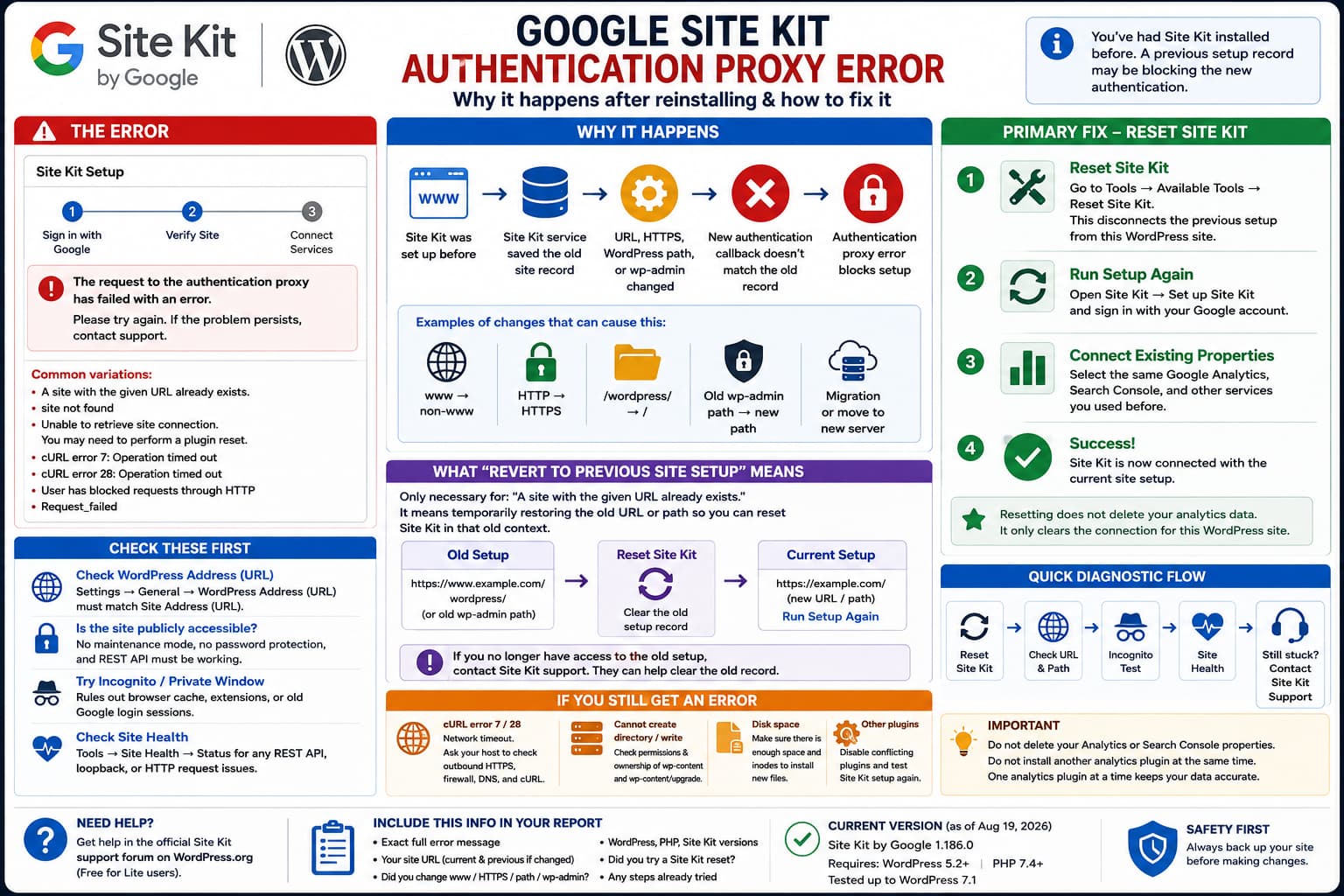
If Google Site Kit was previously installed on a WordPress site and a new setup attempt fails with:
The request to the authentication proxy has failed with an error.
the problem is often not the plugin installation itself.
Site Kit keeps a record of the WordPress site it previously connected to. If the current WordPress URL, installation path, HTTPS configuration, or admin path no longer matches that old record, the Site Kit authentication service may reject the new setup.
Google currently recommends trying a Site Kit reset first when this happens on a site that was previously connected.
Before changing anything else, read the complete error because the text following “authentication proxy has failed” identifies the actual failure.
First Check the Full Error Message
Site Kit uses the generic authentication-proxy heading for several different problems.
Examples documented by Google include:
A site with the given URL already existssite not foundUnable to retrieve site connection.
You may need to perform a plugin reset.cURL error 7: Operation timed outcURL error 28: Operation timed outRequest_failedand:
User has blocked requests through HTTPThese do not all have the same fix.
For a site that previously used Site Kit, however, stale setup records are one of the first things to rule out.
Try a Site Kit Reset First
In WordPress, go to:
Tools → Available Tools → Reset Site Kit
Use the Site Kit reset option and then start the plugin setup again.
Google’s current Site Kit support team recommends this exact procedure for authentication proxy errors on sites that were previously configured.
A successful reset clears the WordPress site’s Site Kit connection state so that the plugin can register the current installation again.
After resetting:
- Return to Site Kit in the WordPress dashboard.
- Start setup again.
- Sign in with the Google account that has access to the site’s Search Console and Analytics properties.
- Complete the verification steps.
- Reconnect any optional services you previously used.
What a Site Kit Reset Actually Does
A Site Kit reset is more significant than simply deactivating and reactivating the plugin.
Google states that resetting Site Kit disconnects the previously connected services for all Site Kit users on that WordPress installation. The plugin then needs to be configured again.
It does not mean deleting your historical Google Analytics or Search Console data.
The reset concerns Site Kit’s WordPress/service connection.
Your Analytics property, Search Console property, and their historical data continue to exist in the Google services themselves.
After reconnecting, make sure you select the same properties if you want Site Kit to continue reporting the existing site’s data.
What “Revert to the Previous Site Setup” Means
Google’s troubleshooting documentation uses this wording specifically for the error:
A site with the given URL already existsThis can happen when Site Kit’s service contains a record created by an older version of the WordPress installation.
“Previous site setup” does not mean restoring an old WordPress theme or undoing all recent changes.
It means temporarily restoring the WordPress URL/path configuration that Site Kit originally knew.
For example, the site might previously have been:
https://www.example.combut is now:
https://example.comOr WordPress might previously have lived at:
https://example.com/wordpress/and later been moved to:
https://example.com/Another common example is changing:
/wp-admin/through a security/login-hiding configuration.
The old Site Kit record may still reference that previous structure.
Why Google Suggests Reverting Temporarily
When the old setup is still accessible, Google’s documented procedure for the “site already exists” condition is:
- Temporarily restore the previous WordPress setup.
- Access Site Kit from that old configuration.
- Reset Site Kit.
- Restore the new WordPress configuration.
- Run Site Kit setup again.
The purpose is not to keep the old configuration.
It allows the existing Site Kit registration to be cleared from the context where Site Kit still recognizes it.
For example:
Old setup
https://www.example.com/wordpress/
↓
Reset Site Kit
↓
Move back to current setup
https://www.example.com/
↓
Set up Site Kit againYou Usually Do Not Need to Revert Anything First
This is an important distinction.
Google’s current support response to a general authentication proxy error on a previously connected site recommends trying:
Tools → Available Tools → Reset Site Kit
before attempting more invasive changes.
So if the reset option is available in your current WordPress installation, use it first.
Only investigate the old setup when:
- the error specifically says a site with the URL already exists;
- Site Kit redirects to an old URL or old admin path;
- the reset cannot be completed;
- the authentication callback references an old WordPress directory;
- Site Kit support confirms that an old service record is blocking setup.
If You Cannot Access the Previous Setup
Do not restore an old backup blindly just to reach Site Kit.
Google Site Kit support has handled cases where the user could no longer access the old WordPress layout. In those cases, support was able to investigate or clear/update the stale Site Kit record after receiving the site’s diagnostic information.
If the old installation no longer exists, open a support topic in the official Site Kit WordPress.org forum.
Provide:
- the exact authentication proxy error;
- your Site Health information;
- whether the domain changed;
- whether
wwwwas added or removed; - whether HTTP changed to HTTPS;
- whether WordPress moved between directories;
- whether the
wp-adminpath changed.
Do not rebuild the entire WordPress site just to reproduce an obsolete Site Kit configuration.
Check WordPress Address and Site Address
Go to:
Settings → General
Check:
WordPress Address (URL)and:
Site Address (URL)Google documents URL mismatches as a source of Site Kit setup problems. Site Kit expects the WordPress Address to match the Site Address or, in supported configurations, to exist as a subdirectory of it.
Compare:
https://example.comwith:
http://example.comand:
https://www.example.comThese are different URLs from an authentication/callback perspective.
A migration that changed only HTTP to HTTPS can therefore be relevant.
Check Whether wp-admin Was Renamed or Hidden
Google’s current support response specifically asks users with a previous Site Kit installation whether their wp-admin path has changed.
Security plugins can alter login/admin routing.
If Site Kit was originally registered using a different callback URL, its authentication service may try to send the browser back to a path that no longer exists.
Temporarily disable custom admin-path rewriting on a staging or maintenance window if necessary and test again.
Do not permanently weaken your security configuration merely to get Site Kit working.
If a custom path is required, provide the details to Site Kit support so they can determine whether the previous registration is the actual problem.
Try the Setup in an Incognito Window
Google also recommends testing the Site Kit setup in an incognito/private browser session.
This rules out:
- stale Google login sessions;
- browser extensions;
- privacy extensions modifying callback URLs;
- cached Site Kit setup state;
- extensions stripping query parameters.
Use a private window with extensions disabled where possible.
Then log into WordPress and repeat setup.
If setup works only in the private window, the Site Kit server record is less likely to be the main problem.
Check Site Health
Go to:
Tools → Site Health
Review the Status screen.
Site Kit requires the WordPress REST API and external HTTP requests to work correctly. Google specifically recommends Site Health information when troubleshooting authentication proxy failures.
Pay attention to errors involving:
REST APILoopback requestsHTTP requestscURLIf WordPress cannot communicate externally, resetting Site Kit will not solve the underlying network restriction.
If the Error Is cURL error 7
Google documents cURL error 7 in Site Kit’s authentication-proxy troubleshooting as a hosting, network, cURL, or DNS connectivity problem.
Ask the hosting provider to verify that the server can make outbound HTTPS requests to:
https://sitekit.withgoogle.com/Also check:
- firewall outbound rules;
- DNS resolution;
- cURL configuration;
- security plugins;
- host-level request restrictions.
A Site Kit reset cannot repair a server that cannot reach Google’s Site Kit service.
If the Error Is cURL error 28
cURL error 28 means an operation timed out.
Google notes that this may be caused by:
- network interruption;
- slow server responses;
- slow internet connectivity;
- interrupted connections.
Retry from a stable connection.
If the error repeats, ask the host to check outbound HTTPS request timing and DNS connectivity.
If the Error Says site not found
A site not found authentication-proxy error can also result from the current WordPress setup not matching the record that Site Kit stored previously.
In a recent resolved Site Kit support case, Google suspected the WordPress URL or admin path had changed and recommended:
Tools → Available Tools → Reset Site Kit
The user confirmed that resetting Site Kit resolved the problem.
This makes reset the safest first action for this variant when the plugin was previously connected.
If the Error Says “A Site With the Given URL Already Exists”
This variant strongly points to an old Site Kit registration.
Google says it can occur after:
- moving WordPress files;
- migrating the site;
- changing the site’s URL;
- changing between
wwwand non-www; - another setup change that caused the current callback URL to differ from the previous Site Kit record.
Try the reset first if it is available.
If that cannot clear the problem, investigate whether the old WordPress setup can temporarily be restored.
If it cannot, contact Site Kit support and ask them to inspect the existing site record.
If the Error Says “Unable to Retrieve Site Connection”
Google documents:
Unable to retrieve site connection.
You may need to perform a plugin reset.as another situation where the site’s current installation is no longer communicating correctly with the Site Kit service.
The recommended action is again:
Tools → Available Tools → Reset Site Kit
After reset, configure the plugin again from the beginning.
Make Sure the Site Is Publicly Accessible
Site Kit’s setup process needs Google’s services to reach the website.
Google’s current requirements state that the site must:
- be publicly accessible;
- not be password protected;
- not be in maintenance mode;
- expose a functioning REST API.
Temporarily disable:
- maintenance mode;
- coming-soon mode;
- HTTP Basic Authentication;
- restrictive firewall rules;
if they prevent Google from reaching the site.
Re-enable necessary protections after setup.
Do Not Delete Analytics or Search Console Properties
An authentication proxy error concerns Site Kit’s connection to the WordPress installation.
It does not mean you should delete:
- your Google Analytics property;
- Search Console property;
- AdSense account;
- Tag Manager container.
Deleting those resources can create unnecessary data and configuration problems.
Reset Site Kit itself first.
When setup restarts, choose the existing Google properties where appropriate.
Reinstalling the Plugin Alone May Not Help
Deleting:
wp-content/plugins/google-site-kit/and installing a fresh plugin copy does not necessarily remove the previous Site Kit service record.
That is why a user can experience:
Old Site Kit setup
        ↓
Plugin deleted
        ↓
Plugin reinstalled
        ↓
Authentication proxy error remains
The plugin files are new, but Google’s Site Kit service can still associate the URL with the previous setup.
A Site Kit reset addresses the connection state rather than only replacing plugin files.
Current Site Kit Version
At the time of writing, WordPress.org lists Site Kit by Google 1.186.0 as the current release.
The plugin currently requires:
WordPress 5.2+
PHP 7.4+
and is listed as tested through WordPress 7.1.
Updating to the current supported release is worthwhile before troubleshooting old setup behavior, but the current changelog does not indicate that authentication proxy conflicts from stale site records can be solved simply by upgrading.
Safest Troubleshooting Order
For a Site Kit installation that worked previously but now fails during authentication:
- Record the complete authentication proxy error.
- Try Tools → Available Tools → Reset Site Kit.
- Run setup again.
- Test from an incognito/private browser.
- Check Settings → General for URL changes.
- Check whether
www, HTTPS, the WordPress directory, orwp-adminpath changed since the previous setup. - Review Tools → Site Health.
- Confirm the site is publicly accessible.
- If the error is network-related, investigate cURL/firewall/DNS.
- If an old Site Kit record is still blocking setup and the old installation cannot be accessed, contact official Site Kit support.
Do not restore an entire old website backup simply because documentation uses the phrase “revert to your previous site setup.”
That procedure is only useful when an old Site Kit registration actually depends on the previous URL or WordPress path.
How to Verify the Fix
After reconnecting Site Kit:
- Open Site Kit → Dashboard.
- Confirm setup completes without an authentication proxy warning.
- Verify Search Console connects.
- Reconnect Analytics if it was previously enabled.
- Make sure Site Kit is using the intended existing Analytics property.
- Check the dashboard again after the services load.
- Have another connected WordPress administrator reconnect if necessary.
Remember that a Site Kit reset disconnects all Site Kit users on that WordPress installation, so other administrators may need to authorize their Google accounts again.
If setup still fails, do not report only:
authentication proxy errorInclude the exact text after it.
That determines whether the next step is a Site Kit record reset, URL correction, browser test, or server connectivity investigation.
