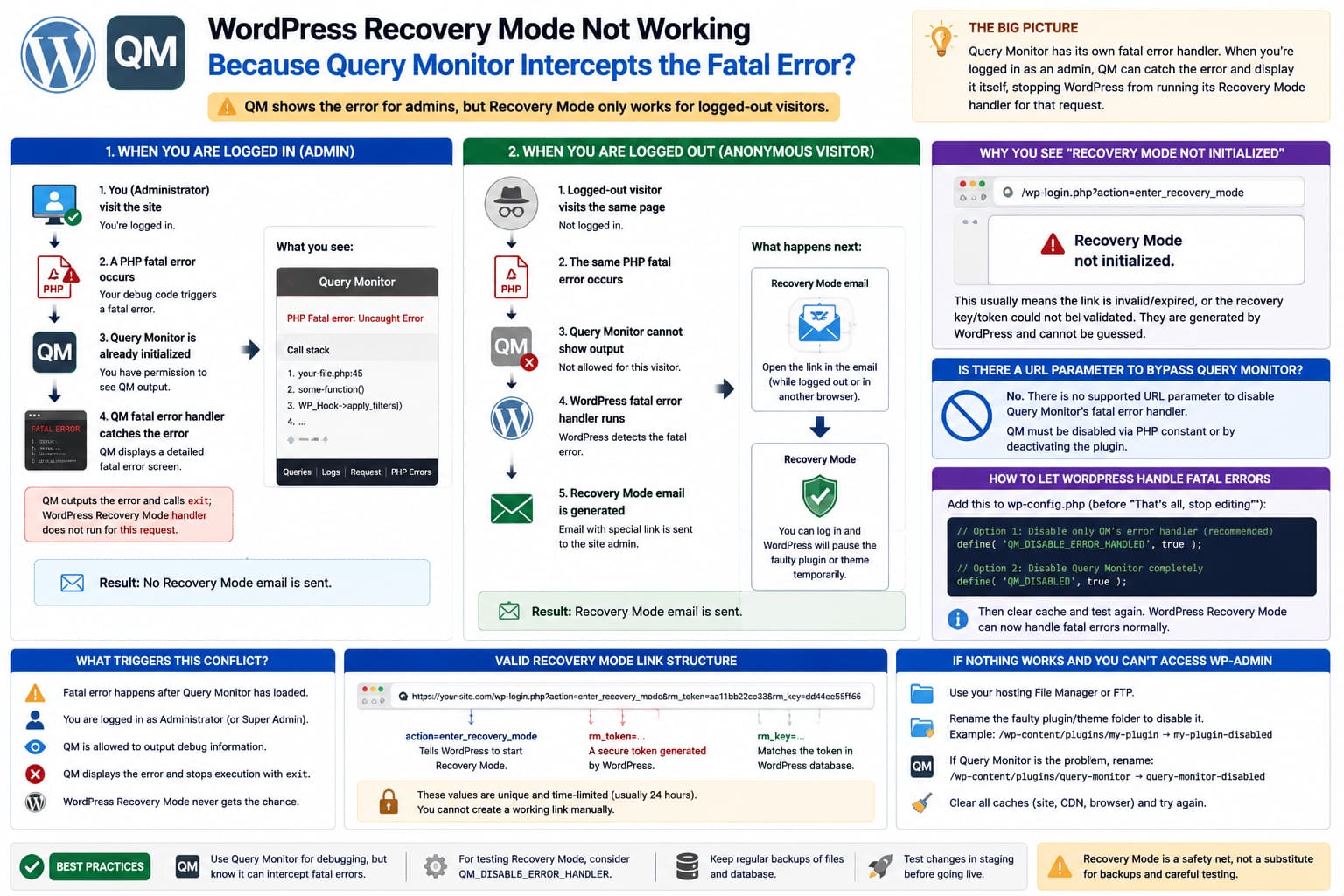
An unusual WordPress debugging situation can look like this:
Logged in as administrator
↓
Trigger a PHP fatal error
↓
Query Monitor displays the fatal error
↓
No WordPress Recovery Mode email
But when the same broken page is opened from another browser where nobody is logged in:
Logged-out visitor
↓
Same PHP fatal error
↓
WordPress critical-error handler runs
↓
Recovery Mode email is sent
Then clicking the link from that email produces:
Recovery Mode not initialized.This behavior can make it appear that Query Monitor is interfering with WordPress Recovery Mode.
There is actually a technical reason why that suspicion is reasonable.
Query Monitor Has Its Own Fatal Error Handler
Query Monitor does much more than collect PHP warnings and notices.
Its developer confirms that Query Monitor includes a fatal error handler, and that it can display fatal errors when they happen after Query Monitor has initialized.
The current Query Monitor source confirms this directly.
Its PHP error collector registers:
set_exception_handler(
    array( $this, 'exception_handler' )
);
and when an uncaught error occurs, Query Monitor can render its own fatal-error output.
The important part appears later in Query Monitor’s fatal output routine:
$dispatcher->output_fatal( $message, $e );
exit;
That exit is extremely relevant to the behavior being reported.
Why It Behaves Differently When You Are Logged In
By default, Query Monitor output is visible only to:
Administratoron a normal WordPress installation, or:
Super Adminon Multisite.
The current Query Monitor fatal handler checks whether the current visitor is allowed to see Query Monitor’s output. If they are, Query Monitor can display the fatal error itself and stop execution.
So for an administrator:
Fatal PHP error
↓
Query Monitor is already initialized
↓
Administrator may view QM
↓
Query Monitor outputs detailed fatal error
↓
Query Monitor exits
This closely matches:
“QM just showed it and no recovery mail was sent.”
Why the Logged-Out Browser Behaves Differently
For an anonymous visitor, Query Monitor normally does not expose its debugging output.
Its source explicitly checks whether the visitor can view Query Monitor before outputting the fatal error.
Conceptually, this gives you:
Anonymous request
↓
PHP fatal error
↓
Query Monitor cannot show debugging information
↓
Normal WordPress fatal-error handling continues
↓
WordPress detects fatal error
↓
Recovery Mode email can be generated
That makes the difference between the two browsers understandable.
The user’s observation is therefore quite valuable:
Logged in
→ QM handles error
→ no recovery email

Logged out
→ WordPress handles error
→ recovery email
It strongly suggests Query Monitor’s own error handling is involved.
So Is Query Monitor Preventing Recovery Mode?
The precise answer is:
Query Monitor can intercept and display an uncaught fatal error on requests where it has fully initialized and the current user is permitted to see its output. In that situation, its own handler can terminate the request before WordPress’s normal fatal-error/recovery flow handles that same exception.
That does not mean Query Monitor permanently disables WordPress Recovery Mode across the whole website.
It means the result depends on:
when the error occurs
+
whether Query Monitor has initialized
+
whether the current visitor can see QM
+
what kind of PHP fatal error occurred
The Query Monitor developer specifically notes that some errors occur too early for Query Monitor to catch, while later ones can be displayed by Query Monitor.
Query Monitor Even Provides a Way to Disable Its Error Handler
Query Monitor officially supports this constant:
define( 'QM_DISABLE_ERROR_HANDLER', true );Its documentation describes it as:
Disable the handling of PHP errors.
There is also:
define( 'QM_DISABLED', true );which disables Query Monitor completely.
So if this is a development environment where you specifically want WordPress’s own fatal-error handler and Recovery Mode to handle crashes, one possible configuration is:
define( 'QM_DISABLE_ERROR_HANDLER', true );while keeping Query Monitor available for its other debugging tools.
Where to Put the Constant
It would normally go in:
wp-config.phpbefore:
/* That's all, stop editing! Happy publishing. */For example:
define( 'QM_DISABLE_ERROR_HANDLER', true );

/* That's all, stop editing! Happy publishing. */
Then Query Monitor can continue monitoring many other aspects of WordPress but does not install its PHP error handler.
Unfortunately, this does not help someone who currently has no filesystem access.
Is There a URL Parameter to Bypass Query Monitor?
There does not appear to be a supported Query Monitor URL such as:
?disable_query_monitor=1or:
?qm=offthat an administrator can append to any request to turn its error handler off.
The officially documented configuration controls are PHP constants such as:
QM_DISABLED
QM_DISABLE_ERROR_HANDLER
Query Monitor also provides:
do_action( 'qm/cease' );to stop Query Monitor during the current request, but that must be executed by PHP code during the request. It is not a browser URL bypass parameter.
So unfortunately:
There is no supported magic Query Monitor URL parameter that provides the equivalent of
QM_DISABLE_ERROR_HANDLER.
Why WordPress Recovery Links Cannot Be Created Manually
A WordPress Recovery Mode URL looks roughly like:
https://example.com/wp-login.php
?action=enter_recovery_mode
&rm_token=...
&rm_key=...
Those parameters are not arbitrary.
WordPress’s Recovery Mode link service generates:
rm_token
rm_key
and stores a corresponding recovery key.
When the link is opened, WordPress validates those values before setting the Recovery Mode cookie.
The relevant flow is:
Recovery email generated
↓
WordPress generates token
↓
WordPress generates/stores key
↓
Email contains rm_token + rm_key
↓
User opens link
↓
WordPress validates token/key
↓
Recovery cookie is created
↓
Redirect to login
↓
Recovery Mode active
Therefore simply visiting:
/wp-login.php?action=enter_recovery_modewill not enter Recovery Mode.
It needs a valid pair of security credentials generated by WordPress.
What “Recovery Mode Not Initialized” Means
WordPress Recovery Mode has to initialize very early in the WordPress loading process, before ordinary plugins are fully loaded.
Core’s WP_Recovery_Mode::initialize() marks Recovery Mode as initialized, examines the Recovery Mode cookie, and processes incoming Recovery Mode links.
The WordPress support forums commonly associate:
Recovery Mode not initializedwith a Recovery Mode request that could not establish the expected valid recovery state/token.
It does not mean there is a setting somewhere in wp-admin called:
Enable Recovery Modethat was forgotten.
Recovery Mode is a WordPress core feature introduced in WordPress 5.2 and activates automatically when WordPress successfully handles qualifying fatal errors.
You Do Not Normally “Set Up” Recovery Mode
There is no normal setup wizard for it.
The usual process is simply:
Plugin/theme causes fatal error
↓
WordPress catches it
↓
Recovery email sent
↓
special link generated
↓
administrator enters Recovery Mode
WordPress then temporarily pauses the faulty plugin or theme for that administrator’s Recovery Mode session.
So a message saying:
Recovery Mode not initializedis evidence that this chain did not complete properly.
It is not evidence that the site owner forgot to configure Recovery Mode.
The Recovery Link Is Not a Permanent Back Door
The link from the email contains temporary credentials.
WordPress’s standard recovery email currently states that the link expires after one day, after which another qualifying fatal error can cause a fresh link to be generated.
So always use the latest recovery email.
If several recovery emails have arrived, an older one may no longer be useful.
Why Recovery Mode Can Still Fail Even Without Query Monitor
Query Monitor is only one piece of this problem.
Recovery Mode cannot rescue every possible PHP failure.
For example, a fatal error may happen so early that WordPress cannot initialize enough of its Error Protection API.
This can occur with problems involving:
wp-config.php
WordPress core files
very early bootstrap code
MU plugins
drop-ins
broken autoloaders
some syntax/compile errors
corrupt plugin installations
There are many WordPress support reports where a valid-looking recovery email is followed by:
Recovery Mode not initializedand filesystem or hosting access is ultimately required to repair the broken component.
So Query Monitor can explain the difference between logged-in and anonymous error handling, but it may not be the sole reason that the eventual recovery link fails.
An Important Question: Where Was the Debug Script Added?
This makes a major difference.
If the fatal code was added inside a normal plugin:
wp-content/plugins/my-debug-plugin/WordPress may be able to pause that plugin in Recovery Mode.
Likewise for a normal theme.
But if the debug code was placed directly inside:
wp-config.phpor another critical bootstrap file, Recovery Mode cannot simply pause that component like an ordinary plugin.
Similarly, if the PHP error prevents WordPress from reaching its Recovery Mode initialization stage, the special login flow may fail.
Query Monitor Is Actually Doing Something Useful Here
Although it may interfere with testing WordPress Recovery Mode in this particular scenario, Query Monitor is not malfunctioning merely because it displays the fatal error.
Displaying PHP failures is one of its core features.
The plugin description explicitly lists:
PHP errors
responsible component
call stack
among its debugging features.
So from Query Monitor’s perspective:
Administrator introduced fatal error
↓
QM detected it
↓
QM showed exact error
is useful development behavior.
The conflict is that the developer wanted to test:
WordPress Recovery Modeat the same time.
Those two error-handling systems have overlapping responsibilities.
Recommended Setup for Development
If you frequently deliberately trigger fatal errors and want WordPress Recovery Mode to remain the authoritative fatal handler, consider adding:
define( 'QM_DISABLE_ERROR_HANDLER', true );and keep:
define( 'WP_DEBUG', true );
define( 'WP_DEBUG_LOG', true );
define( 'WP_DEBUG_DISPLAY', false );
Then use:
Query Monitor
+
debug.log
+
WordPress Recovery Mode
rather than letting Query Monitor intercept uncaught fatal exceptions.
Query Monitor officially documents QM_DISABLE_ERROR_HANDLER for sites that already have special PHP error handling in place.
Don’t Disable WordPress’s Fatal Error Handler by Accident
WordPress itself has a separate constant:
define( 'WP_DISABLE_FATAL_ERROR_HANDLER', true );This does almost the opposite of what you want.
That tells WordPress not to use its fatal error handler.
If you are specifically testing Recovery Mode, do not enable:
WP_DISABLE_FATAL_ERROR_HANDLERWordPress’s Error Protection API depends on the core fatal handler. The developer documentation identifies WP_Fatal_Error_Handler as the component responsible for handling fatal errors and displaying the critical-error/recovery response.
The two constants are easy to confuse:
QM_DISABLE_ERROR_HANDLER
→ disable QUERY MONITOR's error handler

WP_DISABLE_FATAL_ERROR_HANDLER
→ disable WORDPRESS's fatal handler
For this situation you would potentially want the first, not the second.
What Can You Do Without FTP or CLI Access?
If you can still access normal wp-admin pages, the easiest browser-only solution is:
Plugins
→ Installed Plugins
→ Query Monitor
→ Deactivate
Then reproduce the fatal error.
This lets WordPress’s own fatal handler process the request without Query Monitor taking over.
If the debug code itself was added through a plugin such as a snippets manager and you still have wp-admin access, disable or correct that snippet instead.
If wp-admin Is Completely Inaccessible
Once both:
normal wp-admin
✗
and:
Recovery Mode
✗
are unavailable, there is generally no safe browser parameter that can deactivate arbitrary WordPress plugins.
WordPress’s official Recovery Mode documentation recommends falling back to:
hosting File Manager
FTP/SFTP
hosting support
when the recovery process cannot restore access.
The standard emergency procedure is usually to rename the faulty plugin’s directory.
For example:
wp-content/plugins/my-debug-pluginto:
wp-content/plugins/my-debug-plugin-disabledWordPress then treats it as unavailable and deactivates it.
If Query Monitor Itself Had to Be Disabled
You could rename:
wp-content/plugins/query-monitorto:
wp-content/plugins/query-monitor-disabledbut that only helps if Query Monitor itself is blocking the path you need.
If the original fatal PHP bug is in another plugin/theme/debug script, disabling Query Monitor only reveals the underlying fatal error to WordPress. It does not repair it.
A Useful Reproduction for the Query Monitor Developer
This would be a strong minimal test:
1. Install Query Monitor.

2. Log in as Administrator.

3. Trigger an uncaught Error after QM initializes.

4. Observe:
   Query Monitor displays fatal error.
   No Recovery Mode email arrives.

5. Open same URL logged out.

6. Observe:
   WordPress critical error page appears.
   Recovery email is generated.

7. Open recovery link.

8. Observe:
   "Recovery Mode not initialized."
The first half can be explained directly by Query Monitor’s current error handler logic.
Whether the second half represents a WordPress core bug, an early-loading failure, or something particular to the debug script depends on where that fatal error lives.
Query Monitor Already Documents the Relevant Switch
If this behavior is undesirable during development, the official configuration is:
define( 'QM_DISABLE_ERROR_HANDLER', true );not a URL parameter.
This would be a useful improvement request for Query Monitor, however:
Provide a safe, temporary per-request mechanism for disabling Query Monitor’s fatal handler while testing WordPress Recovery Mode.
At present, I could not verify an official browser query parameter providing that functionality.
Most Likely Explanation
The reported sequence is unusually consistent with Query Monitor’s current source code:
ADMIN REQUEST
Fatal error
↓
QM has initialized
↓
Admin has permission to see QM
↓
QM fatal handler outputs error
↓
exit
↓
WordPress Recovery Mode handler does not handle that request
versus:
ANONYMOUS REQUEST
Fatal error
↓
anonymous visitor cannot see QM
↓
QM does not render its fatal output
↓
normal WordPress fatal handling proceeds
↓
Recovery email
Query Monitor’s source and its developer’s own support comments confirm that it has a fatal error handler and only displays its debugging output to authorized users by default.
That part is therefore not merely speculation.
Direct Answer
Yes, Query Monitor can explain why the fatal error behaves differently while you’re logged in.
When Query Monitor is fully initialized and you are an administrator allowed to view its output, its current PHP error collector can catch an uncaught fatal error, display the error itself, and then exit.
When the same request comes from a logged-out browser, Query Monitor normally cannot display its debugging output, allowing WordPress’s normal fatal-error handling to take over. That explains why the anonymous request can trigger the Recovery Mode email.
There is no supported URL parameter I could verify that temporarily disables Query Monitor’s fatal handler.
The supported configuration is:
define( 'QM_DISABLE_ERROR_HANDLER', true );or, to disable Query Monitor completely:
define( 'QM_DISABLED', true );Both require wp-config.php access.
The recovery URL itself also cannot be fabricated by adding action=enter_recovery_mode; WordPress requires valid rm_token and rm_key credentials generated and stored by its Recovery Mode service.
So if wp-admin is unavailable and the valid recovery link still returns “Recovery Mode not initialized,” filesystem access, your hosting control panel’s File Manager, or hosting support is ultimately the reliable fallback.
