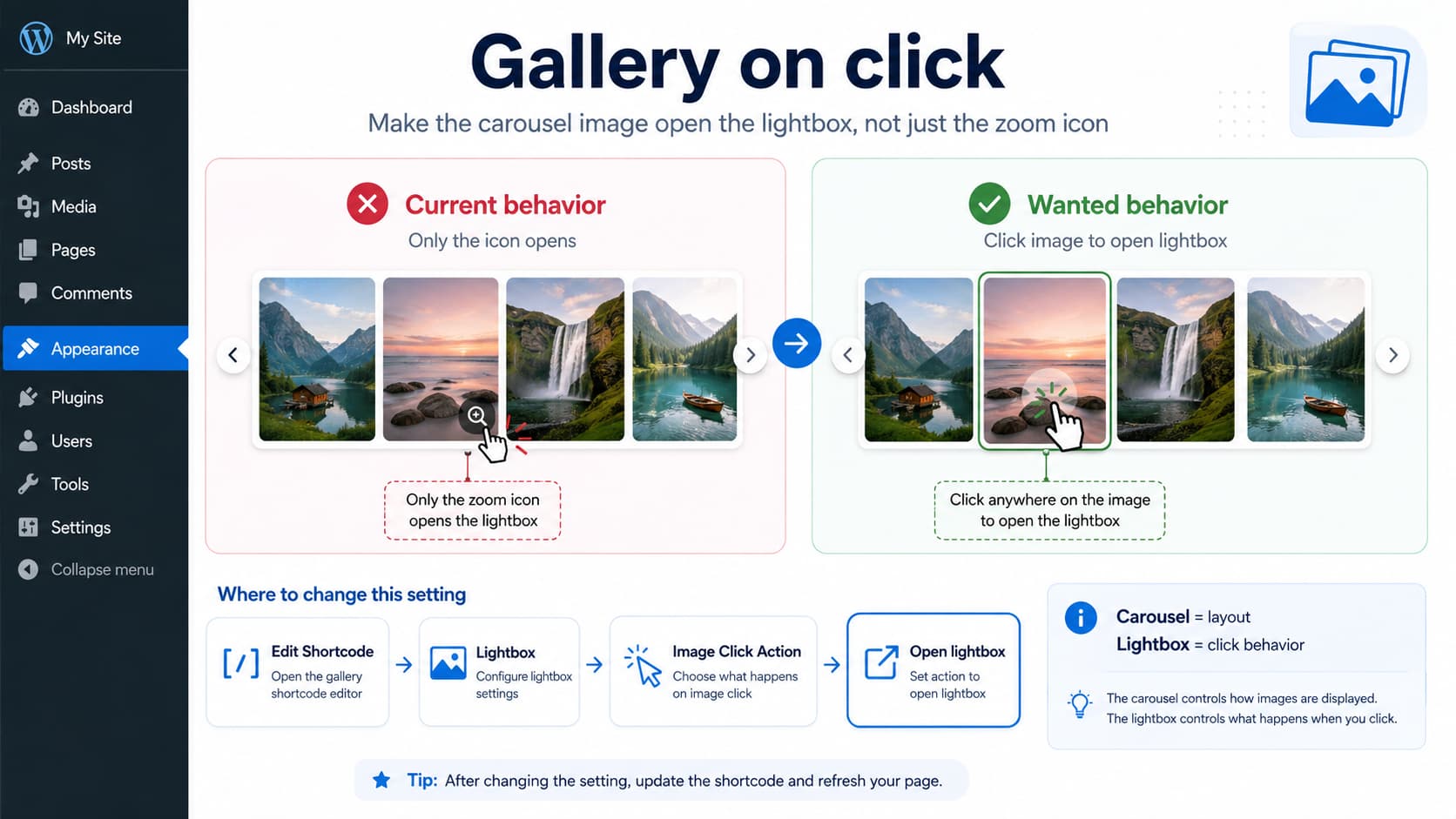
When using Photo Gallery by 10Web with the Carousel layout, you may find that the gallery displays correctly, but visitors seem to have to click the small enlarge/zoom control to open the full gallery.
What you actually want is simpler:
Click anywhere on carousel image
↓
Open image in lightbox
↓
Navigate through full gallery
You do not need to switch to the Slideshow gallery type for this.
Photo Gallery by 10Web supports both Carousel as a gallery layout and a separate Image Click Action that determines what happens when someone clicks a gallery image.
Set Image Click Action to “Open Lightbox”
Go to:
Photo Gallery
→ Options
Find:
Image Click Actionand select:
Open lightbox10Web currently provides three image-click behaviors:
Open lightbox
Redirect to URL
Do Nothing
The official documentation says Open lightbox makes visitors view the enlarged image by clicking the gallery image itself.
So the desired setting is:
Image Click Action
→ Open lightbox
not:
Do Nothingand not:
Redirect to URLThe Important Part: Check the Carousel Shortcode Too
This is probably where the confusion comes from.
Photo Gallery by 10Web allows the global options to be overridden by the settings of an individual gallery shortcode.
10Web explicitly notes that even if you choose an Image Click Action globally, a different action can still be selected when creating the gallery shortcode.
So you could have:
Global setting
Open lightbox
✓
but:
Existing Carousel shortcode
Do Nothing
✗
The carousel will then follow the shortcode’s setting.
Edit the Existing Carousel
Go to:
Photo Gallery
→ Options
→ Generate Shortcode
Select the shortcode currently being used on the page.
Confirm the layout is:
Carousel10Web officially lists Carousel as one of the available gallery shortcode layouts.
Now look for:
Use default optionsYou have two choices.
Option 1: Use the Global Setting
Enable:
Use default optionsThen make sure the global:
Image Click Action
→ Open lightbox
is configured correctly.
Option 2: Configure This Carousel Separately
Disable:
Use default optionsExpand:
Lightboxand set:
Image Click Action
→ Open lightbox
10Web’s shortcode documentation confirms that the Lightbox section controls both whether the lightbox is enabled and what happens when gallery images are clicked.
Then click:
Updateto save the existing shortcode.
This last step matters because editing the controls without updating the shortcode will leave the page using its old settings.
You Do Not Need the Slideshow Layout
The user’s clarification:
“I’m not talking about the slideshow plugin”
makes sense because 10Web has separate gallery layouts for:
Thumbnails
Masonry
Mosaic
Slideshow
Image Browser
Blog Style
Carousel
A Carousel can still open its images in the lightbox.
These are two independent concepts:
Carousel
= how images appear on the page

Lightbox
= what happens after clicking an image
You do not have to convert:
Carousel
→ Slideshow
to get click-to-enlarge behavior.
The Fullscreen Button Is Different From Opening the Lightbox
Photo Gallery’s lightbox has optional controls such as:
Fullscreen
Zoom
Download
Image information
Social sharing
Comments
10Web documents these separately from the Image Click Action.
So there are really two stages:
Gallery page
↓
Click image
↓
Lightbox opens
↓
Optional Fullscreen button
The fullscreen/enlarge control should not be confused with the setting that determines whether clicking the thumbnail opens the lightbox.
If “Open Lightbox” Is Already Selected
If you already have:
Image Click Action
→ Open lightbox
but clicking the image still does nothing, check the shortcode-specific configuration first.
This is the most important test because 10Web explicitly allows individual shortcodes to override the global option.
Then follow this order:
- Edit the exact shortcode used on the affected page.
- Disable Use default options temporarily.
- Set Image Click Action → Open lightbox directly.
- Click Update.
- Clear WordPress/page/CDN cache.
- Reload the page in Incognito.
- Click near the center of an image, not the carousel arrows.
If it starts working, the problem was a shortcode-level override.
Make Sure the Page Uses the Shortcode You Edited
A site can contain multiple Photo Gallery shortcodes.
For example:
Shortcode 5
Carousel A
Open lightbox

Shortcode 9
Carousel B
Do nothing
If the page contains Shortcode 9 but you edit Shortcode 5, nothing will change.
Check the actual page content/widget and identify which gallery/shortcode is being used.
Test a New Carousel
If the existing carousel still refuses normal image clicks, create a temporary clean gallery shortcode.
Set:
View:
Carousel

Image Click Action:
Open lightbox

Use default options:
Off
Add it to a blank test page.
Then compare:
New carousel
✓ image click opens lightbox
versus:
Old carousel
✗ only control/icon works
If the new one works, the old shortcode probably contains stale or conflicting saved options.
In that case recreating the shortcode can be easier than debugging every old setting.
Check Whether the Image Has a Redirect URL
Photo Gallery can also make thumbnails behave like links.
When:
Image Click Action
→ Redirect to URL
is selected, individual gallery images can have destination URLs instead of opening the lightbox. 10Web documents this as a separate supported click behavior.
So if an image was previously configured as a link, verify the shortcode is not still using that mode.
Check for Another Lightbox Taking Over
If clicking the image:
- opens a different popup,
- opens the raw JPG directly,
- does nothing,
- or behaves differently from the zoom icon,
inspect whether another plugin/page builder is also handling image clicks.
Common possibilities include:
Elementor lightbox
theme lightbox
another gallery plugin
custom JavaScript
performance plugin delaying gallery JS
Photo Gallery has historically included compatibility fixes involving Elementor’s lightbox and its own gallery lightbox, so overlapping lightbox handlers are a realistic troubleshooting area.
Temporarily disable the other lightbox rather than running two different image-popup systems on the same carousel.
Check DevTools if the Setting Is Correct
If the problem persists, press:
F12
→ Console
and reload.
Then click the carousel image.
Look for red JavaScript errors.
Also inspect the image markup.
A functioning clickable gallery image should have a click handler/link associated with the Photo Gallery lightbox behavior.
If:
zoom icon
✓ works

main image click
✗ does nothing
despite the shortcode explicitly using Open lightbox, that could indicate a frontend bug rather than a missing setting.
Current Plugin Version
As of August 2026, WordPress.org lists Photo Gallery by 10Web 1.8.43 as the current release, with more than 100,000 active installations.
Before investigating JavaScript bugs, update the plugin if you are running an older release.
Photo Gallery has had previous fixes specifically related to:
opening lightbox
lightbox in Carousel view
click actions
Carousel view
in its changelog.
So testing the current version is worthwhile.
Most Likely Fix
For this specific question, I would check the configuration in this order:
Photo Gallery
↓
Edit the Carousel shortcode
↓
Lightbox
↓
Image Click Action
↓
Open lightbox
↓
Update shortcode
If Use default options is enabled, make sure the global option under Photo Gallery settings is also:
Open lightboxThe most easily missed point is that a shortcode can override the global Image Click Action, so changing only the global settings does not necessarily change an existing carousel.
Direct Answer
Yes, the carousel images can be configured to open the full Photo Gallery lightbox when you click directly on them. You do not need to use the Slideshow layout.
Set:
Image Click Action
→ Open lightbox
for the actual Carousel shortcode being used on the page.
10Web’s official documentation confirms that Carousel is a supported gallery view and that the Lightbox section lets you change the click action for gallery images.
If you’ve already changed the global setting but clicking the image still doesn’t work, edit the existing shortcode because it may be overriding the global option.
