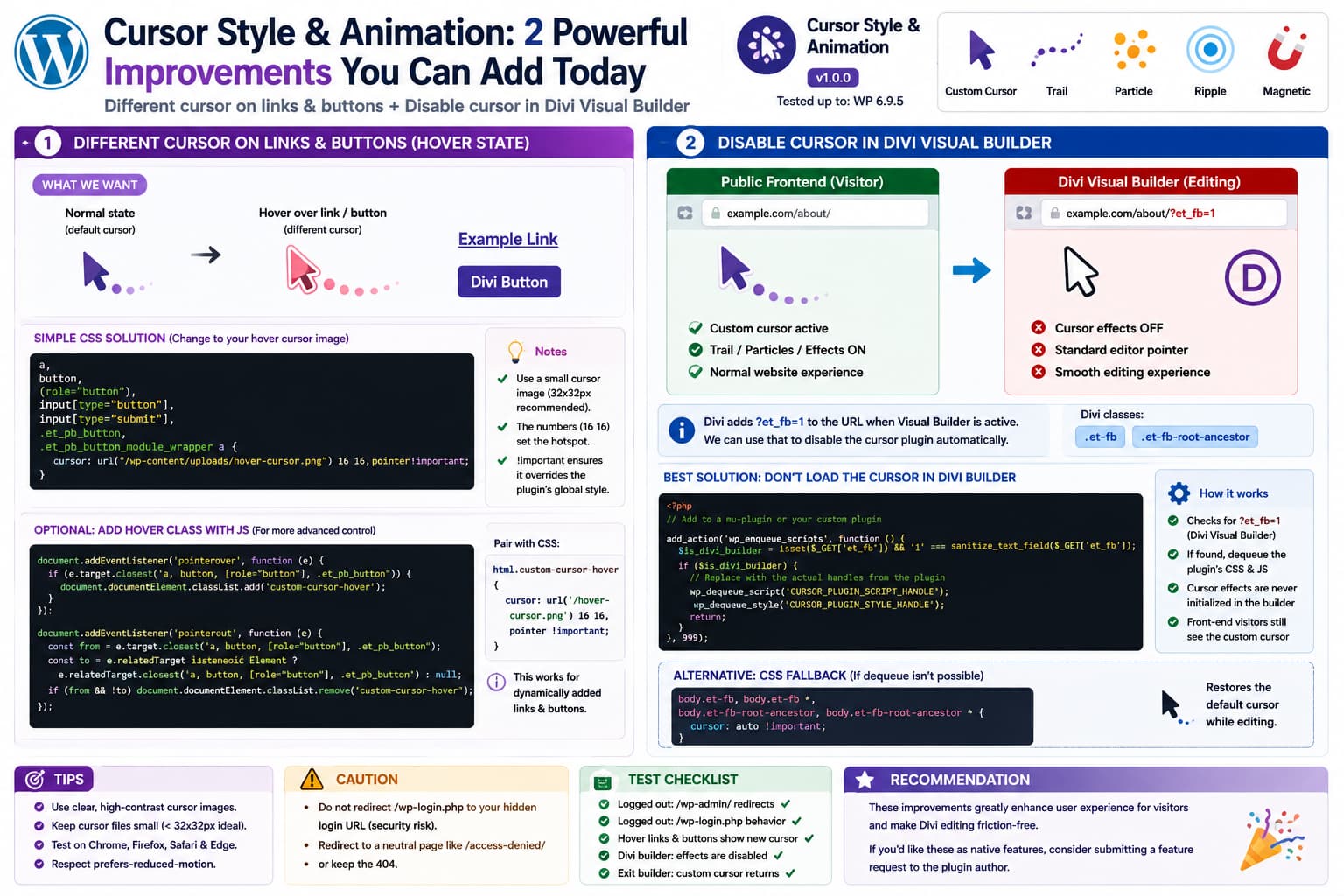
The Cursor Style & Animation plugin provides several cursor styles, custom cursor images, and Trail, Particle, Ripple, and Magnetic effects.
Two useful improvements become apparent when using it on a real site:
- A different cursor appearance when hovering over interactive elements such as links and buttons.
- Automatically disabling the custom cursor while working inside the Divi Visual Builder.
Both requests make sense.
As of August 21, 2026, the public WordPress.org release is still Cursor Style & Animation 1.0.0. Its documented controls include global cursor styles and custom cursor images, but the public documentation does not describe a separate configurable hover cursor for links/buttons or an option to disable the effect specifically inside Divi’s editing interface.
The good news is that both behaviors can be implemented safely without modifying Divi itself.
1. Can the Plugin Use a Different Cursor on Links and Buttons?
The current plugin documentation says normal HTML elements automatically retain appropriate cursor behavior and gives examples using:
<ahref="#">Link with pointer cursor</a><button>Button with pointer cursor</button>
It also supports custom PNG, SVG, and CUR cursor images.
However, the current public settings documentation does not expose something like:
Normal Cursor→ custom-normal.pngLink Hover Cursor→ custom-hover.png
as two separate configurable states.
So if you need that today, CSS is the simplest solution when the goal is to change the actual browser cursor.
Use a Different Standard Cursor on Links
For example:
a,button,[role="button"],input[type="button"],input[type="submit"],input[type="reset"],.et_pb_button { cursor: pointer!important;}
Or use another CSS cursor:
a,button,.et_pb_button { cursor: grab!important;}
You could also use:
pointercrosshairgrabzoom-inzoom-out
depending on the design.
The CSS cursor property officially supports both predefined cursor types and image-based cursors.
Use a Separate Custom Image When Hovering Links
Suppose your normal plugin cursor is one image but you want another image whenever the visitor points at a link or button.
Upload your hover cursor to the WordPress Media Library and use:
a,button,[role="button"],input[type="button"],input[type="submit"],input[type="reset"],.et_pb_button,.et_pb_button_module_wrappera { cursor:url("https://example.com/wp-content/uploads/hover-cursor.png") 1616,pointer!important;}
Replace:
https://example.com/wp-content/uploads/hover-cursor.png
with the real Media Library URL.
The numbers:
16 16
define the cursor’s hotspot.
For a 32×32 cursor image:
16 16
places the active point roughly in the middle.
If the pointer tip is at the upper-left corner, you might instead use:
cursor:url("https://example.com/wp-content/uploads/hover-cursor.png") 0 0,pointer !important;
CSS requires a normal cursor keyword such as pointer as the fallback after the image URL.
Keep the Cursor Image Small
For cursor images, smaller is better.
MDN currently recommends approximately:
32 × 32 px
for maximum compatibility.
Chromium and Firefox commonly reject cursor images larger than 128×128 pixels.
So a good custom cursor file might be:
hover-cursor.png32 × 32 pxorhover-cursor.png48 × 48 px
rather than a 500×500 image resized visually through CSS.
If the Plugin Uses “Hidden Cursor”
There is one extra situation to consider.
Cursor Style & Animation supports a Hidden cursor option.
If its frontend styling applies something equivalent to:
cursor: none;
globally, your hover rule may need !important:
a,button,[role="button"],.et_pb_button { cursor:url("https://example.com/wp-content/uploads/hover-cursor.png") 1616,pointer!important;}
That should override a generic global cursor declaration as long as the plugin is not continuously rewriting the property with JavaScript.
What About Changing the Animation, Not Just the Cursor Image?
This is a different problem.
CSS can easily change:
Browser cursor image
but cannot by itself tell the plugin:
Normal:Trail animationHover link:Ripple animation
or:
Normal trail size:6Hover trail size:12
because Trail, Particle, Ripple, and Magnetic effects are JavaScript-driven animation systems.
The WordPress.org listing describes the plugin as developer-friendly and mentions:
- JavaScript hooks,
- CSS classes,
- WordPress hooks and filters,
but the public documentation does not provide the actual JavaScript API or hook names for dynamically switching an effect on hover.
I would therefore avoid publishing invented JavaScript calls such as:
CursorAnimation.setEffect('ripple');
unless the plugin developer documents that API.
There is no public evidence that such a function currently exists.
A Safe JavaScript Hover Hook
You can still create your own generic hover state.
For example:
(function () {constselector= ['a','button','[role="button"]','input[type="button"]','input[type="submit"]','.et_pb_button' ].join(',');document.addEventListener('pointerover', function (event) {if (event.target.closest(selector)) {document.documentElement.classList.add('custom-cursor-hover' ); } });document.addEventListener('pointerout', function (event) {constfromInteractive=event.target.closest(selector);consttoInteractive=event.relatedTarget instanceofElement?event.relatedTarget.closest(selector):null;if (fromInteractive&&!toInteractive) {document.documentElement.classList.remove('custom-cursor-hover' ); } });})();
Now the document receives:
custom-cursor-hover
while the pointer is over an interactive element.
You can pair that with CSS:
html.custom-cursor-hover,html.custom-cursor-hoverbody,html.custom-cursor-hovera,html.custom-cursor-hoverbutton { cursor:url("https://example.com/wp-content/uploads/hover-cursor.png") 1616,pointer!important;}
This approach also handles dynamically generated links and buttons because it uses event delegation rather than attaching event listeners individually.
A Better Native Plugin Feature
Long-term, Cursor Style & Animation could add something like this to its settings:
INTERACTIVE ELEMENT HOVEREnable Hover Cursor[✓]Elements[a, button, [role="button"]]Hover Cursor Style[ Pointer ▼ ]Custom Hover Cursor[ Upload Image ]Hover Animation[ Same as Default ▼ ]Hover Trail Color[ #FFFFFF ]Hover Animation Size[ 12 ]
This would be significantly easier for nontechnical users than requiring CSS.
It would also allow the plugin itself to coordinate the custom cursor and Canvas animation.
2. Why the Cursor Causes Problems Inside Divi Visual Builder
The second request is arguably even more important.
Divi’s Visual Builder runs on the frontend.
From the perspective of many ordinary WordPress plugins, this:
Normal frontend page
and this:
Frontend page currently being edited by Divi
can look almost identical.
So Cursor Style & Animation loads normally and starts:
custom cursortrailparticlesripplemagnetic effects
while the administrator is trying to:
- move Divi modules,
- resize elements,
- click module controls,
- drag sections,
- use contextual menus,
- select text,
- access builder handles.
That creates unnecessary editing friction.
The desired behavior should instead be:
Normal visitor→ Custom cursor ONDivi Visual Builder→ Custom cursor OFF
Divi Gives Plugins a Reliable Detection Signal
Fortunately, Divi exposes a very useful indicator.
Elegant Themes’ own current developer documentation confirms that launching the Visual Builder automatically adds:
?et_fb=1
to the page URL.
For example:
https://example.com/about/
becomes approximately:
https://example.com/about/?et_fb=1
when editing.
Elegant Themes also uses builder-specific classes in its own code examples, including:
et-fb
and:
et-fb-root-ancestor
to distinguish the Visual Builder from normal frontend rendering.
That makes automatic detection practical.
Best Plugin-Level Fix: Don’t Load the Cursor in Divi Builder
The ideal implementation is not to load the cursor and then try to hide it.
The plugin should simply avoid initializing it.
Conceptually:
if ( $this->is_divi_visual_builder() ) { return;}wp_enqueue_script( ... );wp_enqueue_style( ... );
A basic Divi check could be:
function is_divi_visual_builder() { if ( ! isset( $_GET['et_fb'] ) ) { return false; } return '1' === sanitize_text_field( wp_unslash( $_GET['et_fb'] ) );}
Then before loading Cursor Style & Animation frontend assets:
if ( is_divi_visual_builder() ) { return;}
The result becomes:
Normal page↓Cursor plugin loads?et_fb=1↓Divi Visual Builder detected↓Cursor plugin does not initialize
That is cleaner than hiding the animation after it has already allocated a Canvas and attached mouse events.
Why This Should Be Built Into the Plugin
The plugin’s WordPress.org FAQ currently says it works with major page builders including Divi.
Technically, loading inside Divi’s editor may count as “working alongside Divi,” but page-builder compatibility should ideally also mean:
The decorative frontend interaction does not interfere with the editing interface.
A cursor plugin is particularly important here because Divi relies heavily on mouse position and pointer feedback.
The builder should keep the operating system/browser’s normal cursor.
Temporary Workaround 1: Restore the Native Cursor With CSS
As a quick workaround, try:
body.et-fb,body.et-fb*,body.et-fb-root-ancestor,body.et-fb-root-ancestor* { cursor: auto!important;}
For clickable controls, you can preserve pointers:
body.et-fba,body.et-fbbutton,body.et-fb [role="button"],body.et-fb-root-ancestora,body.et-fb-root-ancestorbutton,body.et-fb-root-ancestor [role="button"] { cursor: pointer!important;}
This may make Divi much easier to edit if the problem is primarily the custom CSS cursor.
However, there is a limitation.
If Cursor Style & Animation creates:
Canvas trailsParticlesRipplesCustom JS overlays
CSS cursor restoration will not necessarily stop those animations.
For that, preventing the plugin’s JavaScript from loading is better.
Temporary Workaround 2: Dequeue the Cursor Plugin in Divi
WordPress provides:
wp_dequeue_script()
and:
wp_dequeue_style()
for removing assets that another plugin previously placed in the frontend queue. WordPress documents these as the standard functions for dequeuing registered scripts and styles.
A workaround can therefore look like:
add_action( 'wp_enqueue_scripts', function () { if ( ! isset( $_GET['et_fb'] ) || '1' !== sanitize_text_field( wp_unslash( $_GET['et_fb'] ) ) ) { return; } /* * Replace these placeholders with the * actual Cursor Style & Animation handles. */ wp_dequeue_script( 'REPLACE_WITH_CURSOR_PLUGIN_SCRIPT_HANDLE' ); wp_dequeue_style( 'REPLACE_WITH_CURSOR_PLUGIN_STYLE_HANDLE' ); }, 999);
Do not paste imaginary handle names from another tutorial.
You need the actual handles used by Cursor Style & Animation.
How to Find the Script Handle
Open a normal frontend page and view its source.
Search for:
cursor-style-animation
You may find markup similar to:
<scriptid="some-handle-js"src=".../cursor-style-animation/...js"></script>
If WordPress prints:
id="some-handle-js"
the handle is normally:
some-handle
Likewise:
<linkid="some-style-css"...>
usually corresponds to:
some-style
You can also use Query Monitor to inspect enqueued scripts and styles.
Then replace the placeholders.
For example, if the real script ID is:
cursor-animation-js
the corresponding dequeue may be:
wp_dequeue_script( 'cursor-animation' );
Verify it rather than assuming.
Why Use Priority 999?
The cursor plugin may enqueue its files at the normal priority:
10
If your code tries to dequeue them before they have been enqueued, nothing happens.
Using:
999
causes your callback to execute significantly later.
WordPress’s own wp_dequeue_style() documentation notes that a dequeue must run after the original style has already been registered/enqueued.
Put the Workaround in a Small Plugin
Do not edit:
/wp-content/plugins/cursor-style-animation/
directly.
A plugin update will overwrite it.
Instead create:
/wp-content/mu-plugins/cursor-divi-compatibility.php
with:
<?php/** * Plugin Name: Cursor / Divi Builder Compatibility */defined( 'ABSPATH' ) || exit;add_action('wp_enqueue_scripts',function () {$divi_builder=isset( $_GET['et_fb'] ) &&'1'===sanitize_text_field(wp_unslash( $_GET['et_fb'] ) );if ( !$divi_builder ) {return; }/* * Replace with the real handles. */wp_dequeue_script('REPLACE_WITH_CURSOR_SCRIPT_HANDLE' );wp_dequeue_style('REPLACE_WITH_CURSOR_STYLE_HANDLE' ); },999);
Once Cursor Style & Animation adds native Divi detection, delete this workaround.
JavaScript Divi Detection Is Also Possible
If PHP-level asset removal is not practical, Divi can also be detected in JavaScript:
(function () {constparams=newURLSearchParams(window.location.search );constisDiviBuilder=params.get('et_fb') ==='1'||document.body.classList.contains('et-fb') ||document.body.classList.contains('et-fb-root-ancestor' );if (!isDiviBuilder) {return; }document.documentElement.classList.add('cursor-animation-disabled' );})();
This gives you:
<htmlclass="cursor-animation-disabled">
while editing.
You can then use:
.cursor-animation-disabled,.cursor-animation-disabled* { cursor: auto!important;}
Again, that restores the normal cursor but will not necessarily stop an already-running JavaScript particle/trail engine.
A plugin-level return before initialization is better.
Don’t Hide Every <canvas> in Divi
Avoid a workaround such as:
body.et-fbcanvas { display: none!important;}
A cursor plugin may indeed use Canvas, but other parts of Divi or third-party modules may also use Canvas.
Hiding every Canvas element could create new editing problems.
Only target a plugin-specific Canvas ID/class after confirming its real selector in DevTools.
For example, this would be acceptable only if you actually inspect the page and verify the class belongs exclusively to the cursor plugin:
body.et-fb .REAL-CURSOR-CANVAS-CLASS { display: none!important;}
Do not guess the class name.
Support Both Divi 4 and Divi 5
The safest plugin implementation should not depend solely on one CSS class.
Divi’s frontend builder architecture has changed significantly between generations.
The strongest primary check is:
?et_fb=1
because current Elegant Themes developer documentation still explicitly uses that parameter when launching the Visual Builder.
Frontend CSS/JS checks can additionally support:
body.et-fb
and:
.et-fb-root-ancestor
which Elegant Themes itself uses to distinguish editing state in official examples.
Conceptually:
et_fb=1ORet-fbORet-fb-root-ancestor→ Disable decorative cursor
Should the Cursor Be Disabled for Logged-In Administrators Everywhere?
I would not recommend that.
This rule:
Administrator logged in→ Cursor OFF
would prevent administrators from previewing the real frontend experience.
The better condition is specifically:
Divi Visual Builder active→ OFF
while:
Administrator viewing frontend normally→ ON
This lets administrators test the same cursor visitors will see.
Suggested Native Plugin Setting
A useful future settings section could be:
PAGE BUILDER COMPATIBILITYDisable cursor while editing[✓]Divi Visual Builder[✓]Elementor Editor[✓]Bricks Builder[✓]Beaver Builder[✓]
The default should probably be enabled.
Decorative frontend animations generally provide no value inside a visual editor and can make editing harder.
A Stronger Hover Feature Design
The first request could also become a first-class plugin feature.
Instead of only:
Cursor StyleCustom CursorAnimation Type
provide:
DEFAULT STATECursor: Custom Cursor AAnimation: TrailColor: BlueINTERACTIVE HOVER STATETargets:a, button, [role="button"]Cursor: Custom Cursor BAnimation: RippleColor: White
Then the plugin itself could listen for:
pointerenterpointerleave
or delegated:
pointeroverpointerout
events and transition its Canvas renderer.
That would allow the actual animation to react, not just the native browser cursor.
Don’t Apply Hover Cursor to Every Element With a Click Handler
A selector such as:
* { cursor: pointer;}
would be a bad solution.
Only interactive elements should visually communicate interactivity.
A reasonable default selector is:
abutton[role="button"]input[type="button"]input[type="submit"]input[type="reset"].et_pb_button
Then add site-specific controls only as needed.
This also preserves conventional cursor expectations for:
textformsdrag handlesresize controlsDivi editor tools
Accessibility Still Matters
Cursor Style & Animation currently advertises support for:
prefers-reduced-motion
and other accessibility considerations.
A future interactive hover animation should preserve this.
For example:
constreduceMotion=window.matchMedia('(prefers-reduced-motion: reduce)').matches;if (!reduceMotion) {// Run decorative hover animation.}
A cursor image can remain available, but additional animated trails or particles should respect the visitor’s reduced-motion preference.
Current Plugin Version and Compatibility Note
As of August 21, 2026, WordPress.org lists:
Cursor Style & AnimationVersion: 1.0.0WordPress required:5.0+PHP:7.4+Tested up to:WordPress 6.9.5
The current public changelog contains only the initial 1.0.0 release.
It does not document:
Link-specific hover cursor
or:
Disable effects inside Divi Visual Builder
as existing settings.
That makes both requests legitimate feature suggestions rather than settings the user has simply overlooked.
Recommended Solution Today
For the link/button hover cursor, use CSS:
a,button,[role="button"],input[type="button"],input[type="submit"],.et_pb_button { cursor:url("https://example.com/wp-content/uploads/hover-cursor.png") 1616,pointer!important;}
For the Divi Visual Builder, the cleanest solution is:
Detect ?et_fb=1↓Do not initialize Cursor Style & Animation
If the plugin does not yet implement this natively, dequeue its real frontend script/style handles with a small compatibility plugin.
How to Verify the Hover Cursor
Test:
- Normal text.
- Standard WordPress links.
- Divi Button modules.
- Navigation links.
- WooCommerce buttons, if applicable.
- Form submit buttons.
- Links containing child
<span>or<img>elements. - Desktop Chrome.
- Firefox.
- Safari.
The expected behavior is:
Normal content→ Default custom cursorLink/button→ Hover custom cursorLeave link→ Default custom cursor returns
How to Verify the Divi Fix
Open the public page normally:
https://example.com/page/
Expected:
Custom cursor✓ active
Now launch Divi.
The URL should include something equivalent to:
?et_fb=1
which Elegant Themes documents as the Visual Builder marker.
Expected:
Divi Visual Builder✓ normal browser cursor✓ no cursor trail✓ no particles✓ no ripple✓ module controls easy to click
Exit Visual Builder and reload.
Expected:
Public frontend✓ custom cursor returns
Most Likely Answer to the Original Questions
1. Different cursor on links/buttons?
The current public Cursor Style & Animation 1.0.0 documentation does not show a dedicated link/button hover-state control.
For the actual pointer, CSS is a safe workaround:
a,button,[role="button"],.et_pb_button { cursor:url("/path/to/hover-cursor.png") 1616,pointer!important;}
Changing the plugin’s animation type dynamically is different and would require a documented plugin JavaScript API or a plugin-level enhancement.
2. Disable it inside Divi Visual Builder?
Yes, this should be possible and is a sensible compatibility improvement.
Divi officially identifies Visual Builder sessions with:
?et_fb=1
and also uses builder-specific classes such as et-fb and et-fb-root-ancestor.
The best implementation is for Cursor Style & Animation to check for the Divi editor before initializing its frontend effects.
That avoids interference rather than merely hiding the cursor afterward.
