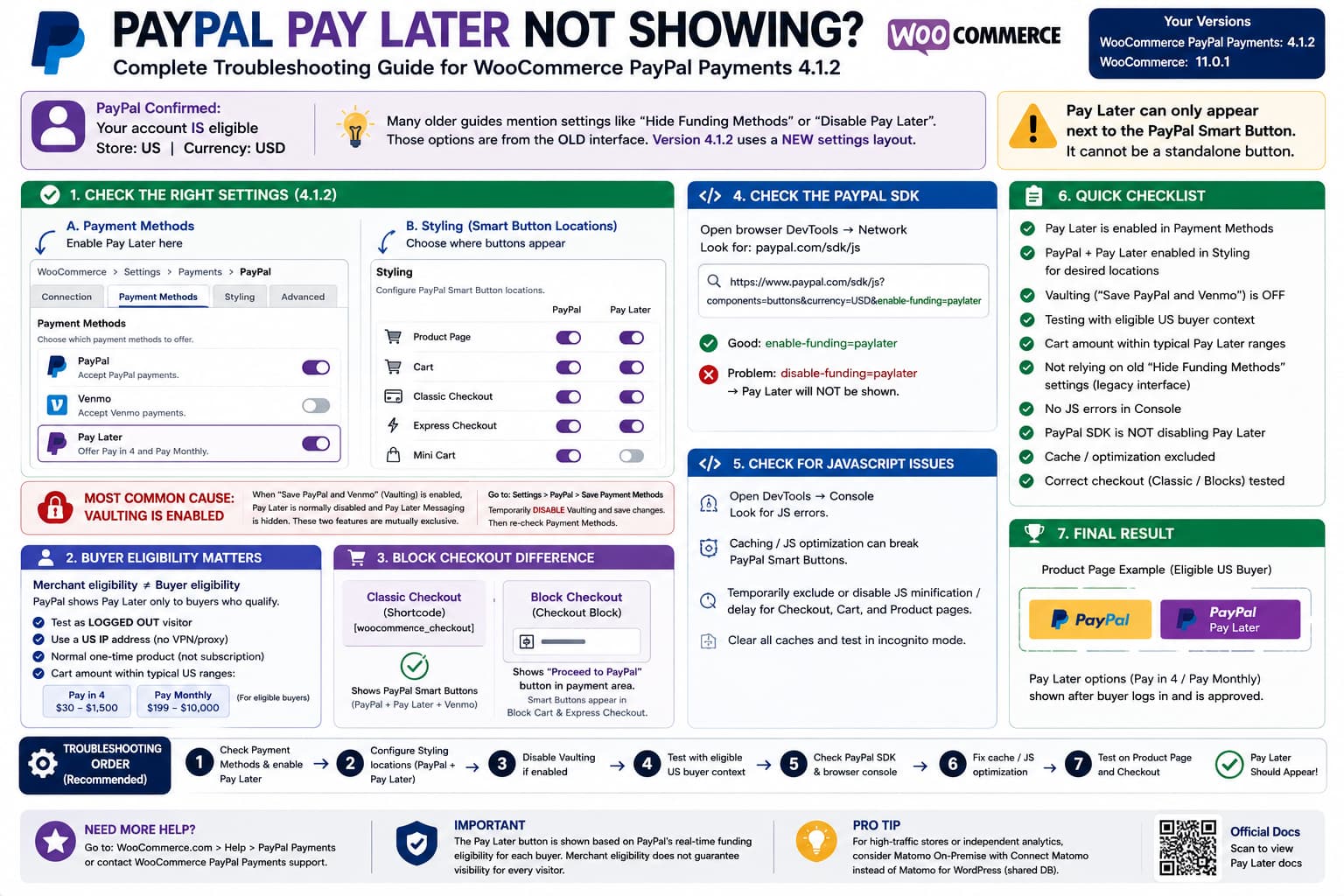
If PayPal has confirmed that your US business account is eligible for Pay Later, your WooCommerce store uses USD, but no Pay Later button appears on product pages or checkout, the first thing to know is that many older troubleshooting guides describe a different PayPal Payments settings interface.
With WooCommerce PayPal Payments 4.1.2, you should not necessarily expect to find older options named:
Hide Funding MethodsDisable Funding SourcesDisable Pay Later
WooCommerce now has a newer settings interface where payment methods such as PayPal, Venmo, and Pay Later are managed individually under Payment Methods, while their button locations are controlled under Styling. WooCommerce still maintains separate documentation for the old legacy settings interface, which is why searches can lead to controls that no longer match what you see in wp-admin.
So the absence of those old settings is not, by itself, evidence that the plugin is broken.
Where Pay Later Is Configured in PayPal Payments 4.1.2
Open:
WooCommerce→ Settings→ Payments→ PayPal
Then check:
Payment Methods
The current PayPal Payments interface allows PayPal, Venmo, and Pay Later to be enabled as button funding methods.
Once Pay Later is enabled there, open:
Styling
This controls where PayPal Smart Buttons are rendered, including locations such as:
Product PageCartClassic CheckoutExpress CheckoutMini Cart
WooCommerce’s current documentation specifically says the Pay Later button is enabled from Payment Methods, while its locations are configured in Styling.
Pay Later Cannot Appear Without the PayPal Smart Button
This is an important requirement.
WooCommerce states that the individual Pay Later button can only be displayed alongside the PayPal Smart Button. It cannot be used as an independent payment button.
So this configuration will not work:
Product PagePayPal button:OFFPay Later:ON
You need something equivalent to:
Product PagePayPal:ONPay Later:ON
The same principle applies to other supported Smart Button locations.
If the normal PayPal button itself is missing from the product page, troubleshoot Smart Button rendering first rather than Pay Later eligibility.
The Biggest Setting to Check: Vaulting
If Save PayPal and Venmo or PayPal Vaulting is enabled, Pay Later may disappear intentionally.
WooCommerce’s current Vaulting documentation says:
When Vaulting is enabled, the Pay Later button is disabled and the Pay Later Messaging configuration is hidden.
The two features are normally mutually exclusive.
This can produce exactly the confusing situation where:
PayPal account:Pay Later eligibleStore country:USCurrency:USDBut Pay Later:Missing from settings/frontend
Check:
PayPal Payments→ Settings→ Save Payment Methods
or the equivalent Save PayPal and Venmo option in your current UI.
Temporarily disable Vaulting on staging, save, and reload the PayPal Payment Methods page.
If Pay Later suddenly becomes available, you have identified the cause.
Version 4.1.2 Added an Important Vaulting Exception
This is especially relevant because the reported plugin version is 4.1.2.
WordPress.org shows WooCommerce PayPal Payments 4.1.2 was released on August 4, 2026, and its changelog contains this enhancement:
Add filter to allow Pay Later button and messagingwhen Vaulting is enabled
The corresponding WooCommerce PayPal Payments pull request explains that the filter is:
woocommerce_paypal_payments_pay_later_with_vaulting
and was created for merchants whitelisted by PayPal to use Pay Later and Vaulting together.
For an eligible merchant whom PayPal has explicitly approved for this combined setup, the filter is:
add_filter( 'woocommerce_paypal_payments_pay_later_with_vaulting', '__return_true');
However, do not add this merely to force Pay Later onto an ordinary account.
The developers explicitly describe this as intended for merchants whitelisted by PayPal for simultaneous Pay Later and Vaulting functionality.
If PayPal has confirmed only general Pay Later eligibility, that is not necessarily the same as approval for Pay Later plus Vaulting.
Ask WooCommerce PayPal Payments support or PayPal whether the merchant account is whitelisted for this specific combination before using the filter.
Merchant Eligibility Is Not the Same as Buyer Eligibility
Another source of confusion is the phrase:
PayPal confirmed my account is eligible.
That confirms the merchant can offer Pay Later.
It does not guarantee PayPal will show Pay Later to every visitor.
PayPal’s JavaScript SDK performs real-time funding eligibility checks and automatically renders only the payment methods considered appropriate for the current buyer. PayPal explicitly documents paypal.FUNDING.PAYLATER as a funding source governed by its funding-eligibility logic.
This means:
Merchant eligible≠Every shopper sees Pay Later
The buyer’s eligibility can depend on PayPal’s own criteria.
Even using PayPal’s enable-funding=paylater configuration does not override the underlying requirement that the funding source be eligible. PayPal describes enable-funding as enabling a method if eligible.
Your Testing Location Matters
In production, PayPal determines the buyer’s country partly from geolocation.
PayPal’s JavaScript SDK documentation says buyer country defaults to the visitor’s IP geolocation.
So if the store is US-based but you test from:
CanadaEuropeAsiaVPN exit node outside the US
you may see a different PayPal funding combination.
That can make Pay Later appear missing even though a qualifying US customer can see it.
For diagnosis, test:
Logged outPrivate/incognito browserUS IP addressNormal one-time productUSD cart
Do not base the test only on your own logged-in merchant account or an overseas administrator connection.
Cart Value Can Affect the Actual Offer
For US buyers, PayPal currently describes Pay Later offers including:
Pay in 4$30 to $1,500Pay Monthly$199 to $10,000
for eligible buyers.
That does not mean the WooCommerce button must always disappear outside every one of those ranges because PayPal controls the final funding experience, but testing a very small or unusual cart amount is not ideal.
Use a normal one-time cart value inside a typical Pay Later range when troubleshooting.
For example:
$100 productUSDNo subscription
is a better test than:
$2 product
Pay Later Messaging and the Pay Later Button Are Different
Do not confuse:
Pay Later button
with:
Pay Later messaging
Messaging is text such as:
Pay in 4 payments of...
shown near a product price, cart total, or checkout total.
The Pay Later button is an actual payment button.
WooCommerce lets you configure these separately. Pay Later messaging can appear on:
Single productCartCheckoutHomeShop
while the button depends on the PayPal Smart Button configuration.
Therefore:
No messaging
does not automatically mean:
Pay Later payment unavailable
and the reverse is also true.
Check Whether You Are Using Block Checkout
This is a major WooCommerce-specific detail.
Current PayPal Payments documentation says the WooCommerce Block Checkout payment-method area does not display PayPal Smart Buttons the same way Classic Checkout does.
Instead, it can show a:
Proceed to PayPal
button in the payment-method area.
PayPal, Pay Later, and Venmo Smart Buttons are supported in Block Cart and Block Express Checkout areas.
So if you are looking specifically here:
Checkout Block→ Payment methods
and expecting three Smart Buttons:
PayPalVenmoPay Later
you may be testing the wrong UI location.
To determine which checkout you use, edit the Checkout page.
If it contains the modern:
Checkout
block, you are using Block Checkout.
If it uses:
[woocommerce_checkout]
you are using Classic Checkout.
For the clearest Smart Button diagnostic, test the Classic Checkout or an enabled Express Checkout location.
Product Page Testing Is Particularly Useful
Product pages avoid some of the confusion caused by Checkout Blocks.
Open:
PayPal Payments→ Styling
and make sure Product Page is an enabled Smart Button location.
Then verify both:
PayPal✓Pay Later✓
for that location.
Open a normal simple product as a logged-out visitor.
If PayPal appears but Pay Later does not, you have narrowed the problem to:
funding eligibilityVaultingPay Later configuration
rather than a general Smart Button loading failure.
If neither button appears, troubleshoot the PayPal scripts themselves.
Check What the PayPal JavaScript SDK Is Loading
Open the affected frontend page and press:
F12→ Network
Search for:
paypal.com/sdk/js
Inspect the SDK request URL.
You may see parameters related to:
currency=USDcomponents=buttonsenable-fundingdisable-funding
PayPal’s official SDK documentation recognizes:
paylater
as both an enable-funding and disable-funding value.
If the loaded request contains:
disable-funding=paylater
you have strong evidence that the integration itself is instructing PayPal not to expose the Pay Later funding source.
Then investigate:
Vaultingplugin settingscustom filtersold migrated configuration
rather than the PayPal merchant account.
Check for JavaScript Errors
If the PayPal button area is blank or incomplete, open:
DevTools→ Console
and reload the page.
PayPal Payments relies heavily on frontend JavaScript.
WooCommerce specifically warns that caching and JavaScript optimization/minification can interfere with PayPal Smart Buttons. The plugin documentation recommends excluding PayPal Payments scripts or payment pages when optimization causes button-loading failures.
If you use:
LiteSpeed CacheWP RocketAutoptimizeCloudflare optimizationPerfmattersFlyingPressSG Optimizer
temporarily disable JavaScript delay/minification on a staging site.
Then retest.
Do not merely clear the cache while leaving the transformation that breaks the PayPal JavaScript enabled.
A Good Cache Test
Temporarily exclude:
CheckoutCartProduct test page
from full-page optimization.
WooCommerce’s PayPal documentation specifically suggests excluding at least PayPal Payments’ button JavaScript from problematic minification:
/woocommerce-paypal-payments/modules/ppcp-button/assets/js/button.js
Then clear:
WordPress cacheserver cacheCDN cachebrowser cache
and test in an incognito browser.
Reconnecting PayPal Is Not the First Fix Anymore
Re-onboarding is frequently recommended because it refreshes merchant capabilities.
But if you have already:
disconnectedreconnectedcleared cachere-onboarded
and the account is confirmed Pay Later eligible, repeating that procedure is unlikely to uncover the missing old settings.
The more useful next checks are:
new Payment Methods interfaceVaultingbutton locationsBlock vs Classic checkoutbuyer eligibilityactual PayPal SDK parametersJavaScript optimization
Why “Hide Funding Methods” Is Missing
Older versions of WooCommerce PayPal Payments used settings such as:
Disable funding sourcesDisable Alternative Payment Methods
and older support material may call these:
Hide Funding Sources
A historical WooCommerce PayPal Payments issue even documents the terminology change around “Disable funding sources” versus “Hide Funding Source(s).”
But WooCommerce now provides a dedicated Payment Methods interface where individual methods are toggled instead.
So do not spend hours searching for an option that belongs to the legacy interface.
Check Whether Pay Later Exists in Payment Methods at All
There are two separate diagnostic cases.
Case A: Pay Later Is Listed but Disabled
If you can see:
Payment Methods→ Pay Later
enable it.
Then configure the locations in Styling.
Case B: Pay Later Is Completely Missing or Greyed Out
Check Vaulting first.
WooCommerce normally disables Pay Later when Vaulting is active.
If Vaulting is off and Pay Later is still completely unavailable despite a US/USD merchant configuration, collect the plugin system report and contact WooCommerce PayPal Payments support.
That becomes an account-capability or plugin-state issue rather than a simple frontend eligibility issue.
Version 4.1.2 Is Already the Relevant Current Fix Level
The reported version, WooCommerce PayPal Payments 4.1.2, is a current August 2026 release.
WordPress.org lists 4.1.2 as released on August 4, 2026. In addition to the Pay Later/Vaulting filter, it includes a fix for a Pay Later messaging settings error that could appear when merchants connect manually.
Therefore, this is not a case where the immediate answer is simply:
Update from an old PayPal Payments version.
The environment is already new enough that the new settings architecture must be taken into account.
Recommended Troubleshooting Order
Use this sequence:
- Open WooCommerce → Settings → Payments → PayPal → Payment Methods and confirm Pay Later exists and is enabled.
- Open Styling and enable both PayPal and Pay Later for Product Page and the desired checkout/express locations.
- Check whether Save PayPal and Venmo / Vaulting is enabled. Disable it temporarily and retest.
- Confirm you are testing a normal one-time USD purchase, preferably within a typical US Pay Later amount range.
- Test as a logged-out buyer using a US IP address.
- Determine whether the Checkout page uses Classic Checkout or Checkout Blocks.
- Inspect the PayPal SDK request for
disable-funding=paylater. - Check the browser Console for PayPal JavaScript errors.
- Temporarily disable JavaScript minification/delay and retest.
- If Pay Later is still absent from the plugin’s Payment Methods screen itself, send WooCommerce PayPal Payments support the system report and merchant ID.
That sequence separates configuration, plugin limitations, buyer eligibility, and frontend JavaScript problems instead of repeatedly reconnecting the PayPal account.
Most Likely Explanations in This Case
Given:
WooCommerce PayPal Payments 4.1.2WooCommerce 11.0.1US merchantUSDPayPal confirmed merchant Pay Later eligibilityold funding-source controls not visible
the missing old settings are expected because the current plugin uses the newer settings UI.
The strongest things to check next are:
1. Pay Later under Payment Methods2. PayPal + Pay Later enabled in Styling locations3. Save PayPal and Venmo / Vaulting4. Block Checkout vs Classic Checkout5. Buyer eligibility and testing IP
If Vaulting is enabled, that is especially significant because WooCommerce normally disables Pay Later in that configuration.
If Vaulting is not enabled and Pay Later is correctly selected in Payment Methods and Styling, inspect the frontend PayPal SDK and test with an eligible US buyer context.
How to Verify the Fix
Once corrected, test a standard product page.
You should see:
PayPalPay Later
when the current buyer qualifies.
Then test the Cart/Express Checkout area.
Finally test the actual payment flow. Remember that even when the Pay Later button is rendered, the specific financing options offered after login remain controlled by PayPal for that buyer. PayPal’s SDK deliberately applies buyer-specific funding eligibility.
The final goal is not to force every visitor to see Pay Later.
It is to ensure WooCommerce is correctly offering Pay Later to PayPal, after which PayPal decides whether the current buyer is eligible.
