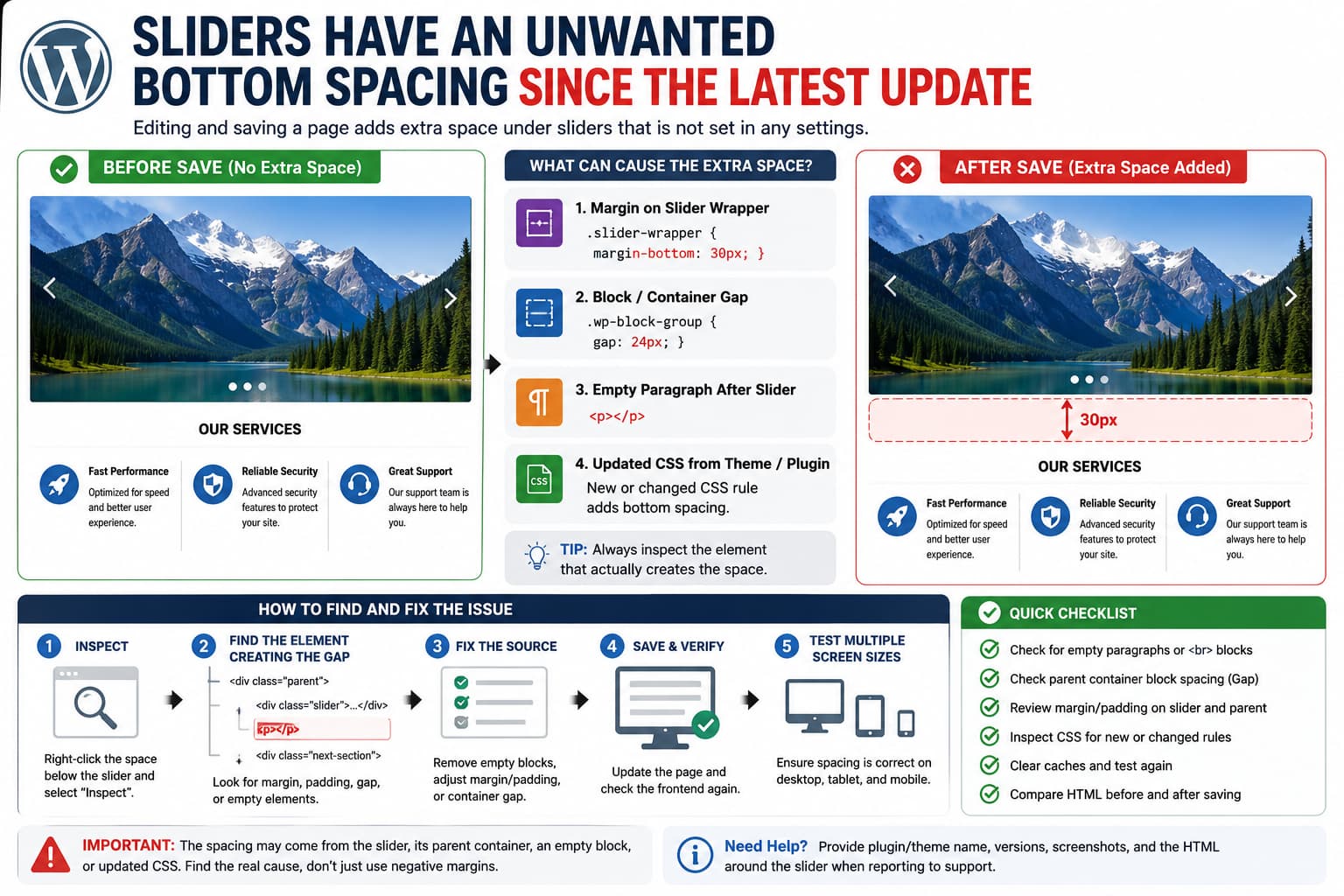
If a WordPress slider suddenly develops extra space underneath it only after the page is edited and saved, do not immediately add a negative margin to hide the gap.
That behavior provides an important clue.
When the slider looks correct before editing but changes after clicking Update, one of these things is usually happening:
- the editor is rewriting the slider’s surrounding markup,
- an empty paragraph or block is being added after the slider,
- a parent Group or container is gaining block spacing,
- updated CSS is applying margin to the slider wrapper,
- a slider element has changed from block-level to inline-level rendering,
- or a plugin/theme update changed the generated classes or CSS rules.
The first step is therefore to identify which HTML element actually occupies the unwanted space.
The visible gap may not belong to the slider at all.
Inspect the Gap Before Changing Any Settings
Open the affected page on the frontend.
Right-click directly inside the blank area beneath the slider and select:
InspectIn Chrome or Firefox DevTools, move through the surrounding elements until the highlighted box matches the unwanted space.
Pay attention to properties such as:
margin-bottom
margin-top
padding-bottom
padding-top
gap
row-gap
line-height
You may find something like:
.slider-wrapper {
    margin-bottom: 30px;
}
Or the slider may have no margin at all while its parent contains:
.wp-block-group {
    gap: 24px;
}
Those are different problems and should be fixed differently.
WordPress distinguishes between margin, padding, and block spacing. Margin controls space outside a block, padding controls space inside it, and block spacing controls the distance between nested blocks.
Check Whether an Empty Paragraph Appears After Saving
This is particularly important when the slider is inserted using:
- a shortcode,
- a Classic Editor field,
- a Text widget,
- a custom HTML field,
- or another editor that processes normal WordPress content.
Inspect the HTML directly beneath the slider.
You may find:
<div class="my-slider">
    ...
</div>

<p></p>
or:
<p><br></p>or an empty block such as:
<p class="has-text-align-left"> </p>That element can create apparent slider spacing even though the slider’s margin is actually zero.
WordPress’s wpautop() formatting function converts certain line breaks into <p> and <br> elements when content is processed.
This does not mean wpautop() is automatically responsible for every slider-spacing problem. Block-editor content and page builders can have completely different serialization paths.
But if the gap appears only after saving, comparing the surrounding markup before and after the save is worthwhile.
Use List View to Look for an Empty Block
If the slider is on a Gutenberg page, open the page editor and enable:
List ViewLook immediately after the slider.
For example:
Group
├── Slider
├── Paragraph
└── Heading
An apparently empty Paragraph can still create vertical spacing.
Delete it and update the page.
Also check for:
Spacer
Group
Stack
Columns
between the slider and the next visible section.
WordPress blocks can expose margin, padding, and block-spacing controls depending on the block and theme.
Check the Parent Group’s Block Spacing
This is one of the easiest causes to overlook.
Consider:
Group
├── Slider
└── Next Section
Even when both child blocks have:
margin: 0the Group may apply:
Block spacing: 24pxThat produces space between them.
Inspect the Group in the editor:
Group
→ Styles / Dimensions
→ Block spacing
or check the equivalent setting provided by your theme/editor.
WordPress documentation confirms that Block Spacing controls the vertical or horizontal distance between nested blocks.
If the spacing began after an update, also inspect the frontend CSS for a variable such as:
--wp--style--block-gapor a rule similar to:
.wp-block-group > * + * {
    margin-block-start: 24px;
}
The exact rule depends on the theme and layout configuration.
Test Whether the Slider Wrapper Has a New Margin
If DevTools identifies the actual slider wrapper, check which stylesheet provides the margin.
For example:
.some-slider-container {
    margin-bottom: 20px;
}
DevTools should show the stylesheet name beside the declaration.
This tells you whether the spacing came from:
- the slider plugin,
- the theme,
- WordPress global styles,
- a page builder,
- or custom CSS.
Do not assume the latest slider update caused the regression merely because the timing matches.
A theme or page-builder update can modify the CSS that targets the exact same slider markup.
Temporarily Disable the Rule in DevTools
Untick the suspicious property.
For example:
margin-bottom: 32px;If the gap disappears immediately, you have isolated the cause.
Now check whether that rule is intentional elsewhere.
If it affects every slider:
.slider-wrapper {
    margin-bottom: 32px;
}
a global override may be appropriate.
If only one particular slider should have no spacing, give that block or container a custom class instead.
For example:
no-slider-bottom-gapand use:
.no-slider-bottom-gap {
    margin-bottom: 0 !important;
}
Use the actual wrapper receiving the margin rather than applying CSS blindly to every slider on the website.
Check for the Classic Inline-Image Baseline Gap
Sometimes what appears to be a margin is actually a small baseline gap beneath an inline image.
Images are inline elements by default and can reserve space for the text baseline/descender.
A typical fix is:
.slider-wrapper img {
    display: block;
}
Use this only if DevTools shows that the blank area exists inside the slider’s element box, immediately beneath the image.
This usually causes only a small gap of a few pixels.
If you have 20px, 40px, or more of blank space, investigate margin, padding, block spacing, or empty elements first.
Compare the HTML Before and After Saving
If saving the page itself triggers the bug, this is one of the strongest diagnostic tests.
On staging:
- Restore or open a page that has not yet been re-saved.
- View its frontend HTML around the slider.
- Copy that small section.
- Edit the page.
- Change nothing.
- Click Update.
- View the frontend again.
- Compare the slider markup.
You are looking for differences such as:
<!-- Before -->
[slider]
<section class="next-section">
versus:
<!-- After -->
[slider]
<p></p>
<section class="next-section">
or:
<!-- Before -->
<div class="slider"></div>
becoming:
<!-- After -->
<div class="wp-block-group">
    <div class="slider"></div>
</div>
The second version can inherit Group spacing even though the slider itself did not change.
Check for New Inline Styles After Saving
Also compare attributes on the slider’s wrapper.
For example:
<div
    class="slider-wrapper"
    style="margin-bottom:var(--wp--preset--spacing--40)"
>
If the inline style appears only after the page is re-saved, the editor or block serialization process is writing the spacing value into the content.
In that situation, overriding CSS can hide the symptom, but the better fix is to determine why that spacing attribute is being inserted during save.
Check the Slider’s Parent and Next Element
CSS margin collapse can make spacing difficult to identify.
Suppose the slider has:
margin-bottom: 0;but the next heading has:
margin-top: 40px;Visually, it still looks like the slider has 40px beneath it.
Inspect both:
slider
next visible element
their parent
before deciding which CSS declaration needs changing.
Check Global Styles
For block themes, open:
Appearance
→ Editor
→ Styles
→ Layout
and inspect the site’s global block spacing.
WordPress Site Editor styles can define site-wide spacing values that influence blocks even when an individual block does not show an explicit custom margin.
If an update changed theme defaults, an old page may remain visually unchanged until it is edited and re-serialized.
That is one reason a spacing regression can appear to affect only pages that have recently been saved.
Do Not Use a Negative Margin as the First Fix
This workaround may appear to solve the problem:
.slider-wrapper {
    margin-bottom: -30px;
}
but it does not explain the original 30px.
If the real problem is an empty paragraph:
<p></p>the negative margin only overlaps that paragraph.
If the plugin removes the paragraph in a later update, your custom CSS can then pull the following content underneath the slider.
Find the source first.
A Safe Temporary CSS Override
If you have confirmed that the slider wrapper itself is receiving an unwanted bottom margin, a temporary scoped fix can be reasonable.
Assign the slider or its parent:
slider-no-bottom-spaceThen use:
.slider-no-bottom-space {
    margin-bottom: 0 !important;
}
If the margin belongs to an inner generated wrapper:
.slider-no-bottom-space .actual-slider-wrapper {
    margin-bottom: 0 !important;
}
Replace:
.actual-slider-wrapperwith the selector you identified in DevTools.
Do not copy a generic selector from another slider plugin.
If an Empty Paragraph Is the Cause
Removing the actual empty content is preferable.
However, if a plugin repeatedly generates an empty paragraph after its slider and you need a temporary workaround, you can target it very carefully.
For example:
.slider-wrapper + p:empty {
    display: none;
}
But this requires the DOM to actually be:
<div class="slider-wrapper"></div>
<p></p>
Do not apply:
p:empty {
    display: none;
}
site-wide.
Some themes and plugins intentionally use empty elements for layout or JavaScript behavior.
Clear Generated CSS After an Update
Page builders and optimization plugins may store generated CSS files.
After confirming the plugin/theme versions are current:
- clear the page builder’s generated CSS,
- clear WordPress caching,
- purge the server cache,
- purge CDN cache if present,
- hard-refresh the browser.
Caching does not explain a spacing value that is visibly present in the current computed CSS.
But it can make an already-fixed stylesheet appear to remain broken after an update.
Use Revisions to Confirm the Save Trigger
WordPress revisions are extremely useful here.
If a page worked correctly before a recent save:
Pages
→ Edit
→ Revisions
compare the previous revision to the newest one.
You are mainly looking for structural content changes around the slider, not just visible text changes.
If reverting the revision removes the spacing and clicking Update without making changes brings it back again, you have a strong reproducible test case for the plugin or editor developer.
Test With a New Page
Create a staging page containing only:
Slider
Next heading
Do not add any custom spacing.
Publish it.
Then:
- inspect the frontend,
- record the spacing,
- reopen the page,
- change nothing,
- click Update,
- inspect it again.
If the additional gap appears, you have eliminated most page-specific CSS as the cause.
Then repeat with a default WordPress theme if practical.
A minimal test like this is much more useful to a plugin developer than a large production page with dozens of nested containers.
Compare Plugin Versions on Staging
If the problem started immediately after a plugin update, use a staging site to compare:
previous version
versus
current version
Perform the same test:
Open page
→ change nothing
→ Update
→ inspect slider
If:
Old version = no gap
New version = gap
with everything else identical, you have good evidence of an update regression.
Do not downgrade a production website without reviewing whether the newer version contains security fixes.
What to Send the Plugin Developer
A strong bug report should include:
- slider plugin name and exact version
- previous version that did not show the issue
- WordPress version
- active theme
- editor/page builder used
- whether the slider is inserted through a block, shortcode, widget, or builder module
- screenshot before saving
- screenshot after saving
- HTML surrounding the slider before and after
- DevTools screenshot showing the property responsible for the gap
- stylesheet and selector applying the property
- confirmation that simply opening and saving the page reproduces it
The most valuable reproduction instruction is:
Open an existing working page
→ change nothing
→ click Update
→ extra space appears
because it proves the behavior is tied to the save operation rather than to a deliberate layout change.
Important Limitation of This Report
The original issue describes a slider regression after a “latest update” but does not identify the slider plugin, theme, page builder, or version number.
Because of that, it would be inaccurate to claim that a specific plugin release contains a confirmed spacing bug.
The correct diagnosis must therefore start from the frontend DOM and computed CSS.
Once the responsible plugin and selector are known, the fix can be narrowed to that implementation.
How to Verify the Fix
After applying the actual fix:
- remove any temporary negative-margin hacks,
- clear generated CSS/cache,
- open the page on the frontend,
- confirm the slider has the intended spacing,
- edit the page,
- change nothing,
- click Update,
- reload the frontend,
- confirm the spacing remains unchanged,
- repeat the save one more time.
A proper fix should be stable after repeated saves.
The important test is not simply:
Does the slider look correct now?It is:
Does the slider remain correct after the editor saves the page again?