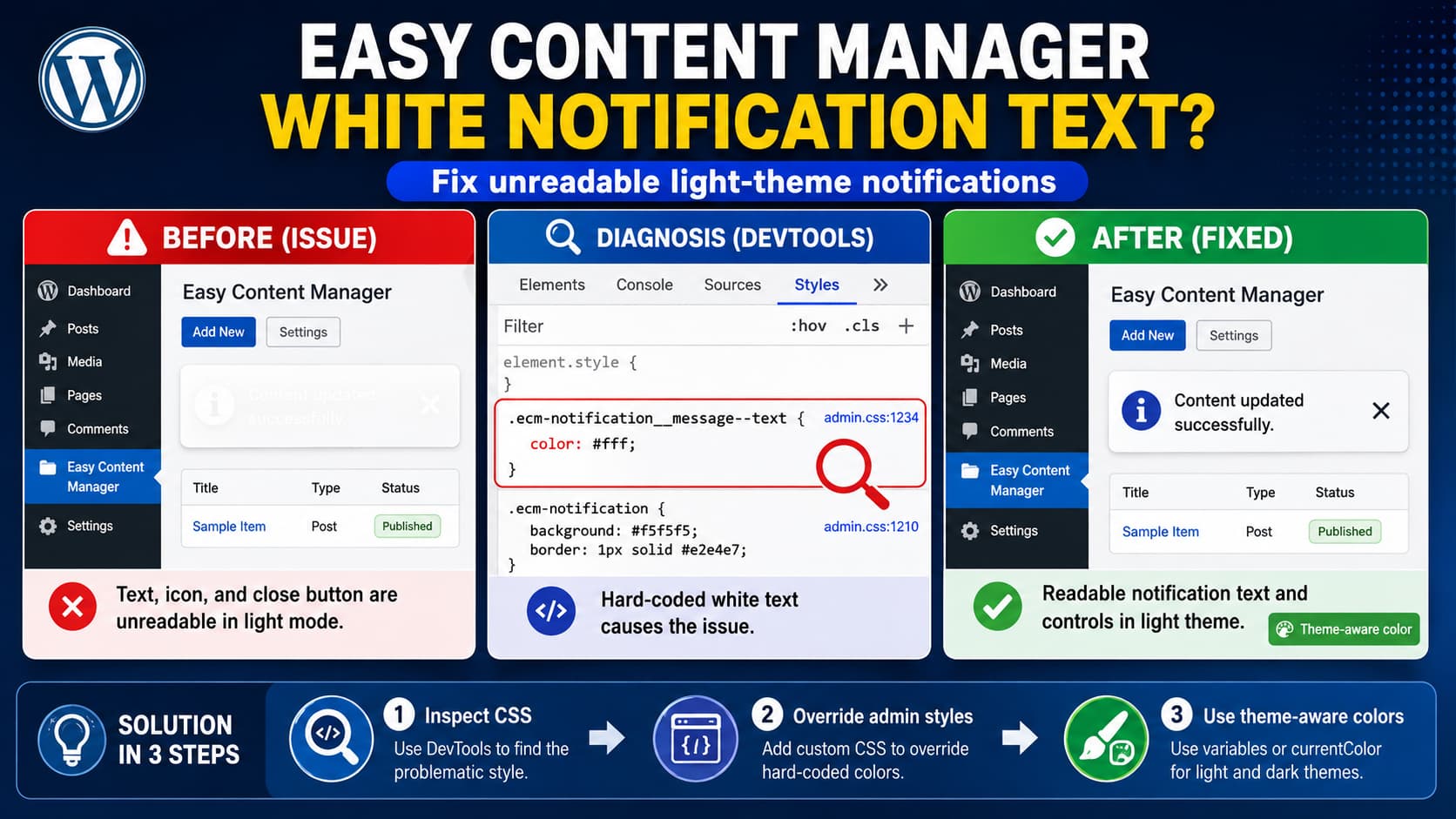
If notification messages in Easy Content Manager (ECM) become unreadable when using its light interface, inspect the notification’s CSS before blaming your WordPress theme.
A useful clue is this ECM class:
.ecm-notification__message--textIf Chrome DevTools shows a rule such as:
color: #fff;while the notification itself has a white or very light background, the browser is doing exactly what the stylesheet requests: displaying white text on a light background.
The same problem can affect the notification icon and the close button, particularly before the close button is hovered.
This is fundamentally a theme-aware component styling problem inside the ECM admin interface. The notification foreground color should change with its light/dark background instead of being permanently forced to white.
Confirm That ECM’s CSS Is Setting the Color
Open the ECM screen where the notification appears.
For example, reproduce it while working with:
ECM → Custom Fieldsand perform the action that displays the affected notification.
Then:
- Press
F12. - Choose Elements.
- Select the unreadable notification text.
- Open the Computed or Styles panel.
- Find the final value for
color.
If you see:
.ecm-notification__message--text {
    color: #fff;
}
and disabling that declaration immediately makes the text readable, you have isolated the problem.
The same process should be repeated for the icon and close control instead of assuming they all inherit the same style.
Why This Is an ECM UI Issue
Easy Content Manager uses its own modern administration interface for managing custom fields, post types, taxonomies, settings, and other structured content. Its official plugin description specifically describes this as a dedicated visual content-management interface rather than the normal WordPress edit screens.
That means notification components inside this interface can have their own styles independent of your site’s frontend WordPress theme.
The current public Easy Content Manager release on WordPress.org is 1.2.4. It requires PHP 7.4 or newer and is listed as tested through WordPress 7.0.3.
Its published changelog does not currently list a specific fix for light-theme notification text, icons, or close buttons being permanently white.
So updating ECM should still be your first step, but there is no basis for assuming that version 1.2.4 specifically fixes this color problem.
Test the Correct CSS Fix in DevTools First
Do not immediately edit ECM’s plugin CSS files.
Instead, use DevTools to test:
.ecm-notification__message--text {
    color: #1d2327 !important;
}
#1d2327 is a dark neutral color that works well against a light notification background.
If the text becomes readable, you have confirmed the override.
However, this alone should not automatically be used for ECM’s dark theme. A dark foreground color could become unreadable against a dark notification background.
A better first test is:
.ecm-notification__message--text {
    color: inherit !important;
}
If the parent notification already has an appropriate theme-aware text color, inherit lets the message follow it instead of forcing white.
This is preferable to replacing one hard-coded color with another whenever ECM’s parent component already handles light and dark themes properly.
Check the Parent Notification Color
With the notification selected in DevTools, move upward through its parent elements.
Look for something similar to:
<div class="ecm-notification">or the actual notification wrapper used by your installed ECM version.
Check its computed:
color
background-color
If the parent has:
color: #1d2327;in light mode, then this is probably enough:
.ecm-notification__message--text {
    color: inherit !important;
}
If the parent itself is also white, inheriting will not solve anything. In that situation, the light-theme notification component needs its own foreground color.
Fix the Icon and Close Button Too
The notification text is only one part of the accessibility problem.
Inspect the icon and close button separately.
If DevTools shows the same white foreground being forced on those elements, test color: inherit there as well.
For example, after confirming the exact class names in your installed version, the fix may look similar to:
.ecm-notification__message--text,
.ecm-notification__message--icon,
.ecm-notification__close {
    color: inherit !important;
}
The text selector above comes from the reported ECM markup. The icon and close-button selectors should be confirmed with DevTools rather than copied blindly because their exact class names can change between builds.
If ECM uses SVG icons, also inspect whether the SVG receives its appearance through:
fillor:
strokerather than color.
An SVG might contain something such as:
stroke: #fff;even after its parent text color has been corrected.
Do Not Edit ECM’s Compiled CSS Directly
It may be tempting to locate the plugin CSS file and change:
color: #fff;to:
color: #1d2327;Do not use this as a permanent fix.
Files inside:
/wp-content/plugins/easy-content-manager/belong to the plugin.
The next ECM update can replace them and silently remove your modification.
It also makes troubleshooting harder because the installed plugin no longer matches the official release.
Use an admin-only CSS override until ECM ships a permanent correction.
Add a Temporary Admin-Side Fix
WordPress’s normal Appearance → Customize → Additional CSS is primarily intended for frontend styling. Because this problem occurs in ECM’s WordPress administration application, add the workaround as admin CSS instead.
A small custom plugin or mu-plugin is safer.
For example:
<?php
/**
 * Plugin Name: ECM Light Notification Fix
 */

add_action( 'admin_head', function () {
	?>
	<style>
		.ecm-notification__message--text {
			color: inherit !important;
		}
	</style>
	<?php
} );
Save this as:
/wp-content/mu-plugins/ecm-notification-color-fix.phpCreate the mu-plugins directory if it does not already exist.
Then reproduce the notification.
If inherit is still white because its parent has the wrong foreground color, replace it temporarily with:
color: #1d2327 !important;But only do that after checking the dark theme.
Scope an Explicit Color to Light Mode
The ideal permanent fix should be theme-aware.
Conceptually, ECM should produce something equivalent to:
.ecm-light-theme .ecm-notification__message--text {
    color: #1d2327;
}

.ecm-dark-theme .ecm-notification__message--text {
    color: #fff;
}
Those theme class names are examples, not verified ECM selectors.
Inspect the root ECM container while switching between light and dark mode and identify what ECM actually changes.
It might use:
- a root class,
- a
data-themeattribute, - CSS variables,
- a class on
<body>, - or application state that changes component classes.
For example, if DevTools shows:
<div data-theme="light">you could use:
[data-theme="light"] .ecm-notification__message--text {
    color: #1d2327 !important;
}
and leave dark mode untouched.
Use the actual theme selector from your installed version.
A Better Fix for the Plugin Developer
The stronger long-term solution is not separate hard-coded colors scattered through notification CSS.
The notification component should consume ECM’s existing theme tokens or CSS variables.
Conceptually:
.ecm-notification__message--text {
    color: var(--ecm-notification-text-color);
}
Then light mode can provide:
--ecm-notification-text-color: #1d2327;while dark mode provides:
--ecm-notification-text-color: #fff;The icon and close button can use:
color: currentColor;where appropriate.
That keeps all three controls synchronized with the theme rather than solving them independently.
Error, Success, and Warning Icons May Need Different Colors
Do not automatically force every notification icon to black.
A notification system commonly uses visual status colors to distinguish:
Error
Success
Warning
Information
For example, an error icon may intentionally be red while the message itself is dark gray.
The correct relationship might therefore be:
Message text → theme foreground
Close icon → theme foreground
Status icon → notification status color
rather than giving all three exactly the same hex value.
This is another reason why changing every white declaration globally is risky.
Check Hover and Non-Hover States
The close button deserves an additional test because the issue may be present only before hovering.
Inspect it while it is idle.
Then activate DevTools’ :hov controls and force:
:hover
:focus
:focus-visible
Compare the resulting colors.
A common styling mistake is:
.ecm-notification__close {
    color: #fff;
}

.ecm-notification__close:hover {
    color: #1d2327;
}
On a white notification that means the control is effectively invisible until the administrator accidentally moves the pointer over it.
The default state must remain visible too.
Keyboard focus should also be tested. Users navigating wp-admin without a mouse need to be able to identify the close control.
This Is Also an Accessibility Problem
White text against a white or very light background is more than a cosmetic inconvenience.
The content effectively disappears for users who rely on the notification to understand whether an operation failed.
This is particularly serious for error notifications, because administrators may be unable to read the information telling them why an action was rejected.
Notification text, controls, and meaningful icons should maintain adequate contrast in every supported theme state.
Clearing Cache Will Not Fix a Hard-Coded CSS Rule
If DevTools proves that the currently loaded stylesheet intentionally contains:
color: #fff;clearing the browser cache does not correct the underlying rule.
Caching becomes relevant only when:
- ECM has released corrected CSS,
- you updated the plugin,
- but the browser/CDN continues serving the old asset.
In that case, clear:
- browser cache,
- WordPress optimization cache,
- server cache,
- CDN cache, if applicable.
Then inspect the stylesheet again.
Check ECM After Every Update
Because the workaround uses plugin-specific CSS selectors, remove it once ECM provides a native fix.
After updating:
- Disable your custom override temporarily.
- Open ECM in light mode.
- Trigger an error notification.
- Trigger a success notification.
- Check the message text.
- Check the status icon.
- Check the close button without hovering.
- Hover the close button.
- Switch to dark mode.
- Repeat the test.
If everything remains readable without custom CSS, delete the workaround.
Leaving unnecessary !important overrides in place can interfere with later ECM design changes.
What to Send ECM Support
A useful bug report should include:
- ECM version
- WordPress version
- PHP version
- light or dark theme selection
- exact action used to trigger the message
- screenshot of the unreadable notification
- screenshot of DevTools showing the computed color
- stylesheet/rule responsible for
color: #fff - confirmation that disabling the declaration makes the text readable
- the same information for the icon and close button
It is especially useful to mention that the problem occurs in ECM’s light theme rather than simply reporting that the text is white.
ECM provides official documentation and a support system through its website, and the WordPress.org plugin page also links to its support forum.
Version Note
At the time this article was verified on August 13, 2026, WordPress.org listed Easy Content Manager 1.2.4 as the current public release, with PHP 7.4+ support and testing through WordPress 7.0.3.
The public 1.2.4 changelog mentions update-security improvements and a deactivation-feedback popup fix, while 1.2.3 contains image-field fixes. It does not document this specific light-mode notification color problem.
Therefore, this article should not be interpreted as confirmation that a particular ECM release introduced the issue or that a later release has already fixed it.
