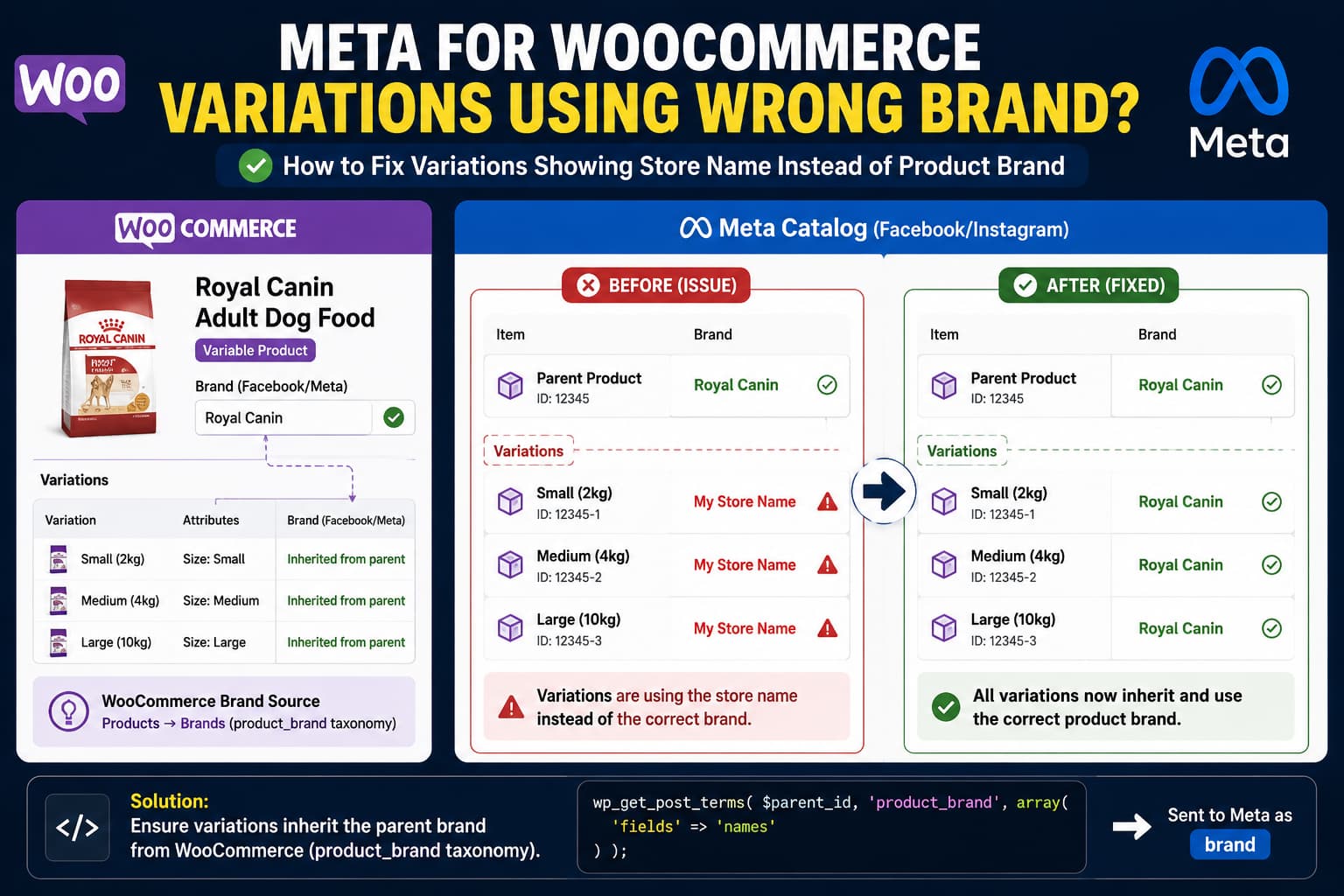
When a variable WooCommerce product has the correct brand in Meta but its individual variations show the website or store name instead, the problem is usually not the Meta catalog itself. It happens when Meta for WooCommerce cannot resolve a valid brand for the variation and falls back to the store name.
Current Meta for WooCommerce code explicitly supports inheriting the plugin’s own fb_brand value from a parent product. However, there is an important difference between that field, a WooCommerce pa_brand product attribute, and WooCommerce’s product_brand taxonomy.
If your brands come from Products → Brands, that difference can explain why the parent product sends a brand such as Royal Canin while its variations fall back to your store name.
The safest first test is to explicitly set the Brand field in the parent product’s Meta/Facebook settings, save the product, and resync it. If the variations then receive the correct brand, you have confirmed that the problem is how your WooCommerce brand source is being resolved.
Why Meta Uses the Store Name as the Variation Brand
Meta for WooCommerce has a defined fallback process when preparing its brand field.
In the current plugin source, get_fb_brand() first looks for a pa_brand taxonomy attribute. For a variation, it then checks the variation’s own fb_brand metadata. If that value is empty, it checks the parent product’s fb_brand.
If there is still no brand, the plugin checks other possible brand sources, including enhanced catalog metadata and the product_brand taxonomy. If none produces a value, it calls its default-brand function.
The plugin’s default-brand function returns the WooCommerce/WordPress store name.
That explains the characteristic symptom:
Parent product:
Brand = Royal Canin

Variation:
Brand = My Store Name
The store name is not necessarily coming from Meta Commerce Manager. It can be generated by Meta for WooCommerce because it did not find another usable brand value while preparing that variation.
The Important Difference Between fb_brand, pa_brand, and product_brand
WooCommerce stores can have several completely different things that all appear to administrators as “Brand.”
fb_brand
This is Meta for WooCommerce’s own product metadata.
The current plugin specifically contains logic that says, in effect:
If this is a variation:
    use the variation fb_brand

If variation fb_brand is empty:
    use the parent fb_brand
The current source also contains automated tests asserting that a variation without its own brand should inherit its parent’s Meta brand.
This inheritance work was part of a wider product-data enhancement merged into the plugin and released with version 3.4.5 in April 2025. That change included fixes for parent-child attribute inheritance and variation synchronization.
pa_brand
This is a normal WooCommerce global product attribute whose taxonomy slug is:
pa_brandMeta for WooCommerce’s current attribute-mapping system recognizes Brand as a supported Meta catalog field and includes brand/manufacturer mappings.
The plugin documentation also provides an Attribute Mapping screen under:
Marketing → Facebook → Attribute Mappingwhere WooCommerce attributes can be mapped to Meta fields including Brand.
product_brand
This is the WooCommerce Product Brands taxonomy used by the Brands feature available under Products. WooCommerce documents brands as a taxonomy assigned to the product itself.
This is where the current implementation becomes important.
In the fallback portion of get_fb_brand(), Meta for WooCommerce queries product_brand using the ID of the product currently being processed.
For a variation, that ID can be the variation itself.
WooCommerce brand terms are normally attached to the parent product, not separately duplicated onto every variation. As a result, a parent can have:
product_brand = Royal Caninwhile a variation has no directly assigned product_brand term.
If the variation also has no fb_brand or suitable mapped pa_brand, the plugin can reach its final fallback and send the store name.
That behavior closely matches the reported parent-versus-variation mismatch.
First, Update Meta for WooCommerce
Before adding custom code, make sure Meta for WooCommerce is current.
As of August 2026, WordPress.org lists Meta for WooCommerce 3.7.6, released July 23, 2026.
This matters because variation and product-attribute handling has changed substantially across recent plugin versions.
Do not start by editing includes/fbproduct.php or another Meta plugin file. Any modification there will be overwritten during the next plugin update.
After updating, perform the following test on one variable product.
Test the Parent Meta Brand Field
Edit one affected variable product.
Go to:
Products → Edit Product → Product data → FacebookLook for the Brand/product attributes area and explicitly enter the correct brand, for example:
Royal CaninSave or update the product.
Then go to:
Marketing → Facebook → Product syncand run a product sync. Meta for WooCommerce’s documentation identifies this as the normal way to trigger a complete catalog synchronization when products are not reflecting current WooCommerce data.
After the sync processes the product, inspect one of its variations in Meta Commerce Manager.
If it changes from:
Brand: Example Storeto:
Brand: Royal Caninyou have established something important: Meta’s parent-brand inheritance works, but the WooCommerce brand source you were previously using was not being inherited correctly.
If You Use a WooCommerce Brand Attribute
If your brand is actually a WooCommerce attribute, such as:
pa_branduse Meta for WooCommerce’s Attribute Mapping feature instead of adding PHP immediately.
Open:
Marketing → Facebook → Attribute MappingMap the WooCommerce Brand attribute to:
BrandSave the mapping and resync the catalog.
The current Meta attribute mapper recognizes brand, manufacturer, and related mappings as valid sources for the Meta Brand field.
This is preferable to custom code when your product data is already stored as a WooCommerce attribute.
If You Use WooCommerce Products → Brands
If your actual brand is assigned through:
Products → Brandsyou are probably dealing with the product_brand taxonomy rather than a normal WooCommerce product attribute.
You can confirm it with WP-CLI.
Replace 123 with the parent product ID:
wp post term list 123 product_brand --fields=term_id,name,slugFor a Royal Canin product, you should see a result containing the appropriate brand term.
Now run the same command using one variation ID:
wp post term list 456 product_brand --fields=term_id,name,slugIf the parent has Royal Canin but the variation returns no brand term, you have reproduced the difference that can cause Meta for WooCommerce to reach its store-name fallback.
You do not need to manually assign the taxonomy to hundreds or thousands of variations.
A sync-time filter is safer.
Force Variations to Use the Parent product_brand
Meta for WooCommerce exposes the following filter while preparing catalog product data:
facebook_for_woocommerce_integration_prepare_productThe current plugin calls this filter with the generated product data before it is submitted.
You can use it to replace the outgoing Meta brand with the WooCommerce brand assigned to the parent product.
Add the following through a small custom plugin, an mu-plugin, or a PHP snippet manager rather than editing Meta for WooCommerce itself:
add_filter(
	'facebook_for_woocommerce_integration_prepare_product',
	function ( $product_data, $product_id ) {

		$product = wc_get_product( $product_id );

		if ( ! $product ) {
			return $product_data;
		}

		/*
		 * If a future/plugin code path passes a variation ID here,
		 * resolve it back to the parent product.
		 */
		if ( $product->is_type( 'variation' ) ) {
			$parent_id = $product->get_parent_id();

			if ( $parent_id ) {
				$product_id = $parent_id;
			}
		}

		$brands = wp_get_post_terms(
			$product_id,
			'product_brand',
			array(
				'fields' => 'names',
			)
		);

		if ( is_wp_error( $brands ) || empty( $brands ) ) {
			return $product_data;
		}

		$brand = sanitize_text_field( reset( $brands ) );

		if ( '' === $brand ) {
			return $product_data;
		}

		/*
		 * Meta for WooCommerce limits its prepared brand value
		 * to 100 characters in the current product code.
		 */
		$product_data['brand'] = function_exists( 'mb_substr' )
			? mb_substr( $brand, 0, 100 )
			: substr( $brand, 0, 100 );

		return $product_data;
	},
	20,
	2
);
This does not modify the WooCommerce product or variation.
It changes only the brand value Meta for WooCommerce prepares for catalog synchronization.
For a product configured as:
Parent product: Royal Canin Adult Dog Food
WooCommerce Brand: Royal Canin
the resulting Meta items should use:
Parent:
Brand = Royal Canin

Variation 1:
Brand = Royal Canin

Variation 2:
Brand = Royal Canin

Variation 3:
Brand = Royal Canin
instead of allowing variations to fall through to the store-name default.
If Your Brand Taxonomy Has a Different Slug
The snippet above specifically targets WooCommerce’s:
product_brandtaxonomy.
If another plugin provides your Brands feature, confirm its taxonomy slug before changing the code.
Do not assume every WordPress brand plugin uses product_brand.
The brand may look identical in wp-admin while being stored under a completely different taxonomy or custom metadata field.
What If Products Can Have Multiple Brands?
Meta’s Brand field represents the product’s brand, while WordPress taxonomies can technically contain multiple terms.
The snippet deliberately uses the first assigned brand:
reset( $brands )For normal catalog products, assign one actual manufacturer/brand whenever possible.
If your store uses multiple brand terms for organizational purposes, determine which term represents the actual commercial brand before automatically sending it to Meta.
Check the Existing Meta Brand Metadata
Another useful diagnostic is checking the Meta-specific brand metadata directly.
For the parent product:
wp post meta get 123 fb_brandFor a variation:
wp post meta get 456 fb_brandIf the parent returns:
Royal Caninand the variation is empty, current Meta for WooCommerce code should normally inherit the parent’s fb_brand.
If that still produces the store name while using the current plugin version, the problem requires deeper investigation because it would differ from the inheritance logic in the current source.
If both fb_brand values are empty but product_brand exists only on the parent, the taxonomy fallback is a much stronger suspect.
This Problem Has Happened Before
This particular symptom has historical precedent in the official Meta for WooCommerce repository.
A 2021 issue was titled:
Variations do not inherit parent's "brand" attributeand described variations falling back to the WordPress store name instead of the parent’s brand.
That report was closed as a duplicate of another issue titled:
Brand isn't synced instead it's using website nameThe earlier issue was labeled by the project as both a product-sync issue and a bug.
Those old reports do not prove that every modern occurrence has exactly the same cause. The plugin has changed substantially since then.
What makes the current product_brand case significant is that the current source still clearly distinguishes parent fb_brand inheritance from its later product_brand taxonomy fallback.
Resync the Catalog After Applying the Fix
Changing WooCommerce data or adding the filter will not help existing Meta catalog entries until those products are synchronized again.
Run:
Marketing → Facebook → Product sync → Sync productsThen inspect the actual variation items in Commerce Manager.
Check at least:
- the parent product
- one variation with its own variation attributes
- another variation from the same parent
- a second variable product using a different brand
The expected result is that every variation in the group uses the parent product’s real brand.
What Not to Do
Do not change the WordPress site title to Royal Canin, Nike, or another manufacturer just to manipulate Meta’s fallback value. The site title is not a product-brand field.
Do not edit:
wp-content/plugins/facebook-for-woocommerce/includes/fbproduct.phpas a permanent solution. A Meta for WooCommerce update will overwrite the modification.
Do not manually correct hundreds of catalog items directly in Meta if WooCommerce remains the synchronization source. A later WooCommerce sync can replace those manual changes.
Do not permanently assign the store name as the brand merely to eliminate an empty field. For retailers selling products manufactured by other companies, the product’s actual brand should be supplied.
How to Verify the Fix
After the catalog sync completes, open an affected variable product in Meta Commerce Manager.
Compare the parent and individual item variations.
Before:
Parent:
Royal Canin

Variation:
Example Pet Store
After:
Parent:
Royal Canin

Variation:
Royal Canin
Then update the WooCommerce parent product and allow Meta for WooCommerce to synchronize it again.
The correction should survive subsequent catalog updates. If it only works until the next synchronization, the change was made in Meta rather than at the WooCommerce data-generation layer.
For stores using the product_brand taxonomy, fixing the outgoing WooCommerce feed data is therefore more reliable than repeatedly correcting individual Meta catalog records.
