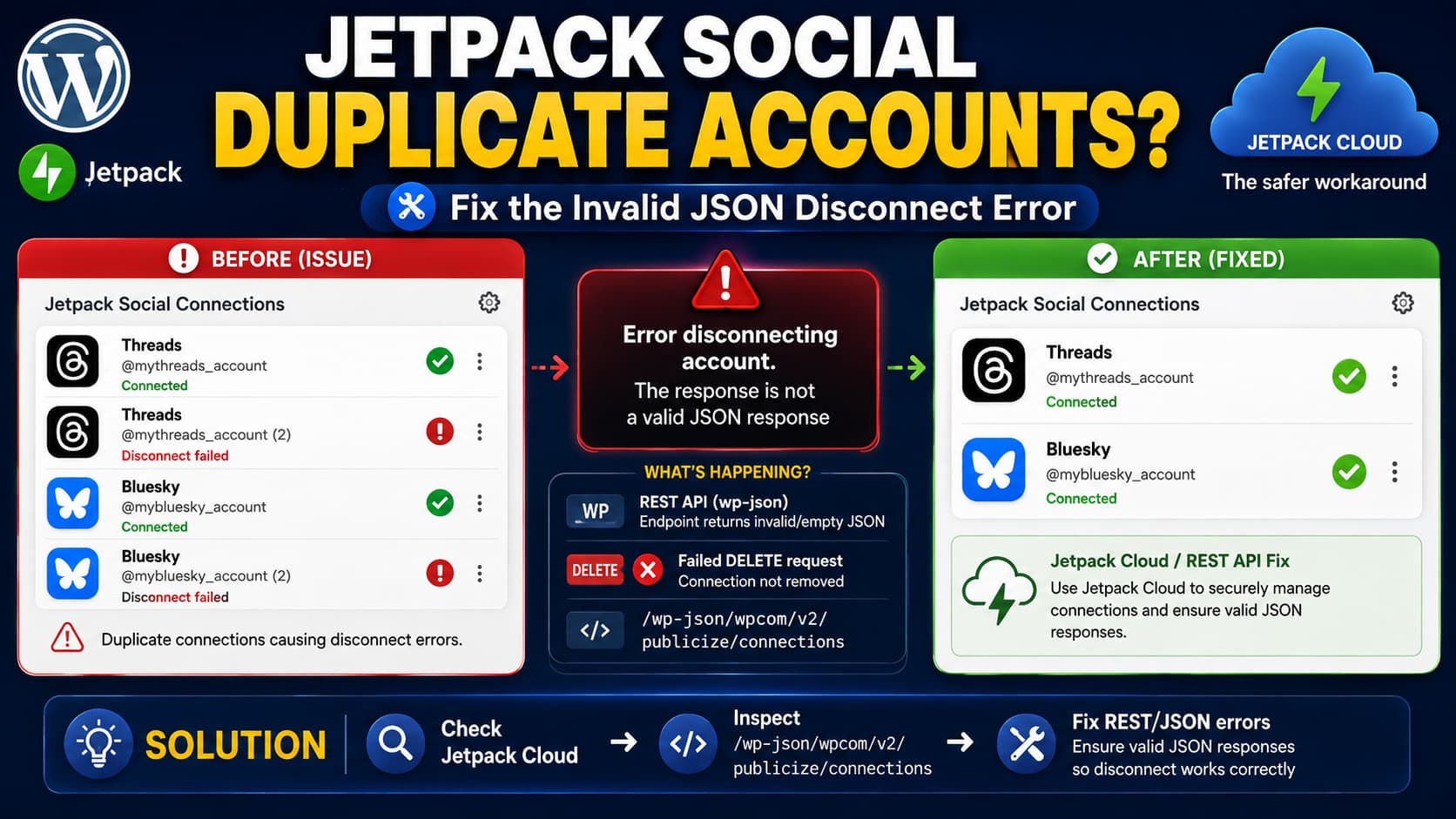
If Jetpack Social shows duplicate Threads, Bluesky, or other social connections and clicking Disconnect produces:
Error disconnecting account. The response is not a valid JSON response.the social account itself is not necessarily the problem.
Jetpack Social currently sends a WordPress REST API request when you disconnect a social connection. On a self-hosted site, that request is then handled by Jetpack and passed to WordPress.com, where the Publicize/Jetpack Social connection is managed.
The error means that this request did not return the JSON response the Jetpack interface expected. Clearing a browser cache or completely reconnecting Jetpack may therefore leave the duplicate social connections untouched.
The fastest first step is to try removing the duplicate connection from Jetpack Cloud instead of the wp-admin Jetpack Social screen.
Try Disconnecting the Account Through Jetpack Cloud
Jetpack support has previously recommended Jetpack Cloud as an alternative place to remove a social connection when it cannot be managed normally from the plugin interface.
Sign in to Jetpack Cloud using the same WordPress.com account that owns the Jetpack connection for the affected site.
Open the site and go to its Social connections.
Locate the duplicated Threads or Bluesky connection and click Disconnect.
Then return to:
WP Admin → Jetpack → Socialand refresh the page.
If the duplicate disappears, no WordPress database modification is necessary.
This approach is particularly useful because Jetpack Social connections are not simply local browser data. WordPress.com exposes separate Publicize connection records and provides an authenticated API specifically for deleting an individual connection.
That also explains why disconnecting and reconnecting the entire Jetpack site connection does not necessarily remove a stale social connection.
What the “Not a Valid JSON Response” Error Actually Means
The current Jetpack Social interface uses WordPress’s apiFetch library when deleting a connection.
When you click Disconnect, Jetpack sends a request similar to:
DELETE /wp-json/wpcom/v2/publicize/connections/123456where the final number is the Jetpack Social connection ID.
The Jetpack source explicitly catches a failure from this request and prepends:
Error disconnecting account.to the error returned by WordPress.
Jetpack’s REST controller registers that same route as a deletable endpoint. On a self-hosted WordPress installation, Jetpack proxies the deletion request to WordPress.com.
Therefore:
Error disconnecting account.
The response is not a valid JSON response.usually means the browser expected a valid REST API response but received something else.
Possible responses include:
- an HTML error page
- a login or authorization page
- a firewall block page
- a PHP warning or fatal error
- an empty response
- a server error
- a malformed REST response
Jetpack’s own troubleshooting material also identifies REST API communication problems as a common cause of WordPress’s “not a valid JSON response” message.
Find the Exact Failing Request in DevTools
Before reinstalling plugins or modifying WordPress, inspect the actual disconnect request.
In Chrome or Firefox:
- Open WP Admin → Jetpack → Social.
- Press
F12to open Developer Tools. - Select the Network tab.
- Filter requests by Fetch/XHR.
- Click Disconnect on one duplicate connection.
- Look for a request containing:
publicize/connectionsThe request should resemble:
/wp-json/wpcom/v2/publicize/connections/123456and use:
DELETEInspect both Status and Response.
This is much more useful than the generic notification displayed by Jetpack.
If the Response Is 401 or 403
A 401 or 403 response points toward authentication or permission problems rather than a duplicate Threads or Bluesky account.
First make sure the WordPress user managing Jetpack is properly connected to WordPress.com.
Check:
Jetpack → My Jetpack → ConnectionJetpack distinguishes between a site connection and the individual WordPress.com user connection. Some Jetpack functionality requires both to be valid.
Also confirm that you are signed into the correct WordPress.com account.
Current Jetpack Social code checks permissions before allowing a connection to be updated or deleted. Editors and administrators can manage connections more broadly, while lower-level users can only manage connections they own.
If you have multiple WordPress administrators, also check whether the duplicate social account was originally connected by another WordPress.com user.
If the Response Is HTML Instead of JSON
This is one of the strongest clues.
For example, the Response tab might begin with:
<!DOCTYPE html>or show text from:
- Cloudflare
- ModSecurity
- a hosting firewall
- a security plugin
- a login page
- a PHP error page
Jetpack cannot parse that response as JSON, so the interface reports the generic JSON error.
Check Security Plugins and the Host Firewall
A security layer could potentially block a REST API DELETE request even though ordinary pages and GET requests work normally.
Temporarily test on staging with security plugins disabled where practical.
Also ask the hosting provider to check the request matching:
/wp-json/wpcom/v2/publicize/connections/at the exact time the Disconnect button was clicked.
Look specifically for:
403
406
500
responses or ModSecurity/WAF rules triggered by the DELETE method.
Do not permanently disable the firewall simply to make Jetpack work. Identify the specific rule or false positive instead.
Check for PHP Output Corrupting the REST Response
A PHP warning can also break an otherwise valid REST response.
For example, instead of receiving:
{
  "deleted": true
}
the browser could receive:
Warning: Undefined array key ...

{"deleted":true}
That is no longer valid JSON.
Enable WordPress logging without displaying errors publicly:
define( 'WP_DEBUG', true );
define( 'WP_DEBUG_LOG', true );
define( 'WP_DEBUG_DISPLAY', false );
These constants belong in wp-config.php, normally before:
/* That's all, stop editing! Happy publishing. */Reproduce the disconnect problem once and inspect:
/wp-content/debug.logRemove or disable debugging again after troubleshooting a production site.
Do not leave WP_DEBUG_DISPLAY enabled on a live website because PHP errors may expose file paths or other technical information to visitors.
Check Whether the WordPress REST API Is Healthy
Jetpack Social’s disconnect action depends on WordPress’s REST API.
If other wp-admin features also produce messages such as:
The response is not a valid JSON response.the problem may extend beyond Jetpack Social.
Common areas to investigate include:
- WordPress REST API blocking
- security plugins
- server firewall rules
- authentication cookies
- incorrect HTTP/HTTPS configuration
- PHP errors
- proxy configuration
- CDN rules affecting
/wp-json/
Do not immediately reset permalinks just because the message contains “JSON.” In this case you already know the exact Jetpack REST endpoint involved, so inspecting its response is more useful than applying unrelated generic WordPress fixes.
Update Jetpack or Jetpack Social Before Deeper Troubleshooting
Make sure the relevant Jetpack plugin is current.
As of August 2026, WordPress.org lists:
- Jetpack Social 9.0.3, released June 26, 2026.
- Jetpack 16.0.1, released July 15, 2026.
Jetpack Social’s current 9.0.3 changelog does not document a specific fix for duplicate Threads or Bluesky connections failing to disconnect with an invalid JSON response.
Updating is still important because the Social interface and its REST endpoints have changed over time.
After updating, clear only the necessary WordPress/server caches and test the disconnect again.
Why Reconnecting Jetpack May Not Remove the Duplicates
It is easy to assume that disconnecting Jetpack itself should wipe all connected social accounts.
Jetpack Social connections are managed separately.
WordPress.com’s API provides individual Publicize connection records and an endpoint specifically for deleting a chosen connection ID.
Current Jetpack source also retrieves and manipulates those connections through dedicated Publicize REST routes rather than treating them as part of the main Jetpack site connection.
So this sequence:
Disconnect Jetpack
Reconnect Jetpack
can repair a broken Jetpack connection without necessarily deleting every existing social connection.
That is why repeatedly reconnecting Jetpack is not the best next step once duplicate connections are already visible.
Do Not Start by Deleting Jetpack Database Options
Jetpack provides an official procedure for completely clearing its stored database options, but that procedure is intended for deeper connection troubleshooting and resets local Jetpack settings.
It should not be the first solution for one duplicate Threads or Bluesky connection.
Because the social connection also involves WordPress.com, removing local Jetpack options does not guarantee that a stale remote Publicize connection will disappear.
Try, in order:
- Disconnect the duplicate through Jetpack Cloud.
- Inspect the failing REST request.
- Repair any Jetpack user-connection problem.
- Fix REST API, PHP, firewall, or hosting errors revealed by the response.
- Only consider a full Jetpack reset when the broader Jetpack connection itself is damaged.
Reauthorize Threads or Bluesky After Removing the Duplicate
Once the duplicate has been removed, reconnect only the account you actually want to use.
For Threads, Jetpack recommends already being signed into Threads before beginning authorization. Jetpack documents a known Threads authorization issue where logging in during the popup flow can prevent the authorization window from communicating correctly.
For Bluesky, Jetpack currently uses the Bluesky handle together with an app password during connection setup.
Avoid repeatedly clicking Connect if an authorization attempt appears stuck. First refresh the Jetpack Social connections list and confirm that a connection was not created remotely despite the interface showing an error.
Otherwise you may create another duplicate entry.
Verify That the Problem Is Fixed
After removing the stale connection:
- Reload Jetpack → Social.
- Confirm that only one Threads or Bluesky account is listed.
- Refresh the page again to make sure the duplicate does not return.
- Open Developer Tools and confirm the connections request completes successfully.
- Publish or reshare a test post using the remaining account.
- Confirm that the post is shared only once.
If the connection can be removed from Jetpack Cloud but not from wp-admin, the remaining problem is likely in the site’s REST/proxy path rather than the social account itself.
If the duplicate cannot be deleted from either Jetpack Cloud or wp-admin, contact Jetpack support and provide:
- the affected site URL
- Jetpack or Jetpack Social version
- the social network involved
- the connection display name
- the HTTP status from the failed request
- the response body from DevTools
- relevant PHP/server logs
Do not post authentication tokens, Bluesky app passwords, WordPress.com cookies, or REST nonces publicly.
