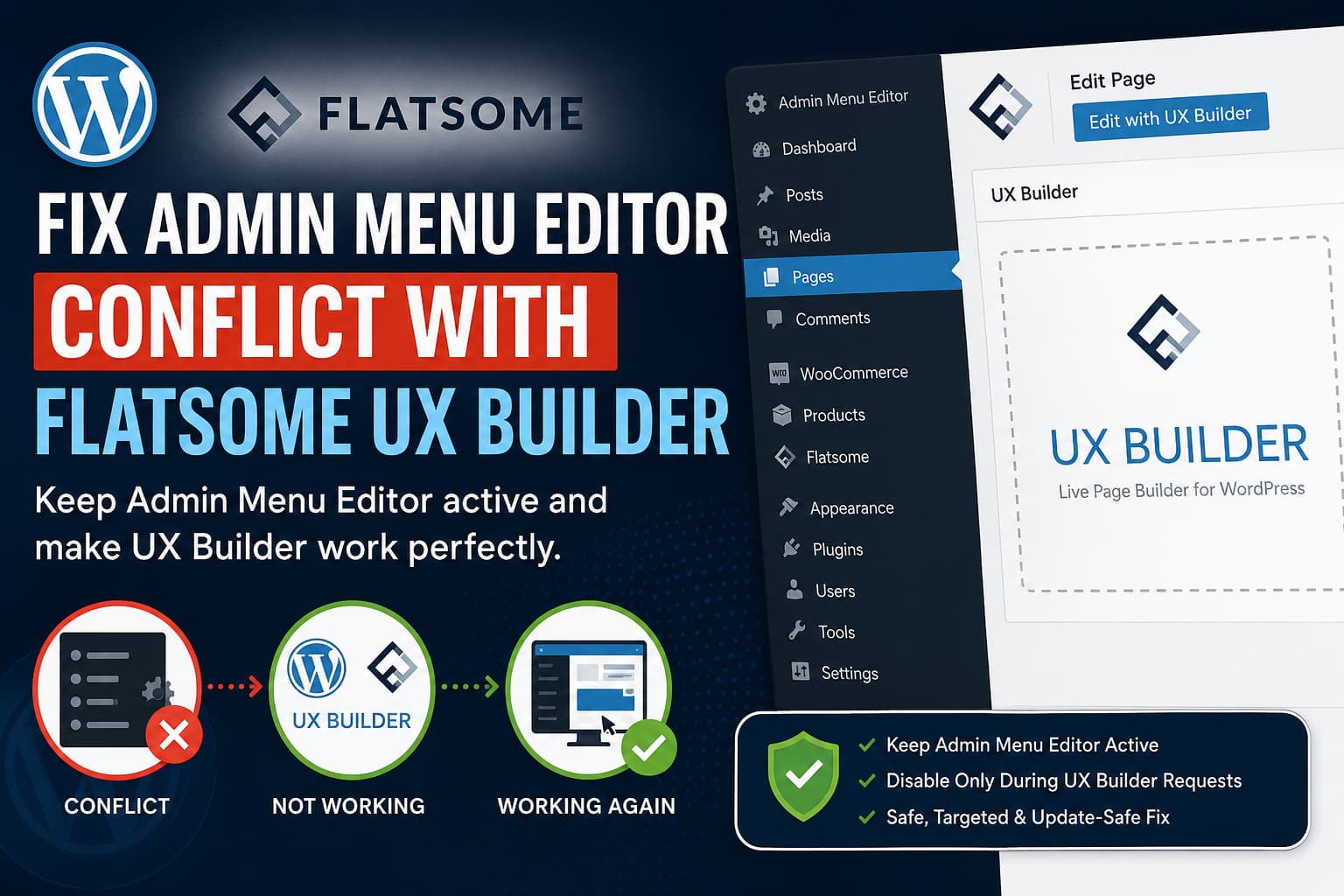
A WordPress administrator recently reported a compatibility problem between the Admin Menu Editor plugin and the UX Builder editor included with the Flatsome theme.
The reported behavior was straightforward:
- Flatsome UX Builder worked normally before Admin Menu Editor was activated.
- After activating Admin Menu Editor, UX Builder could no longer be used.
- Deactivating Admin Menu Editor restored access to the builder.
Admin Menu Editor changes the WordPress dashboard menu structure. It can modify menu titles, URLs, permissions, parent items, visibility, and menu order. These features are useful for simplifying the dashboard, but they can occasionally interfere with plugins or themes that expect the original WordPress admin-menu structure.
This guide explains how to confirm the conflict and apply a targeted workaround that keeps Admin Menu Editor active while bypassing its menu customizations only when Flatsome UX Builder is running.
Common Symptoms
The conflict may appear in several ways.
You may notice that:
- Clicking Edit with UX Builder does nothing.
- UX Builder opens as a blank page.
- The builder remains stuck on its loading screen.
- The editor redirects back to the normal WordPress editor.
- The preview iframe does not load.
- Saving changes fails.
- An AJAX request returns a
403or500response. - The browser console displays a JavaScript error.
- UX Builder works immediately after Admin Menu Editor is deactivated.
The public website may continue working normally because the issue affects the WordPress editing interface rather than the frontend page output.
Is This Definitely an Admin Menu Editor Conflict?
The behavior strongly indicates a conflict when all three of the following are true:
- UX Builder works while Admin Menu Editor is inactive.
- UX Builder stops working immediately after Admin Menu Editor is activated.
- No other plugin, theme, server, or configuration change was made between the two tests.
However, without a PHP stack trace, browser-console error, or failed network request, it is not possible to identify the exact function causing the failure.
The issue should therefore be described as a confirmed compatibility conflict, not necessarily as a confirmed bug in one specific plugin.
Why Can Admin Menu Editor Affect UX Builder?
Flatsome UX Builder does not operate like a standard WordPress post-editing screen.
The builder uses a specialized editor context, preview iframe, and AJAX requests. UX Builder editor URLs can contain request values such as:
app=uxbuilder&type=editorAdditional builder operations may use parameters such as:
page=uxbuilder
uxb_iframe
ux_builder_action
action=ux_builder_save
A recent UX Builder compatibility report also documented the app=uxbuilder&type=editor request context.
Admin Menu Editor may still attempt to rebuild or filter the WordPress admin menu while one of these special requests is running. If UX Builder expects an original menu URL, parent relationship, capability, or current-screen value, the altered menu structure can potentially interrupt the builder initialization.
This is a likely technical explanation based on the behavior, but the precise failing code path must be confirmed by the plugin developers.
Before Applying Any Fix
Do not begin by editing the Flatsome or Admin Menu Editor plugin files.
First:
- Create a complete website backup.
- Test the changes on a staging website when possible.
- Record the current versions of WordPress, Flatsome, UX Builder, PHP, and Admin Menu Editor.
- Take screenshots of the existing Admin Menu Editor configuration.
- Export the menu configuration when your plugin edition provides an export option.
- Clear the website and browser caches before each test.
Directly modifying either plugin is not recommended because updates will overwrite the changes.
Step 1: Confirm the Plugin Conflict
Temporarily deactivate only Admin Menu Editor:
WordPress Dashboard
→ Plugins
→ Installed Plugins
→ Admin Menu Editor
→ Deactivate
Clear the following caches:
- WordPress caching plugin
- Hosting-level cache
- Object cache such as Redis or Memcached
- CDN cache
- Browser cache
Open a private or incognito browser window and try editing the same page with UX Builder again.
Test at least:
- One normal page
- One product page, when applicable
- One UX Block
- One page that previously failed
When UX Builder begins working again, reactivate Admin Menu Editor and repeat the test.
If the issue returns only while Admin Menu Editor is active, the conflict has been successfully reproduced.
Step 2: Update Flatsome and Admin Menu Editor
Before adding custom code, check whether an official update already resolves the issue.
Update:
- WordPress
- Flatsome
- Flatsome child theme, when applicable
- Admin Menu Editor
- WooCommerce, when used
- Other Flatsome-related extensions
Perform the update on staging first.
After updating:
- Clear all caches.
- Sign out of WordPress.
- Open a new private browser window.
- Sign back in.
- Test UX Builder again.
Admin Menu Editor has previously released compatibility fixes for other builders and admin interfaces, so an official update may eventually address the Flatsome conflict as well. Its changelog, for example, documents earlier compatibility fixes involving Bricks, Elementor, UiPress, WooCommerce, and other plugins.
Temporary Solution: Deactivate Admin Menu Editor While Editing
The fastest temporary workaround is to deactivate Admin Menu Editor before opening UX Builder.
Use this only when:
- The website administrator is the only dashboard user.
- Custom menu restrictions are not security-critical.
- UX Builder editing is performed infrequently.
- You can safely reactivate the plugin afterward.
The workflow is:
Deactivate Admin Menu Editor
→ Edit the page with UX Builder
→ Save and close UX Builder
→ Reactivate Admin Menu Editor
This is inconvenient and can expose hidden dashboard menu items to other logged-in users while the plugin is inactive.
For websites with clients, editors, shop managers, or other dashboard users, use the targeted workaround below instead.
Recommended Fix: Disable Admin Menu Editor Only During UX Builder Requests
Admin Menu Editor provides an official WordPress filter that can disable its custom admin-menu structure:
admin_menu_editor-disable_customizations-admin_menu_structureThe plugin documentation provides the following basic example:
add_filter(
    'admin_menu_editor-disable_customizations-admin_menu_structure',
    '__return_true'
);
That example disables the custom menu structure everywhere, which is not what we want.
Instead, we can return true only when the current request belongs to Flatsome UX Builder. Admin Menu Editor will continue working throughout the rest of the WordPress dashboard.
This is a targeted compatibility workaround built from Admin Menu Editor’s official filter and the request parameters used by UX Builder. It is not an official vendor patch.
Add the Fix as a Must-Use Plugin
The most reliable method is to create a small must-use plugin.
Must-use plugins are automatically loaded from:
/wp-content/mu-plugins/They load before standard plugins and cannot be accidentally deactivated from the normal Plugins screen.
Step 1: Open the WordPress Files
Connect to the website using:
- SFTP
- SSH
- Hosting File Manager
- A local staging environment
Open:
/wp-content/Step 2: Create the mu-plugins Directory
Look for:
/wp-content/mu-plugins/When the directory does not exist, create it.
The directory name must be exactly:
mu-pluginsStep 3: Create the Compatibility File
Inside the mu-plugins directory, create:
debugnexus-flatsome-ame-compat.phpThe final path should be:
/wp-content/mu-plugins/debugnexus-flatsome-ame-compat.phpStep 4: Add the Complete Code
Paste the following code into the file:
<?php
/**
 * Plugin Name: DebugNexus Flatsome UX Builder / AME Compatibility
 * Description: Disables Admin Menu Editor menu customizations only during Flatsome UX Builder requests.
 * Version: 1.0.0
 */

defined( 'ABSPATH' ) || exit;

/**
 * Detect requests that belong to the Flatsome UX Builder editor.
 *
 * @return bool
 */
function debugnexus_is_flatsome_ux_builder_request() {
    if ( isset( $_GET['uxb_iframe'] ) || isset( $_POST['uxb_iframe'] ) ) {
        return true;
    }

    $keys = array(
        'app',
        'page',
        'action',
        'ux_builder_action',
    );

    foreach ( $keys as $key ) {
        $values = array();

        if ( isset( $_GET[ $key ] ) ) {
            $values[] = sanitize_text_field(
                wp_unslash( $_GET[ $key ] )
            );
        }

        if ( isset( $_POST[ $key ] ) ) {
            $values[] = sanitize_text_field(
                wp_unslash( $_POST[ $key ] )
            );
        }

        foreach ( $values as $value ) {
            $value = strtolower( $value );

            if (
                'uxbuilder' === $value ||
                false !== strpos( $value, 'ux_builder' )
            ) {
                return true;
            }
        }
    }

    return false;
}

/**
 * Keep Admin Menu Editor active, but bypass its custom menu structure while
 * Flatsome UX Builder loads, previews, saves, or runs its AJAX actions.
 *
 * @param bool $disabled Whether AME customizations are already disabled.
 * @return bool
 */
function debugnexus_disable_ame_for_flatsome_ux_builder( $disabled ) {
    if ( debugnexus_is_flatsome_ux_builder_request() ) {
        return true;
    }

    return $disabled;
}

add_filter(
    'admin_menu_editor-disable_customizations-admin_menu_structure',
    'debugnexus_disable_ame_for_flatsome_ux_builder'
);
Save the file.
Do not include any spaces, text, or blank output before the opening <?php tag.
What the Code Does
The code checks the current GET and POST request for common Flatsome UX Builder values.
It detects:
app=uxbuilder
page=uxbuilder
uxb_iframe
action containing ux_builder
ux_builder_action containing ux_builder
When one of those conditions is found, the code tells Admin Menu Editor:
return true;This disables the custom menu structure for that specific request.
During normal dashboard requests, the original filter value is returned:
return $disabled;Therefore:
- Admin Menu Editor remains active.
- Custom menu restrictions remain active in the normal dashboard.
- UX Builder receives a more standard WordPress admin environment.
- No Flatsome or Admin Menu Editor core file is modified.
Can the Code Be Added to functions.php?
The code may also work in the active child theme’s functions.php file because WordPress loads the active theme during normal admin requests.
However, a must-use plugin is preferable because:
- It loads before regular plugins.
- It does not depend on the active theme.
- Switching themes does not remove the workaround.
- It cannot be disabled accidentally from the standard Plugins screen.
- It keeps compatibility code separate from design-related theme code.
Do not add the workaround to the parent Flatsome theme because a theme update can overwrite it.
Can the Code Snippets Plugin Be Used?
You may add the code through a snippets-management plugin when file access is unavailable.
Configure the snippet to:
Run everywhereDo not configure it to run only on the frontend.
However, a must-use plugin remains the more predictable option because it loads before normal plugins.
Test the Fix
After saving the file, clear:
- WordPress plugin cache
- Hosting cache
- Redis or Memcached
- CDN cache
- PHP OPcache, when available
- Browser cache
Open an incognito browser window and sign in as an administrator.
Test the following sequence.
Normal Dashboard Test
Confirm that:
- The customized admin menu still appears.
- Hidden menu items remain hidden.
- Custom menu names remain unchanged.
- Role-based restrictions still work.
- Admin Menu Editor settings remain accessible.
UX Builder Loading Test
Open a page and click:
Edit with UX BuilderConfirm that:
- The loading screen completes.
- The left editing panel appears.
- The preview iframe loads.
- Existing page elements appear.
- Elements can be selected and edited.
Saving Test
Make a small temporary change, such as changing text in a test section.
Confirm that:
- UX Builder saves successfully.
- No endless spinner appears.
- The editor does not redirect unexpectedly.
- The change appears on the frontend.
- The revision can be restored.
Additional Content Tests
Also test:
- UX Blocks
- Product-page layouts
- Category layouts
- Header elements
- Mobile responsive settings
- Reusable sections
- Flatsome Studio imports, when used
Do not assume the issue is fully fixed after testing only one page.
Check the Browser Console
When UX Builder still does not load, open the browser developer tools.
In Chrome or Edge:
Press F12
→ Console
Reload UX Builder and look for errors such as:
Uncaught TypeError
Uncaught ReferenceError
Failed to fetch
Unexpected token
403 Forbidden
500 Internal Server Error
Next, open:
Developer Tools
→ Network
Filter requests using:
ajax
ux_builder
admin-ajax.php
Look for requests returning:
403
404
500
502
503
Open the failed request and review its Response and Payload tabs.
A 403 response may indicate a capability restriction, firewall rule, security plugin, or nonce problem.
A 500 response normally indicates a PHP fatal error.
Enable WordPress Debug Logging
Temporarily add the following constants to wp-config.php:
define( 'WP_DEBUG', true );
define( 'WP_DEBUG_LOG', true );
define( 'WP_DEBUG_DISPLAY', false );
Place them before:
/* That's all, stop editing! Happy publishing. */Reproduce the UX Builder problem and inspect:
/wp-content/debug.logWordPress documents that WP_DEBUG_LOG records errors in the content directory when debugging is enabled, while WP_DEBUG_DISPLAY can prevent errors from being printed inside the page output.
After testing, disable debugging:
define( 'WP_DEBUG', false );
define( 'WP_DEBUG_LOG', false );
define( 'WP_DEBUG_DISPLAY', false );
Do not leave unrestricted debug logs on a production website. They can become large and may expose technical information.
Reset the Admin Menu Editor Configuration
A corrupted or outdated Admin Menu Editor configuration can also contribute to unexpected behavior.
Admin Menu Editor provides an emergency reset URL:
https://example.com/wp-admin/?reset_admin_menu=1Replace example.com with the website domain and open the URL while logged in as an administrator. The reset option is documented on the plugin’s official WordPress page.
Important Warning
Resetting the menu can remove your existing Admin Menu Editor configuration.
Before resetting:
- Export the menu configuration when possible.
- Take screenshots.
- Create a database backup.
- Record custom capabilities and hidden menu items.
After resetting:
- Test UX Builder before rebuilding the custom menu.
- Reintroduce menu changes gradually.
- Test UX Builder after each major configuration change.
- Pay special attention to Flatsome, UX Blocks, Pages, Products, Appearance, and Theme Options menu items.
This may help identify whether one specific changed menu URL or capability triggers the conflict.
Check User Capabilities
Admin Menu Editor can hide menu items or change their required capabilities.
Verify that the affected user can access:
- Pages
- Products
- UX Blocks
- Flatsome
- Theme Options
- Media
- WooCommerce, when applicable
Test with a full administrator account.
When UX Builder works for the main administrator but not for an Editor, Shop Manager, or custom user role, the problem is probably related to menu access or capabilities rather than the builder itself.
Do not solve capability problems by granting every user manage_options. That capability provides access to sensitive administrative settings.
Instead, identify the specific capability required by the affected post type and UX Builder screen.
Check Memory and Other Plugin Conflicts
When UX Builder remains broken after applying the targeted fix, Admin Menu Editor may not be the only cause.
The official Flatsome troubleshooting documentation recommends checking available WordPress memory and temporarily disabling plugins to isolate conflicts. It recommends at least 128 MB, with 256 MB being preferable for the builder.
Check the current memory configuration in:
Tools
→ Site Health
→ Info
→ Server
You may also inspect:
WooCommerce
→ Status
A commonly used WordPress memory configuration is:
define( 'WP_MEMORY_LIMIT', '256M' );
define( 'WP_MAX_MEMORY_LIMIT', '512M' );
The hosting provider must allow these values. Adding larger values to wp-config.php will not override a lower server-level PHP memory limit.
Also test temporarily disabling:
- Security plugins
- Admin-customization plugins
- Role editors
- White-label dashboard plugins
- JavaScript optimization
- Asset unloading
- Object caching
- Admin-theme plugins
- Login or admin-URL modification plugins
Do not disable multiple plugins at once unless you are performing a controlled conflict test on staging.
Emergency Recovery When the Dashboard Is Inaccessible
When Admin Menu Editor prevents access to the required dashboard screens, deactivate it using the hosting file manager or SFTP.
Open:
/wp-content/plugins/Find the Admin Menu Editor plugin directory and temporarily rename it.
For example:
admin-menu-editorto:
admin-menu-editor-disabledWordPress will deactivate the plugin automatically because its expected directory is no longer available.
After restoring dashboard access:
- Rename the directory back.
- Add the targeted compatibility workaround.
- Reactivate the plugin.
- Test UX Builder again.
Do not delete the plugin directory unless you have a backup of its configuration and files.
Information to Send to the Developers
When the conflict continues, send a detailed compatibility report to both Admin Menu Editor and Flatsome support.
Include:
- WordPress version
- PHP version
- Flatsome version
- UX Builder version
- Admin Menu Editor version
- Browser name and version
- Active child theme name
- Full browser-console error
- Failed Network request and response
- Relevant PHP debug-log entries
- User role used during testing
- Whether the problem affects every page
- Whether resetting the menu configuration changes the result
- Exact reproduction steps
A useful report would be:
Flatsome UX Builder stops loading when Admin Menu Editor is active. Deactivating only Admin Menu Editor restores the builder. The problem occurs while opening a page through the UX Builder editor context. Please check whether Admin Menu Editor modifies the admin menu or capability structure during UX Builder iframe and AJAX requests. A temporary workaround using the
admin_menu_editor-disable_customizations-admin_menu_structurefilter resolves the issue by disabling menu customizations only during UX Builder requests.
Providing a reproducible staging website can make the conflict easier for both developers to diagnose.
Frequently Asked Questions
Does Admin Menu Editor permanently damage Flatsome pages?
There is currently no evidence that simply activating Admin Menu Editor permanently damages Flatsome content.
The reported problem affects access to the UX Builder editor. Nevertheless, always create a backup before testing because failed saves or interrupted AJAX requests can potentially leave an incomplete revision.
Will deactivating Admin Menu Editor delete its settings?
Normally, deactivating a WordPress plugin does not delete its saved settings.
However, uninstalling or deleting a plugin can behave differently depending on the plugin’s cleanup settings. Create a backup before removing it.
Should I downgrade Flatsome?
Downgrading should not be the first solution.
First update both products, reproduce the issue on staging, apply the request-specific workaround, and collect the browser and PHP errors.
Use an older version only when the website owner accepts the security and compatibility risks and a known stable backup is available.
Should I edit the Admin Menu Editor plugin?
No.
Direct plugin edits are overwritten during updates and can introduce additional errors. Use the official filter through a custom plugin, must-use plugin, or carefully configured snippets plugin.
Does the workaround disable Admin Menu Editor for every user?
No.
The supplied code disables only Admin Menu Editor’s custom menu structure when it detects a Flatsome UX Builder request.
Normal dashboard requests continue using the customized menu.
Can this workaround affect the frontend website?
The filter is intended for Admin Menu Editor’s dashboard customizations. The code does not modify Flatsome shortcodes, frontend templates, products, page content, or WooCommerce data.
Test the frontend after implementation as part of normal change-control procedures.
Why use a must-use plugin?
A must-use plugin loads automatically before standard plugins and remains separate from the active theme. This makes it suitable for small compatibility fixes that must remain active regardless of normal plugin or theme changes.
Final Solution
When Flatsome UX Builder stops working only while Admin Menu Editor is active, first update both products and confirm the conflict on staging.
The safest immediate workaround is to keep Admin Menu Editor active but bypass its custom menu structure during UX Builder requests using:
admin_menu_editor-disable_customizations-admin-menu-structureThe correct filter name used in the supplied code is:
admin_menu_editor-disable_customizations-admin_menu_structureThe complete must-use plugin detects UX Builder’s editor, iframe, save, and AJAX requests, then returns the original Admin Menu Editor behavior everywhere else.
This avoids:
- Permanently disabling Admin Menu Editor
- Exposing hidden menus to dashboard users
- Editing plugin files
- Downgrading WordPress or Flatsome
- Rebuilding the entire website
- Losing existing UX Builder content
Treat the code as a compatibility workaround until either Admin Menu Editor or Flatsome publishes an official update addressing the underlying conflict.
