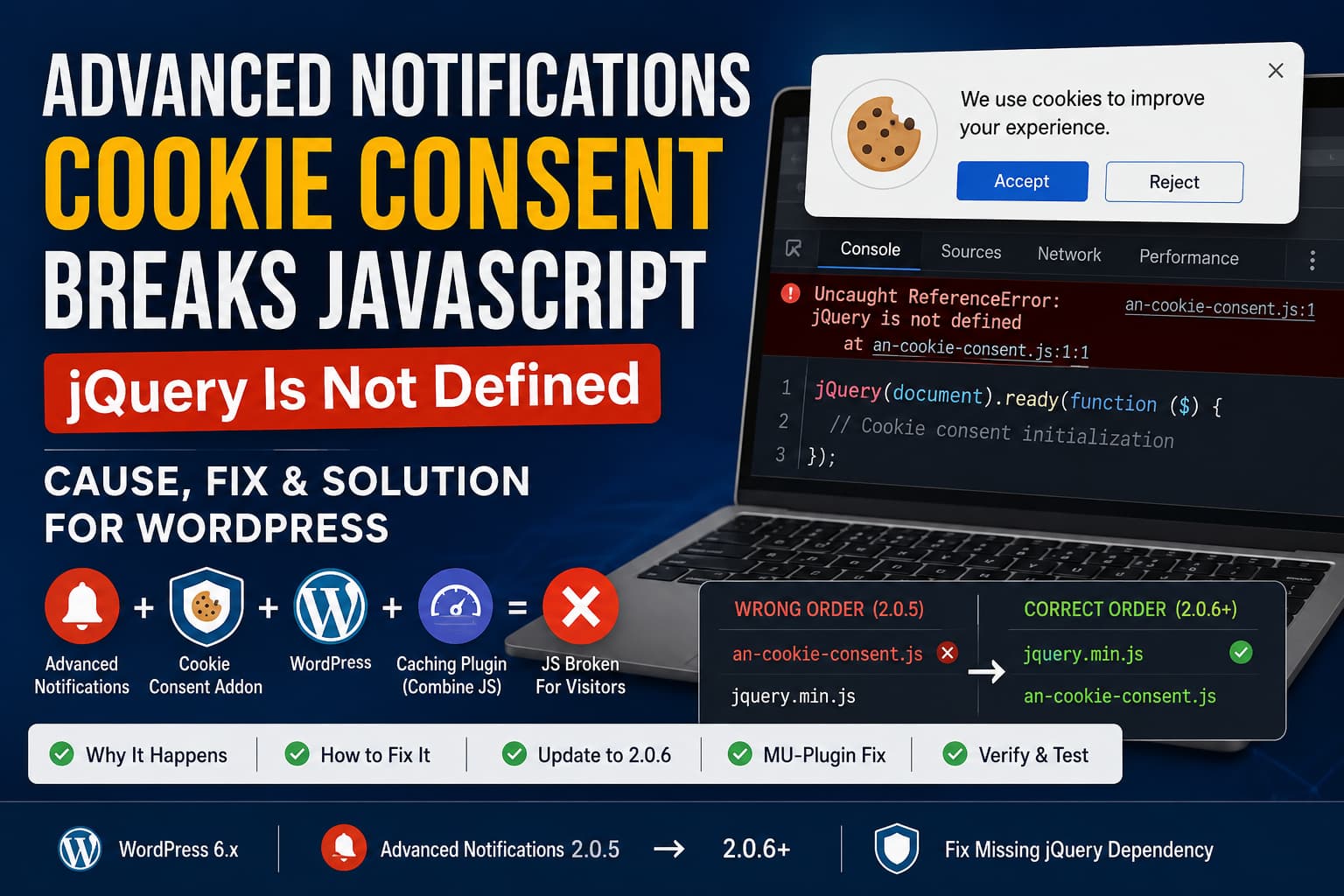
After updating the Advanced Notifications WordPress plugin, logged-out visitors may find that the cookie consent banner no longer appears. Other frontend features such as mobile menus, sliders, forms, popups, and WooCommerce interactions may also stop working.
When you inspect the browser console, you may see this error:
Uncaught ReferenceError: jQuery is not definedThe problem affected the Cookie Consent add-on in Advanced Notifications 2.0.5. Its frontend JavaScript file used jQuery but was enqueued without declaring jQuery as a dependency.
The problem became particularly serious on websites using JavaScript combination or optimization through plugins such as WP Fastest Cache, WP Rocket, or Autoptimize.
This guide explains the cause, the permanent solution, a safe temporary compatibility fix, and how to confirm that the entire frontend has recovered.
Symptoms of the Problem
You may be experiencing this issue when:
- The Advanced Notifications cookie consent banner does not appear.
- The problem started after installing or updating to version 2.0.5.
- The browser console shows
jQuery is not defined. - The site works while you are logged into WordPress.
- The site breaks for logged-out visitors.
- The problem appears only when JavaScript combination is enabled.
- Mobile menus no longer open.
- Sliders, accordions, popups, or tabs stop responding.
- Contact forms or checkout components fail to initialize.
- Disabling the Cookie Consent add-on restores the site.
- Disabling JavaScript combination temporarily fixes the problem.
The affected script is:
/wp-content/plugins/advanced-notifications/addons/cookie-consent/assets/js/an-cookie-consent.jsThe original issue was reproduced on WordPress 6.x with Advanced Notifications 2.0.5 and WP Fastest Cache’s Combine JS option enabled. The plugin developer confirmed that version 2.0.6 adds the missing jQuery dependency.
What Causes the Error?
The Cookie Consent JavaScript begins by calling jQuery:
jQuery(document).ready(function ($) {
    // Cookie consent initialization.
});
That code can run only after the jQuery library has loaded.
WordPress plugins should declare required JavaScript libraries through the dependency argument of wp_enqueue_script().
A correctly registered jQuery-dependent script should resemble this:
wp_enqueue_script(
    'example-script-handle',
    $script_url,
    array( 'jquery' ),
    $version,
    false
);
The third parameter is the dependency array:
array( 'jquery' )WordPress uses this dependency information to ensure that jQuery is printed before the script that requires it. The official WordPress documentation specifically describes $deps as an array of registered script handles required by the current script.
In Advanced Notifications 2.0.5, the Cookie Consent script did not include jquery in that array.
As a result, WordPress was free to print:
an-cookie-consent.js
jquery.min.js
Instead of the required order:
jquery.min.js
an-cookie-consent.js
When the cookie script runs first, the browser does not yet recognize the global jQuery object and throws:
ReferenceError: jQuery is not definedWhy JavaScript Combining Can Break the Entire Site
Without JavaScript combining, the missing dependency may affect only the Cookie Consent add-on.
A caching plugin may combine multiple scripts into one optimized file:
// an-cookie-consent.js
jQuery(document).ready(function () {
    // This fails because jQuery is not loaded.
});

// jquery.min.js
window.jQuery = window.$ = ...
The first statement throws an uncaught error. Because the files have been merged into one script resource, the browser can stop executing the remaining code in that combined file.
This means the jQuery library included later in the bundle may never execute.
Consequently, every script that depends on jQuery can fail, including:
- Navigation menus
- Elementor components
- WooCommerce cart scripts
- Checkout fields
- Product galleries
- Sliders and carousels
- Contact forms
- Modal windows
- Accordions and tabs
- Sticky headers
- AJAX filters
- Cookie and privacy controls
The cookie banner may appear to be the visible problem, while the actual impact extends across the entire frontend.
Why It May Work While You Are Logged In
Many WordPress caching plugins do not serve fully cached or combined pages to logged-in administrators.
A logged-in administrator may receive the original individual scripts:
jquery.min.js
plugin-script.js
theme-script.js
A logged-out visitor may receive a combined file:
combined-js-file.jsThis creates a misleading situation:
- The site works during administrator testing.
- The live frontend appears broken to normal visitors.
- The developer cannot initially reproduce the problem.
- Clearing the browser cache alone does not help.
- The issue appears only after the public page cache is generated.
Frontend changes should therefore always be tested in a private or incognito browser window while logged out.
Permanent Solution: Update Advanced Notifications
The recommended solution is to update Advanced Notifications to version 2.0.6 or later.
The plugin developer confirmed that version 2.0.6 corrects the issue by adding jQuery to the Cookie Consent script dependencies.
Step 1: Create a Backup
Before updating the plugin, create a complete backup containing:
- WordPress database
- Plugin files
- Theme files
- Uploads
- Custom snippets
- Server configuration, when available
For an important production website, test the update on staging first.
Step 2: Update the Plugin
Go to:
WordPress Dashboard > Plugins > Installed PluginsLocate:
Advanced NotificationsClick:
Update nowConfirm that the installed version is at least:
2.0.6Update Through WP-CLI
Websites with WP-CLI access can use:
wp plugin update advanced-notificationsCheck the installed version:
wp plugin get advanced-notifications --field=versionThe result should show 2.0.6 or a newer version.
Clear Every Cache After Updating
Updating the plugin does not automatically remove previously combined JavaScript files from every cache layer.
Clear the caches in the following order.
1. JavaScript Optimization Cache
Clear or rebuild the combined and minified JavaScript files created by:
- WP Fastest Cache
- WP Rocket
- Autoptimize
- LiteSpeed Cache
- W3 Total Cache
- FlyingPress
- Perfmatters
- Hummingbird
- SG Optimizer
- Breeze
Do not simply clear the page cache. Use the plugin option that deletes optimized CSS and JavaScript files when one is available.
2. WordPress Page Cache
Purge the complete WordPress page cache.
3. Hosting Cache
Clear any server-level cache, including:
- Varnish
- Nginx FastCGI cache
- LiteSpeed server cache
- Cloudways application cache
- Kinsta cache
- WP Engine cache
- SiteGround dynamic cache
- Managed-hosting page cache
4. Object Cache
Flush Redis or Memcached when enabled.
The following WP-CLI command clears the WordPress object cache:
wp cache flushThis does not necessarily clear the page cache, optimized JavaScript files, or CDN cache.
5. CDN Cache
Purge Cloudflare, QUIC.cloud, Bunny CDN, CloudFront, or another CDN serving the website.
6. Browser Cache
Close the existing browser tab and test the site in a new private or incognito window.
Temporarily Disable JavaScript Combining
When version 2.0.6 is not immediately available in the dashboard, temporarily disable JavaScript combination.
This prevents the Cookie Consent error from stopping every script in the combined bundle.
Depending on your caching plugin, temporarily disable settings such as:
- Combine JavaScript
- Aggregate JavaScript
- Optimize JavaScript code
- JavaScript concatenation
- Merge JavaScript files
Clear all caches after changing the setting.
Disabling combination treats the symptom rather than correcting the missing dependency. Re-enable optimization only after updating the plugin or applying the temporary compatibility fix below.
Temporary MU-Plugin Compatibility Fix
When the plugin cannot yet be updated, use a must-use plugin to add the dependency dynamically.
This approach avoids editing the Advanced Notifications plugin directly.
Create this directory when it does not already exist:
/wp-content/mu-plugins/Inside it, create:
debugnexus-advanced-notifications-jquery-fix.phpAdd the following code:
<?php
/**
 * Plugin Name: DebugNexus - Advanced Notifications jQuery Fix
 * Description: Temporarily adds jQuery as a dependency of the Advanced
 * Notifications Cookie Consent frontend script.
 * Version: 1.0.0
 */

defined( 'ABSPATH' ) || exit;

/**
 * Add the missing jQuery dependency before WordPress prints frontend scripts.
 */
add_action(
    'wp_enqueue_scripts',
    static function () {
        $scripts = wp_scripts();

        if ( empty( $scripts->registered ) ) {
            return;
        }

        foreach ( $scripts->registered as $handle => $registered_script ) {
            $src = isset( $registered_script->src )
                ? (string) $registered_script->src
                : '';

            if (
                false === strpos(
                    $src,
                    'addons/cookie-consent/assets/js/an-cookie-consent.js'
                )
            ) {
                continue;
            }

            $dependencies = is_array( $registered_script->deps )
                ? $registered_script->deps
                : array();

            if ( ! in_array( 'jquery', $dependencies, true ) ) {
                $dependencies[] = 'jquery';

                $scripts->registered[ $handle ]->deps = $dependencies;
            }

            break;
        }
    },
    PHP_INT_MAX
);
How the Compatibility Fix Works
The code runs late during WordPress’s frontend enqueue process.
It:
- Reads all registered WordPress scripts.
- Searches for the Advanced Notifications Cookie Consent file.
- Finds its actual registered script handle automatically.
- Checks whether
jqueryis already listed as a dependency. - Adds
jquerywhen it is missing. - Allows WordPress to print jQuery before the Cookie Consent script.
The code searches by file path instead of assuming a specific script handle. This makes it more resilient if the handle name differs between plugin releases.
WordPress automatically loads registered dependencies before the script that requires them.
Verify That the MU Plugin Is Active
Go to:
WordPress Dashboard > Plugins > Must-Use PluginsYou should see:
DebugNexus - Advanced Notifications jQuery FixMust-use plugins activate automatically and do not require a separate activation step.
Remove this temporary MU plugin after Advanced Notifications has been updated to a version containing the official fix.
Using the Code Snippets Plugin
The compatibility code can also be added through Code Snippets.
Follow these steps:
- Go to
Snippets > Add New. - Name the snippet
Advanced Notifications jQuery Fix. - Remove the opening
<?phpline from the supplied code. - Paste the remaining code.
- Set the snippet to run everywhere.
- Activate it.
- Purge every cache layer.
- Test while logged out.
A must-use plugin is preferable because it remains active independently of the theme and normal plugin activation settings.
Direct Plugin File Patch
Editing plugin files is not recommended because an update will overwrite the modification.
However, when neither the update nor an MU-plugin workaround is possible, the original enqueue call can be patched temporarily.
Open:
/wp-content/plugins/advanced-notifications/Search the plugin’s PHP files for:
an-cookie-consent.jsLocate the corresponding wp_enqueue_script() call.
Its dependency argument may be empty:
array()Change only that dependency argument to:
array( 'jquery' )For example:
wp_enqueue_script(
    $handle,
    $script_url,
    array( 'jquery' ),
    $version,
    false
);
The exact variable names and file location may differ.
After making the change:
- Save the PHP file.
- Clear the optimized JavaScript cache.
- Purge the page cache.
- Purge the server and CDN caches.
- Test in an incognito browser.
- Replace the manual modification with the official update as soon as possible.
Exclude the Cookie Consent Script From Optimization
Excluding the affected file can be used as an emergency workaround:
/wp-content/plugins/advanced-notifications/addons/cookie-consent/assets/js/an-cookie-consent.jsA shorter exclusion keyword may also work:
an-cookie-consent.jsWP Fastest Cache
Open the JavaScript optimization settings and either:
- Disable Combine JS temporarily, or
- Exclude
an-cookie-consent.jswhen the installed edition supports exclusions.
Clear all WP Fastest Cache files afterward.
WP Rocket
Go to:
Settings > WP Rocket > File OptimizationWhen applicable, add the file to:
- Excluded JavaScript Files
- Delay JavaScript Execution exclusions
- Defer JavaScript exclusions
The available fields depend on the installed WP Rocket version and configuration.
Autoptimize
Go to:
Settings > Autoptimize > JavaScript OptionsAdd this to the JavaScript exclusion field:
an-cookie-consent.jsDelete the Autoptimize cache after saving.
LiteSpeed Cache
Go to:
LiteSpeed Cache > Page Optimization > TuningAdd the filename to:
- JS Excludes
- JS Deferred/Delayed Excludes
Then purge all LiteSpeed caches.
Exclusion prevents the error from contaminating a combined bundle, but it does not correct the plugin’s missing dependency. Updating remains the preferred solution.
How to Verify the Fix
Do not rely only on a logged-in administrator session.
Test 1: Open an Incognito Window
Open the affected page in a private or incognito browser window.
Confirm that:
- The cookie consent banner appears.
- The accept button works.
- The reject button works.
- Cookie preferences open correctly.
- Consent remains saved after refreshing.
Test 2: Check the Browser Console
Press:
F12Open the Console tab and refresh the page.
The following error should be gone:
ReferenceError: jQuery is not definedAlso check for related errors such as:
$ is not defined
Uncaught TypeError
Cannot read properties of undefined
Test 3: Confirm That jQuery Loaded
Run this in the browser console:
typeof window.jQueryThe expected result is:
functionYou can also check the loaded jQuery version:
jQuery.fn.jqueryTest 4: Check Script Order
View the page source and search for:
jqueryThen search for:
an-cookie-consent.jsjQuery should appear before the Advanced Notifications Cookie Consent script.
When files are combined, inspect the generated bundle or use the Network panel to confirm that the rebuilt file no longer begins with a jQuery call before the jQuery library code.
Test 5: Test Other Frontend Components
Check components that may have been affected by the failed bundle:
- Desktop and mobile navigation
- Sliders
- Accordions
- Contact forms
- Search
- WooCommerce product pages
- Add-to-cart buttons
- Cart fragments
- Checkout fields
- Popups
- Login and registration forms
- Language switchers
- AJAX filters
Test 6: Test Cold and Warm Cache
Test the page twice:
- Immediately after purging the cache.
- Again after the caching plugin has generated an optimized version.
A page may work before optimization and break again once the combined file is rebuilt.
Why Enqueueing jQuery Separately Is Not the Best Fix
A workaround might simply call:
wp_enqueue_script( 'jquery' );This may make jQuery available, but it does not formally connect the Cookie Consent script to its dependency.
The correct implementation is:
array( 'jquery' )inside the Cookie Consent script’s own wp_enqueue_script() call.
Declaring the relationship allows WordPress and optimization tools to understand the required order.
This is more reliable than depending on:
- Hook priority
- Theme behavior
- Another plugin loading jQuery
- A hardcoded script tag
- The current order of unrelated scripts
Should JavaScript Combining Be Disabled Permanently?
Modern HTTP/2 and HTTP/3 servers do not always benefit significantly from combining every JavaScript file.
However, whether combining should remain enabled depends on:
- The number and size of scripts
- Server protocol
- Cache behavior
- CDN configuration
- Total blocking time
- Script execution order
- Real-user performance data
The immediate issue is not that JavaScript combination exists. The root cause is that a jQuery-dependent file did not declare its dependency.
After updating to version 2.0.6 or later, JavaScript optimization can be tested again.
Re-enable settings individually rather than enabling combination, minification, defer, and delay simultaneously.
Information to Send to Support
When the problem continues after updating, provide:
WordPress version:
PHP version:
Advanced Notifications version:
Active theme:
Caching plugin:
JavaScript optimization settings:
CDN:
Does it affect logged-out visitors only?
Does disabling Combine JS fix it?
Browser console error:
Cookie Consent script URL:
jQuery script URL:
Result after clearing all caches:
Result with other plugins disabled:
Also include a screenshot of the Console and Network tabs.
Frequently Asked Questions
Why does the site work for administrators but not visitors?
Caching and JavaScript combination are often bypassed for logged-in administrators. Visitors receive the cached or combined file where the incorrect script order becomes visible.
Does disabling Combine JS fix the issue?
It can prevent the error from stopping the entire combined bundle. It is a temporary workaround, not the permanent solution.
What is the permanent fix?
Update Advanced Notifications to version 2.0.6 or later. The developer confirmed that this release adds jQuery to the Cookie Consent script dependencies.
Can I edit the plugin directly?
Yes, but the change will be overwritten during the next update. An MU-plugin compatibility fix is safer.
Is this a jQuery problem?
jQuery itself is not broken. The plugin script attempts to use jQuery before WordPress has been told that jQuery must load first.
Can delay or defer settings cause a similar error?
Yes. Aggressive delay or defer settings can also change execution timing. However, in this reported case, the confirmed underlying problem was the missing dependency in Advanced Notifications 2.0.5.
Is this a security vulnerability?
The reported issue is primarily a frontend compatibility and functionality bug. It can break important interfaces, but the report does not establish it as a security vulnerability.
Final Solution
Use this order of action:
- Back up the website.
- Update Advanced Notifications to version 2.0.6 or later.
- Clear optimized JavaScript files.
- Purge WordPress, server, object, CDN, and browser caches.
- Test while logged out.
- Confirm that
jQuery is not definedhas disappeared. - Test menus, forms, sliders, cookie controls, and WooCommerce features.
- Use the MU-plugin workaround only when the official update cannot yet be installed.
- Remove the workaround after confirming that the updated plugin declares the dependency correctly.
The correct underlying implementation is simple:
array( 'jquery' )Adding this dependency allows WordPress to load jQuery before the Advanced Notifications Cookie Consent script and prevents optimization plugins from preserving the incorrect execution order.
