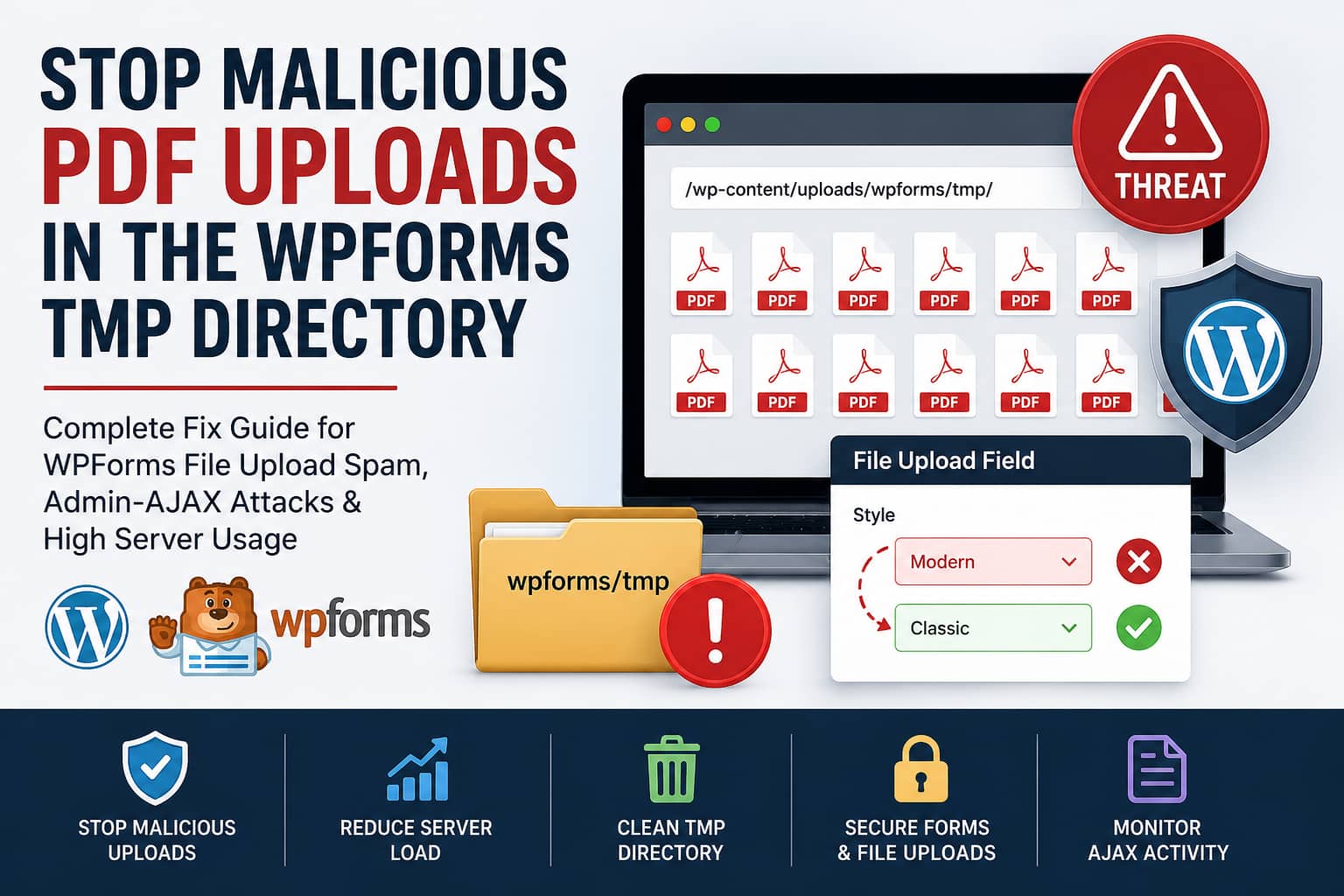
WordPress administrators using WPForms may discover hundreds of suspicious PDF files inside the following directory:
/wp-content/uploads/wpforms/tmp/The unexpected uploads can consume disk space, generate large numbers of uncached PHP requests, overload PHP workers, and make the entire website extremely slow.
In one recently reported case, several websites hosted on WP Engine began receiving hundreds of malicious-looking PDF uploads over only a few days. The affected websites used both WPForms Lite and WPForms Pro and already had several spam protections enabled, including:
- WPForms modern anti-spam protection
- CAPTCHA
- Honeypot protection
- A higher minimum submission time
- Updated plugin versions
Despite those protections, files continued appearing in the WPForms temporary directory.
The immediate workaround was to change the WPForms File Upload field from Modern to Classic. After making that change, new files stopped accumulating in the temporary directory, and server resource usage improved.
This guide explains why that workaround helps, how to safely clean the temporary files, and how to add server-level protection so the attack does not simply move to another form endpoint.
Quick Fix
To stop the immediate flood:
- Open every WPForms form containing a File Upload field.
- Select the File Upload field.
- Open the Advanced tab.
- Change Style from Modern to Classic.
- Save the form.
- Clear all website and CDN caches.
- Temporarily disable the affected form before cleaning the temporary directory.
- Delete suspicious files from:
wp-content/uploads/wpforms/tmp/- Restrict allowed extensions and maximum file size.
- Review WP Engine Admin AJAX logs and block abusive traffic at the firewall level.
Do not block the entire admin-ajax.php endpoint. WordPress, WooCommerce, WPForms, page builders, and many other plugins depend on it.
What Is Causing the WPForms tmp Upload Flood?
WPForms provides two File Upload field styles:
- Modern
- Classic
The two styles do not process files in exactly the same way.
How the Modern File Upload Field Works
The Modern style provides a drag-and-drop interface and supports uploading multiple files.
WPForms documents that the Modern field uses AJAX to begin processing files before the complete form is submitted. It may also divide larger files into chunks so they can be processed more efficiently.
These upload requests are sent through:
/wp-admin/admin-ajax.phpCommon WPForms upload-related AJAX actions include:
wpforms_file_upload_speed_test
wpforms_upload_chunk_init
wpforms_upload_chunk
wpforms_file_chunks_uploaded
wpforms_remove_file
A bot does not necessarily need to complete the entire form submission before generating these upload requests.
This is the important part of the problem.
A CAPTCHA, honeypot, minimum submission time, or spam filter may reject the final submission, but the temporary upload can already have reached the server through the earlier AJAX upload process.
This explains how the temporary directory can fill with PDFs even when very few successful form entries are visible.
How the Classic File Upload Field Is Different
The Classic style uses a standard file selection control and does not support multiple uploads through the same field.
It also avoids the Modern field’s chunked pre-submission upload workflow. WPForms confirms that multiple-file uploading requires the Modern style.
In the cases that prompted this guide, switching to Classic stopped new files from accumulating inside:
/wp-content/uploads/wpforms/tmp/The disadvantage is that visitors can normally upload only one file per File Upload field. If multiple files are required, you can add several separate Classic File Upload fields.
Why WP Engine Sites Can Become Extremely Slow
All standard WordPress AJAX requests pass through:
/wp-admin/admin-ajax.phpWP Engine explains that requests to this endpoint are uncached. Every request must therefore be processed by PHP rather than being served from page cache. A large number of Admin AJAX requests can consume PHP workers and cause slow responses, 502 errors, or 504 errors.
A file upload is also more expensive than a small AJAX request because the server may need to:
- Accept the request body
- Validate the file
- Process upload chunks
- Write the file to disk
- Combine uploaded chunks
- Generate temporary metadata
- Check file size and extension
- Clean abandoned upload data
When hundreds of bots repeat this process, normal page requests may have to wait for an available PHP worker.
This can produce symptoms such as:
- Ten-second or longer page loads
- Slow WordPress administration pages
- 502 or 504 responses
- High PHP worker usage
- Increased bandwidth consumption
- Disk usage growth
- A rapidly growing
wpforms/tmpdirectory - Delayed form submissions
- Failed checkout or account AJAX requests
Is This a Confirmed WPForms Vulnerability?
At the time of writing, this behavior should not automatically be described as a confirmed WPForms security vulnerability or a website compromise.
The Modern File Upload field is intentionally designed to accept AJAX uploads before the final form submission. The issue is that automated clients may abuse that publicly available workflow at scale.
The presence of unwanted PDFs means the upload mechanism was abused. It does not, by itself, prove that an attacker executed PHP, obtained administrator access, or infected WordPress core.
However, the issue should still be treated seriously because it can create:
- Resource-exhaustion attacks
- Publicly accessible spam documents
- Search engine indexing of unwanted PDFs
- Disk-space exhaustion
- PHP worker saturation
- Database spam
- Potentially dangerous documents being sent to staff
Until the plugin developer confirms the root cause, it is more accurate to describe this as an automated file-upload abuse pattern rather than a confirmed remote-code-execution vulnerability.
Step 1: Change Every File Upload Field to Classic
Changing only one form will not help if another public form still uses a Modern upload field.
Review every WPForms form on the website.
Go to:
WordPress Dashboard → WPForms → All FormsOpen a form and select its File Upload field.
Then go to:
Field Options → Advanced → StyleChange:
Modernto:
ClassicSave the form and repeat the process for every form containing a File Upload field.
Check Hidden and Conditional Fields
A File Upload field may not always be visible when the form first loads. Check for:
- Conditional File Upload fields
- Multi-page forms
- Job application forms
- Support forms
- Quote request forms
- Guest post forms
- Registration forms
- Forms embedded in popups
- Old forms still embedded on archived pages
- Duplicate forms used for testing
- Forms placed inside templates or widgets
After making the change, clear:
- WP Engine cache
- WordPress caching plugin cache
- Cloudflare or CDN cache
- Browser cache
Submit a legitimate test entry with a safe file and confirm that the upload, entry, email notification, and file link all work.
Step 2: Temporarily Disable the Affected Form
Before deleting the temporary directory’s contents, temporarily remove or disable the affected form.
This prevents a legitimate user from uploading a file while the cleanup is taking place.
You can temporarily:
- Remove the WPForms block or shortcode
- Password-protect the form page
- Put the form page in draft status
- Replace the form with a maintenance message
- Restrict the page to logged-in users
- Disable the File Upload field
Do not leave a heavily abused upload form publicly accessible while cleaning its files.
Step 3: Back Up the Website
Create a backup before deleting anything.
On WP Engine, create a manual backup point from the User Portal. Include both:
- Website files
- Database
Although the wpforms/tmp directory should contain temporary data, creating a backup protects you if a legitimate recent upload is still waiting to be attached to a form entry.
Step 4: Inspect the WPForms Temporary Directory
The affected directory is normally:
wp-content/uploads/wpforms/tmp/You can inspect it through:
- WP Engine SSH Gateway
- SFTP
- A hosting file manager
- A trusted WordPress file-management tool
On SSH, check the total size:
du -sh wp-content/uploads/wpforms/tmpCount the files:
find wp-content/uploads/wpforms/tmp -type f | wc -lList recently modified files:
find wp-content/uploads/wpforms/tmp -type f -mtime -7 -printList only PDF files:
find wp-content/uploads/wpforms/tmp -type f -iname "*.pdf" -printDisplay the largest files:
find wp-content/uploads/wpforms/tmp -type f -exec du -h {} + | sort -h | tail -30Look for patterns such as:
- Hundreds of randomly named PDFs
- Many files created within a few seconds
- Repeated file sizes
- Files arriving from the same group of IP addresses
- Files created without matching WPForms entries
- Files containing spam links or unrelated advertising
- Unexpected PHP, PHTML, PHAR, or script files
Do not open suspicious PDFs on your normal workstation. Analyze them using an isolated environment or a reputable malware-scanning service.
Step 5: Delete the Temporary Files Safely
Once the affected forms have been switched to Classic or temporarily disabled, the unwanted temporary files can be removed.
To delete files while preserving common protection files such as .htaccess and index.html, use:
find wp-content/uploads/wpforms/tmp \
-type f \
! -name ".htaccess" \
! -name "index.html" \
-delete
You can also delete the files through SFTP.
Do not delete the entire wpforms directory. It may contain completed uploads connected to legitimate form entries.
Avoid deleting:
wp-content/uploads/wpforms/Only clean:
wp-content/uploads/wpforms/tmp/After the cleanup, confirm the directory size:
du -sh wp-content/uploads/wpforms/tmpIf new PDFs begin appearing immediately, the upload endpoint is still publicly available through another form, cache, subdomain, or environment.
Step 6: Search for Executable Files in Uploads
A PDF inside the uploads directory does not normally execute as PHP. However, an upload incident should still be followed by a broader file check.
Search the uploads directory for executable extensions:
find wp-content/uploads -type f \
\( -iname "*.php" \
-o -iname "*.php5" \
-o -iname "*.php7" \
-o -iname "*.php8" \
-o -iname "*.phtml" \
-o -iname "*.phar" \
-o -iname "*.cgi" \
-o -iname "*.pl" \
-o -iname "*.py" \
-o -iname "*.sh" \) \
-print
Some plugins may legitimately place PHP files in their own directories, so do not automatically delete every result.
Investigate:
- The file owner
- Creation and modification date
- File contents
- Whether it belongs to a known plugin
- Whether the same file exists in a clean plugin package
- Whether the file contains obfuscated PHP
- Whether it was modified during the upload attack
Also verify WordPress core checksums:
wp core verify-checksumsFor plugins downloaded from WordPress.org, run:
wp plugin verify-checksums --allPremium plugins may not have public WordPress.org checksums, so checksum warnings for those plugins do not automatically mean they are compromised.
Step 7: Restrict File Extensions
Allow only the exact file types the form requires.
Open the File Upload field and find:
Allowed File ExtensionsFor a resume form, you might use:
pdf,doc,docxFor an image form:
jpg,jpeg,png,webpIf PDF uploads are not required, remove pdf completely.
WPForms allows administrators to restrict extensions at the individual field level and also blocks several dangerous executable extensions.
An extension allowlist is not a replacement for server-side MIME validation, but it reduces the number of formats available to automated attackers.
Step 8: Reduce the Maximum File Size
Do not leave the maximum upload size at the hosting server’s full limit unless the business genuinely needs very large files.
For many forms, a reasonable maximum is:
2 MB to 5 MBThe correct value depends on the form.
Examples:
- Resume: 2 MB to 5 MB
- Profile image: 1 MB to 3 MB
- Support screenshot: 2 MB to 5 MB
- Legal document: 5 MB to 10 MB
- High-resolution design file: Consider secure cloud storage instead
A smaller limit will not stop every bot, but it reduces:
- Disk consumption
- Upload bandwidth
- Request-processing time
- PHP memory usage
- Temporary file size
- Potential denial-of-service impact
Step 9: Keep WPForms Spam Protection Enabled
Go to:
WPForms → All Forms → Edit FormThen open:
Settings → Spam Protection and SecurityReview the following settings.
Enable Modern Anti-Spam Protection
Keep WPForms’ built-in modern anti-spam protection enabled.
WPForms describes it as a multilayer anti-spam mechanism that includes honeypot-style detection.
This can reduce final form submissions, although it may not stop a file that was already uploaded through the Modern field’s earlier AJAX stage.
Enable Minimum Time to Submit
Set a realistic minimum submission time.
A starting value could be:
3 to 5 secondsFor a long application form, a higher value may be reasonable.
Do not use an excessive value that prevents legitimate visitors from submitting short forms.
Use One Properly Configured CAPTCHA
WPForms supports:
- Google reCAPTCHA
- hCaptcha
- Cloudflare Turnstile
- Custom CAPTCHA
WPForms documents that these options are available under its spam-protection settings.
Confirm that the CAPTCHA is not only configured globally but also enabled on the affected form.
Test the form in a private browser window while logged out of WordPress.
Consider Akismet
Akismet can evaluate submitted names, email addresses, messages, and other data for spam characteristics.
It is especially useful when unwanted entries continue reaching the WPForms dashboard after the temporary file issue has been contained.
Use Keyword and Country Filters
When the spam follows recognizable patterns, use WPForms filtering options to block:
- Repeated spam phrases
- Known malicious domains
- Irrelevant languages
- Countries the business does not serve
- Disposable email patterns
Country blocking should only be used when it matches the website’s real audience. Attackers can use proxies, and aggressive country restrictions may block legitimate customers.
Step 10: Decide Whether to Store Spam Entries
WPForms can store entries it identifies as spam so administrators can review false positives.
That is helpful during testing, but it also means spam records may continue appearing in the WordPress database.
If you do not need to review rejected entries, consider disabling:
Store spam entries in the databaseThis setting affects stored entries. It does not protect the earlier Modern AJAX upload stage by itself.
Step 11: Enable WP Engine Admin AJAX Logging
WP Engine provides a temporary logging system for identifying which AJAX actions are consuming server resources.
Add the following line to wp-config.php immediately below the WP Engine settings section:
define( 'WPE_MONITOR_ADMIN_AJAX', true );Leave logging enabled for approximately five to ten minutes while the attack or test activity is occurring.
WP Engine warns that this log can grow rapidly, so it should not remain enabled permanently.
The log will be created at:
wp-content/__wpe_admin_ajax.logWatch actions in real time:
tail -f wp-content/__wpe_admin_ajax.log | grep "action"Count the most common actions:
grep "action" wp-content/__wpe_admin_ajax.log \
| sort \
| uniq -c \
| sort -rn \
| head -30
Search for WPForms upload actions:
grep -E \
"wpforms_file_upload_speed_test|wpforms_upload_chunk_init|wpforms_upload_chunk|wpforms_file_chunks_uploaded|wpforms_remove_file" \
wp-content/__wpe_admin_ajax.log
When finished, remove the configuration line or change it to:
define( 'WPE_MONITOR_ADMIN_AJAX', false );Do not forget this step. A continuously growing diagnostic log can create a new disk-space problem.
Step 12: Review Access Logs
Admin AJAX logging identifies the action, but access logs can help identify:
- Source IP addresses
- Request times
- Request frequency
- HTTP method
- User agents
- Referring pages
- Response codes
- Countries or networks
- Repeated attack patterns
Look for repeated requests similar to:
POST /wp-admin/admin-ajax.phpCorrelate their timestamps with new files appearing in:
/wp-content/uploads/wpforms/tmp/One IP sending hundreds of uploads can be blocked directly. A distributed botnet using rotating IPs requires behavioral rate limiting rather than a simple IP denylist.
Step 13: Add Firewall or Rate-Limiting Protection
The strongest solution is to stop abusive requests before they fully initialize WordPress and PHP.
Ask WP Engine or your web application firewall provider to detect excessive POST requests to:
/wp-admin/admin-ajax.phpwhere the request action is one of:
wpforms_file_upload_speed_test
wpforms_upload_chunk_init
wpforms_upload_chunk
wpforms_file_chunks_uploaded
wpforms_remove_file
A conservative initial action is:
Managed Challengerather than an immediate permanent block.
Do Not Block admin-ajax.php Globally
Never create a rule that blocks every request to:
/wp-admin/admin-ajax.phpThat can break:
- WPForms submissions
- WooCommerce cart updates
- Checkout calculations
- Search and filtering
- Page-builder interfaces
- Popups
- Login functions
- Membership systems
- WordPress Heartbeat
- Other plugin functionality
The rule must be based on the abusive behavior, action value, IP reputation, request frequency, or another verified pattern.
WP Engine Web Rules
WP Engine’s Web Rules Engine can deny traffic based on IP addresses, IP ranges, request conditions, user agents, paths, and geographic patterns.
Use it to block:
- Confirmed abusive IP addresses
- Repeated malicious user agents
- Unwanted geographic traffic, when appropriate
- Direct access to the temporary upload path
For action-specific rate limiting, contact WP Engine Support and provide the exact timestamps and AJAX action names found in the diagnostic log.
Step 14: Block Public Access to the tmp Directory
Temporary uploads do not need to be publicly indexed by search engines.
After testing the form, block direct public access to:
/wp-content/uploads/wpforms/tmp/On WP Engine, use the Web Rules Engine or ask WP Engine Support to deny requests whose URI begins with:
/wp-content/uploads/wpforms/tmp/WP Engine has deprecated traditional .htaccess processing for platform rules, so WP Engine customers should use Web Rules instead.
For an Apache server that supports .htaccess, place the following inside:
wp-content/uploads/wpforms/tmp/.htaccess<IfModule mod_authz_core.c>
Require all denied
</IfModule>
<IfModule !mod_authz_core.c>
Deny from all
</IfModule>This blocks direct browser access to files in the directory.
It does not replace upload validation or rate limiting because the upload request itself is sent to admin-ajax.php, not directly to the temporary directory.
Step 15: Emergency MU-Plugin to Disable Modern Upload Actions
When every File Upload field has already been changed to Classic, you can temporarily reject the unused Modern upload actions inside WordPress.
Create this file:
wp-content/mu-plugins/disable-wpforms-modern-upload.phpAdd:
<?php
/**
 * Plugin Name: Disable WPForms Modern Upload AJAX
 * Description: Temporarily blocks WPForms Modern File Upload AJAX actions.
 * Version: 1.0.0
 */

defined( 'ABSPATH' ) || exit;

add_action(
	'muplugins_loaded',
	function () {
		if ( ! wp_doing_ajax() ) {
			return;
		}

		$action = isset( $_REQUEST['action'] )
			? sanitize_key( wp_unslash( $_REQUEST['action'] ) )
			: '';

		$blocked_actions = array(
			'wpforms_file_upload_speed_test',
			'wpforms_upload_chunk_init',
			'wpforms_upload_chunk',
			'wpforms_file_chunks_uploaded',
			'wpforms_remove_file',
		);

		if ( ! in_array( $action, $blocked_actions, true ) ) {
			return;
		}

		nocache_headers();

		wp_die(
			esc_html__( 'Modern WPForms file uploads are temporarily disabled.', 'debugnexus' ),
			esc_html__( 'Forbidden', 'debugnexus' ),
			array(
				'response' => 403,
			)
		);
	},
	0
);
What the MU-Plugin Does
The code rejects requests using the Modern File Upload AJAX actions.
It intentionally does not block:
wpforms_submitBlocking wpforms_submit could prevent ordinary AJAX form submissions, including forms using Classic upload fields.
Important Limitations
This is an emergency application-level block, not a replacement for a firewall.
WordPress still has to begin loading before the request is rejected. An edge firewall can block the request earlier and save more server resources.
Remove the MU-plugin when:
- You need to use Modern uploads again
- WPForms releases a confirmed fix
- A firewall rule replaces it
- Testing shows it conflicts with required functionality
Test every public form after adding the file.
Step 16: Remove Spam Entries From WPForms
After stopping the upload abuse, clean the existing form entries.
Go to:
WPForms → EntriesCheck:
- Normal entries
- Spam entries
- Abandoned entries, when enabled
- Payment entries
- Entries with file attachments
Delete obviously malicious records through the WPForms interface.
Deleting an entry can also delete files associated with that entry, depending on how file storage is configured. WPForms documents that deleting an entry normally removes the files connected to it unless they were stored in the WordPress Media Library.
Create a backup before performing a bulk deletion.
Step 17: Consider Requiring Authentication
For forms that accept sensitive or resource-intensive files, public anonymous uploading may not be the best design.
Consider requiring users to:
- Log in
- Verify their email
- Enter a one-time access code
- Use a customer portal
- Complete a payment first
- Receive a private upload link
- Upload directly to secure cloud storage
This is especially appropriate for:
- Legal documents
- Medical records
- Large design files
- Customer support attachments
- Employment applications
- Government forms
- Financial records
Reducing anonymous access can dramatically reduce automated abuse.
Step 18: Use Secure External Storage for Large Files
When the website regularly accepts large files, consider uploading directly to:
- Amazon S3
- Google Drive
- Dropbox
- A private customer portal
- A dedicated object-storage service
WPForms offers integrations for storing uploads in supported cloud services.
Direct-to-cloud uploading can prevent large files from consuming the WordPress server’s local disk, although the integration must still validate users, file types, and permissions.
How to Confirm the Fix Worked
Monitor the website for at least 24 to 48 hours.
Check the following:
Temporary Directory
du -sh wp-content/uploads/wpforms/tmpThe directory should remain empty or contain only files from legitimate tests.
Admin AJAX Log
Confirm that the WPForms upload actions are no longer appearing at an abnormal rate.
PHP Worker Usage
Page response time and PHP worker usage should return to their normal range.
Form Functionality
Test:
- Form loading
- File selection
- File validation
- CAPTCHA
- Successful submission
- Email notifications
- Entry storage
- Uploaded file links
- Mobile submission
- Validation errors
Security Logs
Review:
- WP Engine access logs
- Cloudflare security events
- WordPress security logs
- CAPTCHA analytics
- Spam-entry reports
Search Engine Results
Search for indexed temporary-file URLs using a query such as:
site:example.com/wp-content/uploads/wpforms/tmp/If files were indexed, request removal through Google Search Console after the URLs return 403 or 404 responses.
Information to Send WPForms Support
When reporting the issue, include:
- WPForms version
- WordPress version
- PHP version
- Hosting provider
- Form ID
- File Upload field ID
- Modern or Classic field style
- Allowed file extensions
- Maximum upload size
- CAPTCHA type
- Approximate incident start time
- Number of temporary files
- Total temporary directory size
- Admin AJAX action counts
- Sample request timestamps
- Source IP patterns
- Server error messages
- Whether switching to Classic stopped the files
- Whether the same issue affected multiple websites
Do not send suspicious PDFs by email unless the support or security team specifically requests them and provides an approved secure upload method.
Recommended Final Configuration
For most affected websites, use the following configuration.
WPForms
- Change File Upload fields to Classic
- Allow only required file extensions
- Reduce maximum file size
- Keep modern anti-spam protection enabled
- Enable one tested CAPTCHA
- Set a reasonable minimum submission time
- Enable Akismet when appropriate
- Use keyword and country filters carefully
- Disable spam-entry storage when it is not needed
WP Engine
- Create a manual backup
- Clean the
wpforms/tmpdirectory - Enable Admin AJAX logging for five to ten minutes
- Identify the abusive WPForms actions
- Review access logs
- Block repeat offenders
- Ask Support about action-specific traffic controls
- Deny public access to the temporary directory
- Monitor PHP workers and 502 or 504 errors
Firewall
- Rate-limit excessive upload requests
- Use Managed Challenge before permanent blocking
- Match the WPForms upload action when body inspection is available
- Do not block all Admin AJAX traffic
- Review security events after activating the rule
WordPress Security
- Scan uploads for executable files
- Verify WordPress core checksums
- Verify plugin checksums where available
- Review administrator accounts
- Review scheduled tasks
- Update WordPress, plugins, and themes
- Remove abandoned plugins
- Change credentials if additional compromise indicators are found
Frequently Asked Questions
Why are PDFs uploaded before the form is submitted?
The WPForms Modern File Upload field uses AJAX to start processing files before the visitor submits the complete form. This makes legitimate submissions feel faster but also creates a separate upload stage that bots may target.
Why did CAPTCHA not stop the PDFs?
CAPTCHA may be evaluated during the complete form submission. With the Modern field, the temporary AJAX upload can occur before that final submission is accepted or rejected.
CAPTCHA is still useful for blocking spam entries, but it should not be the only protection applied to the upload endpoint.
Does switching to Classic completely solve the problem?
It can immediately stop abuse of the Modern chunked-upload workflow, and it successfully stopped the temporary file flood in the reported cases.
However, the website still needs extension restrictions, file-size limits, CAPTCHA, log review, cleanup, and firewall protection.
Can I delete the entire wpforms directory?
No.
Only clean the temporary directory:
wp-content/uploads/wpforms/tmp/The parent wpforms directory may contain legitimate files connected to saved entries.
Should I block admin-ajax.php?
No.
Blocking admin-ajax.php globally can break WPForms, WooCommerce, WordPress administration features, and many other plugins.
Block or rate-limit only confirmed abusive actions and behavior.
Are the uploaded PDFs proof that WordPress was hacked?
Not necessarily.
They prove that the upload mechanism accepted unwanted files. Check for executable files, modified core files, unknown administrators, redirects, scheduled tasks, and other compromise indicators before concluding that the website was hacked.
Can a PDF infect the WordPress server?
A normal PDF does not execute as PHP merely because it is stored in the uploads directory.
However, PDFs can contain malicious links, embedded content, reader exploits, or spam. They should not be opened casually or distributed to staff without scanning.
Why did the attack cause ten-second page loads?
On WP Engine, admin-ajax.php requests are uncached and require PHP processing. A flood of file-upload requests can occupy available PHP workers and delay normal website requests.
Should I roll WPForms back?
A rollback is not the preferred first response unless WPForms Support identifies a specific regression and recommends a known safe version.
Switching the upload field to Classic is usually a safer temporary workaround because it avoids running an older plugin version that may lack unrelated bug and security fixes.
Final Thoughts
A WPForms temporary directory filled with malicious or spam PDFs does not always mean the WordPress installation has been fully compromised.
The more likely explanation is that bots are abusing the Modern File Upload field’s pre-submission AJAX workflow.
The most effective response is layered:
- Change every File Upload field from Modern to Classic.
- Temporarily disable the affected forms.
- Back up the website.
- Clean the
wpforms/tmpdirectory. - Search uploads for executable files.
- Restrict extensions and file sizes.
- Strengthen WPForms spam filtering.
- Log the Admin AJAX actions.
- Block abusive traffic at the firewall.
- Prevent direct access to temporary files.
- Monitor the directory and PHP usage.
- Report the evidence to WPForms Support.
Switching to Classic provides immediate containment, but log analysis and firewall protection are what prevent repeated automated traffic from continuing to consume server resources.
