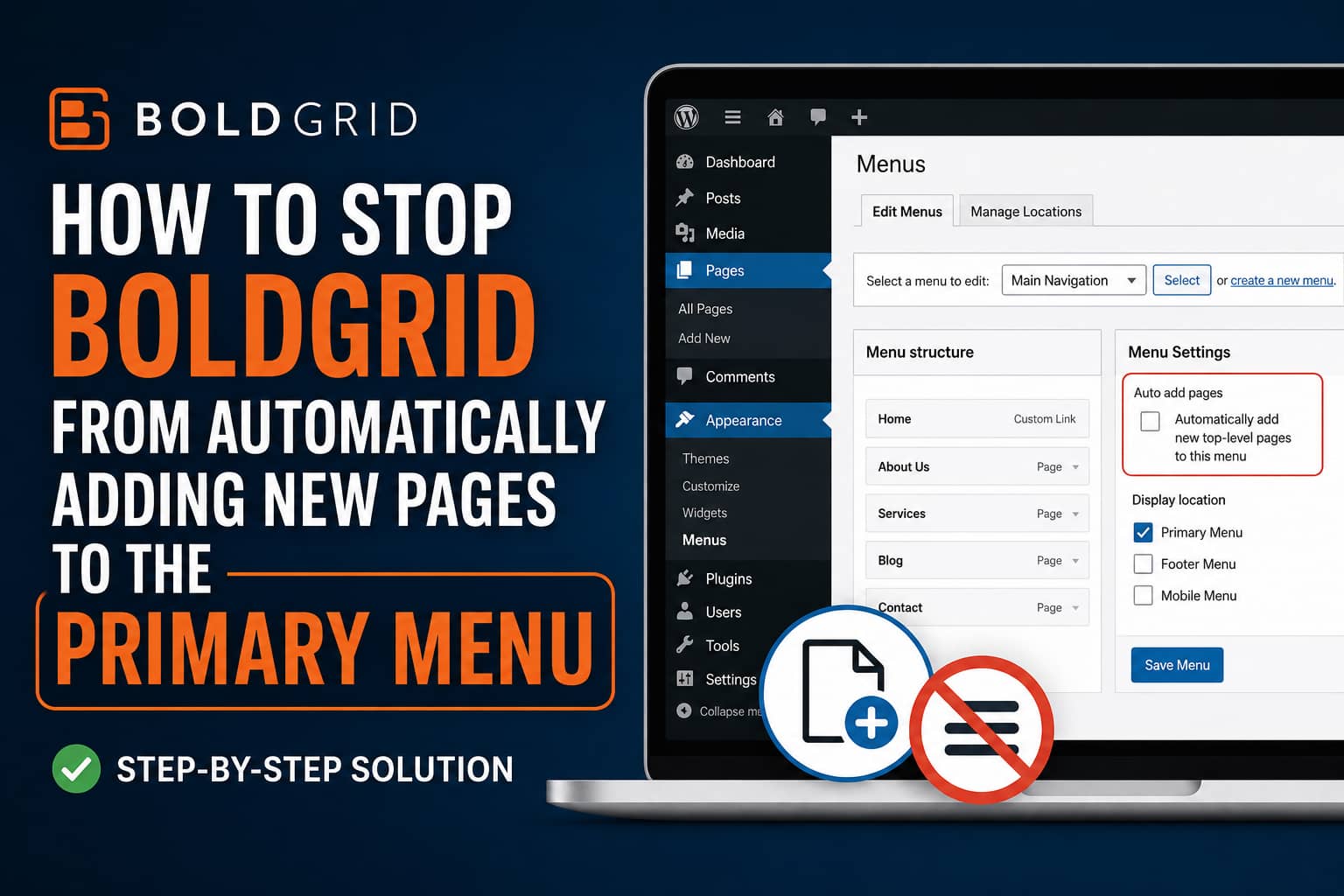
When using a BoldGrid theme together with the BoldGrid Post and Page Builder, you may notice that every newly published WordPress page is automatically added to the website’s Primary Menu.
The new page immediately becomes visible in the header, even though you did not manually add it under Appearance > Menus.
This can be especially frustrating when creating:
- Landing pages
- Thank-you pages
- Privacy or legal pages
- Temporary campaign pages
- Checkout-related pages
- Member-only pages
- Pages that should only be accessible through a direct link
Deactivating the Post and Page Builder may appear to stop the behavior, but disabling the builder is usually not the best permanent solution.
The problem is caused by automatic menu-assignment settings in WordPress and BoldGrid. This guide explains how to disable them safely without modifying the BoldGrid plugin files.
Symptoms of the Problem
You may be experiencing this BoldGrid menu issue if:
- Every newly published page appears in the website header.
- New pages are automatically added to the Primary Menu.
- Removing the page from the menu works, but the next new page is added again.
- The issue stops when a BoldGrid-related plugin is deactivated.
- The page editor shows an “In menu” option with Primary already selected.
- WordPress menu settings appear correct, but BoldGrid still adds the page.
- The issue only affects pages and not normal blog posts.
This is normally a menu configuration issue rather than a corrupted WordPress installation.
Why BoldGrid Automatically Adds New Pages to the Menu
There are two separate systems that can automatically add pages to a WordPress menu.
1. WordPress Has a Built-In Auto-Add Setting
Classic WordPress navigation menus include the following option:
Automatically add new top-level pages to this menu
When this setting is enabled, WordPress automatically adds newly published top-level pages to the selected menu.
The setting is stored in the WordPress database as part of the nav_menu_options option.
This feature is part of WordPress itself and can affect any classic theme, not only BoldGrid themes.
2. BoldGrid Adds an “In Menu” Option to the Page Editor
BoldGrid also provides a menu-assignment control inside the page publishing panel.
When editing a page, you may see:
In menu: PrimaryFor a new page, BoldGrid can automatically select a navigation menu named Primary. When the page is published, BoldGrid processes that selection and creates a new menu item.
This means the page can still be added through BoldGrid even when WordPress’s normal auto-add setting is disabled.
The important detail is that older BoldGrid menu logic checks the menu’s administrative name. When a menu is named exactly Primary, BoldGrid may select it automatically for every new page.
That gives us a simple permanent solution: rename the menu without changing its display location.
Solution 1: Disable WordPress Automatic Page Addition
Start by checking WordPress’s normal menu setting.
Go to:
WordPress Dashboard > Appearance > MenusSelect the menu currently displayed in your website header.
Scroll down to the Menu Settings section and find:
Automatically add new top-level pages to this menuMake sure this option is unchecked.
Click:
Save MenuThis prevents WordPress core from automatically adding newly published top-level pages.
Using the WordPress Customizer
Some BoldGrid themes manage menus through the Customizer.
Go to:
Appearance > Customize > MenusSelect the relevant menu, such as Primary.
Find the Menu Options section and disable:
Automatically add new top-level pages to this menuClick Publish to save the change.
Do not skip this step. Even after fixing BoldGrid’s own behavior, WordPress can continue adding pages when this setting remains enabled.
Solution 2: Rename the Menu From “Primary”
This is the recommended permanent fix for BoldGrid’s automatic menu selection.
Go to:
Appearance > MenusSelect the navigation menu currently named:
PrimaryChange only the Menu Name field to something else, such as:
Main NavigationOther suitable names include:
Header Menu
Main Menu
Website Navigation
Desktop Navigation
Scroll down to Display Location and make sure the menu is still assigned to:
Primary MenuClick:
Save MenuWhy Renaming the Menu Works
The menu name and the menu display location are different settings.
The menu name is an internal label used in the WordPress dashboard. The display location tells the theme where that menu should appear.
You can therefore use:
Menu Name: Main Navigation
Display Location: Primary Menu
The menu will remain in exactly the same place on the frontend.
Visitors will not see the administrative menu name, and changing it should not alter the menu design, links, order, dropdowns, or header location.
However, because the menu is no longer named exactly Primary, BoldGrid should stop selecting it automatically when a new page is created.
Solution 3: Uncheck “In Menu” Before Publishing a Page
BoldGrid may display an “In menu” setting inside the Publish panel of the classic page editor.
Before publishing a new page:
- Open the Publish panel.
- Find the “In menu” setting.
- Click Edit.
- Uncheck Primary or any other selected menu.
- Click OK.
- Publish the page.
The setting should display:
In menu: NoneThis prevents that specific page from being added to a navigation menu.
This method is useful as an immediate workaround. However, renaming the menu is better when you do not want to manually uncheck the option every time you create a page.
How to Remove Pages That Were Already Added
Disabling automatic menu assignment does not necessarily remove pages that were already added.
Go to:
Appearance > MenusSelect the affected menu.
Find the unwanted page under Menu Structure, expand it, and click:
RemoveRepeat this for any other pages that were added automatically.
Click:
Save MenuAfter saving, clear any active website cache and reload the frontend.
Optional Code Fix When WordPress Keeps Re-Enabling Auto-Add
Normally, you should not need custom code. The dashboard settings and menu rename should solve the problem.
However, if the normal WordPress auto-add option repeatedly becomes enabled again, you can enforce the setting with a small must-use plugin.
This code disables WordPress core’s automatic page-to-menu assignment. It does not modify the BoldGrid plugin.
Step 1: Create an MU-Plugin
Using your hosting file manager, SFTP, or SSH, open:
/wp-content/Create a directory named:
mu-pluginsSkip this step if the directory already exists.
Inside the directory, create a file named:
disable-page-menu-auto-add.phpThe complete path should be:
/wp-content/mu-plugins/disable-page-menu-auto-add.phpStep 2: Add the Code
Paste the following code into the file:
<?php
/**
 * Plugin Name: Disable Automatic Page Menu Addition
 * Description: Prevents WordPress from automatically adding newly published pages to classic navigation menus.
 */

defined( 'ABSPATH' ) || exit;

/**
 * Clear the WordPress core auto-add menu setting.
 */
add_action(
	'admin_init',
	static function () {
		$menu_options = get_option( 'nav_menu_options', array() );

		if ( ! is_array( $menu_options ) ) {
			$menu_options = array();
		}

		if ( empty( $menu_options['auto_add'] ) ) {
			return;
		}

		$menu_options['auto_add'] = array();

		update_option( 'nav_menu_options', $menu_options );
	}
);
Save the file.
The code clears the list of menus configured to automatically receive newly published pages.
Important Limitation
This snippet controls WordPress core’s automatic menu feature.
If BoldGrid still preselects a menu named Primary inside the page editor, you should also rename that menu to Main Navigation or another administrative name.
The recommended configuration is therefore:
- WordPress auto-add option disabled
- Menu renamed from Primary to Main Navigation
- Menu still assigned to the Primary Menu display location
Do Not Edit the BoldGrid Plugin Files
You may be tempted to open the BoldGrid plugin and remove the code responsible for selecting the Primary menu.
This is not recommended.
Editing plugin files directly creates several problems:
- Your changes will be overwritten during the next plugin update.
- A small PHP mistake can cause a fatal error.
- Modified plugin files make future troubleshooting more difficult.
- Security updates may replace or conflict with the modification.
- You may accidentally disable other menu-management functionality.
The issue can be resolved using menu settings, a menu rename, or an external compatibility snippet. There is normally no reason to modify BoldGrid’s source files.
Should You Deactivate Post and Page Builder?
Deactivating the Post and Page Builder may stop the automatic behavior during testing, but it is not necessarily the correct permanent fix.
The website may depend on BoldGrid for:
- Editing page layouts
- Reusable content blocks
- Bootstrap rows and columns
- Typography controls
- Responsive design settings
- Existing page content
- Theme integrations
Instead of leaving the plugin deactivated, correct the menu configuration and reactivate the builder.
Always test plugin activation and deactivation on a staging website when the production site contains important BoldGrid layouts.
How to Test the Fix
After applying the changes, test the website carefully.
1. Confirm the Menu Settings
Go to:
Appearance > MenusVerify that:
- The menu name is not exactly Primary.
- “Automatically add new top-level pages” is unchecked.
- The menu is still assigned to the Primary Menu display location.
2. Create a Test Page
Go to:
Pages > Add NewCreate a page named:
BoldGrid Menu TestAdd a short sentence and check the BoldGrid “In menu” section.
It should either show:
NoneOr no menu should be selected.
3. Publish the Page
Publish the test page and open the website in a private or incognito browser window.
Confirm that the test page does not appear in the header navigation.
4. Delete the Test Page
When the fix is confirmed, move the test page to Trash and empty any relevant cache.
What to Check If the Page Still Appears
If newly published pages continue appearing in the navigation, investigate the following possibilities.
The Header Is Using a Different Menu
Your theme may have separate menus for:
- Desktop header
- Mobile header
- Sticky header
- Header upper right
- Footer navigation
- Secondary navigation
Open the menu settings and confirm which menu is assigned to each location.
A page may have been removed from one menu while remaining in another.
The Theme Is Displaying a Fallback Page List
Some WordPress themes display a list of all published pages when no custom navigation menu is assigned.
Confirm that an actual menu is assigned to the theme’s Primary Menu location.
If no menu is assigned, create or select one and save the location.
The Page Exists in a Mobile Menu
BoldGrid themes can use different navigation locations for desktop and mobile layouts.
Test the website at desktop and mobile widths. Then inspect all menus under Appearance > Menus.
A Cache Is Showing the Old Menu
Menus may be cached by:
- A WordPress caching plugin
- Server-level page caching
- Cloudflare
- Another CDN
- Varnish
- Browser cache
- A caching or optimization feature provided by the host
Clear all applicable cache layers after changing the navigation.
Test again in a private browser window.
Another Plugin Is Modifying Menus
If the problem continues, create a staging copy and perform a plugin conflict test.
Keep the BoldGrid theme active, then deactivate other plugins one at a time. After each change, create and publish a temporary page.
Plugins related to the following areas deserve particular attention:
- Menu management
- Page duplication
- Membership systems
- Multilingual navigation
- Landing page creation
- Theme frameworks
- Content synchronization
- Custom post publishing
Do not perform a full plugin conflict test directly on a busy production website unless you have a backup and understand the impact.
The Site Uses a Block Theme
Block themes do not always use the classic Appearance > Menus screen.
When Appearance > Menus is unavailable, go to:
Appearance > EditorOpen the header template or navigation section and inspect the Navigation block.
Make sure the block is not using a Page List that automatically displays all published pages.
This is different from the classic BoldGrid menu issue, but it can create similar frontend behavior.
Frequently Asked Questions
Why is every new BoldGrid page added to my menu?
BoldGrid can automatically select a menu named Primary inside the page editor. WordPress also has a separate option for automatically adding newly published top-level pages. Either setting can cause the behavior.
Will renaming the Primary menu break my website?
Normally, no. Renaming the menu changes its administrative label, not its display location. Keep the renamed menu assigned to the Primary Menu location.
What should I rename the menu to?
You can use Main Navigation, Header Menu, Main Menu, or another descriptive name.
Why does deactivating Post and Page Builder stop the issue?
Deactivating a BoldGrid component can disable parts of the BoldGrid editor integration. That makes the builder appear to be the direct cause, but disabling the plugin is unnecessary when the menu assignment can be corrected.
Do I need to edit the BoldGrid plugin code?
No. Plugin file modifications will be overwritten by updates and can introduce errors. Use the dashboard settings or an external compatibility snippet instead.
Does unchecking WordPress auto-add completely solve it?
Not always. WordPress auto-add and BoldGrid’s “In menu” selection are separate. Check both systems.
Why is the page still visible after removing it?
The page may still exist in another menu, a mobile navigation location, a theme fallback page list, or a cached version of the header.
Final Recommendation
When BoldGrid automatically adds every newly created page to the Primary Menu, apply these changes in order:
- Open Appearance > Menus.
- Disable “Automatically add new top-level pages to this menu.”
- Rename the menu from Primary to Main Navigation.
- Keep it assigned to the Primary Menu display location.
- Remove previously added unwanted pages.
- Clear all website and CDN caches.
- Create a test page and confirm it does not appear in the header.
This approach fixes both the WordPress menu setting and BoldGrid’s automatic Primary-menu selection without disabling the page builder or modifying plugin files.
