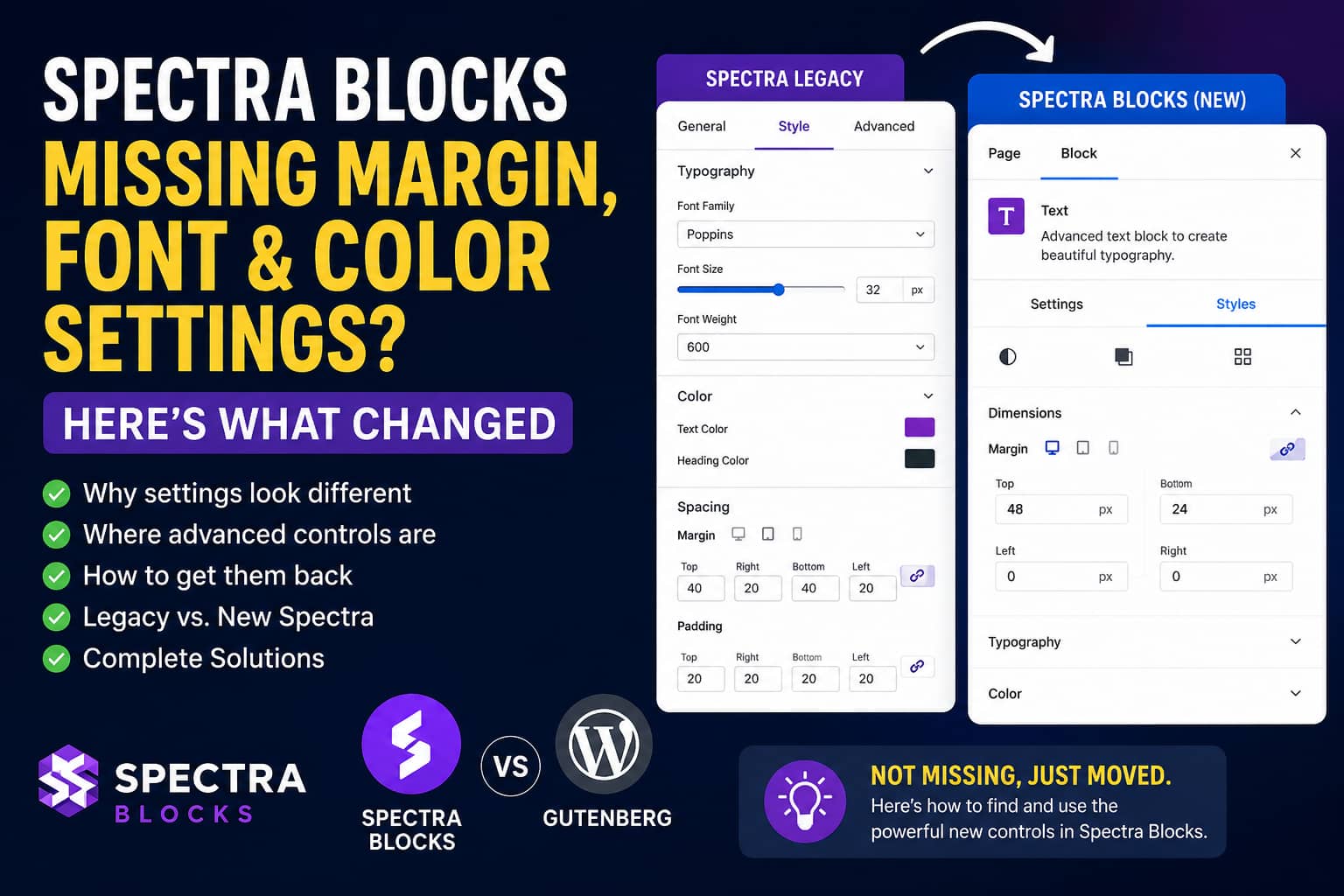
A number of WordPress users have installed the new Spectra Blocks plugin and immediately noticed that it feels very similar to the standard Gutenberg editor.
In Spectra Legacy, a Heading block offered detailed options for typography, colors, responsive settings, and separate margin values for the top, right, bottom, and left sides.
In the new Spectra interface, users may initially see only simplified spacing sliders for:
- Top and bottom
- Left and right
Font family, colors, individual margin controls, and several other familiar settings can also appear to be missing.
This naturally raises an important question:
Is something incorrectly configured, or has Spectra simply become another version of Gutenberg?
The answer is that Spectra has undergone a major product restructuring. The advanced controls have not necessarily disappeared, but the way you access and use them has changed significantly.
Quick Answer
You are probably not looking at a broken Spectra update.
Brainstorm Force has divided Spectra into two separate WordPress plugins:
- Spectra Legacy, which is the original Spectra plugin.
- Spectra Blocks, which is a completely rebuilt plugin based more closely on WordPress’s native block APIs.
Spectra Blocks is not a direct update or replacement for Spectra Legacy. It is a separate plugin with a different design philosophy. Spectra Legacy continues to work and remains supported with security, compatibility, and critical bug fixes, while new feature development is focused on Spectra Blocks.
The new plugin intentionally uses fewer specialized blocks and relies more heavily on:
- WordPress core blocks
- Spectra Extensions
- Flexible Container blocks
- Spectra Global Styles
- Reusable design classes
- Combinations of smaller blocks
That is why it may initially feel much closer to Gutenberg.
Spectra Legacy vs. Spectra Blocks
Understanding the difference between the two plugins is the first step toward solving the problem.
Spectra Legacy
Spectra Legacy is the original plugin previously named Spectra or Ultimate Addons for Gutenberg.
It includes the familiar collection of dedicated blocks, including:
- Advanced Heading
- Info Box
- Call to Action
- Testimonials
- Post Grid
- FAQ
- How-To
- Review
- Forms
- Timeline
- Popup Builder
- Container
Existing pages, settings, and blocks continue working as before. There is currently no mandatory migration deadline.
However, Spectra Legacy is now primarily receiving:
- Security updates
- WordPress compatibility updates
- PHP compatibility updates
- Critical bug fixes
It is not the main destination for new feature development.
Spectra Blocks
Spectra Blocks is the newly rebuilt version.
Instead of providing a large number of highly specialized blocks, it offers a smaller collection of flexible blocks that can be combined to create more complex components.
For example, instead of inserting a dedicated testimonial block, you may create a testimonial using:
- A Container
- An Image
- A Text block
- An Icon
- A Button
This composable approach follows the direction of the native WordPress editor.
Spectra Blocks also adds advanced capabilities through Extensions, responsive controls, Global Styles, a Design Library, animations, popups, and other features.
Why Do the Heading Controls Look Limited?
The most common reason is that you are using the standard WordPress Heading block instead of the Spectra Text block.
The two blocks can look almost identical in the editor, but they do not necessarily provide the same controls.
WordPress Heading Block
The standard Gutenberg Heading block normally uses the styling capabilities supplied by:
- WordPress core
- Your active theme
- The theme’s
theme.jsonconfiguration - Any installed block extensions
Depending on the theme, some typography or spacing options may be unavailable.
Spectra Text Block
The Spectra Text block can be used for paragraphs as well as H1, H2, H3, H4, H5, and H6 headings.
According to Spectra’s documentation, the Text block supports:
- Font family
- Font size
- Font weight
- Font style
- Line height
- Letter spacing
- Text transformation
- Text decoration
- Text and background colors
- Individual padding values
- Individual margin values
- Responsive controls
- Borders and shadows
- Text shadows
The margin and padding settings can be controlled individually for each side and adjusted separately for desktop, tablet, and mobile devices.
Solution 1: Use the Spectra Text Block for Headings
Try replacing the native WordPress Heading block with the Spectra Text block.
Step 1: Insert the correct block
- Edit the affected page or post.
- Click the plus icon to add a block.
- Search for Text.
- Select the Text block listed under the Spectra category.
Make sure you do not accidentally select the standard Paragraph or Heading block.
Step 2: Set the correct heading tag
After inserting the Text block:
- Select the block.
- Open its block settings.
- Locate the HTML tag or text type setting.
- Choose H1, H2, H3, H4, H5, or H6.
Use only one H1 on most standard pages. Use H2 and H3 tags to organize the remaining sections logically.
Step 3: Open the Styles tab
Make sure the right-hand settings sidebar is visible.
If it is hidden, click the settings icon in the upper-right corner of the editor.
Depending on your WordPress and Spectra versions, the available options may be divided between the Settings and Styles tabs.
Look for panels such as:
- Typography
- Color
- Dimensions
- Border and Shadow
- Background
- Responsive Controls
- Global Styles
Step 4: Configure individual margins
Open the Dimensions panel and locate Margin.
Some controls are linked by default. This means the same value may be applied to two or all four sides.
Look for a link, chain, or unlink control beside the values. Disable linked values to enter separate measurements for:
- Top
- Right
- Bottom
- Left
For example:
- Top:
40px - Right:
0 - Bottom:
20px - Left:
0
Do the same under Padding when you need internal space around the heading.
Solution 2: Check the Responsive Device Controls
Spectra Blocks supports separate settings for desktop, tablet, and mobile devices.
A value may appear missing because you are viewing a different responsive mode or because the smaller device is inheriting its value from the larger device.
Spectra’s responsive system generally works like this:
- Tablet inherits from Desktop unless overridden.
- Mobile inherits from Tablet unless overridden.
Select the relevant device icon before changing:
- Font size
- Margin
- Padding
- Line height
- Letter spacing
- Width
- Alignment
Spectra documents responsive controls for typography, dimensions, layouts, borders, shadows, and multiple block-specific properties.
A practical heading configuration could be:
| Device | Font Size | Top Margin | Bottom Margin |
|---|---|---|---|
| Desktop | 52px | 48px | 24px |
| Tablet | 42px | 36px | 20px |
| Mobile | 34px | 28px | 16px |
Avoid using excessive negative margins to repair layouts. Fix the parent Container’s gap, padding, alignment, and width settings first.
Solution 3: Configure Spectra Global Styles
The new Spectra places much greater importance on Global Styles.
Instead of repeatedly choosing a font and color for every heading, you can define your design system once and apply it consistently throughout the website.
To open Spectra Global Styles:
- Select a Spectra block.
- Open the block settings sidebar.
- Locate the Global Styles panel.
- Click Manage Global Styles.
From there, you can manage:
- Primary and secondary colors
- Neutral color shades
- Heading and body fonts
- Typography scale
- Heading weight
- Spacing density
- Border radius
- Shadows
- Buttons
- Forms
- Cards and sections
Global Styles now operate inside the block editor rather than through a separate traditional settings dashboard. Direct block settings have the highest priority, followed by Global Styles, Spectra’s default block CSS, and finally the theme’s CSS.
This priority order is important when a global font or color appears not to work.
If a Global Style is not being applied, check whether the block already has a manually selected font, size, or color. A block-level value will override the global value.
Solution 4: Confirm Which Spectra Plugin Is Installed
Go to:
WordPress Dashboard → Plugins → Installed Plugins
Check the exact plugin name.
You may see Spectra Legacy
This is the original plugin. Its WordPress.org plugin directory is still based on the original ultimate-addons-for-gutenberg plugin slug.
If your existing website was built with the original Spectra, keep Spectra Legacy active.
You may see Spectra Blocks
This is the new rebuilt plugin with a separate WordPress.org listing.
It does not automatically convert every existing Spectra Legacy block into a new Spectra block.
You may see both plugins
Running both plugins temporarily is supported.
This is useful when:
- Existing pages still use Legacy blocks.
- New pages are being created with Spectra Blocks.
- You are rebuilding the site gradually.
- You need to compare both editors before deciding.
The developers state that both plugins can run side by side during a transition. Existing Legacy pages continue to use Legacy assets, while new pages can use the rebuilt blocks.
Do not deactivate Spectra Legacy until you have confirmed that no live page, post, template, popup, or reusable block depends on it.
Solution 5: Keep Spectra Legacy for Existing Websites
For an established website, the safest solution may simply be to continue using Spectra Legacy.
You do not have to rebuild the site immediately.
Use this approach when:
- The website already contains many Legacy blocks.
- You depend on dedicated blocks that are not available in the new plugin.
- You prefer the old settings interface.
- You require the old block-level design controls.
- The website is currently stable.
- There is no business reason to rebuild existing pages.
Continue updating Spectra Legacy because its updates include security and compatibility fixes.
Do not keep an outdated plugin version merely to preserve the old interface.
Solution 6: Use Both Plugins During a Controlled Migration
For developers and agencies, the safest migration method is gradual.
Recommended workflow
- Create a staging copy of the website.
- Update WordPress, the theme, Spectra Legacy, and backups.
- Install Spectra Blocks separately.
- Keep Spectra Legacy active.
- Rebuild one non-critical page using Spectra Blocks.
- Compare desktop, tablet, and mobile layouts.
- Check the heading hierarchy.
- Test performance and Core Web Vitals.
- Check forms, popups, dynamic content, and links.
- Repeat the process page by page.
After rebuilding everything, search the database or inspect all important pages to verify that no Legacy blocks remain.
Only then should you consider deactivating Spectra Legacy.
Solution 7: Use Custom CSS When a Control Is Unavailable
When a specific control is genuinely unavailable, assign a custom CSS class to the block.
Select the heading and open:
Advanced → Additional CSS Class(es)
Enter:
dn-custom-headingThen add this CSS under your child theme, Customizer, site editor, or trusted custom CSS plugin:
.dn-custom-heading {
    margin-top: 48px;
    margin-right: 0;
    margin-bottom: 24px;
    margin-left: 0;
    color: #1e293b;
    font-family: Arial, sans-serif;
    font-size: clamp(2rem, 4vw, 3.5rem);
    font-weight: 700;
    line-height: 1.15;
    letter-spacing: -0.02em;
}

@media (max-width: 1024px) {
    .dn-custom-heading {
        margin-top: 36px;
        margin-bottom: 20px;
        font-size: 2.625rem;
    }
}

@media (max-width: 767px) {
    .dn-custom-heading {
        margin-top: 28px;
        margin-bottom: 16px;
        font-size: 2.125rem;
        line-height: 1.2;
    }
}
Replace Arial with a font that is already loaded on your website.
Adding a font family in CSS does not automatically download the font. The font must also be properly loaded through the theme, local font manager, or an optimized enqueue method.
What to Check When Options Are Still Missing
If you selected the Spectra Text block but still cannot find the expected controls, complete the following checks.
1. Use List View
Open the WordPress List View and select the block from the page structure.
It is easy to select the parent Container instead of the heading, especially in deeply nested layouts.
2. Confirm the block name
The block should be identified as a Spectra Text block rather than a standard Heading block.
3. Update Spectra Blocks
The initial Spectra Blocks release was version 1.0.0 on July 13, 2026. Version 1.0.1 added version rollback support, and version 1.0.2 followed with additional fixes. Because this is a newly launched plugin, checking for current updates is particularly important.
4. Check the minimum requirements
At the time of writing, the new Spectra Blocks listing requires:
- WordPress 6.6 or newer
- PHP 8.1 or newer
An older PHP or WordPress version can cause missing controls, editor errors, failed scripts, or incomplete rendering.
5. Clear all cache layers
Clear:
- Browser cache
- WordPress cache
- Server cache
- Object cache
- CDN cache
- Minified CSS and JavaScript files
Temporarily disable CSS and JavaScript combining or delay settings while testing the editor.
6. Check the browser console
Open the editor, press F12, and inspect the Console tab.
Look for:
- JavaScript errors
- REST API errors
- Block registration errors
- Failed Spectra files
- Content Security Policy errors
- Errors caused by optimization plugins
7. Test for plugin conflicts
On a staging website:
- Deactivate all plugins except Spectra Blocks.
- Test the editor.
- Reactivate plugins one at a time.
- Check after every activation.
Pay particular attention to:
- Gutenberg enhancement plugins
- Block editor plugins
- Performance plugins
- Security plugins
- Admin interface customization plugins
- Custom code plugins
8. Test with a default theme
Temporarily test with a current default WordPress theme.
Some themes restrict block features through theme.json, apply aggressive editor CSS, or override frontend typography and spacing.
9. Use version rollback carefully
Spectra Blocks includes version control in:
Spectra Settings → Utilities → Version Control
Rollback can help determine whether an issue began after a particular update. Always create a full backup first and perform the test on staging whenever possible.
Is the New Spectra Just Gutenberg?
The new Spectra is intentionally much closer to Gutenberg than Spectra Legacy was.
That does not mean the two are identical.
Spectra Blocks adds features such as:
- Flexible Containers
- Responsive controls
- Advanced spacing and dimensions
- Global design styles
- Reusable CSS variables and classes
- Animations
- Popups
- Accordions
- Tabs
- Sliders
- Counters
- Countdowns
- Post layouts
- Modals
- Design patterns
- AI-assisted page generation through Zip AI
However, the user’s concern is still valid.
If you only need basic headings, paragraphs, images, buttons, columns, and simple spacing, Gutenberg may already provide everything your website needs. Installing another block plugin without using its additional features would introduce unnecessary maintenance.
Spectra Blocks becomes more useful when you need its:
- Container system
- Responsive extensions
- Global design system
- Advanced blocks
- Design Library
- Popup functionality
- Dynamic layouts
- AI-assisted workflow
Should You Uninstall Spectra?
Do not uninstall either plugin without first checking which blocks your website uses.
Use the following guidance:
| Situation | Recommended Choice |
| Existing site built with original Spectra | Keep Spectra Legacy |
| New simple blog using basic blocks | Gutenberg may be enough |
| New site needing advanced responsive layouts | Consider Spectra Blocks |
| You prefer the old detailed block interface | Continue with Spectra Legacy |
| You are gradually rebuilding an old site | Run both temporarily |
| You no longer use any Spectra features | Test, then remove Spectra |
| Existing content depends on Legacy blocks | Do not deactivate Legacy |
Deactivating a plugin does not normally delete the saved post content. However, blocks that depend on that plugin may become unavailable for editing or fail to display correctly.
Always verify the frontend after deactivation.
Final Verdict
The missing settings are partly the result of Spectra’s redesigned workflow rather than a straightforward software failure.
The most effective fixes are:
- Confirm whether you installed Spectra Blocks or Spectra Legacy.
- Use the Spectra Text block instead of the native Heading block.
- Open the Styles and Dimensions panels.
- Unlink margin and padding values when individual sides are required.
- Select the correct responsive device.
- Configure fonts and colors through Spectra Global Styles.
- Keep Spectra Legacy active for existing Legacy content.
- Use custom CSS for any remaining design requirement.
- Test the new plugin on staging before migrating a production website.
The new Spectra is designed to work with Gutenberg rather than build a completely separate editing experience around it. That can produce a cleaner and more future-compatible workflow, but it also means experienced Spectra Legacy users may need time to adjust.
For existing websites, there is no urgent reason to migrate. Continue using the maintained Legacy plugin until the rebuilt version offers a clear practical advantage for your project.
Frequently Asked Questions
Why are font settings missing in the new Spectra?
You may have selected the native WordPress Heading block instead of the Spectra Text block. Font defaults may also be controlled through Spectra Global Styles or your theme’s theme.json file.
Can I set separate top, right, bottom, and left margins?
Yes. The Spectra Text block supports individual responsive margin and padding values. Open the Dimensions panel and unlink the values when necessary.
Is Spectra Legacy discontinued?
No. Spectra Legacy continues to receive security, compatibility, and critical maintenance updates. New feature development is primarily focused on Spectra Blocks.
Do I have to migrate from Spectra Legacy?
No. There is currently no required migration or deadline. Existing websites can continue using Spectra Legacy.
Can Spectra Legacy and Spectra Blocks run together?
Yes. Both plugins can run on the same website during a gradual transition. Keep Legacy active as long as any content depends on its blocks.
Will uninstalling Spectra delete my pages?
Uninstalling the plugin does not normally erase the page content stored in the database. However, plugin-dependent blocks may stop rendering or become invalid. Create a backup and test on staging before removing anything.
Is Gutenberg better than Spectra Blocks?
Gutenberg may be sufficient for simple websites. Spectra Blocks is more useful when you need advanced responsive controls, Containers, Global Styles, specialized blocks, popups, patterns, or AI-assisted generation.
Why do Global Styles not affect my heading?
A manually selected block-level font, size, or color can override Global Styles. Reset the individual block setting and clear all cache layers.
Should I rebuild my existing Spectra website?
Not unless there is a clear reason. Rebuilding may make sense during a redesign, performance project, or planned migration, but a stable Legacy website does not need to be rebuilt simply because the new plugin exists.
