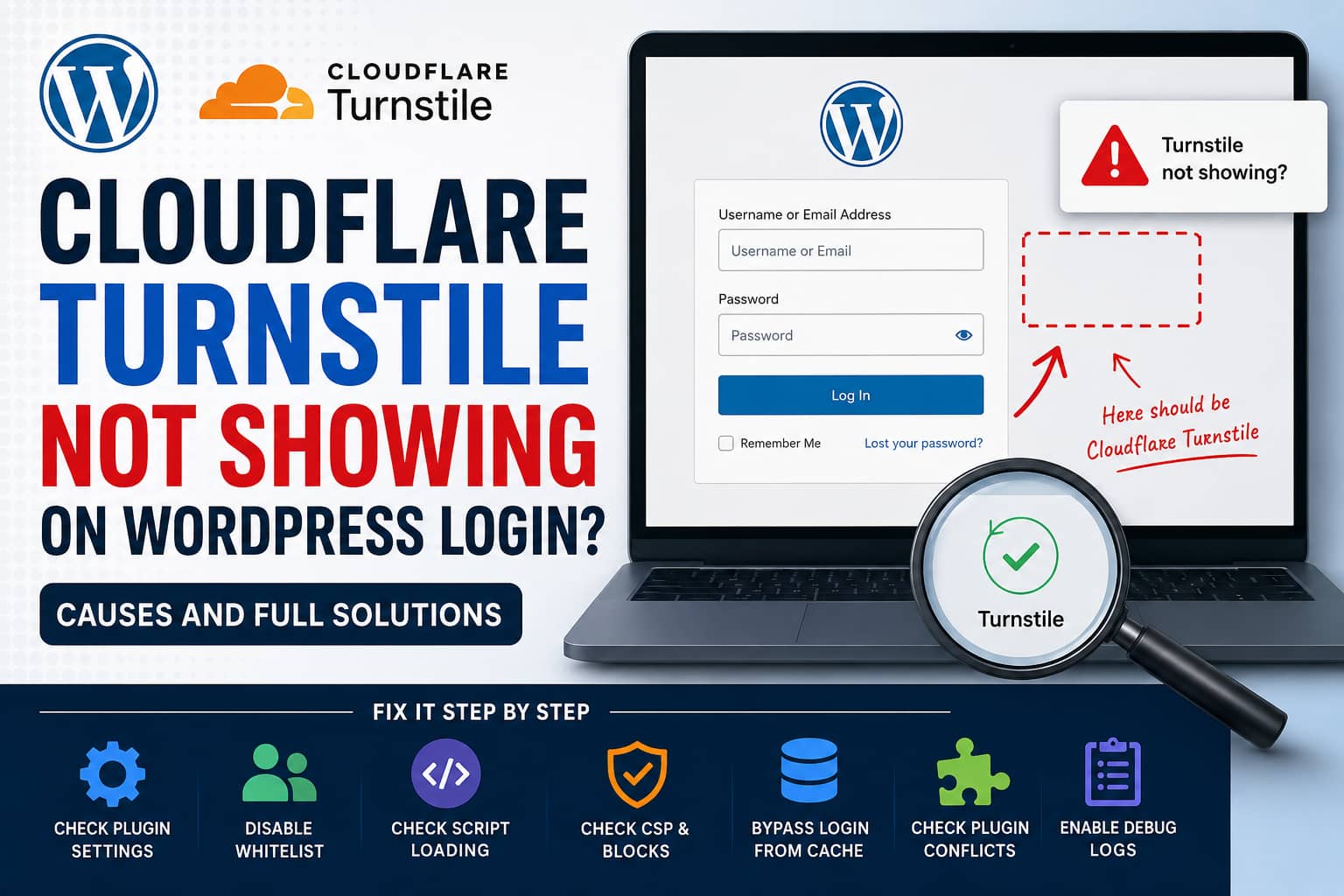
Cloudflare Turnstile is enabled, the Site Key and Secret Key are accepted, and the plugin’s API test completes successfully. However, when you visit the WordPress login page, the Turnstile verification box does not appear.
This problem can be particularly confusing when the same Simple CAPTCHA with Cloudflare Turnstile settings work correctly on a development website but fail on the live website.
A successful API test only confirms that the website can communicate with Cloudflare and that the supplied credentials are accepted. It does not confirm that the plugin successfully inserts the widget into the login form, that the browser loads the required JavaScript, or that a security or caching system is not hiding it.
The plugin supports the default WordPress login form and also supports login forms created with WordPress’s wp_login_form() function. Its login integration depends on WordPress form hooks and can therefore fail when another plugin completely replaces the standard login form.
This guide explains how to identify the exact failure point and safely restore Turnstile protection.
Important: The Widget May Be Working Without Being Visible
Before changing any settings, confirm that the widget is actually missing.
Cloudflare Turnstile supports three widget modes:
- Managed
- Non-interactive
- Invisible
A managed widget may only request interaction when Cloudflare considers it necessary. An invisible widget runs without displaying a visible CAPTCHA box. The WordPress plugin also includes an Appearance Mode that can display the widget only when interaction is required.
Therefore, not seeing a checkbox does not automatically mean Turnstile is disabled.
For troubleshooting, temporarily change the plugin’s Appearance Mode to:
AlwaysThen save the settings, clear the relevant caches, and test the login page again in a private browser window.
Test the Correct WordPress Login Page
Turnstile protects the login form shown before entering the WordPress admin area. It does not normally display after you are already inside the dashboard.
Test the direct WordPress login URL:
https://example.com/wp-login.phpDo not test while already logged in. Open an incognito or private browser window so that existing WordPress login cookies cannot affect the result.
This is important because the plugin can whitelist logged-in users. It can also whitelist specific IP addresses and browser User Agents. When a visitor matches any of these rules, the plugin intentionally skips rendering the Turnstile widget.
Quick Diagnostic Test
Open the live website’s wp-login.php page and press F12 to open Developer Tools.
Select the Console tab and run:
document.querySelector('#loginform .cf-turnstile')There are two possible results.
The result is null
The plugin did not add the Turnstile container to the login form.
The likely causes are:
- WordPress Login protection is not enabled.
- The visitor matches a whitelist.
- A custom login plugin replaced the standard login form.
- The “default login only” setting does not recognize the custom login URL.
- Custom code disabled the widget through a filter.
- The plugin is active but its login integration did not load.
The command returns an HTML element
The plugin added the widget container, but the browser failed to render it.
The likely causes are:
- The Cloudflare JavaScript file was blocked.
- JavaScript delay, defer, or minification changed the loading order.
- A Content Security Policy blocked the script or iframe.
- An ad blocker or privacy extension blocked Cloudflare.
- Custom CSS hid the widget.
- The production hostname is not authorized for the selected Site Key.
This single test helps separate a WordPress rendering problem from a browser-side loading problem.
Solution 1: Recheck the WordPress Login Integration
Go to:
WordPress Dashboard > Settings > Cloudflare TurnstileDepending on the plugin version, the menu or section names may be slightly different.
Confirm that the following option is enabled:
WordPress Login FormSave the settings even if the option already appears enabled.
Then run the plugin’s API test again.
The plugin requires both the desired form integration and a successful API test before it can protect the selected form.
Also confirm that you are enabling the correct login integration.
For example:
/wp-login.phprequires the WordPress Login integration./my-account/normally requires the WooCommerce Login integration.- An Elementor login form may require an Elementor-specific integration.
- A membership plugin may have its own supported integration.
- A fully custom login form may require custom development.
Enabling WordPress Login does not automatically guarantee that Turnstile will appear on every custom frontend login form.
Solution 2: Temporarily Disable All Whitelist Rules
Open the plugin’s whitelist settings and temporarily disable:
- Whitelist logged-in users
- IP address whitelist
- User Agent whitelist
Clear the fields completely while testing.
An incognito window removes WordPress login cookies, but it does not change your public IP address. Therefore, an IP whitelist can still hide the widget in private browsing.
The plugin checks logged-in status, valid login cookies, exact IP addresses, User Agent values, and custom whitelist filters before rendering the widget.
After disabling the whitelist rules, save the settings and reload wp-login.php.
If Turnstile appears, restore only the whitelist entries that are genuinely required.
Solution 3: Set Appearance Mode to Always
The widget may be configured to appear only when Cloudflare requires user interaction.
For testing, change:
Appearance Mode: AlwaysThis forces the widget container to remain visible instead of waiting for an interaction requirement.
The plugin passes its Appearance Mode directly to the Turnstile widget through the data-appearance attribute. When interaction-only mode is selected, even the plugin’s widget label and spacing may remain hidden until Cloudflare requires interaction.
Once the problem has been resolved, you can switch back to your preferred appearance setting.
Solution 4: Check the Production Hostname in Cloudflare
A development domain and production domain are different hostnames.
For example:
development.example.com
example.com
www.example.com
Make sure every hostname that will use the Site Key is authorized in the Cloudflare Turnstile widget settings.
Cloudflare error code 110200 means that the current domain is not authorized. Error codes 110100 and 110110 indicate an invalid or unknown Site Key.
If the same keys are used on development and production, confirm that both hostnames have been added.
Also check whether the production site uses www while the development configuration uses the root domain without www.
Solution 5: Check Whether the Cloudflare Script Loads
On the login page, open Developer Tools and run:
[...document.scripts]
    .map(script => script.src)
    .filter(src => src.includes('challenges.cloudflare.com'))
You should see a Turnstile script loaded from Cloudflare.
Next, run:
typeof window.turnstileA properly loaded Turnstile library should eventually return:
objectIf it returns:
undefinedthe Turnstile JavaScript did not load or did not finish initializing.
Open the Network tab, reload the page, and search for:
turnstileAlso search for:
challenges.cloudflare.comLook for blocked, cancelled, or failed requests.
Solution 6: Disable JavaScript Optimization Temporarily
Production websites often have stronger performance optimization than development websites. This explains why identical plugin settings may work in development but not on the live site.
Temporarily disable JavaScript optimization features such as:
- Delay JavaScript
- Defer JavaScript
- Combine JavaScript
- Remove unused JavaScript
- Script manager restrictions
- Cloudflare Rocket Loader
- Login-page asset unloading
Check plugins and services such as:
- LiteSpeed Cache
- WP Rocket
- Perfmatters
- Autoptimize
- FlyingPress
- Asset CleanUp
- SG Optimizer
- Breeze
- Cloudflare Rocket Loader
After disabling optimization:
- Clear the WordPress cache.
- Clear the hosting cache.
- Purge the Cloudflare cache.
- Close the old login page.
- Test again in an incognito window.
If Turnstile appears, re-enable the performance settings and exclude scripts containing:
challenges.cloudflare.comand:
turnstileAlso exclude the following URLs from delayed or optimized loading:
/wp-login.php
/wp-admin/
Recent versions of the plugin include compatibility improvements for performance plugins, delayed scripts, inline rendering, and login-form loading. Updating to the latest stable version is therefore an important part of the fix.
Solution 7: Do Not Cache the WordPress Login Page
The WordPress login page should not be served from a full-page cache.
Check the login response with:
curl -I https://example.com/wp-login.phpPay attention to headers such as:
CF-Cache-Status
X-Cache
X-LiteSpeed-Cache
Age
A Cloudflare response such as the following can indicate an unsafe cache rule:
CF-Cache-Status: HITCreate cache bypass rules for:
/wp-login.php*
/wp-admin/*
Also review any Cloudflare “Cache Everything” rules, hosting-level Varnish rules, Nginx caching rules, or custom page-cache configurations.
Cloudflare specifically recommends excluding dynamic login and authenticated application routes from caching because aggressive caching can break login forms, cookies, sessions, and challenge state.
Solution 8: Check Content Security Policy Errors
A strict Content Security Policy can allow the plugin’s PHP code to generate the Turnstile container while blocking Cloudflare’s JavaScript or iframe.
Open the browser Console and look for messages such as:
Refused to load the script
Refused to frame
Content Security Policy
challenges.cloudflare.com
Cloudflare requires the following origin to be allowed:
https://challenges.cloudflare.comThe relevant CSP directives should include it:
script-src ... https://challenges.cloudflare.com;
frame-src ... https://challenges.cloudflare.com;
Do not replace your complete CSP with this example. Add the Cloudflare origin to the existing script-src and frame-src directives.
Cloudflare recommends a nonce-based CSP3 implementation where possible. It also confirms that Turnstile can fail to load when challenges.cloudflare.com is missing from the permitted script or frame sources.
A CSP header may be added by:
- Apache
.htaccess - Nginx configuration
- A WordPress security plugin
- A headers plugin
- Cloudflare Transform Rules
- A hosting control panel
- A reverse proxy
- A custom MU plugin
After changing a CSP header, clear all cache layers before testing again.
Solution 9: Test the Default Login URL Against a Custom Login URL
Security plugins frequently change the WordPress login URL from:
/wp-login.phpto something such as:
/secure-login/
/admin-access/
/member-login/
The Turnstile plugin includes an option that restricts protection to the default WordPress login path. Its source code compares the current request path with the path generated by wp_login_url(). If the paths do not match, it can skip rendering the widget.
Test both URLs:
https://example.com/wp-login.php
https://example.com/custom-login-slug/
If Turnstile appears on the default login page but not on the custom page, the problem is the custom login integration.
Review plugins such as:
- WPS Hide Login
- Custom Login Page Customizer
- Theme My Login
- Membership plugins
- SSO plugins
- Two-factor authentication plugins
- Security plugins that replace the login form
Temporarily disable the setting that limits Turnstile to the default login form and test again.
If the custom form does not use standard WordPress login hooks or wp_login_form(), it may require a supported plugin integration or custom code.
Solution 10: Check for Custom Code That Disables Turnstile
The plugin provides WordPress filters that developers can use to hide or bypass the widget.
Search the website files for:
cfturnstile_widget_disable
cfturnstile_whitelisted
cfturnstile_wp_login_checks
With SSH access, run:
grep -R "cfturnstile_widget_disable\|cfturnstile_whitelisted\|cfturnstile_wp_login_checks" \
wp-content/themes \
wp-content/plugins \
wp-content/mu-plugins
Pay particular attention to:
/wp-content/mu-plugins/MU plugins load automatically and do not appear in the regular Plugins screen.
The plugin calls the cfturnstile_widget_disable filter before displaying a widget. If custom code returns true, the widget is intentionally omitted.
Remove or correct the responsible filter rather than forcing a second Turnstile widget into the form.
Solution 11: Check the Effective Settings with WP-CLI
The live database may not contain the same effective settings as the development database, even when the administration screens appear similar.
Run:
wp option get cfturnstile_login
wp option get cfturnstile_login_only
wp option get cfturnstile_appearance
wp option get cfturnstile_whitelist_users
wp option get cfturnstile_whitelist_ips
wp option get cfturnstile_whitelist_agents
The login option should normally return an enabled value such as:
1Also inspect wp-config.php and MU plugins for Turnstile constants:
grep -R "CF_TURNSTILE_" wp-config.php wp-content/mu-pluginsThe plugin supports defining its Site Key and Secret Key through wp-config.php. Constants can therefore override or differ from values expected from a copied database or settings screen.
Never publish the Secret Key or include it in screenshots.
Solution 12: Check for CSS Hiding the Widget
If the Turnstile container exists but remains invisible, inspect it in Developer Tools.
Run:
const widget = document.querySelector('#loginform .cf-turnstile');

widget
    ? {
        display: getComputedStyle(widget).display,
        visibility: getComputedStyle(widget).visibility,
        opacity: getComputedStyle(widget).opacity,
        size: widget.getBoundingClientRect()
    }
    : 'Widget container not found';
Look for:
display: none
visibility: hidden
opacity: 0
width: 0
height: 0
Custom login-page CSS, a white-label plugin, or a security plugin may accidentally hide the container or iframe.
As a temporary test, add:
#loginform .cf-turnstile {
    display: block !important;
    visibility: visible !important;
    opacity: 1 !important;
}
Do not keep this CSS unless you have confirmed that CSS is the actual cause.
Solution 13: Test Browser Extensions and Network Restrictions
Ad blockers, privacy extensions, DNS filters, VPNs, proxies, antivirus web protection, or company firewalls can block requests to:
challenges.cloudflare.comTest using:
- An incognito window with extensions disabled.
- A different browser.
- A different computer or phone.
- A mobile hotspot.
- A connection without a VPN or proxy.
Cloudflare recommends these tests for Turnstile problems because JavaScript, browser extensions, proxies, and network filtering can prevent the challenge from loading.
A 200500 error indicates that the Turnstile iframe could not load. A 200100 error can indicate an incorrect device clock or a challenge cached by an intermediary.
A standalone 401 Unauthorized request in the Console is not always a problem. Cloudflare explains that this can be related to an unsupported Private Access Token request and can generally be ignored when the widget successfully produces a token.
Solution 14: Run a Controlled Plugin Conflict Test
Perform this test on staging whenever possible.
Temporarily leave active only:
- Simple CAPTCHA with Cloudflare Turnstile
- Plugins required for the login page
- The active theme
Test wp-login.php.
If Turnstile appears, reactivate the other plugins one at a time.
Prioritize testing:
- Other CAPTCHA plugins
- Wordfence or other security plugins
- Login URL changers
- Two-factor authentication plugins
- SSO or OAuth plugins
- Performance plugins
- Script managers
- Custom login plugins
- White-label admin plugins
- Membership plugins
- MU plugins
Do not run two different CAPTCHA or Turnstile implementations on the same login form unless they are explicitly designed to work together.
Solution 15: Enable Turnstile Debug Logging
Recent plugin versions include debug logging and basic Turnstile submission analytics.
Open the plugin’s Analytics or debugging section and temporarily enable logging. Then reproduce the problem.
Also enable WordPress logging by adding the following above the “stop editing” line in wp-config.php:
define( 'WP_DEBUG', true );
define( 'WP_DEBUG_LOG', true );
define( 'WP_DEBUG_DISPLAY', false );

@ini_set( 'display_errors', 0 );
Review:
/wp-content/debug.logLook for:
Turnstile
simple-cloudflare-turnstile
wp-login.php
PHP Fatal error
Uncaught TypeError
enqueue
headers
authentication
Browser-side CSP and JavaScript errors may not appear in the PHP debug log, so always inspect both the browser Console and debug.log.
Disable debugging after completing the test.
Most Likely Fix for Development Versus Production Differences
When Turnstile works on development but not on production, and the API test succeeds on both websites, use this order:
- Open the production
/wp-login.phppage in an incognito window. - Set Appearance Mode to Always.
- Disable logged-in user, IP, and User Agent whitelists.
- Confirm WordPress Login protection is enabled.
- Test the default login page rather than a custom login URL.
- Disable JavaScript delay, defer, minification, and Rocket Loader.
- Purge WordPress, server, CDN, and browser caches.
- Check whether
.cf-turnstileexists in the login form. - Check the Console for CSP or blocked-script errors.
- Confirm the production hostname is authorized in Cloudflare.
- Test for custom login, security, 2FA, and CAPTCHA conflicts.
In this situation, the most common production-only causes are JavaScript optimization, a whitelist matching the administrator’s IP, a custom login form that does not use WordPress’s standard hooks, or a CSP rule blocking challenges.cloudflare.com.
Emergency Recovery If Turnstile Blocks All Logins
If the widget is missing but WordPress still requires verification, administrators may be unable to log in.
With SSH and WP-CLI, deactivate the plugin:
wp plugin deactivate simple-cloudflare-turnstileWithout SSH, use FTP or the hosting File Manager and rename:
/wp-content/plugins/simple-cloudflare-turnstile/to:
/wp-content/plugins/simple-cloudflare-turnstile-disabled/Log in, correct the settings or conflict, restore the original folder name, and reactivate the plugin.
Do not leave the login page unprotected longer than necessary. Use a security plugin, rate limiting, strong passwords, and two-factor authentication while Turnstile is disabled.
Frequently Asked Questions
Why does the API test pass when Turnstile does not appear?
The test verifies the keys and Cloudflare response. The login page still depends on WordPress hooks, whitelist rules, browser JavaScript, CSP permissions, caching, and the correct form integration.
Does Cloudflare Turnstile always show a checkbox?
No. Managed Turnstile may only ask for interaction when required, and invisible mode does not display a visible widget. Temporarily use the plugin’s Always appearance setting while troubleshooting.
Can I use the same Turnstile keys on development and production?
Yes, provided that the required development and production hostnames are authorized for that Turnstile widget. Separate widgets can also be used when you want independent analytics or configurations.
Can Cloudflare caching break Turnstile?
Yes. Login pages and challenge state should not be cached as static HTML. Bypass /wp-login.php and /wp-admin/ in full-page cache and CDN rules.
Why does Turnstile appear on wp-login.php but not on my custom login page?
The custom page may not use the standard WordPress login hooks. Enable the integration that corresponds to the actual form plugin or add a custom integration.
Should I manually add Cloudflare’s widget HTML to the login page?
Not as the first solution. Displaying a widget is only the client-side portion of Turnstile. The token must also be validated on the server. Fix the plugin integration or implement both rendering and server-side verification correctly.
Final Thoughts
When Cloudflare Turnstile appears on development but not on the live WordPress login page, the Site Key and Secret Key are not necessarily the problem.
First determine whether the widget container is missing or whether it exists but cannot render. A missing container points toward plugin settings, whitelists, custom login forms, WordPress hooks, or custom filters. An existing but empty container points toward JavaScript optimization, caching, CSP restrictions, browser extensions, or blocked Cloudflare resources.
Avoid replacing the plugin or injecting another CAPTCHA before identifying the failure point. Check the direct wp-login.php page, temporarily use the Always appearance setting, disable whitelist rules, exclude Turnstile from JavaScript optimization, bypass the login page from caching, and inspect the browser Console.
Once the exact cause is identified, correct that integration or configuration rather than relying on repeated cache purges or temporary plugin deactivation.
