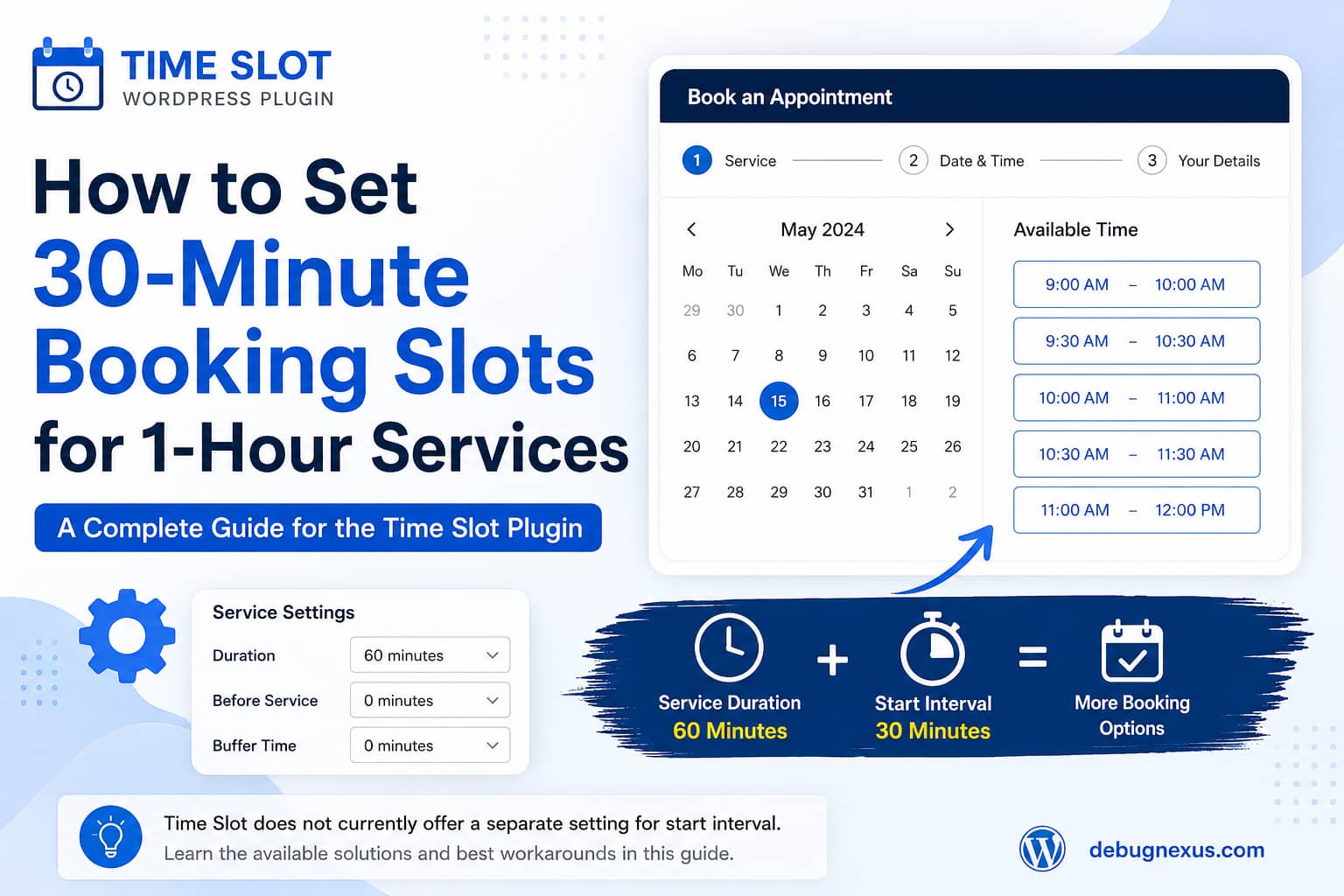
The Time Slot WordPress booking plugin allows businesses to create services, configure appointment durations, set working hours, add buffer time, and display available appointments through a booking form.
A common scheduling requirement is to offer a service that lasts one hour while allowing customers to begin that service every 30 minutes.
For example, the desired booking times may be:
- 9:00 AM
- 9:30 AM
- 10:00 AM
- 10:30 AM
- 11:00 AM
Each appointment would still occupy a full hour. A customer booking at 9:30 AM would therefore reserve the schedule until 10:30 AM.
Unfortunately, the Time Slot plugin does not currently support this exact arrangement. The interval between available start times is tied to the configured service range, rather than being controlled by a separate booking interval setting.
This guide explains how Time Slot calculates appointment availability, how to configure the supported options, and what to do when you need true 30-minute start intervals for a one-hour service.
The Problem
You may experience this limitation when:
- Your service lasts 60 minutes.
- You want customers to start every 30 minutes.
- Setting the service duration to 60 minutes produces only hourly appointments.
- Setting the service duration to 30 minutes makes the appointment too short.
- Adding a 30-minute buffer still produces hourly start times.
- You cannot find a separate “slot interval” or “time step” setting.
- You want to choose booking intervals independently from service duration.
The important distinction is that service duration and booking start interval are not the same thing.
A service may last 60 minutes while its possible starting times occur every 30 minutes. Some appointment systems provide separate settings for these two values. Time Slot currently does not.
Quick Answer
Time Slot cannot currently show a 60-minute service at 30-minute starting intervals.
For example, the plugin cannot natively produce this schedule for one staff member or resource:
9:00 AM to 10:00 AM
9:30 AM to 10:30 AM
10:00 AM to 11:00 AM
10:30 AM to 11:30 AM
When the service duration is set to 60 minutes, the booking form normally displays hourly starting times, such as:
9:00 AM
10:00 AM
11:00 AM
12:00 PM
The plugin developer has confirmed that custom time ranges or a separate slot interval are not currently available.
Understanding the Time Slot Service Settings
To understand the limitation, it helps to separate the settings that control a service.
Open your WordPress dashboard and navigate to the Time Slot plugin’s Services section.
Edit the affected service and review the following fields.
Duration
The Duration field controls how long the actual service lasts.
The plugin allows duration values in 15-minute increments.
Examples include:
15 minutes
30 minutes
45 minutes
60 minutes
75 minutes
90 minutes
A 60-minute duration means that the appointment occupies one hour of the schedule.
Before Service
The Before Service field adds padding before the appointment begins.
The plugin documentation describes this as time reserved before the service appointment. It can also be entered in 15-minute increments.
For example:
Service duration: 30 minutes
Before Service: 30 minutes
Total occupied range: 60 minutes
However, this does not create 30-minute appointment start intervals. The combined service and buffer range still results in appointments being offered approximately every hour.
Business Hours
Business hours determine when appointments may be scheduled.
For example:
Monday: 9:00 AM to 5:00 PM
Tuesday: 9:00 AM to 5:00 PM
Wednesday: 9:00 AM to 5:00 PM
Business hours control the opening and closing boundaries, but they do not create an independent 30-minute start interval for a 60-minute service.
Break Hours and Days Off
Breaks, holidays, staff days off, and service days off remove unavailable periods from the calendar.
These settings can block times, but they cannot make a one-hour service begin every 30 minutes.
Solution 1: Configure a Standard One-Hour Service
Use this option when hourly booking times are acceptable.
Go to:
WordPress Dashboard
Time Slot
Services
Edit Service
Configure the service as follows:
Duration: 60 minutes
Before Service: 0 minutes
Save the service and open the booking form in a private browser window.
If the business opens at 9:00 AM, the available times should resemble:
9:00 AM
10:00 AM
11:00 AM
12:00 PM
This is the cleanest configuration for a service that genuinely takes one hour.
When to use this setup
This configuration is suitable when:
- Each appointment should begin on the hour.
- You want a simple schedule.
- One employee or resource performs the service.
- Overlapping appointments are not allowed.
- The service requires the complete 60-minute period.
Solution 2: Use a 30-Minute Service With a 30-Minute Buffer
The plugin developer also suggests configuring a 30-minute service with a 30-minute buffer.
Use:
Duration: 30 minutes
Before Service: 30 minutes
The combined range occupies one hour.
This can be useful when you need 30 minutes for the customer-facing activity and another 30 minutes for preparation, cleanup, travel, documentation, equipment setup, or another internal task.
However, this configuration does not create appointment starts every 30 minutes.
The booking form will still normally display times similar to:
9:00 AM
10:00 AM
11:00 AM
It will not display:
9:00 AM
9:30 AM
10:00 AM
10:30 AM
When this setup makes sense
Use a 30-minute service plus a 30-minute buffer when:
- The customer appointment itself lasts 30 minutes.
- You need an additional 30 minutes around the appointment.
- Customers do not need to see or select the internal buffer period.
- Hourly starting times are acceptable.
Do not use this workaround simply to make a genuine one-hour service appear shorter. Your service duration should accurately represent the appointment whenever that duration is shown in emails, calendar events, payment records, or administrative screens.
Why Adding a Buffer Does Not Create More Start Times
A buffer reserves additional time around an appointment. It is intended to prevent another booking from being placed too close to the service.
It does not control how frequently starting times are generated.
Consider this configuration:
Duration: 30 minutes
Buffer: 30 minutes
Total reserved time: 60 minutes
The schedule still reserves a complete hour for each booking. As a result, the next available appointment is offered after that reserved range instead of halfway through it.
A true 30-minute slot interval requires the booking system to treat these as separate values:
Service duration: 60 minutes
Start interval: 30 minutes
Time Slot currently does not expose that second setting.
Can You Set Custom Booking Ranges?
Not through the current Time Slot settings.
At the time of writing, you cannot independently configure:
Service duration: 60 minutes
Booking interval: 30 minutes
You also cannot use the buffer option to force the booking form to create overlapping start-time choices for the same staff member or resource.
The plugin developer has indicated that custom time ranges may be considered as a feature request. This means the functionality could be added in a future release, but it should not be assumed to be available until it appears in the plugin settings or changelog.
Solution 3: Request the Feature From the Plugin Developer
When you want to continue using Time Slot, send a clear feature request to the plugin developer.
Describe the requirement using separate duration and interval values.
For example:
I need a service duration of 60 minutes, but I want available
start times to be generated every 30 minutes.

Desired schedule:

9:00 AM to 10:00 AM
9:30 AM to 10:30 AM
10:00 AM to 11:00 AM
10:30 AM to 11:30 AM

The service duration and start interval need to be controlled
independently.
This wording is clearer than asking only for “half-hour bookings,” which could be interpreted as a 30-minute service.
Include the following information with the request:
- Installed Time Slot version
- WordPress version
- PHP version
- Whether you use Time Slot Free or Pro
- Service duration
- Desired start interval
- Number of staff members
- Whether overlapping bookings are allowed
- Example opening and closing hours
Solution 4: Use Separate Staff or Resources When They Are Real
Multiple staff members can sometimes produce staggered schedules, but this is only appropriate when your business genuinely has multiple people or resources available.
For example:
Staff member A starts appointments at 9:00 AM.
Staff member B starts appointments at 9:30 AM.
The combined booking form may then offer:
9:00 AM
9:30 AM
10:00 AM
10:30 AM
However, this is not a valid workaround when only one person performs the service.
Creating fake staff members or duplicate resources may cause:
- Double bookings
- Incorrect email notifications
- Confusing appointment records
- Calendar synchronization problems
- Incorrect staff availability
- Reporting errors
- Customers selecting a staff member who does not exist
Only use staggered staff schedules when the business actually has enough capacity to handle overlapping one-hour appointments.
Solution 5: Use a Booking Plugin With Separate Slot Intervals
When 30-minute starting intervals are essential, you may need a booking system that separates:
- Service duration
- Slot interval
- Employee availability
- Buffer time
- Booking capacity
Before changing plugins, confirm that the replacement supports this exact configuration:
Service duration: 60 minutes
Available start interval: 30 minutes
Capacity: 1
Overlapping bookings for the same employee: blocked
Do not rely only on a plugin’s marketing description. Test the configuration on a staging website or demonstration environment first.
Also confirm that the replacement supports any other features you currently use, including:
- Online payments
- Email notifications
- SMS reminders
- Google Calendar synchronization
- Multiple staff members
- Coupons
- Customer management
- Multilingual booking forms
- Cancellation and rescheduling
- Timezone handling
Migrating booking systems can affect existing appointments and customer records, so create a complete backup before replacing the plugin.
Should You Modify the Time Slot Plugin Code?
Directly editing the plugin is not recommended.
Changes inside the plugin directory will normally be overwritten during the next update. An incorrect change to appointment calculations could also introduce serious booking problems, such as:
- Overlapping appointments
- Times appearing outside business hours
- Fully booked periods remaining selectable
- Incorrect buffer calculations
- Calendar events with the wrong end time
- Double bookings
- Payment records connected to invalid appointments
A safe customization would need to change both the visible time options and the server-side availability validation.
Changing only the booking form dropdown would not be enough. The server must independently confirm that the selected employee or resource is available for the complete service duration.
Any custom implementation should therefore be built as a separate plugin or extension and thoroughly tested on staging.
How to Test Your Current Configuration
After changing service settings, clear all relevant caches and test the booking form as a customer.
Step 1: Clear caches
Clear:
- WordPress page cache
- Hosting cache
- Object cache
- CDN cache
- Browser cache
Step 2: Test while logged out
Open the booking page in a private browser window.
Logged-in administrators may see uncached pages or different behavior from normal visitors.
Step 3: Select the service
Choose the affected service and select a date with no existing appointments.
Step 4: Record the available times
Confirm whether the form displays:
9:00 AM
10:00 AM
11:00 AM
or:
9:00 AM
9:30 AM
10:00 AM
10:30 AM
With the current plugin behavior, a one-hour service should not generate the second pattern.
Step 5: Create a test booking
Complete one appointment and verify:
- The correct start time is saved.
- The correct end time is calculated.
- The next unavailable period is blocked.
- Email notifications show the correct time.
- Google Calendar shows the correct duration, when enabled.
- Another customer cannot book an overlapping appointment.
Delete or cancel the test appointment after completing your checks.
Common Mistakes
Setting the duration to 30 minutes
This creates a 30-minute service. It does not automatically preserve a one-hour appointment length.
Adding a 30-minute buffer
A buffer reserves additional time but does not create start times every 30 minutes.
Changing business hours
Business hours define when the business is open. They do not control the interval between available appointment starts.
Creating fake staff members
This can generate staggered times, but it may also allow appointments that your business cannot actually serve.
Editing the plugin directly
Plugin updates will overwrite the modification, and a front-end-only change may bypass proper availability validation.
Assuming the Pro version includes the feature
Do not upgrade solely for this requirement without confirming it with the developer. The limitation relates to how appointment ranges are generated, not simply whether the free or paid version is installed.
Frequently Asked Questions
Can Time Slot show 30-minute start times for a one-hour service?
No. The current plugin does not allow the booking start interval to be configured independently from the service range.
Can I set the service duration to 60 minutes and the booking interval to 30 minutes?
Not through the current Time Slot settings.
Will a 30-minute duration with a 30-minute buffer show half-hour start times?
No. It reserves approximately one hour in total but still produces hourly appointment starts.
Can service durations use 15-minute increments?
Yes. Service duration and Before Service values can be configured in 15-minute increments.
Can multiple staff members provide staggered appointments?
Yes, when multiple real staff members or resources are available. Do not create fake staff records for a single-provider business.
Is there a safe PHP snippet for changing the interval?
The plugin does not currently document a public setting or supported code snippet for this behavior. A proper customization would need to modify both time generation and server-side availability validation.
Could the feature be added later?
Yes, the plugin developer has indicated that custom time ranges can be considered as a feature request. Check future release notes before assuming it has been implemented.
Final Recommendation
First determine whether hourly starts are acceptable.
For a standard one-hour appointment, use:
Duration: 60 minutes
Before Service: 0 minutes
When the customer-facing activity lasts 30 minutes and you need another 30 minutes for preparation or cleanup, use:
Duration: 30 minutes
Before Service: 30 minutes
Both configurations will normally produce hourly appointment starts.
When your business must offer a full one-hour service beginning every 30 minutes, the current Time Slot plugin cannot provide that schedule natively. Your practical options are to request the feature, commission a properly tested custom extension, use genuine staggered staff schedules, or move to a booking system that provides separate controls for service duration and start-time interval.
Avoid directly editing the plugin or changing only the visible booking form options. Appointment availability must always be validated on the server to prevent overlapping and double bookings.
