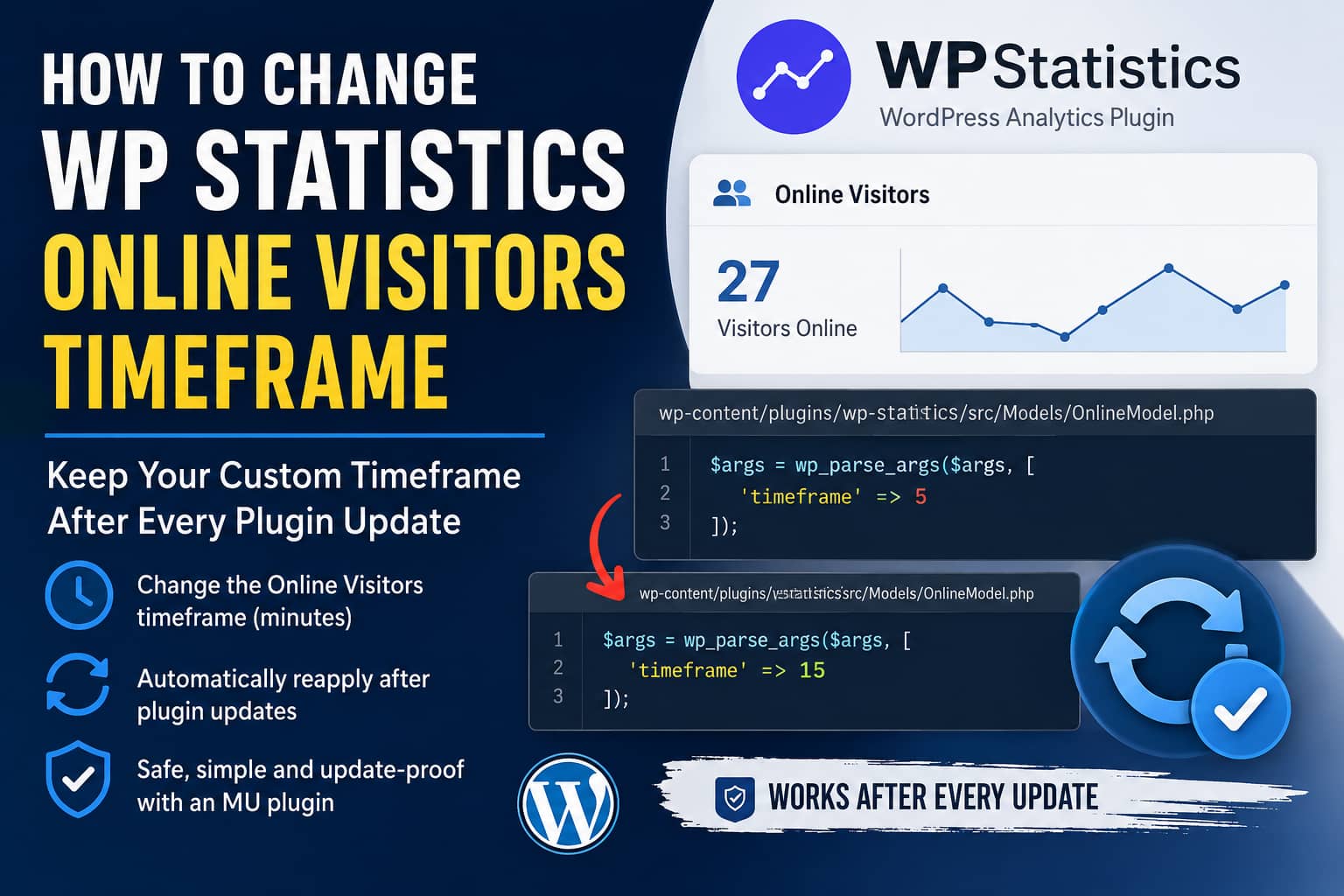
The WP Statistics plugin includes an Online Visitors report that shows people who have recently visited your WordPress website. However, some website owners want to use a longer or shorter timeframe for deciding when a visitor should be considered online.
A WordPress.org support user recently reported that they manually change the Online Visitors timeframe inside the plugin files, but the modification disappears whenever WP Statistics is updated. At the time of writing, that support request remains unresolved.
This happens because the current timeframe is not stored as a normal WordPress setting. Instead, WP Statistics defines a five-minute default directly inside its OnlineModel.php file.
In this guide, we will cover:
- How the Online Visitors timeframe works
- How to change it manually
- Why the change disappears after updates
- How to automatically restore your preferred timeframe
- How to test whether the solution is working
What Does the WP Statistics Online Visitors Timeframe Mean?
WP Statistics does not maintain a permanent live connection with every visitor. Instead, it checks when each visitor was last recorded on the website.
In the current plugin code, the Online Visitors model uses a default timeframe of five minutes:
'timeframe' => 5The model then calculates a date range beginning five minutes before the current time and counts visitors whose last_view value falls inside that range.
This means that a person is effectively considered online when WP Statistics has recorded activity from that visitor during the previous five minutes.
For example:
- A visitor recorded two minutes ago will appear online.
- A visitor last recorded six minutes ago will no longer appear online.
- Changing the value to 15 will keep visitors in the report for 15 minutes after their last recorded activity.
This is better understood as a recent visitor activity window, rather than proof that someone still has the website open in their browser.
WP Statistics 14.16 also removed its previous heartbeat requests to reduce server load. Therefore, a visitor reading the same page without generating another tracked request may eventually disappear from the Online Visitors report even though the page remains open.
Why You May Want to Change the Timeframe
The default five-minute value is reasonable for many websites, but it may not accurately represent every type of visitor behavior.
A longer timeframe may be useful for:
- Blogs with long articles
- Documentation websites
- Educational websites
- Websites where visitors spend a long time reading one page
- Membership websites with longer user sessions
A shorter timeframe may be useful for:
- High-traffic news websites
- Stores monitoring active shopping activity
- Websites that need a stricter real-time visitor estimate
- Servers where online visitor queries need to cover less data
Be careful when increasing the value. A 30-minute timeframe does not necessarily mean every person shown has actively used the website during the entire 30 minutes. It only means they generated a tracked visit within that period.
Quick Fix: Change the Timeframe Manually
Before making any changes, create a backup and test the modification on a staging website when possible.
Open the following file:
wp-content/plugins/wp-statistics/src/Models/OnlineModel.phpFind this section:
$args = wp_parse_args($args, [
    'timeframe' => 5
]);
Change 5 to your preferred number of minutes.
For example, to use a 15-minute timeframe:
$args = wp_parse_args($args, [
    'timeframe' => 15
]);
Save the file and reload the WP Statistics Online Visitors report.
This changes the timeframe immediately, but it is not a permanent solution.
Why the Manual Change Disappears
When WordPress updates a plugin, it replaces the plugin’s installed files with files from the new package.
Because OnlineModel.php belongs to WP Statistics, your customized copy is replaced by the original version during an update. The default value then returns to five minutes.
You should never rely on a permanent manual modification inside a third-party plugin because:
- Plugin updates overwrite the modification.
- Security tools may report the plugin as modified.
- Another administrator may reinstall the plugin.
- A future release may move or restructure the file.
- Troubleshooting becomes more difficult when plugin files differ from the official release.
The best long-term fix would be for WP Statistics to add an official setting or filter. Until that is available, an automatic patch can reapply the custom value after each update.
Recommended Workaround: Create a Must-Use Plugin
A must-use plugin, commonly called an MU plugin, is automatically loaded by WordPress and cannot be accidentally deactivated from the normal Plugins screen. WordPress loads PHP files placed directly inside the wp-content/mu-plugins directory.
The following MU plugin will:
- Set your preferred Online Visitors timeframe
- Check the WP Statistics model on admin requests
- Detect when WP Statistics is updated
- Automatically reapply the custom timeframe
- Avoid modifying the value manually after every update
Step 1: Create the MU Plugins Folder
Using your hosting File Manager, FTP, SFTP or SSH, open:
wp-contentCreate this folder if it does not already exist:
mu-pluginsThe complete path should be:
wp-content/mu-pluginsStep 2: Create the Custom Plugin File
Inside the mu-plugins folder, create this file:
debugnexus-wp-statistics-timeframe.phpPaste the following code into the file:
<?php
/**
 * Plugin Name: DebugNexus - WP Statistics Online Timeframe
 * Description: Keeps a custom WP Statistics Online Visitors timeframe after plugin updates.
 * Version: 1.0.0
 * Author: DebugNexus
 */

defined('ABSPATH') || exit;

// Change this value to the number of minutes you want.
const DN_WPS_ONLINE_TIMEFRAME_MINUTES = 15;

/**
 * Return the OnlineModel file used by WP Statistics.
 */
function dn_wps_online_model_file()
{
    return WP_PLUGIN_DIR . '/wp-statistics/src/Models/OnlineModel.php';
}

/**
 * Apply the configured Online Visitors timeframe.
 */
function dn_wps_apply_online_timeframe()
{
    // Limit the value to between 1 minute and 24 hours.
    $minutes = max(
        1,
        min(1440, (int) DN_WPS_ONLINE_TIMEFRAME_MINUTES)
    );

    $file = dn_wps_online_model_file();

    if (!is_file($file) || !is_readable($file)) {
        return false;
    }

    $contents = file_get_contents($file);

    if ($contents === false) {
        return false;
    }

    $pattern = '/([\'"]timeframe[\'"]\s*=>\s*)(\d+)/';

    if (!preg_match($pattern, $contents, $match)) {
        return false;
    }

    // Stop when the preferred value is already applied.
    if ((int) $match[2] === $minutes) {
        return true;
    }

    $patched = preg_replace_callback(
        $pattern,
        static function ($matches) use ($minutes) {
            return $matches[1] . $minutes;
        },
        $contents,
        1,
        $count
    );

    if (
        $patched === null ||
        $count !== 1 ||
        !is_writable($file)
    ) {
        return false;
    }

    return file_put_contents(
        $file,
        $patched,
        LOCK_EX
    ) !== false;
}

/**
 * Apply the timeframe during an admin request.
 *
 * This also handles manual plugin installations or file replacements.
 */
add_action(
    'admin_init',
    'dn_wps_apply_online_timeframe',
    1
);

/**
 * Reapply the timeframe after WP Statistics is updated.
 */
add_action(
    'upgrader_process_complete',
    function ($upgrader, $hook_extra) {
        if (
            ($hook_extra['type'] ?? '') !== 'plugin' ||
            ($hook_extra['action'] ?? '') !== 'update'
        ) {
            return;
        }

        $updated_plugins = [];

        if (!empty($hook_extra['plugin'])) {
            $updated_plugins[] = $hook_extra['plugin'];
        }

        if (
            !empty($hook_extra['plugins']) &&
            is_array($hook_extra['plugins'])
        ) {
            $updated_plugins = array_merge(
                $updated_plugins,
                $hook_extra['plugins']
            );
        }

        foreach ($updated_plugins as $plugin) {
            if (strpos($plugin, 'wp-statistics/') === 0) {
                dn_wps_apply_online_timeframe();
                break;
            }
        }
    },
    10,
    2
);
WordPress fires the upgrader_process_complete action after its upgrader finishes processing a plugin update. The custom MU plugin uses this action to restore the timeframe after WP Statistics replaces its files.
How to Choose Your Timeframe
Near the top of the custom plugin, find:
const DN_WPS_ONLINE_TIMEFRAME_MINUTES = 15;Change 15 to your preferred value.
For a 10-minute timeframe:
const DN_WPS_ONLINE_TIMEFRAME_MINUTES = 10;For a 30-minute timeframe:
const DN_WPS_ONLINE_TIMEFRAME_MINUTES = 30;The provided code limits the value to between one minute and 1,440 minutes, which is 24 hours. This prevents an accidental negative, zero or extremely large value.
For most websites, a timeframe between five and 15 minutes is a reasonable starting point.
How to Verify the Fix
After uploading the MU plugin, log in to the WordPress dashboard.
Go to:
Plugins → Must-Use PluginsYou should see:
DebugNexus - WP Statistics Online TimeframeNext, open the following file and confirm that the value was changed:
wp-content/plugins/wp-statistics/src/Models/OnlineModel.phpFor a 15-minute setting, the relevant section should now show:
'timeframe' => 15You can also test the report:
- Open your website in a private or incognito browser.
- Visit one or two pages.
- Open the Online Visitors report in another browser.
- Confirm that the test visitor appears.
- Stop browsing and wait longer than the configured timeframe.
- Refresh the report and confirm that the visitor disappears.
WP Statistics briefly caches the online visitor count for three seconds, so the displayed number may not change immediately after every refresh.
Test What Happens After an Update
To confirm the automatic patch works:
- Create a staging copy of the website.
- Install the MU plugin on staging.
- Confirm that your custom timeframe is active.
- Update or reinstall WP Statistics.
- Reload the WordPress dashboard.
- Recheck
OnlineModel.php.
The timeframe should be restored automatically.
Do not perform a reinstall test directly on a production website without a working backup.
Troubleshooting
The value does not change
Check whether this file exists:
wp-content/plugins/wp-statistics/src/Models/OnlineModel.phpThe plugin folder may have been renamed, or a future WP Statistics release may have moved the model to a different location.
The file is not writable
The PHP process must have permission to update the file. Incorrect ownership or restrictive permissions may prevent the custom plugin from saving the modification.
Avoid setting files or folders to 777. Correct file ownership and standard WordPress permissions instead.
A security scanner reports a modified plugin
This is expected because the workaround intentionally changes one value inside a WP Statistics file.
Security scanners compare installed plugin files against the official WordPress.org package and may report OnlineModel.php as changed.
Document the customization so other administrators understand why the file differs.
The fix stops working after a major release
This workaround depends on the current WP Statistics file structure and the following default argument:
'timeframe' => 5If the plugin developers rename the file, change the class or add an official setting, the workaround may need to be updated or removed.
Review the customization after major WP Statistics releases.
The Ideal Fix for WP Statistics Developers
The cleanest solution would be an official setting in the WP Statistics dashboard.
Another developer-friendly solution would be a WordPress filter:
$args = wp_parse_args($args, [
    'timeframe' => (int) apply_filters(
        'wp_statistics_online_timeframe',
        5
    )
]);
Website owners could then customize the value without changing plugin files:
add_filter(
    'wp_statistics_online_timeframe',
    function () {
        return 15;
    }
);
However, this filter does not currently exist in the plugin code. Do not add the second snippet by itself because it will have no effect unless WP Statistics introduces the filter.
Frequently Asked Questions
What is the default WP Statistics Online Visitors timeframe?
The default timeframe is five minutes. Visitors with recorded activity inside the previous five minutes are included in the Online Visitors query.
Is the Online Visitors report completely real-time?
Not exactly. It represents recently recorded visitor activity. Someone who leaves a page open without creating another tracked request may eventually disappear from the report.
Will changing the timeframe affect historical statistics?
The change controls which visitors are included in the Online Visitors report. It does not delete existing visitor or page-view records.
Will a longer timeframe increase the online visitor number?
Usually, yes. A longer window includes more visitors whose latest recorded activity occurred further in the past.
Does this workaround survive plugin updates?
It reapplies the customized value after normal WP Statistics updates. However, it should still be reviewed after major releases because the plugin’s internal file structure may change.
Can I place the code in my theme’s functions.php file?
That is not recommended. The code would stop running when the theme is changed or disabled. An MU plugin is a more appropriate location for a site-level technical customization.
Can the MU plugin be disabled?
Must-use plugins cannot be deactivated from the normal Plugins screen. Remove or rename the PHP file inside wp-content/mu-plugins to disable it.
Final Thoughts
The WP Statistics Online Visitors timeframe is currently defined as a five-minute value inside the plugin’s model. Manually changing that value works, but the customization is lost whenever WordPress replaces the plugin files during an update.
The MU plugin workaround automatically restores your preferred timeframe and removes the need to repeat the same manual edit after every update.
This should be treated as a temporary compatibility solution. An official WP Statistics setting or developer filter would provide a cleaner permanent implementation.
Always test the code on staging, keep a current backup and verify the customization after major plugin updates.
Need help applying this fix safely? Use the Hire Me on Upwork option in the DebugNexus sidebar.
