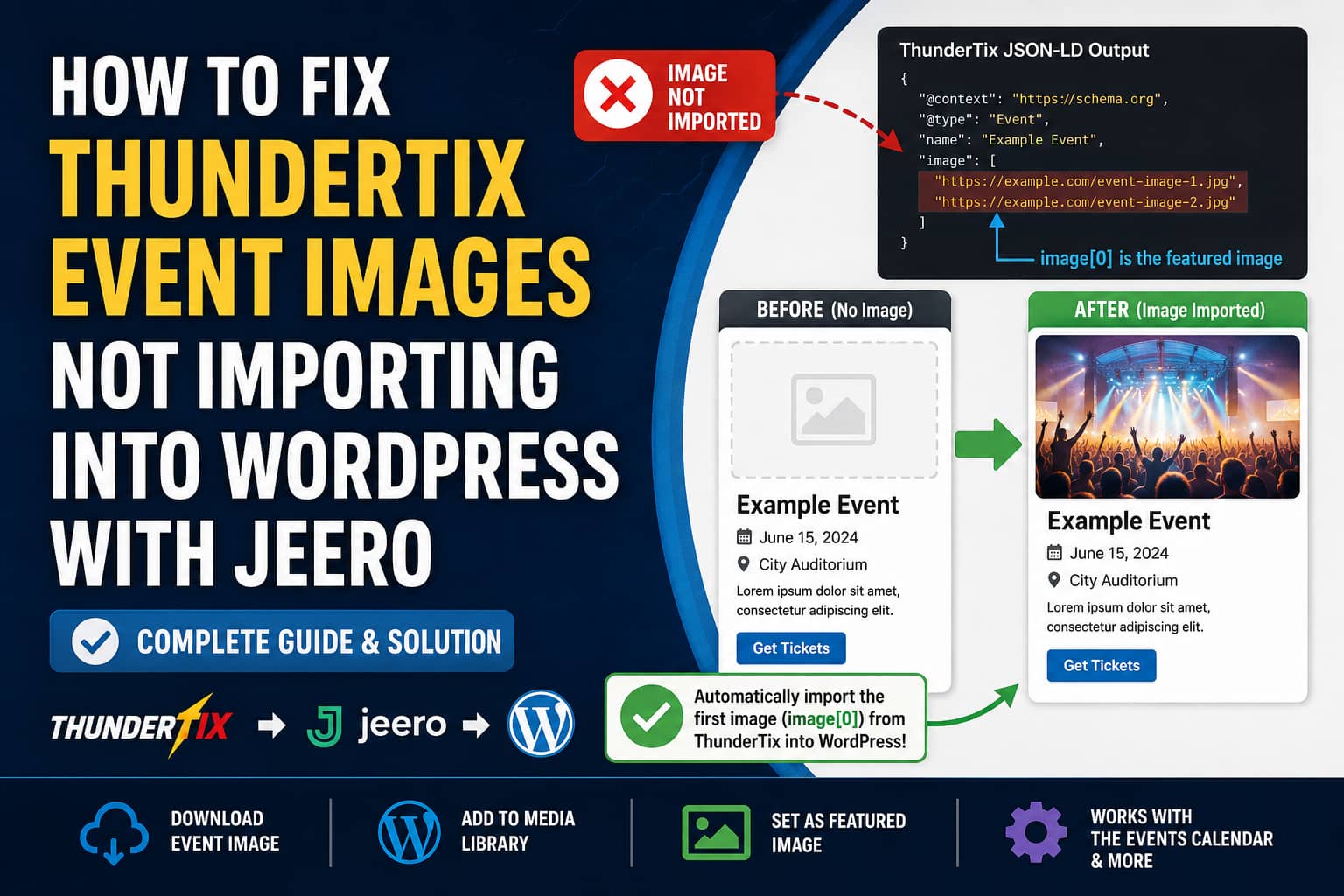
Jeero normally makes it easy to synchronize ThunderTix events with WordPress calendar plugins. However, you may encounter a situation where the event title, description, date, price, and ticket link import correctly, but the event featured image remains empty.
This can happen because ThunderTix provides event images through JSON-LD structured data as an array of image URLs:
{
  "@context": "https://schema.org",
  "@type": "Event",
  "name": "Example Event",
  "image": [
    "https://example.com/event-image-1.jpg",
    "https://example.com/event-image-2.jpg"
  ]
}
The first image is therefore stored at:
image[0]Some import systems expect the image field to contain one URL instead of an array. When the importer does not normalize the array, the event can be created without a featured image.
Google’s Event structured-data documentation explicitly allows the image property to contain repeated URLs or ImageObject values. An array of event images is therefore valid JSON-LD and does not need to be changed just for SEO purposes.
The Problem
The typical symptoms are:
- Jeero successfully creates the event in WordPress.
- Event dates and ticket links are imported.
- The ThunderTix page contains a valid event image.
- The WordPress Media Library does not receive the image.
- The imported event has no featured image.
- Running the import again does not fix the missing image.
ThunderTix supports adding multiple event images and can display them as a slideshow. This explains why the JSON-LD output may contain an array rather than a single URL.
Does Jeero Support image[0] or image.0?
Jeero officially supports ThunderTix and several WordPress calendar plugins, including The Events Calendar, Modern Events Calendar, WP Event Manager, and custom post types.
However, Jeero’s public ThunderTix setup guide does not provide a field-mapping interface where users can enter selectors such as:
image[0]or:
image.0The mapping and normalization appear to be handled internally by the Jeero service. Therefore, there may not be a setting inside WordPress that lets you manually select the first element of the image array.
The best permanent fix would be for Jeero to normalize the image field before importing it:
if ( is_array( $event['image'] ) ) {
    $event['image'] = reset( $event['image'] );
}
You should report the issue to Jeero support and provide:
- The public ThunderTix event URL.
- A copy of the JSON-LD image field.
- The WordPress calendar plugin being used.
- The Jeero debug log.
- Confirmation that all other event information imports correctly.
Ask whether Jeero can support the first valid value from an image array or ImageObject.
Check These Settings First
Before adding custom code, complete the following checks.
1. Update Jeero
Make sure you are running the latest available version of Jeero.
Recent Jeero releases include several image-related improvements, such as re-downloading an image when its source URL changes, handling dynamic image filenames, and importing image alt text.
After updating:
- Clear all WordPress caches.
- Clear any object cache.
- Run the Jeero import again.
- Wait at least five minutes.
- Check the event and Media Library.
2. Verify the ThunderTix JSON-LD
Open the public ThunderTix event page.
Right-click the page and select View Page Source. Search for:
application/ld+jsonThen locate the Event object and its image field:
"image": [
  "https://example.thundertix.com/path/event-image.jpg"
]
Copy the first image URL and open it in a private browser window.
The image must:
- Load without authentication.
- Return a successful HTTP response.
- Not be blocked by hotlink protection.
- Use HTTP or HTTPS.
- Return an actual image MIME type.
3. Check Jeero’s Debug Log
Go to the Jeero debug or logging page in WordPress and look for messages containing:
imagemediadownloadattachmentHTTPCommon errors include:
- Invalid image URL
- HTTP 403
- HTTP 404
- Request timeout
- Unsupported file type
- Unable to create attachment
- SSL certificate error
- Download failed
4. Check Featured Image Update Settings
When using The Events Calendar, check the Jeero import settings to confirm that featured images are allowed to update.
If the event was imported before the image became available, an overwrite setting may prevent Jeero from checking the image again.
WordPress Workaround: Import the First JSON-LD Image
Until the importer handles the image array automatically, you can use a small custom WordPress plugin.
The plugin below:
- Runs after a Jeero event is saved.
- Waits 45 seconds for the importer to finish.
- Reads the event’s ThunderTix URL.
- Downloads the ThunderTix page.
- Finds the Event JSON-LD object.
- Supports normal image URLs, image arrays, and ImageObject values.
- Selects the first valid image, equivalent to
image[0]. - Adds the image to the WordPress Media Library.
- Sets it as the event’s featured image.
- Does not replace an existing featured image.
Step 1: Create the Plugin Folder
Using your hosting File Manager or FTP, create this folder:
/wp-content/plugins/debugnexus-thundertix-image-fix/Inside it, create this file:
debugnexus-thundertix-image-fix.phpStep 2: Add the Plugin Code
Paste the following code into the file:
<?php
/**
 * Plugin Name: DebugNexus ThunderTix Image Fix
 * Description: Sets the first ThunderTix JSON-LD image as the featured image for Jeero-imported events.
 * Version: 1.0.0
 */

defined( 'ABSPATH' ) || exit;

/**
 * Run after The Events Calendar saves an event.
 */
add_action( 'save_post_tribe_events', 'dn_tt_queue_image_import', 100, 3 );

function dn_tt_queue_image_import( $post_id, $post, $update ) {
    if ( wp_is_post_revision( $post_id ) || wp_is_post_autosave( $post_id ) ) {
        return;
    }

    if ( has_post_thumbnail( $post_id ) || 'trash' === $post->post_status ) {
        return;
    }

    $args = array( (int) $post_id );

    /*
     * Delay processing so Jeero has time to save the event URL
     * and any remaining post metadata.
     */
    if ( ! wp_next_scheduled( 'dn_tt_import_event_image', $args ) ) {
        wp_schedule_single_event(
            time() + 45,
            'dn_tt_import_event_image',
            $args
        );
    }
}

add_action( 'dn_tt_import_event_image', 'dn_tt_import_event_image' );

function dn_tt_import_event_image( $post_id ) {
    $post_id = absint( $post_id );

    if ( ! $post_id || has_post_thumbnail( $post_id ) ) {
        return;
    }

    /*
     * The Events Calendar stores the external event website
     * in the _EventURL post-meta field.
     */
    $event_url = esc_url_raw(
        get_post_meta( $post_id, '_EventURL', true )
    );

    $host = strtolower(
        (string) wp_parse_url( $event_url, PHP_URL_HOST )
    );

    /*
     * Only process ThunderTix event URLs.
     */
    if (
        ! $event_url ||
        ! $host ||
        false === strpos( $host, 'thundertix.com' )
    ) {
        return;
    }

    $response = wp_safe_remote_get(
        $event_url,
        array(
            'timeout'     => 20,
            'redirection' => 5,
            'user-agent'  =>
                'DebugNexus-ThunderTix-Image-Fix/1.0; ' .
                home_url( '/' ),
        )
    );

    if (
        is_wp_error( $response ) ||
        200 !== wp_remote_retrieve_response_code( $response )
    ) {
        return;
    }

    $image_url = dn_tt_first_event_image(
        wp_remote_retrieve_body( $response )
    );

    if ( ! $image_url ) {
        return;
    }

    require_once ABSPATH . 'wp-admin/includes/file.php';
    require_once ABSPATH . 'wp-admin/includes/media.php';
    require_once ABSPATH . 'wp-admin/includes/image.php';

    $attachment_id = dn_tt_sideload_image(
        $image_url,
        $post_id,
        get_the_title( $post_id )
    );

    if ( is_wp_error( $attachment_id ) ) {
        return;
    }

    set_post_thumbnail( $post_id, $attachment_id );

    update_post_meta(
        $post_id,
        '_dn_tt_source_image',
        esc_url_raw( $image_url )
    );

    update_post_meta(
        $attachment_id,
        '_wp_attachment_image_alt',
        get_the_title( $post_id )
    );
}

/**
 * Locate the Event JSON-LD object and return its first image.
 */
function dn_tt_first_event_image( $html ) {
    if (
        ! preg_match_all(
            '~<script[^>]+type=["\']application/ld\+json["\'][^>]*>(.*?)</script>~is',
            $html,
            $matches
        )
    ) {
        return '';
    }

    foreach ( $matches[1] as $json ) {
        $data = json_decode( trim( $json ), true );

        if ( JSON_ERROR_NONE !== json_last_error() ) {
            continue;
        }

        $event = dn_tt_find_event_node( $data );

        if ( ! $event || empty( $event['image'] ) ) {
            continue;
        }

        return dn_tt_normalize_image( $event['image'] );
    }

    return '';
}

/**
 * Search arrays and @graph structures for an Event object.
 */
function dn_tt_find_event_node( $node ) {
    if ( ! is_array( $node ) ) {
        return array();
    }

    if ( isset( $node['@type'] ) ) {
        foreach ( (array) $node['@type'] as $type ) {
            /*
             * Matches Event, MusicEvent, TheaterEvent,
             * Festival, and other types ending in Event.
             */
            if (
                is_string( $type ) &&
                'Event' === substr( $type, -5 )
            ) {
                return $node;
            }
        }
    }

    foreach ( $node as $child ) {
        if ( is_array( $child ) ) {
            $event = dn_tt_find_event_node( $child );

            if ( $event ) {
                return $event;
            }
        }
    }

    return array();
}

/**
 * Normalize strings, arrays, and ImageObject values.
 */
function dn_tt_normalize_image( $image ) {
    if ( is_string( $image ) ) {
        return esc_url_raw( $image );
    }

    if ( ! is_array( $image ) ) {
        return '';
    }

    /*
     * Support Schema.org ImageObject values.
     */
    foreach ( array( 'url', 'contentUrl', '@id' ) as $key ) {
        if ( ! empty( $image[ $key ] ) ) {
            return dn_tt_normalize_image( $image[ $key ] );
        }
    }

    /*
     * Numeric arrays are processed in order.
     * The first iteration is equivalent to image[0].
     */
    foreach ( $image as $candidate ) {
        $url = dn_tt_normalize_image( $candidate );

        if ( $url ) {
            return $url;
        }
    }

    return '';
}

/**
 * Download the image and create a Media Library attachment.
 *
 * This also handles image URLs without a normal file extension.
 */
function dn_tt_sideload_image( $url, $post_id, $title ) {
    $tmp = download_url( $url, 30 );

    if ( is_wp_error( $tmp ) ) {
        return $tmp;
    }

    $details = @getimagesize( $tmp );
    $mime    = isset( $details['mime'] )
        ? strtolower( $details['mime'] )
        : '';

    $extensions = array(
        'image/jpeg' => 'jpg',
        'image/png'  => 'png',
        'image/gif'  => 'gif',
        'image/webp' => 'webp',
        'image/avif' => 'avif',
    );

    if ( ! isset( $extensions[ $mime ] ) ) {
        @unlink( $tmp );

        return new WP_Error(
            'dn_tt_not_image',
            'The downloaded file is not a supported image.'
        );
    }

    $filename =
        sanitize_title( $title ) .
        '-event-image.' .
        $extensions[ $mime ];

    $file = array(
        'name'     => $filename,
        'tmp_name' => $tmp,
    );

    $attachment_id = media_handle_sideload(
        $file,
        $post_id,
        $title
    );

    if ( is_wp_error( $attachment_id ) ) {
        @unlink( $tmp );
    }

    return $attachment_id;
}
Step 3: Activate the Plugin
In the WordPress dashboard, go to:
Plugins → Installed PluginsActivate:
DebugNexus ThunderTix Image FixHow to Test the Fix
Create or update one ThunderTix event and allow Jeero to import it.
Then check:
- Go to Events in WordPress.
- Open the imported event.
- Confirm that
_EventURLcontains the ThunderTix event page. - Wait approximately one minute.
- Refresh the event editor.
- Check the Featured Image box.
- Open the Media Library and confirm that the image was downloaded.
The image should be stored locally in WordPress rather than loaded directly from the ThunderTix server.
Fix Existing Events
The hook runs when an event is created or updated.
For events that were already imported without images:
- Open the event in WordPress.
- Make a harmless change, such as adding and removing a space.
- Click Update.
- Wait approximately one minute.
- Refresh the page.
For several events, use WordPress Bulk Edit:
- Go to Events.
- Select the affected events.
- Choose Edit from Bulk Actions.
- Click Apply.
- Make a harmless supported bulk change.
- Click Update.
Do not process hundreds of events simultaneously. Import them in smaller groups to avoid request timeouts or excessive remote downloads.
Using a Different Calendar Plugin
The provided code targets The Events Calendar, whose event post type is:
tribe_eventsFor Modern Events Calendar, replace:
add_action(
    'save_post_tribe_events',
    'dn_tt_queue_image_import',
    100,
    3
);
with:
add_action(
    'save_post_mec-events',
    'dn_tt_queue_image_import',
    100,
    3
);
For WP Event Manager, use:
add_action(
    'save_post_event_listing',
    'dn_tt_queue_image_import',
    100,
    3
);
You may also need to change this line:
get_post_meta( $post_id, '_EventURL', true )The correct field depends on where the calendar plugin or Jeero stores the ThunderTix ticket URL.
To inspect the available custom fields, you can temporarily use a plugin such as Query Monitor or inspect the wp_postmeta database table.
What About a Jeero Post-Import Hook?
Jeero’s public changelog documents a jeero/loaded action, but that action is described as an initialization hook. It is not described as a per-event post-import completion action.
Because a documented event-import completion hook could not be confirmed, the workaround uses WordPress’s standard post-type save hook:
save_post_tribe_eventsThe processing is delayed using WP-Cron so that Jeero has time to finish saving the event metadata.
This avoids depending on an undocumented internal Jeero class or method that might change during a plugin update.
WP-Cron Must Be Working
The code schedules image processing 45 seconds after the event is saved.
If WP-Cron is disabled, the image task will not run.
Check wp-config.php for:
define( 'DISABLE_WP_CRON', true );If this is present, your hosting server must have a real cron job configured to call WordPress regularly.
You can also install WP Crontrol temporarily and check for an event named:
dn_tt_import_event_imageIf the scheduled action appears but never executes, the problem is related to WP-Cron rather than the JSON-LD parser.
Troubleshooting
The Event URL Field Is Empty
Check whether Jeero stored the ThunderTix link under another meta key.
For The Events Calendar, the normal external website field is:
_EventURLIf the URL exists only inside another custom field, replace _EventURL in the code with the correct field name.
The Image URL Returns 403
The ThunderTix image server or CDN may be blocking requests made by WordPress.
Test the image URL in:
- A private browser window
curl- Postman
- WordPress Site Health
You may need ThunderTix support to permit external server-side image requests.
The Image Is Imported More Than Once
The code checks:
has_post_thumbnail( $post_id )Therefore, it should not download another copy after the featured image is assigned.
Duplicate files may still occur if:
- Two import tasks run simultaneously.
- The event is saved several times before the first task finishes.
- Another plugin removes the featured image.
- The image URL changes frequently.
A production site with many imports should add a transient or post-meta lock before downloading.
The Featured Image Is Set but Not Displayed
This is usually a theme or event-template issue rather than an import issue.
Check whether the event template calls:
the_post_thumbnail();For The Events Calendar, also check its display settings and any customized template files under:
/your-theme/tribe-events/The Image Is Too Small or Blurry
The importer cannot create a higher-resolution image than the one supplied by ThunderTix.
Upload larger event artwork in ThunderTix and allow the source page to update. Google recommends using crawlable, representative event images, with a width of at least 720 pixels for Event rich results.
Recommended Permanent Resolution
The custom plugin provides a practical WordPress-side workaround, but the preferred long-term solution is importer-level support.
Jeero should normalize all valid Schema.org image formats:
"image": "https://example.com/image.jpg""image": [
"https://example.com/image-1.jpg",
"https://example.com/image-2.jpg"
]"image": {
"@type": "ImageObject",
"url": "https://example.com/image.jpg"
}A safe normalization process would select the first valid URL and then pass it to Jeero’s existing image-import system.
This would solve the issue for ThunderTix and any other ticketing platform that follows Google’s recommendation to provide multiple event-image aspect ratios.
Frequently Asked Questions
Why does Jeero import the event but not its image?
The event image may be represented as an array in the ThunderTix JSON-LD. If the importer expects a single string, it may skip the image while importing the remaining event fields normally.
Is a JSON-LD image array valid?
Yes. Schema.org and Google’s Event structured-data documentation support repeated image URLs and ImageObject values.
Can I map image[0] in Jeero?
Jeero’s public setup documentation does not currently show a user-configurable nested field-mapping option. The mapping may need to be adjusted by Jeero support.
Will the workaround overwrite my existing featured images?
No. The code stops when the WordPress event already has a featured image.
Does the image remain on ThunderTix?
Yes. The code downloads a copy into the WordPress Media Library. It does not delete or modify the original ThunderTix image.
Will future event imports receive images automatically?
Yes, provided the imported event contains a valid ThunderTix URL, WP-Cron is running, and the ThunderTix page exposes a usable image in its Event JSON-LD.
Conclusion
ThunderTix is correctly allowed to output multiple event images as a JSON-LD array. The missing featured image occurs when that array is not converted into a single image URL during the WordPress import.
Start by updating Jeero, checking its logs, confirming the image-overwrite settings, and reporting the array-mapping issue to Jeero support.
While waiting for an importer-level fix, the WordPress plugin above can read the ThunderTix Event JSON-LD, select the first image, download it into the Media Library, and assign it as the event’s featured image automatically.
