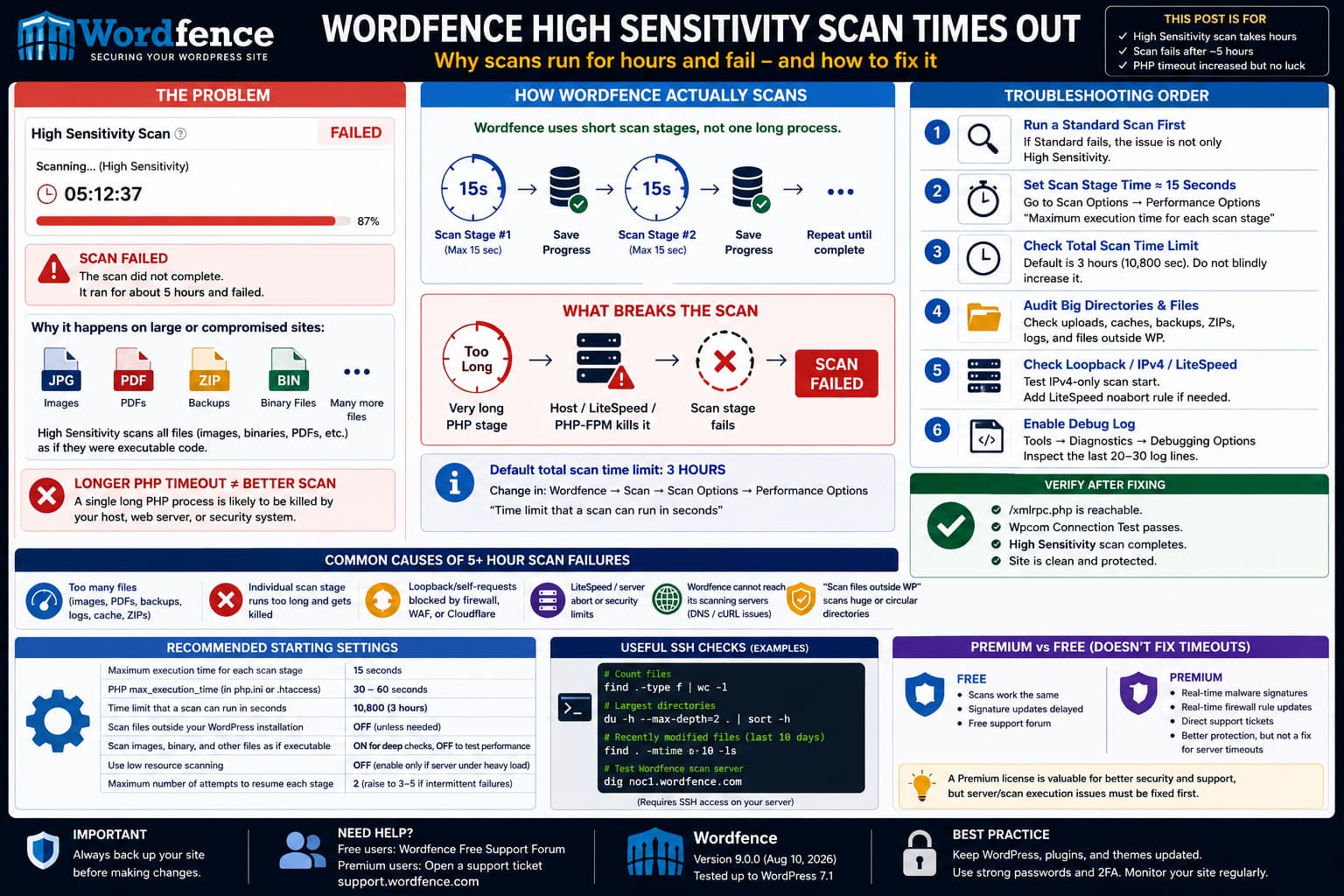
When a Wordfence High Sensitivity scan runs for several hours and eventually fails, increasing PHP’s execution time is not necessarily the correct fix.
Wordfence does not expect one PHP process to remain alive for the duration of an entire scan. Its scanner works as a sequence of shorter requests. Each scan stage performs some work, saves its state, and then causes the web server to connect back to the WordPress site to start the next stage. (wordfence.com)
That distinction explains why giving PHP a huge execution limit can fail to help and can sometimes make troubleshooting worse.
The useful questions are:
- Why is High Sensitivity processing so much data?
- Are individual scan stages being killed?
- Can the site reliably start the next scan request?
- Is the total scan exceeding Wordfence’s overall scan limit?
- Are backup, cache, image, or non-WordPress directories massively increasing the workload?
For a recently compromised site, diagnose these before assuming Wordfence Premium is required.
High Sensitivity Is Deliberately Much Heavier
Wordfence recommends Standard Scan for normal sites.
High Sensitivity is intended for situations where you know or strongly suspect the site was compromised. One of the important differences is that it enables scanning of:
images
binary files
PDFs
other normally non-executable files
as though they could contain executable code.
This can detect malicious PHP disguised with another extension, but it substantially increases the amount of data Wordfence needs to inspect. (wordfence.com)
For example, consider a WordPress uploads directory containing:
50 PHP/plugin/theme files
10,000 JPG/WebP images
300 PDFs
several ZIP backups
A normal malware scan does not need to treat every image as though it were executable program code.
High Sensitivity can.
That can turn an otherwise reasonable scan into an extremely expensive filesystem operation.
Five Hours Is Not a Normal Target
Wordfence’s current scan documentation says that, depending on the site, scans may take anywhere from around a minute to more than ten minutes on sites with very large numbers of files, posts, or comments. High Sensitivity can take longer because it does more work. (wordfence.com)
However, a scan repeatedly running for approximately five hours should not simply be accepted as normal High Sensitivity behavior.
Wordfence’s default:
Time limit that a scan can run in seconds
is currently three hours when the field is left blank. (wordfence.com)
If a scan is running beyond that, inspect the actual configured total scan limit.
Go to:
Wordfence → Scan → Scan Options and Scheduling → Performance Options
and find:
Time limit that a scan can run in secondsDo not immediately increase it to six, eight, or twelve hours.
First determine why the scan cannot finish within a reasonable period.
Do Not Increase PHP max_execution_time to Several Hours
This is one of the most counterintuitive Wordfence troubleshooting points.
A host may see a scan timeout and respond by changing:
max_execution_time = 300or even much higher.
That sounds logical, but Wordfence’s own support guidance repeatedly recommends the opposite for unreliable scans.
The scanner is designed to stop an individual stage before the host kills it, save its progress, and start another request.
Wordfence’s troubleshooting documentation recommends starting with approximately:
Maximum execution time for each scan stage: 15 secondsand testing lower values such as:
12
10
8
if necessary. (wordfence.com)
Wordfence support has also repeatedly advised keeping PHP’s own:
max_execution_timeat around:
30–60 secondsrather than several hundred seconds when scans are timing out.
The goal is:
Short scan stage
      ↓
Save progress
      ↓
Start another request
      ↓
Continue scan
not:
One very long PHP request
      ↓
Host eventually kills it
      ↓
Scan loses continuity
Start With 15-Second Scan Stages
Stop the currently running scan.
Then go to:
Wordfence → Scan → Scan Options and Scheduling → Performance Options
Set:
Maximum execution time for each scan stage: 15Save the changes.
Run a new scan.
If it still fails, try:
12then:
10and finally:
8Wordfence says values below 8 normally require additional advanced configuration and are not appropriate for most hosts. (wordfence.com)
Do not change all of these settings at once.
One-variable testing makes it possible to determine which setting actually improves reliability.
Run Standard Scan Before High Sensitivity
After a known compromise, Wordfence’s own cleaning workflow recommends an important sequence.
First:
Standard/full initial scan
      ↓
Resolve detected infections
      ↓
Run a deeper High Sensitivity scan
Wordfence’s current hacked-site cleaning guide specifically recommends completing an initial scan and dealing with its findings before moving to High Sensitivity for stubborn infections. (wordfence.com)
That makes a useful diagnostic test as well.
Standard Scan also fails
The problem is probably not High Sensitivity itself.
Investigate:
- scan-stage timeouts;
- loopback requests;
- server process termination;
- Wordfence server connectivity;
- filesystem problems;
- plugin conflicts.
Standard Scan completes but High Sensitivity fails
Then the additional workload created by High Sensitivity becomes a much stronger lead.
In particular, inspect:
- uploads;
- large binary files;
- backups;
- archives;
- logs;
- non-WordPress directories.
Check How Many Files Are Actually Being Scanned
An unexpectedly large site tree is one of the first things to investigate when a security scan takes hours.
From SSH, you can get a basic file count:
find . -type f | wc -lThen inspect large directories:
du -h --max-depth=2 . | sort -hExact command support varies between hosting environments.
Look particularly at:
wp-content/uploads/
wp-content/cache/
wp-content/backups/
wp-content/upgrade/
staging/
backup/
old/
A WordPress site can look modest in wp-admin while containing hundreds of thousands of generated thumbnails, cached files, logs, archives, or abandoned site copies.
Check “Scan Files Outside Your WordPress Installation”
Another Wordfence option can dramatically increase scan time:
Scan files outside your WordPress installation
Wordfence warns that enabling this option may make scans take significantly longer and can even prevent completion on some hosting accounts.
It also documents rare cases involving circular symbolic links or unusual directories that can cause a scan to follow an unintended path for an extremely long time. (wordfence.com)
Unless the security investigation specifically requires it, test with this option disabled.
There is one security caveat.
If the site was hacked and there are:
/old/
/backup/
/staging/
WordPress installations under the same account, they should not simply be ignored.
Wordfence’s hacked-site guidance warns that abandoned WordPress copies are a frequent reinfection source. (wordfence.com)
Inspect those installations separately rather than forcing one Wordfence scan to recursively process an enormous hosting account.
Check the Binary/Image Scan Specifically
High Sensitivity includes:
Scan images, binary, and other files as if they were executable
Wordfence says this is useful when cleaning a stubborn infection because malicious code can occasionally be hidden in files that have image or other non-executable extensions. (wordfence.com)
It also explicitly warns that sites with large numbers of images may need this option disabled for scans to complete.
Wordfence gives examples where approximately:
50,000 images on a fast serveror even:
5,000 images on a slow servercan make the option impractical. (wordfence.com)
That does not mean an infected site’s uploads directory should be permanently excluded.
Instead, use this information diagnostically.
Test 1
Run Standard Scan.
Test 2
Create a Custom Scan with the additional security checks you need but temporarily disable:
Scan images, binary, and other files as if they were executableIf Test 2 suddenly completes, you have identified the expensive stage.
You can then inspect suspicious upload locations separately rather than allowing the whole site scan to fail every time.
Do Not Exclude the Entire Uploads Directory Blindly
Wordfence allows wildcard scan exclusions such as:
wp-content/backups/*or:
wp-content/cache/*This is useful for very large files and directories known not to require malware scanning. (wordfence.com)
But after a confirmed hack, do not automatically add:
wp-content/uploads/*to the exclusion list.
Uploads are a common persistence location when an attacker has managed to place PHP or other executable files in a writable directory.
Wordfence’s 2026 hacked-site cleaning guide explicitly includes manual inspection of unexpected files and highlights filesystem investigation as part of proper cleanup. (wordfence.com)
Better candidates for exclusions are known benign items such as:
large backup ZIP files
cache directories
generated temporary exports
huge debug logs
and ideally those files should be stored outside the public WordPress directory anyway.
Check the Total Scan Time Limit
Go to:
Wordfence → Scan → Scan Options and Scheduling → Performance Options
Check:
Time limit that a scan can run in secondsThe current default is:
3 hourswhen left blank. (wordfence.com)
If Wordfence reports:
The scan time limit of ... has been exceededthat is different from an individual PHP request timeout.
You have two separate limits:
Maximum execution time for each scan stageand:
Total time the entire scan is allowed to runDo not confuse them.
A five-hour PHP execution limit will not solve an inefficient scan that reaches Wordfence’s total scan limit.
Low Resource Scanning Can Help — or Make the Total Timeout Worse
Wordfence provides:
Use low resource scanning
This intentionally spreads work over a longer period to reduce peak CPU and filesystem load.
Wordfence says it can make scans approximately two to four times longer. (wordfence.com)
That makes it useful when the host is killing Wordfence because of resource spikes.
But if the only problem is:
Scan already needs 5 hourslow-resource mode can make total duration worse.
Use it when diagnostics indicate resource pressure, not simply because the scan fails.
The tradeoff is:
Normal scan
Higher short-term load
Shorter total duration

Low-resource scan
Lower short-term load
Longer total duration
Check for LiteSpeed
If the hosting environment uses LiteSpeed, there is another important timeout mechanism that PHP’s execution-time configuration does not solve.
Wordfence documents that LiteSpeed can silently kill background PHP work when it believes the originating connection has ended. This can break scans even when PHP itself has not reached max_execution_time. (wordfence.com)
Wordfence’s documented configuration is to place this above the WordPress rules in the main .htaccess:
# BEGIN LiteSpeed noabort
<IfModule mod_rewrite.c>
RewriteEngine On
RewriteRule .* - [E=noabort:1]
</IfModule>
# END LiteSpeed noabort
Back up .htaccess before changing it.
Some LiteSpeed hosts configure External Application Abort globally, so check with the hosting provider rather than assuming the directive is necessary.
Check Whether the Scan Can Connect Back to the Site
Wordfence scanning depends on loopback/self-requests.
The process is roughly:
Scan stage #1
       ↓
Save state
       ↓
Web server calls itself
       ↓
Scan stage #2
       ↓
Save state
       ↓
Repeat
Wordfence documents this behavior in its scan options. (wordfence.com)
Problems can therefore arise from:
- Cloudflare;
- a reverse proxy;
- IPv6;
- Basic Authentication;
- ModSecurity;
- WAF rules;
- IP restrictions;
- custom login/admin restrictions;
- DNS misconfiguration.
If the site cannot reliably connect back to itself, increasing PHP runtime does not solve the problem.
Test IPv4-Only Scan Starts
Under Wordfence’s advanced scan options, enable:
Use only IPv4 to start scans
Wordfence specifically documents this for sites where IPv6, Cloudflare, or host networking prevents reliable loopback connections. (wordfence.com)
Run a fresh scan.
If it completes only with IPv4 enabled, investigate the server’s IPv6/DNS configuration rather than treating IPv4-only mode as a mysterious permanent requirement.
Increase Resume Attempts
Wordfence also provides:
Maximum number of attempts to resume each scan stage
The default is currently two retries, with up to five available. (wordfence.com)
If the site has intermittent rather than permanent loopback failures, temporarily increasing this can help diagnose the problem.
For example:
Resume attempts: 5Do not use retries as a substitute for fixing a persistent 403 or timeout.
They help only when the failure is intermittent.
Enable Wordfence Debugging
Instead of waiting another five hours without information, enable Wordfence’s own debugging.
Go to:
Wordfence → Tools → Diagnostics → Debugging Options
Enable:
Enable debugging modeThen:
- Stop the failed/current scan.
- Start a completely new scan.
- Open Show Log on the Scan page.
- Let the failure reproduce.
- Save the final 20–30 log lines.
Wordfence support currently asks users with unexplained scan failures to perform essentially this procedure because the final log entries often identify which part of the scan stopped.
Disable debugging again after collecting the evidence.
Look for the Exact Last Log Message
Different last messages point in different directions.
Scan time limit exceeded
Example:
The scan time limit of 3 hours has been exceededInvestigate scan size and total scan settings.
Scan process ended after forking
Investigate the transition between scan requests:
- loopbacks;
- LiteSpeed;
- WAF;
- AJAX;
- networking.
cURL error 6 / 7 / 28
Investigate DNS and outbound connectivity.
Wordfence needs the server to reach its scanning infrastructure. Its documentation notes that the server must communicate with Wordfence’s scanning servers during certain scan operations. (wordfence.com)
Fatal maximum execution time
Lower the individual Wordfence scan-stage value rather than simply raising PHP to hours.
Same file repeatedly
Investigate that file’s size, type, readability, or filesystem behavior.
Different location every time
Investigate process continuity and hosting/server limits.
Check Wordfence Server Connectivity
Wordfence currently documents noc1.wordfence.com as part of its scanning infrastructure.
From SSH, DNS tests can include:
dig noc1.wordfence.comor:
nslookup noc1.wordfence.comThe hosting provider can also test HTTPS connectivity.
A real support case involving repeated Wordfence scan failures showed cURL error 28 because the server could not reliably reach Wordfence’s scan infrastructure.
If the debug log contains a cURL or DNS error, involve the host with the exact timestamp and destination rather than asking them only to “increase PHP limits.”
Ask the Host the Right Questions
A useful hosting request is:
Please check the server logs at the exact Wordfence scan-failure timestamp. I need to know whether the PHP process was terminated by PHP-FPM, LiteSpeed/LSAPI, Apache/Nginx timeout, ModSecurity, a process killer, CloudLinux resource control, or another server-level limit.
This is more useful than:
Please increase the PHP timeout.
Wordfence explicitly warns that hosting companies can impose process and aggregate memory/resource limits that are independent of PHP’s visible:
max_execution_time
memory_limit
settings. (wordfence.com)
A Premium License Does Not Replace This Troubleshooting
Wordfence Free and Premium differ in important security capabilities.
Premium provides:
- real-time malware signatures;
- real-time firewall rule updates;
- reputation checks;
- additional blocking features;
- Premium support.
Free installations receive new malware signatures after a delay, currently documented by Wordfence as 30 days. (wordfence.com)
But a server that kills or prevents the scanner from continuing still needs its execution/loopback problem corrected.
Upgrading does not change:
PHP-FPM timeout
LiteSpeed abort behavior
broken loopback networking
huge backup directories
hundreds of thousands of images
server filesystem performance
A Premium license is valuable if its security features and direct support are worth the cost, but it should not be treated as the technical fix for a scan that cannot maintain execution continuity.
Free Users Do Have an Official Support Route
Wordfence’s current support page explicitly directs:
Wordfence Free Users → Free Support Forumwhile Premium customers can open direct support tickets. (support.wordfence.com)
Wordfence’s scan documentation says the majority of Free forum requests receive an answer within a few days. (wordfence.com)
For a forum report, include diagnostic evidence rather than only saying that High Sensitivity times out.
Useful information includes:
Wordfence version
WordPress version
PHP version
Web server
Hosting provider

PHP max_execution_time:
Wordfence scan-stage time:
Wordfence total scan limit:

Standard Scan:
Completes / fails

High Sensitivity:
Completes / fails

File count:
Approximate uploads count:

Last 20–30 Wordfence debug log lines:
That gives support enough information to distinguish a large scan from a broken scan process.
Current Wordfence Version
As of September 3, 2026, WordPress.org lists:
Wordfence 9.0.0released August 10, 2026.
It is currently listed as tested with WordPress 7.1. (wordpress.org)
Before troubleshooting an old scanner issue, make sure the installed Wordfence version is current.
Do not update a compromised production site without first taking a file and database backup.
Do Not Rely on a High Sensitivity Scan Alone After a Hack
Even a successful High Sensitivity scan does not prove that every possible persistence mechanism has been removed.
Wordfence’s own hacked-site guidance recommends a broader cleanup process that includes:
- backing up the compromised environment;
- updating WordPress;
- updating plugins and themes;
- changing passwords;
- repairing changed core/plugin/theme files;
- checking unexpected files;
- looking for old WordPress installations and backups;
- rescanning after cleanup.
For SSH-capable administrators, Wordfence also recommends looking for recently modified files.
For example:
find . -mtime -2 -lsor a wider window:
find . -mtime -10 -lsThis can help identify attacker-created files without waiting for a five-hour scan.
A Practical Troubleshooting Configuration
For a High Sensitivity scan that currently runs for hours and fails, start with:
Wordfence version:
Current

Standard Scan:
Test first

Maximum execution time for each scan stage:
15 seconds

PHP max_execution_time:
30–60 seconds where hosting allows

Scan files outside WordPress installation:
Off unless specifically needed

Known huge backup/cache files:
Exclude or move outside public site

IPv4-only scan start:
Test if loopbacks are unreliable

Debugging:
Temporarily enabled
Then run the Standard Scan.
If Standard completes, run High Sensitivity.
If High Sensitivity again becomes extremely slow, determine whether:
Scan images, binary, and other files as if executable
is responsible.
Recommended Diagnostic Flow
The fastest way to get from “five-hour scan” to a useful diagnosis is:
1. Update Wordfence
        ↓
2. Run Standard Scan
        ↓
3. Set scan stages to 15 seconds
        ↓
4. Check total scan time limit
        ↓
5. Check huge directories / file count
        ↓
6. Test High Sensitivity
        ↓
7. If it fails, enable debugging
        ↓
8. Read exact final scan-log lines
        ↓
9. Check LiteSpeed / loopback / cURL as indicated
Do not repeatedly increase the total scan timeout without understanding why it needs hours.
The Practical Fix
High Sensitivity is intentionally heavier than Standard Scan because it examines images, binaries, PDFs, and similar files as potential executable content. That makes it valuable after a known compromise, but it can also make very large media-heavy sites impractical to scan in one pass. (wordfence.com)
If a High Sensitivity scan repeatedly runs for five hours and fails, first return PHP execution time to a conventional range and set Wordfence’s Maximum execution time for each scan stage to approximately 15 seconds.
Then confirm that a Standard Scan completes.
If Standard works but High Sensitivity does not, audit the number of images, backups, cache files, archives, and files outside the normal WordPress installation.
If both fail, enable Wordfence debugging and investigate scan-stage continuation, loopback access, LiteSpeed, IPv6, cURL/networking, or hidden host-level process limits.
Premium gives access to fresher malware signatures and direct support, but server-side scan execution problems still need to be corrected whether the license is Free or Premium.
