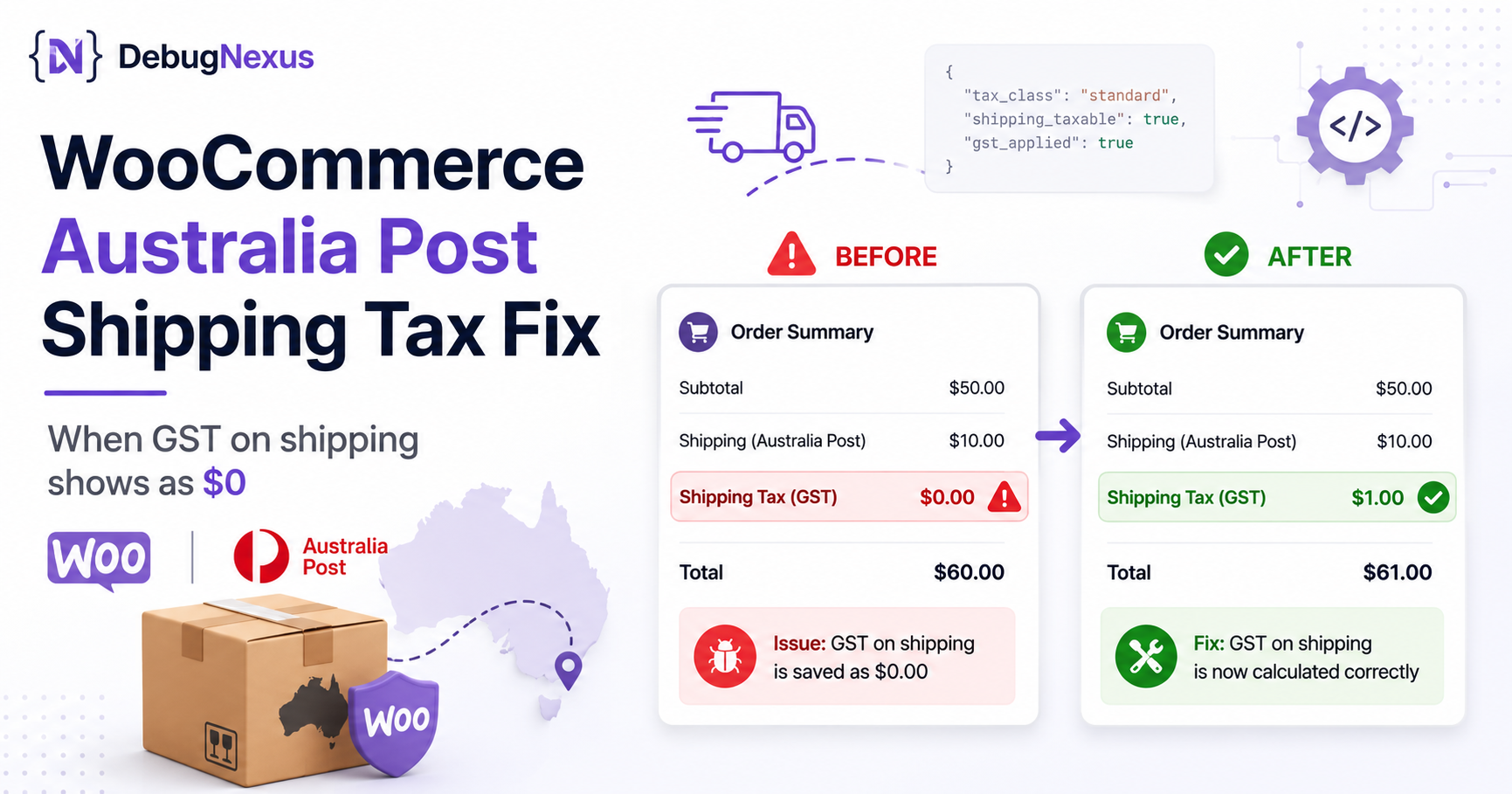
WooCommerce Australia Post shipping tax may be incorrectly saved as $0, even when a valid 10% Australian GST rate is configured and the Shipping checkbox is enabled for that tax rate.
This causes the GST total shown on WooCommerce invoices, order reports, and accounting integrations to exclude the GST component already included in the Australia Post shipping price.
For example, if the Australia Post API returns a GST-inclusive shipping cost of $11.00, the order should normally contain:
Shipping excluding GST: $10.00
Shipping GST:            $1.00
Shipping including GST: $11.00
Instead, affected orders may contain:
Shipping total: $11.00
Shipping tax:    $0.00
This article explains why that happens, how WooCommerce handles tax-inclusive shipping rates, and how to fix the calculation without manually modifying the database.
This is a technical WooCommerce troubleshooting guide, not accounting or tax advice. Australian GST treatment can vary for mixed, GST-free, international, or separately supplied delivery services. Confirm the required treatment with a qualified Australian tax professional.
Why Australia Post Shipping GST May Be Missing
Australia Post API rates can already include GST. However, WooCommerce has historically expected shipping method costs to be supplied excluding tax.
WooCommerce then calculates shipping tax separately using the store’s configured shipping tax class and matching tax rates. Product prices can be configured as tax-inclusive, but that setting does not automatically mean every shipping rate supplied by an external plugin is also treated as tax-inclusive.
This creates a mismatch:
- Australia Post returns a GST-inclusive rate.
- The shipping plugin passes the gross amount to WooCommerce.
- The plugin may prevent WooCommerce from adding tax again.
- The included GST is not separated and stored as shipping tax.
- The order is created with a shipping tax value of zero.
This is not necessarily a database bug. The database is often only storing the totals calculated during checkout.
The Correct GST Calculation
For a standard GST-inclusive price subject to 10% GST, the GST component is not calculated by multiplying the total by 10%.
The correct calculation is:
GST = GST-inclusive amount ÷ 11For an $11.00 shipping charge:
GST = 11 ÷ 11
GST = $1.00
The GST-exclusive shipping cost is:
Net shipping = 11 - 1
Net shipping = $10.00
Calculating $11 × 10% would produce $1.10, which is incorrect because the $11 price already includes GST.
The Australian Taxation Office explains that GST on a fully taxable GST-inclusive supply is effectively one-eleventh of the consideration. It also explains that delivery charges can require apportionment when an order contains a mixture of taxable and non-taxable goods.
Check the WooCommerce Tax Settings First
Before adding code, verify the store’s WooCommerce configuration.
Go to:
WooCommerce > Settings > GeneralMake sure this option is enabled:
Enable tax rates and calculationsNext, go to:
WooCommerce > Settings > TaxReview the following settings.
Prices Entered With Tax
For an Australian store displaying GST-inclusive product prices, this will commonly be:
Yes, I will enter prices inclusive of taxRemember that this setting primarily describes how product prices are entered. Shipping plugins may still need to tell WooCommerce whether their returned shipping costs are gross or net.
Calculate Tax Based On
Select the option that matches the store’s accounting requirements:
Customer shipping addressor:
Shop base addressFor an Australian store only selling domestically, the shop base address may be suitable, but the correct option depends on the business and customer locations.
Shipping Tax Class
For a store where shipping should use the normal GST rate, select:
StandardYou can also use:
Shipping tax class based on cart itemsHowever, inherited tax classes can produce different results when an order contains products assigned to multiple tax classes.
Standard Tax Rate
Go to:
WooCommerce > Settings > Tax > Standard ratesConfirm that the Australian GST rate is configured correctly:
Country code: AU
Rate: 10.0000
Tax name: GST
Shipping: Enabled
The Shipping checkbox is important. WooCommerce only uses rates for shipping when they are configured to apply to shipping.
Check the Australia Post Shipping Method
Go to:
WooCommerce > Settings > Shipping > Shipping zonesEdit the relevant Australian shipping zone and open the Australia Post shipping method.
Confirm that:
- The shipping method is enabled.
- The origin postcode is correct.
- The Australia Post API credentials are valid.
- The method is configured as taxable where that option is available.
- The option indicating that API rates include tax is enabled.
- No custom code is forcing the shipping rate to be non-taxable.
Create a staging-site backup before changing tax or shipping settings on a production store.
Solution for WooCommerce 10.6 or Later
WooCommerce 10.6 introduced the following filter:
woocommerce_shipping_prices_include_taxThis filter tells WooCommerce that shipping costs supplied by a shipping method already include tax.
When enabled, WooCommerce calculates the tax from the gross shipping amount and subtracts that tax from the stored shipping cost. WooCommerce 10.6 introduced this specifically to support tax-inclusive shipping prices.
Create a Must-Use Plugin
Using SFTP, SSH, or your hosting file manager, open:
/wp-content/Create this directory if it does not already exist:
/wp-content/mu-plugins/Inside it, create:
debugnexus-inclusive-shipping-tax.phpAdd the following code:
<?php
/**
 * Plugin Name: DebugNexus GST-Inclusive Shipping
 * Description: Tells WooCommerce that shipping rates already include tax.
 */

defined( 'ABSPATH' ) || exit;

add_filter(
	'woocommerce_shipping_prices_include_tax',
	'__return_true'
);
The complete location should be:
/wp-content/mu-plugins/debugnexus-inclusive-shipping-tax.phpMust-use plugins load automatically and do not require activation from the regular Plugins screen.
Important Limitation
This filter affects all taxable shipping methods using WooCommerce’s standard shipping tax calculation.
Use it only when all relevant shipping rates are supplied as tax-inclusive prices.
For example, problems may occur when the store uses:
- Australia Post rates that include GST
- A flat-rate method entered excluding GST
- A courier plugin that supplies tax-exclusive rates
In that situation, the global filter could cause WooCommerce to treat every shipping rate as tax-inclusive.
A store using mixed gross and net shipping methods needs method-specific customization.
Australia-Only Version
When the store also ships internationally, you can restrict the filter to Australian shipping destinations:
<?php
/**
 * Plugin Name: DebugNexus Australian GST-Inclusive Shipping
 * Description: Treats shipping prices as tax-inclusive for Australian destinations.
 */

defined( 'ABSPATH' ) || exit;

add_filter(
	'woocommerce_shipping_prices_include_tax',
	static function ( $includes_tax ) {
		if (
			function_exists( 'WC' ) &&
			WC()->customer &&
			'AU' === WC()->customer->get_shipping_country()
		) {
			return true;
		}

		return $includes_tax;
	}
);
This still applies to all shipping methods shown to Australian customers. It does not restrict the behavior specifically to the Australia Post extension.
Australia Post Extension-Specific Alternative
The official WooCommerce Australia Post documentation provides this extension-specific filter:
woocommerce_shipping_australia_post_tax_rateThe documented value is:
0.09090909This decimal is approximately one-eleventh of the GST-inclusive shipping price.
Create an MU plugin containing:
<?php
/**
 * Plugin Name: DebugNexus Australia Post GST Rate
 * Description: Defines the included GST component for WooCommerce Australia Post rates.
 */

defined( 'ABSPATH' ) || exit;

add_filter(
	'woocommerce_shipping_australia_post_tax_rate',
	static function () {
		return '0.09090909';
	}
);
Do Not Enable Both Fixes Initially
Do not add both the core WooCommerce filter and the Australia Post-specific filter at the same time without testing the extension’s calculation flow.
Doing so could result in tax being extracted twice.
Use this order:
- Test the WooCommerce 10.6+ filter.
- Create a new order and inspect the result.
- If the shipping tax remains zero, remove that filter.
- Test the Australia Post-specific filter.
- Keep only the method that produces the correct totals.
The Australia Post-specific hook applies to the official WooCommerce Australia Post extension. A different Australia Post plugin may not support that filter.
Clear Cached Shipping Rates
WooCommerce stores calculated shipping rates in the customer session. Changing the code may not immediately update a shipping quote that was already calculated.
After adding or changing the snippet:
- Clear the website page cache.
- Clear any object cache.
- Open WooCommerce status tools and clear transients.
- Empty the test cart.
- Open a new private browser window.
- Add the product again.
- Re-enter the Australian shipping address.
- Create a completely new test order.
Do not rely on an old cart session when testing a shipping-tax change.
How to Verify the Fix
Use an order containing only standard taxable products and choose an Australia Post rate of $11.00.
The expected order totals are:
Shipping total excluding GST: $10.00
Shipping tax:                   $1.00
Customer-facing shipping:     $11.00
For a $22.00 GST-inclusive shipping rate:
Shipping total excluding GST: $20.00
Shipping tax:                   $2.00
Customer-facing shipping:     $22.00
Result: Shipping Tax Is Still Zero
If the new order still shows:
Shipping tax: $0.00check whether:
- The Australia Post shipping method is marked non-taxable.
- The matching GST rate has Shipping disabled.
- No matching tax rate exists for the customer’s address.
- The plugin passes
falseor an empty array as its shipping taxes. - Another plugin filters the rate tax status.
- The order contains no taxable products while the shipping tax class inherits from cart items.
- Automated taxes are overriding the manually configured tax rules.
Result: GST Is Added on Top
If an $11.00 shipping rate becomes $12.10, WooCommerce is treating the $11.00 amount as tax-exclusive and adding another 10%.
That means the tax-inclusive shipping filter has not been applied correctly, or a different plugin is recalculating the rate afterward.
Verify the Order Through WooCommerce
Do not depend only on an invoice plugin or direct database inspection.
You can inspect an order using WP-CLI:
wp eval '
$order = wc_get_order( 1234 );

echo "Shipping total: " . $order->get_shipping_total() . PHP_EOL;
echo "Shipping tax: " . $order->get_shipping_tax() . PHP_EOL;
echo "Total tax: " . $order->get_total_tax() . PHP_EOL;
'
Replace 1234 with the test order ID.
You can also temporarily inspect the values in PHP:
$order = wc_get_order( 1234 );

$shipping_total = $order->get_shipping_total();
$shipping_tax   = $order->get_shipping_tax();
$total_tax      = $order->get_total_tax();
Using WooCommerce CRUD methods is safer than querying individual database tables because the active storage system may be HPOS or the legacy WordPress order tables.
Understanding the Database Values
The table:
wp_wc_order_tax_lookupis primarily a lookup table used for WooCommerce analytics and reporting. It is not the best place to repair an order manually. WooCommerce identifies wc_order_tax_lookup as per-order tax data used for analytics.
With High-Performance Order Storage enabled, core order totals are stored in WooCommerce’s dedicated order tables. The HPOS operational table includes fields for the shipping total and shipping tax amount.
The table:
wp_woocommerce_order_itemsstores order item records and their types. Detailed shipping totals and tax arrays are handled through WooCommerce order-item data and metadata.
Therefore, manually changing only:
wc_order_tax_lookup.shipping_taxdoes not properly repair the order.
It can leave conflicting values between:
- The order object
- The shipping line item
- The tax line item
- HPOS tables
- Legacy order metadata
- Analytics lookup tables
- Invoice plugins
- Accounting integrations
Always correct the calculation before checkout so WooCommerce creates the order with consistent totals.
What About Existing Orders?
The code fix affects newly calculated shipping rates and newly created orders. It does not automatically correct historical orders.
Do not run a direct SQL update that assigns one-eleventh of every historical shipping charge to shipping tax. That could be incorrect for orders containing:
- GST-free products
- Mixed taxable and GST-free products
- International shipping
- Refunds
- Discounts
- Tax-exempt customers
- Custom fees
- Different tax classes
The ATO specifically describes situations where delivery charges must be apportioned between taxable and non-taxable goods.
For historical paid orders:
- Export a list of affected orders.
- Confirm the required correction with the store’s accountant.
- Back up the database.
- Correct each order through WooCommerce-compatible order methods.
- Reissue invoices or adjustment documents where required.
- Regenerate analytics data only after the source orders are correct.
Recalculating a completed order may change its total, tax records, invoice, and accounting synchronization, so it should not be done casually.
Why Invoice GST Totals Become Incorrect
Most WooCommerce invoice plugins read the stored order tax totals rather than independently recalculating GST.
If WooCommerce stores:
Product tax:  $10.00
Shipping tax:  $0.00
the invoice will normally show total GST of:
$10.00It cannot know that part of the Australia Post shipping price was supposed to represent GST.
Once WooCommerce correctly stores:
Product tax:  $10.00
Shipping tax:  $1.00
the invoice can show:
Total GST: $11.00The underlying checkout calculation must be corrected first. Changing only the invoice template would hide the problem rather than fix the order data.
Final Recommendation
When WooCommerce Australia Post shipping tax is saved as zero, start by confirming the standard GST rate, shipping tax class, customer tax location, and Australia Post settings.
For WooCommerce 10.6 or later, the preferred modern solution is:
add_filter(
	'woocommerce_shipping_prices_include_tax',
	'__return_true'
);
This tells WooCommerce to treat shipping costs as gross amounts, calculate the included tax, and store the shipping total excluding that tax. WooCommerce added this capability in version 10.6.
When the official Australia Post extension does not respond correctly to the core filter, test its documented extension-specific tax-rate filter:
add_filter(
	'woocommerce_shipping_australia_post_tax_rate',
	static function () {
		return '0.09090909';
	}
);
Test only one approach at a time, create a new order, and verify the result through the WooCommerce order object.
Do not manually edit analytics or order tables to force the shipping tax value. Fixing the calculation at checkout ensures invoices, reports, refunds, HPOS data, and accounting integrations all receive consistent tax totals.
