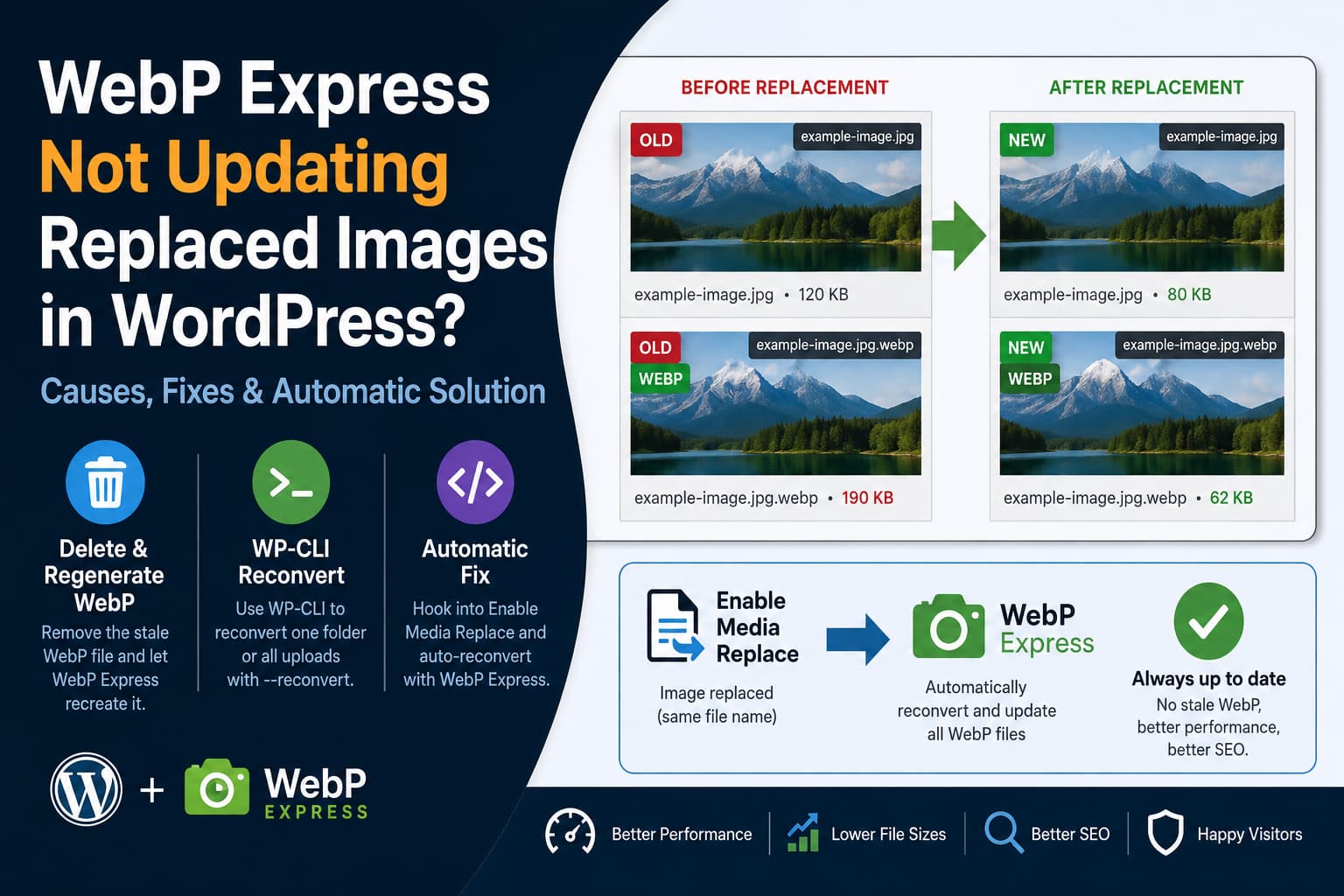
Replacing an existing WordPress image should be simple. You upload the optimized replacement, WordPress updates the attachment, and visitors receive the new image.
However, websites using Enable Media Replace together with WebP Express can encounter an unusual problem:
- The original JPEG or PNG is replaced correctly.
- WordPress regenerates the smaller image sizes.
- The WebP files for those smaller sizes are updated.
- The WebP file corresponding to the full-size image remains unchanged.
- Visitors may therefore continue receiving the older image.
In some cases, the old WebP file can even be larger than the newly optimized JPEG, defeating the purpose of image optimization.
This guide explains why the problem happens, how to repair affected images, and how to automatically regenerate WebP files whenever an image is replaced.
The Problem
Suppose your WordPress uploads directory contains these files:
example-image.jpg
example-image.jpg.webp
example-image-300x200.jpg
example-image-300x200.jpg.webp
example-image-768x512.jpg
example-image-768x512.jpg.webp
You then use the Replace Media option to replace example-image.jpg with a smaller, better-optimized version.
After replacement, the directory may look like this:
example-image.jpg                  New version
example-image.jpg.webp             Old version
example-image-300x200.jpg           New version
example-image-300x200.jpg.webp      New version
example-image-768x512.jpg           New version
example-image-768x512.jpg.webp      New version
The original JPEG has changed, but its full-size WebP companion has not.
Because the filename and URL remain unchanged, WebP Express can continue serving the existing WebP file instead of generating a new one.
Why the Smaller WebP Images Update
The most likely explanation is an integration gap between the two plugins.
WebP Express connects its automatic conversion process to regular WordPress upload handling and to the image_make_intermediate_size hook. That means newly generated thumbnail and medium-size files can be converted automatically.
Enable Media Replace performs its replacement through a separate workflow. Although it provides an action after replacement finishes, WebP Express does not appear to use that replacement-specific action automatically.
This explains the observed behavior:
- Enable Media Replace overwrites the main JPEG or PNG.
- WordPress regenerates the attachment sizes.
- WebP Express notices the new intermediate sizes and converts them.
- The original image does not pass through the normal upload conversion process.
- The existing full-size WebP remains on the server.
Enable Media Replace provides the following action specifically for integrations after an upload replacement:
do_action(
    'enable-media-replace-upload-done',
    $target_url,
    $source_url,
    $this->post_id
);
The plugin developer has confirmed that this action includes the attachment ID and can be used by another plugin to respond after replacement.
Therefore, this is not necessarily a conversion failure inside either plugin. It is primarily a missing automatic connection between their replacement and conversion workflows.
Solution 1: Delete and Regenerate the Stale WebP File
For one or two affected images, the fastest solution is to remove only the stale WebP file and regenerate it.
Step 1: Create a Backup
Back up the affected uploads directory or take a complete website backup before deleting files.
Do not delete the WordPress attachment from the Media Library.
Step 2: Find the Original Image
Open the attachment in the WordPress Media Library and copy its file URL.
A typical image URL looks like this:
https://example.com/wp-content/uploads/2026/08/example-image.jpgThe corresponding server path may be:
/wp-content/uploads/2026/08/example-image.jpgDepending on your WebP Express configuration, the WebP file may appear beside it as:
example-image.jpg.webpIt may also use a different extension structure or be stored in a separate WebP Express cache directory.
Step 3: Delete Only the Old WebP
Using your hosting file manager, SFTP, or SSH, delete the WebP generated from the full-size image.
For a mingled configuration using appended extensions, delete:
example-image.jpg.webpDo not delete:
example-image.jpgAlso avoid deleting the thumbnail WebPs unless they are incorrect.
Step 4: Regenerate the WebP
WebP Express can generate missing WebP files through its configured routing or conversion process. It also supports bulk conversion and command-line conversion.
Open the image on the frontend using a browser that supports WebP. If conversion on demand is enabled, WebP Express should recreate the missing file.
You can also use the WebP Express bulk conversion interface inside WordPress.
Step 5: Clear Every Cache Layer
After regenerating the file, clear:
- Your WordPress caching plugin
- Server or hosting cache
- LiteSpeed, Nginx, or Varnish cache
- Cloudflare or another CDN cache
- Browser cache
The file URL has not changed, so a CDN or browser may continue serving the previous response until its cache expires.
Solution 2: Reconvert the Images with WP-CLI
WebP Express includes WP-CLI commands for converting and reconverting images.
To reconvert every supported image in the uploads directory, run:
wp webp-express convert uploads --reconvertThe --reconvert option includes images that already have WebP files and replaces their previous conversions.
For a smaller and safer operation, limit the command to the affected year and month:
wp webp-express convert uploads/2026/08 --reconvertTo process only JPEG images:
wp webp-express convert uploads/2026/08 --reconvert --only-jpegTo process only PNG files:
wp webp-express convert uploads/2026/08 --reconvert --only-pngAvoid Flushing Every WebP Unless Necessary
WebP Express also provides:
wp webp-express flushwebpThis removes generated WebP files so they can be rebuilt. However, flushing every WebP is usually unnecessary when only one upload folder or attachment is affected.
Reconvert the smallest relevant uploads directory first.
Solution 3: Automatically Regenerate WebP Files After Media Replacement
For websites where images are replaced regularly, the best long-term solution is to connect Enable Media Replace’s completion hook to WebP Express’s conversion class.
The following snippet collects the original attachment file, WordPress’s generated image sizes, and the original uploaded image when available. It then asks WebP Express to reconvert each file.
/**
 * Rebuild WebP Express conversions after Enable Media Replace finishes.
 *
 * Add this through the Code Snippets plugin or a small custom plugin.
 * Do not edit the WebP Express or Enable Media Replace plugin files.
 */
function debugnexus_reconvert_webp_after_media_replace(
    $target_url,
    $source_url,
    $attachment_id
) {
    $attachment_id = absint( $attachment_id );

    if ( ! $attachment_id ) {
        return;
    }

    /*
     * Stop when WebP Express is inactive or its classes
     * are not available.
     */
    if (
        ! class_exists( '\WebPExpress\Config' ) ||
        ! class_exists( '\WebPExpress\Convert' )
    ) {
        return;
    }

    /*
     * WebP Express currently converts JPEG and PNG images.
     * Avoid processing unrelated attachment types.
     */
    $mime_type = get_post_mime_type( $attachment_id );

    $supported_mime_types = array(
        'image/jpeg',
        'image/png',
    );

    if ( ! in_array( $mime_type, $supported_mime_types, true ) ) {
        return;
    }

    $files = array();

    /*
     * Current full-size attachment file.
     */
    $attached_file = get_attached_file( $attachment_id );

    if ( $attached_file && is_file( $attached_file ) ) {
        $files[] = $attached_file;
    }

    /*
     * WordPress may preserve a separate original image when
     * the uploaded image was automatically scaled.
     */
    if ( function_exists( 'wp_get_original_image_path' ) ) {
        $original_file = wp_get_original_image_path( $attachment_id );

        if ( $original_file && is_file( $original_file ) ) {
            $files[] = $original_file;
        }
    }

    /*
     * Include all generated WordPress image sizes.
     */
    $metadata = wp_get_attachment_metadata( $attachment_id );

    if (
        $attached_file &&
        is_array( $metadata ) &&
        ! empty( $metadata['sizes'] ) &&
        is_array( $metadata['sizes'] )
    ) {
        $upload_directory = trailingslashit(
            dirname( $attached_file )
        );

        foreach ( $metadata['sizes'] as $size_data ) {
            if ( empty( $size_data['file'] ) ) {
                continue;
            }

            $size_file = $upload_directory . $size_data['file'];

            if ( is_file( $size_file ) ) {
                $files[] = $size_file;
            }
        }
    }

    $files = array_unique( $files );
    $config = \WebPExpress\Config::loadConfigAndFix();

    foreach ( $files as $file ) {
        $result = \WebPExpress\Convert::convertFile(
            $file,
            $config
        );

        /*
         * Record conversion failures only when WordPress
         * debugging is enabled.
         */
        if (
            is_array( $result ) &&
            empty( $result['success'] ) &&
            defined( 'WP_DEBUG' ) &&
            WP_DEBUG
        ) {
            $message = ! empty( $result['msg'] )
                ? $result['msg']
                : 'Unknown conversion error';

            error_log(
                sprintf(
                    'WebP Express reconversion failed for %s: %s',
                    $file,
                    $message
                )
            );
        }
    }
}

add_action(
    'enable-media-replace-upload-done',
    'debugnexus_reconvert_webp_after_media_replace',
    20,
    3
);
WebP Express’s conversion class calculates the correct destination from the plugin’s active settings. This is better than assuming every site stores WebP files as filename.jpg.webp, because WebP Express supports different destination folders, structures, and extension formats.
Where to Add the Code
The safest options are:
- A small site-specific custom plugin
- The Code Snippets plugin
- A must-use plugin
Avoid placing the snippet directly inside WebP Express or Enable Media Replace. Your changes would be removed during the next plugin update.
A child theme’s functions.php file can work, but image-processing behavior should generally remain active even when the website theme changes.
Using Code Snippets
When using Code Snippets:
- Go to Snippets → Add New.
- Name it Reconvert WebP After Media Replacement.
- Paste the code without adding another
<?phptag. - Set it to run everywhere.
- Save and activate the snippet.
- Replace a test image.
- Confirm that the WebP file’s modification time and file size change.
Important Compatibility Note
This solution uses:
- An action provided by Enable Media Replace
- PHP classes supplied internally by WebP Express
The replacement action is intended to allow integrations. However, the WebP Express classes are implementation-level classes rather than a separately documented public integration API.
Test the snippet after major WebP Express updates. If the plugin changes its class names or conversion architecture, the snippet may need adjustment.
The code safely stops without causing a fatal error when WebP Express is inactive or its required classes are unavailable.
How to Confirm the Fix Worked
Do not rely only on how the page looks. The old and new images may appear similar while still having very different file sizes.
Check the Server Files
Using SSH, compare the modification dates and sizes:
stat wp-content/uploads/2026/08/example-image.jpg
stat wp-content/uploads/2026/08/example-image.jpg.webp
Both files should have modification times corresponding to the replacement or reconversion.
You can also inspect their file types:
file wp-content/uploads/2026/08/example-image.jpg
file wp-content/uploads/2026/08/example-image.jpg.webp
When ImageMagick is installed, compare the dimensions:
identify \
wp-content/uploads/2026/08/example-image.jpg \
wp-content/uploads/2026/08/example-image.jpg.webp
The width and height should match.
Check the Browser Response
Open the affected page in Chrome or Firefox:
- Open Developer Tools.
- Select the Network tab.
- Enable Disable cache.
- Reload the page.
- Filter the requests by Img.
- Open the affected image request.
- Check the response headers, dimensions, transferred size, and content type.
Depending on the WebP Express delivery method, the visible URL may still end in .jpg even though the server returns a WebP response. WebP Express supports server-side redirection as well as HTML-based delivery methods.
You can also test the response from the command line:
curl -I \
-H "Accept: image/webp" \
"https://example.com/wp-content/uploads/2026/08/example-image.jpg"
Look for a header similar to:
Content-Type: image/webpWhat to Do When the Old Image Still Appears
If the WebP file has been regenerated but the old image still appears, check the following areas.
1. CDN Cache
Cloudflare and other CDNs cache image responses aggressively. Purge the individual image URL or clear the relevant CDN cache.
2. Page Cache
A cached page may contain WebP-specific HTML generated before the replacement. Clear your caching plugin and server cache.
3. Browser Cache
Test in a private window with Developer Tools caching disabled.
4. Separate WebP Directory
WebP Express may store conversions outside the original uploads directory. Deleting a .webp beside the JPEG will not help if the active conversion is stored elsewhere.
Review the destination settings in WebP Express or use its conversion class, bulk converter, or WP-CLI command.
5. Multiple Image Optimization Plugins
Do not allow several plugins to generate and serve competing WebP files.
For example, running WebP Express alongside another plugin that rewrites image URLs or creates modern-format files may result in:
- Duplicate WebP files
- Conflicting rewrite rules
- Unexpected cache locations
- One plugin serving files generated by another
- Old files remaining after media replacement
Choose one primary plugin to create and deliver WebP images wherever possible.
Does Regenerating Thumbnails Fix the Original WebP?
Not necessarily.
Regenerating thumbnails rebuilds WordPress’s registered image sizes, such as:
example-image-150x150.jpg
example-image-300x200.jpg
example-image-768x512.jpg
It may also trigger WebP creation for those intermediate sizes.
However, the original full-size file is not an intermediate thumbnail. Its existing WebP can remain untouched unless it is deleted or explicitly reconverted.
This is why a thumbnail-regeneration plugin may appear to fix every smaller file while leaving the full-size WebP stale.
Can You Delete the WebP File Safely?
Generally, yes, provided that:
- The original JPEG or PNG still exists
- WebP Express is configured correctly
- Conversion on demand or another regeneration method is available
Deleting a generated WebP does not normally remove the WordPress attachment.
Nevertheless, create a backup first and confirm the WebP destination before deleting anything. WebP Express supports multiple storage and delivery configurations.
Is Deleting and Reuploading the Attachment Necessary?
No.
Deleting the complete Media Library attachment can cause avoidable problems:
- A new attachment ID may be created.
- Image metadata may change.
- Existing references can become disconnected.
- Attachment-specific alt text, captions, and descriptions may be lost.
- Posts or custom fields may continue referring to the previous attachment.
- The uploads directory can become less organized.
Deleting only the stale conversion or forcing a reconversion is cleaner and safer.
Would Replacing the Image with a New Filename Avoid the Problem?
It usually avoids reusing the stale WebP because the new source file receives a different path.
Enable Media Replace supports both replacing a file while retaining its filename and replacing it with a new filename while updating links.
However, changing the filename is not always desirable. It can affect:
- Existing indexed image URLs
- External links
- CDN cache entries
- Image search visibility
- Hardcoded references
- Social media previews
Keeping the same filename and regenerating the WebP is normally the better approach when the image URL should remain stable.
Recommended WebP Express Settings
Review these settings after implementing the fix:
Convert Images on Upload
Enable conversion during uploads so that newly uploaded images and generated sizes receive WebP versions immediately.
Create Missing WebP Files on Demand
When supported by your server configuration, on-demand conversion allows WebP Express to regenerate a missing conversion when it is requested.
Test the Delivery Method
Use WebP Express’s configuration tests to confirm that WebP responses are being served properly.
Avoid Serving WebPs Larger Than Their Originals
A WebP file is not automatically smaller merely because it uses the WebP format.
A highly optimized JPEG may be smaller than a WebP generated with unsuitable quality settings. Configure WebP Express so that it does not serve a conversion that is larger than its source image.
In the reported replacement problem, however, an unusually large WebP may simply be the previous image’s stale conversion rather than a newly generated inefficient file.
Preventing the Problem in the Future
Use the following workflow whenever replacing images:
- Back up the website.
- Replace the image through Enable Media Replace.
- Automatically reconvert it using the provided hook.
- Clear page and CDN caches.
- Confirm the WebP modification date.
- Compare the JPEG and WebP dimensions.
- Check the browser’s network response.
- Keep only one active WebP-generation system.
For sites that replace media frequently, the automatic snippet is preferable to manually checking the uploads directory after every replacement.
Frequently Asked Questions
Why does WordPress show the new JPEG but visitors still see the old image?
Visitors with WebP support may receive the existing WebP conversion instead of the updated JPEG. The JPEG can therefore be correct while the frontend continues displaying the old WebP.
Why are the thumbnail WebPs correct?
WebP Express listens for newly generated intermediate image sizes. When the replacement process regenerates thumbnails, those files pass through a conversion hook. The full-size replacement may not use the same WordPress upload hook.
Will clearing the WordPress cache regenerate the WebP?
Usually not. Clearing cache removes cached responses, but it does not necessarily replace a physical WebP file that is already stored on the server.
Delete or reconvert the stale WebP first, then clear the caches.
Should I run wp webp-express flushwebp?
Only when a large number of conversions need to be rebuilt. For a limited issue, use:
wp webp-express convert uploads/2026/08 --reconvertThis limits the operation to the relevant uploads folder.
Does the PHP snippet work with a separate WebP cache folder?
It should, because it asks WebP Express to determine the destination from its own active configuration instead of manually constructing a .webp filename.
Will the snippet slow down the frontend?
No frontend conversion is added by the snippet. It runs when Enable Media Replace completes an image replacement.
Replacing an image may take slightly longer because the full-size file and generated sizes are reconverted immediately.
Final Thoughts
When WebP Express does not update a replaced WordPress image, the issue may look like a cache problem, but the real cause can be a stale physical WebP file.
The most reliable fixes are:
- Delete and regenerate the affected WebP for a one-time repair.
- Use WebP Express’s
--reconvertWP-CLI option for multiple affected images. - Connect the
enable-media-replace-upload-doneaction to WebP Express for an automatic long-term solution.
This preserves the existing WordPress attachment, keeps the image URL stable, and eliminates the need to delete and reupload the entire image whenever a WebP conversion becomes outdated.
