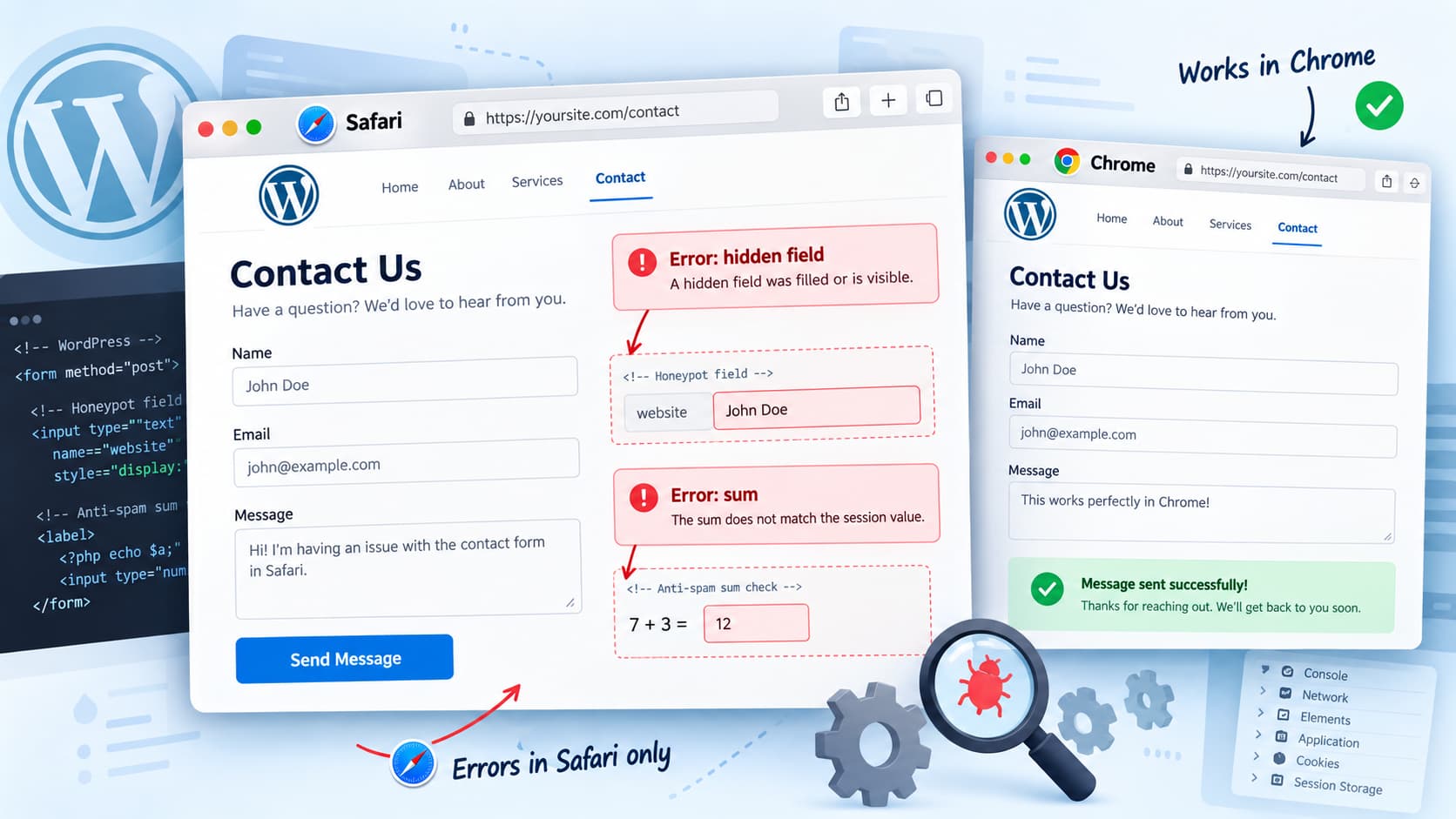
A VS Contact Form that works in Chrome but fails in Safari with:
Error: hidden field
Error: sum
is most likely failing one or more of the plugin’s anti-spam checks rather than its email delivery process.
The hidden field error is especially useful diagnostically. VS Contact Form uses hidden honeypot fields that must remain empty. Browser AutoFill can sometimes put data into fields that users cannot see, causing a legitimate visitor to be treated like a bot. Safari’s AutoFill system uses heuristics to identify fields and does not necessarily obey autocomplete="off", so a hidden honeypot can become a problem even when the visitor never touches it.
The sum error needs separate investigation. VS Contact Form currently uses a PHP session for its sum captcha, and the plugin also recommends excluding the contact page from page caching. If the sum is disabled but this error still appears, stale cached form markup or browser-session state should be ruled out before changing any plugin code.
What “Error: hidden field” Means
VS Contact Form includes several anti-spam protections, including hidden honeypot fields, a sum field, and a hidden timing check. A honeypot is deliberately invisible to normal visitors. Bots often populate every field they find, so a non-empty honeypot causes the submission to be rejected.
The problem is that browser AutoFill can occasionally behave like the bot the honeypot is designed to catch.
This is not theoretical. A previous VS Contact Form support investigation found that browser AutoFill was populating the plugin’s hidden honeypot fields. The result was exactly:
Error: hidden fieldThe plugin developer subsequently changed the honeypot field names to reduce false positives.
Safari can still be relevant because its AutoFill system examines multiple signals in form markup to decide what a field represents. Apple also explicitly documents that Safari ignores autocomplete="off" and lets the user control AutoFill instead.
This makes Safari AutoFill one of the first things to test when the same form works normally in Chrome.
First: Update VS Contact Form
Before diagnosing old plugin behavior, confirm that VS Contact Form is current.
At the time of writing, WordPress.org lists VS Contact Form 19.1 as the current version. The plugin requires WordPress 6.0 or later and PHP 7.4 or later.
There is no current changelog entry that specifically claims to fix this Safari problem, so updating should not be treated as a guaranteed solution. It is still important because older versions have used different anti-spam and captcha implementations.
After updating, purge any WordPress, server, CDN, or reverse-proxy cache before testing again.
Test Whether Safari AutoFill Is Triggering the Honeypot
The fastest diagnostic is to compare Safari submissions with and without AutoFill.
First open the contact page in a new Safari Private window and manually type the form values instead of choosing any saved contact suggestion.
Submit the form.
If it works in the Private window but fails during a normal Safari session, AutoFill or stored browser state becomes a strong suspect.
Next, temporarily disable Safari’s contact-information AutoFill and repeat the test.
If the form starts working, the hidden field error is probably being caused by Safari putting a value into a honeypot.
Do not leave AutoFill disabled as the permanent solution. Visitors cannot reasonably be expected to change their browser configuration just to use a contact form.
Inspect the Hidden Fields in Safari
Safari’s Web Inspector can help confirm what is happening.
Open the form in Safari, enable Web Inspector if necessary, and inspect the form before submitting it.
Look for hidden or visually hidden <input> elements associated with the form.
Then:
- Note whether those fields are empty.
- Use Safari AutoFill to populate the visible form.
- Inspect the hidden inputs again.
- Check whether any previously empty field now contains your name, address, postal code, email address, or other saved information.
Do not rely on old examples of the plugin’s field names. VS Contact Form has changed its honeypot field naming in response to AutoFill problems in the past.
If a hidden anti-spam field gains a value immediately after AutoFill, you have identified the reason for Error: hidden field.
Why “Error: sum” Can Appear
The sum error requires a different troubleshooting path.
VS Contact Form previously stored sum-captcha data using WordPress transients. In version 18.7, the plugin changed the sum captcha to use a PHP session instead. The plugin’s changelog states that these sessions normally last until the browser is closed.
That matters because Chrome and Safari maintain independent browser sessions.
A problem affecting the PHP session used by Safari therefore does not necessarily affect Chrome.
The plugin author has also explained in support that the sum uses a PHP session to temporarily store its value.
If the visible sum field is disabled but debugging still reports:
Error: sumdo not immediately edit the plugin.
First rule out stale pages and session state.
Clear Caching Before Testing Again
VS Contact Form’s own documentation warns that caching can conflict with the form and recommends excluding the contact page from caching.
This becomes particularly important after changing the sum setting.
Purge all applicable cache layers:
- WordPress caching plugin
- hosting/server page cache
- CDN cache
- Cloudflare cache if applicable
- browser cache
Then exclude the contact page from full-page caching and retest it.
A cached version of the page can otherwise contain form state or markup generated under an earlier configuration.
After clearing the caches, completely close Safari and reopen it before testing. Because the current sum implementation uses PHP sessions, starting a fresh browser session is useful when diagnosing a sum-related error.
Check for Multiple VS Contact Forms on the Same Page
VS Contact Form specifically warns against adding multiple blocks, shortcodes, or widgets of the same type to one page because they may conflict.
Inspect the affected page and make sure the form has not accidentally been inserted twice through combinations such as:
[contact]plus a page-builder template, reusable block, widget, footer form, popup, or other automatically injected content.
This is worth checking even if only one form appears visually.
Check PHP Session Problems
If Error: sum remains after caching has been eliminated, check the site’s PHP error log.
The current VS Contact Form implementation relies on PHP sessions for the sum system. Session initialization can fail when another plugin or theme sends output before PHP headers are available.
A recent VS Contact Form support report, for example, showed:
session_start(): Session cannot be started after headers have already been sentThe plugin author suggested investigating a theme or plugin conflict that outputs content too early.
If you see a session warning, identify the component responsible for sending output early rather than hiding the PHP warning.
Typical causes include:
- a plugin producing output during an early WordPress hook
- theme code outputting content before normal rendering begins
- stray output in custom PHP
- incorrectly implemented snippets
- another plugin starting or manipulating PHP sessions
Use a staging site when disabling plugins or switching themes for conflict testing.
Use a Plugin Conflict Test if Necessary
If Safari still fails after clearing caches and testing AutoFill, temporarily deactivate other plugins on a staging copy or during a controlled troubleshooting window.
Test VS Contact Form after each change.
Pay particular attention to plugins that modify:
- forms
- spam protection
- JavaScript optimization
- HTML optimization
- page caching
- cookies
- PHP sessions
- security/firewall rules
If the problem disappears after one plugin is disabled, re-enable everything else and confirm the conflict with only those two plugins active.
A theme conflict can be tested the same way using a standard WordPress theme on staging.
Do Not Edit VS Contact Form’s Plugin Files as the First Fix
Changing honeypot field names or removing validation directly from the plugin may appear to solve the problem, but plugin updates can overwrite the modification.
It can also weaken spam protection.
If Safari AutoFill can reproducibly populate a honeypot in the current plugin release, capture the Safari version and the affected field markup and report the behavior to the plugin developer.
A plugin-level correction is preferable to maintaining a local modification to third-party source code.
Similarly, do not simply hide the debugging messages.
Turning debugging off only hides:
Error: hidden field
Error: sum
It does not make the rejected submission valid.
How to Verify the Fix
Test the form in several controlled combinations.
| Test | Expected result |
|---|---|
| Safari Private window, manual typing | Submission succeeds |
| Safari normal window, manual typing | Submission succeeds |
| Safari with AutoFill | Submission succeeds without filling honeypots |
| Chrome | Submission continues to succeed |
| Plugin debugging enabled | No hidden-field or sum errors |
| Contact page after cache purge | Uses current form settings |
If Safari succeeds only when AutoFill is disabled, concentrate on the honeypot rather than email delivery.
If both hidden field and sum errors disappear after excluding the page from cache and starting a fresh Safari session, caching or stale session state was likely involved.
If Error: sum remains even in a clean session with caching disabled, inspect PHP session handling and the server error log next.
Email delivery troubleshooting such as SMTP configuration should come later. An anti-spam validation failure occurs before successful form processing, so changing SMTP settings cannot correct a honeypot or sum-validation failure.
The Most Likely Diagnosis
For a VS Contact Form that works in Chrome but fails specifically in Safari, Error: hidden field makes Safari AutoFill the strongest first suspect.
Error: sum should be investigated separately. Because current VS Contact Form releases use PHP sessions for the sum captcha, clear all page caching, start a fresh Safari session, and check the PHP error log before assuming the disabled sum setting itself is broken.
The safest troubleshooting order is therefore:
- Update VS Contact Form.
- Purge and exclude the contact page from caching.
- Test Safari without AutoFill.
- Inspect the honeypot fields after AutoFill.
- Restart Safari to create a fresh session.
- Check for duplicate forms.
- Inspect PHP logs for session errors.
- Run a plugin/theme conflict test if necessary.
That sequence identifies the actual failing anti-spam check without weakening the form or modifying third-party plugin files.
