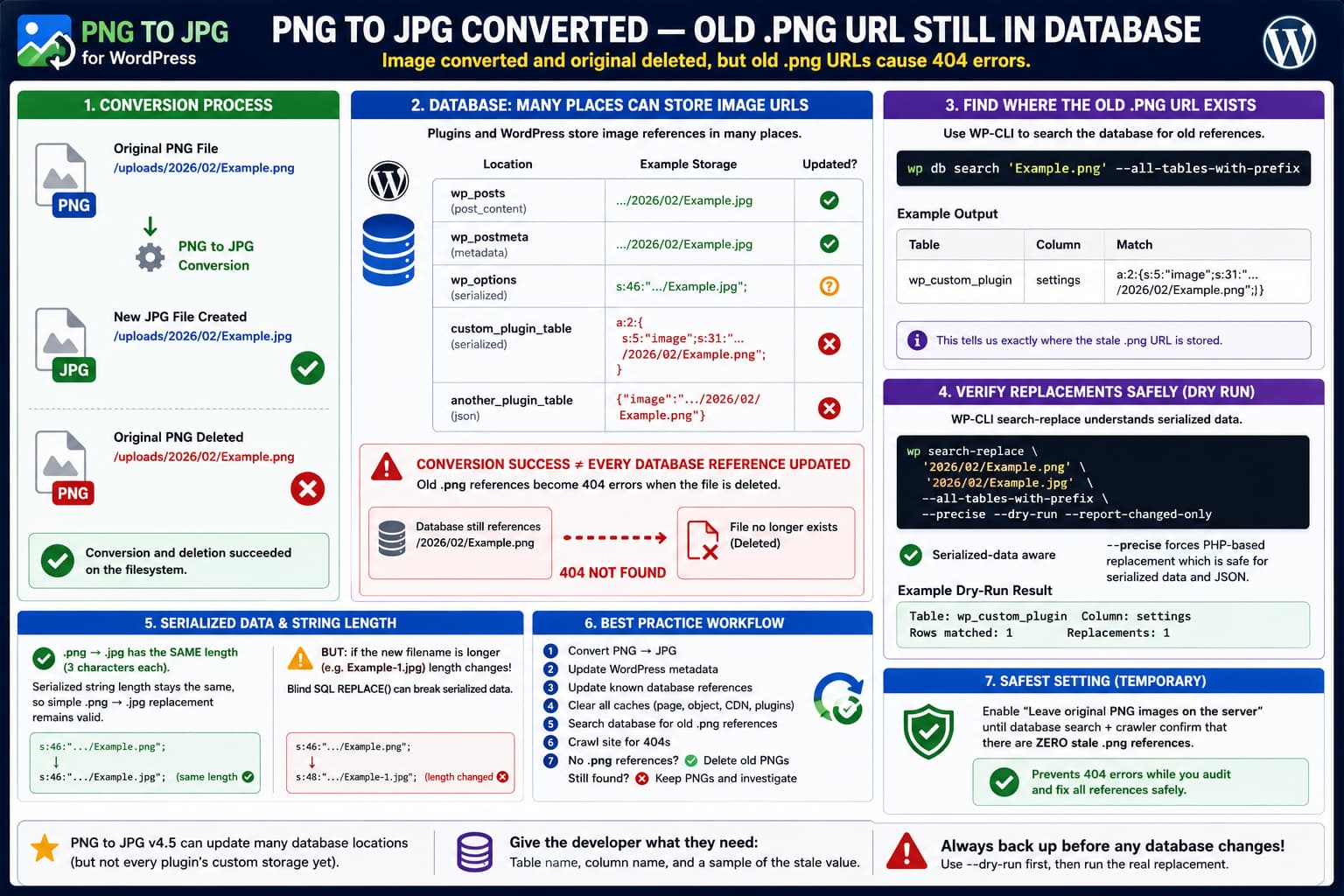
The PNG to JPG WordPress plugin can convert an uploaded image from:
2026/02/Example.pngto:
2026/02/Example.jpgand, when configured to remove the original, delete:
2026/02/Example.pngfrom disk.
If the database still contains references to the deleted .png file, however, those references become real 404 URLs.
The resulting state looks like this:
Database
    ↓
/uploads/2026/02/Example.png
    ↓
File deleted
    ↓
404 Not Found

Actual media file
    ↓
/uploads/2026/02/Example.jpg
This is particularly easy to discover with a crawler because the converted image may look fine in the WordPress Media Library while old page-builder data, plugin metadata, cached records or custom database tables still contain the original filename.
The current plugin developer response indicates that PHP serialization itself is probably not the immediate problem. Because .png and .jpg are both three characters long, replacing one extension with the other does not change the byte length of a serialized string. The developer instead asked for the exact database table and column where the stale URL remains so the replacement logic can be checked.
That is the correct next diagnostic step.
PNG to JPG Is Supposed to Update Database References
This is not a plugin that merely creates a second image file and expects WordPress to continue referencing the PNG.
Its changelog states that version 2.0 introduced:
Replace image and thumbnails extension in database tablesLater releases expanded that database replacement logic to additional storage locations.
For example, its changelog documents support for:
Fancy Product Designer
Yoast SEO links
Revolution Slider
Broken Link Checker
FV Player
post_excerpt
and other database-related fixes.
That history is significant.
It demonstrates that the plugin’s URL-update mechanism does not automatically understand every possible location where another WordPress plugin may store an image URL.
The conversion itself can succeed while the database migration remains incomplete.
Why WordPress Image URLs Can Exist in Many Places
A WordPress attachment normally has information in core tables such as:
wp_posts
wp_postmeta
But plugins frequently maintain their own copies of image information.
A page builder, slider, gallery, WooCommerce extension or SEO plugin might store:
Attachment ID
Full URL
Relative path
Filename
JSON
PHP serialized array
Cached HTML
Custom database record
For example, one plugin might store:
https://example.com/wp-content/uploads/2026/02/Example.pngwhile another stores:
2026/02/Example.pngand another might store it inside JSON:
{"image":"https://example.com/wp-content/uploads/2026/02/Example.png"}A fourth plugin may serialize that structure inside a WordPress option or metadata value.
That makes universal filename replacement more complicated than updating the attachment itself.
The PNG to JPG developer has previously explained this exact compatibility problem: third-party plugins can store images in custom tables as IDs, links, paths, filenames, serialized structures or JSON, and those storage locations sometimes need specific compatibility logic.
Serialized Data Is Not Necessarily the Problem
A PHP serialized string can contain something like:
s:46:"https://example.com/uploads/Example.png";The number after:
s:represents the string length.
PHP’s serialization format preserves the stored value’s type and structure, and PHP’s documentation describes the serialized output as a byte-stream representation of that data.
If this:
Example.pngbecomes:
Example.jpgthe length does not change.
Both extensions contain three characters.
Therefore an exact same-length replacement can remain structurally valid inside serialized PHP data.
This supports the plugin developer’s current observation that serialization alone should not prevent this specific .png → .jpg substitution.
But Same-Length Replacement Is Not Always Guaranteed
There is an important exception.
PNG to JPG’s changelog says it handles cases where a JPG with the same name already exists by renaming files to avoid a collision.
Suppose:
Example.jpgalready exists.
The converted file might need to become something such as:
Example-1.jpgNow the replacement is longer:
Example.pngversus:
Example-1.jpgA blind SQL replacement inside serialized PHP data could invalidate the stored string length.
For that reason, do not assume that every image conversion can safely be repaired using raw SQL REPLACE().
For an ordinary .png → .jpg replacement with the identical basename, the byte length remains the same.
For renamed files, URLs with changed directories, or other transformations, use a serialization-aware replacement tool.
Find the Exact Table and Column First
The current plugin developer specifically requested:
database table name
database column name
for a URL that remains unchanged.
WP-CLI makes this much easier.
Take one URL that your 404 crawler found.
For example:
https://example.com/wp-content/uploads/2026/02/Example.pngThen search the database:
wp db search 'Example.png' --all-tables-with-prefixSearching only the filename is useful because the database may contain:
Example.png2026/02/Example.pngor:
https://example.com/wp-content/uploads/2026/02/Example.pngThe official wp db search command can search all tables with the WordPress prefix, including plugin-created tables that are not normally registered with $wpdb.
You can also search the more precise relative path:
wp db search '2026/02/Example.png' --all-tables-with-prefixThe result should identify the table and column containing the stale reference.
That is exactly the evidence the plugin developer needs.
Search More Than the Standard WordPress Tables
Do not stop after checking:
wp_posts
wp_postmeta
Use:
wp db tables --all-tables-with-prefixto see all tables using the site’s WordPress prefix.
WP-CLI documents that --all-tables-with-prefix includes tables matching the WordPress prefix even when a plugin has not registered those tables with the normal $wpdb object.
This matters because an image reference could be inside something such as:
wp_some_slider
wp_gallery_data
wp_custom_builder
wp_plugin_cache
rather than core WordPress content.
Do not assume the real table prefix is:
wp_Sites can use a custom prefix.
WP-CLI handles the configured prefix automatically.
A Dry-Run Search-Replace Can Be Even More Useful
Once you know the correct old and new paths, WP-CLI can also show where replacements would occur without actually altering anything.
For example:
wp search-replace \
'2026/02/Example.png' \
'2026/02/Example.jpg' \
--all-tables-with-prefix \
--precise \
--dry-run \
--report-changed-only
The official wp search-replace command intelligently handles PHP serialized data. The --precise option forces PHP-based processing, which is slower but more thorough for complex serialized structures.
Most importantly:
--dry-rundoes not save changes.
It produces a report showing where WP-CLI found the old value.
That makes it useful as a diagnostic tool even if you intend to let the PNG to JPG developer fix the plugin rather than modifying the database yourself.
Use the Full Filename Before a Global Extension Replacement
Do not run something broad such as:
wp search-replace '.png' '.jpg'across the entire database.
Not every PNG on the website has necessarily been converted.
That command could modify references to:
logos
transparent graphics
icons
plugin assets
unconverted uploads
external PNG files
and create thousands of broken links.
Use the precise converted filename or full media path.
For example:
wp search-replace \
'https://example.com/wp-content/uploads/2026/02/Example.png' \
'https://example.com/wp-content/uploads/2026/02/Example.jpg' \
--all-tables-with-prefix \
--precise \
--dry-run
Only after verifying the result should any replacement be considered.
Back Up Before Repairing Serialized Data
Before changing the database:
wp db export before-png-jpg-repair.sqlThen run the dry run.
If the proposed changes are correct, the real command would be the same without:
--dry-runFor example:
wp search-replace \
'2026/02/Example.png' \
'2026/02/Example.jpg' \
--all-tables-with-prefix \
--precise \
--report-changed-only
WP-CLI’s official documentation specifically states that its search-replace implementation understands PHP serialized values instead of treating every database cell as an ordinary text string.
That makes it much safer than manually performing a generic SQL replacement when serialized structures may be involved.
Check Whether It Is Actually a Cache
A crawler finding an old URL does not automatically prove that the current primary database record is wrong.
Cached content can also contain the old .png URL.
This distinction has occurred before with PNG to JPG.
In a previous WooCommerce report, converted product images still appeared to reference PNG files. After database investigation, the cause was ultimately traced to WooThumbs caching, and disabling that cache resolved the old image output.
So after conversion, clear all relevant layers:
Page cache
Object cache
Server cache
CDN cache
Page-builder cache
WooCommerce/gallery plugin cache
Then crawl again.
If the crawler still discovers the URL, determine which HTML page is outputting it and then search the database.
Inspect the Page That Generates the 404
A crawler usually reports two useful URLs:
Source page:
https://example.com/product/example/

Broken resource:
https://example.com/wp-content/uploads/2026/02/Example.png
Open the source page.
Search its HTML for:
Example.pngThen determine where the reference occurs.
It could be inside:
<img src="...">srcset="..."><meta property="og:image" ...>background-image: url(...)or a script/JSON configuration object.
This helps identify which component owns the stale value.
For example:
Open Graph image
→ SEO plugin

Slider JSON
→ slider plugin

Product gallery
→ WooCommerce/gallery extension

CSS background
→ page builder/theme
That clue can point directly toward the relevant database table.
Check Attachment Metadata Too
WordPress stores generated image-size information in attachment metadata.
If the original attachment ID is:
123you can inspect it with:
wp post meta get 123 _wp_attached_fileand:
wp post meta get 123 _wp_attachment_metadataThe first should reference the JPG path after conversion.
The second should contain updated JPG filenames for generated sizes.
If core attachment metadata already points to JPG while another custom table still contains PNG, the problem has been isolated to a third-party storage location.
That is valuable evidence for the PNG to JPG developer.
Why the Plugin Changelog Matters
PNG to JPG’s development history strongly supports the idea that missing database coverage can happen.
Version 2.0 added general image and thumbnail extension replacement.
Version 2.1 repaired an SQL replacement query.
Version 3.2 added Fancy Product Designer support.
Version 3.4 added specific replacement support for:
yoast_seo_links
revslider_static_slides
Version 3.5 added Broken Link Checker tables.
Version 3.6 fixed metadata updates.
Version 4.0 expanded replacement to post_excerpt and added FV Player compatibility.
That pattern shows that a new stale-reference report should not immediately be dismissed as a crawler problem.
It could simply be another table or column the replacement routine does not currently inspect.
Version 4.5 Also Changed Database-Table Loading
The current public release is:
PNG to JPG 4.5Its changelog says version 4.5 introduced:
performance optimization – load DB tables only when neededThat does not prove version 4.5 caused the missing replacement.
However, because the current issue involves a database location apparently being missed, this change is worth mentioning in a reproducible bug report.
A useful test is to determine whether the same table/column was updated successfully by an older version on staging.
Do not downgrade a live site purely to test this.
Current WordPress Compatibility Should Also Be Noted
WordPress.org currently lists PNG to JPG 4.5 as tested through WordPress 6.9.x, while WordPress 7.1 is now available.
That does not prove WordPress 7.1 caused the problem.
The database replacement architecture and custom-table compatibility issues existed long before WordPress 7.1.
Still, include the exact WordPress version in the support report so the developer has a complete reproduction environment.
Safest Temporary Setting: Keep the Original PNG
PNG to JPG provides an option to:
leave original PNG images on the serverIf a site contains many complex plugins or custom database tables, this is the safest setting while investigating the replacement problem.
Then the sequence becomes:
Example.jpg created
        ↓
Database mostly updated
        ↓
Old PNG reference accidentally remains
        ↓
Example.png still exists
        ↓
No immediate 404
This does not fix the stale database reference.
But it prevents that stale reference from becoming a broken resource while you audit the site.
Once the crawler finds no remaining references, deleting the old PNG becomes much safer.
A Stronger Conversion Workflow
For sites where broken image URLs are unacceptable, treat deletion as the final step rather than the conversion step.
Conceptually:
Convert PNG → JPG
        ↓
Update WordPress metadata
        ↓
Update known database references
        ↓
Clear caches/reindex plugins
        ↓
Search database for original filename
        ↓
Crawl frontend
        ↓
No old PNG references?
      ↙          ↘
    Yes           No
     ↓             ↓
Delete PNG      Keep PNG
                investigate
This is safer than deleting the source file immediately and discovering stale references afterward.
What to Send the Developer
The most useful bug report now is not another example URL alone.
Provide one exact stale database location.
For example:
PNG to JPG version:
4.5

WordPress version:
7.1

Converted file:
wp-content/uploads/2026/02/Example.png

New file:
wp-content/uploads/2026/02/Example.jpg

Original PNG deletion:
Enabled

Stale reference found in:

Table:
wp_example_plugin_data

Column:
settings

Storage:
PHP serialized data

Old value contains:
2026/02/Example.png
Also state whether:
wp db search 'Example.png' --all-tables-with-prefixfinds any additional locations.
That gives the developer exactly what was requested in the current support response.
Do Not Send the Entire Serialized Database Value Publicly
A serialized plugin configuration can contain much more than an image URL.
Depending on the plugin, it may include:
Email addresses
API configuration
internal URLs
user information
plugin settings
tokens
You normally only need to provide:
table
column
plugin responsible
small sanitized fragment
to demonstrate the bug.
Do not paste sensitive database rows into a public WordPress.org support thread.
Practical Conclusion
When PNG to JPG successfully creates:
Example.jpgand deletes:
Example.pngbut a crawler still discovers the deleted .png URL, the first question should not be:
Can PHP serialized data contain URLs?It can.
For a simple same-basename .png → .jpg change, both extensions have equal length, so the serialized string length itself does not need to change. The plugin developer has already confirmed that this should not inherently prevent replacement.
The more likely issue is that the replacement code never reaches the table or column where that particular plugin stores its image reference.
PNG to JPG’s own changelog shows a long history of adding database compatibility for specific tables and plugins, which supports that diagnosis.
Use:
wp db search 'Example.png' --all-tables-with-prefixto locate the stale value.
If necessary, use a serialization-aware dry run:
wp search-replace \
'2026/02/Example.png' \
'2026/02/Example.jpg' \
--all-tables-with-prefix \
--precise \
--dry-run \
--report-changed-only
WP-CLI officially handles serialized data and can search plugin-created tables with the WordPress prefix.
Once the exact table and column are known, report them to the PNG to JPG developer. Until the site’s old references have been verified, enable leave original PNG images on the server rather than allowing stale database values to become immediate 404s.
