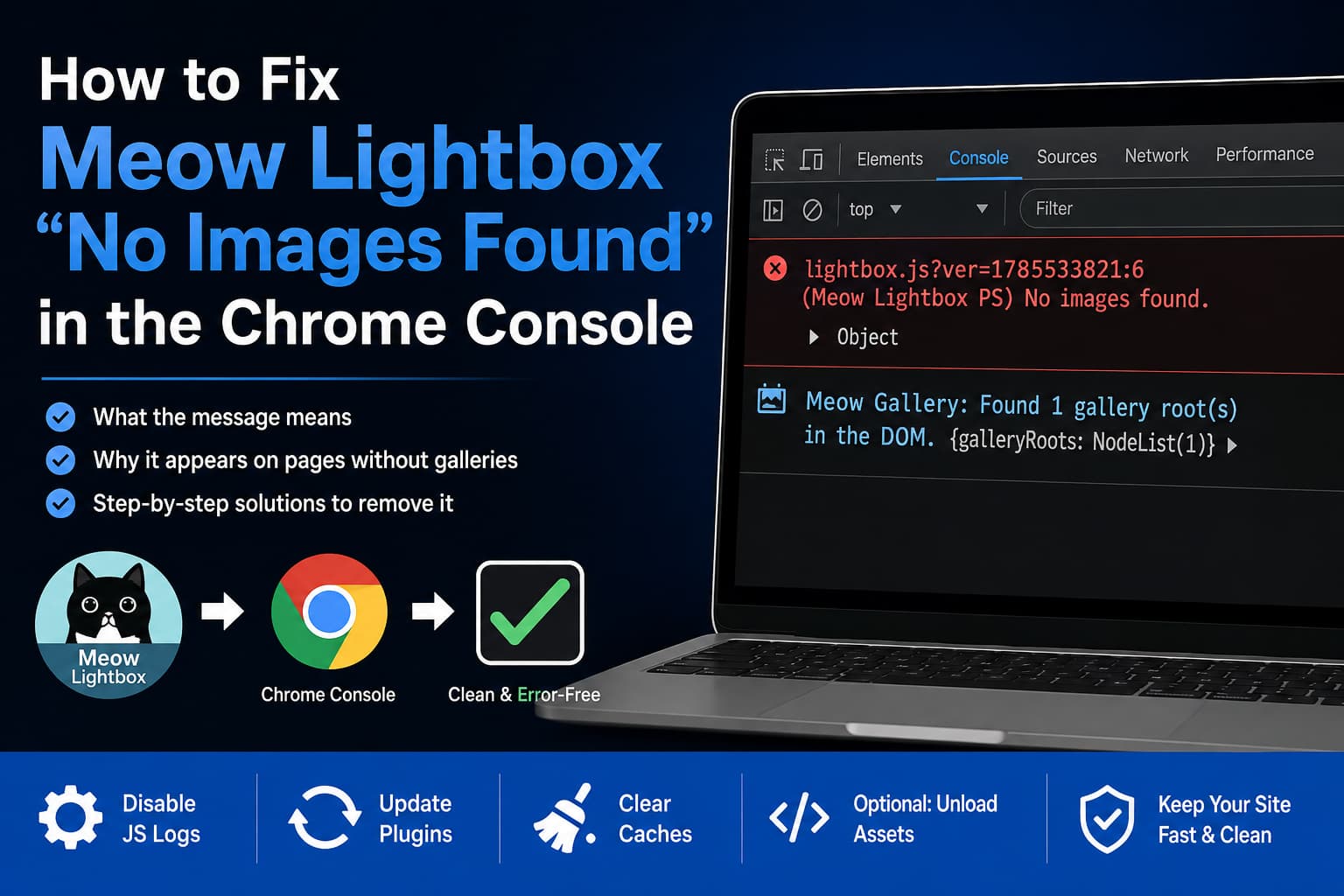
If you use the Meow Lightbox plugin on WordPress, you may notice the following red message when inspecting your website with Chrome DevTools:
lightbox.js:6 (Meow Lightbox PS) No images found.The message usually appears on pages that do not contain an image gallery. On pages with a Meow Gallery, you may instead see a message similar to this:
Meow Gallery: Found 1 gallery root(s) in the DOM.This can be confusing because the absence of a gallery is normally expected. A homepage, contact page, privacy policy, or text-based blog post should not produce what looks like a JavaScript error simply because it does not contain lightbox-compatible images.
In most cases, however, this message does not mean that your website is broken. It is a debugging message generated during the plugin’s image-detection process.
Quick Solution
Try these steps first:
- Update Meow Lightbox to the latest available version.
- Go to WordPress Dashboard → Meow Apps → Lightbox.
- Locate the JavaScript Logs, JS Logs, or debugging option.
- Disable the logging option.
- Save the settings.
- Clear your WordPress, server, CDN, and browser caches.
- Open the page in an Incognito window and check the console again.
The exact settings tab may vary between plugin versions. Look under sections such as Advanced, Performance, or Dev Tools.
Meow Lightbox added a dedicated JavaScript logging option in version 5.4.6 for debugging and support purposes. Therefore, these messages may appear when that option is enabled.
What Does “Meow Lightbox PS: No Images Found” Mean?
Meow Lightbox runs JavaScript after the page loads and searches the page for images that match its configured selectors.
According to the plugin documentation, Meow Lightbox uses these selectors by default:
.entry-content
.gallery
.mgl-gallery
The selectors can be changed from the plugin settings.
When the script runs, one of two things happens:
- It finds eligible images or a gallery root and initializes the lightbox.
- It finds no eligible images and reports “No images found.”
The PS portion of the message most likely refers to the PhotoSwipe lightbox engine. Meow Lightbox supports both its default custom engine and PhotoSwipe.
The message therefore means:
Meow Lightbox loaded on this page, searched the configured page area, and did not find an image it could add to the lightbox.
That is a normal result on a page without gallery images.
Is It a Real JavaScript Error?
Not necessarily.
Chrome displays messages according to the console method used by the script. For example:
console.log('Informational message');
console.warn('Warning message');
console.error('Error-style message');
Chrome classifies console.error() output as an error-level message and displays it accordingly. However, a plugin can call console.error() for a diagnostic condition without throwing an actual JavaScript exception.
A genuine JavaScript failure normally includes information such as:
Uncaught TypeError
Uncaught ReferenceError
SyntaxError
Failed to fetch
Cannot read properties of undefined
It may also include a stack trace showing where execution failed.
By comparison, this message:
(Meow Lightbox PS) No images found.usually indicates that the script completed its scan but had no images to process.
Solution 1: Disable Meow Lightbox JavaScript Logs
This is the recommended solution when the lightbox works correctly on gallery pages.
Step 1: Open the Lightbox settings
In the WordPress dashboard, go to:
Meow Apps → LightboxDepending on your version, the menu may appear simply as:
Meow LightboxStep 2: Find the logging option
Search the available settings for an option named something similar to:
JavaScript Logs
JS Logs
Enable Logs
Debug Logs
Development Logs
It may be located under Advanced, Performance, or another developer-focused section.
Step 3: Disable the option
Turn the logging option off and save your settings.
You should disable logging only after completing any active troubleshooting. The option is useful when collecting information for plugin support, but it is normally unnecessary on a production website.
Step 4: Clear every cache layer
Clear the following caches where applicable:
- WordPress caching plugin
- LiteSpeed, NGINX, Varnish, or hosting cache
- Cloudflare or another CDN
- JavaScript optimization cache
- Browser cache
Then reload the page using:
Ctrl + Shift + ROn macOS, use:
Command + Shift + RSolution 2: Update Meow Lightbox
Before changing code, confirm that you are using the latest plugin version.
At the time of writing, WordPress.org lists Meow Lightbox 5.5.9, released on July 30, 2026. The plugin is listed as compatible with WordPress 7.0.2.
Go to:
WordPress Dashboard → Plugins → Installed PluginsUpdate both of these plugins if they are installed:
Meow Lightbox
Meow Gallery
Using mismatched versions of closely integrated plugins can sometimes result in outdated scripts or unexpected logging behavior.
After updating:
- Clear all caches.
- Regenerate optimized CSS or JavaScript files.
- Test a page without a gallery.
- Test a page containing a gallery.
- Confirm that images still open correctly in the lightbox.
Always take a backup before updating plugins on a production website.
Solution 3: Check Whether the Message Is Hiding a Real Problem
The message is harmless when all of the following are true:
- The page does not contain a gallery.
- The page renders normally.
- No content is missing.
- Gallery images open correctly on gallery pages.
- There are no additional uncaught JavaScript errors.
- No failed REST API or AJAX requests appear in the Network panel.
You should investigate further when:
- The page contains images, but Meow Lightbox cannot find them.
- Clicking an image does nothing.
- The gallery disappears after a plugin update.
- Page content is missing.
- The console includes a separate
TypeError,ReferenceError, orSyntaxError. - The browser reports a 401, 403, 404, or 500 request.
- The issue occurs only when a cache or optimization plugin is active.
Check the configured selector
Open the Meow Lightbox settings and review the selector value.
The plugin’s documented default selectors include:
.entry-content
.gallery
.mgl-gallery
If your theme or page builder uses a different wrapper, Meow Lightbox may not detect the images correctly.
For example, your content might be inside:
.elementor-widget-container
.brxe-container
.et_pb_module
.wp-block-post-content
.custom-gallery-wrapper
Do not randomly replace the existing selector. Inspect the gallery HTML first and add only the selector that contains the intended images.
Check image links
Many lightbox plugins expect thumbnails to be linked to a larger image or media file.
A typical lightbox-compatible structure looks like this:
<a href="full-size-image.jpg">
    <img src="thumbnail-image.jpg" alt="Example image">
</a>
If the image is not linked, or if it links to an attachment page instead of the media file, the plugin may not treat it as a lightbox image depending on its configuration.
Check lazy-loading attributes
Image optimization plugins sometimes replace the standard src attribute with values such as:
data-src
data-lazy-src
data-original
Current versions of Meow Lightbox include improvements for lazy loading, responsive images, data-src, and srcset, but an aggressive JavaScript optimization configuration can still interfere with initialization.
Temporarily disable these options in your optimization plugin:
- Delay JavaScript
- Defer JavaScript
- Combine JavaScript
- Remove unused JavaScript
- Lazy-load background images
- HTML delay or interaction-based rendering
If the lightbox starts working, exclude the Meow Lightbox scripts from that specific optimization rather than disabling optimization for the entire website.
Solution 4: Prevent Meow Lightbox from Loading on Pages Without Galleries
Disabling the debugging logs removes the console message, but the lightbox script may still load on pages where it is not needed.
For most websites, the small amount of unnecessary loading is not serious. However, developers who want stricter asset management can conditionally remove Meow Lightbox assets.
WordPress provides wp_dequeue_script() for removing a previously enqueued script. Scripts should be handled through the normal WordPress enqueue system and at a sufficiently late priority so the plugin has already registered its files.
Add the following code through a child theme or a small custom functionality plugin:
<?php
/**
 * Unload Meow Lightbox assets on singular content that does not
 * contain a standard WordPress or Meow gallery.
 *
 * Add this to a child theme's functions.php file or, preferably,
 * a small custom plugin. Test it on a staging site first.
 */

function debugnexus_content_needs_meow_lightbox() {
    if ( ! is_singular() ) {
        // Leave assets enabled on archives and other dynamic templates.
        return true;
    }

    $post = get_queried_object();

    if ( ! $post instanceof WP_Post ) {
        return true;
    }

    $content = (string) $post->post_content;

    $needs_lightbox =
        has_block( 'core/gallery', $content ) ||
        has_shortcode( $content, 'gallery' ) ||
        false !== strpos( $content, 'mgl-gallery' ) ||
        false !== strpos( $content, 'meow-gallery' ) ||
        false !== strpos( $content, 'data-mwl-img-id' );

    /**
     * Allows custom code to keep Meow Lightbox enabled for galleries
     * generated by ACF, page builders, widgets, or theme templates.
     */
    return (bool) apply_filters(
        'debugnexus_page_needs_meow_lightbox',
        $needs_lightbox,
        $post
    );
}

function debugnexus_unload_unused_meow_lightbox_assets() {
    if ( is_admin() || debugnexus_content_needs_meow_lightbox() ) {
        return;
    }

    $scripts = wp_scripts();

    foreach ( (array) $scripts->queue as $handle ) {
        if ( empty( $scripts->registered[ $handle ] ) ) {
            continue;
        }

        $src = (string) $scripts->registered[ $handle ]->src;

        if (
            false !== strpos( $src, '/meow-lightbox/' ) ||
            false !== strpos( $src, 'meow-lightbox' )
        ) {
            wp_dequeue_script( $handle );
        }
    }

    $styles = wp_styles();

    foreach ( (array) $styles->queue as $handle ) {
        if ( empty( $styles->registered[ $handle ] ) ) {
            continue;
        }

        $src = (string) $styles->registered[ $handle ]->src;

        if (
            false !== strpos( $src, '/meow-lightbox/' ) ||
            false !== strpos( $src, 'meow-lightbox' )
        ) {
            wp_dequeue_style( $handle );
        }
    }
}

add_action(
    'wp_enqueue_scripts',
    'debugnexus_unload_unused_meow_lightbox_assets',
    9999
);
Important limitation
The code checks the saved WordPress post content. It may not automatically detect galleries generated through:
- Advanced Custom Fields
- Elementor templates
- Bricks templates
- Divi modules
- Theme options
- Widgets
- Custom database queries
- Shortcodes rendered outside the main post content
- AJAX or infinite-scroll requests
For a page-builder gallery, use the included filter to keep the lightbox active:
add_filter(
    'debugnexus_page_needs_meow_lightbox',
    function ( $needs_lightbox, $post ) {
        $gallery_page_ids = array( 123, 456, 789 );

        if ( in_array( (int) $post->ID, $gallery_page_ids, true ) ) {
            return true;
        }

        return $needs_lightbox;
    },
    10,
    2
);
Replace 123, 456, and 789 with the IDs of your gallery pages.
This advanced optimization is optional. Do not use it merely to hide a harmless console message. Disabling the plugin’s JavaScript logs is safer.
Solutions You Should Avoid
Do not edit lightbox.js
Never modify files directly inside:
wp-content/plugins/meow-lightbox/Your changes will be overwritten during the next plugin update.
Editing a minified production JavaScript file can also introduce syntax errors that break the lightbox completely.
Do not globally override console.error()
You may find suggestions that replace the browser’s error function:
console.error = function () {};Do not do this.
It hides every JavaScript error on the page, including legitimate problems from WordPress, WooCommerce, payment scripts, analytics tools, and other plugins.
Do not downgrade immediately
A rollback may be appropriate when an update causes missing content or broken galleries, but it should not be the first response to an informational console message.
First:
- Disable JavaScript logs.
- Clear cached assets.
- Test for genuine functional problems.
- Check whether another optimization plugin is involved.
Only roll back when you can confirm that a specific plugin release introduced a real regression.
Why Does the Gallery Page Show a Different Message?
On a gallery page, you might see:
Meow Gallery: Found 1 gallery root(s) in the DOM.This is the successful version of the same diagnostic process.
The gallery plugin scans the page, identifies a gallery container, and reports how many gallery roots it found. On a page without a gallery, the Lightbox component reports that it did not find eligible images.
Seeing both types of messages strongly suggests that debugging logs are enabled:
No gallery page → No images found
Gallery page → Found 1 gallery root
Once JavaScript logging is disabled, neither message should normally appear.
Does the Console Message Affect SEO?
The text itself does not directly change your rankings, page content, canonical URL, or metadata.
However, unresolved JavaScript errors can matter indirectly when they:
- Prevent important content from rendering
- Break navigation
- Stop internal links from working
- Cause layout shifts
- Block interactive elements
- Generate failed requests
- Affect Lighthouse best-practice testing
Chrome’s Lighthouse documentation treats browser console errors as a best-practice concern, so keeping the production console clean is still worthwhile.
In this case, confirm whether the message is merely diagnostic or whether it accompanies an actual functional problem.
Final Troubleshooting Checklist
Use this checklist after applying the fix:
- Meow Lightbox and Meow Gallery are updated.
- JavaScript or debugging logs are disabled.
- WordPress and server caches have been cleared.
- CDN cache has been purged.
- Optimized JavaScript files have been regenerated.
- A page without a gallery loads without the message.
- A page containing a gallery still opens images correctly.
- Mobile lightbox navigation works.
- Keyboard navigation and the Escape key work.
- No new
TypeError,ReferenceError, or failed network request appears. - Conditional asset-unloading code has been tested on staging.
Frequently Asked Questions
Is “Meow Lightbox PS: No Images Found” dangerous?
Usually not. It generally means that the plugin scanned the page and did not find images matching its lightbox configuration. It becomes important only when the page should contain a working gallery or when other errors appear beside it.
Why is the message red in Chrome?
The plugin is likely sending the message through an error-level console method. Chrome displays console.error() output as an error even when the script has not thrown an uncaught JavaScript exception.
Why does the message appear on every page?
The Meow Lightbox script is being loaded globally or on a broad set of WordPress pages. It runs its image-detection process even on pages without galleries.
Will disabling JavaScript logs disable the lightbox?
No. The logging option should control diagnostic console output, not the lightbox itself. After disabling it, test at least one gallery page to confirm that images still open correctly.
Should I remove Meow Lightbox from pages without galleries?
It is optional. Conditional unloading can reduce unnecessary assets, but incorrect detection can disable the lightbox on dynamically generated galleries. For most users, turning off debugging logs is the safer fix.
What if the lightbox cannot find images that are actually present?
Check the configured selectors, image links, lazy-loading configuration, page-builder markup, cache settings, and JavaScript optimization. Also look for additional console errors or failed REST API requests.
Conclusion
The following Chrome console message:
(Meow Lightbox PS) No images found.is usually not evidence of a broken WordPress page. It means Meow Lightbox loaded, searched the page, and found no eligible images.
The best solution is to update the plugin, disable its JavaScript debugging logs, and clear all cached JavaScript files. If you also want to improve front-end performance, you can conditionally unload the plugin’s assets on pages that do not use a gallery, but that optimization should be tested carefully on staging.
Avoid editing plugin files or suppressing all browser errors globally. Those approaches hide symptoms rather than fixing the underlying configuration.
