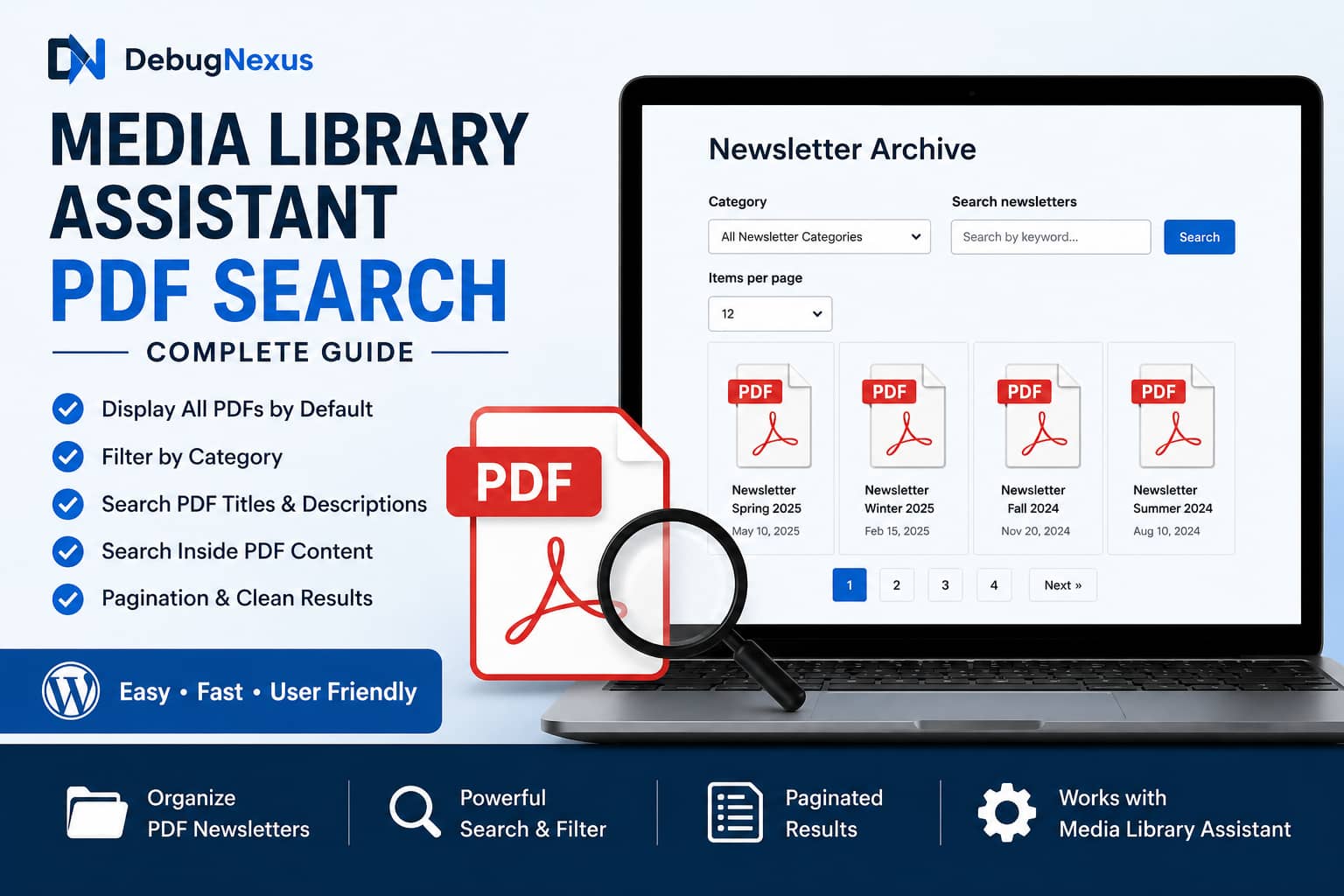
A Media Library Assistant PDF search page is useful for historical societies, schools, nonprofit organizations, libraries, and businesses that publish newsletters or documents as PDF files.
A common requirement is straightforward:
- Display all PDF newsletters when the page first loads.
- Allow visitors to filter them by category.
- Add a keyword search field.
- Display only matching newsletters after a search.
- Search inside the actual content of each PDF when possible.
Media Library Assistant can display and filter PDF attachments, but there is an important difference between searching an attachment’s WordPress information and searching the text stored inside the PDF file.
This guide explains that difference and provides a complete solution for both types of search.
The three main problems
The most common issues are:
[muie_keyword_search] displays correctly but does not find PDF files.
These problems have different causes, so they must be addressed separately.
Why [muie_keyword_search] does not find words inside a PDF
A PDF uploaded to WordPress becomes an attachment post.
WordPress stores information about that attachment, including:
- Title
- Caption
- Description
- Filename
- Upload date
- MIME type
- Categories and tags added through Media Library Assistant
However, WordPress does not automatically copy all the text inside the PDF into the attachment post.
Standard WordPress searches use the database fields post_title, post_excerpt, and post_content. For media attachments, these generally correspond to the title, caption, and description. WordPress does not open the physical PDF file and search through its pages during each request.
The Media Library Assistant example search works in a similar way. Its documented example searches the attachment title, caption, and description.
Therefore, this setting:
post_mime_type=application/pdfonly limits the gallery to PDF attachments. It does not make the contents of those files searchable.
A PDF being searchable in Adobe Acrobat, Preview, or a browser only means the PDF contains selectable text. It does not mean WordPress has indexed that text.
Solution 1: Search PDF titles, captions, and descriptions with MLA
This solution uses:
- Media Library Assistant
- The MLA UI Elements Example plugin
- An attachment category dropdown
- A keyword search field
- A PDF gallery
- Pagination
- All PDFs displayed by default
Media Library Assistant officially supports non-image attachments, including PDF galleries, through the post_mime_type=application/pdf parameter.
Step 1: Install Media Library Assistant
In WordPress, go to:
Plugins > Add New PluginSearch for:
Media Library AssistantInstall and activate it.
Step 2: Enable attachment categories
Go to:
Settings > Media Library Assistant > GeneralEnable taxonomy support for attachment categories.
Depending on your configuration, the taxonomy may be called:
Att. CategoriesCreate a category such as:
NewslettersAssign that category to every newsletter PDF you want to display.
You can assign categories from:
Media > AssistantMedia Library Assistant supports taxonomy assignment and filtering for media attachments.
Step 3: Install MLA UI Elements Example
Go to:
Settings > Media Library Assistant > DocumentationOpen:
Example PluginsSearch for:
UI ElementsInstall the plugin named:
MLA UI Elements ExampleThen activate it from:
Plugins > Installed PluginsThis example plugin supplies shortcodes such as:
[muie_keyword_search] [muie_per_page]It also passes the selected filters to
[mla_gallery]and keeps search form values populated after the page reloads. The Media Library Assistant author uses this approach in official support examples.Add the searchable PDF gallery
Create or edit the page where the newsletters should appear.
Use a Classic block, a page-builder text widget that executes shortcodes, or the Classic Editor’s Text mode. A Gutenberg Code block should not be used because it normally displays shortcode text instead of executing it.
Paste the following code:
<form id="mla-pdf-search-form" action="." method="post"> <p>
<strong>Newsletter category</strong><br>[mla_term_list]
</p> <p>
taxonomy=attachment_category
minimum=1
post_mime_type=application/pdf
mla_output=dropdown
mla_control_name=att_category
mla_option_value="{+slug+}"
use_filters=true
option_all_text="All newsletter categories"
option_all_value=ignore.terms.assigned
[/mla_term_list]
<strong>Search newsletters</strong><br>[muie_keyword_search]
mla_search_fields="title,excerpt,content"
mla_search_connector="OR"
[/muie_keyword_search]</p> <p> <strong>Items per page</strong><br>
[muie_per_page numberposts=12]
</p> <p> <input id="mla-pdf-search-submit" name="mla_pdf_search_submit" type="submit" value="Search Newsletters" > <a class="mla-pdf-reset" href="?">Reset</a> </p> </form>
[mla_gallery
add_filters_to=any
post_mime_type=application/pdf
post_parent=all
posts_per_page=12
link=file
mla_target="_blank"
orderby=date
order=DESC
columns=3
mla_caption="{+title+}"
mla_page_parameter="newsletter_page"
][mla_gallery add_filters_to=any post_mime_type=application/pdf post_parent=all posts_per_page=12 orderby=date order=DESC mla_output="paginate_links,prev_next" mla_link_href="{+page_url+}{+query_string+}" mla_page_parameter="newsletter_page" ]
What this shortcode does
The category dropdown includes only categories assigned to PDF files because it contains:
post_mime_type=application/pdfThe keyword field searches these attachment fields:
title excerpt contentFor WordPress attachments, these correspond to:
title = Media title excerpt = Caption content = DescriptionThe following parameter passes the selected category, keyword, and per-page value to the gallery:
add_filters_to=anyThe Media Library Assistant author recommends this parameter when connecting the UI Elements search controls to an MLA gallery.
The pagination URL includes:
{+query_string+}This keeps the active search filters when visitors move to page two or page three of the results.
The correct pagination link format is:
mla_link_href="{+page_url+}{+query_string+}"Do not add a slash between
{+page_url+}and{+query_string+}. An official MLA support solution specifically corrected that extra-slash problem.How to display all PDFs by default
The gallery should not contain:
default_empty_gallery=trueThat parameter is used in some MLA examples when the gallery should remain empty until the visitor selects a filter.
For a newsletter archive, remove that parameter entirely.
Without an active keyword or category filter, this gallery displays every PDF matching:
post_mime_type=application/pdf post_parent=allThe
post_parent=allparameter is important because the newsletter PDFs may not all be attached to the current WordPress page.Limit the gallery to newsletter PDFs only
If the website contains other PDF files, add the newsletter category directly to both gallery shortcodes.
For example:
attachment_category="newsletters"The first gallery would become:
[mla_gallery add_filters_to=any post_mime_type=application/pdf post_parent=all attachment_category="newsletters" posts_per_page=12 link=file mla_target="_blank" orderby=date order=DESC columns=3 mla_caption="{+title+}" mla_page_parameter="newsletter_page" ]Add the same
attachment_categoryvalue to the pagination shortcode.The value must be the category slug, not necessarily the visible category name.
For example:
Category name: Historical Society Newsletters Category slug: historical-society-newslettersUse:
attachment_category="historical-society-newsletters"Improve keyword search results
Because MLA searches the attachment’s WordPress fields, each PDF should have meaningful information.
Edit every newsletter under:
Media > AssistantComplete the following fields:
Title
Use a descriptive title:
Historical Society Newsletter, Spring 2025Avoid titles such as:
newsletter-final-v3 scan00045 document-12Caption
Add a concise summary:
Spring 2025 newsletter covering the town hall restoration, railway archive, and upcoming historical society events.Description
Add more searchable topics:
This issue includes articles about the original railway station, restoration of the town hall clock, local school records, historic photographs, and the annual membership meeting.Attachment categories and tags
Assign terms such as:
2025 Railway History Local Buildings Society Events Oral HistoryAfter this information is added, searches for words such as “railway,” “restoration,” or “school records” can find the appropriate attachments even without searching inside the file itself.
Optional CSS for the search form
Add this CSS under:
Appearance > Customize > Additional CSSOr place it in your child theme stylesheet:
#mla-pdf-search-form { padding: 24px; margin-bottom: 32px; border: 1px solid #e2e8f0; border-radius: 12px; background: #f8fafc; } #mla-pdf-search-form p { margin: 0 0 18px; } #mla-pdf-search-form input[type="text"], #mla-pdf-search-form select { width: 100%; max-width: 520px; min-height: 44px; padding: 9px 12px; border: 1px solid #cbd5e1; border-radius: 6px; background: #fff; } #mla-pdf-search-submit { min-height: 44px; padding: 10px 20px; border: 0; border-radius: 6px; cursor: pointer; } .mla-pdf-reset { display: inline-block; margin-left: 12px; }Do not copy colors from this example when your theme already has established button and form styles. Adjust the CSS to match the website design.
Solution 2: Search the actual text inside PDF files
The MLA solution above searches attachment metadata. It does not search sentences that exist only inside the PDF file.
To search the full PDF content, the text must first be extracted and stored in a searchable index.
A dedicated PDF indexing plugin is required.
One current free option is WebEquipe PDF Search. Its plugin documentation states that it extracts and indexes text from standard text-based PDFs, integrates the documents into WordPress search, and provides a PDF-only search shortcode. Existing files can be processed using its Re-index All PDFs tool.
Install the PDF search plugin
Go to:
Plugins > Add New PluginSearch for:
WebEquipe PDF SearchInstall and activate it.
Configure PDF indexing
Go to:
PDF Search > SettingsEnable:
Enable PDF Indexing Enable Search IntegrationReview the maximum file-size setting before processing large newsletters.
Index existing PDF files
Go to:
PDF Search > DashboardClick:
Re-index All PDFsNew PDF uploads can be indexed automatically when automatic indexing is enabled.
Add the PDF search form
Add this shortcode to a WordPress page:
[webequipe_pdf_search_form]The shortcode produces a PDF-specific search form and returns PDFs containing the requested text.
Can WebEquipe PDF Search and MLA be used together?
Yes, but they perform different jobs.
Use Media Library Assistant for:
- Displaying all newsletters
- PDF gallery layouts
- Categories and tags
- Date ordering
- Pagination
- Browsing document collections
Use a PDF indexing plugin for:
- Extracting text from PDF pages
- Searching sentences inside the files
- Displaying matching excerpts
- Returning a PDF based on body text
The MLA keyword search does not automatically search another plugin’s private PDF index.
A practical setup is:
- Place the full-text PDF search form near the top of the newsletter page.
- Place the MLA browse-and-filter gallery below it.
- Explain that the first form searches inside documents, while the gallery filters by title, description, category, and date.
For a completely unified interface where full-text results replace the MLA gallery in the same layout, custom development or a search plugin with a supported query API will be required.
What about scanned historical newsletters?
Some historical newsletters are scans containing only page images.
Even when the PDF opens normally, it may not contain extractable text.
Try selecting a sentence in the PDF:
- If the text can be selected and copied, the PDF probably contains searchable text.
- If only the page image can be selected, the PDF requires optical character recognition, commonly called OCR.
The free WebEquipe PDF Search version supports standard text PDFs. Its documentation states that image-only or scanned PDFs require its OCR functionality, which is a premium feature.
Other options include processing the newsletters with OCR before uploading them.
Common tools include:
- Adobe Acrobat OCR
- ABBYY FineReader
- OCRmyPDF
- Google Drive document conversion
- A scanner application with searchable-PDF output
After OCR processing, upload or replace the PDF and rebuild the search index.
Troubleshooting the MLA PDF gallery
The search box appears as shortcode text
Confirm that MLA UI Elements Example is installed and activated.
Also ensure the content is being placed in an editor area that executes shortcodes. A Code block normally displays shortcode text instead of processing it.
No PDFs appear on initial page load
Remove:
default_empty_gallery=trueAlso confirm that the gallery contains:
post_parent=allCategories appear, but no results are returned
Verify that:
- Categories are assigned to the PDF attachments.
- The taxonomy is
attachment_category.- The category slug is correct.
add_filters_to=anyis present in both gallery shortcodes.- The PDF MIME type is
application/pdf.A keyword inside the PDF returns no result
Add the keyword to the attachment title, caption, or description, or install a full-text PDF indexing plugin.
Changing only:
post_mime_type=application/pdfdoes not index PDF body text.
Pagination loses the selected filter
Confirm that both gallery shortcodes use identical filtering parameters.
The pagination shortcode must contain:
add_filters_to=anyIt should also use:
mla_link_href="{+page_url+}{+query_string+}"New PDF files do not appear
Check that the PDF:
- Is present in the WordPress Media Library.
- Has the correct attachment category.
- Has not been excluded from the PDF search index.
- Has completed indexing successfully.
- Is not password protected.
Recommended configuration
For most newsletter archives, start with the MLA-only solution.
Carefully written titles, captions, descriptions, categories, and tags often provide enough search information without indexing every PDF page.
Use full-text PDF indexing when visitors need to search for:
- Names of people mentioned in old newsletters
- Street names
- Historic properties
- Meeting minutes
- Events
- Article text
- Dates or quotations that do not appear in the media description
This keeps the site easy to manage while still offering powerful document discovery.
Final solution
A Media Library Assistant PDF search can successfully filter PDF newsletters, but it is essential to understand what is being searched.
The
[muie_keyword_search]shortcode searches WordPress attachment information, including the title, caption, and description. It does not automatically read the text stored inside a PDF.To fix the complete setup:
- Install Media Library Assistant and MLA UI Elements Example.
- Assign categories to the newsletter attachments.
- Use
post_mime_type=application/pdf.- Add
add_filters_to=anyto the gallery and pagination shortcodes.- Remove
default_empty_gallery=trueso all newsletters appear initially.- Add meaningful titles, captions, and descriptions.
- Use a dedicated PDF indexer when searching inside document pages is required.
- OCR scanned newsletters before indexing them.
This configuration provides a browsable newsletter archive, category filtering, keyword searching, pagination, and an upgrade path for full-text PDF search.
