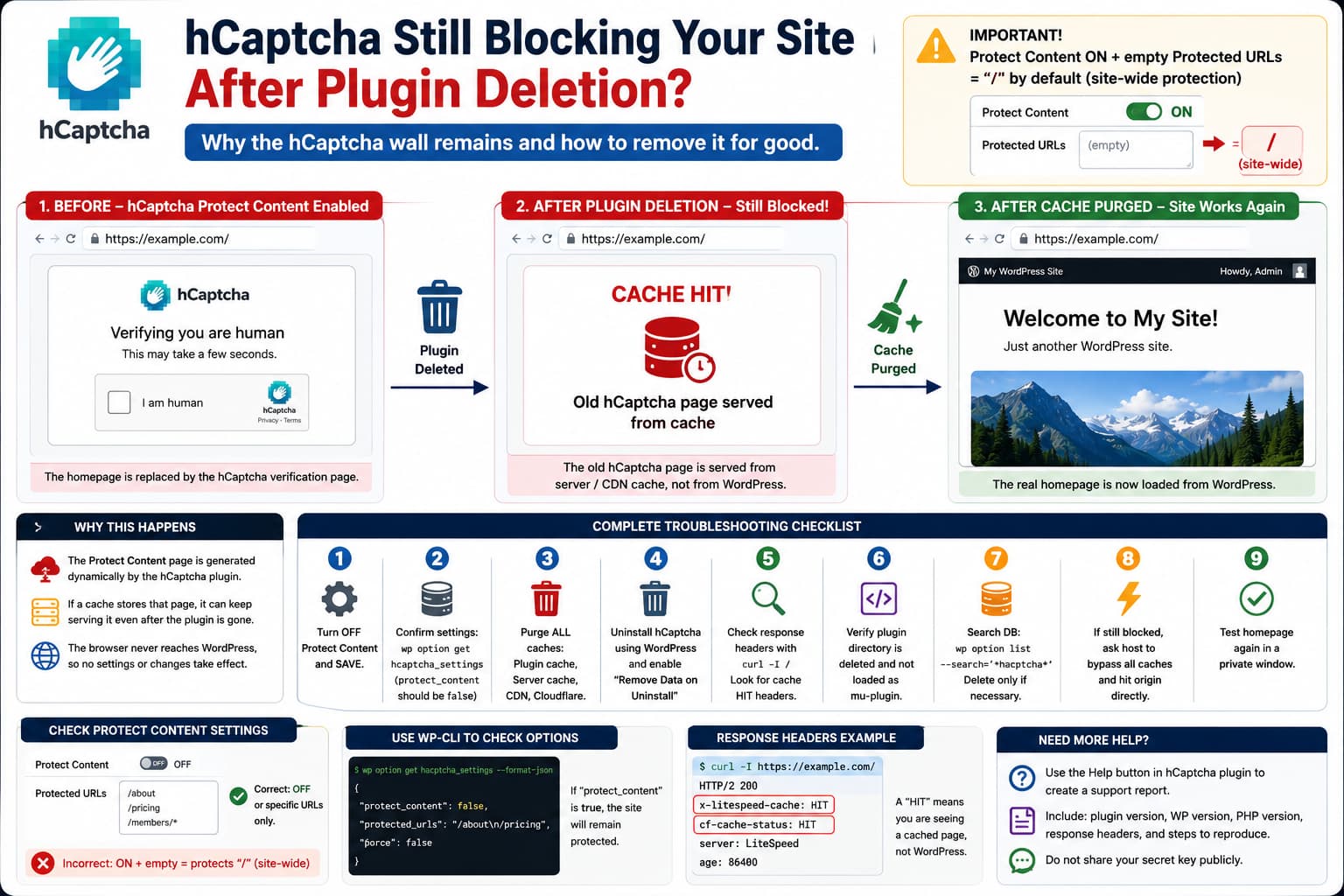
A particularly confusing WordPress problem can occur after testing hCaptcha for WP’s Protect Content feature: you disable the protection, remove the protected URL, uninstall the plugin, clear caches, and yet the homepage still displays the full-page hCaptcha verification screen.
At that point it looks as though hCaptcha has installed some hidden script elsewhere on the server.
Current plugin source code suggests a different explanation.
The Protect Content page is generated dynamically by the hCaptcha WordPress plugin. It is not normally installed as a permanent standalone homepage file. The feature runs only when the plugin initializes its ProtectContent class and the protect_content option is enabled.
This gives us two primary areas to investigate:
1. WordPress still believes Protect Content is enabled.2. WordPress is no longer generating the page at all, and a full-page cache/CDN is serving an old hCaptcha wall.
The second case is particularly important when the hCaptcha screen continues to appear after the plugin itself has been deleted.
First: Understand What “Force” Actually Does
During hCaptcha’s onboarding wizard, the recommended setup can enable the plugin’s Force option automatically. Current plugin source confirms that the onboarding auto-setup enables force, along with other anti-spam settings.
However, Force and Protect Content are not the same feature.
hCaptcha’s current documentation describes Forced Verification as a way to ensure hCaptcha is completed before a protected form can be submitted. Protect Site Content is a separate feature that protects selected URLs with an entire verification page.
So if the whole homepage has been replaced with a screen saying that the visitor must verify they are human, focus on:
Protect ContentProtected URLs
not the Force option.
A Very Important Detail About an Empty Protected URLs Box
There is a surprising behavior in the current hCaptcha source.
The plugin reads the Protected URLs setting like this conceptually:
$protected_urls = explode( "\n", $settings->get( 'protected_urls' ) );$protected_urls = array_filter( array_map( 'trim', $protected_urls ));$protected_urls = $protected_urls ?: [ '/' ];
That final fallback is critical.
If Protect Content remains enabled but the Protected URLs field is empty, the plugin falls back to:
/
which effectively means the root/site URLs are protected by default.
Therefore, this sequence does not necessarily disable protection:
Protect Content = ONProtected URLs = empty
In fact, it can result in site-wide protection.
The correct configuration for disabling the feature is:
Protect Content = OFF
Do not rely solely on deleting the homepage URL from the box.
There is also a WordPress.org support case where hCaptcha appeared on every page and the plugin developer identified the enabled Protect Content setting as the cause. Turning it off and clearing cache resolved the issue.
Confirm What WordPress Actually Saved
If the plugin is currently installed, do not rely only on what the checkbox visually shows.
With WP-CLI, inspect the stored settings:
wp option get hcaptcha_settings --format=json
Look for:
protect_contentprotected_urls
If you want a complete list of hCaptcha-related options:
wp option list --search='*hcaptcha*'--fields=option_name
Do not immediately delete everything.
First save a backup:
wp option get hcaptcha_settings --format=json > hcaptcha-settings-backup.json
If you deliberately want to completely reset hCaptcha and reconfigure it from scratch, deleting its settings option is much safer through WordPress/WP-CLI than manually deleting database rows while persistent object caching may be active:
wp option delete hcaptcha_settings
Then reinstall or reactivate hCaptcha and configure it again.
“Remove Data on Uninstall” Is a Real Setting
Current hCaptcha code includes:
Remove Data on Uninstall
and describes it as removing all plugin data when hCaptcha is uninstalled.
Its current uninstall.php checks whether that option is enabled and then removes its settings, related options, and the hCaptcha events table. On multisite, it also performs cleanup across sites and network-level data.
There is an important distinction, though.
Deleting From WordPress
When you use:
Plugins→ Deactivate→ Delete
WordPress executes the plugin’s uninstall routine.
Manually Deleting the Plugin Directory
If you simply remove:
/wp-content/plugins/hcaptcha-for-forms-and-more/
through FTP or a hosting file manager, you should not assume WordPress executed the plugin’s normal uninstall cleanup.
So if the goal is a clean uninstall, use WordPress’s Delete action while “Remove Data on Uninstall” is enabled.
Historical hCaptcha support discussions also confirm that the plugin has stored settings in options such as hcaptcha_settings, and earlier versions required additional cleanup work that the developers subsequently added to uninstall handling.
But Here’s the Biggest Clue: The Plugin Is Deleted and the Wall Still Appears
If the plugin files truly no longer exist, the current hCaptcha PHP code cannot freshly generate its Protect Content screen.
The ProtectContent class checks the active setting and attaches its protection callback to WordPress’s template_redirect hook.
No plugin code means no hCaptcha ProtectContent callback.
Therefore, if you can verify all three:
hCaptcha plugin directory is gonehCaptcha is not an mu-pluginno other hCaptcha integration is active
but the same hCaptcha Content Protection HTML continues loading, a cached page becomes the leading suspect.
How to Tell If It Is the hCaptcha Plugin’s Own Protection Page
View the homepage source.
The current plugin-generated page contains recognizable elements including:
<title>Content Protection</title>
and text equivalent to:
Verifying you are human. This may take a few seconds.
It also identifies itself in the footer as the hCaptcha plugin.
That gives you a fingerprint.
If the browser is receiving this exact HTML after the plugin has been removed, the old plugin-generated page is probably being served from somewhere between the browser and PHP.
Check the Response Headers
Run:
curl-I https://example.com/
Look for headers such as:
X-LiteSpeed-CacheCF-Cache-StatusAgeX-CacheX-VarnishServer-TimingVia
For LiteSpeed, a particularly useful clue is:
X-LiteSpeed-Cache: hit
A HIT means you are seeing a cached response rather than a newly generated WordPress page.
You can also compare a normal request with:
curl-I-H'Cache-Control: no-cache' https://example.com/
Not every caching system is required to honor that client header, but a different response can still provide useful evidence.
Uninstalling LiteSpeed Cache Does Not Mean the Server Cache Disappears
This is one of the most important distinctions in this scenario.
LiteSpeed’s own documentation explains that the actual page caching is performed by the LiteSpeed server-level cache engine. The WordPress LiteSpeed Cache plugin acts as the interface between WordPress and that cache engine.
So:
Delete LiteSpeed Cache WordPress plugin
is not conceptually the same thing as:
Purge every cached HTML object from the LiteSpeed server/CDN
LiteSpeed’s official instructions specifically provide Purge All LSCache for removing cached pages.
If you removed LiteSpeed Cache before successfully purging the affected homepage, ask the host to purge the site’s server-level LiteSpeed cache.
If QUIC.cloud was configured, purge that too.
Also Check the CDN
If the site uses Cloudflare or another CDN, purge the homepage there as well.
The diagnostic sequence should be:
- Purge the WordPress caching plugin while it is installed.
- Purge the hosting/server-level page cache.
- Purge QUIC.cloud or another CDN.
- Purge Cloudflare if used.
- Open the site in a private browser window.
- Check the response headers again.
The important part is not repeatedly clearing browser cookies. It is confirming whether the response now reaches WordPress/PHP.
Why This Particular Page May Be Easy to Cache
There is another interesting detail in the current hCaptcha implementation.
The Protect Content class directly renders a complete HTML document containing the verification screen. During code inspection, I do not see a nocache_headers() call inside that class before the protection page is output.
That does not prove every server will cache it. Cache rules vary by hosting environment.
But it means you should not assume the protection screen is automatically excluded from full-page caching.
If a page cache captured the homepage at precisely the time Protect Content was enabled, it could keep returning that HTML until the cache entry is explicitly purged or expires.
This would perfectly explain the otherwise strange behavior:
Enable Protect Content ↓Cache stores hCaptcha wall for / ↓Disable hCaptcha ↓Delete hCaptcha ↓Request / ↓Cache HIT ↓Old hCaptcha page still appears
PHP and WordPress never get a chance to show the real homepage.
Reinstalling hCaptcha Can Make Diagnosis More Confusing
Suppose the old cached page survives.
You reinstall hCaptcha with:
no site keyno secretfresh-looking settings
and still see the wall.
It is tempting to conclude:
The newly installed plugin found some hidden configuration.
But first check whether the homepage request is actually reaching that new installation.
If the response is still:
X-LiteSpeed-Cache: hit
then the newly installed plugin may never be running for that request.
Check for Persistent Object Cache Too
There is a second type of cache worth checking if you manually modified wp_options.
Object caching and page caching are different.
Page cache stores the generated HTML.
Object cache can store values returned by functions such as:
get_option( 'hcaptcha_settings' );
If Redis or Memcached is active and you deleted hcaptcha_settings directly with phpMyAdmin rather than through WordPress, the persistent object cache might temporarily continue holding an old option value.
Check:
Tools → Site Health → Info
or your hosting panel for Redis/Memcached.
If persistent object cache is enabled, flush it after manual database changes.
Using:
wp option delete hcaptcha_settings
is preferable because WordPress can invalidate its own option cache correctly.
The hCaptcha Cookie Is Not the Cause
The Protect Content implementation does use this cookie:
hcaptcha_content_protection
but its purpose is to let a successfully verified visitor bypass the protection page temporarily.
The current code gives it a lifetime of only five minutes.
So repeatedly deleting browser cookies is not a meaningful fix for a homepage that remains protected after plugin deletion.
If anything, deleting that cookie causes a protected visitor to be challenged again while Protect Content is legitimately enabled.
PHP 8.3 vs PHP 8.5 Is Unlikely to Matter Here
As of August 15, 2026, WordPress.org lists hCaptcha for WP 5.2.0 as the current public version. It requires PHP 7.4 or newer, WordPress 6.0 or newer, and is tested through WordPress 7.1.
Therefore, upgrading:
PHP 8.3→ PHP 8.5
would not normally be expected to remove a persisted Protect Content page.
This problem is much more directly connected to configuration and cached output.
A Reliable Troubleshooting Sequence
Use this order so you do not keep changing unrelated parts of WordPress:
- With hCaptcha installed, turn Protect Content OFF, then save.
- Confirm
protect_contentis no longer enabled inhcaptcha_settings. - Remember that an empty Protected URLs box does not disable protection while the switch remains on.
- Purge the homepage from every full-page caching layer before uninstalling.
- Enable Remove Data on Uninstall.
- Delete hCaptcha using WordPress’s Plugins screen.
- Confirm
/wp-content/plugins/hcaptcha-for-forms-and-more/is gone. - Check the homepage response headers with
curl. - If you still get the hCaptcha HTML with the plugin absent, purge server-level/CDN caching.
- If there is no cache HIT, ask the host to bypass all caches and hit the origin directly.
If the origin itself still dynamically returns hCaptcha after the plugin directory is genuinely absent, then investigate other execution locations such as:
/wp-content/mu-plugins//wp-content/plugins//wp-content/themes//wp-content/advanced-cache.php
and any hosting-level security software.
But do that after ruling out page caching.
Search the Server for hCaptcha Code
If needed, SSH makes this much easier than opening files one by one.
From the WordPress root:
grep-Rni--exclude-dir=cache --exclude-dir=uploads "hcaptcha" wp-content/
You can also search for the distinctive protection text:
grep-Rni"Verifying you are human" wp-content/
If the hCaptcha plugin has genuinely been removed and both searches return nothing relevant, yet the browser still receives that page, that is further evidence that the response is coming from outside the current WordPress PHP files.
How to Prove the Cache Is the Cause
There is a simple test.
Temporarily create a harmless change at the origin, such as changing the homepage title or adding a unique HTML comment.
Then request the homepage.
If the new origin change does not appear and the old hCaptcha wall remains, the request is not reaching the current WordPress-generated homepage.
Next, purge the server/CDN cache.
If the real homepage immediately appears, the root cause is confirmed.
What to Send hCaptcha Support
If the issue remains after you have proved there is no page-cache hit, provide hCaptcha support with the plugin version, WordPress version, PHP version, exported hcaptcha_settings, response headers from the homepage, whether the plugin directory exists, whether the protection occurs with protect_content disabled, and whether the origin URL behaves differently from the public/CDN URL.
Do not send your hCaptcha secret key publicly.
The current plugin also provides a Help function on its admin pages that can generate a support report, introduced in hCaptcha for WP 5.1.0.
The Most Likely Explanation in This Specific Pattern
When all of the following are true:
Protect Content was previously enabledThe homepage was explicitly protectedThe homepage still shows the same wall after plugin deletionThe database was already cleanedBrowser cookies were clearedThe site previously used LiteSpeed caching
I would investigate stale full-page/server/CDN caching before searching for a mysterious leftover hCaptcha script.
The plugin source does not indicate that Protect Content creates a permanent homepage PHP file. It generates the verification page dynamically when WordPress runs the active plugin and the setting is enabled.
And LiteSpeed confirms that its page cache itself lives in the server-level caching engine, while the WordPress plugin primarily manages that engine.
That combination explains how the hCaptcha wall can appear to “survive” uninstalling the WordPress plugin.
