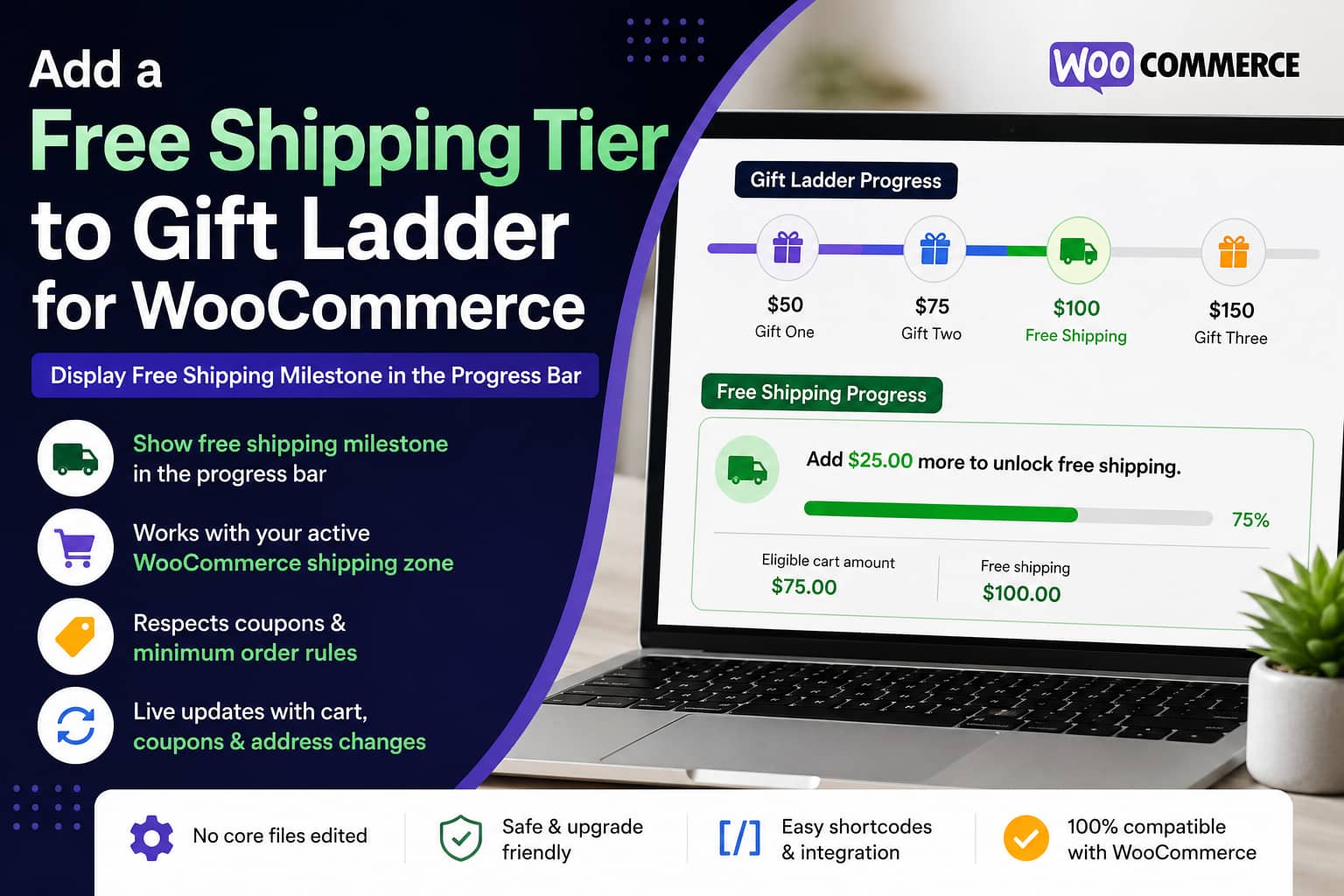
Gift Ladder for WooCommerce provides a live cart progress bar that rewards customers with free products when they reach configured spending thresholds. It supports multiple gift levels, automatic gift insertion, cumulative or highest-only rewards, shortcode placement, and live cart-fragment updates.
However, the published features for version 1.0.13 focus on free-product rewards. They do not currently include a native reward type for displaying free shipping as one of the ladder milestones.
A typical feature request looks like this:
The plugin works very well, but it would be useful if the progress bar could also display the store’s free shipping tier.
For example, a store may want to show a reward ladder similar to:
- Spend $50 and receive Gift One
- Spend $75 and receive Gift Two
- Spend $100 and unlock Free Shipping
- Spend $150 and receive Gift Three
The free shipping milestone must do two separate things:
- Display the customer’s progress toward free shipping.
- Actually enable free shipping at checkout.
The second part is important. A progress bar should never be responsible for granting free shipping. WooCommerce must enforce the shipping rule through its shipping-zone configuration.
This guide shows how to add a free shipping tier alongside the Gift Ladder progress bar without editing the original plugin.
The Correct Way to Implement the Feature
The safest architecture is:
WooCommerce shipping zone
        ↓
Controls whether free shipping is available
        ↓
Companion progress-bar code
        ↓
Reads and displays the same threshold
This approach keeps the visual message and the checkout shipping method synchronized.
When the code is disabled, WooCommerce still applies the correct shipping rules. When the shipping threshold is changed, the progress display reads the new amount from the matching shipping zone.
Why You Should Not Edit the Gift Ladder Plugin Directly
You could technically modify the Gift Ladder plugin’s PHP, CSS, and JavaScript files. However, this is not recommended.
A direct plugin-file edit has several disadvantages:
- The change will be overwritten during an update.
- A syntax error could deactivate the plugin or break the cart.
- Future plugin changes may make the custom patch incompatible.
- The customization becomes difficult to maintain.
- The original developer cannot easily support a modified installation.
Instead, create a small companion plugin that works beside Gift Ladder for WooCommerce.
What the Companion Plugin Does
The solution in this guide will:
- Find the customer’s matching WooCommerce shipping zone.
- Find an enabled Free Shipping method in that zone.
- Read its minimum order amount.
- Follow WooCommerce’s before-coupon or after-coupon calculation.
- Recognize free-shipping coupons.
- Show how much more the customer needs to spend.
- Display a live progress bar.
- Refresh after products, quantities, coupons, or addresses change.
- Provide a combined Gift Ladder and free shipping shortcode.
- Leave the actual shipping decision entirely to WooCommerce.
Step 1: Configure Free Shipping in WooCommerce
Before adding the progress bar, configure the real free shipping rule.
Go to:
WooCommerce > Settings > Shipping > Shipping zonesEdit the shipping zone where free shipping should be available.
Click:
Add shipping methodChoose:
Free shippingWooCommerce supports several requirements:
- No requirement
- A valid free-shipping coupon
- A minimum order amount
- A minimum order amount or a coupon
- A minimum order amount and a coupon
For a normal free shipping progress bar, select:
A minimum order amountThen enter the threshold. For example:
Minimum order amount: $100WooCommerce can calculate the minimum either before or after coupon discounts. The “Apply minimum order rule before coupon discount” setting controls this behavior.
Save the shipping method.
Repeat this configuration for every shipping zone where the promotion should be available.
Step 2: Create the Companion Plugin
Using SFTP, SSH, your hosting file manager, or a local code editor, create this directory:
/wp-content/plugins/debugnexus-gift-ladder-shipping-tier/Inside it, create:
debugnexus-gift-ladder-shipping-tier.phpPaste the following complete code into the file.
<?php
/**
 * Plugin Name: DebugNexus - Gift Ladder Free Shipping Tier
 * Description: Displays WooCommerce's matching free-shipping threshold beneath the Gift Ladder for WooCommerce progress bar.
 * Version: 1.0.0
 * Author: DebugNexus
 * Requires Plugins: woocommerce, gift-ladder-for-woocommerce
 */

defined( 'ABSPATH' ) || exit;

/**
 * Find the enabled WooCommerce free-shipping method that matches the
 * customer's current shipping package and uses a minimum amount.
 *
 * @return array<string,mixed>|null
 */
function dn_glfst_get_rule() {
	if (
		! function_exists( 'WC' ) ||
		! WC()->cart ||
		! class_exists( 'WC_Shipping_Zones' )
	) {
		return null;
	}

	$packages = WC()->cart->get_shipping_packages();

	if ( empty( $packages ) ) {
		return null;
	}

	foreach ( $packages as $package ) {
		$zone    = WC_Shipping_Zones::get_zone_matching_package( $package );
		$methods = $zone->get_shipping_methods( true );

		foreach ( $methods as $method ) {
			if ( ! $method instanceof WC_Shipping_Free_Shipping ) {
				continue;
			}

			/*
			 * A spending progress bar is relevant only when the
			 * shipping rule contains a minimum-order requirement.
			 */
			if (
				! in_array(
					$method->requires,
					array( 'min_amount', 'either', 'both' ),
					true
				)
			) {
				continue;
			}

			$threshold = (float) $method->min_amount;

			if ( $threshold <= 0 ) {
				continue;
			}

			return array(
				'threshold'        => $threshold,
				'requires'         => (string) $method->requires,
				'ignore_discounts' => (string) $method->ignore_discounts,
				'package'          => $package,
				'method'           => $method,
			);
		}
	}

	return null;
}

/**
 * Check whether an applied coupon grants free shipping.
 *
 * @return bool
 */
function dn_glfst_has_free_shipping_coupon() {
	if ( ! function_exists( 'WC' ) || ! WC()->cart ) {
		return false;
	}

	foreach ( WC()->cart->get_coupons() as $coupon ) {
		try {
			if ( $coupon->is_valid() && $coupon->get_free_shipping() ) {
				return true;
			}
		} catch ( Exception $exception ) {
			continue;
		}
	}

	return false;
}

/**
 * Calculate the same qualifying amount WooCommerce uses for its
 * core free-shipping minimum-order rule.
 *
 * @param string $ignore_discounts Whether to calculate before discounts.
 * @return float
 */
function dn_glfst_get_qualifying_amount( $ignore_discounts ) {
	if ( ! function_exists( 'WC' ) || ! WC()->cart ) {
		return 0.0;
	}

	$amount = (float) WC()->cart->get_displayed_subtotal();

	/*
	 * WooCommerce subtracts discounts when the free-shipping method
	 * is configured to evaluate the post-discount order amount.
	 */
	if ( 'no' === $ignore_discounts ) {
		$amount -= (float) WC()->cart->get_discount_total();

		if ( WC()->cart->display_prices_including_tax() ) {
			$amount -= (float) WC()->cart->get_discount_tax();
		}
	}

	return max(
		0,
		round( $amount, wc_get_price_decimals() )
	);
}

/**
 * Render the free-shipping tier.
 *
 * The outer element is always returned, even when hidden, so
 * WooCommerce cart fragments can replace it after the cart changes.
 *
 * @return string
 */
function dn_glfst_render_shipping_tier() {
	$rule = dn_glfst_get_rule();

	if ( ! $rule ) {
		return '<div class="dn-free-shipping-tier" hidden></div>';
	}

	$threshold      = (float) $rule['threshold'];
	$current        = dn_glfst_get_qualifying_amount(
		$rule['ignore_discounts']
	);
	$remaining      = max( 0, $threshold - $current );
	$percent        = min( 100, ( $current / $threshold ) * 100 );
	$requires       = (string) $rule['requires'];
	$has_coupon     = dn_glfst_has_free_shipping_coupon();
	$amount_reached = $current >= $threshold;

	/*
	 * Determine whether the complete WooCommerce requirement
	 * has been satisfied.
	 */
	if ( 'either' === $requires && $has_coupon ) {
		$unlocked = true;
	} elseif ( 'both' === $requires ) {
		$unlocked = $amount_reached && $has_coupon;
	} else {
		$unlocked = $amount_reached;
	}

	if ( $unlocked ) {
		$message = 'Free shipping unlocked!';
	} elseif (
		'both' === $requires &&
		$amount_reached &&
		! $has_coupon
	) {
		$message = 'Order amount reached. Apply a valid free-shipping coupon to unlock free shipping.';
	} elseif ( 'both' === $requires ) {
		$message = sprintf(
			'Add %s more and apply a valid free-shipping coupon to unlock free shipping.',
			wc_price( $remaining )
		);
	} else {
		$message = sprintf(
			'Add %s more to unlock free shipping.',
			wc_price( $remaining )
		);
	}

	/*
	 * A free-shipping coupon may unlock an "amount OR coupon"
	 * method before the normal spending threshold is reached.
	 */
	$display_percent = $unlocked ? 100 : $percent;
	$aria_value      = $unlocked
		? $threshold
		: min( $current, $threshold );
	$state_class     = $unlocked ? ' is-unlocked' : '';

	ob_start();
	?>
	<div
		class="dn-free-shipping-tier<?php echo esc_attr( $state_class ); ?>"
		aria-live="polite"
	>
		<div class="dn-free-shipping-tier__message">
			<span aria-hidden="true">🚚</span>
			<strong>
				<?php echo wp_kses_post( $message ); ?>
			</strong>
		</div>

		<div
			class="dn-free-shipping-tier__track"
			role="progressbar"
			aria-label="Progress toward free shipping"
			aria-valuemin="0"
			aria-valuemax="<?php echo esc_attr( $threshold ); ?>"
			aria-valuenow="<?php echo esc_attr( $aria_value ); ?>"
		>
			<span
				class="dn-free-shipping-tier__fill"
				style="width: <?php echo esc_attr( $display_percent ); ?>%;"
			></span>
		</div>

		<div class="dn-free-shipping-tier__meta">
			<span>
				Eligible cart amount:
				<?php echo wp_kses_post( wc_price( $current ) ); ?>
			</span>

			<strong>
				Free shipping:
				<?php echo wp_kses_post( wc_price( $threshold ) ); ?>
			</strong>
		</div>
	</div>
	<?php

	return ob_get_clean();
}

/**
 * Combined shortcode:
 *
 * [dn_reward_ladder]
 *
 * This displays the original Gift Ladder bar followed by the
 * matching free-shipping milestone.
 *
 * @return string
 */
function dn_glfst_reward_ladder_shortcode() {
	$gift_bar = shortcode_exists( 'fgbfw_gift_bar' )
		? do_shortcode( '[fgbfw_gift_bar]' )
		: '';

	return '<div class="dn-reward-ladder">'
		. $gift_bar
		. dn_glfst_render_shipping_tier()
		. '</div>';
}
add_shortcode(
	'dn_reward_ladder',
	'dn_glfst_reward_ladder_shortcode'
);

/**
 * Free-shipping-only shortcode:
 *
 * [dn_free_shipping_tier]
 *
 * Use this when Gift Ladder is already being displayed automatically.
 *
 * @return string
 */
function dn_glfst_shipping_tier_shortcode() {
	return dn_glfst_render_shipping_tier();
}
add_shortcode(
	'dn_free_shipping_tier',
	'dn_glfst_shipping_tier_shortcode'
);

/**
 * Refresh the shipping tier whenever WooCommerce refreshes
 * its cart fragments.
 *
 * @param array<string,string> $fragments Cart fragments.
 * @return array<string,string>
 */
function dn_glfst_cart_fragments( $fragments ) {
	$fragments['div.dn-free-shipping-tier'] =
		dn_glfst_render_shipping_tier();

	return $fragments;
}
add_filter(
	'woocommerce_add_to_cart_fragments',
	'dn_glfst_cart_fragments'
);

/**
 * Load the styling and refresh the tier after common WooCommerce
 * cart, coupon, checkout, and block-cart events.
 *
 * @return void
 */
function dn_glfst_assets() {
	if ( is_admin() ) {
		return;
	}

	wp_register_style(
		'dn-glfst',
		false,
		array(),
		'1.0.0'
	);

	wp_enqueue_style( 'dn-glfst' );

	wp_add_inline_style(
		'dn-glfst',
		'
		.dn-reward-ladder {
			display: grid;
			gap: 12px;
		}

		.dn-free-shipping-tier {
			padding: 16px;
			border: 1px solid #e5e7eb;
			border-radius: 12px;
			background: #ffffff;
		}

		.dn-free-shipping-tier[hidden] {
			display: none;
		}

		.dn-free-shipping-tier__message {
			display: flex;
			align-items: center;
			gap: 8px;
			margin-bottom: 10px;
		}

		.dn-free-shipping-tier__track {
			height: 10px;
			overflow: hidden;
			border-radius: 999px;
			background: #e5e7eb;
		}

		.dn-free-shipping-tier__fill {
			display: block;
			height: 100%;
			border-radius: inherit;
			background: #2563eb;
			transition: width 0.3s ease;
		}

		.dn-free-shipping-tier.is-unlocked {
			border-color: #86efac;
			background: #f0fdf4;
		}

		.dn-free-shipping-tier.is-unlocked
		.dn-free-shipping-tier__fill {
			background: #15803d;
		}

		.dn-free-shipping-tier__meta {
			display: flex;
			justify-content: space-between;
			gap: 16px;
			margin-top: 8px;
			font-size: 13px;
		}

		@media (max-width: 600px) {
			.dn-free-shipping-tier__meta {
				display: grid;
				gap: 4px;
			}
		}
		'
	);

	/*
	 * WooCommerce uses the cart-fragments script to refresh
	 * dynamic cart content without a complete page reload.
	 */
	wp_enqueue_script( 'wc-cart-fragments' );

	wp_add_inline_script(
		'wc-cart-fragments',
		"
		(function($) {
			var timer;

			function refreshDnShippingTier() {
				clearTimeout(timer);

				timer = setTimeout(function() {
					$(document.body).trigger(
						'wc_fragment_refresh'
					);
				}, 150);
			}

			$(document.body).on(
				'added_to_cart ' +
				'removed_from_cart ' +
				'updated_wc_div ' +
				'updated_cart_totals ' +
				'applied_coupon ' +
				'removed_coupon ' +
				'updated_checkout',
				refreshDnShippingTier
			);

			document.body.addEventListener(
				'wc-blocks_added_to_cart',
				refreshDnShippingTier
			);

			document.body.addEventListener(
				'wc-blocks_removed_from_cart',
				refreshDnShippingTier
			);
		})(jQuery);
		"
	);
}
add_action(
	'wp_enqueue_scripts',
	'dn_glfst_assets'
);
The code follows the same general minimum-order calculation used by WooCommerce core. WooCommerce begins with the displayed cart subtotal and, when the shipping method is configured to evaluate the post-discount amount, subtracts the cart discount and applicable discount tax.
Step 3: Activate the Plugin
Go to:
WordPress Dashboard > Plugins > Installed PluginsFind:
DebugNexus - Gift Ladder Free Shipping TierClick:
ActivateMake sure both of these plugins are also active:
WooCommerce
Gift Ladder for WooCommerce
Step 4: Add the Combined Reward Ladder
The companion plugin provides two shortcodes.
Option 1: Display Gifts and Free Shipping Together
Use:
[dn_reward_ladder]This shortcode displays:
- The original Gift Ladder progress bar.
- The matching WooCommerce free shipping progress tier.
You can add it to:
- A Shortcode block
- An Elementor Shortcode widget
- A sidebar
- A cart template
- A checkout template
- A sitewide announcement area
- A header or promotional section that supports shortcodes
Gift Ladder’s official shortcode is:
[fgbfw_gift_bar]The combined shortcode calls this original shortcode internally and then adds the free shipping tier. The original plugin documents shortcode placement as a supported display method.
Option 2: Display Only the Free Shipping Tier
When Gift Ladder is already displayed automatically by the plugin or theme, use:
[dn_free_shipping_tier]Place this shortcode immediately below the existing Gift Ladder bar.
This prevents the gift bar from appearing twice.
How the Progress Calculation Works
Assume the free shipping threshold is:
$100The customer’s qualifying cart amount is:
$75The remaining amount is:
$100 - $75 = $25The progress percentage is:
$75 ÷ $100 × 100 = 75%The customer sees:
Add $25 more to unlock free shipping.When the qualifying amount reaches $100, the message changes to:
Free shipping unlocked!Coupon Behavior
WooCommerce allows the minimum-order rule to be checked before or after coupon discounts.
Calculate After Coupon Discounts
Suppose the cart subtotal is:
$110The customer applies a:
$20 couponThe qualifying amount becomes:
$90If free shipping requires $100, the customer still needs:
$10Calculate Before Coupon Discounts
When “Apply minimum order rule before coupon discount” is enabled, the qualifying amount remains:
$110Free shipping is unlocked even though the discounted merchandise total is $90.
The companion plugin reads this setting from the active free shipping method and mirrors the corresponding calculation.
Free Shipping Coupon Support
The code also supports WooCommerce rules configured as:
A minimum order amount OR a couponWhen the customer applies a valid coupon with “Allow free shipping” enabled, the bar changes to the unlocked state even if the normal spending threshold has not been reached.
For this configuration:
A minimum order amount AND a couponthe customer must satisfy both requirements.
When the amount has been reached but the coupon is missing, the message becomes:
Order amount reached. Apply a valid free-shipping coupon to unlock free shipping.Multiple Shipping Zones
A WooCommerce store may have different thresholds for different locations.
For example:
United States: $100
Canada: $150
United Kingdom: $120
The code does not use a single hardcoded amount. It checks the customer’s current shipping package, finds the matching shipping zone, and reads the enabled Free Shipping method assigned to that zone.
When the customer changes their checkout address, the checkout update event requests a new progress-bar fragment.
The displayed threshold should then change to the amount configured for the new zone.
Important Limitation for Unknown Customer Locations
Before WooCommerce knows the customer’s shipping destination, it may use:
- The store’s default location
- The customer’s saved address
- A geolocated location
- The fallback “Locations not covered by your other zones” zone
This means a visitor may initially see a default threshold. It can change after the visitor enters a complete shipping address.
This is normal when different shipping zones use different minimum amounts.
Multiple Free Shipping Methods in One Zone
The companion code uses the first enabled Free Shipping method in the matching zone that includes a minimum-order requirement.
When a zone contains several free shipping methods, such as:
Free shipping over $100
VIP free shipping
Coupon-only free shipping
review their order and requirements carefully.
For a predictable progress bar, use one primary minimum-order Free Shipping method per shipping zone.
Multiple Shipping Packages
Some marketplace, dropshipping, subscription, or multi-vendor extensions divide one cart into multiple shipping packages.
The code currently displays the minimum rule found for the first matching package.
A more advanced store may need to display:
- One progress bar per package
- The highest threshold
- The lowest threshold
- A vendor-specific free shipping message
- A message explaining that only part of the order qualifies
That requires package-specific customization.
Avoiding Duplicate Progress Bars
A duplicate can appear when:
- Gift Ladder displays its bar automatically.
- The combined shortcode also displays the Gift Ladder shortcode.
- The theme inserts another cart progress component.
- A side-cart plugin has its own free shipping bar.
Use one of these configurations.
Configuration A: Fully Manual Combined Bar
Disable Gift Ladder’s sitewide automatic display and insert:
[dn_reward_ladder]wherever the combined ladder should appear.
Configuration B: Keep the Native Gift Bar
Leave Gift Ladder’s existing display enabled and insert only:
[dn_free_shipping_tier]beneath it.
Configuration C: Separate Desktop and Mobile Placement
Use your page builder’s responsive visibility controls.
For example:
- Combined shortcode in the desktop header
- Free-shipping-only shortcode in the mobile side cart
- Native Gift Ladder bar on the cart page
Make sure the same promotion is not shown repeatedly in the same viewport.
Clear All Cache Layers
After activating the companion plugin, clear:
- WordPress page cache
- Hosting-level cache
- LiteSpeed, Varnish, or Nginx FastCGI cache
- Redis or Memcached object cache
- Cloudflare or another CDN
- Browser cache
- Minified CSS and JavaScript files
Then test in a private browser window.
Caching can cause an old shortcode result, stylesheet, or JavaScript file to remain visible after the code has been updated.
Complete Testing Checklist
Do not test only one cart amount.
Empty Cart
Confirm that:
- No incorrect free shipping message appears.
- The page layout does not contain a large blank space.
- The Gift Ladder bar behaves normally.
Cart Below the Threshold
For a $100 free shipping rule, test a cart worth $40.
Expected result:
Add $60 more to unlock free shipping.Cart Close to the Threshold
Test a cart worth $95.
Expected result:
Add $5 more to unlock free shipping.Cart Exactly at the Threshold
Test a cart worth exactly $100.
Expected result:
Free shipping unlocked!Confirm that the Free Shipping shipping method is also available in the cart or checkout.
Cart Above the Threshold
Test a cart worth $125.
The progress bar should remain at 100%, and the success message should remain visible.
Quantity Changes
Increase and decrease product quantities.
Confirm that:
- The remaining amount changes.
- The progress width changes.
- The page does not require a manual reload.
- The gift rewards still update normally.
Product Removal
Remove a product that causes the cart to fall below the threshold.
Confirm that:
- The unlocked state is removed.
- The remaining amount returns.
- The Free Shipping method is no longer available when required.
Coupon Test
Test both:
- A normal discount coupon
- A coupon that allows free shipping
Confirm that the displayed amount follows the Free Shipping method’s before-discount or after-discount setting.
Shipping Address Test
Test addresses from every important shipping zone.
Confirm that:
- The correct zone is matched.
- The threshold changes when necessary.
- Free shipping becomes available at the same amount displayed by the bar.
Mobile Test
Test:
- Product page
- Header or announcement area
- Mini-cart
- Cart
- Checkout
- Coupon application
- Quantity changes
The included CSS places the two amount labels on separate rows on smaller screens.
Troubleshooting: The Free Shipping Tier Is Hidden
The companion plugin returns a hidden element when it cannot find a relevant minimum-order Free Shipping method.
Check the following.
Free Shipping Is Not Added to the Zone
Go to:
WooCommerce > Settings > Shipping > Shipping zonesConfirm that the relevant zone contains an enabled Free Shipping method.
The Rule Uses Only a Coupon
A coupon-only free shipping rule has no spending threshold to display.
Change the requirement to one of these:
A minimum order amount
A minimum order amount OR a coupon
A minimum order amount AND a coupon
The Cart Contains Only Virtual Products
A cart containing only virtual products may not require shipping and may not generate a normal shipping package.
In that situation, hiding the free shipping milestone is expected.
Customer Location Is Not Covered
Check the customer’s shipping destination and the order of the shipping zones.
WooCommerce uses the first matching zone. A broad zone placed above a more specific zone can prevent the expected shipping method from being selected.
Troubleshooting: The Displayed Threshold Is Wrong
Check for:
- Multiple Free Shipping methods in the same zone
- An incorrect zone match
- Customer geolocation
- A saved customer shipping address
- A fallback shipping zone
- Currency conversion plugins
- Multi-currency plugins
- Custom filters changing shipping availability
- Multiple shipping packages
Also confirm that the progress bar and the shipping method use the same currency context.
A multi-currency store may require the shipping threshold to be converted before it is displayed.
Troubleshooting: Free Shipping Does Not Appear at Checkout
The progress bar does not create a shipping rate. It only reports the rule found in WooCommerce.
Check:
WooCommerce > Settings > Shipping > Shipping zonesThen verify:
- The correct zone is active.
- The Free Shipping method is enabled.
- The customer has entered a valid shipping address.
- The cart contains shippable products.
- The minimum amount is correct.
- Coupon requirements have been met.
- The shipping method has not been hidden by custom code.
- Another plugin is not filtering the available shipping rates.
Also clear the WooCommerce customer session and test in an incognito window.
Troubleshooting: The Bar Does Not Update Live
Open the browser developer tools and check the Console and Network tabs.
Look for JavaScript errors involving:
wc-cart-fragments
jQuery
added_to_cart
wc_fragment_refresh
Also check whether a performance plugin has:
- Delayed the cart-fragments script
- Disabled WooCommerce cart fragments
- Combined scripts in the wrong order
- Deferred jQuery until after the inline script
- Cached personalized cart markup
Temporarily exclude these handles or scripts from optimization:
jquery
wc-cart-fragments
woocommerce
Then clear all caches and test again.
Gift Ladder version 1.0.10 introduced its own live updates through WooCommerce cart fragments, so an optimization rule that breaks fragments can affect both the native gift bar and this free shipping tier.
Troubleshooting Cart and Checkout Blocks
The WooCommerce Cart and Checkout Blocks use the Store API and do not always behave exactly like classic shortcode-based cart and checkout pages.
The companion plugin listens for common block cart events, but compatibility can still depend on:
- WooCommerce version
- Theme implementation
- Side-cart plugin
- Checkout customization
- JavaScript optimization
- Whether
wc-cart-fragmentsremains loaded
When the bar does not update inside a block-based cart:
- Confirm that it works after a manual page refresh.
- Check the browser Console.
- Temporarily disable JavaScript delay.
- Test the classic WooCommerce cart page.
- Test without the side-cart or checkout customization plugin.
- Consider a Store API-based React implementation for full block-native support.
Using Code Snippets Instead
The code can run through a snippets plugin, but the standalone companion plugin is generally cleaner.
When using Code Snippets:
- Create a new PHP snippet.
- Remove the opening
<?phpline. - Remove the plugin header comment.
- Paste the remaining PHP.
- Set the snippet to run everywhere.
- Activate it.
- Clear all caches.
A standalone plugin is easier to transfer, version, disable, and maintain independently of the theme.
What a Native Gift Ladder Implementation Should Add
The ideal permanent solution would be for Gift Ladder for WooCommerce to support multiple reward types.
Each tier could include a reward type such as:
Free product
Free shipping
Percentage discount
Fixed cart discount
Custom message
A possible tier structure could resemble:
array(
	'threshold'   => 100,
	'reward_type' => 'free_shipping',
	'label'       => 'Free Shipping',
);
Gift tiers would continue storing a product or variation ID:
array(
	'threshold'   => 50,
	'reward_type' => 'product',
	'product_id'  => 123,
);
The plugin could then:
- Merge all reward types into one sorted milestone list.
- Display them on the same continuous track.
- Add products only for product rewards.
- Read WooCommerce shipping rules for shipping rewards.
- Avoid treating free shipping as a physical gift product.
- Update every reward through the existing cart-fragment system.
- Provide filters for custom reward types.
Until that functionality is added upstream, a companion plugin is safer than changing the original source files.
Final Solution
Gift Ladder for WooCommerce currently provides multiple free-product milestones, but its published feature set does not include a native free shipping reward tier.
The correct solution is not to make the progress bar responsible for shipping. Instead:
- Configure the actual Free Shipping method in WooCommerce.
- Let WooCommerce determine whether the customer qualifies.
- Use the companion plugin to read and display the matching threshold.
- Place
[dn_reward_ladder]for a combined gift and shipping display. - Use
[dn_free_shipping_tier]when the native Gift Ladder bar is already visible. - Test every shipping zone, coupon state, cart amount, and device.
This keeps the promotional display aligned with the shipping rule while protecting the customization from Gift Ladder plugin updates.
