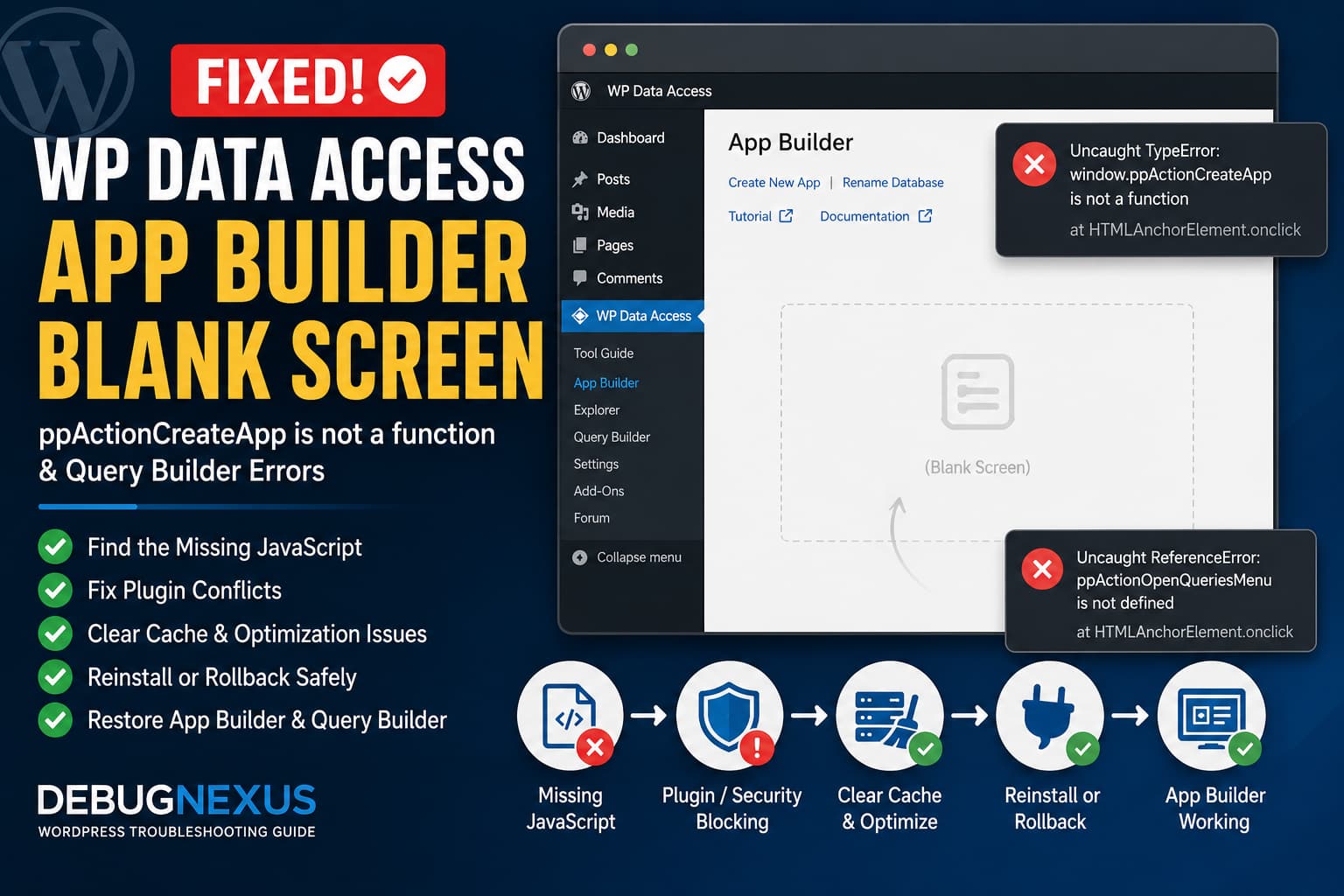
The WP Data Access App Builder blank screen problem can prevent you from creating your first application even though the plugin menu and page heading load correctly.
When you open WP Data Access > App Builder, you may see the toolbar, submenu, tutorial links, and an “App Builder” heading. However, the remainder of the page is blank, and clicking Create New App does nothing.
The browser console may show:
window.ppActionCreateApp is not a functionThe new SQL Query Builder may fail in the same way and display:
ppActionOpenQueriesMenu is not definedThese messages indicate that the page’s HTML loaded, but the JavaScript required to run the App Builder did not load correctly, did not finish executing, or was overwritten by another script.
This guide explains how to find the failed JavaScript asset and restore both the WP Data Access App Builder and Query Builder safely.
Symptoms of the WP Data Access App Builder Blank Screen
You may be experiencing this issue when:
- The WP Data Access admin menu loads normally.
- The App Builder heading and submenu are visible.
- The app list or “No apps found” message does not appear.
- Clicking Create New App produces no visible response.
- The legacy Query Builder works, but the new builder remains blank.
- The browser console reports missing
ppActionfunctions. - Reinstalling or changing plugin settings does not immediately fix the problem.
WP Data Access describes the App Builder as its main interface for creating data tables, forms, charts, maps, dashboards, and other data-driven applications. Its SQL Query Builder provides a separate interface for creating and running database queries. Both newer interfaces rely heavily on JavaScript.
What the JavaScript Errors Mean
Consider the first error:
window.ppActionCreateApp is not a functionThe Create New App button is trying to run:
window.ppActionCreateApp();At the moment the button is clicked, the browser cannot find a callable function with that name.
The second error has the same basic meaning:
ppActionOpenQueriesMenu is not definedThe Query Builder is trying to call a JavaScript function that is unavailable on the page.
These errors usually happen for one of the following reasons:
- A WP Data Access JavaScript file returned a 404 error.
- A firewall or security plugin blocked the script with a 403 response.
- A caching or optimization system delayed, combined, or changed the script.
- A browser extension blocked the file.
- The plugin installation contains incomplete or corrupted files.
- Another plugin generated an earlier JavaScript error that stopped execution.
- A recent WP Data Access release introduced a regression.
- The script loaded from an incorrect HTTP or HTTPS URL.
- The server returned HTML instead of JavaScript for the requested file.
The error does not normally mean that your WordPress database is empty or that you need to create plugin tables manually.
Before Troubleshooting
Create a full backup before changing plugins, files, or database settings.
For a production website, perform the conflict and rollback tests on a staging copy whenever possible. WordPress also recommends using a backup or staging environment before enabling debugging or modifying configuration files.
Do not edit the WP Data Access plugin’s JavaScript files directly. Any edits would be overwritten during the next update and could hide the real cause of the problem.
Step 1: Test in Another Browser
Start by ruling out a browser-specific problem.
- Open the WordPress dashboard in a private or incognito window.
- Log in and return to WP Data Access > App Builder.
- Test the page in a second browser.
- Temporarily disable browser extensions, particularly:
- Ad blockers
- Privacy extensions
- Script blockers
- Antivirus browser extensions
- Developer extensions that modify requests
Then perform a hard reload:
Windows or Linux
Ctrl + Shift + RmacOS
Command + Shift + RIf the App Builder works in another browser or with extensions disabled, the plugin is probably functioning correctly. The original browser profile is blocking or caching one of its assets.
WordPress recommends testing JavaScript problems in another browser before investigating the website itself.
Step 2: Find the Missing Script in Developer Tools
The fastest way to find the actual cause is to inspect the browser’s Network panel.
Open Developer Tools
In Chrome or Edge:
Ctrl + Shift + IThen:
- Open the Network tab.
- Select Disable cache.
- Choose the JS filter.
- Reload the App Builder page.
- Look for red or failed requests.
- Check files loaded from:
/wp-content/plugins/wp-data-access/Click any failed file and inspect:
- Request URL
- Status code
- Response
- Content-Type
- Initiator
- Console error
What Different Status Codes Mean
404 Not Found
A 404 response usually means the requested JavaScript file is missing or the page references an incorrect path.
Proceed to the clean plugin reinstall described later in this guide.
403 Forbidden
A 403 response means that the file exists, but a security layer refused the request.
Possible sources include:
- A WordPress security plugin
- A server firewall
- ModSecurity
- A CDN firewall
- Incorrect file permissions
- Hotlink or access-control rules
Temporarily disable the relevant security rule on staging and test again.
500 Internal Server Error
A 500 response indicates a PHP or server-level error occurred while WordPress generated the admin page or asset URL.
Check:
/wp-content/debug.logAlso review the hosting error log.
Status 200 With an HTML Response
A JavaScript request can return status 200 but still fail when its response contains HTML instead of JavaScript.
This may happen when the request returns:
- A login page
- A firewall challenge
- An error document
- A redirect page
- A cached WordPress page
- A hosting suspension or security message
Open the request’s Response tab. JavaScript files should contain JavaScript, not a complete HTML document.
Blocked by Client
A message such as:
net::ERR_BLOCKED_BY_CLIENTnormally points to a browser extension, antivirus tool, or local filtering application.
Retest in a clean browser profile.
Step 3: Check the Functions Directly
Open the browser console on the App Builder page and run:
typeof window.ppActionCreateAppThe correct result should be:
functionWhen the result is:
undefinedthe function was never registered.
On the new Query Builder page, test:
typeof window.ppActionOpenQueriesMenuAgain, the expected result is:
functionAlso inspect the console immediately after reloading the page. The missing-function message may only be a secondary error.
For example, an earlier error such as the following could prevent the remainder of the JavaScript bundle from executing:
Uncaught SyntaxErrorjQuery is not definedCannot read properties of undefinedRefused to execute scriptAlways investigate the first error shown after reloading, not only the error generated when clicking the button.
Step 4: Clear Every Cache Layer
Although WordPress admin pages should not be publicly cached, JavaScript files may still be affected by browser, CDN, object, server, or optimization caches.
Clear:
- Browser cache
- WordPress caching-plugin cache
- Object cache, such as Redis or Memcached
- Hosting cache
- CDN cache
- PHP OPcache, when your hosting control panel provides that option
After clearing the caches, log out of WordPress, close the browser, reopen it, and test again.
Exclude WordPress Admin Pages From Caching
Confirm that the following paths are excluded from full-page caching and script optimization:
/wp-admin/*/wp-login.phpAuthenticated WordPress administrators should receive uncached dashboard pages.
Step 5: Disable JavaScript Optimization Temporarily
JavaScript optimization can change the order in which plugin scripts execute.
Temporarily disable features such as:
- Combine JavaScript
- Delay JavaScript
- Defer all JavaScript
- Async JavaScript
- Remove unused JavaScript
- Minify admin scripts
- Cloud-based script loaders
- CDN JavaScript rewriting
After disabling them:
- Purge all caches.
- Open a new incognito window.
- Reload the WP Data Access App Builder.
- Test Create New App again.
When the page works after optimization is disabled, reactivate the features individually until the failing option is identified.
Then exclude the WP Data Access admin scripts from that optimization feature rather than leaving all optimization disabled.
The exclusion will depend on your optimization plugin, but the path usually begins with:
/wp-content/plugins/wp-data-access/Do not apply broad front-end performance optimizations to WordPress administration pages.
Step 6: Test for a Plugin Conflict
Another plugin can enqueue JavaScript or CSS in the WordPress dashboard and interfere with WP Data Access.
On staging:
- Deactivate every plugin except WP Data Access.
- Clear all caches.
- Reload WP Data Access > App Builder.
- Click Create New App.
- Test the new Query Builder.
If both interfaces now work, reactivate the other plugins one at a time.
Test WP Data Access after each activation. The last plugin activated before the error returns is the likely conflict.
Pay particular attention to:
- Caching plugins
- Security plugins
- Admin-menu customization plugins
- Database-management plugins
- JavaScript optimization plugins
- White-label dashboard plugins
- Plugins that change user capabilities
- Plugins that add Content Security Policy headers
WordPress recommends deactivating plugins individually when an administrative feature stops working because plugin conflicts frequently involve shared JavaScript resources.
Test the Theme When Necessary
An active theme normally should not control a plugin’s admin interface. However, some themes and their companion plugins enqueue assets globally in the dashboard.
When disabling other plugins does not help, temporarily activate a default WordPress theme on staging and test again.
Step 7: Reinstall a Clean Copy of WP Data Access
A partially completed installation or update can leave the plugin without one or more required JavaScript files.
Before reinstalling:
- Back up the website files and database.
- Record the current WP Data Access version.
- Export any plugin settings or applications when an export option is available.
- Take screenshots of important settings.
Then reinstall WP Data Access from the official WordPress plugin directory.
A safe approach is:
- Download a fresh copy of WP Data Access.
- Go to Plugins > Add New > Upload Plugin.
- Upload the ZIP file.
- Choose Replace current with uploaded when WordPress offers that option.
- Activate the plugin if necessary.
- Purge all caches.
- Test the App Builder again.
Replacing the plugin package restores missing or corrupted plugin files without requiring you to modify its source code.
WordPress identifies incomplete plugin files as one possible cause of plugin activation and functionality problems.
Step 8: Check WordPress and Site URLs
A mismatch between the WordPress URL and Site URL can cause admin assets to load from the wrong protocol or hostname.
Go to:
Settings > GeneralConfirm that both addresses use the correct domain and HTTPS:
WordPress Address (URL)
Site Address (URL)
For example:
https://example.comAvoid combinations such as:
http://example.com
https://www.example.com
unless the difference is intentional and correctly configured.
In the Network panel, also check whether WP Data Access JavaScript files are requested through HTTP while the dashboard uses HTTPS. Browsers may block these requests as mixed content.
Step 9: Enable WordPress Debugging Temporarily
When no failed request is obvious, enable WordPress logging on staging.
Add the following code to wp-config.php before:
/* That's all, stop editing! Happy publishing. */Use:
define( 'WP_DEBUG', true );
define( 'WP_DEBUG_LOG', true );
define( 'WP_DEBUG_DISPLAY', false );
define( 'SCRIPT_DEBUG', true );
Do not add duplicate constants when they are already defined.
Reload the App Builder and Query Builder, then inspect:
/wp-content/debug.logLook for:
- PHP warnings from WP Data Access
- Missing files
- Permission errors
- Failed AJAX actions
- REST API errors
- Errors from another plugin
- Deprecated code that interrupts page generation
SCRIPT_DEBUG instructs WordPress to use development versions of its core JavaScript and CSS files. It will not repair a missing WP Data Access bundle by itself, but it can expose dependency and compatibility problems more clearly. WordPress documents both WP_DEBUG_LOG and SCRIPT_DEBUG as standard debugging tools.
After testing, disable debugging on the live website:
define( 'WP_DEBUG', false );Remove or disable SCRIPT_DEBUG as well.
Step 10: Determine Whether It Is a Plugin Regression
When the problem continues under all of these conditions:
- A clean browser
- No browser extensions
- Only WP Data Access active
- A default WordPress theme
- No caching or JavaScript optimization
- A freshly reinstalled plugin
- No failed firewall requests
the issue is more likely to be inside the installed WP Data Access version.
At the time of writing, WordPress.org lists WP Data Access 5.5.77 as the current release. Version 5.5.75 introduced the new Visual Query Builder, while subsequent releases included fixes for multiple Visual Query Builder issues.
A separate recent support report described blank and unresponsive Query Builder behavior in the WP Data Access 5.5.x series. The plugin author confirmed that the problem was identified and would be fixed in an update. That report is not identical to the missing-function errors in this guide, but it shows that a version-specific regression is a realistic possibility.
Test the Previous Version on Staging
When the issue started after updating, or when the newest version is the first version installed, test the immediately previous release on staging.
For example, when testing version 5.5.77, the previous release is 5.5.76.
Do not roll back below version 5.5.76 without reviewing the security implications. The official changelog states that version 5.5.76 included a security fix for a cross-site scripting vulnerability.
Use rollback only as a diagnostic or temporary workaround:
- Back up the site.
- Perform the rollback on staging.
- Clear all cache layers.
- Test both builders.
- Record whether the missing functions return.
- Reinstall the newest patched release when the developer publishes a fix.
Do not remain on an outdated plugin version permanently.
Temporary Workaround: Enable Legacy Tools
When the new SQL Query Builder is unusable, WP Data Access still provides legacy tools for maintaining older solutions.
Go to:
WP Data Access > Tool GuideFind the Legacy Tools section and enable the required legacy interface.
The plugin currently states that its legacy tools will remain available until at least December 2026, although it recommends using the App Builder for new projects.
This workaround can help you continue working with existing SQL queries and data tables. It does not repair the new App Builder and may not allow you to create every type of modern application.
Do Not Create a Fake JavaScript Function
Do not try to silence the error with code such as:
window.ppActionCreateApp = function () {};This would only create an empty function. The button might stop displaying an error, but the actual App Builder wizard would still not exist.
Similarly, do not remove the inline onclick attribute from the button. That would hide the symptom without loading the interface required to create an app.
The correct solution is to restore the JavaScript file that defines the real plugin function.
How to Confirm the Problem Is Fixed
After completing the relevant repair, verify all of the following:
- The App Builder page displays its dashboard or an empty-app message.
- Clicking Create New App opens the application wizard.
- The new Query Builder displays its complete interface.
- Clicking Create New Query opens the expected menu.
- No WP Data Access JavaScript file fails in the Network panel.
- The console contains no earlier syntax or dependency errors.
- The following command returns
function:
typeof window.ppActionCreateApp- The following command also returns
functionon the Query Builder page:
typeof window.ppActionOpenQueriesMenuTest again after logging out and back in to ensure the fix is not limited to one cached session.
Information to Send to WP Data Access Support
When the clean-environment test still fails, report the issue to the WP Data Access support team.
Include:
- WP Data Access version
- WordPress version
- PHP version
- Browser and browser version
- Whether the issue occurs in another browser
- Exact console errors
- The complete JavaScript stack trace
- Failed asset URLs from the Network panel
- HTTP status codes
- The response body of failed JavaScript requests
- Whether other plugins were disabled
- Whether a default theme was tested
- Whether reinstalling the plugin changed anything
- Whether the previous plugin version works
- Whether
SCRIPT_DEBUGchanges the behavior - Screenshots or a short screen recording
WordPress recommends including the complete error, file location, browser details, and the result of testing with SCRIPT_DEBUG when reporting JavaScript problems.
Frequently Asked Questions
Why is the WP Data Access App Builder completely blank?
The HTML shell of the page can load even when the JavaScript bundle that renders the App Builder does not. The missing ppActionCreateApp function strongly indicates that the required script is unavailable or stopped during execution.
Is this a database permission problem?
Usually not. A database-permission problem would more commonly generate an AJAX, REST, SQL, or PHP error after the interface tries to perform an operation. In this case, the interface cannot call its JavaScript function in the first place.
Why does the old Query Builder work?
The legacy and modern builders use different interfaces and JavaScript assets. The legacy tool can therefore continue working even when a script used by the new builder fails.
Will clearing permalinks fix the problem?
Resaving permalinks is unlikely to fix a missing admin JavaScript function. Check the browser Network and Console panels first.
Should I downgrade WP Data Access?
Test the previous version only on staging when a clean reinstall and conflict test do not resolve the problem. Do not remain on an outdated release after a patched version becomes available.
Can I continue using the legacy Query Builder?
Yes, as a temporary workaround. WP Data Access currently keeps legacy tools available for maintaining older solutions, but recommends the App Builder for new work.
Final Recommendation
The WP Data Access App Builder blank screen and the accompanying ppActionCreateApp and ppActionOpenQueriesMenu errors are JavaScript-loading failures.
Start by checking the browser Network panel. The failed request’s status code will usually reveal whether the cause is a missing file, firewall rule, optimization conflict, browser extension, or incorrect URL.
Then disable admin-side JavaScript optimization, perform a plugin-conflict test, reinstall a clean copy of WP Data Access, and enable temporary debugging. When the problem persists in a clean staging environment, test the immediately previous secure version and report the evidence to the plugin developer.
Avoid modifying the plugin’s inline button code or creating empty replacement functions. Restoring the original JavaScript bundle is the only complete fix.
