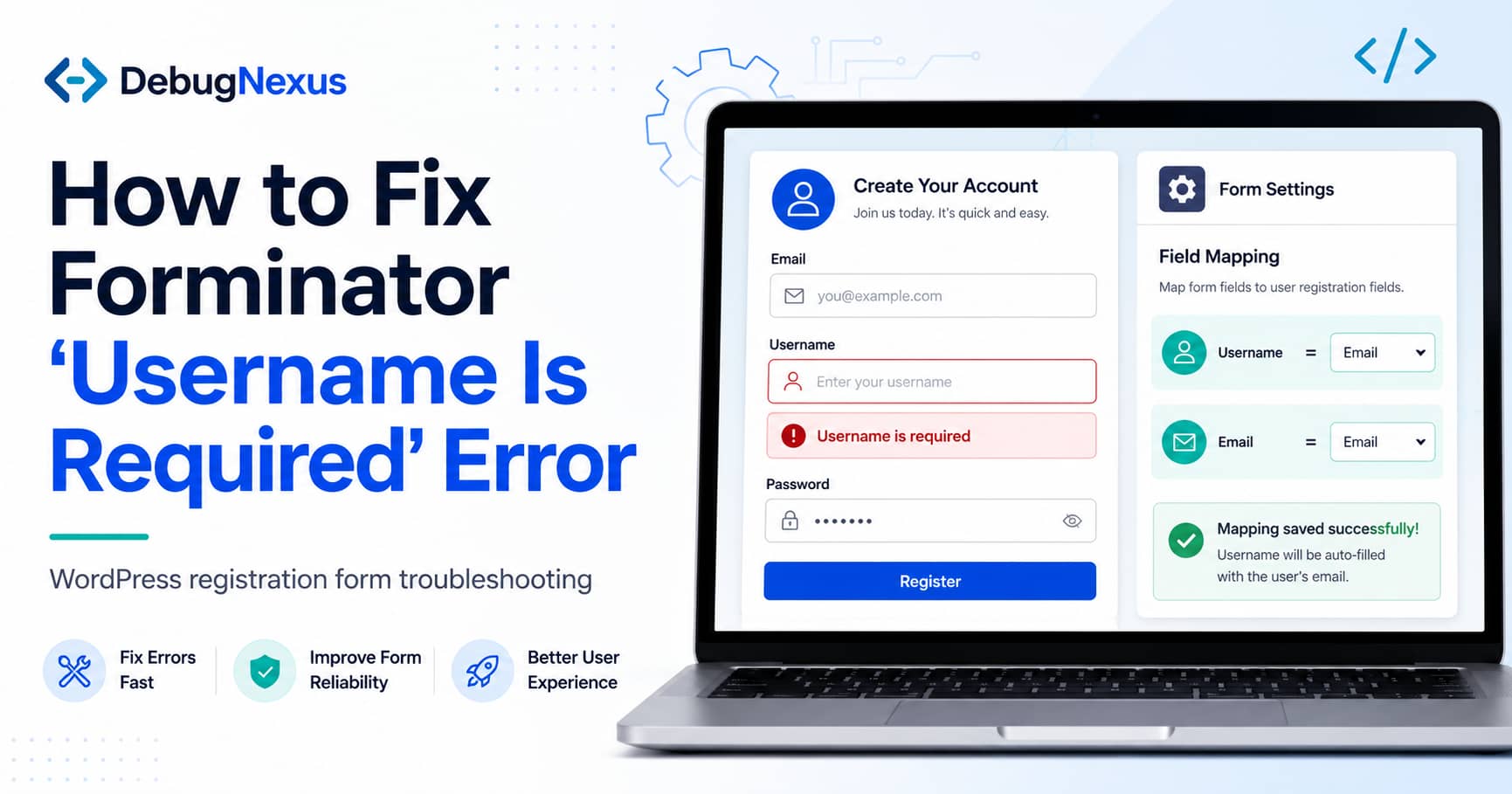
A Forminator registration form may include:
- An email address field
- A membership or guest selection
- A password field
- Conditional user roles
- No visible username field
However, submitting the form results in an error similar to:
Username is required.
This can be confusing because the email address is already required and may appear to be mapped correctly.
The underlying issue is that WordPress treats the username and email address as two separate account properties.
WordPress requires a valid user_login value whenever a new user is created. If that value is empty, WordPress stops the registration and returns an empty-login error.
Forminator provides separate default mappings for Username and Email, so both mappings must receive valid values.
Why Making the Email Field Required Does Not Fix It
Marking an email field as required only ensures that the visitor enters an email address.
It does not automatically tell Forminator:
Use this email address as the WordPress login username.
For example, the form may be configured like this:
- Username mapped to an empty text field
- Email mapped to the required email field
- Username field hidden using conditional logic
In that configuration, the form successfully collects an email address, but Forminator still sends an empty username to WordPress.
The solution is to map the same email field to both the Username and Email account properties.
Solution 1: Map the Email Address as the Username
This is the recommended no-code solution.
Step 1: Open the Forminator registration form
From the WordPress dashboard, go to:
Forminator > Forms
Find the affected registration form and click Edit.
Make sure the form was created using Forminator’s Registration template. Registration forms contain a dedicated User Registration tab that controls account creation.
Step 2: Check the email field
Open the email field and confirm that:
- The field is enabled
- The field is set to Required
- It is not hidden when the form is submitted
- Its conditional visibility rules are correct
Note the field identifier if Forminator displays one, such as:
email-1Your field identifier may be different.
Step 3: Open the User Registration tab
Inside the Forminator form editor, click:
User Registration
Then locate the User Meta Mapping section.
Forminator normally provides the following default account mappings:
- Username
- First Name
- Last Name
- Website
- Password
- Role
These are the mappings Forminator uses when creating the WordPress account.
Step 4: Map both Username and Email
Configure the two important fields as follows:
Username: Email Address field
Email: Email Address field
For example:
Username: email-1
Email: email-1
This means the submitted email address will be used for both:
- The WordPress login username
- The WordPress account email address
A WordPress username is sanitized before account creation. WordPress permits characters commonly found in email addresses, including letters, numbers, periods, hyphens, underscores, and the @ character.
Step 5: Remove the empty username mapping
Do not leave the Username option mapped to an empty, hidden, or optional text field.
For example, this configuration can cause the error:
Username: text-1
Email: email-1
If text-1 is hidden or empty, WordPress receives no username.
Change it to:
Username: email-1
Email: email-1
Step 6: Configure the password
Under the same User Registration settings, choose one of the following:
- Map the Password option to a visible password field.
- Select Forminator’s auto-generated password option.
When using an automatically generated password, remove the visible password field to avoid confusing users. Forminator specifically supports assigning an automatically generated password from its registration settings.
Step 7: Save and test the form
Click Update or Publish.
Then:
- Clear your WordPress cache.
- Clear any server or CDN cache.
- Open the registration page in an incognito browser window.
- Submit the form using an email address that has never been registered.
- Go to Users > All Users.
- Confirm that the new account was created.
The email address should now appear as both the account’s username and email address.
Reported Workaround: Re-Adding the Username Mapping
In some affected forms, users have reported that the existing Username mapping appeared correct but was not actually being passed during registration.
Re-adding the mapping caused Forminator to save and process it correctly.
Try the following:
- Open the User Registration settings.
- Change the Username mapping to another field temporarily.
- Save the form.
- Reopen the form.
- Map Username back to the email field.
- Save the form again.
- Clear all caches and retest.
Some users have also reported success after adding an additional mapping near the bottom of the registration settings and assigning the email field to a username-related value.
However, be careful with this approach.
A custom user meta key named username is not necessarily the same as WordPress’s core user_login property. Adding custom meta may store an additional value in the user profile without fixing the actual login username.
The safest configuration is still:
Default Username mapping = Email field
Default Email mapping = Email field
Only add custom user meta when another plugin specifically requires that additional meta key.
Correct Setup for Guest and Membership Registration
The original registration form may offer two choices:
- Guest
- Membership
The Guest option may only receive blog updates and have no access to protected website content, while Membership users receive an account and additional access.
There are two ways to build this.
Recommended Method: Use Two Separate Forms
Guest or newsletter form
Use a normal Forminator form rather than a registration form.
Collect:
- Name
- Email address
- Consent checkbox
- Newsletter preferences
Connect the form to your email marketing service.
Because these users do not need website access, there is no reason to create a WordPress account for them. This also avoids unnecessary user accounts, usernames, password emails, and account-management issues.
Membership registration form
Use a Forminator Registration form for members.
Map:
Username: Email field
Email: Email field
Password: Password field or auto-generated
Role: Subscriber or the appropriate membership role
This keeps newsletter subscribers separate from actual website members.
Alternative Method: One Registration Form With Conditional Roles
Forminator can assign WordPress roles conditionally based on a visitor’s selection. For example, one option can receive the Subscriber role while another receives a custom membership role.
However, both selections will still create WordPress user accounts.
WordPress does not have a built-in user type that means “registered user with absolutely no account.” The Subscriber role has very limited permissions, but it is still a real WordPress account.
Therefore, a newsletter-only Guest option is usually better handled through a separate subscription form.
What to Check If the Error Continues
If mapping the email address as the username does not resolve the issue, check the following areas.
1. The wrong form is embedded
You may have duplicated or replaced the form but left the old shortcode on the registration page.
Open the page and verify that its Forminator shortcode matches the form you edited.
2. The username points to a hidden field
Review the Username mapping again. It should point directly to the required email field, not to an optional or conditionally hidden text field.
3. The email already exists
WordPress usernames must be unique, and WordPress sites generally prevent multiple accounts from using the same email address.
Test with a completely new email address.
4. The email field is conditionally hidden
A field can be marked as required but still be excluded from a submission when its visibility conditions are not met.
Review the email field’s Visibility settings.
5. User registration is disabled
Go to:
Settings > General
Check whether Anyone can register is enabled.
Forminator also provides activation options that can be used when standard WordPress registration is disabled, but the form’s account activation settings must be configured correctly.
6. The form was created as a standard contact form
A normal contact form can collect registration details, but it does not automatically become a WordPress registration form.
Create the form using:
Forminator > Forms > Create > Registration
Then rebuild or copy the necessary fields into it.
7. A cache is serving an older form configuration
Clear:
- WordPress page cache
- Object cache
- Hosting cache
- Cloudflare or CDN cache
- Browser cache
Also temporarily disable JavaScript optimization or delayed-script features while testing.
8. A plugin conflict is modifying registration
Temporarily test with:
- Only Forminator active
- A default WordPress theme
- Caching and optimization plugins disabled
- Membership and user-role plugins disabled
Perform this test on staging rather than directly on a live site.
Recommended Final Configuration
For an email-based Forminator registration form, use:
Email field:
Required

User Registration mapping:
Username = Email field
Email = Email field
Password = Password field or Auto Generated Password
Role = Subscriber or appropriate membership role
Do not use:
Username = Empty text field
Email = Email field
And do not assume that adding a custom user meta key called username will automatically populate the WordPress login name.
Frequently Asked Questions
Can WordPress create a user without a username?
No. WordPress requires a non-empty login username when creating a user. If user_login is empty, account creation fails.
Can an email address be used as the WordPress username?
Yes. You can map the Forminator email field to both Username and Email. The submitted email address must be unique.
Should newsletter subscribers become WordPress users?
Usually, no. If subscribers only need email updates and do not need to log in, use a normal subscription form connected to your email marketing platform.
Can Forminator assign different roles based on a checkbox?
Yes. Forminator supports conditionally assigning user roles based on form input. However, every successful registration still creates a WordPress account.
Why does the username error appear when the email is required?
Because WordPress stores the login username and email address separately. Requiring the email field does not automatically populate the username unless the registration mapping explicitly connects them.
Final Thoughts
The Forminator “Username is required” error is usually not caused by the email field itself. It occurs because WordPress is receiving an empty value for the account’s login username.
The most reliable fix is to open the Forminator User Registration settings and map the same required email field to both:
Username
Email
For forms offering Guest and Membership options, avoid creating WordPress accounts for newsletter-only guests. Use a separate subscription form for guests and reserve the registration form for users who genuinely need an account.
This creates a cleaner user database, avoids unnecessary login credentials, and makes the registration process easier to maintain.
