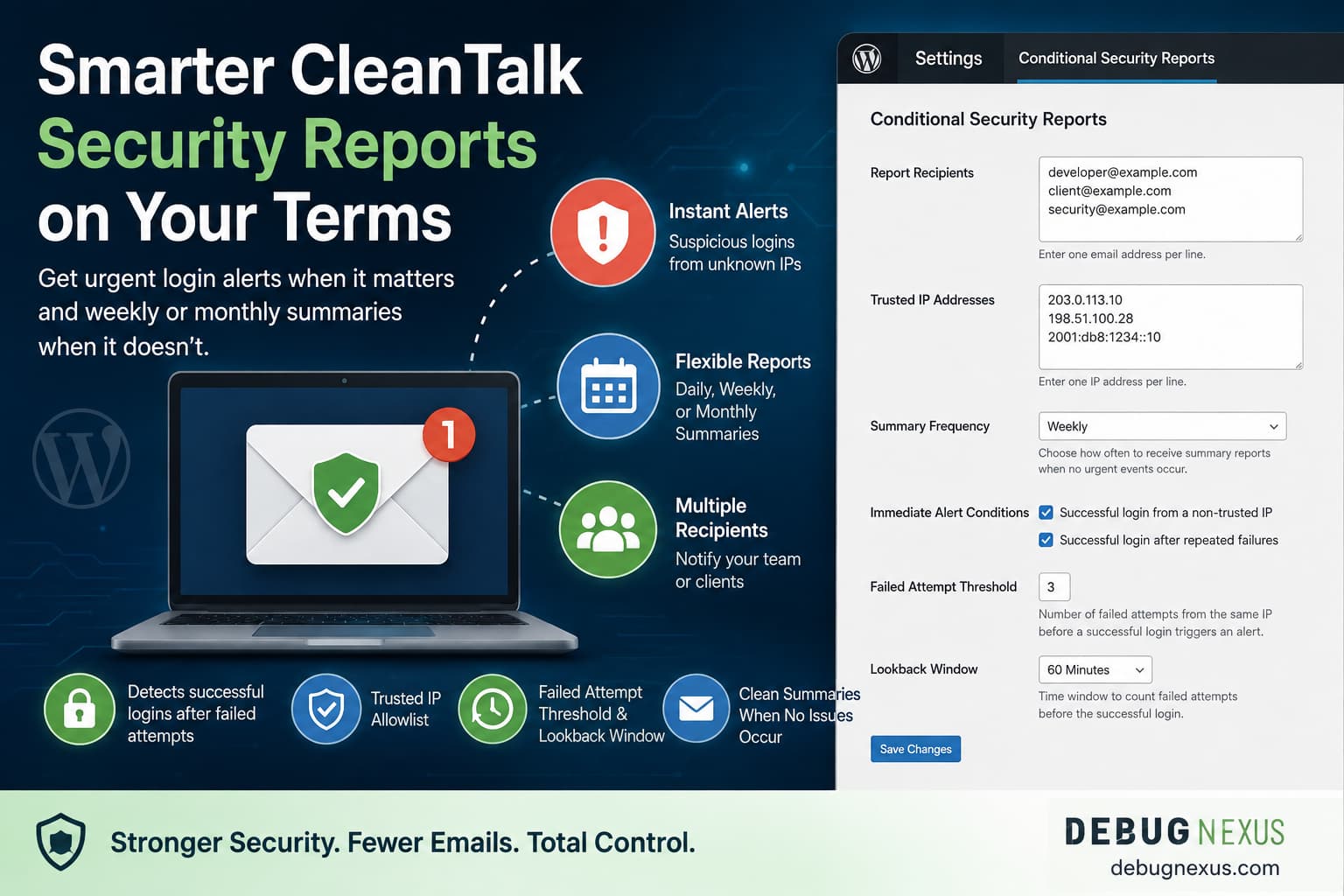
Short answer: CleanTalk’s standard security report is described as a report generated every 24 hours. The available information does not establish a native CleanTalk setting for changing that report to a weekly or monthly conditional schedule. To reduce routine email while preserving urgent warnings, keep CleanTalk responsible for its security features and use a separate notification layer for privileged-login alerts and scheduled summaries.
The separate notification layer described in this article is not a replacement for CleanTalk, and it does not modify CleanTalk’s own emails. It is intended to identify selected login patterns, send immediate alerts, and provide daily, weekly, or 30-day summaries.
What CleanTalk’s report controls do and do not change
The standard CleanTalk security report and administrator-login notifications are separate controls. The standard report summarizes incorrect password attempts and related IP addresses. Administrator-login notifications can relate to successful administrator logins from new devices, with recent devices remembered by the service.
These controls do not amount to a custom rule based on trusted IP addresses and previous failed attempts. Account delegation, linked accounts, notification addresses, mailing lists, licensing, and package requirements can depend on the CleanTalk account and service options available to it.
The practical arrangement is:
- Keep CleanTalk’s firewall, logging, scanning, blocking, and other required security features active.
- Use a separate notification layer for conditional privileged-login alerts.
- Configure the separate layer to send quieter summaries at the required interval.
- Review CleanTalk’s account notification settings separately if you want to reduce its routine emails.
What the separate notification layer is intended to do
The proposed companion plugin adds a settings page at:
WordPress Dashboard → Settings → Conditional Security Reports
- Accept one or more report recipients.
- Accept trusted IPv4 and IPv6 addresses.
- Generate daily, weekly, or 30-day summaries.
- Send an immediate alert for a privileged login from an address outside the trusted list.
- Send an immediate alert when a successful privileged login follows the configured number of failures from the same IP address.
- Set the failure threshold and lookback period.
The default monitored roles described by the implementation are:
- Administrator
- Editor
- Shop Manager
Subscribers and normal WooCommerce customers are excluded by default. This avoids treating ordinary customer logins as privileged-account security events.
Important implementation and security limitations
The PHP source that accompanied this article is not included below as a copyable plugin. In the supplied post, the source was split into ordinary paragraph blocks and contained HTML markup inside regular expressions. That representation is not safe to copy into a PHP file, so the article should not describe it as a ready or complete plugin.
A separate plugin or downloadable source file should be reviewed before it is installed on a production site. Custom authentication-monitoring code can create alerting, privacy, compatibility, and maintenance risks.
The proposed logic is a heuristic, not proof of an attack or account compromise. An IP address is not an identity. Shared networks, NAT, VPNs, mobile connections, IPv6 privacy addresses, reverse proxies, and multiple users behind one address can produce false positives. An attacker can also use a different address for the failed and successful attempts, causing the pattern to be missed.
Login events may include usernames, roles, IP addresses, timestamps, and alert reasons. Those values may be stored in WordPress options and sent to configured recipients. Restrict recipients, consider database backups and email forwarding, and choose a retention policy appropriate for the site’s privacy and operational requirements. Email should not be treated as a confidential security channel.
How the login conditions work
WordPress provides separate actions for failed and successful authentication events:
wp_login_failedruns after a login attempt fails.wp_loginruns after a user successfully logs in.
The notification layer can temporarily count failed attempts by IP address. After a successful login, it can compare the address with the trusted list and inspect recent failures from the same address.
When both conditions are enabled, they use an OR rule. Either of these events can produce an alert:
- A privileged account logs in from an IP address not on the trusted list.
- A privileged account logs in from an IP address that reached the configured failed-attempt threshold within the lookback period.
For example, a starting configuration might be:
Failed-attempt threshold: 3
Lookback window: 60 minutes
That configuration treats three or more failures from the same address followed by a successful privileged login within 60 minutes as a suspicious pattern. It does not establish that the login was unauthorized.
Configure recipients and trusted IP addresses
Recipients
Enter one address per line. Commas and semicolons are also accepted by the described settings interface.
developer@example.com
client@example.com
security@example.com
The implementation uses WordPress’s wp_mail() function. A successful return value indicates that WordPress accepted the request for processing; it does not prove delivery to the recipient. SMTP or a transactional email provider may be used to improve mail handling, but delivery still needs to be considered separately from alert generation.
Trusted IP addresses
Enter exact IPv4 or IPv6 addresses used by authorized administrators:
203.0.113.10
198.51.100.28
2001:db8:1234::10
Dynamic residential addresses, mobile connections, changing VPN servers, and incorrectly reported proxy addresses can make a trusted-IP rule noisy. Maintain the list when authorized access locations change, or disable the non-trusted-IP condition when exact addresses cannot be maintained reliably.
Summary frequency and scheduled processing
The separate notification layer describes three summary choices:
- Daily
- Weekly
- Monthly, implemented as a 30-day interval rather than a calendar-month date
A zero-event summary can use wording such as:
Security summary for https://example.com/

Period started: 2026-07-27 10:00:00
Period ended: 2026-08-03 10:00:00
Suspicious successful logins: 0

No privileged-user login matched the configured alert conditions during this period.
The described WordPress cron hook is:
dncsr_daily_summary_checkIt is scheduled to run daily and check whether the selected summary interval has passed. WordPress cron is request-driven rather than a continuously running system scheduler. On a low-traffic site, a report can be processed later than its nominal time.
The source article uses these WP-CLI commands to inspect and run scheduled events:
wp cron event list --fields=hook,next_run,recurrencewp cron event run dncsr_daily_summary_checkRunning the hook performs the scheduled check. It does not necessarily send a message immediately if the configured interval has not elapsed.
For sites that need processing close to a particular time, a server-level scheduling arrangement may be more appropriate, especially when traffic is low, WordPress cron is disabled, or caching and access restrictions interfere with normal cron requests.
Proxy and forwarded-IP considerations
The described implementation reads REMOTE_ADDR rather than automatically trusting forwarded headers. Headers such as these can be unsafe when the server and proxy configuration has not been validated:
HTTP_X_FORWARDED_FOR
HTTP_CLIENT_IP
If alerts contain a Cloudflare, load-balancer, or hosting-proxy address instead of the visitor’s address, the web-server and proxy configuration must be reviewed. Do not blindly trust the first value in X-Forwarded-For. The request must be known to have come through a trusted proxy before forwarded client information is used.
Change the monitored roles
The default role list described by the implementation is:
array( 'administrator', 'editor', 'shop_manager' )To monitor only administrators, the article supplies this filter example:
add_filter(
    'dncsr_monitored_roles',
    static function (): array {
        return array( 'administrator' );
    }
);
To include authors:
add_filter(
    'dncsr_monitored_roles',
    static function (): array {
        return array(
            'administrator',
            'editor',
            'author',
            'shop_manager',
        );
    }
);
Adding customer or subscriber roles can generate alerts for ordinary customer activity, so those roles should only be included intentionally.
Testing and verification
Use a staging site when possible. An authentication test can cause lockout or confusion about the address reported by a proxy. Keep a separate recovery administrator or hosting-level recovery path, and restore the trusted-IP setting even if the expected message does not arrive.
Separate the verification into these areas:
- Confirm that the recipients, trusted addresses, threshold, lookback period, and alert conditions were saved.
- Confirm that the expected scheduled hook exists when scheduled summaries are enabled.
- Use a controlled failed-then-successful login sequence only where it can be performed safely.
- Check whether the alert-generation path recorded the event through an appropriate administrative method.
- Check the mail system’s handoff result separately from the recipient’s inbox.
- After a scheduled run, confirm that the summary interval and incident records behave as intended.
A missing email does not by itself show that the login hook failed. Possible causes include mail configuration, proxy address handling, cron timing, permissions, an incorrectly saved setting, or a problem in the separate plugin.
If CleanTalk’s original daily report should be reduced
The separate notification layer does not intercept or modify CleanTalk-generated email. CleanTalk may therefore continue sending its standard report alongside the additional alerts and summaries.
CleanTalk’s account may provide mailing-list controls under an area such as:
CleanTalk Dashboard → Profile → Mailing Lists
Available options can vary by account and service. If a separate Security Report subscription is listed, disable only that subscription after identifying the other notifications that must remain enabled. Avoid a mail rule that deletes every CleanTalk message, because it could hide unrelated security, vulnerability, account, or billing warnings. If the report cannot be managed separately, contact CleanTalk about the account’s available options.
What to do after an unauthorized successful login
An alert is a prompt for investigation, not proof of compromise. If the account owner confirms that the login was unauthorized, take appropriate incident-response steps:
- Reset the affected account password.
- Revoke active sessions.
- Enable two-factor authentication.
- Review CleanTalk’s security log and other relevant WordPress logs.
- Check for newly created administrator accounts.
- Inspect recently modified plugins, themes, users, and options.
- Run a complete malware scan.
- Rotate WordPress salts when session theft is suspected.
- Review server, CDN, hosting, and other access logs.
- Check for unexpected scheduled tasks or must-use plugins.
Frequently asked questions
Can CleanTalk’s standard report be changed from daily to weekly?
The supplied CleanTalk information describes the standard report as a 24-hour report and does not establish a native weekly or monthly conditional schedule. A separate notification layer can provide its own summary interval without changing CleanTalk’s report.
Can multiple recipients receive the additional reports?
The described settings accept multiple email addresses. CleanTalk may also offer account-level recipient, delegation, or linked-account features, depending on the account and service options.
Does this monitor WooCommerce customer logins?
Not by default. The described default role list includes administrators, editors, and shop managers, while customers and subscribers are excluded.
Does repeated failure followed by success prove a brute-force attack?
No. It identifies a configurable IP-based pattern. Shared addresses, proxies, VPNs, and authorized users who mistype passwords can all produce misleading results.
Does the notification layer block suspicious addresses?
No. Its described purpose is notification. Blocking remains the responsibility of CleanTalk, the hosting firewall, Cloudflare, or another security layer.
Conclusion
CleanTalk’s standard report should be treated as a separate service notification, not as a configurable conditional alert system. A separate, carefully reviewed WordPress notification layer can provide immediate warnings for selected privileged-login patterns and less frequent summaries, but it does not replace CleanTalk’s firewall, scanning, logging, blocking, or other security functions.
Because the supplied companion-plugin source is not in a safely copyable format, it should not be installed from the article as published. Any implementation should be reviewed for syntax, authentication hooks, data retention, IP handling, permissions, scheduling, and email behavior before production use.
