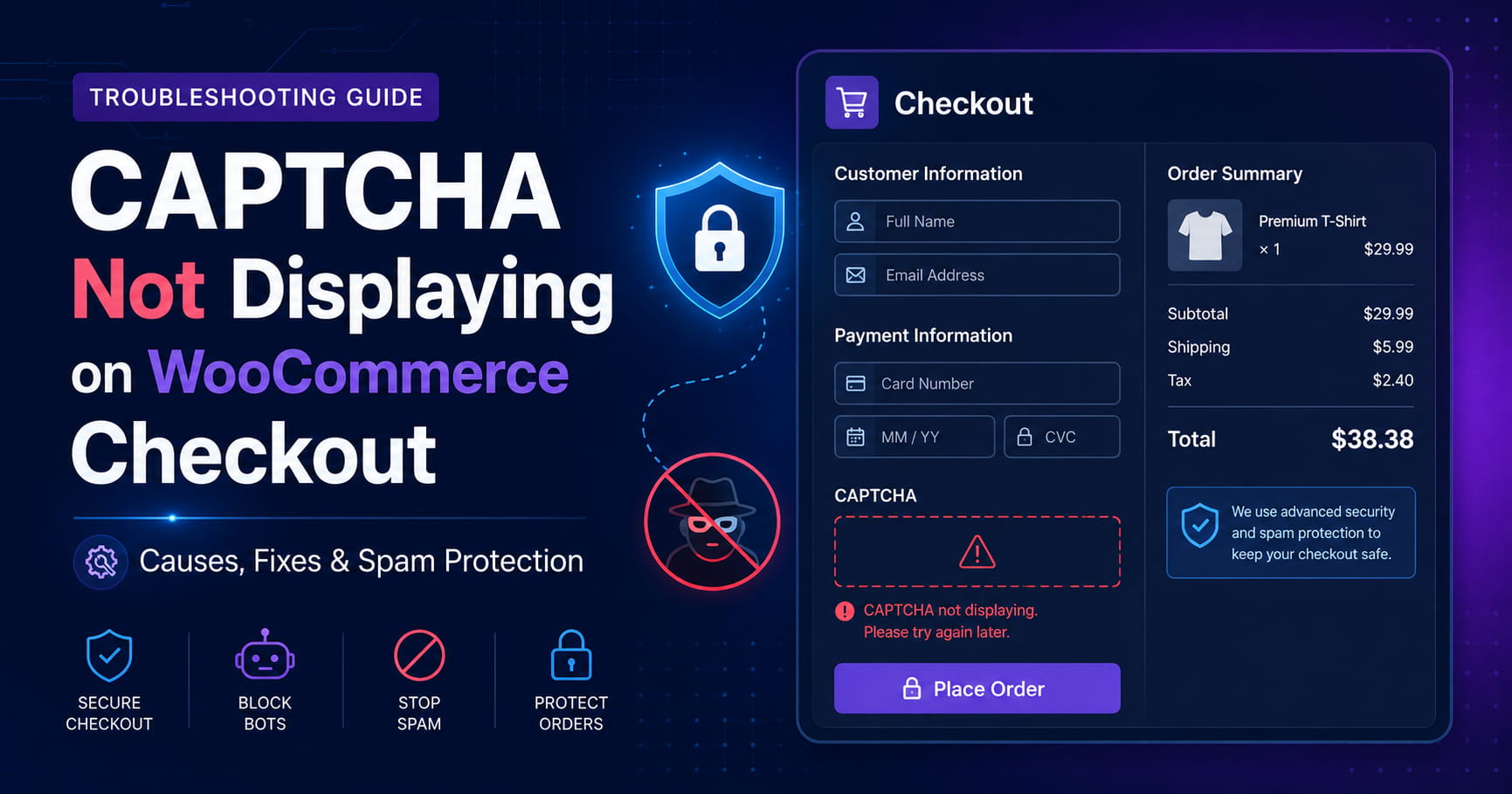
CAPTCHA not displaying on WooCommerce checkout can leave an online store vulnerable to automated spam orders, fake customer accounts, card-testing attempts, and other bot activity.
In many cases, the CAPTCHA plugin is active and the option to display CAPTCHA on the WooCommerce checkout form is already enabled. However, no checkbox, challenge, badge, or other CAPTCHA element appears on the checkout page.
The most likely explanation is that the store uses the newer WooCommerce Checkout Block while the CAPTCHA plugin supports only the classic WooCommerce checkout form. Other possible causes include incorrect API keys, JavaScript optimization, caching, consent-management tools, theme conflicts, or an invisible CAPTCHA configuration.
This guide explains how to identify the cause and restore CAPTCHA protection on the WooCommerce checkout page.
Symptoms of the Problem
You may be experiencing this issue when:
- CAPTCHA is enabled for the WooCommerce checkout form.
- The CAPTCHA appears on login or registration forms but not at checkout.
- Customers can place orders without completing a CAPTCHA challenge.
- Spam or fraudulent orders continue reaching WooCommerce.
- The CAPTCHA badge is missing from the checkout page.
- The CAPTCHA appears in the WordPress administrator preview but not on the live website.
- No error is displayed even though the CAPTCHA is absent.
- The problem started after replacing the classic checkout with the WooCommerce Checkout Block.
Before changing any settings, create a backup and perform troubleshooting on a staging website whenever possible.
The Most Common Cause: WooCommerce Checkout Block Compatibility
A leading cause of CAPTCHA not displaying on WooCommerce checkout is incompatibility with the WooCommerce Checkout Block.
WooCommerce stores created after version 8.3 use the Cart and Checkout blocks by default. Older stores may also use the blocks if someone manually converted the checkout page.
Many CAPTCHA plugins were originally developed for the classic checkout form. These plugins insert the CAPTCHA by attaching PHP functions to traditional WooCommerce checkout hooks.
The newer Checkout Block works differently. Its frontend is primarily JavaScript-based, and not every action or filter from the classic shortcode checkout is supported. WooCommerce explains that extensions adding checkout markup usually require specific integration work to support the Cart and Checkout blocks.
As a result, enabling a setting such as:
Show captcha on WooCommerce checkout formmay not display anything when the page uses the Checkout Block.
How to Check Which Checkout Type You Are Using
Go to:
WordPress Dashboard > Pages > All Pages > CheckoutOpen the Checkout page in the WordPress editor.
You are using the Checkout Block when:
- The editor shows a large block named Checkout.
- List View contains a WooCommerce Checkout block.
- The page contains several inner blocks for contact information, shipping, payment, and order summary.
- The WordPress code editor contains markup similar to:
<!-- wp:woocommerce/checkout -->You are using the classic checkout when:
The page contains this shortcode:
[woocommerce_checkout]When the CAPTCHA plugin does not explicitly support WooCommerce Cart and Checkout blocks, switching to the classic checkout is usually the fastest way to confirm the compatibility problem.
Solution 1: Switch to the Classic WooCommerce Checkout
Start with this solution when your CAPTCHA plugin supports the classic checkout but not the Checkout Block.
Step 1: Edit the Checkout Page
Open:
Pages > All Pages > CheckoutSelect the main WooCommerce Checkout block.
Open the block toolbar and click Transform.
Choose:
Classic ShortcodeWooCommerce provides this transformation option specifically for reverting from the Checkout Block to the classic checkout experience.
Step 2: Add the Checkout Shortcode Manually
When the Transform option is unavailable:
- Remove the existing Checkout block.
- Add a WordPress Shortcode block.
- Paste the following shortcode:
[woocommerce_checkout]- Update the page.
Do not add extra text, forms, or nested layout blocks around the shortcode until testing is complete.
Step 3: Confirm the Correct Checkout Page Is Assigned
Go to:
WooCommerce > Settings > AdvancedUnder Page setup, confirm that the correct page is selected for:
Checkout pageSave the settings after making any change.
Step 4: Consider Reverting the Cart Page Too
WooCommerce recommends reverting both the Cart and Checkout pages when switching back to the classic experience because the two pages work together.
Edit the Cart page and transform the Cart block into its classic version, or replace it with:
[woocommerce_cart]Step 5: Clear All Caches
Clear:
- Your WordPress caching plugin
- Server-side page cache
- CDN cache
- Cloudflare cache, when applicable
- Browser cache
Then open the checkout page in an incognito window and check whether the CAPTCHA appears.
If it displays after switching to the classic shortcode, the original issue was almost certainly Checkout Block compatibility.
Solution 2: Keep the Checkout Block and Use a Compatible CAPTCHA Plugin
You may prefer to keep the modern Checkout Block design.
In that case, verify that your CAPTCHA plugin explicitly supports:
WooCommerce Cart and Checkout BlocksGeneral WooCommerce support is not always sufficient. A plugin may support the classic WooCommerce checkout form without supporting the block-based checkout.
Check:
- The plugin description
- Recent changelog entries
- The plugin documentation
- Its WordPress.org support forum
- The developer’s compatibility statement
WooCommerce recommends contacting the extension developer when a plugin does not work with the Checkout Block. Extensions must use the block extensibility APIs rather than relying only on classic checkout hooks.
Update the CAPTCHA plugin to its latest stable release before testing again.
Do not attempt to fix block incompatibility by inserting a visual CAPTCHA box through functions.php. Displaying a widget is only one part of the integration. The CAPTCHA token must also be submitted with the checkout request and validated securely before WooCommerce creates the order.
Confirm Whether You Are Using an Invisible CAPTCHA
Not every CAPTCHA displays a checkbox.
Depending on the plugin configuration, you may be using:
- Google reCAPTCHA v2 checkbox
- Google Invisible reCAPTCHA
- Google reCAPTCHA v3
- Cloudflare Turnstile
- hCaptcha
- A score-based bot-detection system
Invisible reCAPTCHA can be bound to the checkout button and triggered programmatically. Therefore, the absence of an “I’m not a robot” checkbox does not automatically mean the CAPTCHA is broken.
Check the CAPTCHA plugin settings for options such as:
CAPTCHA Type
Version
Invisible
Score-based
Challenge Mode
Widget Mode
For easier troubleshooting, temporarily switch to a visible checkbox or managed challenge when the plugin supports it.
This allows you to confirm whether the CAPTCHA is actually being rendered.
Verify the Site Key and Secret Key
Incorrect CAPTCHA credentials can prevent the widget from loading or validating properly.
Open your CAPTCHA provider’s dashboard and confirm:
- The site key is entered in the Site Key field.
- The secret key is entered in the Secret Key field.
- The keys were created for the selected CAPTCHA version.
- The production domain is authorized.
- There are no spaces before or after either key.
- Staging keys have not been copied to the live website.
- Old or deleted keys are not still configured in WordPress.
Google reCAPTCHA keys are connected to approved domains. A key created for a different domain may not work correctly on the checkout page. Google advises keeping domain validation enabled because disabling it without secure server-side hostname verification creates a security risk.
When your store has recently moved from a staging domain, add the production domain to the CAPTCHA configuration or create a new key pair.
After updating the keys, clear every cache layer and test again.
Check for JavaScript Errors
CAPTCHA widgets depend on JavaScript. A single JavaScript error can prevent the CAPTCHA from rendering or executing.
Open the checkout page in Chrome and press:
F12Select the Console tab and reload the page.
Look for errors containing terms such as:
grecaptcha
recaptcha
hcaptcha
turnstile
sitekey
CSP
blocked
undefined
Common examples include:
grecaptcha is not definedInvalid site keyUncaught TypeErrorRefused to load the scriptYou can also test whether the provider’s JavaScript object is available by entering one of these commands in the console:
typeof grecaptchatypeof hcaptchatypeof turnstileWhen the result is:
undefinedthe required script may not have loaded.
Google’s documentation confirms that reCAPTCHA requires its JavaScript resource and that callback order matters when the widget is rendered programmatically.
Temporarily Disable JavaScript Optimization
Performance plugins can break CAPTCHA by delaying, deferring, combining, or removing required scripts.
Temporarily disable features such as:
- Delay JavaScript execution
- Defer JavaScript
- Combine JavaScript
- Minify JavaScript
- Remove unused JavaScript
- Script interaction delay
- Cloudflare Rocket Loader
Clear all caches and test checkout again.
When the CAPTCHA begins working, re-enable the optimization features one at a time.
Depending on the CAPTCHA provider, you may need to exclude scripts containing:
recaptcha
grecaptcha
gstatic
hcaptcha
turnstile
The exact exclusion syntax depends on the caching or optimization plugin.
Avoid excluding all JavaScript from optimization. Exclude only the CAPTCHA scripts and any specific plugin file required for the checkout integration.
Exclude WooCommerce Pages from Page Caching
Checkout pages contain customer-specific data and should not be served as static cached pages.
Make sure your caching system excludes:
/cart/
/checkout/
/my-account/
Also exclude translated or custom versions of those URLs.
Most WooCommerce-aware caching plugins add these exclusions automatically, but custom server caching, CDN rules, or aggressive full-page caching may still cache the checkout page.
After adding exclusions:
- Purge the WordPress cache.
- Purge the server cache.
- Purge the CDN cache.
- Start a new incognito session.
- Add a product to the cart.
- Visit checkout again.
Check Cookie Consent and Privacy Plugins
Cookie-consent plugins may block CAPTCHA scripts until a visitor accepts a particular category.
This can cause the CAPTCHA to appear for administrators or returning users but remain missing for new visitors.
Temporarily disable the consent plugin and test checkout in an incognito window.
When this fixes the issue, configure the CAPTCHA script as an essential security service, according to your legal and privacy requirements.
Also check whether the consent plugin is rewriting script tags from:
<script>to a blocked type such as:
<script type="text/plain">A blocked CAPTCHA script cannot protect the checkout form.
Check Ad Blockers and Browser Privacy Extensions
Some ad blockers and privacy extensions block Google reCAPTCHA, hCaptcha, or other third-party security resources.
Test the checkout page using:
- An incognito window
- A different browser
- A mobile device
- A browser with extensions disabled
- A different internet connection
If the CAPTCHA works after disabling extensions, the website integration may be correct even though the local browser was blocking it.
However, the checkout should still provide customers with a clear error or fallback when the CAPTCHA service cannot load.
Test for a Theme or Plugin Conflict
A theme or another plugin may remove the checkout hook, replace the checkout template, or interrupt the CAPTCHA JavaScript.
Perform this test on staging:
- Create a full backup.
- Switch temporarily to the Storefront theme or another default compatible theme.
- Disable all plugins except WooCommerce and the CAPTCHA plugin.
- Clear all caches.
- Test the checkout page.
- Re-enable plugins one at a time.
- Test after each activation.
Pay particular attention to:
- Checkout-field editors
- Funnel and checkout-builder plugins
- Payment gateway customizations
- One-page checkout plugins
- Anti-spam plugins
- Security plugins
- JavaScript optimization plugins
- Cookie-consent plugins
- Page builders
- Custom-code plugins
When CAPTCHA stops working after activating a particular plugin, you have identified a conflict that requires configuration changes or developer support.
Check Custom Checkout Templates and Page Builders
Some themes and page builders replace the standard WooCommerce checkout template.
The CAPTCHA plugin may expect a traditional WooCommerce hook that is missing from the customized template.
Look for:
- Elementor checkout widgets
- Funnel-builder checkout pages
- Custom theme template overrides
- One-page checkout systems
- Multistep checkout plugins
- Custom WooCommerce templates inside the theme
You can check for template overrides at:
WooCommerce > Status > System StatusLook for the Templates section.
Outdated checkout template overrides should be updated or removed carefully. Never delete a custom template without first creating a backup and checking what functionality it contains.
Make Sure CAPTCHA Is Validated on the Server
A visible CAPTCHA is not sufficient by itself.
The CAPTCHA provider returns a response token after the challenge is completed. The website must send that token to the provider for server-side verification before accepting the checkout request.
Google states that reCAPTCHA tokens must be verified by the backend, are valid for only one use, and expire after approximately two minutes.
This means a proper WooCommerce CAPTCHA integration must:
- Render or execute the CAPTCHA.
- Include the response token in checkout submission.
- Verify the token securely on the server.
- Stop checkout when verification fails.
- Allow WooCommerce to create the order only after successful validation.
Avoid code snippets that only display a CAPTCHA widget without validating its token. Such snippets may look correct while offering no real protection against automated checkout requests.
How to Test the Final Fix
After making changes:
- Clear all cache layers.
- Open a fresh incognito window.
- Add a low-cost test product to the cart.
- Visit checkout.
- Confirm that the CAPTCHA appears or executes.
- Attempt checkout without completing a visible challenge.
- Confirm that WooCommerce blocks the order.
- Complete the CAPTCHA correctly.
- Place a test order.
- Confirm that the order is created normally.
- Repeat the test on mobile.
- Review the CAPTCHA provider’s dashboard for verification activity.
When using an invisible or score-based CAPTCHA, review the plugin logs and provider analytics rather than relying only on a visible checkbox.
Additional Protection Against WooCommerce Spam
CAPTCHA should be one layer of protection, not the only one.
Consider combining it with:
- Rate limiting
- A Web Application Firewall
- WooCommerce fraud detection
- Honeypot fields
- Email verification
- Blocking repeated failed payment attempts
- Limiting checkout requests from abusive IP addresses
- Disabling guest checkout when appropriate
- Monitoring suspicious order patterns
- Payment-gateway anti-fraud tools
Be careful not to make checkout unnecessarily difficult for genuine customers. A highly aggressive CAPTCHA configuration may reduce conversions or prevent legitimate orders.
Final Recommendation
When CAPTCHA is enabled but not displaying on WooCommerce checkout, first determine whether the page uses the modern Checkout Block or the classic [woocommerce_checkout] shortcode.
When the CAPTCHA plugin supports only the classic checkout, switch the Checkout page to the classic shortcode or install a CAPTCHA solution that explicitly supports WooCommerce Cart and Checkout blocks.
If the checkout type is compatible, verify the API keys, domain authorization, CAPTCHA mode, JavaScript loading, cache exclusions, consent settings, and plugin conflicts.
Most importantly, confirm that CAPTCHA verification happens on the server before WooCommerce creates the order. A visual CAPTCHA without backend validation will not reliably stop spam.
This troubleshooting process should restore CAPTCHA protection while keeping the WooCommerce checkout usable for legitimate customers.
Need Help Fixing Your WooCommerce Checkout?
Still experiencing CAPTCHA, spam-order, checkout, payment, or JavaScript problems on your WooCommerce website?
I provide professional WordPress and WooCommerce troubleshooting through Upwork.
