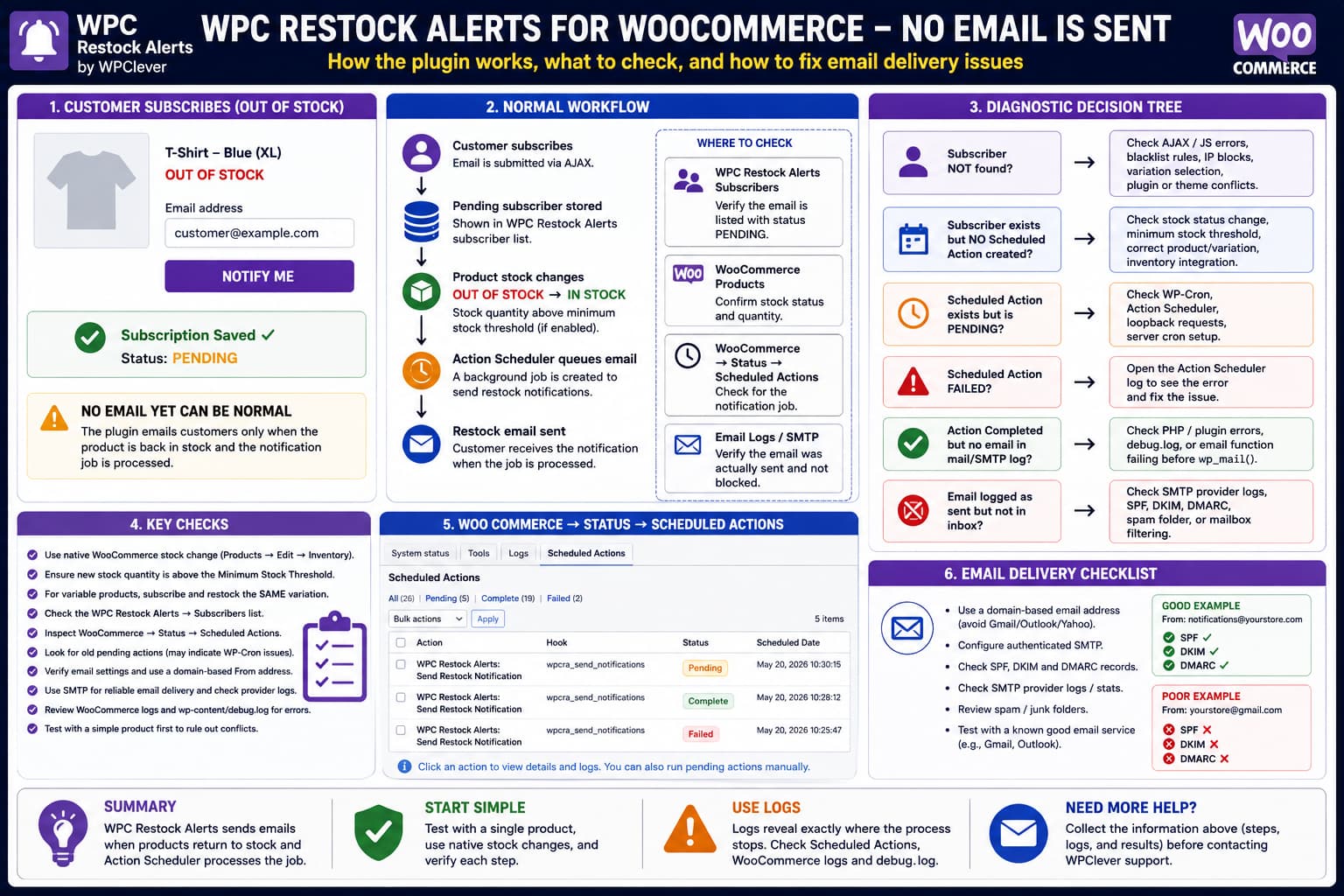
If WPC Restock Alerts for WooCommerce accepts a customer’s email address but neither the customer nor the administrator receives an email immediately afterward, first verify what event you are actually testing.
WPClever describes the plugin’s workflow as:
Product is out of stock
        ↓
Customer subscribes
        ↓
Subscription stored
        ↓
Product returns to stock
        ↓
Notification email queued
        ↓
Customer receives restock alert
The plugin’s official product documentation states that subscriptions are recorded with a lifecycle beginning at pending, and that emails are processed in the background with Action Scheduler when the product is back in stock.
The current WordPress.org description likewise says customers subscribe for email notifications as soon as the items are back in stock. It does not document a mandatory confirmation email being sent at the moment the subscription is created.
That distinction should be established before troubleshooting SMTP or WP-Cron.
No Email Immediately After Subscription May Be Normal
Suppose a product is currently out of stock.
A visitor enters:
customer@example.comand clicks:
Notify MeIf the frontend reports that the subscription was successful, WPC Restock Alerts may simply have created a pending subscription.
WPClever describes this subscription process as an AJAX operation where validation and database storage occur without reloading the product page.
The subscription itself therefore does not prove that an email should immediately leave the server.
The first check should be:
Was the subscription actually stored?
not:
Did an email arrive?
Check the Restock Alerts Subscriber List
Open the WPC Restock Alerts administration area.
Locate the subscriber/customer management screen.
WPClever documents a centralized subscriber list where administrators can view and filter customers waiting for products.
Find the email address used during the test.
You should be able to identify:
Email address
Product / variation
Subscription status
Subscription time
The exact columns depend on the installed release.
If the subscriber exists
Good.
The frontend subscription process is functioning.
Move on to testing the actual restock trigger.
If the subscriber does not exist
The problem occurs before email sending.
Investigate:
- frontend AJAX errors;
- JavaScript errors;
- security/WAF blocking;
- caching;
- blacklist settings;
- invalid product/variation selection;
- plugin conflict.
Do not troubleshoot SMTP yet.
Do Not Expect an Administrator Email Unless That Feature Is Configured
The current public free-plugin description documents:
- customer subscriptions;
- subscriber management;
- back-in-stock notification emails;
- customizable notification content;
- blacklist rules;
- stock thresholds;
- variable-product support.
It does not currently document a required administrator email whenever somebody joins a waitlist.
Therefore:
Admin received no subscription emailshould not by itself be treated as evidence that mail sending failed.
If your installed version contains a specific setting such as:
Notify administrator on subscriptionthen test that setting separately.
Otherwise, use the subscriber list as the administrator’s confirmation that the signup was recorded.
Test the Actual Back-in-Stock Notification
Use one clean test product.
Set it to:
Stock status: Out of stockThen view the product while logged out.
Subscribe with a test email address.
Confirm that the address appears in the WPC Restock Alerts subscriber list.
Only after confirming the subscription should you restock the product.
Go to:
Products → Edit Product → Inventory
Change the product from:
Out of stockto:
In stockand save/update the product.
Then wait for the background notification process.
WPClever says that when the product returns to stock, the plugin creates asynchronous Action Scheduler tasks rather than trying to send every subscriber email during the product-save request.
Check the Minimum Stock Threshold
WPC Restock Alerts supports a Minimum Stock Threshold.
WPClever describes this as a way to delay notifications until the newly available quantity reaches a configured level.
For example:
Minimum stock threshold: 5

New stock quantity: 1
can intentionally result in:
No restock notification yeteven though WooCommerce now considers the product available.
For troubleshooting, temporarily use a simple test condition:
Threshold: 1

Stock quantity after restock: 10
or otherwise make sure the new quantity is clearly above the configured threshold.
Variable Products Need a Variation-Level Test
WPC Restock Alerts supports variable products and dynamically displays the subscription form depending on whether the selected variation is out of stock.
That means a customer may have subscribed to:
T-Shirt
Color: Blue
Size: XL
Variation ID: 1234
rather than to the parent product generally.
If you later restock:
Blue / Mediumthe XL subscriber should not necessarily be notified.
When diagnosing a variable product:
- Choose one specific variation.
- Make that variation out of stock.
- Subscribe to that exact variation.
- Confirm the variation in the subscriber record.
- Restock that exact variation.
- Watch Action Scheduler.
Using a simple product first is even better because it eliminates variation logic from the initial test.
Inspect WooCommerce Scheduled Actions
This is one of the highest-value diagnostic steps.
Go to:
WooCommerce → Status → Scheduled Actions
WooCommerce documents this screen as the central place to inspect background jobs created through Action Scheduler. You can see pending, completed and failed tasks and inspect logs for failures.
WPClever specifically says WPC Restock Alerts uses Action Scheduler when products return to stock.
Restock the test product and immediately inspect recent scheduled actions.
You are looking for a newly created WPC Restock Alerts-related action around the same timestamp.
The exact hook name can change between plugin versions, so do not rely on an undocumented hook copied from another plugin.
Sort/search recent actions instead.
There Are Three Important Action Scheduler Outcomes
1. A new action appears and completes
This tells you:
Stock transition detected ✓

Notification job queued ✓

Background processor executed ✓
If the customer still receives nothing, investigate the site’s email-delivery layer.
2. A new action appears but remains Pending
Now the plugin probably recognized the restock, but WooCommerce’s background queue is not running reliably.
Investigate:
WP-Cron
Action Scheduler
loopback requests
server cron configuration
3. No notification action appears
This is particularly useful.
It suggests the issue occurred before mail delivery.
Possible causes include:
- stock transition not detected;
- wrong product/variation;
- minimum threshold not met;
- subscriber not actually pending for that product;
- stock changed through a system that bypasses expected WooCommerce hooks;
- plugin conflict;
- plugin bug.
Do not install SMTP merely because no scheduler action was created.
SMTP cannot send an email that the plugin never attempted to generate.
Why WP-Cron Matters
WooCommerce explains that Action Scheduler normally relies on WordPress’s WP-Cron mechanism to trigger queued jobs.
The flow is approximately:
WPC Restock Alerts
        ↓
Schedules notification job
        ↓
Action Scheduler
        ↓
WP-Cron triggers scheduler
        ↓
Email job runs
If WP-Cron is broken, you can get:
Subscription ✓
Restock detected ✓
Scheduled action created ✓
Email never processed ✗
WooCommerce recommends checking for old Pending actions because a backlog can indicate that WP-Cron is not functioning properly.
Check for Overdue Actions
Under:
WooCommerce → Status → Scheduled Actions → Pending
look at the oldest entries.
A few recently pending actions are normal.
A queue containing tasks that should have run:
hours ago
days ago
indicates a broader scheduler problem.
WooCommerce states that multiple significantly overdue scheduled actions can indicate WP-Cron trouble.
If unrelated WooCommerce background jobs are also stuck, WPC Restock Alerts is probably not the root cause.
Check WordPress Site Health
Go to:
Tools → Site Health
Pay particular attention to warnings involving:
Scheduled events
Loopback requests
REST API
HTTP requests
Action Scheduler can depend indirectly on WordPress’s ability to trigger background requests.
If Site Health reports that scheduled events are failing, address that before debugging the restock plugin itself.
Check DISABLE_WP_CRON
Open:
wp-config.phpand search for:
define( 'DISABLE_WP_CRON', true );This is not automatically an error.
Many well-configured production sites intentionally disable visitor-triggered WP-Cron and replace it with a real server cron.
But if:
DISABLE_WP_CRON = trueand there is no server cron calling WordPress cron, background jobs will remain pending.
Ask the host whether a real cron invokes:
wp-cron.phpregularly.
Do not simply remove DISABLE_WP_CRON without first determining why it was configured.
Try Running the Pending Action Manually
WooCommerce’s Scheduled Actions interface allows administrators to manually execute Pending actions.
If a WPC Restock Alerts notification action exists:
- Hover over the action.
- Click Run.
- Refresh the action list.
- Check whether it becomes Completed or Failed.
- Check the customer’s mailbox.
If manual Run sends the email
The email generation works.
Your problem is almost certainly background scheduling/WP-Cron rather than the restock email template.
If manual Run fails
Open the action’s log.
That error is far more useful than:
No email arrivedIf the Action Completed, Test WordPress Email Delivery
Once you have confirmed that WPC Restock Alerts generated and processed the notification job, move to the mail system.
WooCommerce explains that WordPress/WooCommerce email ultimately relies on WordPress’s:
wp_mail()pipeline unless an SMTP or transactional mail service replaces it.
WordPress’s own documentation adds an important warning:
A successful
wp_mail()result does not prove that the recipient actually received the message.
It only indicates that WordPress’s mail mechanism accepted the request for processing.
So these are different problems:
Plugin never generated emailversus:
WordPress generated email
but recipient never received it
Install Email Logging Temporarily
For a clean diagnostic, use either:
- your SMTP provider’s logs;
- an email logging plugin;
- an SMTP plugin that records send attempts.
Then repeat one restock test.
Look for the customer address and subject.
Email appears in the log
WPC Restock Alerts generated the message.
If it never arrives, investigate:
Spam filtering
SPF
DKIM
DMARC
From address
SMTP/provider rejection
mailbox filtering
Email never appears in the log
Then the plugin/action did not reach wp_mail().
Return to Scheduled Actions and PHP logs.
Use a Domain-Based From Address
WooCommerce recommends sending store email from an address using the site’s own domain rather than a free consumer mailbox.
Better:
notifications@example.comLess reliable:
myshop@gmail.comwhen the actual website server is sending on behalf of Gmail without authorization.
A domain mismatch can cause modern providers to reject or spam-folder messages because of SPF/DMARC authentication.
SMTP Is Strongly Recommended for WooCommerce
Shared hosting PHP mail can sometimes work for:
password resetand fail unpredictably under transactional/store email volume.
WooCommerce recommends using a dedicated SMTP or transactional email provider for more reliable delivery.
Typical choices include:
Postmark
Mailgun
SendGrid
Amazon SES
Brevo
SMTP2GO
The important part is not which service you choose.
You want:
authenticated sending
+
delivery logs
+
bounce information
so you can distinguish WordPress failures from mailbox rejection.
Check PHP and WooCommerce Logs
Go to:
WooCommerce → Status → Logs
Review:
fatal-errorsand other logs created around the restock test.
Also inspect:
wp-content/debug.logif WordPress debug logging is enabled.
Look for:
PHP Fatal error
Uncaught Error
Uncaught TypeError
WordPress database error
Action Scheduler exception
wp_mail failure
Use the exact test timestamp.
A fatal error inside a background action can prevent email generation without producing any visible frontend warning.
Temporarily Enable WordPress Debug Logging
On staging, or briefly during a controlled production test, add these to wp-config.php if they are not already configured:
define( 'WP_DEBUG', true );
define( 'WP_DEBUG_LOG', true );
define( 'WP_DEBUG_DISPLAY', false );
Place them before:
/* That's all, stop editing! Happy publishing. */Run one test.
Then inspect:
wp-content/debug.logDisable unnecessary debugging afterward.
Do not leave PHP errors displayed publicly on a live WooCommerce store.
Test Native WooCommerce Stock Changes
For the first test, do not restock through:
ERP
CSV importer
inventory synchronization plugin
custom API
direct SQL query
marketplace connector
Use WooCommerce’s normal Product editor.
Why?
Restock plugins normally need to detect a WooCommerce stock/status change before they can queue a notification.
Other back-in-stock extensions explicitly document that inventory systems which update the database without firing normal WooCommerce stock hooks can prevent notification jobs from being created.
That support thread refers to another plugin, so it does not prove WPC Restock Alerts has the same implementation.
But the diagnostic principle is useful:
Native WooCommerce restock works
Third-party sync does not
strongly implicates the inventory integration rather than SMTP.
Test the native stock workflow first.
Confirm the Stock Status Actually Changes
WooCommerce distinguishes:
Stock quantityfrom:
Stock statusDepending on how inventory is configured, entering a positive quantity does not necessarily produce the expected transition if another setting or integration controls stock status.
Before:
Out of stockAfter:
In stockVerify this visibly in the Product editor and frontend.
The restock event is the important trigger.
Check the Blacklist
WPC Restock Alerts includes a blacklist system for blocking email addresses and IP patterns.
For example:
*@example.comcould block every test address on that domain.
Also inspect IP blacklist rules.
If the frontend subscription is not saved, temporarily remove test-address/IP blacklist rules and retry.
If the subscriber is already listed as pending, the blacklist is less likely to explain the later restock email failure.
Rule Out a Plugin Conflict
Run this test on staging if possible.
Keep active:
WooCommerce
WPC Restock Alerts
and temporarily disable:
- other restock/waitlist plugins;
- email customization plugins;
- inventory synchronization plugins;
- aggressive performance plugins;
- security plugins that modify AJAX;
- custom WooCommerce extensions.
Then:
Out of stock
→ Subscribe
→ Verify subscriber
→ In stock
→ Check Scheduled Actions
If the complete flow works, reactivate plugins in groups until the failure returns.
Rule Out the Theme Only if Subscription Fails
If the subscription form appears and successfully creates a subscriber, the theme is less likely to be responsible for an email problem.
A theme conflict becomes more plausible when:
form doesn't submit
variation does not update
AJAX request fails
wrong product ID submitted
In that case, switch to Storefront or a default WordPress theme on staging and reproduce the subscription.
Do not change themes simply because an email failed after the subscription was already stored correctly.
Current Version Matters
The current WordPress.org listing shows WPC Restock Alerts 2.0.1.
Its recent changelog includes compatibility updates for WordPress 7.0 and WooCommerce 11.0, along with code optimization.
Update to the latest release before reporting an email-processing bug.
At the same time, the current listing is only marked tested through WordPress 7.0.4, while WordPress 7.1 is now available.
That does not prove WordPress 7.1 causes mail failures.
But if the problem occurs specifically on WordPress 7.1, include that information in the support report because the plugin’s published compatibility metadata has not yet caught up.
A Reliable Test Matrix
Use a fresh simple product and record each result.
STEP 1
Product out of stock
Result: ✓

STEP 2
Submit test email
Result: success message ✓ / ✗

STEP 3
Subscriber appears in Restock Alerts
Result: ✓ / ✗

STEP 4
Restock above minimum threshold
Result: ✓

STEP 5
New Scheduled Action appears
Result: ✓ / ✗

STEP 6
Scheduled Action completes
Result: ✓ / failed / pending

STEP 7
Email appears in SMTP/mail log
Result: ✓ / ✗

STEP 8
Email arrives in inbox
Result: ✓ / ✗
The first ✗ identifies the layer that needs troubleshooting.
Diagnostic Decision Tree
The entire troubleshooting process can be reduced to:
Customer subscribes
       ↓
Is subscriber stored?
   ↙           ↘
 No             Yes
 ↓               ↓
AJAX/form     Restock product
problem           ↓
             Is Action Scheduler
             job created?
              ↙          ↘
            No            Yes
            ↓              ↓
       Stock trigger /    Does job run?
       threshold /         ↙      ↘
       variation         No        Yes
                         ↓          ↓
                       Cron      Is email logged?
                                   ↙       ↘
                                  No        Yes
                                  ↓          ↓
                             Plugin/PHP   SMTP /
                               error      deliverability
This avoids randomly changing mail settings before you know where the flow stops.
What to Report to WPClever
If the subscriber is successfully stored and a native WooCommerce stock transition does not generate a notification action, collect:
WPC Restock Alerts version:
WordPress version:
WooCommerce version:
PHP version:

Product:
Simple / Variable

Minimum stock threshold:
...

Initial status:
Out of stock

New stock:
...

New status:
In stock

Subscriber appears in WPC Restock Alerts:
Yes

Scheduled Action created:
No
If an action exists but fails, add its Action Scheduler log.
If the action completes but no email is logged, include relevant PHP/debug errors.
If an email is logged as sent but never arrives, that is much more likely to be an SMTP/deliverability problem than a WPC Restock Alerts scheduling problem.
Practical Conclusion
Do not use the absence of an immediate subscription email as the first indication that WPC Restock Alerts is broken.
WPClever’s documented workflow is:
Subscription
→ stored as pending

Product returns to stock
→ background Action Scheduler job

Job executes
→ customer restock notification
The public free-plugin description does not currently document a mandatory customer confirmation email or administrator “new subscriber” notification at signup.
Start by checking that the subscriber appears in Restock Alerts.
Then perform a controlled native WooCommerce restock above any configured stock threshold.
Immediately inspect:
WooCommerce → Status → Scheduled Actions
If no job appears, investigate the stock trigger, variation and threshold.
If the job remains Pending, investigate WP-Cron/Action Scheduler.
If the job completes but no outgoing email is recorded, inspect WPC/PHP errors.
If the email is recorded as sent but never reaches the inbox, configure authenticated SMTP and verify SPF, DKIM and DMARC.
That sequence identifies the broken layer without assuming that every successful waitlist signup should generate two immediate emails.
