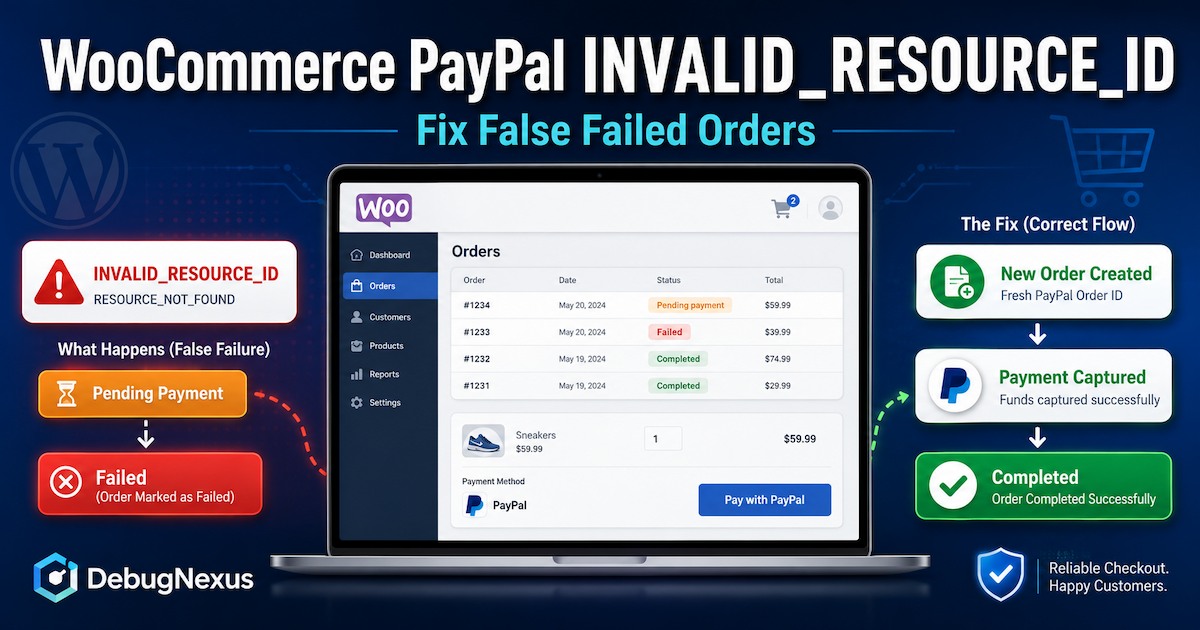
WooCommerce PayPal INVALID_RESOURCE_ID errors can cause an order to be marked as failed even when the customer continues through checkout and completes the payment successfully.
A typical sequence looks like this:
- WooCommerce PayPal Payments tries to retrieve an existing PayPal Order ID.
- PayPal responds with
RESOURCE_NOT_FOUNDandINVALID_RESOURCE_ID. - The plugin changes the WooCommerce order from Pending payment to Failed.
- WooCommerce sends a failed-order notification.
- The checkout creates a new PayPal order.
- The new PayPal order is patched and captured successfully.
- PayPal sends a
PAYMENT.CAPTURE.COMPLETEDwebhook.
This creates a confusing situation for store owners. They receive a failed-order email even though the customer may have completed payment seconds later.
This guide explains what the error means, how to confirm whether the payment actually succeeded, how to troubleshoot its likely causes, and how to delay false failed-order emails safely while waiting for an official plugin-level fix.
Example Environment
The issue described in this article was observed with:
WordPress: 7.0.1
WooCommerce: 10.9.4
WooCommerce PayPal Payments: 4.1.1
Currency: EUR
HPOS: Enabled
The relevant log sequence included:
RESOURCE_NOT_FOUND
INVALID_RESOURCE_ID
The specified resource ID does not exist.

Could not retrieve order.
OrderEndpoint.php:315
The WooCommerce order then changed from:
Pending payment → FailedHowever, the same checkout flow subsequently recorded:
Create PayPal Order: 200 OK
Patch PayPal Order: 204 No Content
Capture PayPal Order: 201 Created
Webhook: PAYMENT.CAPTURE.COMPLETED
This sequence suggests that the plugin attempted to retrieve a stale or no-longer-valid PayPal Order ID before creating a replacement PayPal order.
That is a strong possibility, but it should not be treated as a confirmed root cause without reviewing the complete transaction log, browser session, WooCommerce order notes, PayPal Debug IDs, and webhook delivery history.
What Does INVALID_RESOURCE_ID Mean?
PayPal returns RESOURCE_NOT_FOUND with the INVALID_RESOURCE_ID issue when the requested API resource cannot be found.
According to PayPal, possible causes include:
- An incorrect or malformed resource ID
- A resource ID that does not exist
- A resource belonging to a different account
- Insufficient API permissions to access the resource
The specific API request using that ID cannot continue successfully. However, that does not necessarily mean every subsequent payment attempt in the browser session must also fail. A checkout integration may discard the invalid reference, create a new PayPal order, and continue with that new resource.
This distinction is important when reading the logs.
The following request failed:
GET /v2/checkout/orders/OLD-OR-INVALID-IDBut a later request may still succeed:
POST /v2/checkout/ordersThe first error and the later successful capture can therefore belong to two different PayPal Order IDs within the same customer checkout session.
Why WooCommerce Marks the Order as Failed
WooCommerce defines a Failed order as one where the customer’s payment failed or was declined and no successful payment was made. A newly submitted but unpaid order normally remains in Pending payment while WooCommerce waits for customer action or payment confirmation.
WooCommerce PayPal Payments may interpret the failed PayPal order retrieval as a payment failure and change the WooCommerce status accordingly:
Pending payment → FailedWooCommerce then triggers its failed-order notification process.
In current WooCommerce code, the admin failed-order email is connected to transitions from Pending payment or On hold to Failed. Recent WooCommerce versions can also send a customer failed-order notification when the order enters the failed state.
The problem is therefore not that the failed-order email is malfunctioning. The email is responding correctly to the status change.
The questionable part is whether a temporary failure to retrieve an older PayPal Order ID should immediately cause that status change while the checkout is still actively recovering.
Is This a Confirmed WooCommerce PayPal Payments Bug?
There have been previous reports of INVALID_RESOURCE_ID errors changing WooCommerce orders from Pending payment to Failed.
One earlier report documented a 404 response while reloading a PayPal order, followed by a new PayPal order request in the same log. Other support discussions have associated similar errors with checkout sessions, caching, webhooks, account connections, or plugin conflicts.
However, similar error messages do not always have the same underlying cause.
An invalid resource ID could result from:
- A stale PayPal Order ID stored in the WooCommerce session
- The customer restarting or repeating checkout
- Multiple browser tabs using the same cart
- Cached checkout responses
- JavaScript optimization changing request timing
- An interrupted PayPal popup
- The customer switching payment methods
- A PayPal order that expired or was discarded
- Incorrect live or sandbox credentials
- A webhook or session race condition
- Another plugin modifying checkout requests
As of WooCommerce PayPal Payments 4.1.1, the public changelog does not list a specific fix for stale PayPal Order IDs incorrectly triggering failed-order emails. Version 4.1.1 mainly addresses Pay Upon Invoice loading and excessive merchant integration API requests.
The steps below should therefore be considered troubleshooting and mitigation, not a guaranteed universal fix for every INVALID_RESOURCE_ID response.
Step 1: Confirm Whether the Payment Actually Succeeded
Do not rely only on the WooCommerce order status or the failed-order email.
Open the transaction in the PayPal merchant dashboard and confirm:
- Whether a capture exists
- Whether the capture status is completed
- The captured amount and currency
- The PayPal transaction ID
- The PayPal Order ID associated with the capture
- The invoice ID or WooCommerce order reference
- Whether the payment was refunded or reversed later
Then compare that information with the WooCommerce order.
Open:
WooCommerce → Orders → Affected orderCheck:
- Payment method
- Transaction ID
- Order notes
- Current status
- Date paid
- PayPal Order ID stored by the gateway
- Whether a later webhook changed the status
Never manually mark the WooCommerce order as Processing based only on the customer’s claim or an initial API log.
Confirm the completed capture in PayPal first. Otherwise, the store could fulfill an order for which payment was never successfully received.
Step 2: Compare the Old and New PayPal Order IDs
The most useful diagnostic step is to determine whether the failed lookup and successful capture used different PayPal Order IDs.
Search the WooCommerce PayPal Payments log for:
/v2/checkout/orders/You may find a sequence similar to:
GET /v2/checkout/orders/OLD-PAYPAL-ID
404 RESOURCE_NOT_FOUND
Followed by:
POST /v2/checkout/orders
200 OK
PayPal Order ID: NEW-PAYPAL-ID
And later:
POST /v2/checkout/orders/NEW-PAYPAL-ID/capture
201 Created
When the failed GET request uses one ID and the successful capture uses another, that supports the stale-resource theory.
When both requests use the same ID, investigate account credentials, PayPal permissions, live-versus-sandbox configuration, and API access instead.
Step 3: Enable WooCommerce PayPal Logging
Go to:
WooCommerce → Settings → Payments → PayPal → ManageOpen the connection or advanced settings and enable logging.
After reproducing the issue, go to:
WooCommerce → Status → LogsSelect the log beginning with a name similar to:
woocommerce-paypal-paymentsWooCommerce recommends examining order notes and payment gateway logs when an order status is incorrect or payment confirmation is missing. Logs can show whether payment initiation, capture, or webhook processing was interrupted.
For each affected transaction, record:
WooCommerce order number
WooCommerce internal order ID
Customer checkout time
Failed PayPal Order ID
Replacement PayPal Order ID
Capture ID
PayPal Debug ID
Webhook event ID
Webhook delivery time
Do not publish complete logs publicly. They may contain customer data, addresses, emails, internal identifiers, access tokens, or other sensitive information.
Step 4: Check the PayPal Webhook Status
A successful PayPal capture does not automatically guarantee that WooCommerce received and processed the corresponding webhook.
Check the webhook status in the PayPal Payments settings. Depending on the plugin interface, you may see an option to:
- Verify webhooks
- Resubscribe webhooks
- Simulate a webhook event
- Reconnect the PayPal account
WooCommerce explains that webhooks allow payment providers to send real-time status changes back to the store. Missing or blocked webhooks can leave WooCommerce with an incorrect payment status.
Also review:
WooCommerce → Status → Scheduled ActionsSearch for failed or pending actions related to:
PayPal
webhook
woocommerce_paypal
ppcp
A successful capture followed by a failed or delayed webhook request may leave the WooCommerce order in Failed or Pending payment longer than expected.
Step 5: Exclude Checkout Requests From Caching
Checkout, cart, account, REST API, and AJAX requests should not be served from a full-page cache.
Temporarily disable your caching and optimization plugins and place several sandbox test orders.
Pay particular attention to:
/cart/
/checkout/
/my-account/
/order-pay/
/order-received/
?wc-ajax=
/wp-json/
Also avoid delaying, combining, or asynchronously rewriting the PayPal JavaScript SDK during testing.
A previous WooCommerce PayPal Payments support response identified caching and webhook communication as common areas to investigate for intermittent INVALID_RESOURCE_ID failures.
When the error disappears with caching and JavaScript optimization disabled, re-enable features individually until the conflict returns.
Do not purge all WooCommerce sessions on a busy production store without planning the maintenance window. Clearing sessions can remove active customer carts.
Step 6: Test for Plugin or Theme Conflicts
Create a staging copy of the website and test with:
- A default WooCommerce-compatible theme
- WooCommerce
- WooCommerce PayPal Payments
- No other plugins except those strictly required
Place multiple sandbox orders using:
- PayPal popup checkout
- PayPal redirect checkout
- Guest checkout
- Logged-in checkout
- Mobile and desktop browsers
- One browser tab
- Multiple checkout attempts
- A cancelled PayPal popup followed by a retry
If the problem stops, reactivate the original plugins one at a time.
Give special attention to plugins that modify:
- Checkout fields
- Cart totals
- Currency
- Taxes
- Discounts and gift cards
- JavaScript optimization
- Sessions
- Cookies
- Order creation
- Payment gateway availability
- Checkout fragments
A standard conflict test is also one of the troubleshooting steps previously recommended by WooCommerce PayPal Payments support for resource-not-found errors.
Step 7: Reconnect PayPal Carefully
Reconnect the PayPal account only after preserving the logs and testing the simpler causes.
Before reconnecting:
- Create a full website and database backup.
- Save screenshots of the current PayPal settings.
- Record whether the store is in sandbox or live mode.
- Confirm that you have the correct PayPal merchant login.
- Avoid reconnecting during active customer checkout.
- Test on staging first when possible.
A sandbox credential used against the live API, or a live resource ID requested through sandbox credentials, will not refer to the same PayPal resource.
After reconnecting, verify the webhook status again and place a complete test order.
Temporary Solution: Delay PayPal Failed-Order Emails
When the customer successfully completes payment shortly after the initial INVALID_RESOURCE_ID response, the main operational problem may be the premature failed-order email.
A safe temporary mitigation is to delay failed-order emails for PayPal Payments orders by a few minutes.
During that delay:
- If a successful capture webhook changes the order to Processing or Completed, the false failure email is skipped.
- If the order remains Failed and unpaid, the normal failure emails are sent after the delay.
- The code does not mark the order as paid.
- The code does not capture a payment.
- The code does not change the order status.
WooCommerce exposes separate failed-order email classes and triggers. This makes it possible to suppress the immediate notification and send it later only when the order is still genuinely failed.
Create an MU Plugin
Open:
/wp-content/Create this directory if it does not exist:
/wp-content/mu-plugins/Inside it, create:
debugnexus-delay-paypal-failed-emails.phpPaste the following code:
<?php
/**
 * Plugin Name: DebugNexus Delay PayPal Failed Emails
 * Description: Delays failed-order emails for WooCommerce PayPal Payments orders, allowing a successful webhook to recover the order first.
 * Version: 1.0.0
 */

defined( 'ABSPATH' ) || exit;

const DEBUGNEXUS_PPCP_FAILED_EMAIL_DELAY = 180;
const DEBUGNEXUS_PPCP_REVIEW_HOOK        = 'debugnexus_review_ppcp_failed_order';
const DEBUGNEXUS_PPCP_EMAIL_BYPASS_META  = '_debugnexus_send_failed_email_now';

/**
 * Determine whether an order belongs to WooCommerce PayPal Payments.
 *
 * PayPal Payments gateway IDs normally begin with "ppcp".
 *
 * @param WC_Order $order Order object.
 * @return bool
 */
function debugnexus_is_ppcp_order( $order ) {
	if ( ! $order instanceof WC_Order ) {
		return false;
	}

	$payment_method = (string) $order->get_payment_method();

	return 0 === strpos( $payment_method, 'ppcp' );
}

/**
 * Suppress the immediate failed-order email for PayPal Payments orders.
 *
 * The scheduled review temporarily enables the email again when the order
 * remains failed after the waiting period.
 *
 * @param bool          $enabled Whether the email is enabled.
 * @param WC_Order|bool $order   Order object.
 * @return bool
 */
function debugnexus_delay_ppcp_failed_email( $enabled, $order ) {
	if ( ! $enabled || ! debugnexus_is_ppcp_order( $order ) ) {
		return $enabled;
	}

	return 'yes' === $order->get_meta(
		DEBUGNEXUS_PPCP_EMAIL_BYPASS_META,
		true
	);
}

add_filter(
	'woocommerce_email_enabled_failed_order',
	'debugnexus_delay_ppcp_failed_email',
	10,
	2
);

add_filter(
	'woocommerce_email_enabled_customer_failed_order',
	'debugnexus_delay_ppcp_failed_email',
	10,
	2
);

/**
 * Schedule a delayed review whenever a PayPal Payments order becomes failed.
 *
 * @param int      $order_id Order ID.
 * @param string   $from     Previous status.
 * @param string   $to       New status.
 * @param WC_Order $order    Order object.
 * @return void
 */
function debugnexus_schedule_ppcp_failed_review(
	$order_id,
	$from,
	$to,
	$order
) {
	if (
		'failed' !== $to ||
		! debugnexus_is_ppcp_order( $order )
	) {
		return;
	}

	$args      = array( (int) $order_id );
	$timestamp = time() + DEBUGNEXUS_PPCP_FAILED_EMAIL_DELAY;

	/*
	 * Prefer WooCommerce Action Scheduler when available.
	 */
	if (
		function_exists( 'as_schedule_single_action' ) &&
		function_exists( 'as_next_scheduled_action' )
	) {
		$existing_action = as_next_scheduled_action(
			DEBUGNEXUS_PPCP_REVIEW_HOOK,
			$args,
			'debugnexus-paypal'
		);

		if ( ! $existing_action ) {
			as_schedule_single_action(
				$timestamp,
				DEBUGNEXUS_PPCP_REVIEW_HOOK,
				$args,
				'debugnexus-paypal'
			);
		}

		return;
	}

	/*
	 * Fall back to WP-Cron if Action Scheduler is unavailable.
	 */
	if (
		! wp_next_scheduled(
			DEBUGNEXUS_PPCP_REVIEW_HOOK,
			$args
		)
	) {
		wp_schedule_single_event(
			$timestamp,
			DEBUGNEXUS_PPCP_REVIEW_HOOK,
			$args
		);
	}
}

add_action(
	'woocommerce_order_status_changed',
	'debugnexus_schedule_ppcp_failed_review',
	20,
	4
);

/**
 * Send failed-order emails only if the PayPal order is still failed and unpaid.
 *
 * @param int $order_id Order ID.
 * @return void
 */
function debugnexus_review_ppcp_failed_order( $order_id ) {
	$order = wc_get_order( $order_id );

	if ( ! debugnexus_is_ppcp_order( $order ) ) {
		return;
	}

	/*
	 * A successful webhook has already recovered the order.
	 */
	if (
		$order->is_paid() ||
		! $order->has_status( 'failed' )
	) {
		$order->add_order_note(
			'Delayed PayPal failed-order notification skipped because the order recovered or was marked paid.'
		);

		return;
	}

	/*
	 * Temporarily allow the failed-order emails through their normal
	 * WooCommerce enabled/disabled checks.
	 */
	$order->update_meta_data(
		DEBUGNEXUS_PPCP_EMAIL_BYPASS_META,
		'yes'
	);
	$order->save();

	try {
		$mailer = WC()->mailer();
		$emails = $mailer->get_emails();

		foreach ( $emails as $email ) {
			if (
				! isset( $email->id ) ||
				! in_array(
					$email->id,
					array(
						'failed_order',
						'customer_failed_order',
					),
					true
				)
			) {
				continue;
			}

			if ( is_callable( array( $email, 'trigger' ) ) ) {
				$email->trigger( $order_id, $order );
			}
		}

		$order->add_order_note(
			'Delayed PayPal failed-order notification sent because the order remained failed and unpaid.'
		);
	} finally {
		$order->delete_meta_data(
			DEBUGNEXUS_PPCP_EMAIL_BYPASS_META
		);
		$order->save();
	}
}

add_action(
	DEBUGNEXUS_PPCP_REVIEW_HOOK,
	'debugnexus_review_ppcp_failed_order',
	10,
	1
);
What This Code Does
The code waits for:
180 secondsYou can change the delay here:
const DEBUGNEXUS_PPCP_FAILED_EMAIL_DELAY = 180;For a five-minute delay, use:
const DEBUGNEXUS_PPCP_FAILED_EMAIL_DELAY = 300;The workflow becomes:
PayPal order enters Failed
        ↓
Immediate failed email is suppressed
        ↓
Wait three minutes
        ↓
Reload WooCommerce order
        ↓
Paid or recovered?
   Yes              No
    ↓                ↓
Skip email      Send failed email
This workaround delays all failed emails associated with WooCommerce PayPal Payments gateway IDs, not only those containing INVALID_RESOURCE_ID.
That is intentional. The API error text may not be reliably available in order metadata at the exact moment WooCommerce checks whether the email should be sent.
Important Limitations
This code is an email-notification mitigation. It is not a replacement for payment reconciliation.
It does not:
- Repair the stale PayPal Order ID
- Prevent the original API error
- Create a new PayPal order
- Change a Failed order back to Processing
- Capture money
- Verify the payment directly through PayPal
- Replace the PayPal webhook
- Guarantee that the plugin will recover the order
Use it only after testing on a staging website.
Also confirm that WP-Cron or Action Scheduler is functioning. If scheduled actions are not running, genuinely failed PayPal notifications could remain delayed.
How to Test the Delayed Email Workaround
Test in PayPal sandbox mode.
Test a genuine failure
- Place an order using PayPal.
- Cause or simulate a failed payment.
- Confirm that no failed email arrives immediately.
- Wait at least three minutes.
- Run pending scheduled actions if required.
- Confirm that the order remains Failed.
- Confirm that the failed email is delivered.
Test a recovered payment
- Reproduce a flow where the order briefly becomes Failed.
- Allow the successful PayPal capture and webhook to complete.
- Confirm that the order changes to Processing or Completed.
- Wait longer than the configured delay.
- Confirm that no failed email is sent.
- Check the order notes for the skipped-notification message.
You can review the scheduled review under:
WooCommerce → Status → Scheduled ActionsSearch for:
debugnexus_review_ppcp_failed_orderDo Not Automatically Force Failed Orders to Processing
Avoid code that simply changes every failed PayPal order back to Processing.
For example, do not use logic like:
if ( $order->has_status( 'failed' ) ) {
	$order->update_status( 'processing' );
}
A Failed order may represent:
- A genuinely declined payment
- An expired PayPal order
- An abandoned checkout
- A fraud rejection
- A failed card authorization
- An API permission problem
- A customer who never completed payment
WooCommerce should only treat the order as paid after receiving reliable payment confirmation.
Information to Send to WooCommerce PayPal Support
Prepare one complete example containing:
WordPress version
WooCommerce version
WooCommerce PayPal Payments version
PHP version
Classic or Block Checkout
HPOS status
Currency
Payment method
WooCommerce order number
Original PayPal Order ID
Replacement PayPal Order ID
PayPal capture ID
PayPal Debug ID
Webhook event ID
Exact UTC timestamps
Relevant order notes
Sanitized PayPal Payments log
Describe the order of events clearly:
1. Existing PayPal order lookup returned INVALID_RESOURCE_ID.
2. WooCommerce order changed from Pending payment to Failed.
3. Failed-order email was triggered.
4. A new PayPal order was created in the same checkout flow.
5. The replacement order was captured successfully.
6. PAYMENT.CAPTURE.COMPLETED was received.
This makes it easier for the plugin developers to determine whether INVALID_RESOURCE_ID should be handled as a recoverable stale-order state during an active checkout.
Final Recommendation
A WooCommerce PayPal INVALID_RESOURCE_ID response means that PayPal could not locate the resource requested by that specific API call.
When the checkout immediately creates a different PayPal order and captures it successfully, the initial error may represent a stale PayPal Order ID rather than the final outcome of the customer’s payment.
Store owners should:
- Confirm the capture directly in PayPal.
- Compare the failed and successful PayPal Order IDs.
- Review order notes, gateway logs, and webhook delivery.
- Exclude checkout and PayPal requests from caching.
- Run a staging conflict test.
- Verify the PayPal account connection and operating mode.
- Report the complete timeline to plugin support.
- Use a short failed-email delay only as a temporary mitigation.
The delayed notification solution prevents misleading failed-order emails while still sending a genuine failure notification when the order remains failed and unpaid.
It does not interfere with payment processing, and it gives the successful PayPal webhook enough time to recover the WooCommerce order before the store owner or customer receives an incorrect failure message.
