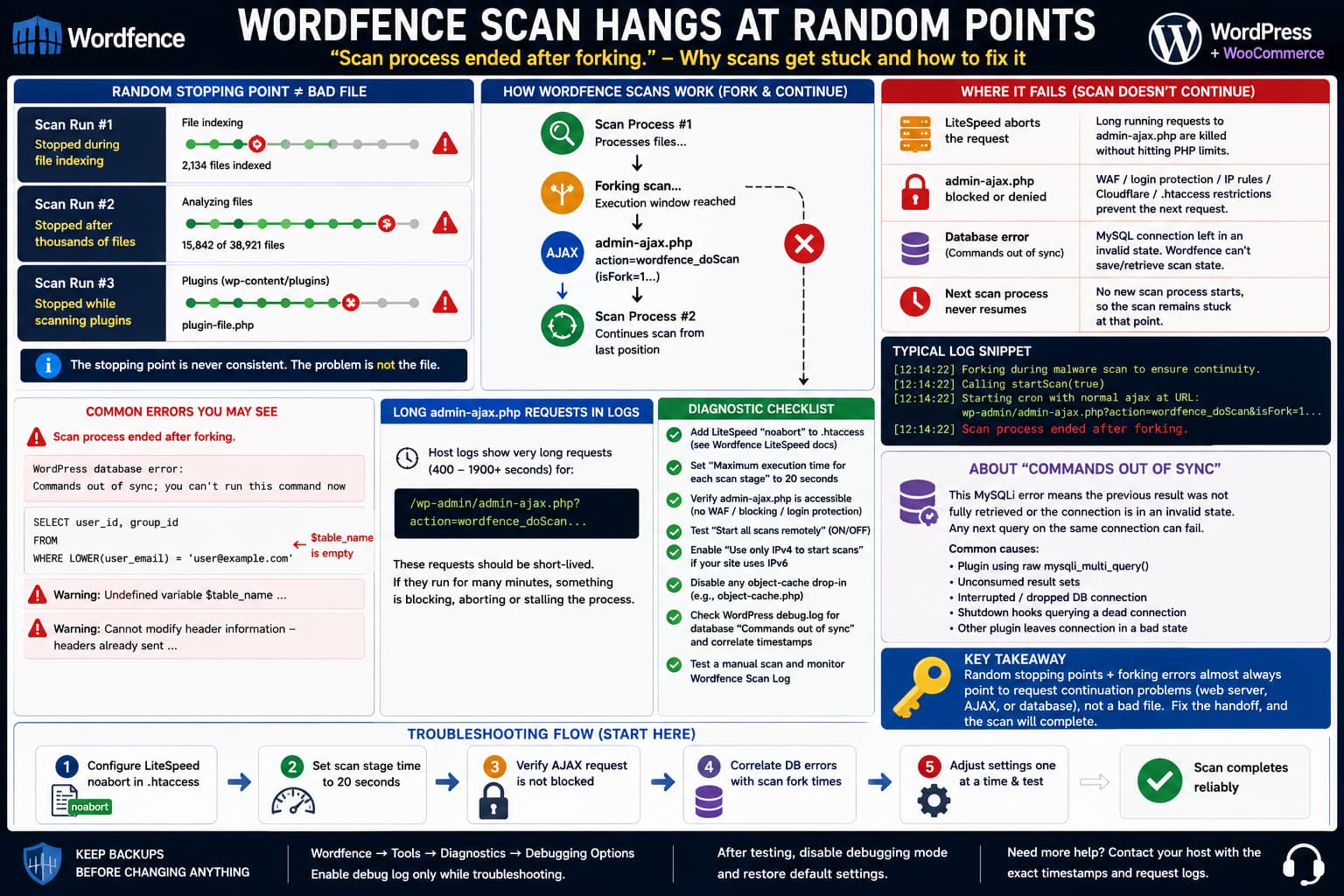
When a Wordfence scan stops at a different place every time—file indexing on one run, plugin files on another, and thousands of files later on the next—the stopping point itself is an important clue.
A single damaged or unusually large file normally produces a more repeatable failure. Random stopping points are more consistent with the scan process losing continuity between requests.
The message:
Scan process ended after forking.is especially relevant.
Wordfence divides a scan into shorter execution segments. When one segment reaches its execution window, Wordfence starts another request through wp-admin/admin-ajax.php and hands the scan to that new process. The old process then ends.
The problem is therefore not necessarily that the scan forked. The problem is that the next forked request does not resume or complete reliably.
On LiteSpeed hosting, the first things to investigate are long-running request termination, access to admin-ajax.php, and the state of the WordPress database connection.
What “Scan Process Ended After Forking” Means
Wordfence does not normally execute one enormous PHP request until every file has been scanned.
Its scan is divided into execution segments.
A debug log can show a sequence similar to:
Forking during malware scan to ensure continuity.
Entered fork()
Calling startScan(true)
Starting cron with normal ajax at URL:
wp-admin/admin-ajax.php?action=wordfence_doScan&isFork=1...
Scan process ended after forking.
The current process is handing work to another HTTP request.
If everything works, another scan process receives that request, verifies its scan key, loads the saved scan state, and continues.
Conceptually:
Scan request #1
      ↓
Processes files
      ↓
Reaches execution window
      ↓
Fork
      ↓
admin-ajax.php?action=wordfence_doScan
      ↓
Scan request #2
      ↓
Continues scan
A hanging scan looks more like:
Scan request #1
      ↓
Fork
      ↓
admin-ajax.php request
      ↓
Request blocked, killed, stalled,
or unable to restore scan state
      ↓
No next scan segment
Wordfence specifically documents “Scan process ended after forking” as a scan troubleshooting condition and recommends checking access to wp-admin, object caching, and server behavior.
Random Failure Points Usually Mean the File Is Not the Cause
Suppose the scan repeatedly failed on:
wp-content/plugins/example/file.phpevery time.
That would make the file itself worth investigating.
But if one scan stops at:
File indexinganother at:
Scanning plugin filesand another after:
15,000+ files scannedthe common factor is not the file being examined.
The common factor is the execution mechanism carrying the scan from one PHP request to the next.
This shifts troubleshooting toward:
- LiteSpeed request termination;
admin-ajax.php;- loopback/self-requests;
- Wordfence scan forking;
- web application firewall or CDN interference;
- database connection state;
- stale object-cache drop-ins;
- WordPress memory limits;
- host-level process limits not represented by
php.ini.
Do Not Use WORDFENCE_SCAN_FAILURE_THRESHOLD as the Fix
Wordfence provides:
define( 'WORDFENCE_SCAN_FAILURE_THRESHOLD', 600 );to alter how long Wordfence waits before displaying:
The current scan looks like it has failed.The default threshold is 300 seconds.
Wordfence’s documentation makes an important distinction: this setting changes the amount of time Wordfence waits for missing scan-status updates before declaring the scan failed. It does not repair a scan process that has actually stopped.
That explains why increasing the value to something such as:
define( 'WORDFENCE_SCAN_FAILURE_THRESHOLD', 900 );can make the error message disappear while leaving the scan permanently stuck.
You have changed:
When Wordfence reports a failurenot:
Whether the next scan process startsOnce troubleshooting is complete, remove an unusually high custom threshold unless you have a specific reason to keep it.
Check LiteSpeed noabort First
This is particularly important on LiteSpeed hosting.
Wordfence has dedicated documentation for this problem. It states that LiteSpeed can terminate long-running PHP processes when the initiating connection is no longer considered active. The process may be killed silently rather than receiving a normal PHP timeout.
That means a hosting dashboard can show:
Memory limit: not reached
CPU limit: not reached
PHP max_execution_time: not reached
while the Wordfence request still dies.
Wordfence recommends adding a LiteSpeed noabort directive to the site’s main .htaccess.
Back up .htaccess before editing it.
Add this above:
# BEGIN WordPressnot inside the WordPress-generated block:
# BEGIN LiteSpeed noabort
<IfModule mod_rewrite.c>
RewriteEngine On
RewriteRule .* - [E=noabort:1]
</IfModule>
# END LiteSpeed noabort
Wordfence also documents alternative variants for servers where the first form is ineffective.
After adding it:
- Save
.htaccess. - Clear the LiteSpeed/server cache if applicable.
- Stop any existing Wordfence scan.
- Start a new scan.
- Watch the Wordfence scan log.
Do not change several other scan settings at the same time. You want to know whether noabort changes the behavior.
Ask the Host About LiteSpeed External Application Abort
The .htaccess setting is only one side of the configuration.
Wordfence notes that some LiteSpeed servers are configured globally with External Application Abort disabled, in which case the local noabort directive may not be necessary. Wordfence even provides a Bypass the LiteSpeed “noabort” check setting for hosts where this has already been configured server-wide.
Ask the hosting provider specifically:
Is LiteSpeed External Application Abort enabled for this account, and can long-running PHP requests to
/wp-admin/admin-ajax.phpbe aborted independently of PHPmax_execution_time?
That question is more useful than:
Am I hitting my hosting limits?
The two are not equivalent.
400–1900 Second admin-ajax.php Requests Are an Important Clue
Wordfence normally divides the scan into shorter execution stages rather than expecting one AJAX request to run indefinitely.
Its documentation says scan segments usually use approximately half of PHP’s available execution time, and Wordfence also provides a separate Maximum execution time for each scan stage setting.
A server log showing Wordfence-related admin-ajax.php requests lasting:
400 seconds
900 seconds
1900 seconds
deserves investigation.
It may mean a PHP worker is:
- blocked waiting on the database;
- not terminating after its expected scan segment;
- waiting on another network operation;
- stuck during shutdown processing;
- being held open by the web server;
- failing to complete the handoff cleanly.
Do not simply increase PHP’s execution time farther.
A longer timeout can make a stuck request remain stuck for longer.
Lower Wordfence’s Scan Stage Time
Wordfence support commonly recommends reducing the Maximum execution time for each scan stage when scans are unreliable.
Go to:
Wordfence → Scan → Scan Options and Scheduling → Performance Options
Set:
Maximum execution time for each scan stage: 20Then save the settings.
This is separate from PHP’s:
max_execution_timeA PHP limit of 360 seconds does not mean each Wordfence scan segment should run for 360 seconds.
Shorter stages can make the process less vulnerable to hosting layers that terminate long-running HTTP workers.
Wordfence support has specifically recommended a value of 20 seconds while debugging fork failures.
If 20 seconds works reliably, there is usually little benefit in forcing each scan stage to run for several minutes.
Verify wp-admin/admin-ajax.php Is Not Being Restricted
Wordfence’s scan handoff depends on access to WordPress AJAX.
Check whether anything restricts:
/wp-admin/or:
/wp-admin/admin-ajax.phpPossible causes include:
- login-hiding plugins;
- custom
.htaccessrules; - password-protected admin directories;
- Cloudflare rules;
- Hostinger security rules;
- ModSecurity;
- IP allowlists;
- Basic Authentication;
- custom WAF rules.
Wordfence explicitly warns that restricting wp-admin can also block the AJAX handler required for scans. In one support case, removing a plugin that restricted the admin/login path immediately restored scanning.
Do not assume:
I can log into wp-adminmeans:
The server can call its own admin-ajax.php endpoint.Those are different requests.
Look at the Wordfence Scan Start Test
Enable Wordfence debugging temporarily:
Wordfence → Tools → Diagnostics → Debugging Options
Enable:
Enable debugging modeThen start a scan and open:
Wordfence → Scan → Show Log
Look around each fork for entries similar to:
Starting cron with normal ajax at URL ...and:
Test result of scan start URL fetchThe successful scan-start test should return a normal response rather than:
403 ForbiddenCloudflare challengeYou do not have sufficient permissionsor another unexpected HTML response.
Wordfence support logs show these responses are useful for identifying a failed scan handoff.
Disable Wordfence debugging again after collecting the necessary information.
Test “Start All Scans Remotely”
Wordfence has two ways to initiate scans depending on the environment.
Under:
Wordfence → Tools → Diagnostics → Debugging Options
you can test:
Start all scans remotelyWordfence recommends trying this when local scan-start requests are unreliable. If it does not help, disable it again because local scan starts are normally faster and can avoid problems introduced by proxies or external security services.
Use this as an A/B test:
Remote scan start OFF
→ test scan
then:
Remote scan start ON
→ test scan
Do not change the LiteSpeed, execution-time, and remote-start settings simultaneously or you will not know which change mattered.
Test IPv4-Only Scan Starts
Wordfence support also recommends testing:
Use only IPv4 to start scans
when investigating scan fork problems.
This is useful when:
- the domain has both A and AAAA records;
- IPv6 routing behaves differently;
- the server cannot reach itself over IPv6;
- a CDN or firewall treats IPv4 and IPv6 differently.
If IPv4-only mode fixes the scan, investigate DNS and IPv6 loopback connectivity rather than leaving the setting unexplained.
The Database Error Should Not Be Ignored
The recurring error:
Commands out of sync; you can't run this command nowis potentially very relevant.
PHP’s MySQLi documentation explains that this error occurs when another database operation is attempted while a previous result has not been completely retrieved or cleaned up. Until that previous result has been consumed, additional calls on the same connection can fail with Commands out of sync.
This can happen with code involving:
- unconsumed MySQL result sets;
mysqli_multi_query();- stored procedures;
- raw MySQLi calls outside
$wpdb; - an interrupted database connection;
- shutdown handlers that query an already-invalid connection.
Do not assume Wordfence itself caused the database problem simply because it happens during a Wordfence scan.
Another plugin can leave the shared WordPress database connection in an invalid state and Wordfence can be the next component that attempts to query it.
Why the Database Error Could Break a Wordfence Fork
A scan handoff needs WordPress to save and retrieve scan state.
If a request reaches the fork point while the database connection is unusable, the process may be unable to reliably:
- save its current scan position;
- update Wordfence configuration;
- retrieve the next cron key;
- update scan status;
- process shutdown actions.
A failure here can produce exactly the sort of behavior where the scan stops at different points.
The failing file is incidental.
The actual event is:
Scan reaches execution boundary
        ↓
Database state/save operation
        ↓
Database connection is out of sync
        ↓
Fork or scan-state update fails
        ↓
Next process cannot continue
This is a plausible mechanism, not proof that the database error is the root cause. The timestamps need to be compared.
Compare the Database Error Timestamp With the Fork Failure
Enable WordPress logging if it is not already enabled.
In wp-config.php:
define( 'WP_DEBUG', true );
define( 'WP_DEBUG_LOG', true );
define( 'WP_DEBUG_DISPLAY', false );
Add these before:
/* That's all, stop editing! Happy publishing. */Run one controlled Wordfence scan.
Then compare:
wp-content/debug.logwith:
- the Wordfence scan log;
- LiteSpeed logs;
- PHP error logs;
- Hostinger request logs.
If the Wordfence log shows:
12:14:22 Forking...
12:14:23 Scan process ended after forking
and the database log shows:
12:14:23 Commands out of syncthat correlation is much more meaningful than seeing the database error elsewhere during normal traffic.
Read the Full “Made By” Stack
WordPress database errors often include a call stack such as:
made by shutdown_action_hook,
do_action('shutdown'),
...
Do not copy only:
Commands out of syncCapture the entire error.
The made by section can identify which component was attempting the query when the connection failed.
Wordfence support has previously explained that this error can surface in shutdown handlers after a database connection is lost or left in an unusable state. Their support also noted that other plugins can receive the same error because the connection itself is already compromised.
If the stack repeatedly points to another plugin immediately before Wordfence fails, that plugin becomes a priority for conflict testing.
Check Plugins That Use Raw MySQLi or Database Queues
On a staging copy, temporarily disable nonessential plugins while keeping:
- WordPress;
- WooCommerce if needed to reproduce the environment;
- Wordfence.
Pay particular attention to plugins that perform:
- database synchronization;
- external imports;
- backups;
- search indexing;
- analytics logging;
- queue processing;
- Action Scheduler jobs;
- large reporting queries;
- direct
mysqli_*operations.
Then run Wordfence again.
If the scan completes, reactivate plugins in small groups until the failure returns.
Do not perform a broad plugin shutdown on a production WooCommerce store during live traffic.
Check WP-Cron, but Do Not Confuse It With the Mid-Scan Fork
Wordfence uses scheduled tasks, but the mid-scan handoff shown in its debug logs uses:
wp-admin/admin-ajax.php?action=wordfence_doScanSo a broken WP-Cron configuration does not by itself explain every mid-scan fork failure.
Still, verify WordPress cron because scheduled Wordfence scans depend on the site’s scheduling environment.
With WP-CLI:
wp cron testThen:
wp cron event list | grep -i wordfenceIf wp-config.php contains:
define( 'DISABLE_WP_CRON', true );confirm that the hosting account has a real system cron invoking wp-cron.php.
Do not remove DISABLE_WP_CRON blindly on a high-traffic WooCommerce site if server cron was deliberately configured.
Check for a Stale object-cache.php
Wordfence specifically mentions Memcache/object caching when troubleshooting fork failures because cached Wordfence scan keys can interfere with continuation.
Even when the hosting dashboard says Object Cache: OFF, check:
ls -l wp-content/object-cache.phpIf the file exists, determine which plugin or hosting service created it.
Disabling an object-cache feature does not always remove its WordPress drop-in automatically.
Do not delete object-cache.php without identifying its owner first. Other parts of the site may depend on it.
If no drop-in exists and Redis/Memcached are not active, object caching becomes a less likely explanation.
Check WordPress Memory Separately From PHP Memory
A PHP memory limit of:
1536Mis generous, but WordPress may still have a lower application-level limit.
Check:
wp eval 'echo "WP_MEMORY_LIMIT=" . WP_MEMORY_LIMIT . PHP_EOL; echo "WP_MAX_MEMORY_LIMIT=" . WP_MAX_MEMORY_LIMIT . PHP_EOL;'Also inspect:
Wordfence → Tools → Diagnostics
for the actual values Wordfence sees.
Wordfence support has previously recommended increasing WP_MEMORY_LIMIT where the PHP limit was high but WordPress itself had only a small allocation.
However, if memory usage never approaches the limit and the scan failures coincide with fork/database errors, continuing to increase memory is unlikely to solve the actual problem.
Use Standard Scan While Diagnosing
Wordfence provides several scan modes.
For troubleshooting, use:
Standard Scanrather than High Sensitivity.
High Sensitivity scans additional file types as executable content and naturally use more time and resources. Wordfence recommends Standard Scan for normal operation and low-resource scanning where server load needs to be reduced.
If Standard Scan cannot maintain process continuity, increasing scan intensity will not fix it.
A Good Diagnostic Configuration
For a LiteSpeed site with random scan hangs, start with:
Scan type:
Standard

Maximum execution time for each scan stage:
20 seconds

LiteSpeed noabort:
Configured

Wordfence debugging:
Temporarily ON

Object cache:
Verified, not just disabled in UI

Start scans remotely:
Test both OFF and ON

IPv4-only scan start:
Test if necessary
Then change one variable at a time.
The goal is to identify whether the failure occurs at:
HTTP handoffweb-server process handlingdatabase stateor:
WordPress/plugin executionWhat to Ask Hostinger to Check
A useful hosting ticket should include the exact failing request and timestamp.
Ask them to inspect:
/wp-admin/admin-ajax.php?action=wordfence_doScanaround the failure.
Request confirmation of:
- HTTP status returned;
- LiteSpeed External Application Abort;
- PHP worker termination reason;
- LSAPI timeout;
- proxy/CDN timeout;
- ModSecurity result;
- process signal/kill event;
- upstream timeout;
- database disconnect at the same timestamp.
A request lasting 1,900 seconds is not explained by:
Your account did not hit its CPU limit.
The PHP process can be blocked or killed for reasons unrelated to the hosting account’s headline CPU and memory quotas.
How to Verify the Fix
A single successful scan is encouraging, but repeatability matters.
Run at least three manual Standard Scans.
Verify that each one:
- starts normally;
- progresses through multiple fork events;
- resumes after every
Scan process ended after forkinglog line; - finishes all scan stages;
- does not generate
Commands out of sync; - does not leave unusually long
wordfence_doScanAJAX requests; - does not require a raised failure threshold.
Then allow the next scheduled Wordfence scan to run.
The solution is reliable only when both manual and scheduled scans complete without intervention.
What the Evidence Most Strongly Suggests
A random stopping position makes a particular plugin file or WordPress file a less convincing root cause.
The higher-priority investigation path is:
Wordfence scan segment
        ↓
Fork to admin-ajax.php
        ↓
LiteSpeed / loopback / database problem
        ↓
Continuation request fails
        ↓
Scan remains stuck
For LiteSpeed, apply Wordfence’s documented noabort configuration first and reduce Wordfence’s scan-stage execution time rather than extending it.
Then verify that Wordfence’s own admin-ajax.php scan-start test succeeds without a 403, proxy challenge, permission message, or timeout.
Finally, correlate the recurring:
Commands out of sync; you can't run this command nowerrors with the exact scan-failure timestamps. PHP’s MySQLi documentation confirms that this error means the connection still has an unfinished or invalid previous result state. If those errors occur at the scan fork boundary, the database problem becomes a strong candidate for why Wordfence cannot save or resume scan state.
Increasing WORDFENCE_SCAN_FAILURE_THRESHOLD only masks the symptom and should not be considered the permanent fix.
