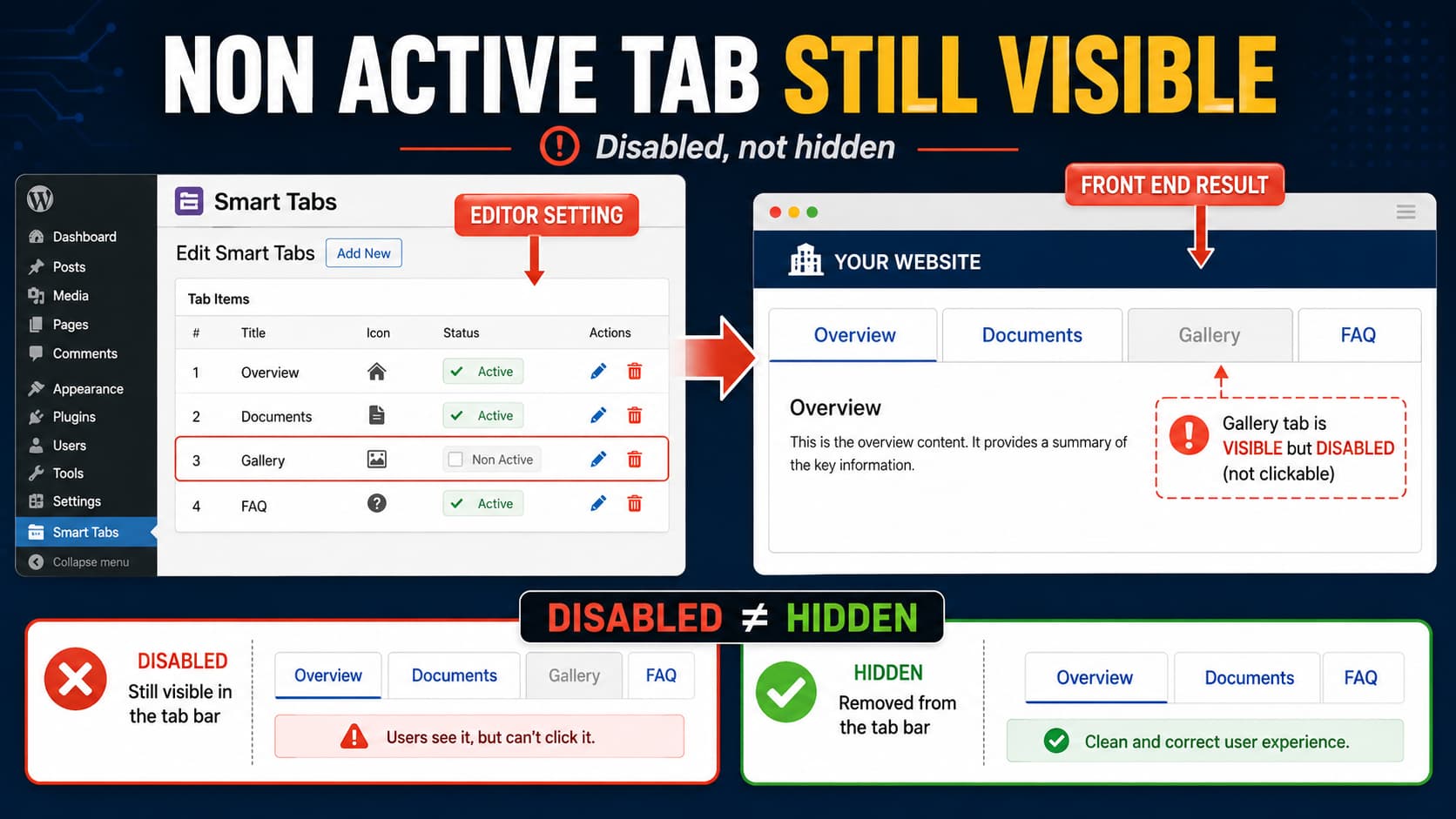
Marking a tab as Non Active in Smart Tabs can leave the tab title visible on the front end while preventing visitors from clicking it.
That behavior is better understood as disabling the tab rather than hiding it.
The distinction matters:
- A disabled tab remains visible but cannot be selected.
- A hidden tab is not rendered as part of the visible tab navigation.
If your goal is to temporarily remove a tab from visitors while keeping its content saved in WordPress, the Non Active option may therefore not provide the result you expect.
As of Smart Tabs 3.1.6, the plugin’s official changelog does not document a change that makes Non Active tabs disappear completely. Smart Tabs does, however, provide separate hide/exclude functionality for some WooCommerce Product Tab configurations.
Disabled and Hidden Are Not the Same Thing
Consider a tab group containing:
Overview
Documents
Gallery
FAQ
If Gallery is disabled, visitors might see:
Overview | Documents | Gallery | FAQ
                     ↑
                  disabled
The tab is still part of the interface, but clicking it does nothing.
A genuinely hidden tab would instead produce:
Overview | Documents | FAQThere would be no visible Gallery tab at all.
This distinction explains why simply setting a tab to Non Active may not meet a requirement such as:
Keep this tab saved in WordPress, but do not show it publicly.
First Check Which Type of Smart Tabs You Are Using
Smart Tabs currently supports both general WordPress tab groups and dedicated WooCommerce Product Tabs. The available visibility controls are not necessarily identical between those two systems.
Before changing anything, determine whether the affected tab belongs to:
- a regular Smart Tabs / WordPress tab group; or
- a WooCommerce Product Tab configuration.
That determines the safest way to hide it.
Hiding a WooCommerce Product Tab
Smart Tabs has dedicated product visibility controls for WooCommerce.
Its official documentation describes an Exclude option for product tabs. A global product tab can be configured to appear on selected products while being excluded from others.
For a WooCommerce Product Tab:
- Open Product Tabs in WordPress.
- Edit the affected tab.
- Find the Show Tab in settings.
- Configure the products, categories, or other applicable conditions.
- Enable Exclude where appropriate.
- Select the products that should not display the tab.
- Save the tab.
Smart Tabs specifically documents this functionality as a way to prevent a global product tab from appearing on selected products.
The plugin’s current feature list also advertises the ability to hide or override tabs per product.
This is preferable to marking the tab Non Active when the actual requirement is visibility control.
What About a Normal WordPress Tab Group?
For ordinary Smart Tabs groups, the situation is less clear.
The current Smart Tabs documentation covers tab creation, layouts, responsive behavior, styling, animation, advanced settings, and WooCommerce-specific exclusions, but it does not document Non Active as a general-purpose front-end hide feature.
If a regular tab group does not offer a separate Hide, Exclude, or Visibility setting, the Non Active checkbox should not be assumed to remove the tab from the generated navigation.
If the tab must disappear completely, you have several options.
Option 1: Remove the Tab From the Published Group
This is the safest option when no dedicated visibility setting exists.
Before removing it:
- Copy the tab’s content somewhere safe.
- Create a database backup.
- If necessary, duplicate or export the tab configuration.
- Remove the tab from the live group.
- Update the tab group.
- Check the public page.
When the tab is needed again, recreate or restore it.
This is less convenient than a visibility toggle, but it ensures visitors do not see a disabled navigation item.
Option 2: Use the Plugin’s Visibility Controls Where Available
Do not use Non Active when Smart Tabs provides a more specific visibility setting.
Look for controls named:
Hide
Exclude
Show Tab in
Visibility
For WooCommerce Product Tabs in particular, the plugin provides product targeting and exclusion functionality.
A plugin-provided visibility option is normally preferable to CSS because it can prevent the tab from being generated rather than merely making it invisible.
Option 3: Hide the Tab With CSS Only for Presentation
CSS can be used when the requirement is purely visual, but it should be considered a workaround rather than the ideal permanent solution.
For example, after inspecting the generated HTML you might identify a unique class or ID for one tab and hide it with:
.your-tab-selector {
    display: none;
}
Do not copy this example selector directly. Smart Tabs generates its own markup and identifiers, so the correct selector must be taken from your site’s actual HTML.
There are also several limitations.
A Smart Tabs item generally has two related pieces:
Tab navigation
       ↓
Tab content panel
Hiding only the navigation item may leave the associated content panel in the page.
You would need to verify:
- the desktop tab is hidden;
- its associated panel is also handled correctly;
- mobile accordion output is hidden;
- another tab remains active;
- keyboard navigation still works correctly.
Smart Tabs can change its tab presentation on smaller screens, including using accordion-style layouts, so desktop-only CSS may not be sufficient.
Do Not Use CSS for Private Information
There is an important security distinction between:
display: none;and actually excluding content from the page.
CSS only changes what visitors see visually.
If the tab content remains in the page’s HTML, someone can potentially reveal it using:
- View Source;
- browser Developer Tools;
- JavaScript;
- accessibility tools;
- automated page extraction.
Do not use CSS-only hiding for:
- confidential information;
- member-only content;
- unreleased pricing;
- private downloads;
- sensitive documentation.
If the content must actually remain private, it needs server-side access control or must not be rendered to unauthorized visitors at all.
How to Check Whether the Tab Is Really Hidden
After changing the configuration, open the page in an incognito/private browser window.
Check the navigation
The unwanted tab title should no longer appear.
Check the page source
Search the generated HTML for a distinctive sentence from the supposedly hidden tab.
If the content is still in the page source, the tab has only been visually hidden rather than excluded from output.
Check mobile
Resize the browser or use a real mobile device.
Smart Tabs supports responsive tab and accordion layouts, so a tab hidden correctly on desktop should also be checked in the mobile layout.
Clear caching
If the old tab still appears after changing its configuration, clear:
- page cache;
- server cache;
- CDN cache, if applicable;
- browser cache.
Then test again in a private window.
Is This a Smart Tabs Bug?
The observed result is unusual if a user interprets Non Active as meaning do not display, but the terminology itself does not necessarily guarantee that behavior.
At the time of writing, Smart Tabs 3.1.6 is the current WordPress.org release. Its July 10, 2026 changelog does not mention a fix or change relating to Non Active tabs being hidden from the front end.
The safest conclusion is therefore:
Non Active currently behaves like a disabled-state control in this situation, not a confirmed hide control.
Until the plugin developer explicitly states otherwise, it would be inaccurate to describe the behavior as a confirmed software defect.
A Better Interface Would Separate Both Options
From a usability standpoint, two separate settings would be clearer:
Active:
[✓] Visitors can click this tab

Visible:
[✓] Show this tab on the front end
That would allow four useful states:
| Visible | Active | Result |
|---|---|---|
| Yes | Yes | Normal tab |
| Yes | No | Visible but disabled |
| No | No | Completely hidden |
| No | Yes | Normally unnecessary |
This would preserve the existing disabled-tab functionality while also allowing site owners to temporarily remove tabs without deleting their content.
What to Send to Smart Tabs Support
If you need to report this behavior to the plugin developer, provide:
- Smart Tabs version;
- WordPress version;
- whether it is a normal WordPress tab or WooCommerce Product Tab;
- screenshot of the Non Active checkbox;
- screenshot showing the tab on the front end;
- whether the content itself remains in the HTML;
- whether the same behavior occurs on mobile.
Also state the expected behavior clearly:
I need the tab to remain saved in the WordPress admin but not be rendered on the front end.
That distinguishes a hide/visibility request from the existing disabled tab behavior.
For WooCommerce Product Tabs, first check Smart Tabs’ documented Exclude controls because the plugin already provides dedicated visibility targeting for that use case.
