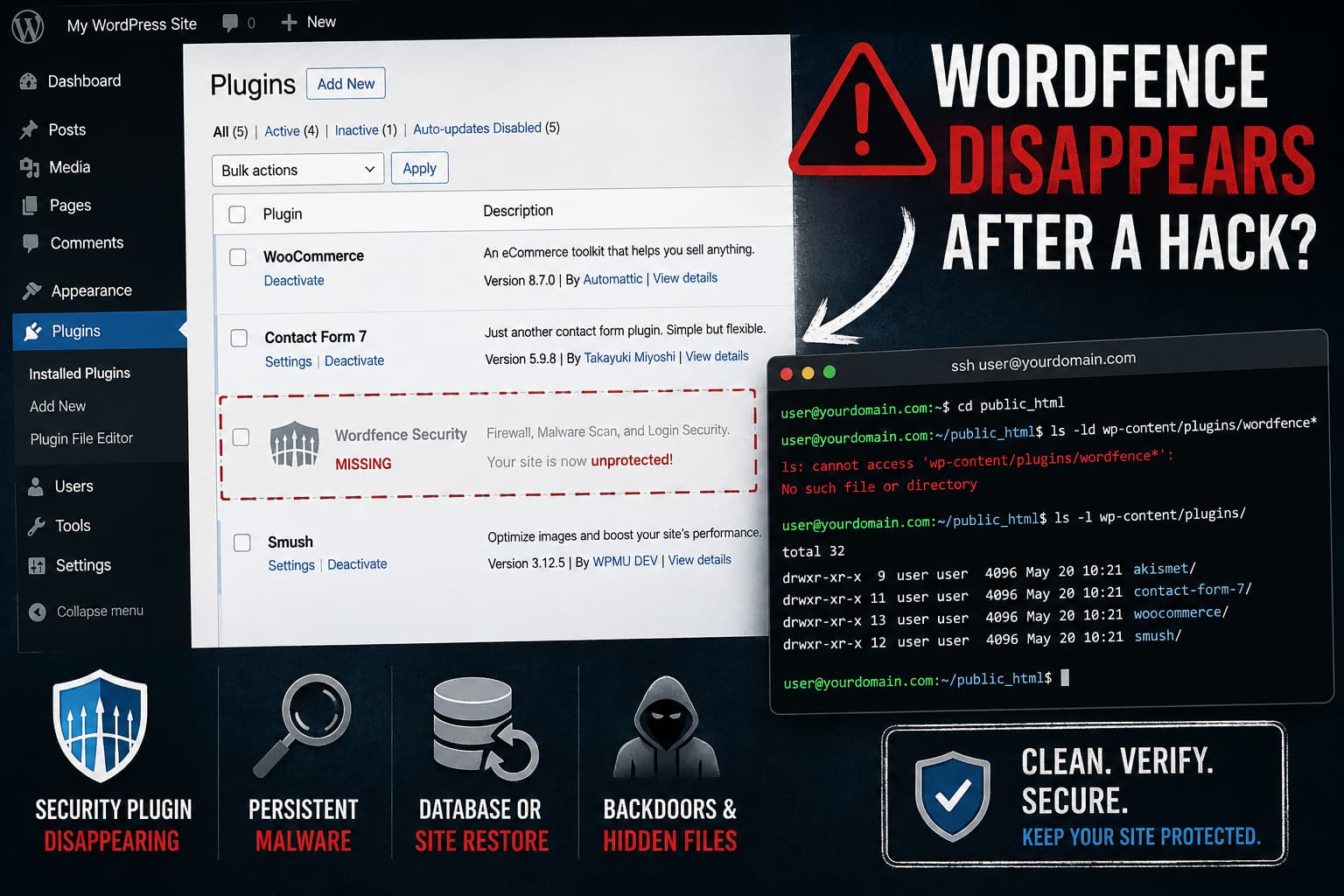
If Wordfence is installed after cleaning a hacked WordPress site and then disappears again hours later, treat the site as still compromised until you can prove otherwise.
A normal plugin or theme conflict might deactivate a plugin, but it should not normally delete or rename the entire wp-content/plugins/wordfence/ directory. Malware can do exactly that. Wordfence has documented malware that deliberately renamed its own plugin directory to disable the security plugin at the filesystem level.
The first thing to determine is therefore simple: has Wordfence merely been deactivated, has its directory been deleted or renamed, or is WordPress itself being rolled back to an earlier state?
Do not repeatedly reinstall Wordfence without investigating that distinction. If an attacker still has persistent access, every reinstall only restores the security plugin temporarily.
Check Whether the Wordfence Files Actually Disappeared
Do this from your hosting file manager, SFTP, or SSH rather than relying only on the WordPress Plugins screen.
The normal directory is:
wp-content/plugins/wordfence/With SSH, go to the WordPress installation directory and run:
ls -ld wp-content/plugins/wordfence*If WP-CLI is available, also check:
wp plugin status wordfence
wp option get active_plugins --format=json
These checks separate several different situations.
The wordfence directory is completely missing
Something with filesystem write access deleted it.
On a recently compromised site, a remaining backdoor should be considered a leading possibility. Other possibilities include a hosting restore, deployment process, compromised SFTP/SSH account, malicious cron job, or another compromised site under the same hosting account.
The directory was renamed
This is particularly suspicious.
Wordfence researchers documented a 2025 malware campaign in which malicious code disabled Wordfence simply by renaming:
wp-content/plugins/wordfenceto another directory. One documented sample renamed it to:
wp-content/plugins/wordfence1That does not mean the same malware is responsible for every disappearing Wordfence installation. It does establish that renaming a security plugin directory is a real defense-evasion technique used by WordPress malware.
If you find directories such as wordfence1, wordfence-old, or another unexpected variation that you did not create, preserve the files before deleting them so they can be examined.
The files are still present, but Wordfence is missing from wp-admin
The plugin may simply have been deactivated, but malicious code can also manipulate what appears on the Plugins screen.
WordPress malware has been documented using plugin hooks to hide malicious plugins from administrators while retaining remote-code-execution and persistence capabilities.
For that reason, inspect the filesystem directly rather than assuming the Plugins screen shows everything running on the site.
Why Wordfence May Look Like a Brand-New Installation
This detail is useful because Wordfence normally preserves its configuration and database data when it is merely deactivated.
Wordfence has a separate option called Delete Wordfence tables and data on deactivation. When that option is enabled and Wordfence is deactivated, its stored tables, options, scheduled jobs, and other data are removed. Reactivating it afterward then looks like a first-time installation.
Therefore, if Wordfence disappears and reinstalling it consistently behaves as though it has never existed, investigate more than the plugin directory.
Possible explanations include:
- Wordfence’s delete-data option was enabled before deactivation.
- Wordfence database data was deliberately removed.
- The database was restored to an older snapshot.
- The entire site is being restored or redeployed from an earlier copy.
- The cleanup process itself removed the Wordfence tables or options.
A simple filesystem rename alone would not normally explain the loss of all retained Wordfence configuration.
Treat the Site as a Persistent Compromise
Installing a security plugin after removing visible malware does not prove that the infection is gone.
Wordfence’s own hacked-site documentation warns that compromised sites can retain hidden backdoors, malicious database content, infected old installations, or other persistence mechanisms after the obvious malware has been removed.
Before doing another cleanup, take a snapshot of the current files and database. Keep this as incident evidence rather than treating it as a known-clean backup.
Then temporarily restrict public access if practical while investigating. Continuing to serve an actively compromised site gives the attacker additional opportunities to restore malware while you are working.
Check for Persistence Outside the Normal Plugin Directory
Removing malicious files from one plugin or theme is not sufficient when an attacker has already obtained code execution.
Inspect at least the following locations.
Must-use plugins
Check:
wp-content/mu-plugins/MU plugins are loaded automatically and do not behave exactly like ordinary plugins. A malicious PHP file here can continue executing even after normal plugins have been disabled.
With WP-CLI:
wp plugin listAlso inspect the mu-plugins directory manually so unfamiliar files are not overlooked.
The active theme and child theme
Inspect unexpected modifications to files such as:
functions.php
header.php
footer.php
Do not assume an Avada child theme is safe merely because the parent theme was replaced. Custom code in a child theme continues executing independently.
WordPress root files
Pay particular attention to unexpected changes in:
wp-config.php
wp-cron.php
index.php
.htaccess
.user.ini
php.ini
A malicious .user.ini, for example, can potentially alter PHP configuration and load another PHP file before normal WordPress execution. This is not specific to Wordfence or Avada, but it is worth checking during persistent compromises.
The uploads directory
Search wp-content/uploads/ for unexpected PHP files.
Media uploads normally consist of images and other uploaded assets. A PHP backdoor placed in a writable uploads directory can survive replacement of WordPress core, plugins, and themes.
Other WordPress installations
Do not limit the cleanup to the affected domain if several sites share the same hosting account.
Wordfence specifically warns about old WordPress copies and backups left in web-accessible directories. An outdated installation under /old/, /backup/, a staging subdomain, or another domain can be compromised and then used to reinfect the primary site.
Check every PHP application owned by the same hosting account.
Verify WordPress Core and Plugin Files
WP-CLI can compare WordPress.org-hosted files against official checksums.
For WordPress core:
wp core verify-checksums --include-root --version=$(wp core version)The official WP-CLI documentation confirms that wp core verify-checksums compares the installed WordPress files with WordPress.org checksums and can include unexpected files in the WordPress root when --include-root is used.
For WordPress.org plugins:
wp plugin verify-checksums --all --strictThis can identify modified files in repository-hosted plugins. Premium and custom plugins may not have WordPress.org checksums, so a checksum warning for those does not automatically mean they are infected.
For premium software such as Avada, compare against or replace it with a fresh package obtained directly from the legitimate vendor account.
Do not overwrite an infected plugin or theme directory and assume every malicious file is gone. An update may replace legitimate files while leaving attacker-created files behind. Where practical, remove the old directory completely and install a clean copy.
Preserve legitimate child themes and custom code separately and review them before returning them to production.
Check Administrator Accounts and Scheduled Tasks
An attacker does not need a hidden PHP backdoor if they still control an administrator account.
List administrator users:
wp user list --role=administratorCheck the username, email address, registration date, and whether every administrator is expected. WP-CLI officially supports listing administrators and their account details this way.
Also review WordPress scheduled tasks:
wp cron event listLook for hooks you cannot associate with an installed legitimate plugin or theme.
WP-Cron itself is not evidence of malware. Most WordPress sites contain many legitimate scheduled events. Investigate unfamiliar hooks rather than deleting scheduled jobs indiscriminately.
On VPS or dedicated hosting, also inspect the operating-system user’s crontab and other scheduled jobs. A server-level task can restore malware regardless of what you remove inside WordPress.
Do Not Assume Avada Is the Cause, but Update It Immediately
Seeing the same pattern on several Avada sites makes the theme version an important part of the investigation, but correlation alone does not establish the original entry point.
Avada’s official security notices show that several security issues were fixed during 2026. Avada 7.15.3, released May 12, 2026, included a fix for a possible unauthenticated remote-code-execution vulnerability involving the get_widget_markup AJAX handler. Versions 7.15.4 and 7.15.5 subsequently contained additional security fixes, and Avada 7.16 included further security hardening.
Avada’s official changelog currently lists 7.16.1, released August 25, 2026, as the latest version.
If a compromised site was running an older Avada version, update or replace it with a clean current copy as part of remediation. However, do not state that Avada caused the compromise unless the site’s version at the time of intrusion, server logs, malicious requests, or forensic evidence support that conclusion.
The same rule applies to every installed plugin.
Replace Compromised Files With Known-Clean Copies
Once evidence has been preserved, rebuilding known software from clean packages is generally safer than trying to identify every injected line manually.
For WordPress core, WP-CLI supports overwriting the existing core files while leaving wp-content alone:
wp core download --force --skip-contentThe WP-CLI documentation confirms that --force overwrites existing core files and --skip-content avoids installing the bundled content directories.
This does not clean:
wp-content/
wp-config.php
the database
server configuration
other websites under the account
Those areas still require separate inspection.
For plugins and themes, use fresh legitimate packages instead of copying files from an old site backup whose integrity is uncertain.
If any premium theme or plugin was obtained from an unofficial or “nulled” source, remove it completely and replace it with a legitimate copy. Wordfence has documented campaigns in which counterfeit premium plugins contained persistence mechanisms specifically designed to weaken security controls.
Rotate Every Access Path After the Cleanup
Assume credentials used on the compromised environment may also be compromised.
After the malicious persistence has been removed, change credentials for:
- WordPress administrators
- hosting control panel
- SFTP/FTP
- SSH
- database users
- deployment accounts and API keys where applicable
WordPress’s hacked-site guidance recommends addressing all access points rather than changing only the WordPress administrator password. It also recommends replacing the authentication salts in wp-config.php to invalidate existing logged-in sessions.
With WP-CLI, administrator sessions can also be explicitly destroyed. For one administrator:
wp user session destroy admin --allTo invalidate sessions for all WordPress users:
wp user list --field=ID | xargs -n 1 wp user session destroy --allBoth commands are supported by WP-CLI.
Enable two-factor authentication for administrator accounts after regaining control.
If the same password was used on multiple sites or hosting services, replace it everywhere it was reused.
Harden the Site After Recovery
WordPress recommends that plugin files normally be writable only by the appropriate server/user account rather than being world-writable.
Do not try to solve an existing compromise only by applying extreme file permissions. If malicious PHP is already executing as the same filesystem owner as WordPress, permissions alone may not prevent it from modifying writable site files.
It is also reasonable to disable the built-in plugin and theme code editor after cleanup:
define( 'DISALLOW_FILE_EDIT', true );Add this to wp-config.php before the line that tells WordPress to stop editing. WordPress documents this setting as an additional security layer if a privileged WordPress account is compromised, although it does not prevent every type of malicious file upload.
Keep WordPress core, Avada, Avada’s companion plugins, and all other plugins updated.
Rule Out an Automatic Restore or Deployment
Not every disappearing plugin is malware.
If the Wordfence directory disappears at roughly the same time every night, determine whether the hosting platform, backup system, staging synchronization, Git deployment, or management service is automatically restoring an earlier copy of the site.
Check whether other changes made at the same time also disappear.
For example:
- Does another newly installed plugin vanish?
- Do changed WordPress settings revert?
- Do recently uploaded files disappear?
- Does the database return to an older state?
- Does the Wordfence directory have timestamps matching a deployment or restore operation?
If multiple unrelated changes roll back together, investigate the hosting/deployment process before assuming each disappearance is a new hack.
If only Wordfence is being targeted while other changes remain intact, malicious defense evasion becomes substantially more suspicious.
How to Verify the Site Is Actually Clean
Do not consider the cleanup complete immediately after one successful Wordfence scan.
Verify that:
wp-content/plugins/wordfence/remains intact.- Wordfence remains active after WP-Cron and normal traffic have run.
- No unexpected administrator accounts return.
- Core checksum verification remains clean.
- Repository plugin checksum results remain unchanged.
- No unexpected PHP files reappear.
- Suspicious cron events do not return.
- Hosting, SFTP, SSH, and WordPress logs show no continued unauthorized access.
- Other sites under the same hosting account have also been checked.
- Cleaned Avada and plugin versions remain current.
If Wordfence disappears again, preserve the newly changed files and logs before reinstalling anything. The timestamp of the deletion or rename can help narrow the server access logs to the request or process that triggered it.
Repeated reinfection means the incident should be treated as a root-cause investigation, not another routine malware scan.
