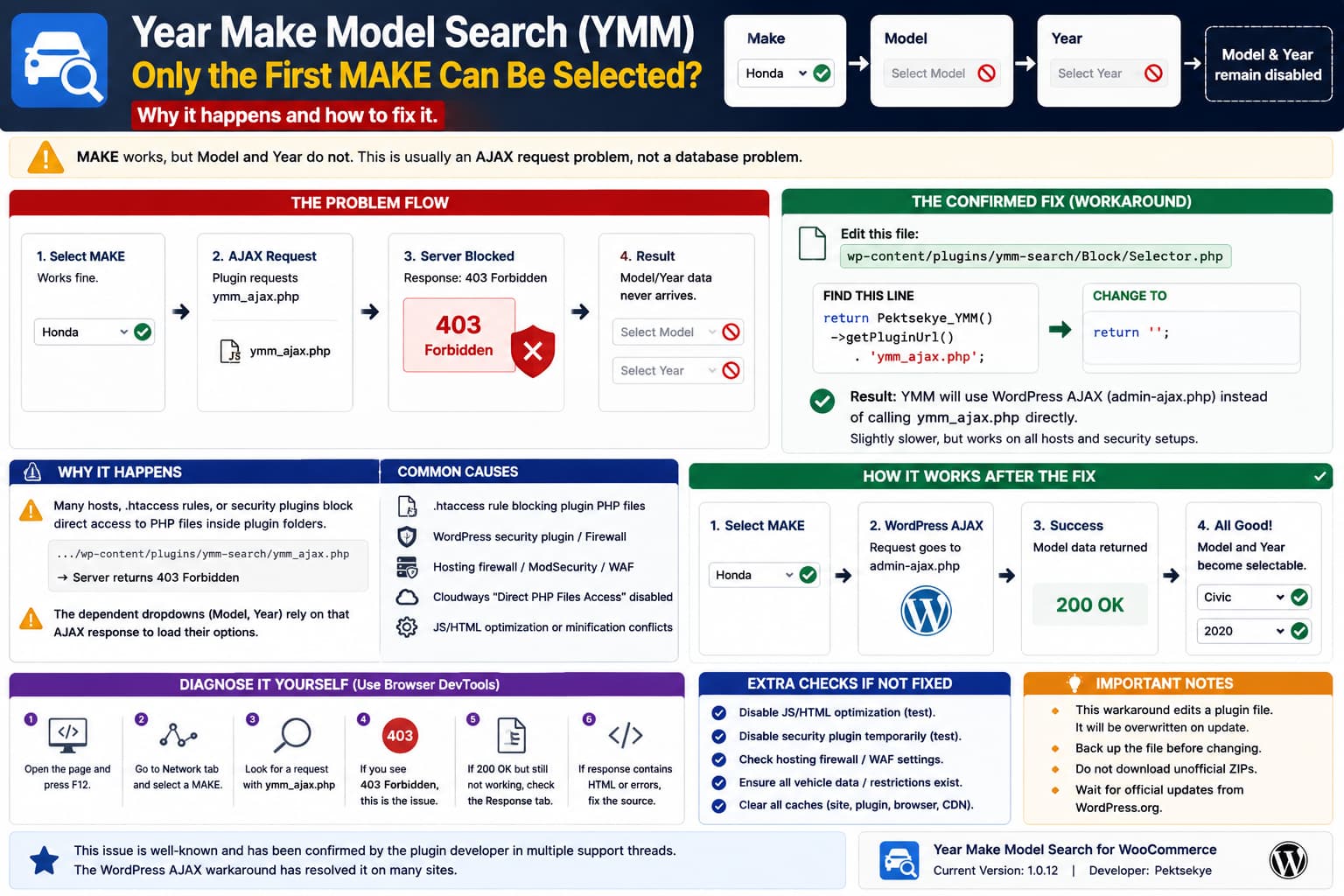
A recurring issue with Year Make Model Search for WooCommerce causes the first dropdown to work while the dependent selections remain unavailable.
The behavior normally looks like:
MAKE
✓ selectable

MODEL
✗ disabled / cannot select

YEAR
✗ disabled / cannot select
Several users have reported essentially the same problem in the plugin’s WordPress.org support forum. The current support index includes separate threads titled “Only the first MAKE can be selected. Others cannot” and “Only the first MAKE can be selected. Others cannot be selected.”
The important detail is that this is a dependent AJAX dropdown. Selecting a MAKE is supposed to trigger another request that retrieves the available Model values. If that request fails, the remaining selects stay disabled.
The Previously Confirmed Fix
A closely related support report described this exact sequence:
After selecting the Make, no further options could be selected.
The plugin author recommended editing:
wp-content/plugins/ymm-search/Block/Selector.phpand changing:
return Pektsekye_YMM()->getPluginUrl() . 'ymm_ajax.php';to:
return '';The user confirmed that this fixed the problem, with only a small additional delay when loading the next dropdown.
So this is the first workaround I would test.
Why That Change Works
By default, the plugin can send its dependent-dropdown request directly to:
/wp-content/plugins/ymm-search/ymm_ajax.phpSome hosts and WordPress security configurations block direct access to PHP files inside plugin directories.
The result can be:
Select MAKE
↓
JavaScript requests ymm_ajax.php
↓
Server returns 403 Forbidden
↓
MODEL data never arrives
↓
MODEL/YEAR remain disabled
A separate resolved YMM support case showed exactly this error in the browser console:
GET /wp-content/plugins/ymm-search/ymm_ajax.php?... 403 (Forbidden)The plugin author explained that an .htaccess rule or security plugin could be preventing direct access to custom PHP files. Changing the Selector.php return value to an empty string makes the plugin use WordPress’s normal AJAX handling instead.
That explains why the workaround can fix the dropdown without changing any vehicle data.
Check DevTools Before Editing the Plugin
Open the page containing the YMM search.
Press:
F12
→ Network
Then select a MAKE.
Look for a request containing:
ymm_ajax.phpor filter Network by:
ajaxIf you see:
403 Forbiddenyou have a strong match for the previously resolved issue.
Also check:
F12
→ Console
because you may see the failed GET request there as well.
Expected Working Flow
A healthy request should look conceptually like:
MAKE = Honda
↓
AJAX request succeeds
↓
MODEL options returned
↓
MODEL dropdown becomes enabled
If the request is rejected, no JavaScript can populate the next select.
Cloudways Had This Exact Problem
One earlier user found the YMM Model and Year dropdowns remained grayed out because Cloudways had Direct PHP Files Access disabled.
After enabling it, the plugin worked.
The plugin author suggested either allowing direct access specifically to:
wp-content/plugins/ymm-search/ymm_ajax.phpor using the same Selector.php workaround instead.
I would prefer the WordPress AJAX workaround over broadly enabling unrestricted direct PHP execution unless the host specifically confirms the latter is appropriate.
Temporary Code Fix
Back up this file first:
wp-content/plugins/ymm-search/Block/Selector.phpFind:
return Pektsekye_YMM()->getPluginUrl() . 'ymm_ajax.php';Replace it with:
return '';Save the file.
Then:
Clear page/cache/CDN cache
→ Open Incognito
→ Select another MAKE
→ Check MODEL
If MODEL becomes selectable, you have confirmed that the direct plugin AJAX endpoint was the problem.
Important
This is an edit inside the plugin itself.
A future YMM Search update can overwrite it.
So record the modification somewhere.
Why the WordPress AJAX Version Can Be Slightly Slower
The plugin author noted that using:
return '';can take a little longer.
That makes sense.
The direct endpoint:
ymm_ajax.phpis designed as a lightweight request.
Using WordPress’s normal request path requires loading more of WordPress before the query executes.
So you may see:
Direct endpoint
→ faster
→ can be blocked by security policy
versus:
WordPress AJAX
→ slightly slower
→ generally more compatible
For most sites, a minor delay is preferable to a non-working selector.
But the Exact “Only First MAKE” Reports Were Not Both Publicly Resolved
There is an important distinction.
One support thread with the exact title “Only the first MAKE can be selected. Others cannot” received a response from the developer saying that HTML tags appeared inside the JavaScript and asking the user to contact him for a screenshot. No public fix was posted.
Another nearly identical thread says the user had already tried the:
return '';change and it did not fix their installation. That thread also ended without a public resolution.
So:
The
ymm_ajax.phpworkaround is a confirmed fix for one common cause, but it is not guaranteed to solve every instance of “only the first MAKE works.”
That is why checking the browser request is better than applying it blindly.
If There Is No 403 Error
If selecting MAKE sends a successful request such as:
200 OKbut Model still does not populate, inspect the actual response.
You want to know whether the server returned:
valid dropdown dataor something unexpected such as:
HTML
PHP warning
security page
login page
empty response
A successful HTTP status alone does not guarantee valid AJAX data.
For example, a security plugin might return an HTML challenge page with status 200.
Then YMM’s JavaScript receives HTML where it expected data and the dependent dropdown fails.
Check for HTML Inside the JavaScript Response
The developer specifically noted in one of the exact reports:
“I see there are HTML tags in the javascript code.”
That points toward another possible failure:
YMM JS/AJAX expects clean data
↓
something injects HTML
↓
JavaScript parsing breaks
↓
only initial MAKE works
Possible sources include:
security/firewall response
optimization plugin
HTML/JS minifier
Cloudflare feature
theme customization
PHP warning printed into AJAX output
Check:
F12
→ Network
→ affected request
→ Response
If the response starts with:
<!DOCTYPE html>or:
<div ...when it should be machine-readable selector data, that is the real problem.
Temporarily Disable Optimization
If there is no 403 but the browser console shows malformed JavaScript, temporarily disable:
JS Minify
JS Combine
Delay JavaScript
Defer JavaScript
HTML Minify
Cloudflare Rocket Loader
Then purge all caches.
This is especially relevant if the developer observes HTML mixed into JavaScript.
If the selector works with optimization disabled, re-enable the settings individually to identify which one is breaking YMM.
Check WordPress Security Plugins
If ymm_ajax.php returns:
403temporarily test any security layer that may block direct PHP execution.
Examples include:
Wordfence
Solid Security
All-In-One Security
ModSecurity
host WAF
Cloudflare WAF
Do not permanently disable security just to make the plugin work.
Instead identify the exact rule or use the WordPress AJAX fallback.
Check the Hosting Firewall
You can test the endpoint directly.
Open:
https://example.com/wp-content/plugins/ymm-search/ymm_ajax.phpA direct visit may not produce useful selector data without parameters, but if the server gives:
403 Forbidden
Access Denied
ModSecurity
that strongly supports the diagnosis.
The relevant question for the host is:
Is direct HTTP execution of PHP files under
wp-content/plugins/blocked?
Some hosting platforms intentionally do this as a hardening measure.
Don’t Start by Reimporting the Vehicle Database
The plugin’s dropdown options are derived from product restrictions. WordPress.org describes the normal dependency as Make → Model → Year based on those restrictions.
But if:
MAKE options appear correctlyand only subsequent selections fail, the database is already providing at least the first level of data.
That makes an AJAX/frontend failure more likely than a completely missing YMM database.
Do not delete or reimport all vehicle restrictions before checking Network first.
Test Multiple MAKE Values
Suppose:
Acura
✓ works

Audi
✗ won't select

BMW
✗ won't select
Check whether clicking the later values actually changes the <select> value.
Use DevTools Console:
document.querySelector('select[name="_make"]').valueafter selecting each MAKE.
If the value changes correctly but MODEL does not update:
select control
✓

dependent AJAX
✗
If the control itself immediately snaps back to the first option, investigate JavaScript/UI interference instead.
Check the Current Plugin Version
The current directory listing shows Year Make Model Search for WooCommerce 1.0.12. WordPress.org describes the plugin as using fixed Make → Model → Year dropdowns and product restrictions to populate selectable combinations.
Before modifying plugin files, confirm your site is using the current available version.
Go to:
Plugins
→ Installed Plugins
→ Year Make Model Search for WooCommerce
If you’re on an older version, update on staging first.
Minimal Troubleshooting Sequence
I would test this in the following order:
- Open the page in Incognito.
- Open DevTools → Network.
- Select a MAKE.
- Find the
ymm_ajax.phprequest. - Check its HTTP status.
- If it returns 403, test the
Selector.phpworkaround. - If it returns 200, inspect the Response.
- If Response contains HTML/errors, identify what injects them.
- Temporarily disable JS/HTML optimization.
- Check security plugins, WAF and host rules.
- Confirm all vehicle restrictions still exist.
- Only then investigate database/import problems.
Most Likely Cause
Because the YMM plugin’s later dropdowns depend on an AJAX request, the most common confirmed cause for:
MAKE works
MODEL disabled
YEAR disabled
is:
/wp-content/plugins/ymm-search/ymm_ajax.php
↓
blocked / 403
The plugin author has repeatedly recommended switching from the direct endpoint:
return Pektsekye_YMM()->getPluginUrl() . 'ymm_ajax.php';to:
return '';so WordPress’s core AJAX path is used instead. In at least one support case, the user explicitly confirmed that this fixed the issue.
Direct Answer
Yes, other YMM users have reported this.
The confirmed public workaround for the closely related problem where selecting MAKE leaves the remaining dropdowns unusable is:
Open:
wp-content/plugins/ymm-search/Block/Selector.phpchange:
return Pektsekye_YMM()->getPluginUrl() . 'ymm_ajax.php';to:
return '';This causes YMM to use WordPress’s normal AJAX handling instead of directly calling ymm_ajax.php. The plugin developer says this is useful when .htaccess, a host security policy, or a WordPress security plugin blocks direct access to plugin PHP files. One user confirmed the change solved the problem.
However, check DevTools first. If ymm_ajax.php returns 403, this fix is a strong match. If the request succeeds but the dropdown still fails, inspect its response for HTML or JavaScript corruption, because one of the exact “only first MAKE” reports had that different symptom and was not publicly resolved.
