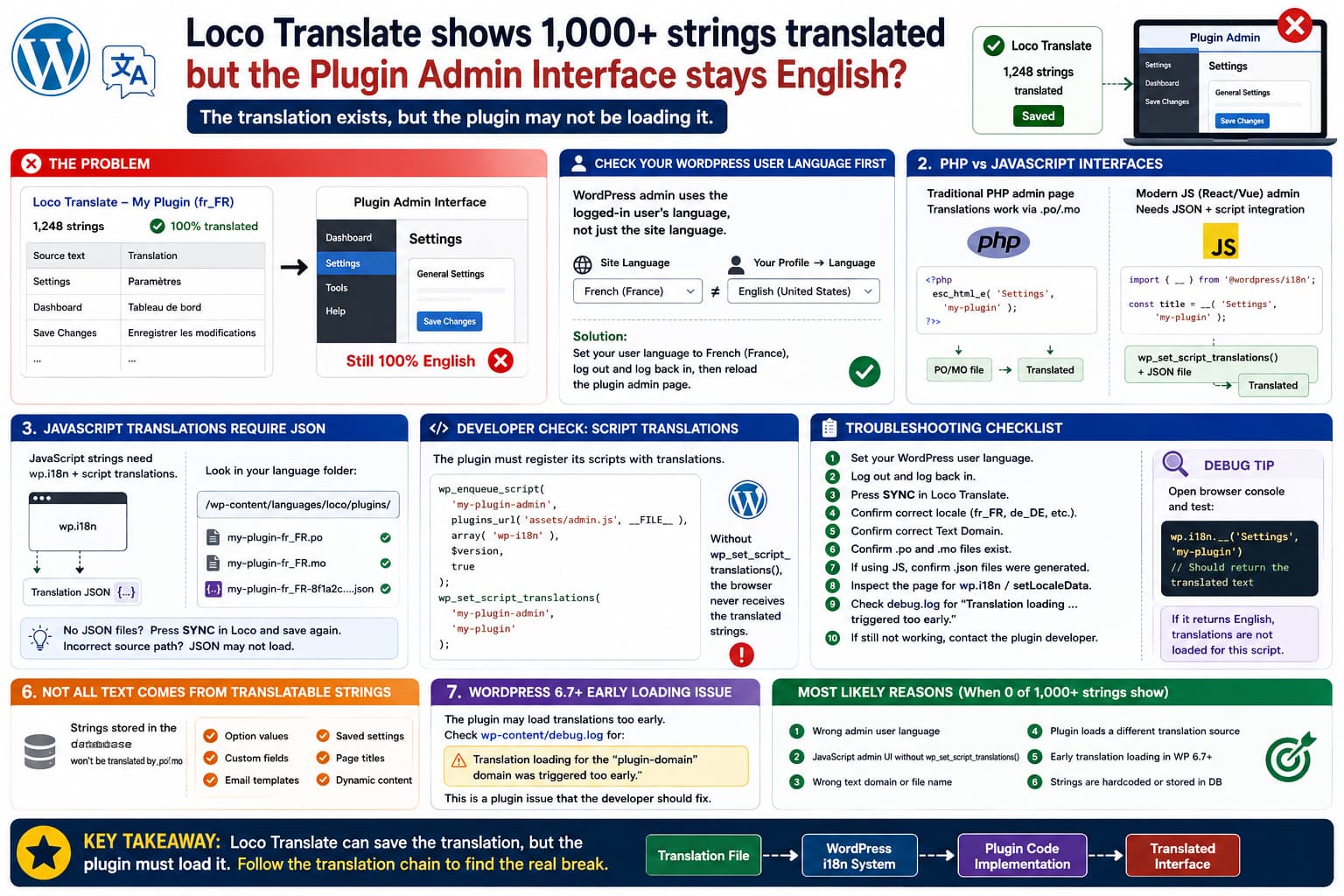
A frustrating WordPress translation problem can look like this:
Loco Translate
→ Plugin
→ Language
→ 1,000+ strings translated
→ Saved successfully

But...

Plugin admin interface
→ Still completely English
If none of the translated strings appear inside the plugin’s wp-admin interface, translating more strings is unlikely to solve the problem.
There are several possible causes, but with modern WordPress plugins the most important question is:
Is the plugin’s admin interface generated by PHP, or is it a JavaScript application?
Loco Translate can successfully display and save translatable strings without guaranteeing that the plugin actually loads those translations in the part of its interface where they are used.
For a JavaScript-based admin panel, .po and .mo files alone are generally not enough. The plugin also needs to integrate its scripts with WordPress’s JavaScript internationalization system. WordPress documents wp_set_script_translations() as the mechanism for attaching translated strings to a registered script.
That is one of the first things I would investigate when none of hundreds or thousands of translated admin strings appear.
First Check: Your WordPress User Language
Before debugging the plugin, check the simplest possibility.
Go to:
Users
→ Profile
→ Language
and select the language you translated.
Then reload the plugin page.
This matters because WordPress admin screens normally use the current user’s locale, not necessarily the site’s public language.
WordPress’s current determine_locale() implementation explicitly calls:
get_user_locale();for wp-admin requests. If the user does not have a separate language selected, WordPress falls back to the site locale.
For example:
Settings → General → Site Language
German
but:
Users → Your Profile → Language
English (United States)
can legitimately result in:
Frontend
→ German

wp-admin
→ English
That includes correctly internationalized plugin interfaces.
Quick Test
Temporarily set both:
Site Language
German
and:
Your User Language
German
Then:
Log out
→ log back in
→ open plugin admin page
If translations suddenly appear, there is no Loco Translate problem.
The plugin was simply being loaded under a different admin locale.
If Zero Translations Appear, Test One Obvious PHP String
Don’t begin by troubleshooting all 1,000 strings.
Choose something simple such as:
Settings
Save
General
Dashboard
Enable
Translate it into something intentionally obvious.
For example:
Settings
→ TEST-TRANSLATION-123
Save the Loco file and reload the plugin screen.
If:
TEST-TRANSLATION-123never appears anywhere, determine whether that particular string comes from:
PHPor:
JavaScriptbecause those translation paths are different.
Modern Plugin Admin Interfaces Are Often JavaScript Applications
Older WordPress settings pages commonly generated markup directly in PHP:
<h2>
    <?php esc_html_e( 'Settings', 'my-plugin' ); ?>
</h2>
That works through WordPress’s normal gettext system:
PHP
↓
Text domain
↓
.mo / .l10n.php translations
↓
Translated HTML
Loco Translate is very good at this traditional workflow.
Modern plugin dashboards, however, are often built with:
React
Vue
Angular
compiled JavaScript bundles
WordPress components
The PHP page may contain little more than:
<div id="plugin-app"></div>and JavaScript generates the entire interface afterward.
In that situation the path becomes:
JavaScript bundle
↓
wp.i18n
↓
script-specific translation data
↓
translated interface
WordPress says JavaScript strings should use functions such as:
__(
    'Settings',
    'my-plugin'
);
and the associated script must have its translations registered with:
wp_set_script_translations(
    'my-plugin-admin',
    'my-plugin'
);
If the plugin developer omitted that second part, Loco Translate can contain a perfectly valid translation while the browser never receives it.
Why Loco Can Show a String That the Plugin Still Doesn’t Translate
This is a common point of confusion.
Suppose Loco displays:
Original:
Dashboard

Translation:
Tableau de bord

Status:
Translated
That only proves that the translation exists in your translation project.
It does not prove this runtime code:
document.querySelector(...).textContent = 'Dashboard';uses WordPress translation functions.
If the developer hardcoded:
const title = 'Dashboard';then Loco cannot magically replace it.
Similarly, a .pot file may contain strings that no longer correspond correctly to the current source code.
Loco’s own troubleshooting documentation explicitly warns that a bundle’s template may list strings without guaranteeing that the current application actually loads them through WordPress’s translation system.
JavaScript Translations Require JSON Translation Data
For standard PHP translations you normally encounter:
.po
.mo
For WordPress JavaScript translations, you may additionally find generated:
.jsonlanguage files.
Loco Translate supports WordPress’s JSON translation format and can generate these files when saving a PO translation.
A language folder might therefore contain:
my-plugin-fr_FR.po
my-plugin-fr_FR.mo

my-plugin-fr_FR-a7d973....json
my-plugin-fr_FR-63e913....json
Those JSON files correspond to individual JavaScript files.
If the admin interface is primarily JavaScript and no appropriate JSON translations are being generated or loaded, that is a strong explanation for:
PHP strings translated
maybe

JavaScript admin UI
still English
Check Whether Loco Generated JSON Files
Open:
Loco Translate
→ Plugins
→ affected plugin
→ your language
Save the translation again.
Then inspect the translation directory.
If you selected Loco’s Custom location, it will normally be under:
/wp-content/languages/loco/plugins/Loco recommends this location because normal plugin and WordPress language directories can be overwritten by updates.
Look for:
plugin-domain-xx_XX.po
plugin-domain-xx_XX.mo
and, if JavaScript strings are involved:
plugin-domain-xx_XX-<hash>.jsonIf you translated many JavaScript admin strings but Loco creates no relevant JSON files, press:
Syncinside Loco and investigate how the plugin’s JavaScript sources are referenced.
Why JSON Generation Can Fail
Loco generates WordPress JavaScript translations using source-file references stored in the PO data.
For example:
#: assets/js/admin.js:124
msgid "Save Settings"
msgstr "..."
may generate a JSON language pack whose filename corresponds to:
assets/js/admin.jsHowever, imagine the plugin developer builds:
Source:
src/settings/App.jsx
into:
Production:
build/admin.8f72c1.js
If the translation metadata points to:
src/settings/App.jsxwhile WordPress actually registers:
build/admin.8f72c1.jsthe calculated translation filename may not match the script WordPress loads.
Loco explicitly documents this as a common JavaScript translation failure. The path referenced by the translation catalog must correspond correctly to the actual runtime JavaScript file.
This is generally something the plugin developer needs to fix.
Developer Check: Look for wp_set_script_translations()
If the plugin is open source, search its code for:
wp_set_script_translationsFor example:
grep -Rni "wp_set_script_translations" \
wp-content/plugins/plugin-folder/
For a normal script-based admin application, you would expect something conceptually like:
wp_enqueue_script(
    'plugin-admin',
    plugins_url(
        'assets/admin.js',
        __FILE__
    ),
    array( 'wp-i18n' ),
    $version,
    true
);

wp_set_script_translations(
    'plugin-admin',
    'plugin-text-domain'
);
WordPress documents that wp_set_script_translations() only works for a registered script and associates that script with the correct text domain.
If the plugin contains hundreds of:
__( ...)calls but never calls:
wp_set_script_translations()for its admin bundle, that is a likely plugin internationalization bug.
WordPress 7 Also Supports Script Module Translations
Modern plugins may now use WordPress’s Script Modules API instead of conventional enqueued scripts.
WordPress 7.0 introduced:
wp_set_script_module_translations()for assigning translations to registered script modules.
So a very new plugin might need something like:
wp_set_script_module_translations(
    'my-plugin-admin',
    'my-plugin',
    plugin_dir_path( __FILE__ ) . 'languages'
);
instead of the traditional script function.
If a plugin migrated its admin application to JavaScript modules but failed to migrate its localization setup, translations can disappear even though all strings remain visible inside Loco.
Check the Text Domain
Every WordPress plugin should use one consistent text domain.
For example:
__(
    'Settings',
    'example-plugin'
);
must correspond with translations built for:
example-pluginnot:
example_pluginor:
examplepluginLoco’s own troubleshooting guide identifies incorrect text domains and incorrectly named translation files as a common reason translations do not load.
Check the plugin header:
/*
Plugin Name: Example Plugin
Text Domain: example-plugin
Domain Path: /languages
*/
Then search some actual strings:
grep -Rni "__(" \
wp-content/plugins/example-plugin/
You want the domain used in code to match:
Text Domain: example-pluginconsistently.
A plugin could accidentally have:
__( 'General', 'example-plugin' );
__( 'Dashboard', 'example_plugin' );
__( 'Save', 'old-plugin-name' );
Loco may extract all of them, but your translation file for one domain will not automatically translate the others.
Inspect the Browser for JavaScript Translation Data
Open the untranslated plugin admin page.
Use:
F12
→ Elements / Sources
and search for:
setLocaleDataor:
wp.i18nA properly localized WordPress script often receives translation data before the application code executes.
You may see something conceptually similar to:
wp.i18n.setLocaleData(
    {
        "Settings": [
            "Paramètres"
        ]
    },
    "my-plugin"
);
If:
wp.i18n
✓ loaded

plugin admin bundle
✓ loaded

translation data for plugin domain
✗ missing
the browser has no translated strings to use.
That is strong evidence for the plugin developer.
Test the Translation Function From the Browser Console
If wp.i18n is available, you can run a simple diagnostic.
Suppose the English string is:
Settingsand the plugin domain is:
my-pluginRun:
wp.i18n.__(
    'Settings',
    'my-plugin'
);
If it returns:
Settingsinstead of your translation, WordPress’s JavaScript translation store does not currently have that translation available.
If it returns:
Paramètresbut the plugin interface still says:
Settingsthen the plugin is probably not using wp.i18n for that UI element, or it cached/hardcoded the English string elsewhere.
That test is extremely useful.
Check the Translation File Location
Loco offers several locations.
You may see:
Author
System
Custom
For your own translations, Loco recommends:
Customwhich normally means:
wp-content/languages/loco/plugins/This directory is protected from normal plugin and language-pack updates.
Avoid relying on:
wp-content/plugins/plugin-name/languages/because a plugin update can overwrite that directory.
Also avoid keeping irreplaceable custom translations directly under WordPress-managed language locations unless you understand the update behavior.
WordPress 6.7+ Can Expose an “Early Translation Loading” Bug
There is another important possibility on newer WordPress versions.
Loco documents a compatibility problem introduced around WordPress 6.7 when a plugin attempts to use its translations too early, before other plugins such as Loco have had an opportunity to hook into translation loading.
Enable WordPress debugging temporarily and check:
wp-content/debug.logfor a message resembling:
Translation loading for the "plugin-domain"
domain was triggered too early.
If you see that exact plugin text domain, the plugin’s localization code likely runs before it should.
This can particularly affect translations stored in Loco’s custom directory.
The proper fix belongs in the plugin.
Do not modify WordPress core or move every translation file around permanently just to mask an early-loading bug.
Test the Standard WordPress Language Directory
Loco recommends an excellent diagnostic.
If your Custom file currently lives at:
wp-content/languages/loco/plugins/
plugin-domain-de_DE.mo
temporarily use Loco’s Relocate function to test:
wp-content/languages/plugins/
plugin-domain-de_DE.mo
Then reload the plugin admin screen.
If:
System location
✓ works

Loco Custom location
✗ does not
that points toward a custom-file loading/timing issue.
If:
System
✗

Custom
✗
then the cause is probably:
wrong locale
wrong domain
JavaScript translations
hardcoded strings
incorrect plugin implementation
rather than Loco’s custom loader.
Do not leave your custom translation in the System location indefinitely without understanding that WordPress language updates can overwrite it.
Press Sync in Loco Translate
Plugin authors update their source code.
Your Loco translation might still be based on an older:
.potor:
.pocatalog.
Open:
Loco Translate
→ Plugins
→ plugin
→ language
→ Sync
Then review the result.
You might see:
145 new strings added
43 obsolete strings removed
After Sync:
translate new strings
→ Save
This can also update source references that Loco needs when generating JavaScript JSON files.
Loco’s documentation explains that Sync refreshes a translation against the current available strings/template.
Check Whether the Strings Are Actually Stored in the Database
Not everything visible in a plugin UI is a gettext translation.
Loco handles static program strings.
It does not translate normal dynamic content stored in the WordPress database.
For example, a plugin may have initially inserted:
Dashboard
Reports
Settings
into an option or custom database table during activation.
Later its UI may output:
echo $settings['menu_label'];instead of:
esc_html_e(
    'Dashboard',
    'my-plugin'
);
In that case the English text is database data.
Changing:
.po / .mowill not affect it.
This can also happen with:
email templates
form labels
saved default settings
page titles
custom field labels
notification text
If the string was stored as data when the plugin was installed, you may need to change it in the plugin’s own settings instead.
An Important Clue: Absolutely Nothing Translates
There is a meaningful difference between:
900 strings work
100 strings don't
and:
0 of 1,000+ strings workIf none of the translated admin strings appear, I would prioritize the causes in roughly this order:
- Admin user language does not match the translated locale.
- Plugin admin interface is JavaScript and its script translations are not loaded.
- Wrong plugin text domain / translation filename.
- Plugin forces or loads a different translation source.
- Translation loading occurs too early.
- The visible strings are hardcoded or stored in the database.
A browser cache is much less convincing when the entire translation system fails.
Don’t Spend Hours Clearing Page Cache
This is a wp-admin translation problem.
Full-page caching plugins usually do not cache logged-in WordPress admin pages in the same manner as public pages.
A browser hard refresh is sensible:
Ctrl + Shift + Rand clearing object/opcode caches after changing PHP files can sometimes help.
But repeatedly purging:
page cache
CDN cache
frontend cache
is unlikely to fix a plugin that failed to register its JavaScript translations.
Follow the translation chain instead.
Developer Fix for a JavaScript Admin App
Suppose a plugin has:
import {
    __
} from '@wordpress/i18n';

const heading = __(
    'Plugin Settings',
    'my-plugin'
);
Its PHP registration should include translation support.
Conceptually:
wp_register_script(
    'my-plugin-admin',
    plugins_url(
        'build/admin.js',
        __FILE__
    ),
    array(
        'wp-i18n',
    ),
    '1.0.0',
    true
);

wp_enqueue_script(
    'my-plugin-admin'
);

wp_set_script_translations(
    'my-plugin-admin',
    'my-plugin',
    plugin_dir_path( __FILE__ ) . 'languages'
);
WordPress explicitly requires associating the text domain with the registered script for JavaScript localization to work.
If this code is missing, that is something the plugin author should correct.
The Plugin Must Also Internationalize Every Displayed String
Adding:
wp_set_script_translations()is not enough if the UI contains:
const saveButton = 'Save Changes';Instead, it must contain:
const saveButton = __(
    'Save Changes',
    'my-plugin'
);
WordPress’s internationalization guidelines state that user-facing strings need to be wrapped in the appropriate i18n function.
The same applies to:
tooltips
modal titles
notifications
placeholder text
buttons
tabs
error messages
If they’re hardcoded inside a bundled JavaScript application, Loco cannot translate them at runtime.
What to Send the Plugin Developer
If all of the following are true:
Correct WordPress user language
✓

Correct locale
✓

Loco translation saved
✓

PO/MO files exist
✓

Loco Sync completed
✓

Admin remains 100% English
✗
send the plugin author a reproducible report.
Include:
WordPress version
Plugin version
Loco Translate version
Target language / locale
Plugin text domain
Location of PO/MO files
Whether JSON files were created
Whether PHP strings translate
Whether JavaScript admin strings translate
Then say something like:
Loco Translate successfully extracts and saves the admin interface strings, but none of them are loaded in the plugin UI. The admin page appears to be JavaScript-driven. Could you confirm whether the admin script is internationalized using
wp.i18nand registered withwp_set_script_translations()(or the appropriate Script Modules translation API)?
That is much more useful than simply saying:
Loco Translate doesn’t work.
Loco itself recommends contacting the plugin author once the translation files are known to exist but the bundle does not load them correctly.
Recommended Troubleshooting Order
Use this sequence:
1. Set your WordPress USER language
   to the translated language.

2. Log out and back in.

3. Open Loco Translate and press Sync.

4. Save the translations again.

5. Confirm the locale is correct:
   de_DE, fr_FR, es_ES, etc.

6. Confirm the translation's text domain.

7. Confirm .po and .mo files exist.

8. If the admin is JavaScript-based,
   look for generated .json files.

9. Inspect the admin page for
   wp.i18n / setLocaleData.

10. Check debug.log for:
    "Translation loading ... triggered too early."

11. Temporarily test the standard
    wp-content/languages/plugins path.

12. If still broken, report the
    plugin's internationalization implementation.
This isolates the real failure much faster than translating another thousand strings.
Most Likely Cause in This Scenario
The strongest clue in the reported case is:
More than 1,000 strings are translated, but none appear in the plugin’s admin interface. Other plugins work normally with Loco Translate.
That makes a site-wide Loco Translate failure relatively unlikely.
The first thing I would verify is the current administrator’s User Language.
If that is correct, my next suspicion would be that this particular plugin’s admin interface is JavaScript-driven and either:
does not call wp_set_script_translations()or:
does not generate/load correctly matched JSON
translation files
or simply contains hardcoded JavaScript UI labels.
WordPress and Loco both require cooperation from the plugin’s localization implementation for script-based interfaces.
Direct Answer
Loco Translate can successfully show:
1,000+ translated stringswhile the plugin UI remains English because Loco is primarily an editor/compiler for translation files. It cannot force a plugin to use those translations.
First verify:
Users → Profile → Languagebecause WordPress admin screens use the current user’s locale.
If the language is correct, determine whether the plugin admin interface is generated in JavaScript.
For modern JavaScript interfaces, the plugin needs proper WordPress i18n functions plus:
wp_set_script_translations()or, for WordPress 7 script modules:
wp_set_script_module_translations()so the browser receives the translated strings.
If the plugin does not implement that correctly, this is a plugin internationalization issue, not something that translating more strings in Loco will solve.
