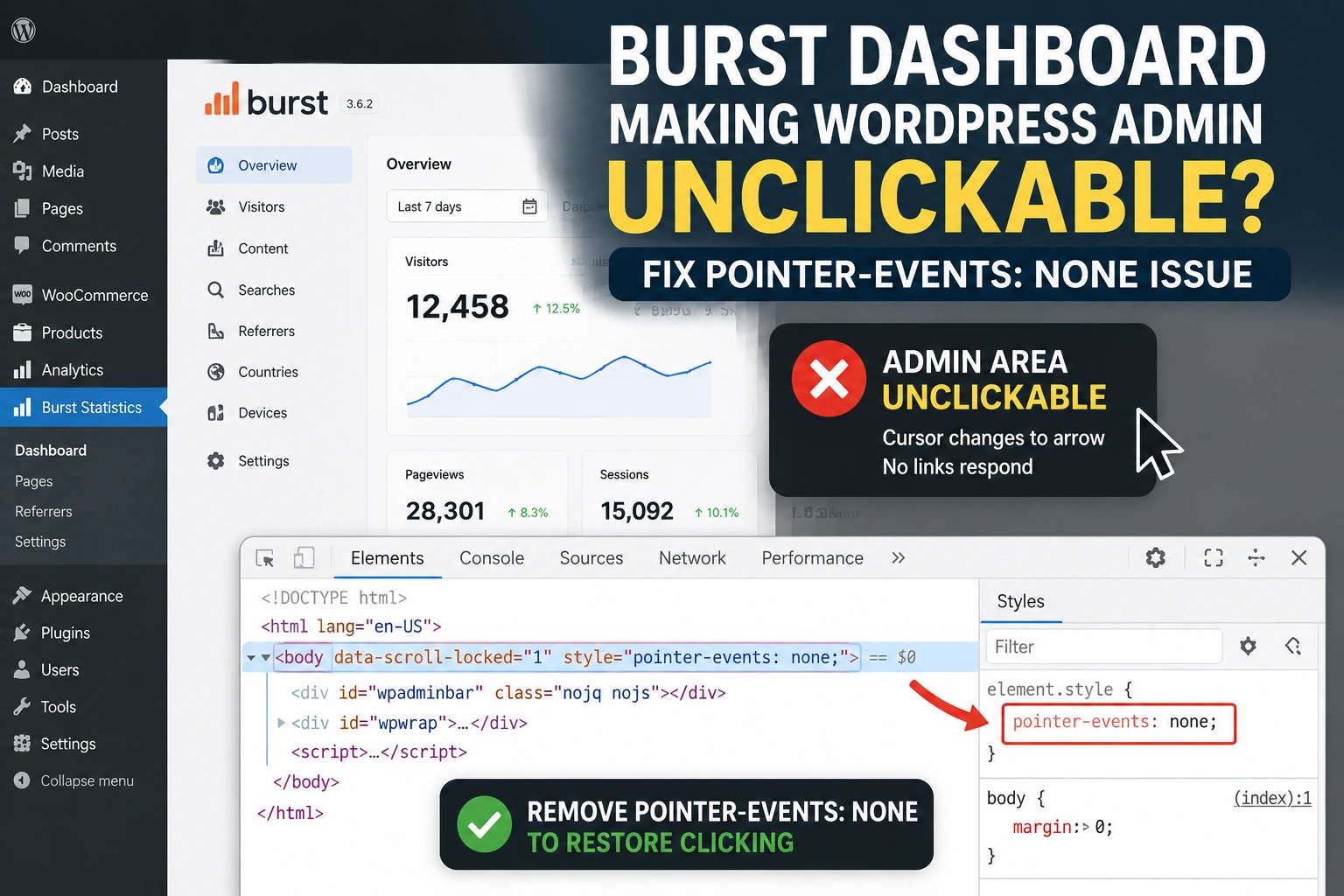
If WordPress becomes completely unclickable after opening the Burst Statistics dashboard, inspect the <body> element before assuming WordPress itself has frozen.
A particularly useful clue is this state:
<body data-scroll-locked="1" style="pointer-events: none;">pointer-events: none prevents mouse or pointer interaction with the element and its normal descendants. It is sometimes applied temporarily while a modal, dialog, dropdown, or other overlay is active.
The problem occurs when the overlay closes but the restriction is not removed. WordPress is still running, Burst can continue recording visitors, and there may be no PHP, REST API, or JavaScript error. The admin interface simply remains in a stale UI-lock state.
If removing pointer-events: none in DevTools immediately restores the dashboard, that is strong evidence that the problem is in the admin interface rather than Burst’s visitor tracking system.
Check Your Burst Statistics Version First
Before adding workarounds, check:
Plugins → Installed Plugins → Burst Statistics
At the time of writing, WordPress.org lists Burst Statistics 3.6.2, released July 21, 2026. The plugin requires WordPress 6.6 or newer and PHP 8.0 or newer, and WordPress.org currently lists it as tested through WordPress 7.0.3.
If you are running an older Burst release, update it before troubleshooting further.
This is especially relevant because recent Burst releases have included several dashboard-related fixes. Version 3.6.0 included fixes for layout, stacking, overflow, and scroll-lock behavior in parts of the dashboard, while earlier releases fixed modal positioning and a dashboard CSS/JavaScript regression.
However, the published 3.6.2 changelog does not specifically say that a desktop issue leaving the entire WordPress admin with pointer-events: none was fixed. Updating is therefore the correct first step, but it should not be presented as a guaranteed fix for this exact symptom.
Temporarily Restore Clicking Without Reloading WordPress
If the admin is already stuck and no Burst modal or dialog is visibly open, open Chrome DevTools and inspect the <body> element.
If it contains:
style="pointer-events: none;"removing that property can immediately restore mouse interaction.
You can also run this temporary command in the browser Console:
document.body.style.removeProperty('pointer-events');
document.body.removeAttribute('data-scroll-locked');
This changes only the current browser DOM. It does not modify WordPress files or the database.
Use this only after confirming that no dialog or modal is actually supposed to be open.
The lock exists for a reason while a modal is active. Removing it while a legitimate modal is open can make background controls interactive when they are supposed to remain disabled.
Reloading or navigating to another wp-admin URL also clears the current JavaScript state, but it does not solve the underlying problem.
Why data-scroll-locked and pointer-events: none Appear
Modern JavaScript interface libraries often make the rest of the document temporarily non-interactive while a modal is open.
Burst’s recent changelog confirms that it uses Radix-based interface components in at least part of its dashboard. For example, Burst 3.4.2 replaced native checkboxes in its Share dialog with Radix checkboxes.
The symptom itself also closely matches a known class of Radix UI problems.
Radix has previously documented cases where opening or closing combinations of dropdowns and dialogs left:
pointer-events: none;on the <body> element after the UI component had closed. The result described upstream is essentially the same: the application becomes unclickable until the stale body style is removed.
That does not prove that Burst is currently affected by the same Radix bug. It does, however, explain why the DOM state is such an important diagnostic clue.
Do Not Add a Permanent pointer-events CSS Override
A tempting workaround is:
body[data-scroll-locked] {
    pointer-events: auto !important;
}
Do not use this as a permanent fix.
When a modal is legitimately open, making the page behind it clickable can break the intended interaction model. It can also introduce keyboard, focus, accessibility, and accidental-click problems.
The correct fix is for the component that activates the UI lock to release it when the component closes.
A manual DevTools change is reasonable for escaping a frozen screen. A site-wide CSS override is not a good permanent solution.
Check Whether the Problem Is Browser-Specific
Before changing WordPress configuration, test the Burst dashboard in a clean Chrome Incognito window.
Make sure browser extensions are disabled for the test, particularly:
- ad blockers
- privacy extensions
- script blockers
- accessibility extensions
- extensions that alter page styling or JavaScript
Burst has previously had dashboard-loading problems caused by ad blockers, and newer Burst versions include detection intended to warn when an ad blocker interferes with its dashboard.
An ad blocker does not directly explain a confirmed stale pointer-events property, but a blocked script or interrupted component lifecycle could potentially prevent normal UI cleanup.
If the problem disappears in Incognito mode, re-enable extensions individually until you identify the one that triggers it.
Test for a WordPress Plugin Conflict
If the problem occurs with the current Burst release in a clean browser, test whether another WordPress plugin is interfering with Burst’s admin JavaScript.
Plugins that load scripts globally throughout wp-admin can affect React applications, modals, overlays, event handlers, or CSS even when they have nothing to do with analytics.
Use a staging site when possible.
Alternatively, use WordPress troubleshooting mode so plugins can be disabled for your administrator session without affecting normal visitors.
Start with only Burst active and reproduce the problem.
If Burst works correctly by itself, reactivate the other plugins individually and open the Burst dashboard after each activation.
If the failure returns immediately after activating one plugin, you have a reproducible conflict that can be reported to both developers.
Do not assume the theme is responsible simply because the site uses Divi or another page builder. Front-end themes normally have limited involvement in plugin admin screens, although a theme or child theme can still cause problems if it loads custom assets globally inside wp-admin.
Check Whether a Burst Dialog Is Triggering the Lock
If the dashboard itself loads correctly, pay attention to what you interact with immediately before WordPress becomes unclickable.
For example:
- Open Burst.
- Click one control.
- Check whether the body receives
data-scroll-locked. - Close the control.
- Check whether the attribute disappears.
- Repeat with the next dropdown, date picker, dialog, tooltip, or settings control.
In Chrome DevTools, inspect:
<body>before opening the control.
Then watch for:
data-scroll-locked="1"and:
pointer-events: none;The important test is not whether those values appear while a modal is open. That can be intentional.
The bug is that they remain after the component has closed.
If one specific Burst control triggers the failure every time, you now have a much better bug report than simply saying that the dashboard freezes.
Do Not Use #settings to Diagnose the Dashboard
The current Burst documentation defines its WordPress admin dashboard URL as:
admin.php?page=burstManually entering something such as:
admin.php?page=burst#settingsdoes not necessarily represent a valid current Burst route.
If that produces a “Page not found” view inside the Burst interface, it does not establish that WordPress permalinks, REST endpoints, or the server are broken. The fragment after # is handled by client-side JavaScript, and valid internal routes can change as the dashboard application evolves.
Use the Burst navigation interface itself when testing dashboard sections unless Burst’s current documentation specifies a particular URL.
Reinstall Burst Only After Testing the Version and Conflict
Deactivating and reactivating Burst is unlikely to fix a repeatable JavaScript cleanup bug because it loads the same files again.
A fresh reinstall can still be useful to rule out damaged or incomplete plugin files.
Burst’s documentation states that deactivating the plugin clears its scheduled cron events but does not delete its stored data or options.
Take a normal WordPress backup first.
Then:
- Record the currently installed Burst version.
- Deactivate Burst.
- Remove the plugin.
- Install a fresh copy from WordPress.org.
- Activate it.
- Reproduce the same dashboard interaction.
If the exact problem immediately returns on a clean copy of the current release, repeated reinstallations are unlikely to help.
What to Send Burst Support
If the issue still occurs on the current version with browser extensions eliminated and no conflicting plugin identified, report it as a reproducible dashboard UI bug.
Include:
- Burst Statistics version
- WordPress version
- PHP version
- browser and operating system
- exact Burst control opened immediately before the freeze
- whether the problem happens with only Burst enabled
- whether Incognito mode changes the behavior
- a screenshot or screen recording
- the
<body>element before opening the control - the
<body>element after the interface becomes stuck - confirmation that removing
pointer-events: nonerestores clicking - Console errors, even if there are none
- Network requests that fail while reproducing the problem
The Burst project is open source and its official repository explicitly invites reproducible bug reports.
Burst also documents the use of GitHub branches for development patches and test versions when a bug has been fixed before the change reaches the normal WordPress release. Only install such a development build when the Burst developers provide or recommend the appropriate branch, and take a backup first.
How to Verify the Fix
After updating Burst, identifying a conflict, or installing a developer-provided fix:
- Reload wp-admin.
- Open the Burst dashboard.
- Repeat the interaction that previously caused the problem.
- Close the relevant dialog or dropdown.
- Click several WordPress sidebar items.
- Inspect
<body>again.
If no modal is open, the body should no longer remain stuck with:
pointer-events: none;The important test is repeated use. Open and close the same Burst control several times rather than checking it only once.
Also confirm that visitor statistics continue to be recorded.
Tracking and dashboard interaction are separate enough that a working tracking system does not prove the admin interface is healthy, and an admin-interface bug does not automatically mean tracking has stopped.
Authoritative Sources Used
- Burst Statistics plugin page and changelog, WordPress.org: current release, minimum requirements, tested WordPress version, and recent dashboard/UI fixes.
- Burst Statistics official documentation: dashboard URL, initialization behavior, and what happens when the plugin is deactivated.
- Burst Statistics official GitHub repository: project source and bug-reporting guidance.
- Burst Statistics documentation for GitHub builds: development/test branches used for pre-release patches.
- Radix UI upstream issue tracker: documented cases where a dialog/dropdown lifecycle left
pointer-events: noneon<body>and made an application unclickable.
Featured Image Concept: A clean WordPress admin interface with the Burst Statistics dashboard visible on the right and Chrome DevTools highlighting the <body> element containing data-scroll-locked="1" and pointer-events: none. A subtle disabled cursor over the WordPress sidebar communicates that the admin interface cannot be clicked.
Featured Image Alt Text: WordPress admin with Burst Statistics open while DevTools shows data-scroll-locked and pointer-events: none on the body element.
