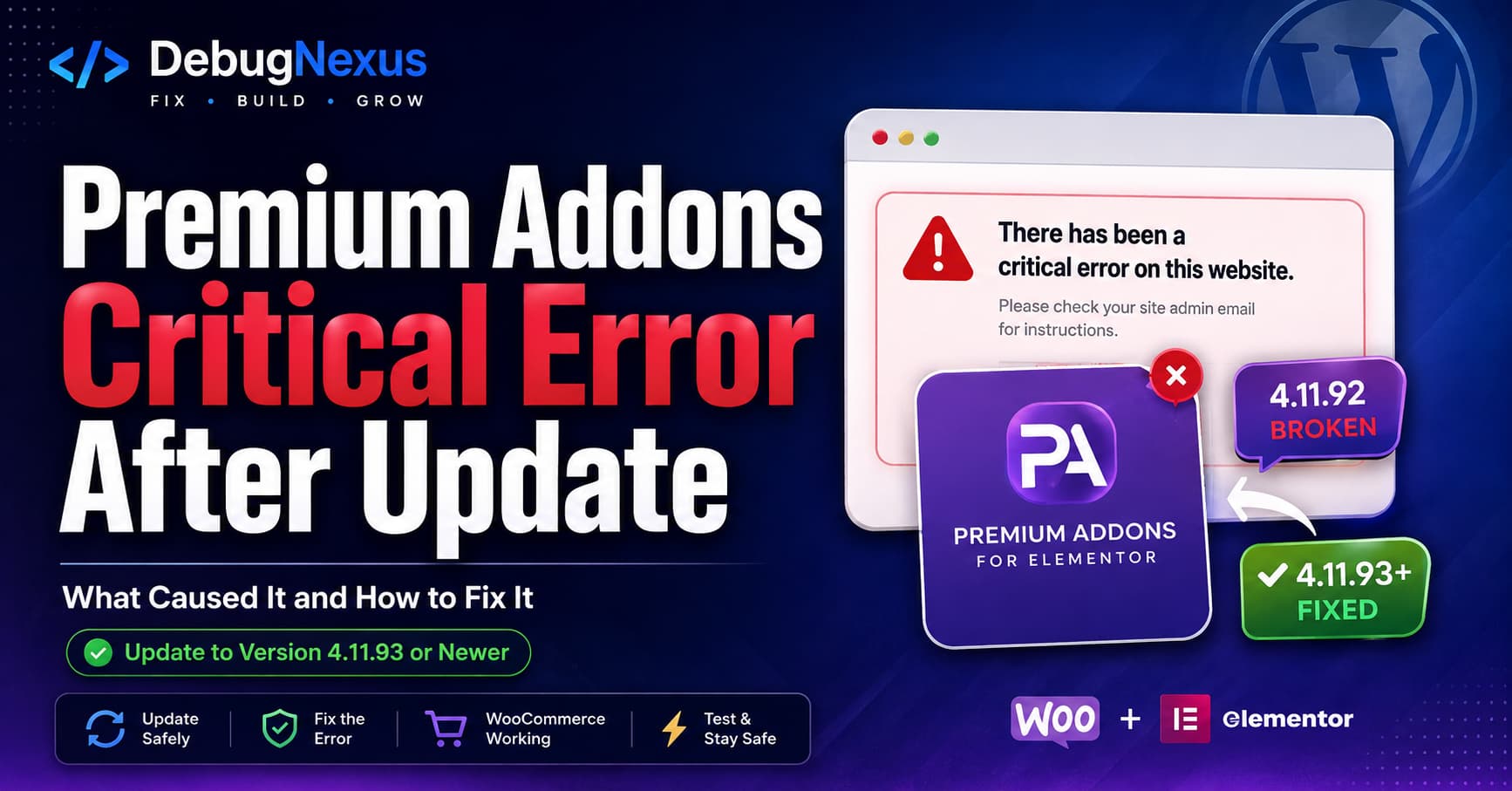
A recent Premium Addons for Elementor update caused some WooCommerce websites to display the following message:
There has been a critical error on this website.
The problem may appear immediately after updating Premium Addons or when WordPress attempts to load a page containing one of the plugin’s WooCommerce widgets.
In the reported case, the website came back online as soon as the free Premium Addons plugin was disabled. The plugin developer confirmed the problem and released a corrected version.
Quick Answer
If your WooCommerce website crashed after updating Premium Addons for Elementor, follow these steps:
- Temporarily deactivate Premium Addons.
- Update the free plugin to version 4.11.93 or newer.
- Make sure Premium Addons Pro is also up to date.
- Reactivate the free plugin first, followed by the Pro plugin.
- Clear Elementor files and all website caches.
- Test the shop, product, cart and checkout pages.
Premium Addons version 4.11.93 was released on July 31, 2026, with the specific changelog entry:
Fixed: PHP error in Woo Products Listing widget after v4.11.92.
This confirms that version 4.11.92 introduced the WooCommerce-related PHP error and that 4.11.93 contains the official fix.
What Caused the Critical Error?
The failure was introduced in Premium Addons for Elementor 4.11.92.
That release included performance, security and code-loading changes. However, it also introduced a PHP error connected to the plugin’s Woo Products Listing widget. The developer released version 4.11.93 later the same day to correct it.
The affected setup commonly includes:
- WordPress
- Elementor
- Premium Addons for Elementor
- Premium Addons Pro
- WooCommerce
- A page or template using the Woo Products Listing widget
Although WooCommerce pages are most likely to trigger the problem, a PHP fatal error can sometimes affect the entire website if the problematic plugin code loads globally.
This does not necessarily mean WooCommerce, Elementor or your active theme is broken. In this incident, the regression was inside Premium Addons 4.11.92.
Solution 1: Update Premium Addons to Version 4.11.93 or Newer
This is the recommended solution.
Go to:
WordPress Dashboard > Plugins > Installed Plugins
Find:
Premium Addons for Elementor
Check the installed version. If you have version 4.11.92, update it immediately to 4.11.93 or any newer stable version.
After updating:
- Confirm that Premium Addons is active.
- Update Premium Addons Pro if an update is available.
- Clear your website caches.
- Open the shop and product pages in a private browser window.
- Check any page that contains the Woo Products Listing widget.
Do not reinstall version 4.11.92 after recovering the website.
Solution 2: Recover the Website When You Cannot Access WordPress Admin
A fatal error may prevent access to both the frontend and /wp-admin/. In that situation, deactivate Premium Addons through WordPress Recovery Mode, your hosting file manager or FTP.
Method A: Use WordPress Recovery Mode
WordPress may send an automated email to the administrator address with a recovery link.
The email normally says that WordPress caught an error with one of your plugins or themes.
Open the recovery link, log in and go to:
Plugins > Installed Plugins
Deactivate:
- Premium Addons for Elementor
- Premium Addons Pro, if necessary
WordPress Recovery Mode is specifically designed to help administrators regain dashboard access after a plugin or theme causes a fatal error.
Once the site is accessible, update the free plugin to version 4.11.93 or newer before reactivating it.
Method B: Disable Premium Addons Through File Manager or FTP
Log in to your hosting control panel or connect through SFTP/FTP.
Navigate to:
public_html/wp-content/plugins/Find the following directory:
premium-addons-for-elementorRename it to:
premium-addons-for-elementor-disabledRenaming the directory prevents WordPress from loading the plugin, which effectively deactivates it. WordPress officially recommends folder renaming as a recovery method when the dashboard is inaccessible.
Reload the website and try accessing /wp-admin/.
If the site still displays a critical error, temporarily rename the Premium Addons Pro directory as well. Its exact directory name may vary depending on the installed package.
After recovering access:
- Rename the free plugin directory back to
premium-addons-for-elementor. - Do not activate version 4.11.92.
- Replace or update it with version 4.11.93 or newer.
- Update the Pro plugin.
- Activate the free plugin first.
- Activate Premium Addons Pro afterward.
The free plugin should normally be active before its Pro extension.
Solution 3: Manually Replace the Broken Plugin Version
If WordPress does not display the new update yet, manually replace the affected version.
First, create a full backup of your files and database.
Then:
- Keep the broken Premium Addons version deactivated.
- Download the current stable version from the official WordPress plugin directory.
- Go to Plugins > Add New Plugin > Upload Plugin.
- Upload the new ZIP file.
- Choose the option to replace the existing plugin.
- Confirm that the installed version is 4.11.93 or newer.
- Activate the plugin.
- Test the website.
Deleting and reinstalling the plugin files normally does not erase its saved widget configuration because plugin settings and Elementor content are stored in the WordPress database. However, a complete backup should still be created before replacing plugin files.
Temporary Rollback Option
When the fixed version is unavailable, you can temporarily roll Premium Addons back to version 4.11.91.
The release history shows that the Woo Products Listing PHP error was introduced after version 4.11.92 and corrected in 4.11.93. Therefore, 4.11.91 predates the reported regression.
A rollback should only be used as a temporary recovery measure.
After rolling back:
- Disable automatic updates for Premium Addons temporarily.
- Monitor the official changelog.
- Update to version 4.11.93 or newer as soon as possible.
- Test the corrected release on staging before updating the live store.
Avoid remaining on an older plugin release longer than necessary because newer releases may contain security, compatibility and performance improvements.
Update Both Premium Addons Free and Pro
Premium Addons Pro extends functionality provided by the free plugin. Running significantly different or incompatible versions can cause missing classes, undefined methods, failed widget registration or Elementor editor errors.
Use the following update order:
- Back up the website.
- Deactivate Premium Addons Pro if the site is unstable.
- Update Premium Addons for Elementor.
- Update Premium Addons Pro.
- Activate the free plugin.
- Activate the Pro plugin.
- Clear all caches.
- Test Elementor and WooCommerce.
Do not assume that updating only the Pro plugin will repair an error introduced by the free plugin.
Clear Elementor Files and Data
After installing the corrected version, Elementor may continue serving files generated before the update.
Go to:
WordPress Dashboard > Elementor > Tools
Find the option called Clear Files & Data or Regenerate Files & Data, depending on your Elementor version.
Run the tool and then clear:
- Your WordPress caching plugin
- LiteSpeed, Varnish or hosting cache
- Redis object cache
- Cloudflare or another CDN cache
- Browser cache
Elementor recommends clearing generated files and data after theme or plugin updates when cached assets cause frontend or editor inconsistencies.
Cache clearing alone will not repair a PHP fatal error in version 4.11.92. It should be performed after installing the corrected plugin version.
Check the WordPress Error Log
If the website still crashes after updating, enable WordPress debugging temporarily.
Open wp-config.php and add the following code before the line that says:
/* That's all, stop editing! Happy publishing. */Add:
define( 'WP_DEBUG', true );
define( 'WP_DEBUG_LOG', true );
define( 'WP_DEBUG_DISPLAY', false );
@ini_set( 'display_errors', 0 );
Reproduce the problem once, and then check:
/wp-content/debug.logWordPress documents that WP_DEBUG_LOG saves PHP errors, warnings and notices to the wp-content/debug.log file.
Look for references to paths such as:
/wp-content/plugins/premium-addons-for-elementor/or:
/wp-content/plugins/premium-addons-pro/Also look for terms such as:
PHP Fatal error
Uncaught Error
Undefined method
Undefined function
Class not found
Woo Products Listing
When troubleshooting is complete, disable debugging:
define( 'WP_DEBUG', false );Delete or protect debug.log afterward because error logs can contain server paths and other sensitive technical information.
Check WooCommerce Logs
WooCommerce stores may also contain relevant logs.
Go to:
WooCommerce > Status > Logs
Select the most recent fatal-error or PHP-related log and review entries created at the time the website crashed.
WooCommerce provides its log viewer under WooCommerce Status so administrators can inspect errors generated during store operations.
A useful report for plugin support should include:
- Premium Addons free version
- Premium Addons Pro version
- Elementor version
- Elementor Pro version
- WooCommerce version
- WordPress version
- PHP version
- Active theme
- Complete fatal-error message
- Steps required to reproduce the crash
Remove customer information, passwords, API keys and private server details before sharing logs publicly.
Test the Complete WooCommerce Website
Bringing the homepage back online is not enough. The original regression was connected to a WooCommerce widget, so test the complete purchasing flow.
Check:
- Homepage
- Shop archive
- Product category pages
- Individual product pages
- Pages using Woo Products Listing
- Product carousel sections
- WooCommerce mini cart
- Add-to-cart buttons
- Cart page
- Checkout page
- My Account page
- Elementor editor
- Mobile and tablet layouts
Complete a test order using a sandbox payment method when possible.
Also confirm that:
- Product prices display correctly
- Sale badges remain visible
- Product images load
- Product filters work
- Add-to-cart AJAX requests complete
- Cart totals and shipping costs update
- Checkout validation works
- No new fatal errors appear in the logs
What If Version 4.11.93 Still Causes an Error?
If the corrected version remains unstable, perform a conflict test on a staging website.
Keep the following active:
- Elementor
- WooCommerce
- Premium Addons for Elementor
- Premium Addons Pro
Temporarily deactivate other plugins one at a time. Test the affected WooCommerce page after every change.
Also test with a standard WordPress theme or a lightweight Elementor-compatible theme.
If the problem disappears after disabling another extension, collect both plugin names and versions. The original 4.11.92 regression may be fixed, but a separate compatibility conflict could still exist.
Do not perform a large conflict test on a busy live WooCommerce store unless maintenance mode, backups and rollback access are available.
How to Prevent Plugin Updates From Crashing a Live Store
WooCommerce websites should not receive major plugin updates without testing.
A safer process is:
- Create a fresh backup.
- Copy the website to a staging environment.
- Update WordPress, Elementor and supporting plugins on staging.
- Review the PHP error log.
- Test the desktop, tablet and mobile layouts.
- Test add-to-cart, cart totals, shipping and checkout.
- Update the live website during a lower-traffic period.
- Clear all cache layers.
- Repeat the critical checkout tests on production.
For business-critical stores, consider disabling automatic updates for page builders, WooCommerce extensions and large widget collections. Updates can still be installed regularly, but they should be reviewed and tested before reaching production.
Frequently Asked Questions
Why did Premium Addons crash my WooCommerce website?
Premium Addons version 4.11.92 introduced a PHP error in the Woo Products Listing widget. Version 4.11.93 was released to correct the problem.
Which Premium Addons version fixes the critical error?
Update Premium Addons for Elementor to version 4.11.93 or newer.
Is WooCommerce responsible for the crash?
In this specific incident, the confirmed fix was released by Premium Addons. WooCommerce may have helped trigger the affected widget code, but the regression was documented in Premium Addons 4.11.92.
Can I leave Premium Addons disabled?
Yes, leaving the plugin disabled should prevent its PHP code from loading. However, pages using its widgets may show missing content or broken layouts.
Update to the corrected version before reactivating it.
Should I roll back Elementor or WooCommerce?
Not initially. First update or roll back Premium Addons because disabling that plugin restored the reported website and its changelog confirms the Woo Products Listing fix.
Will clearing the cache fix the fatal error?
No. A cache purge cannot correct broken PHP code. Install version 4.11.93 or newer first, and then clear Elementor, plugin, server and CDN caches.
Do I need to update Premium Addons Pro too?
Keep the Pro extension updated to the latest compatible version. Update the free dependency first and then the Pro extension.
Final Fix
The Premium Addons critical error affecting WooCommerce websites was caused by a PHP problem introduced in version 4.11.92.
The permanent solution is:
- Deactivate the broken plugin version if the site is inaccessible.
- Install Premium Addons for Elementor 4.11.93 or newer.
- Update Premium Addons Pro.
- Clear Elementor files and all cache layers.
- Test every important WooCommerce page and transaction step.
- Review the logs for remaining PHP errors.
Avoid making changes directly to the Premium Addons plugin files. Manual plugin edits will be overwritten during the next update and could introduce additional compatibility or security problems.
For future updates, test Elementor and WooCommerce extensions on staging before applying them to a live store.
